Your Account
Your account is how Omni knows who you are and what you are allowed to do. These pages cover everything you do with it yourself: signing in, proving your identity with a second step, setting or resetting your password, checking your profile, keeping a phone number on file, and signing out.
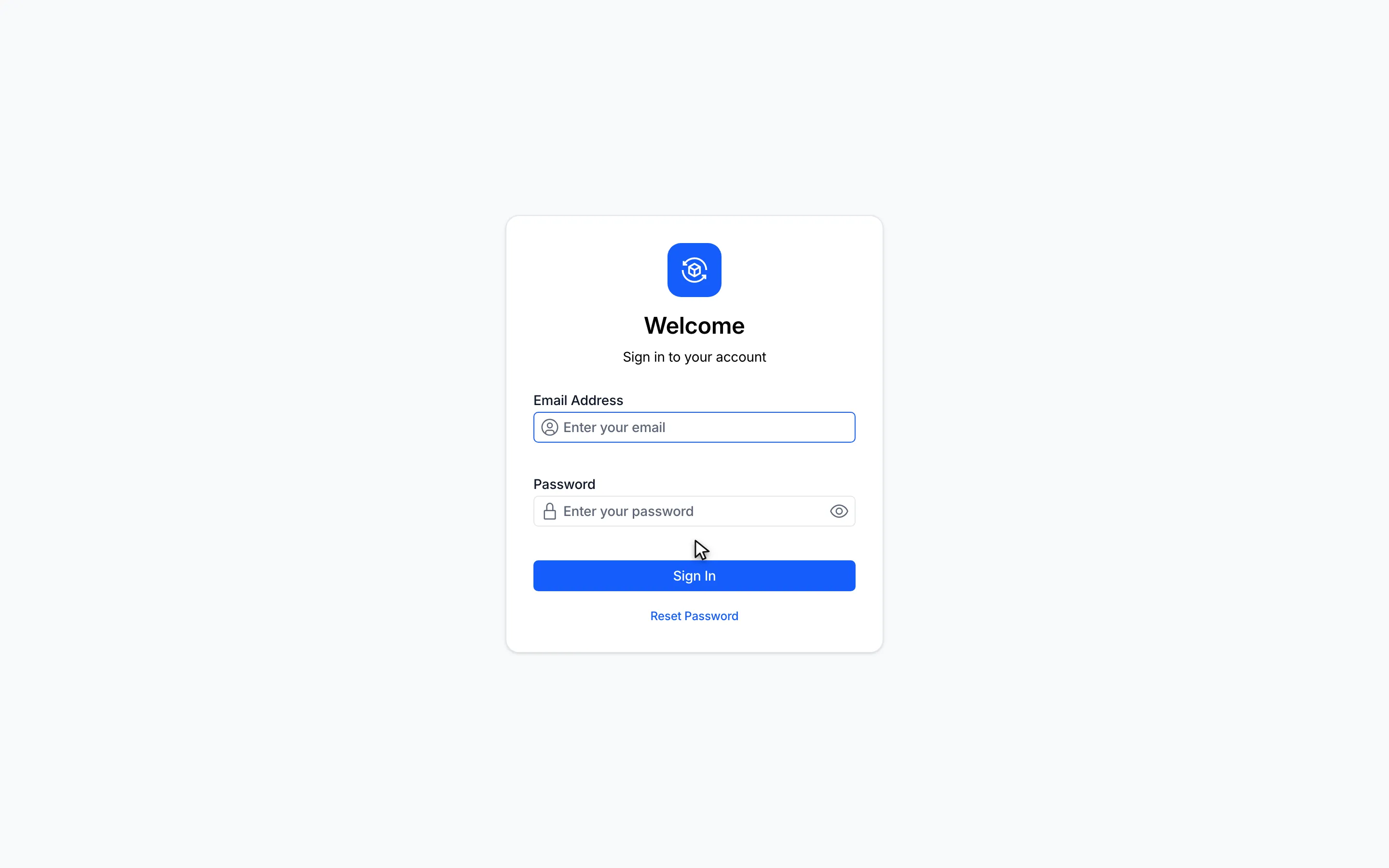
Where things live
Section titled “Where things live”Omni has two places for account tasks.
- The sign-in page. Omni opens it whenever you are not signed in. The page shows Welcome and Sign in to your account. It also hosts Reset Password, for a forgotten password, and Set Your Password, for a new account created from an invitation.
- Settings. Inside Omni, click your name at the bottom of the sidebar. The Settings page has a Profile card with your name, email address and roles, and a Security card where you turn two-factor authentication on or off, manage recovery codes, and add, verify, change or remove a mobile phone number.
Nothing on these pages needs a special permission. Any signed-in person can open Settings. What you can open in the rest of Omni depends on your permissions. See Permissions.
How signing in works
Section titled “How signing in works”- You enter your email address and password on the sign-in page.
- If two-factor authentication is on for your account, Omni asks for a second proof on the Verify Your Identity page: a code from your authenticator app, one of your recovery codes, or a one-time code sent by email or text message.
- Omni opens on the Dashboard, or on the page you were trying to reach.
Omni keeps you signed in while you work. After a period of inactivity it warns you with a Session expiring dialog and then signs you out. Click Sign out at the bottom of the sidebar to leave at any time.
How-to pages
Section titled “How-to pages”| Task | Page |
|---|---|
| Sign in with your email address and password, and understand the messages you might see | Sign in |
| Complete the second step at sign-in with an authenticator code, a recovery code or a one-time code | Verify your identity with two-factor authentication |
| Request a reset email and choose a new password | Reset your password |
| Create your first password from an invitation link | Set your password from an invitation |
| Find your way around the Settings page | View your profile and security settings |
| Turn two-factor authentication on or off and regenerate recovery codes | Set up two-factor authentication |
| Add, verify, change or remove the mobile number on your profile | Add, verify, change or remove your phone number |
| Sign out, and stay signed in when your session is about to expire | Sign out and stay signed in |