Build a cart
A cart collects the products you intend to quote or order, each with a quantity and a unit price. Build it from the Product Catalog, adjust it on the Shopping Cart page, and then hand it over to a quote or sales order.
- In the sidebar, open Commerce and choose Product Catalog, then find the product (see Browse and search the catalog).
- Click the add-to-cart button at the start of the product’s row. A message confirms, for example Makita 18V LXT Impact Driver added to cart., and the number on View Cart goes up by one.
- Click View Cart (or the cart icon in the top bar) to open the Shopping Cart.
- To change a quantity, click − or +, or click the quantity field, type a whole number and press Enter.
- To override a unit price, click the PRICE field, type the new price and press Enter.
- To remove a line, click the red trash icon in the ACTIONS column. The line disappears at once and a message reads, for example, Bosch 18V Reciprocating Saw removed from cart. with an Undo link.
- Click Undo in the message to put the line back with its previous quantity and price.
- Click Add More Products to return to the catalog. The cart keeps everything you have added.
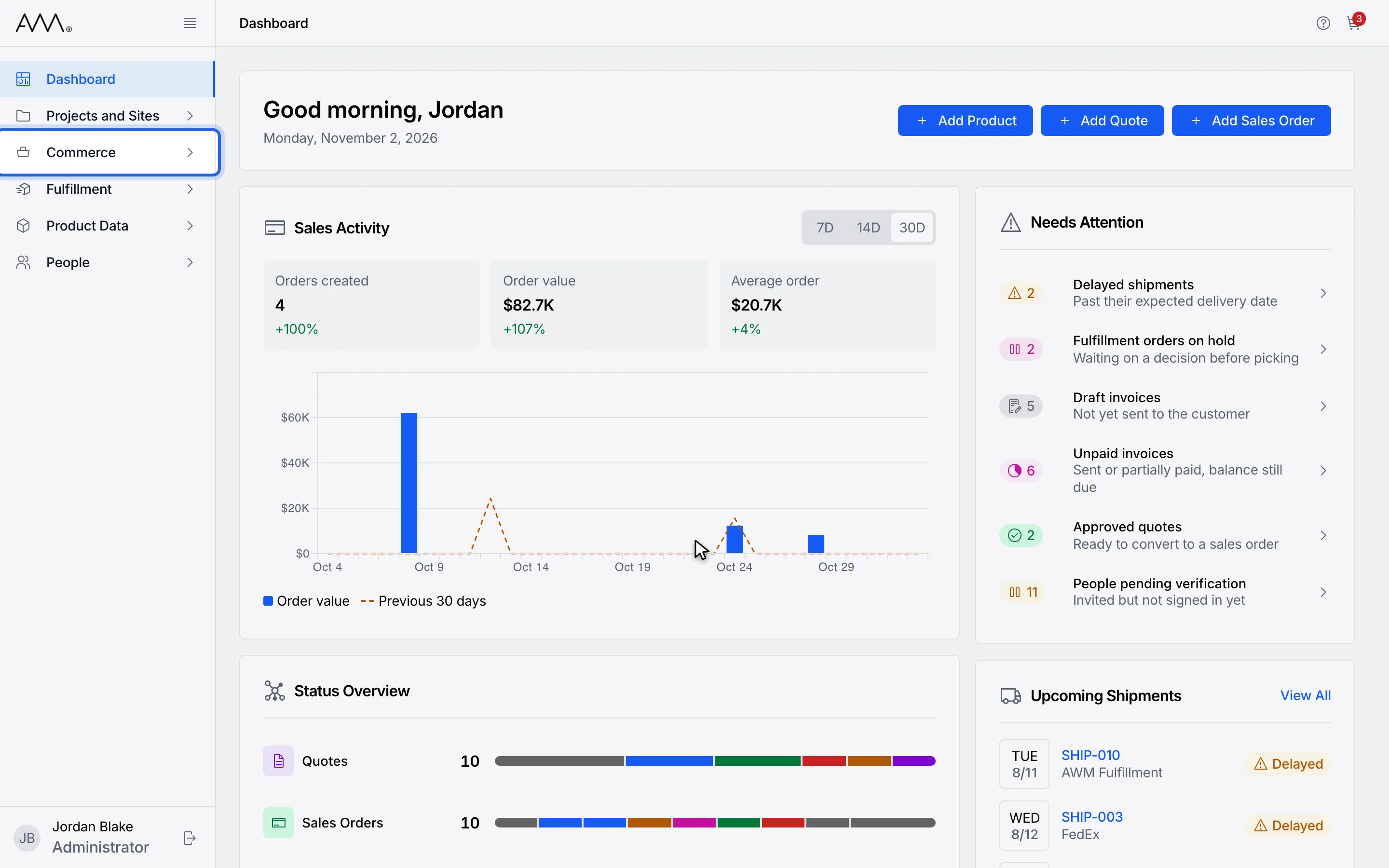
1In the sidebar, open Commerce.
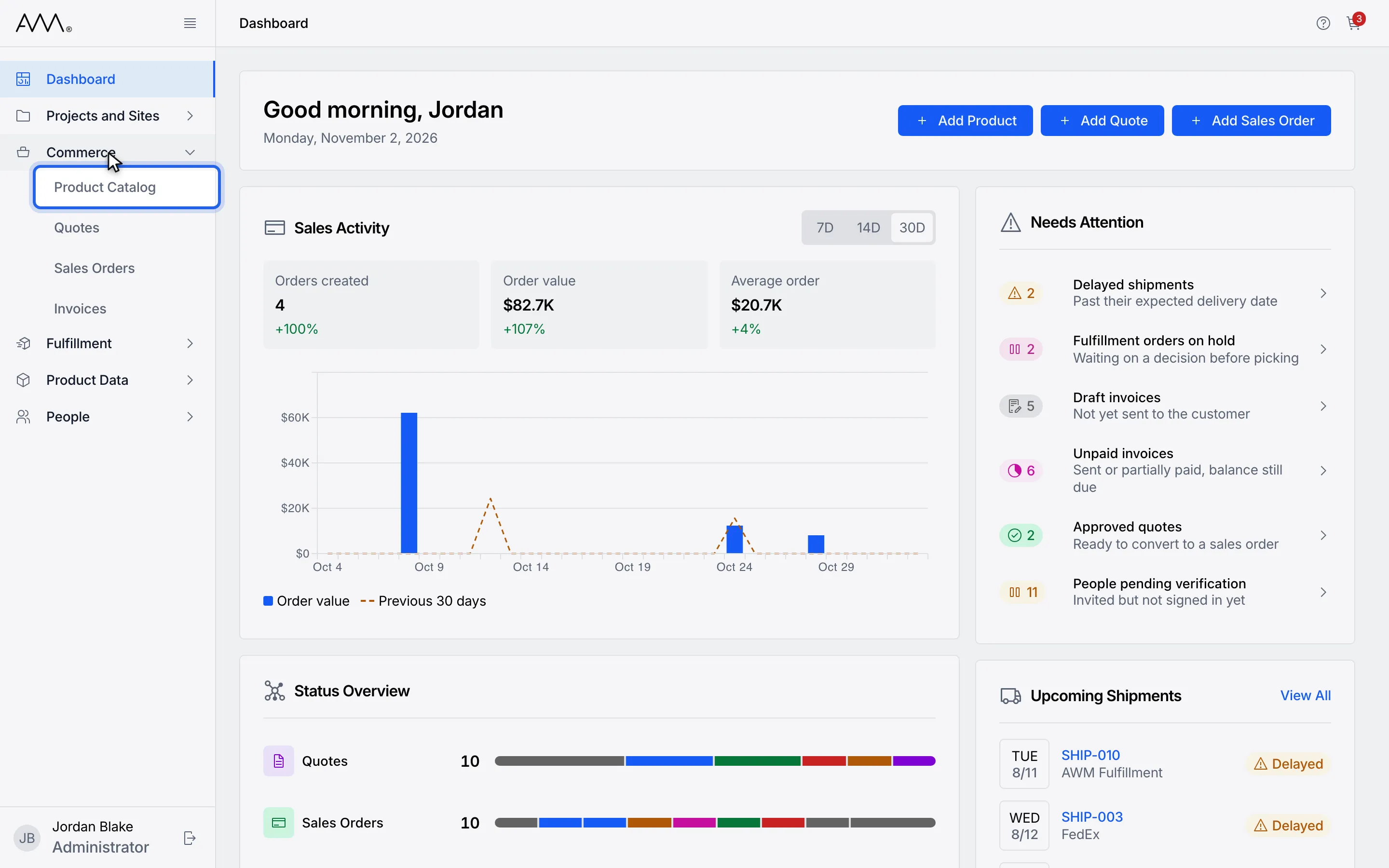
2Choose Product Catalog.
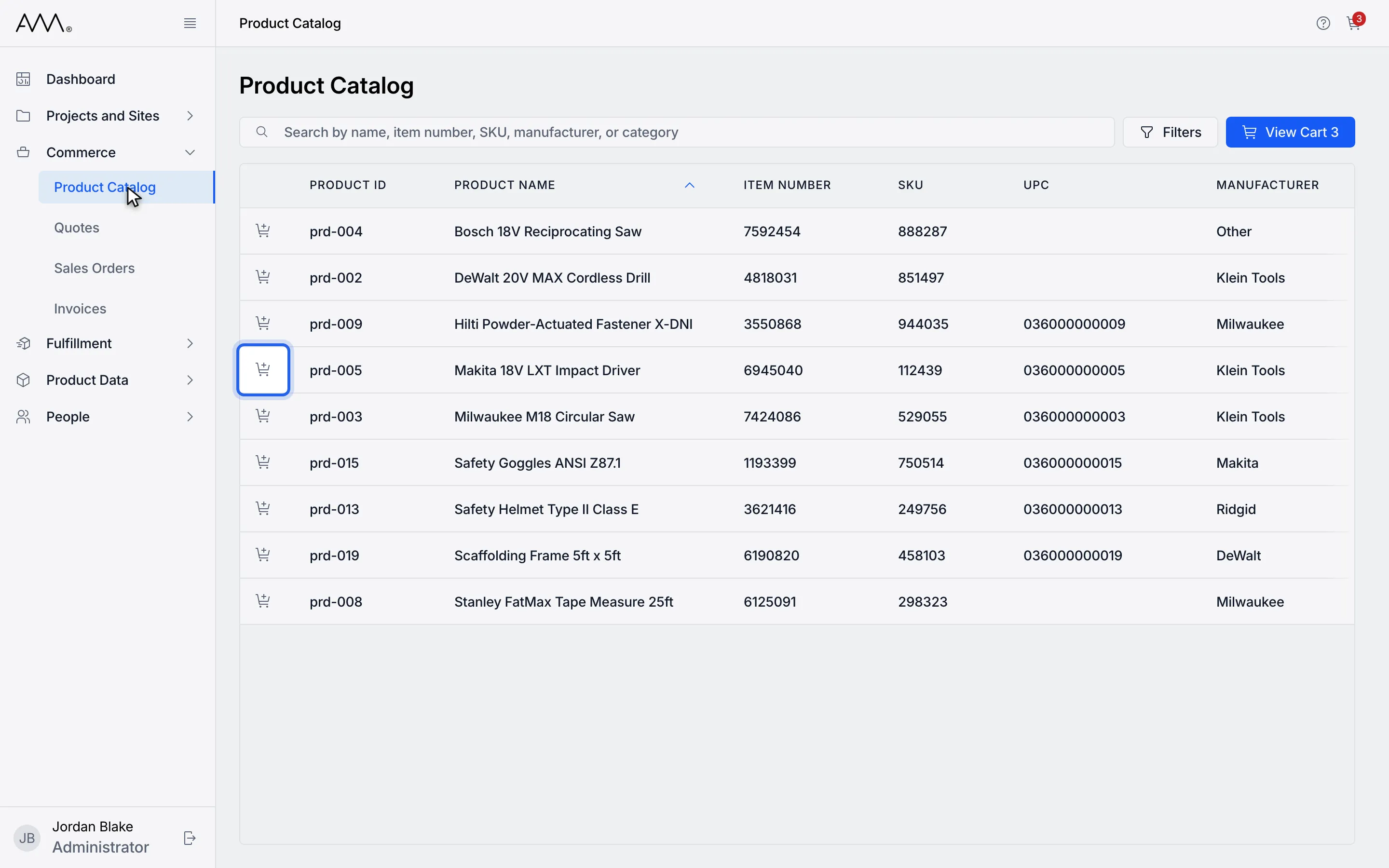
3Click the add-to-cart button at the start of a product row.
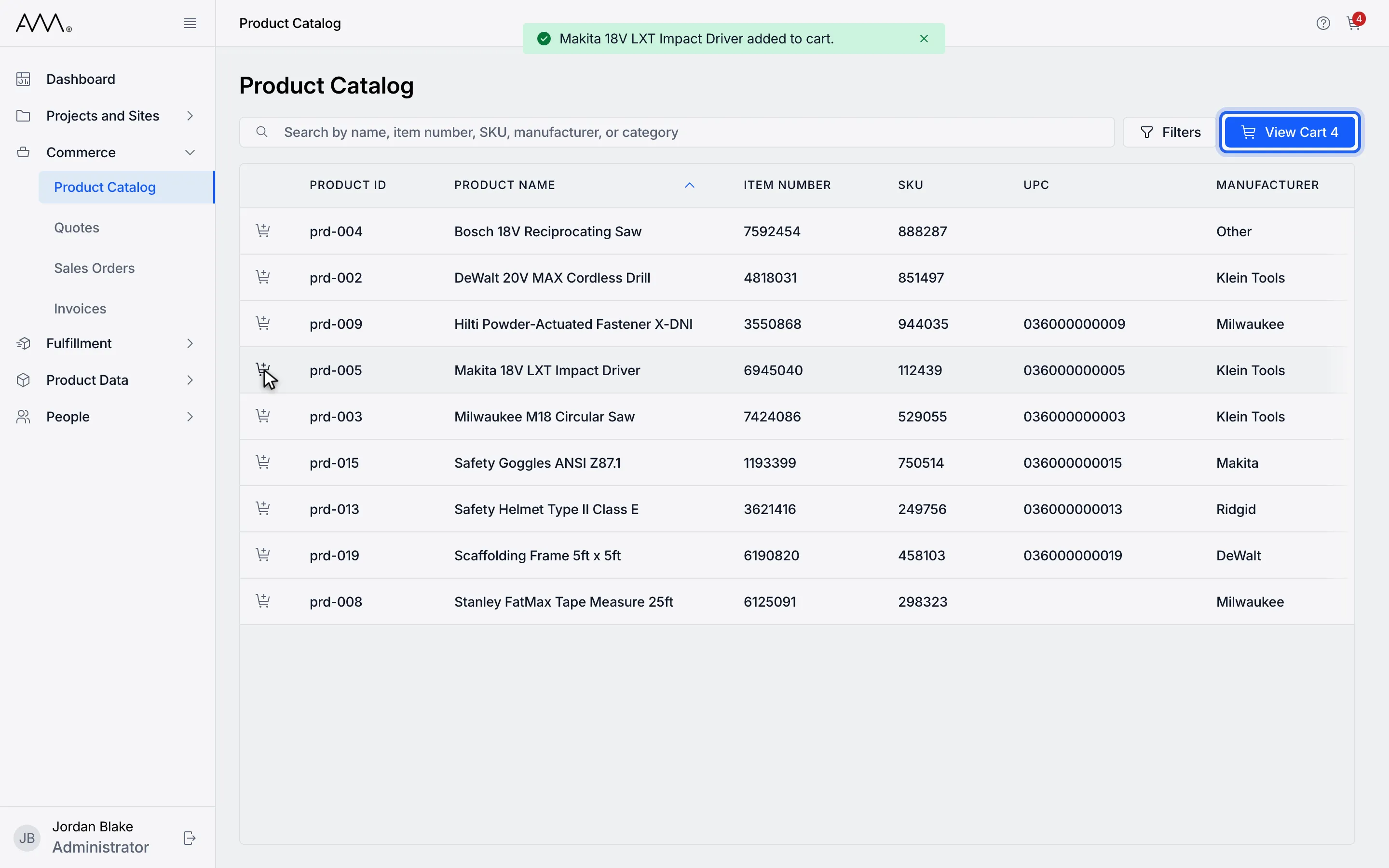
4Click View Cart to open the Shopping Cart. The number is how many products it holds.
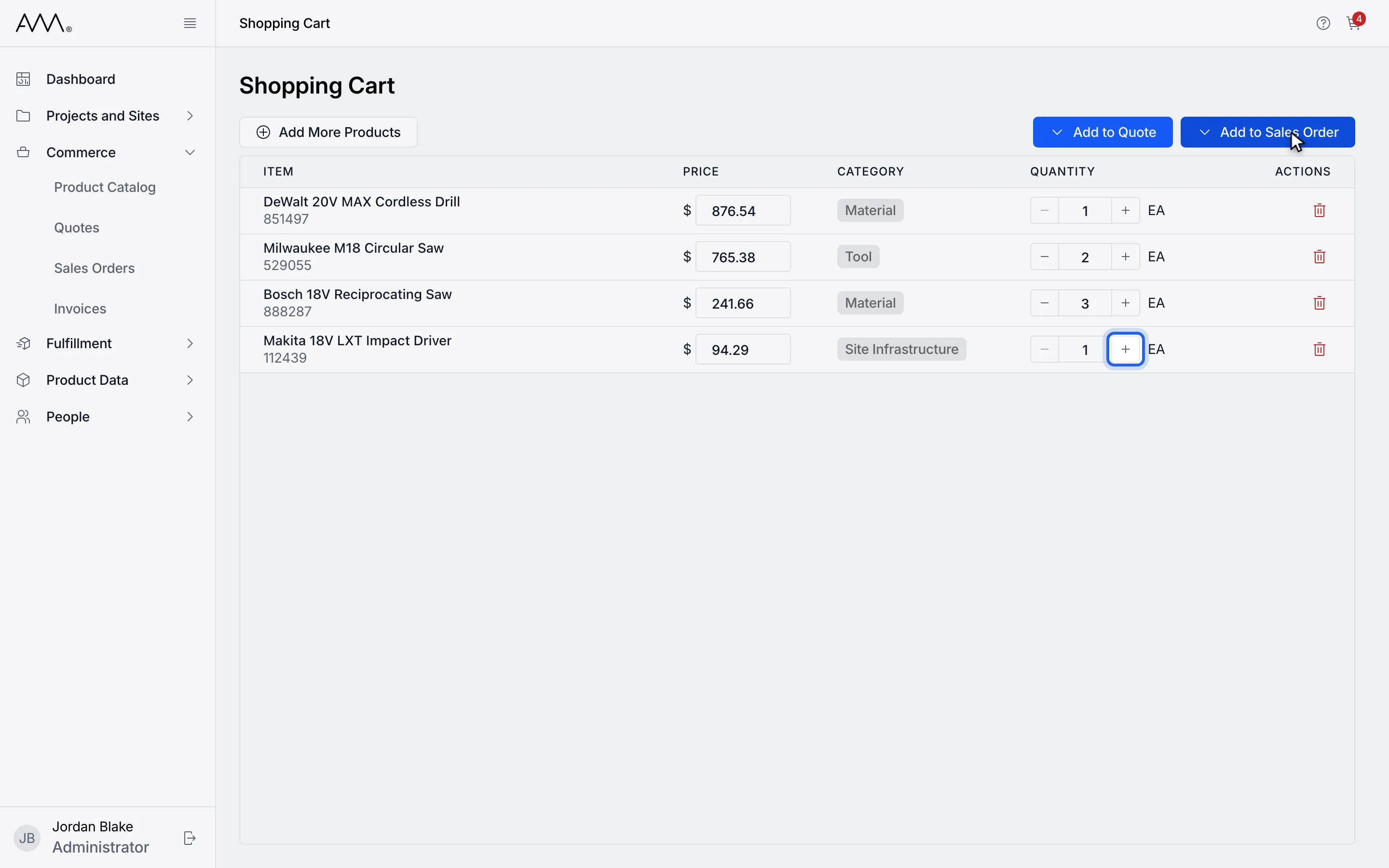
5Click + or − to change a quantity, or type a number and press Enter.
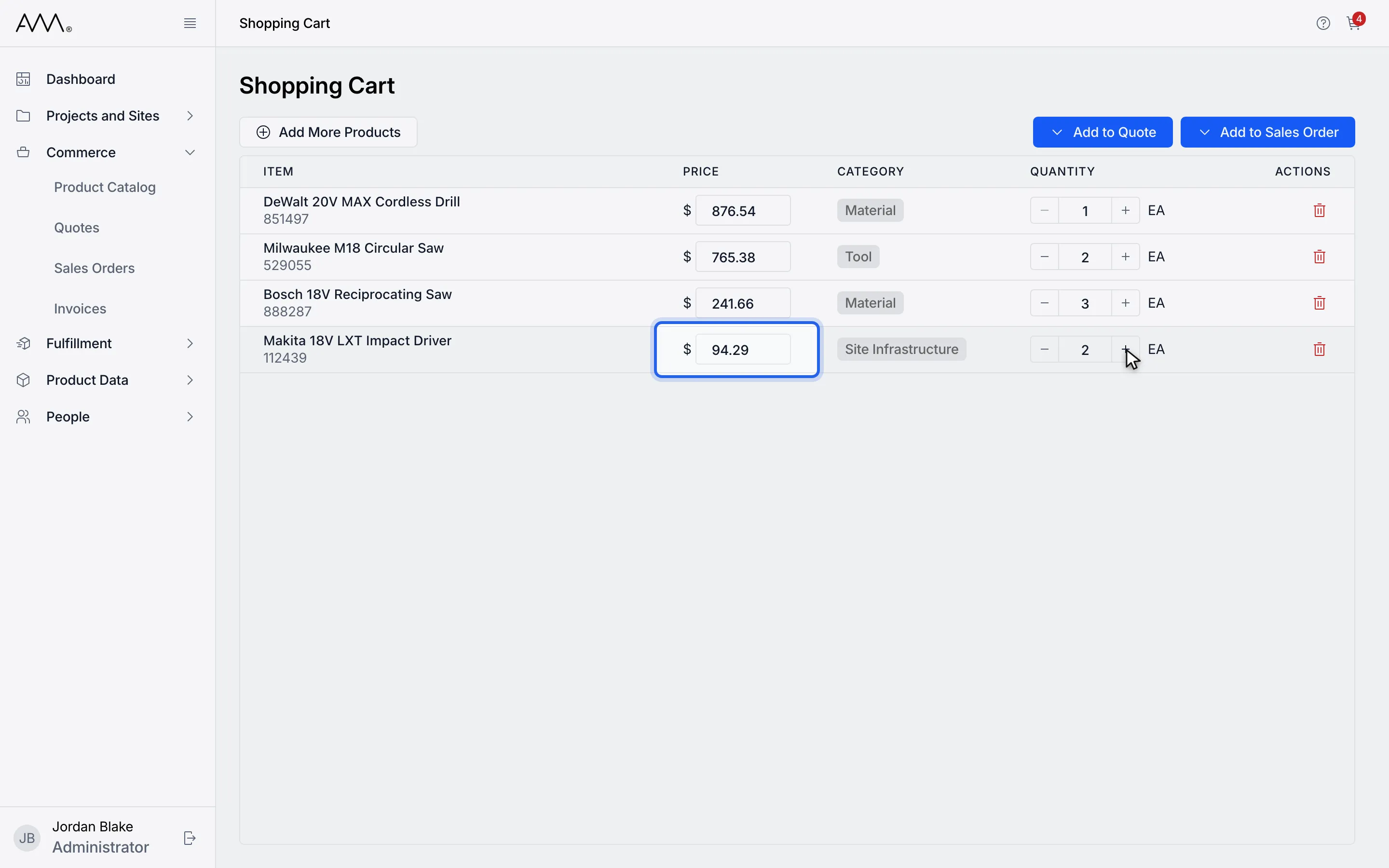
6To override the unit price, type a new price and press Enter.
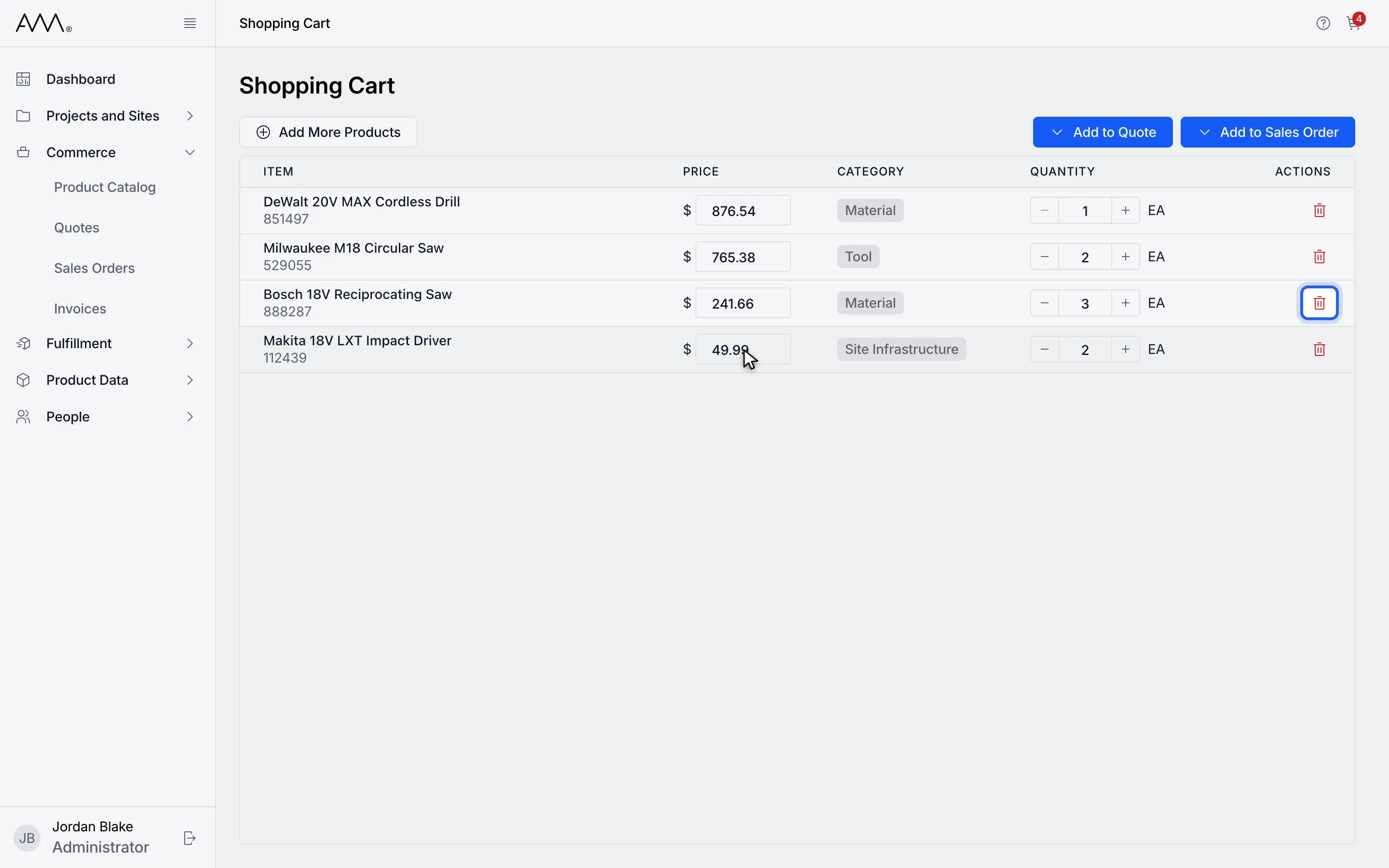
7Click the trash icon in ACTIONS to remove a line.
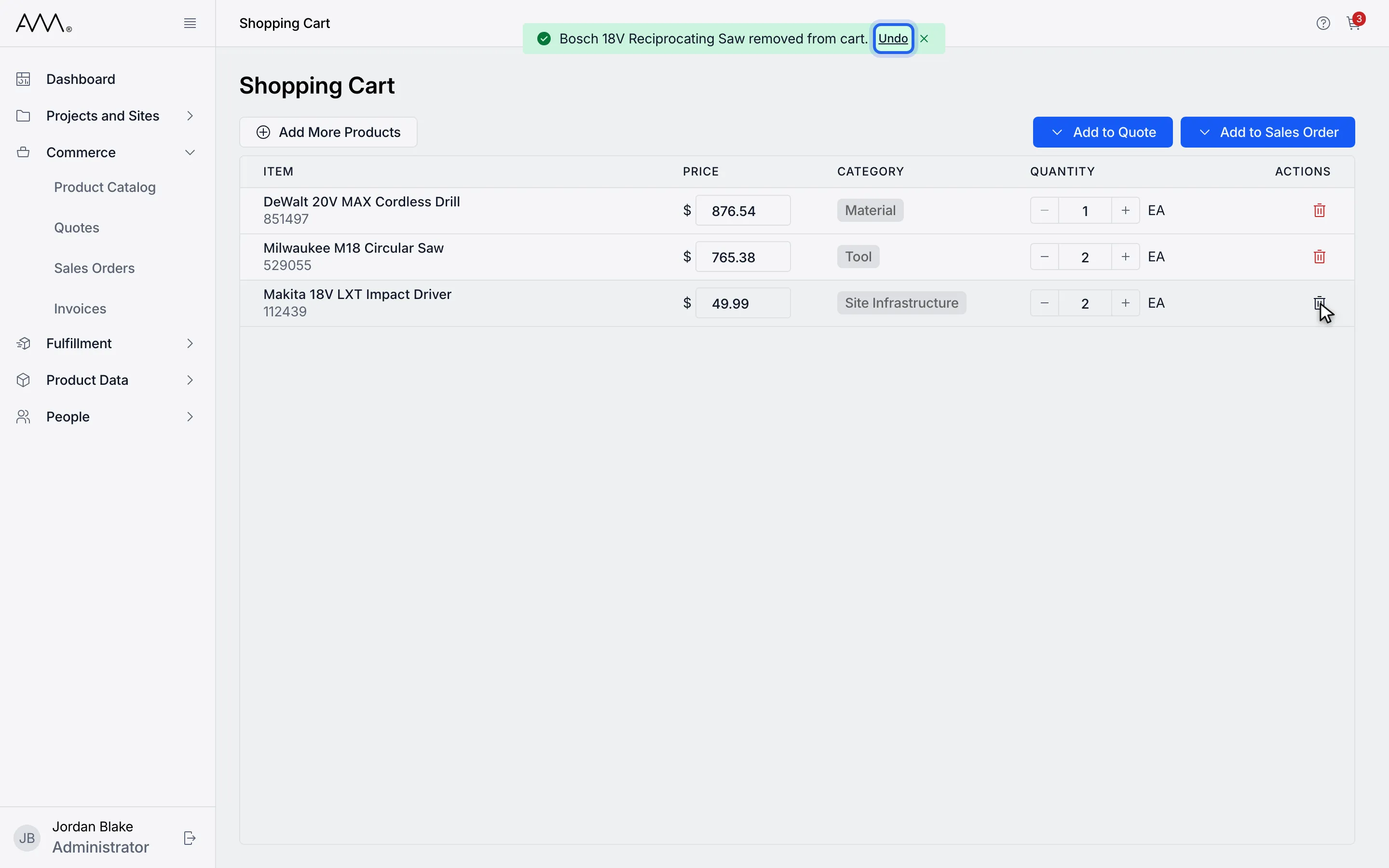
8Click Undo in the message to put the line back.
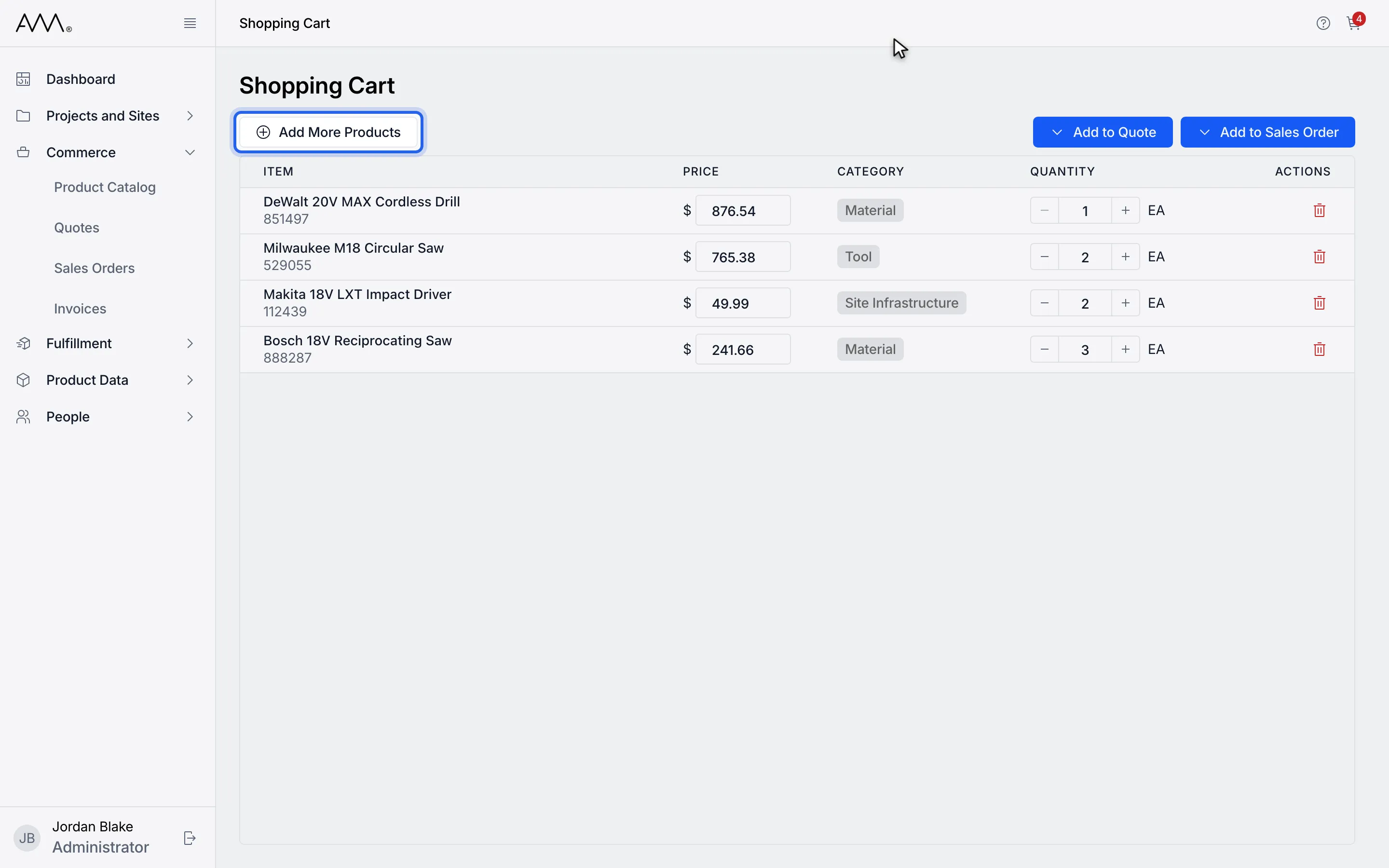
9Click Add More Products to return to the catalog. The cart keeps its lines.
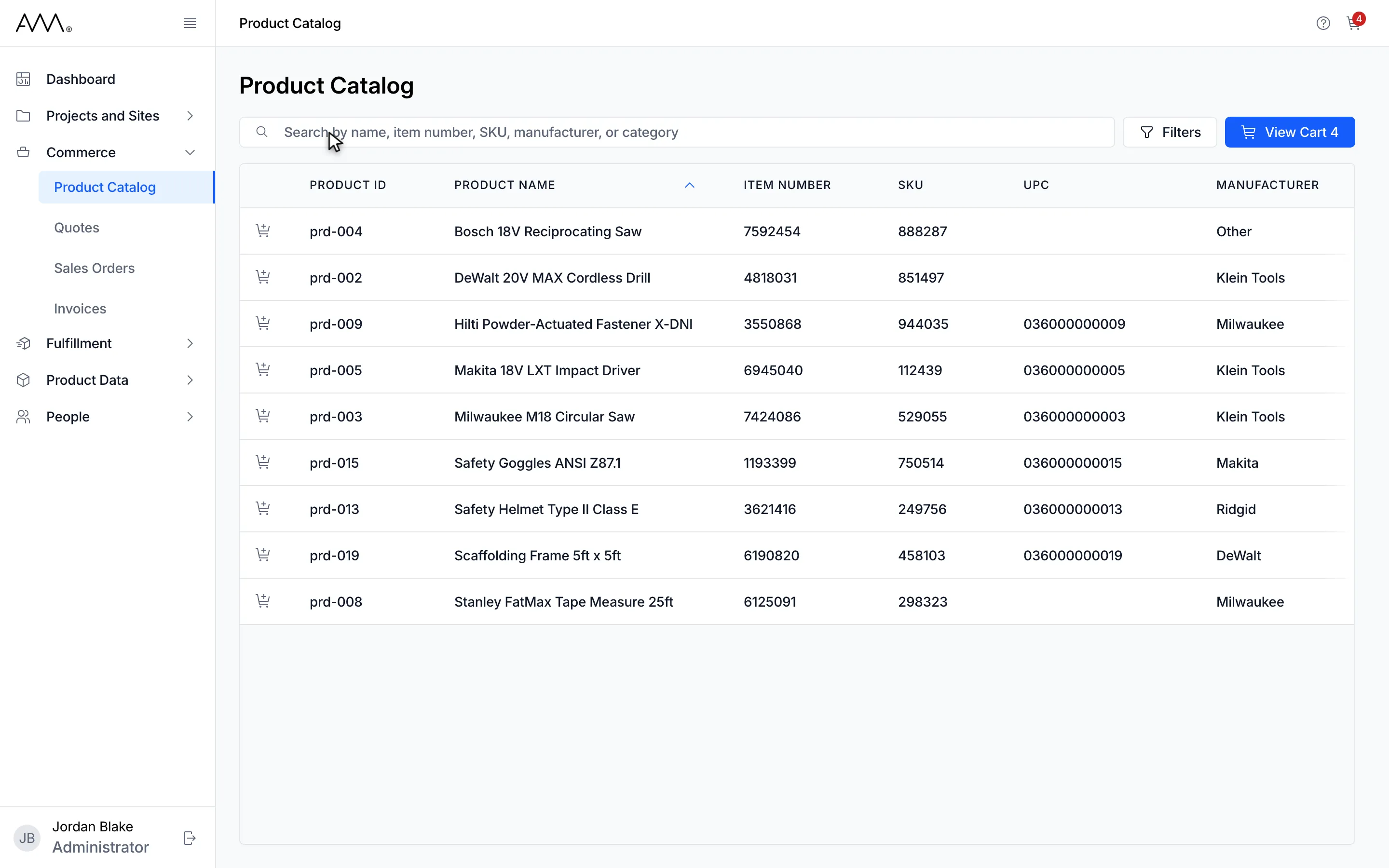
10The catalog opens again. The cart keeps its products, quantities and prices.
Watch this as a video (build a cart)
Rules for prices and quantities
Section titled “Rules for prices and quantities”| Field | Rule |
|---|---|
| QUANTITY | A whole number of 1 or more. − is disabled at 1; use the trash icon to remove the line instead. A blank, a fraction or a value below 1 is ignored and the previous value comes back. |
| PRICE | 0 or more, in US dollars, rounded to 2 decimal places when you commit it, with halves rounded up (1.005 becomes 1.01). An invalid entry goes back to the previous value. |
No message is shown when an entry is rejected. Clicking into either field selects its whole value, so you can type over it. A valid value shows immediately, and the row’s controls are locked for a moment while it is saved; if it cannot be saved it reverts and you see Could not update the quantity. Please try again. or Could not update the price. Please try again. A price you override here is carried into the quote or sales order as that line’s unit price.
Other things to know
Section titled “Other things to know”- There is no confirmation before a line is removed; Undo is the way back. If a removal fails the line is restored and you see Could not remove the item. Please try again.; if Undo fails you see Could not restore the item. Please try again.
- Click ITEM, PRICE, CATEGORY or QUANTITY to sort the cart; click again to reverse the order.
- The number on View Cart and on the cart icon is the number of different products, not the total quantity.
- The cart is reloaded every time you open it, so names and prices are always current.
- An empty cart reads Your cart is empty and Browse the product catalog to add items., with an Add More Products button.
- If adding a product fails you see Could not add the item. Please try again. If the cart cannot be loaded you see Could not load your cart. Please try again.; reload the page.