Edit a company
Edit a company to rename it, change its status or types, or keep its addresses up to date. The same dialog is where you set a company Inactive, or Active again.
- Open the company from the Companies list. You can also click the edit icon on its row or card to open the dialog directly.
- Click Edit in the page header. The Edit Company dialog opens with the current details.
- To set the company Inactive, or Active again, choose it in Status.
- To add a type, open Types and choose one, then click anywhere outside the list to close it. To remove one, click the x on its tag.
- To add an address, click Add Address, choose the type and type the address. To remove one, click its remove icon. You can also change the Name.
- Click Save Changes. The button stays disabled until something has changed and the form is valid.
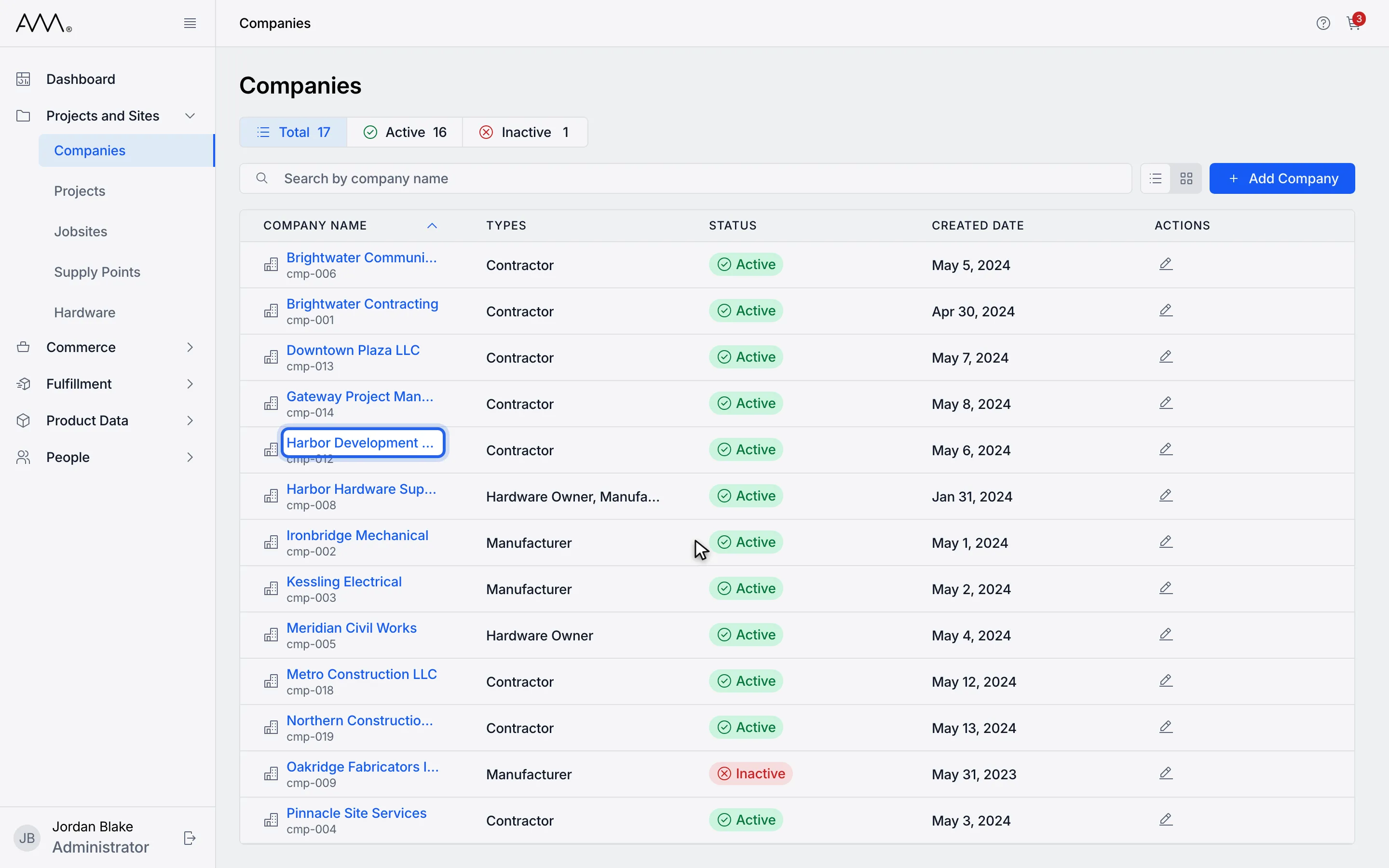
1Open the company.
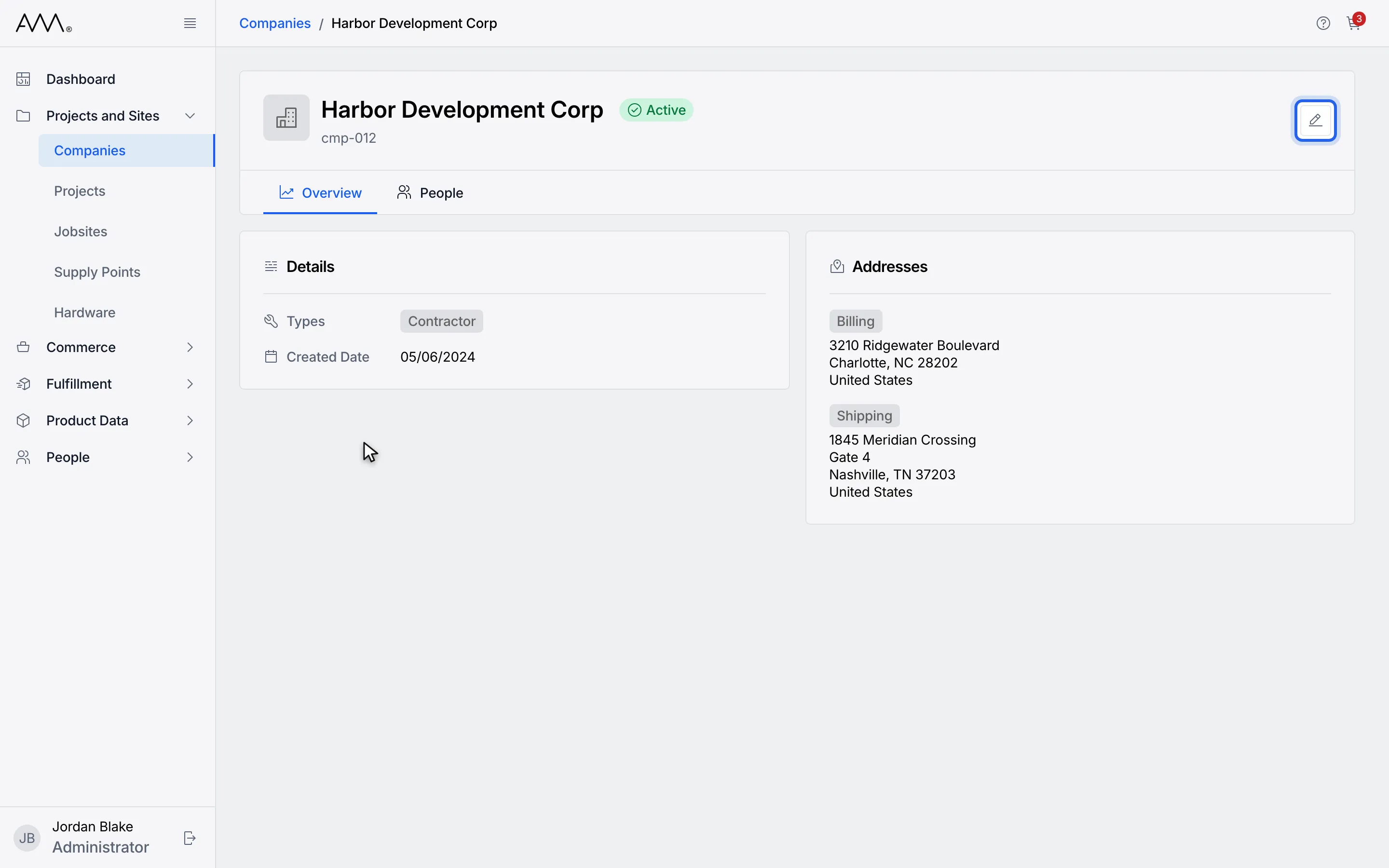
2Click Edit in the page header.
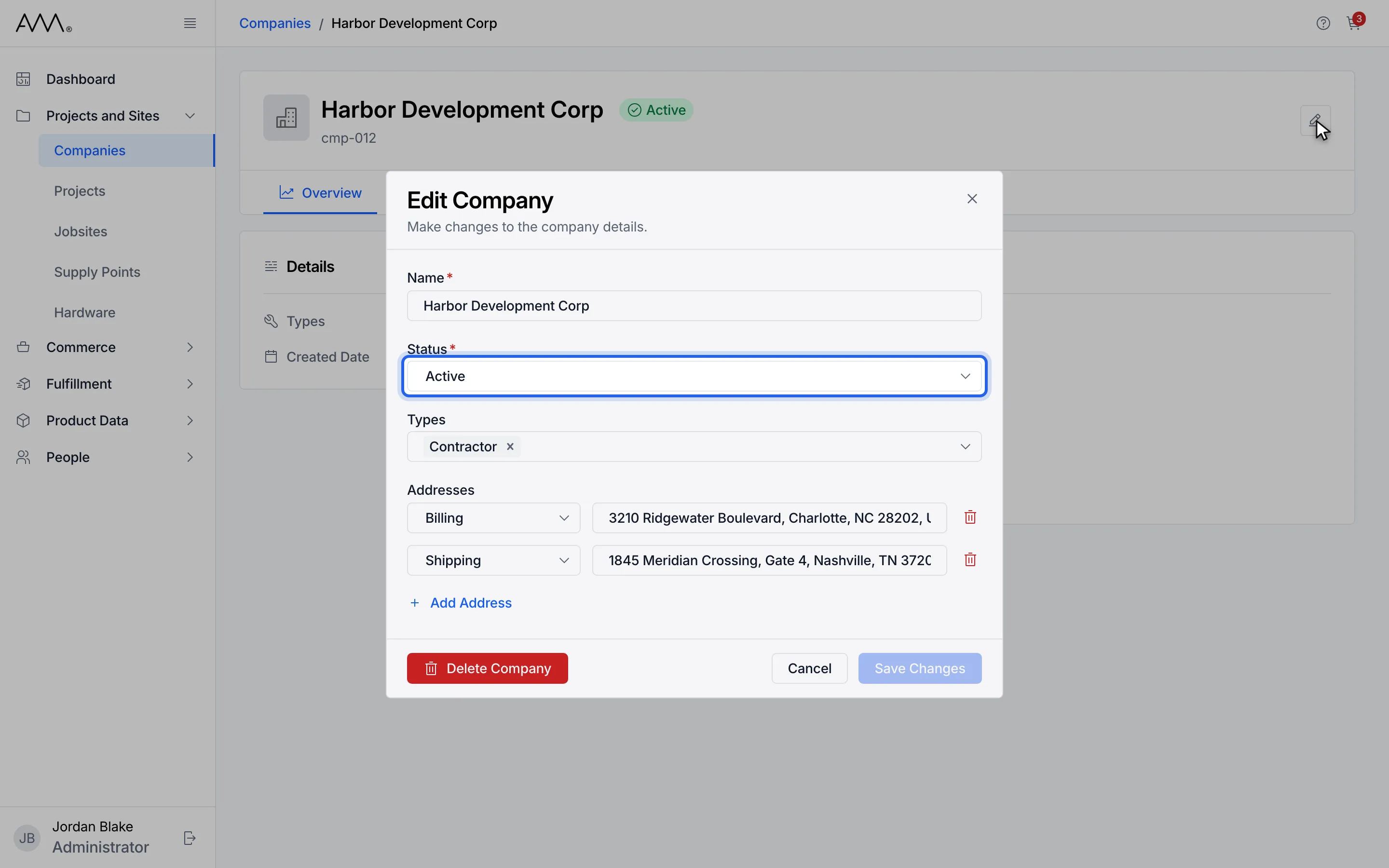
3Use Status to set the company Inactive, or Active again.
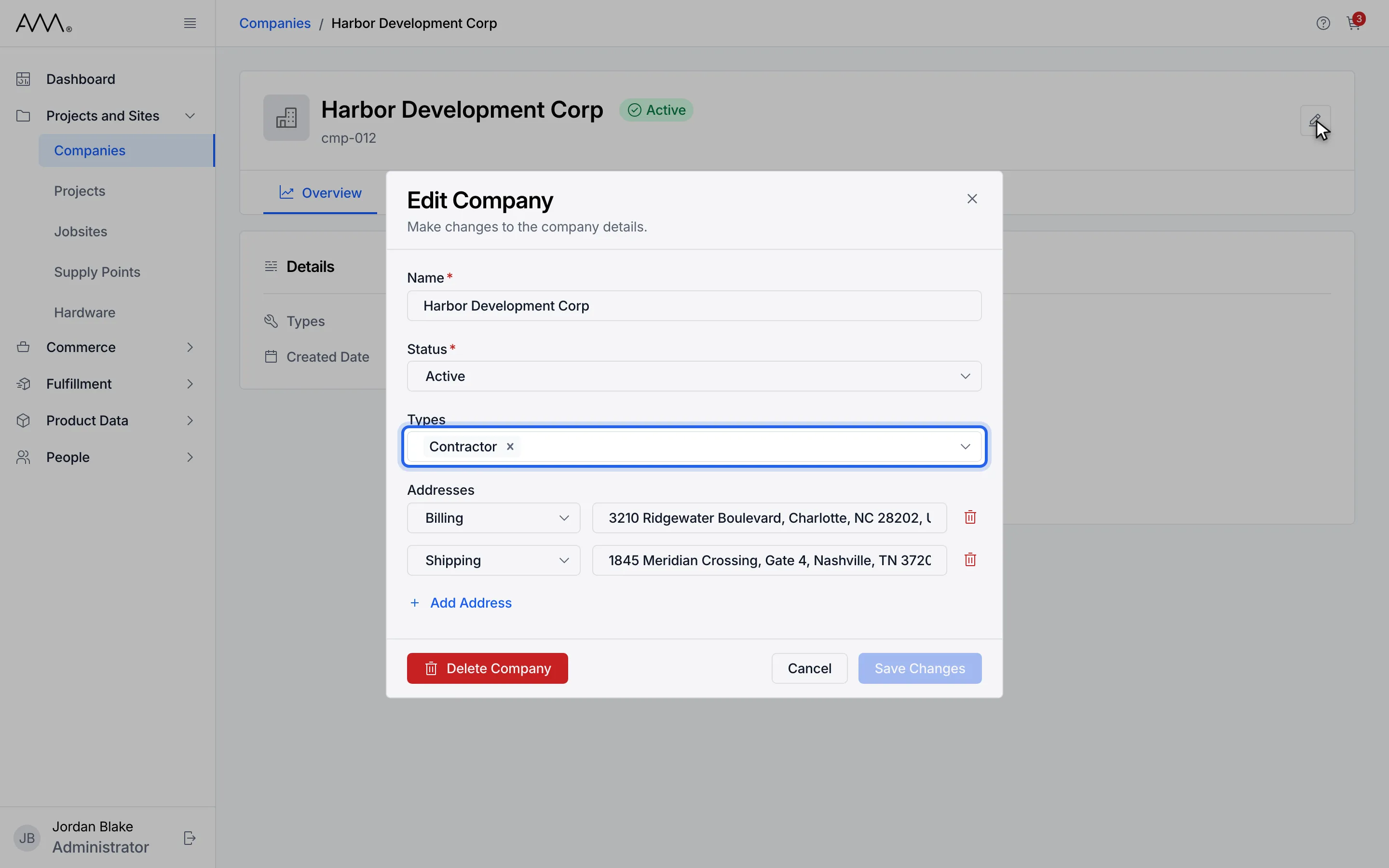
4Open Types to add or remove one.
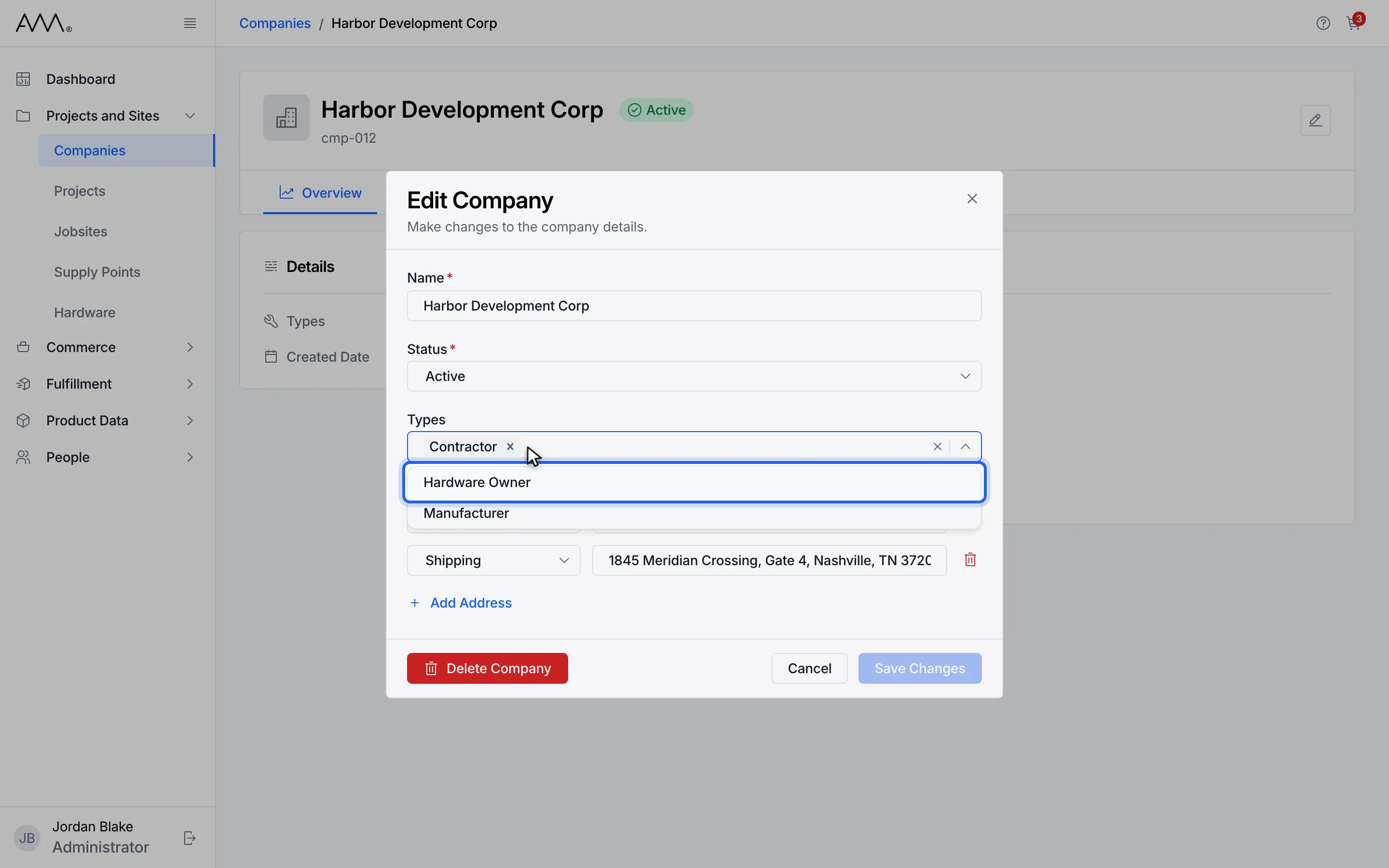
5Choose a type.
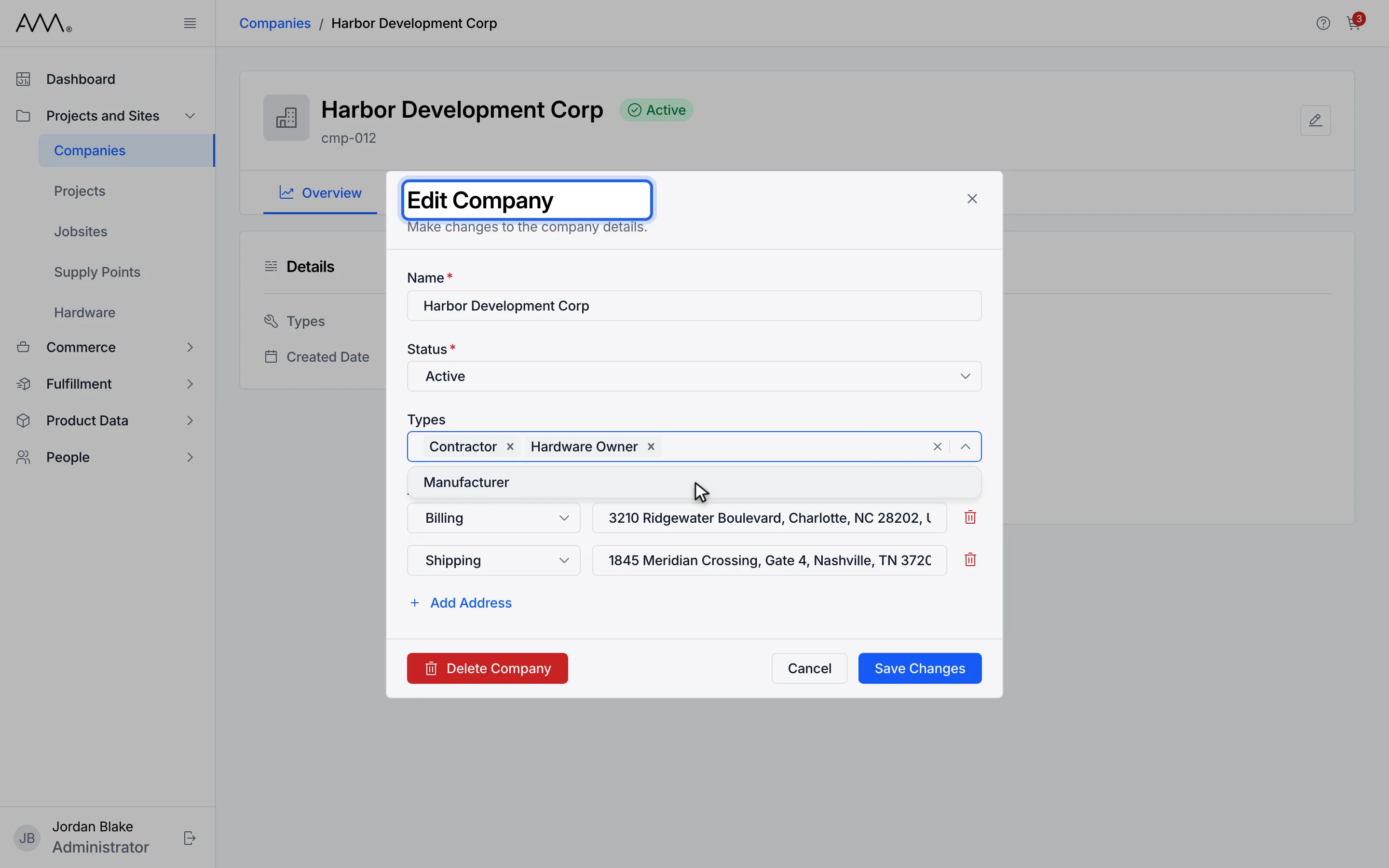
6Click anywhere outside the list to close it.
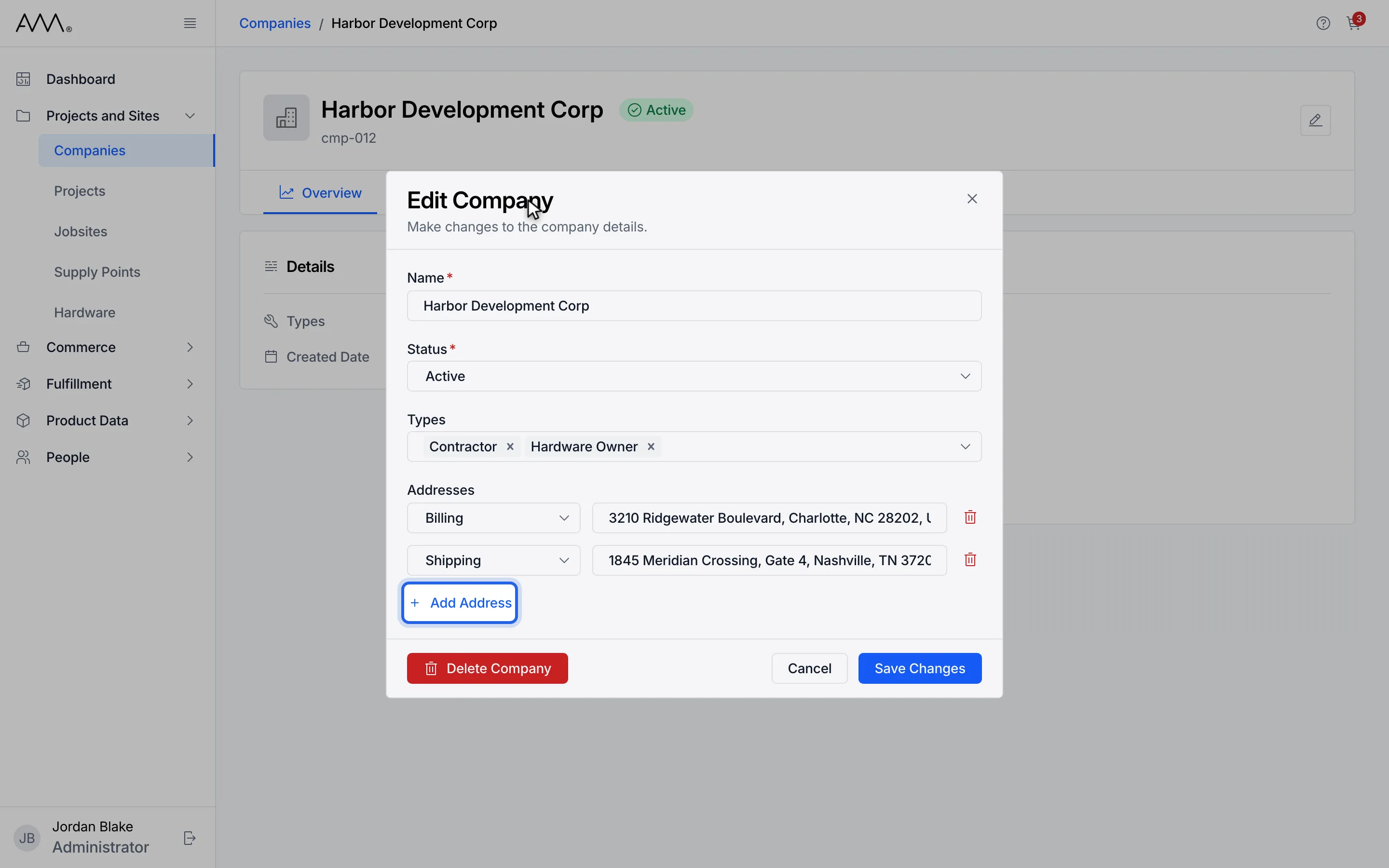
7Click Add Address to add an address.
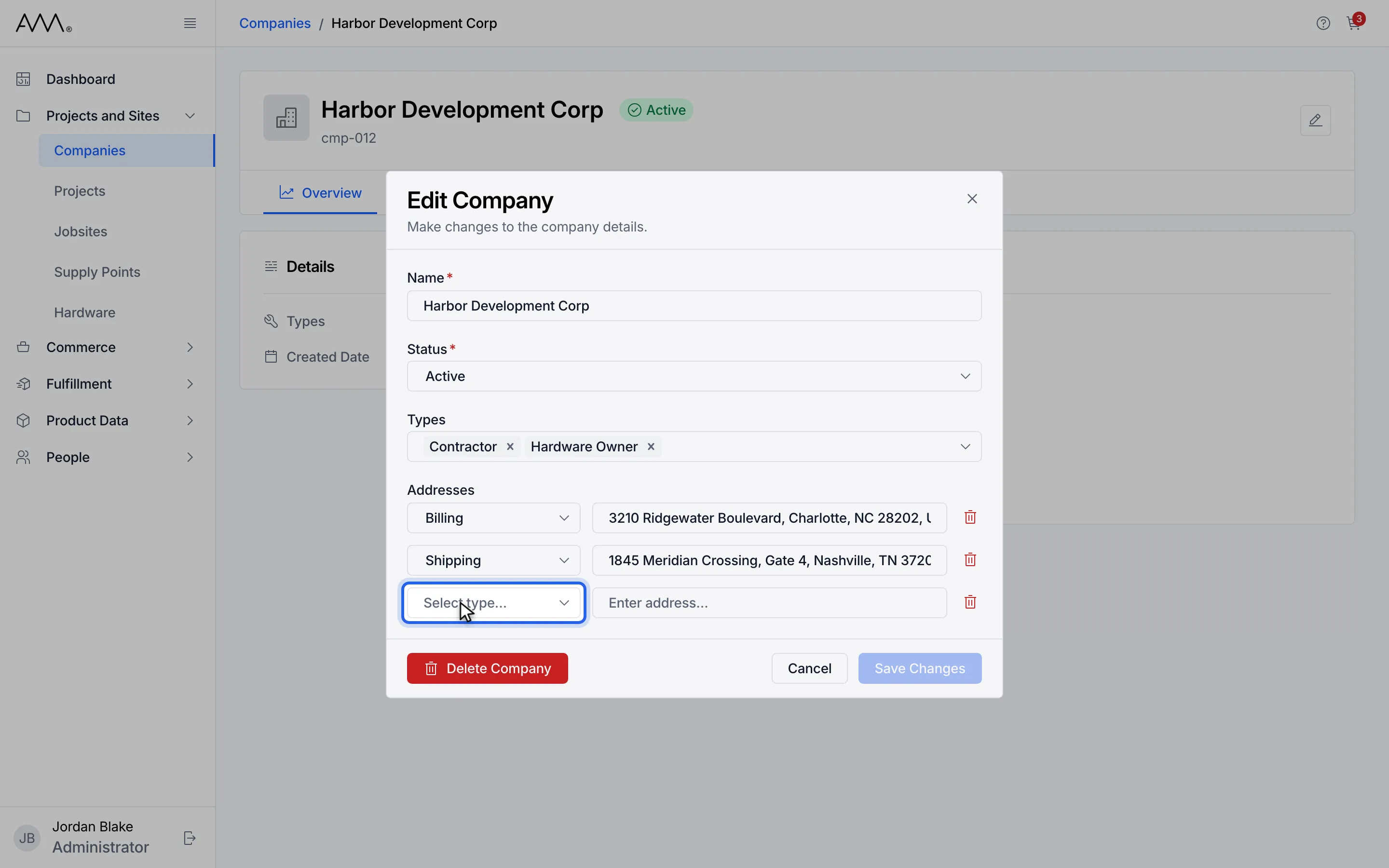
8Choose the address type.
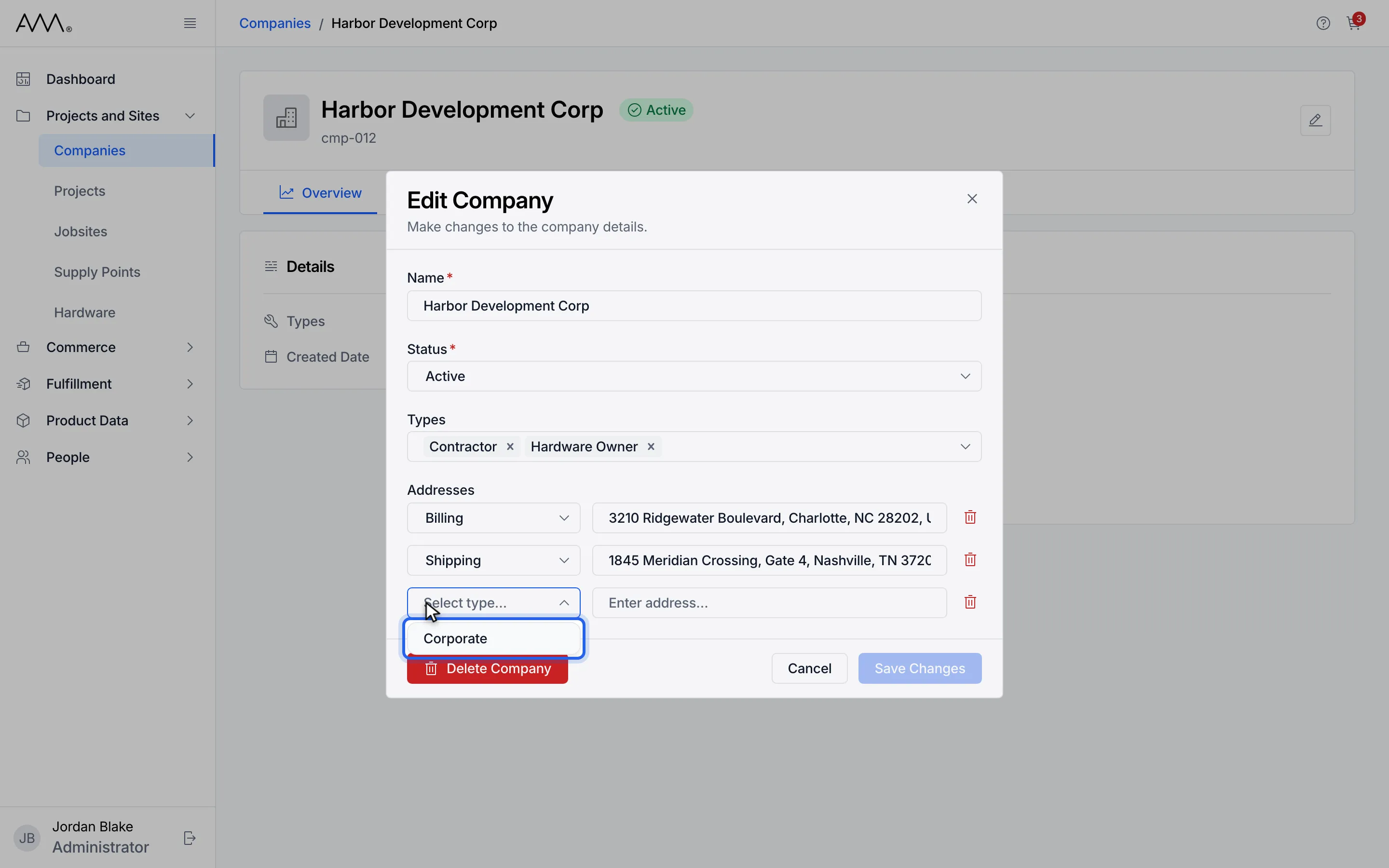
9Choose Corporate.
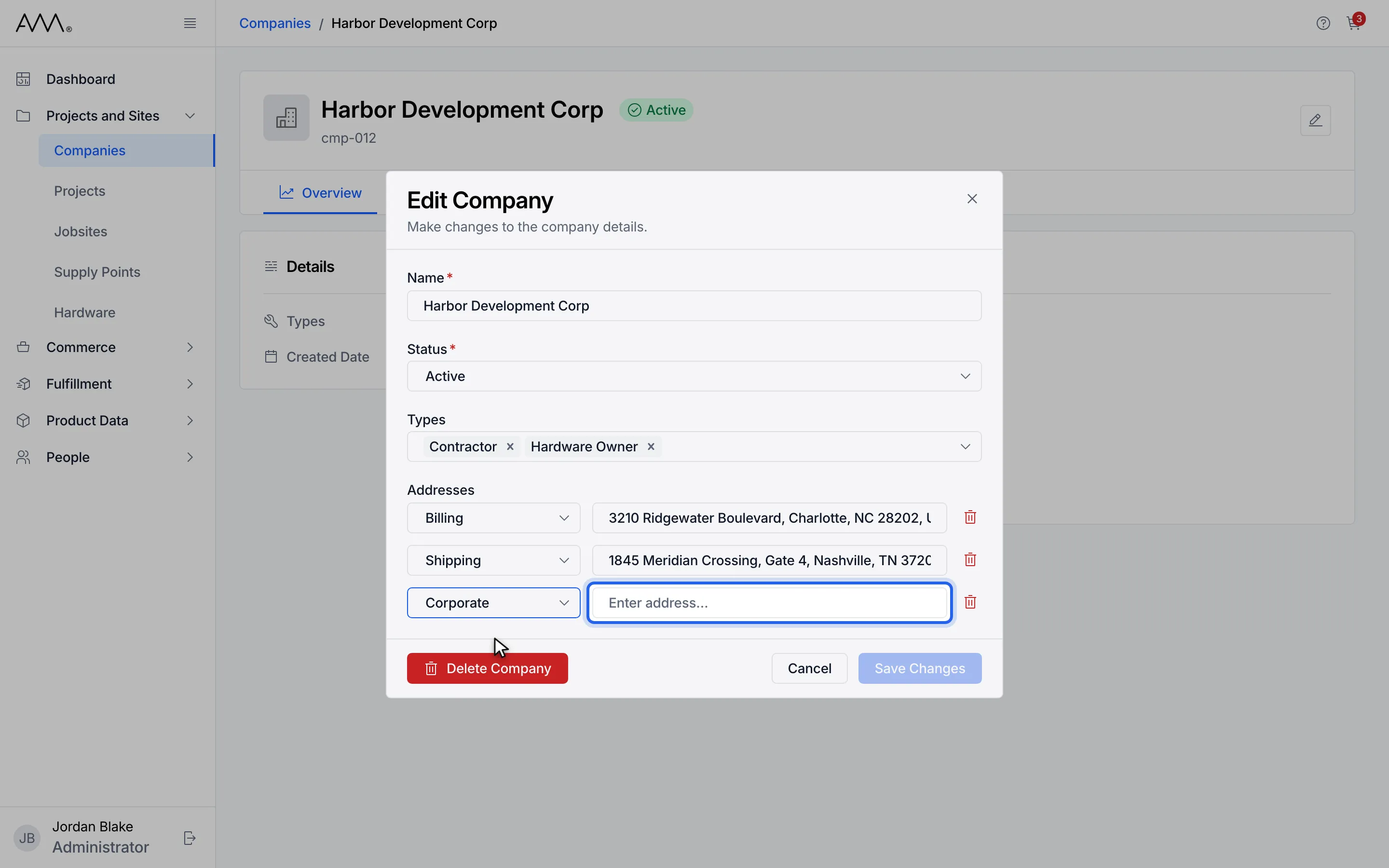
10Enter the address.
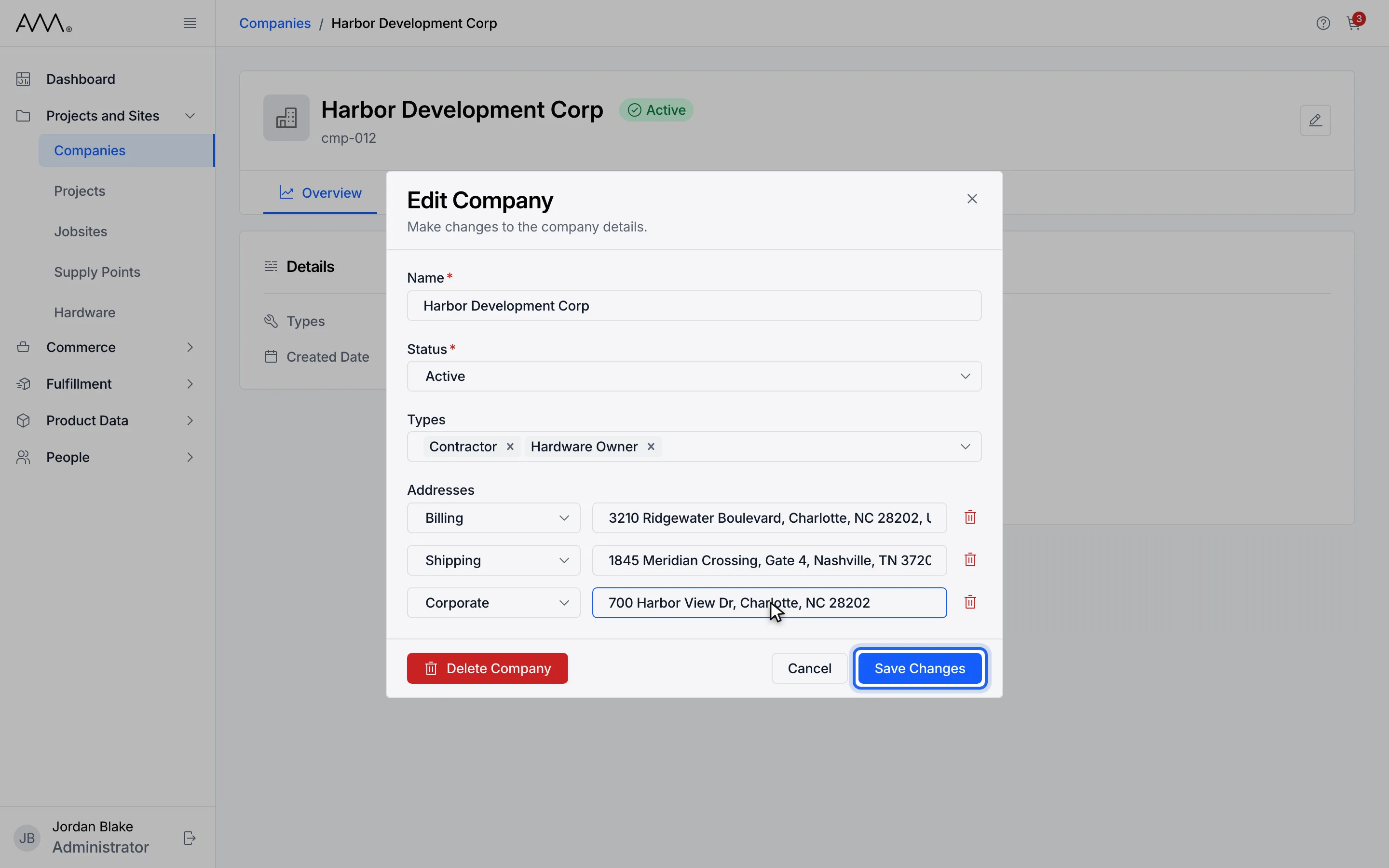
11Click Save Changes.
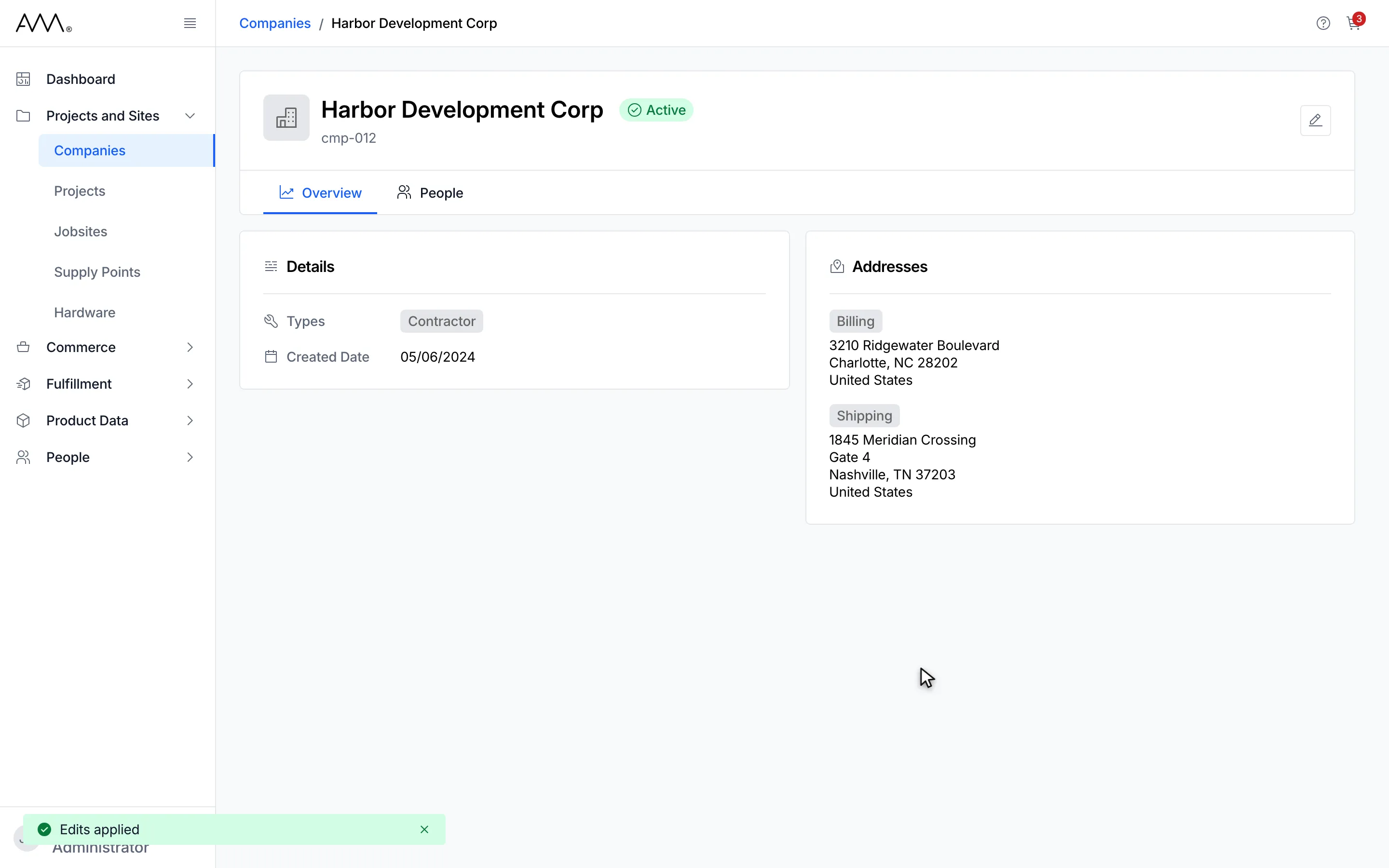
12Omni shows Edits applied and closes the dialog.
Watch this as a video (edit a company)
What happens next
Section titled “What happens next”Omni shows Edits applied, closes the dialog and refreshes the list and the company page.
An inactive company keeps its edit icon and its People tab works as usual. It is only left out when you choose a company in a new record, such as a person, project or quote.
If the new name is already in use, the dialog shows A company with this name already exists. under Name. If you saved without changing anything, Omni shows No changes to save — update at least one field. For any other problem it shows Couldn’t save company. Please try again.