Finding your way around
Every page in Omni has the same frame: a sidebar on the left, a top bar with breadcrumbs, the Help icon and the cart icon, and the page itself in the middle. Once you know these parts you can find anything.
The Dashboard
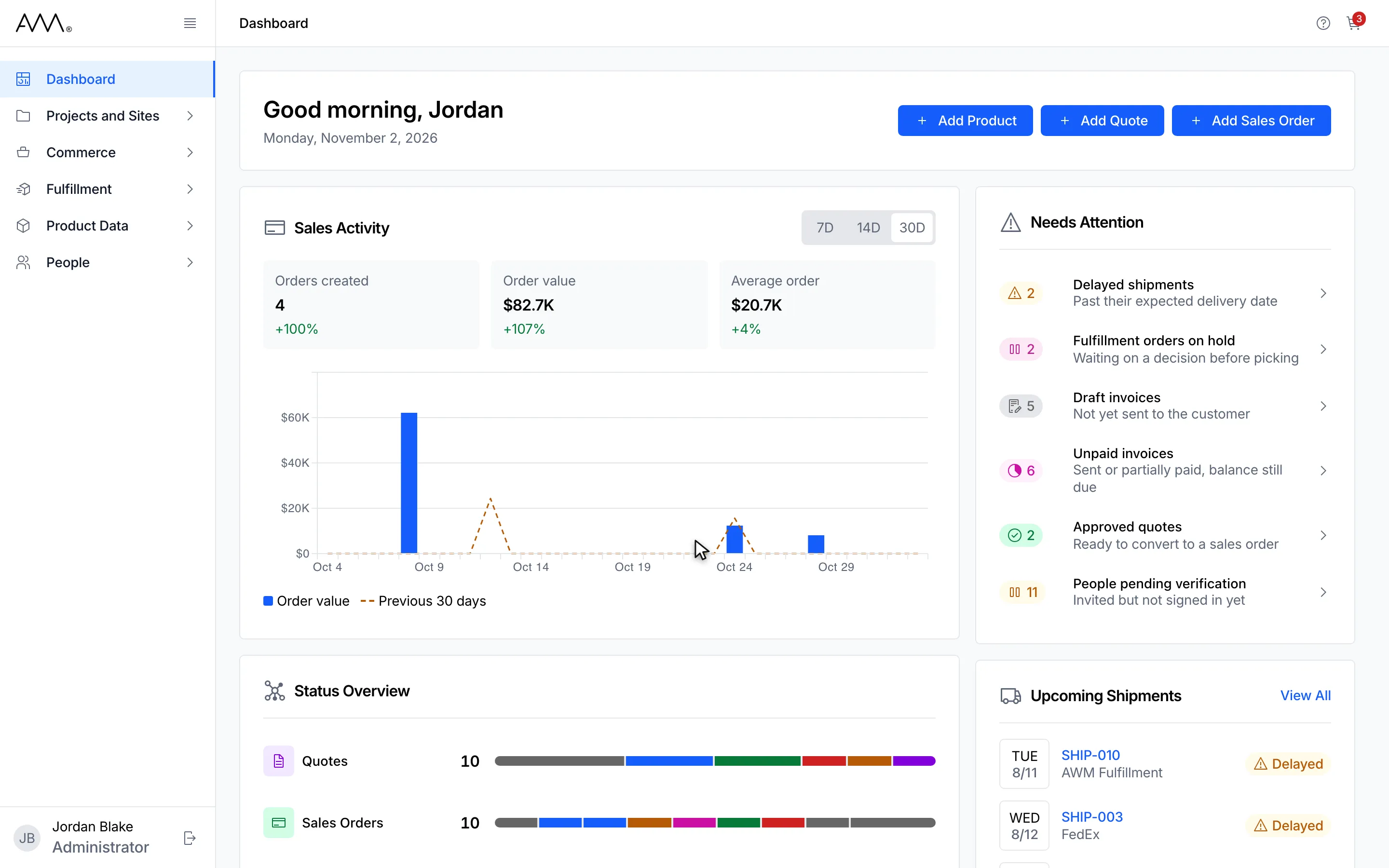
Section titled “The Dashboard”The Dashboard is the first item in the sidebar and the page you land on after signing in. It greets you, offers quick actions and shows sales activity, status counts, what needs attention and upcoming shipments. Each card is explained in The Dashboard.
The sidebar
Section titled “The sidebar”The sidebar lists the Dashboard and five groups. Each group opens to show its items. The labels are exactly as they appear in Omni.
| Group | Items |
|---|---|
| Dashboard | (no items, opens the Dashboard) |
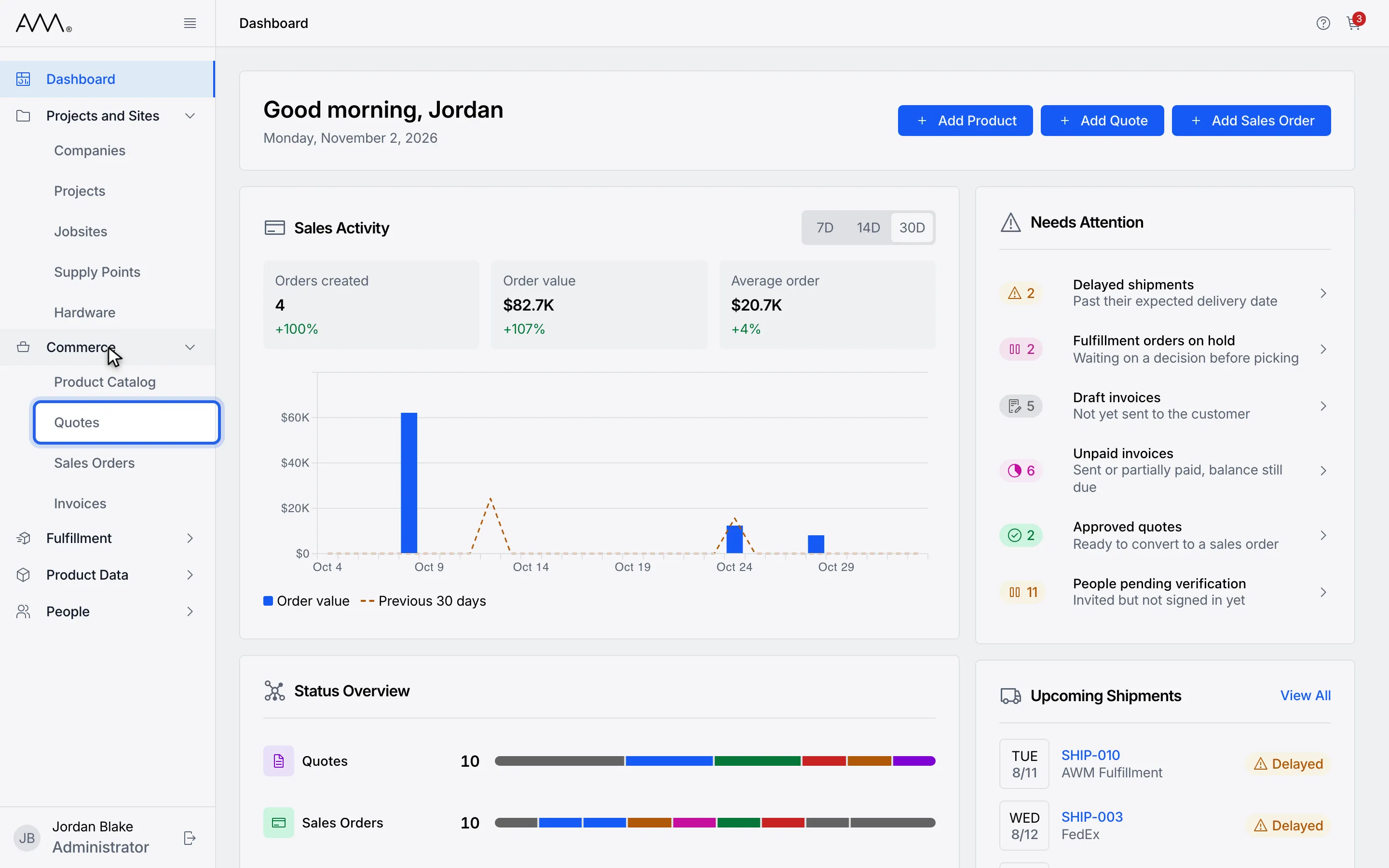
| Projects and Sites | Companies, Projects, Jobsites, Supply Points, Hardware |
| Commerce | Product Catalog, Quotes, Sales Orders, Invoices |
| Fulfillment | Fulfillment Orders, Shipments |
| Product Data | Products (PIM), Price Lists |
| People | People, Roles |
Only the items your permissions allow are shown, and a group with no visible items disappears. The item for the page you are on is highlighted. The Shopping Cart and your Settings are not in the sidebar; see below for how to reach them.
Expanding and collapsing groups
Section titled “Expanding and collapsing groups”Click a group name to show its items; click it again to hide them. When you open a page, the group that contains it expands on its own, and it stays open while you work on that page’s records. You can still collapse it by clicking the group name.
Collapsing the whole sidebar
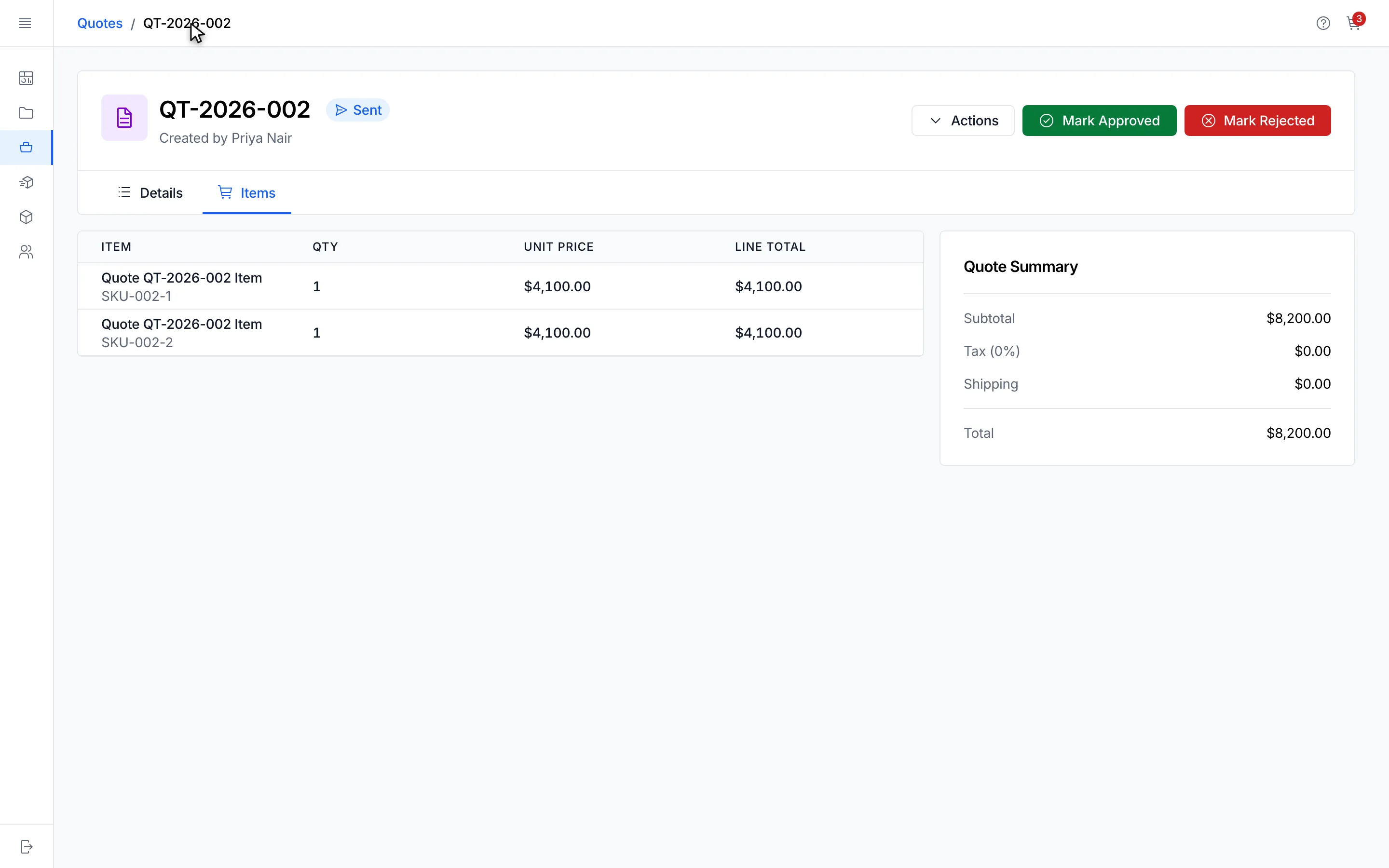
Section titled “Collapsing the whole sidebar”Click Collapse sidebar (the icon at the top of the sidebar) to shrink the sidebar to a narrow strip of icons and give the page more room. Hover an icon to see its name. Click Expand sidebar to bring the labels back, or click a group icon to expand the sidebar with that group already open. Omni remembers whether you left the sidebar collapsed, even after you reload the page.
Breadcrumbs and the browser tab
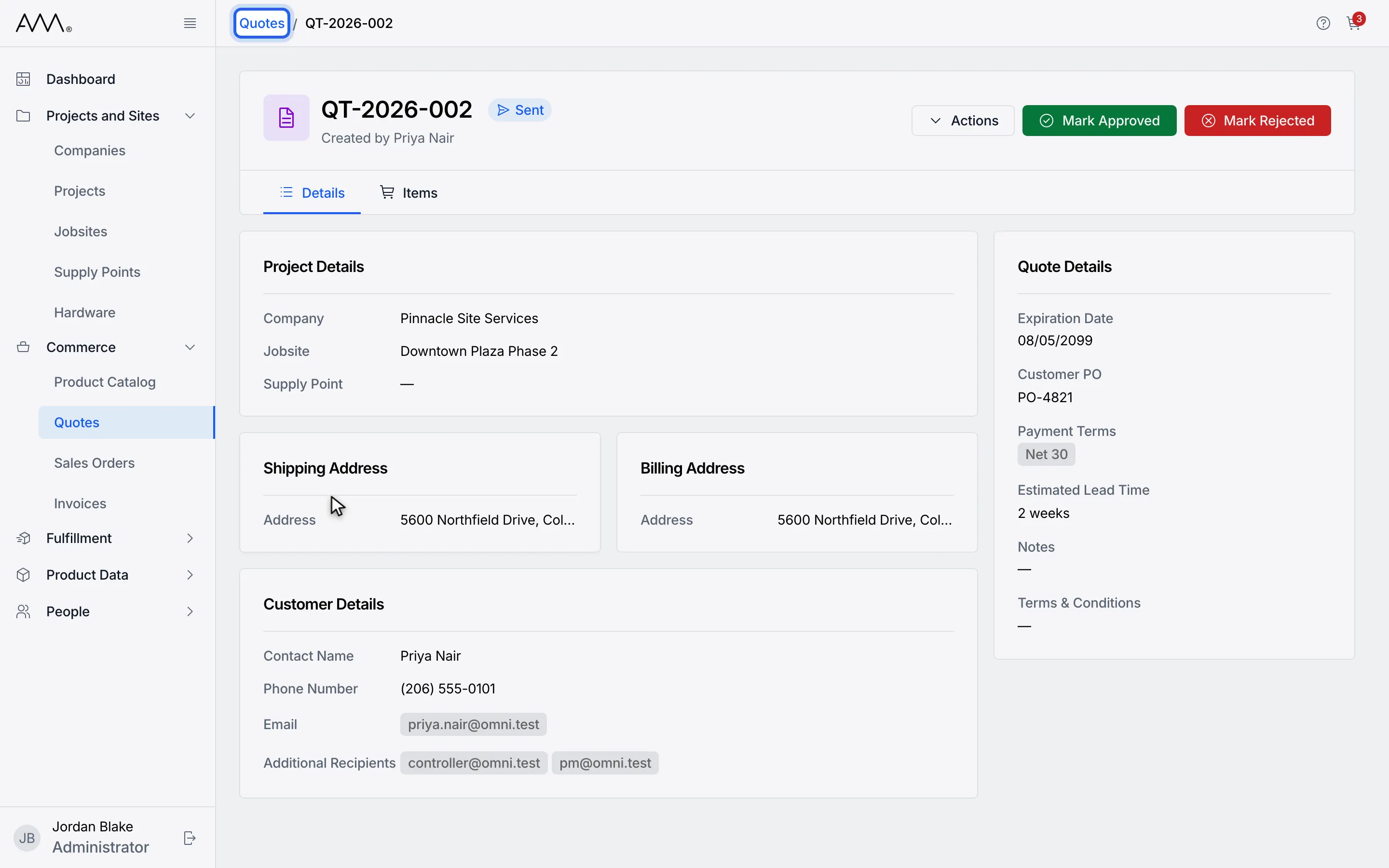
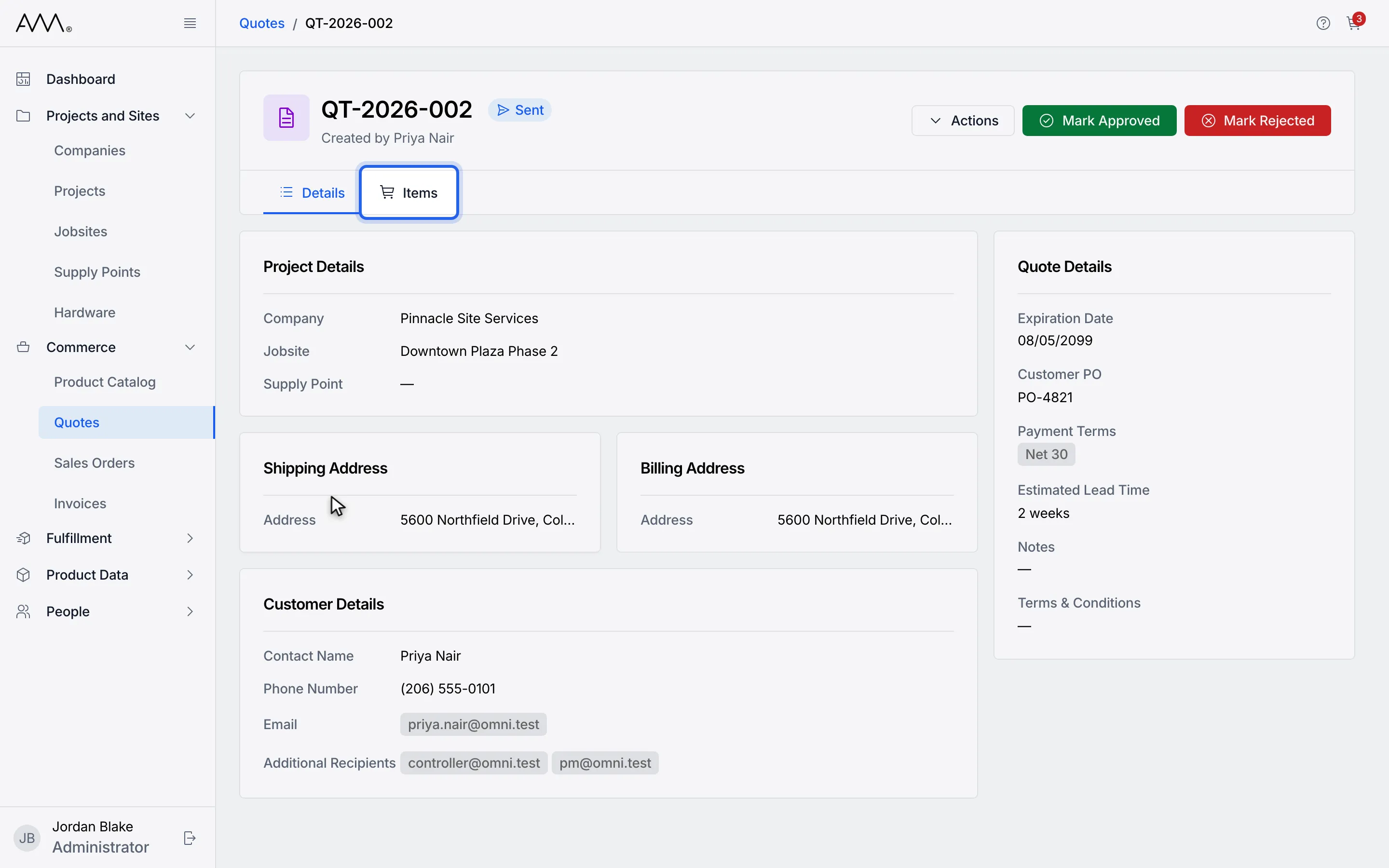
Section titled “Breadcrumbs and the browser tab”The top bar shows breadcrumbs for where you are, for example Quotes / QT-2026-002. The last crumb is the current page; earlier crumbs are links, so click Quotes to go back to the list. A long crumb is shortened with an ellipsis. The browser tab shows the page name followed by Omni, for example Product Catalog — Omni; on a record’s page it shows the record’s name instead, for example QT-2026-002 — Omni.
The Help icon
Section titled “The Help icon”The Help icon sits at the right of the top bar, to the left of the cart icon, on every page and for every user. Click it to open the Help Center page for the area you are in, in a new browser tab: on the Quotes list or any quote it opens the Quotes section, on the Product Catalog or the Shopping Cart it opens the Product Catalog and Cart section, and so on. On the Dashboard it opens Welcome to Omni.
The cart icon
Section titled “The cart icon”The cart icon is the last item in the top bar. Its red badge shows how many different products are in your cart (not the total quantity), and the badge is hidden when the cart is empty. Click it to open the Shopping Cart. The icon appears only if you have the Cart: Read permission. See Product Catalog and Cart.
Your name, your role and signing out
Section titled “Your name, your role and signing out”At the bottom of the sidebar you see your full name, as set in your profile (or your email address if no name is set), and your role, for example Jordan Blake and Administrator. Click this block to open your Settings. The Sign out button next to it signs you out immediately, with no confirmation, and returns you to the sign-in page. When the sidebar is collapsed only the Sign out button is shown.
Page tabs on detail pages
Section titled “Page tabs on detail pages”When you open a record, its page is split into tabs directly under the heading, for example Details and Items on a quote. Click a tab to switch. The current tab is highlighted.
Narrow screens
Section titled “Narrow screens”On a narrow window or a phone the sidebar is hidden. Click Open menu at the left of the top bar to slide it in, and close it with Close menu, by tapping the dimmed area beside it, or by choosing an item. Lists switch to card view on narrow screens; see Working with lists.
Take the tour
Section titled “Take the tour”1The Dashboard is the landing page: sales activity, status counts and what needs attention.
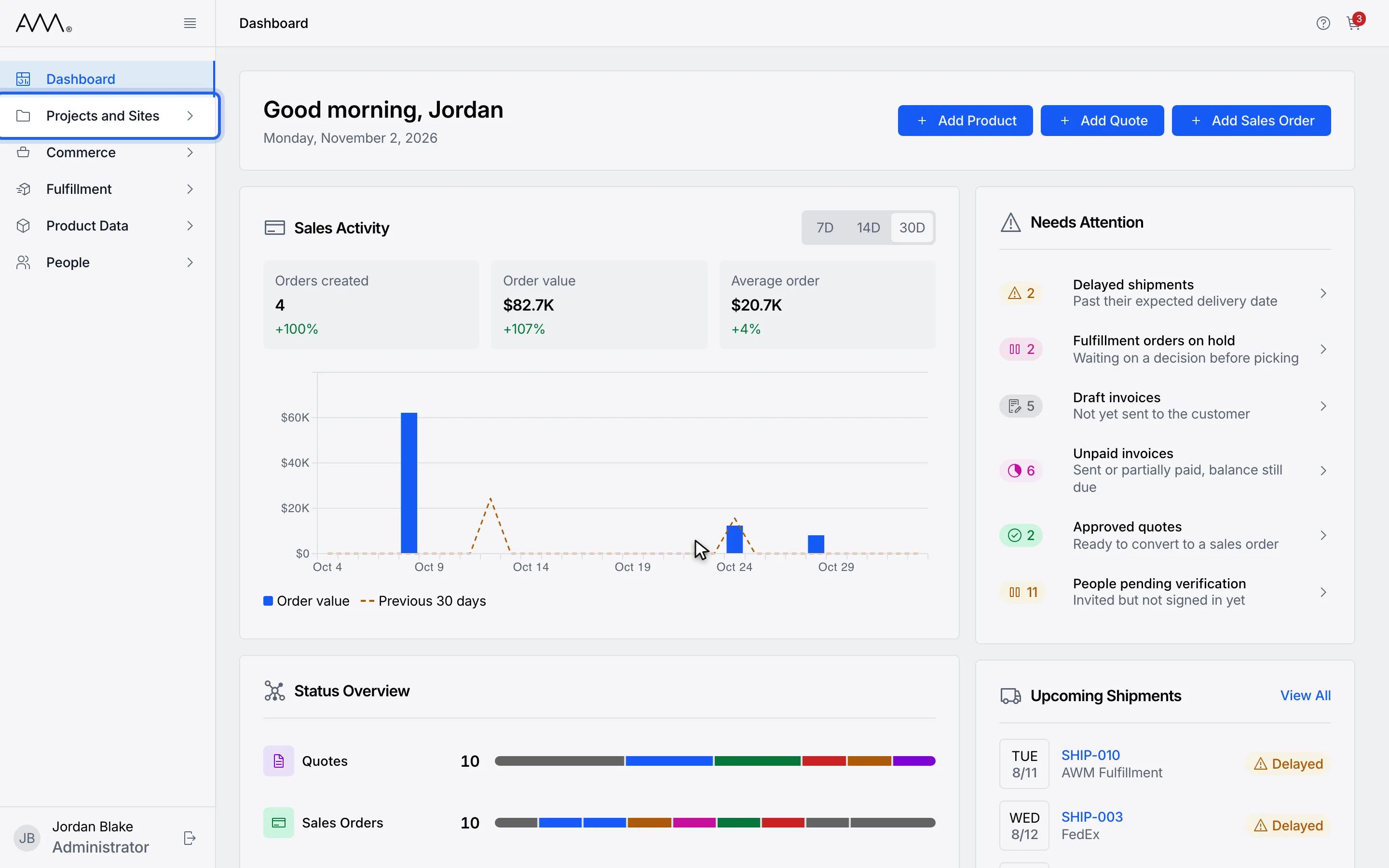
2In the sidebar, click a group name to show its items.
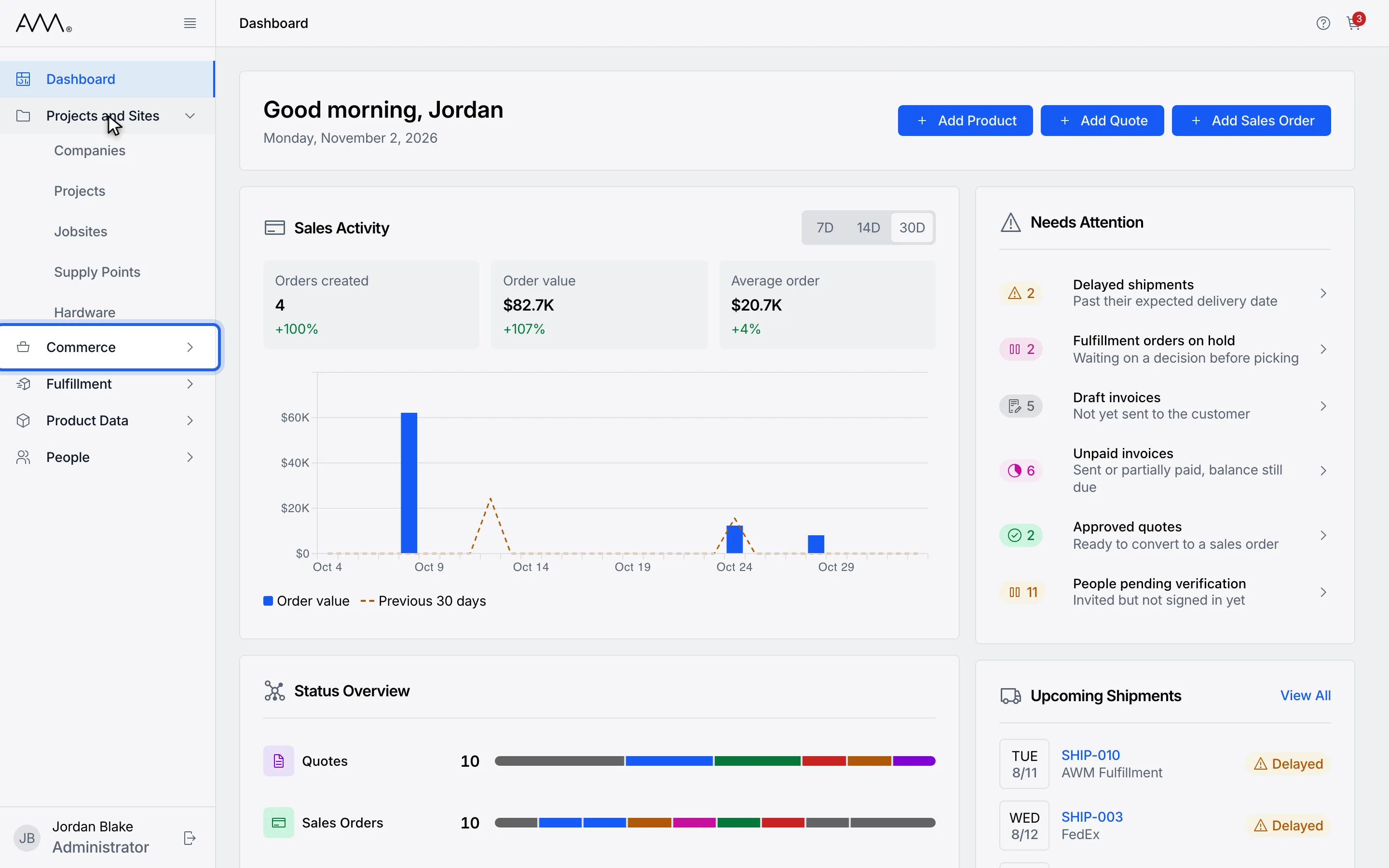
3Open Commerce. Each group lists the areas you can access.
4Choose Quotes to open its list.
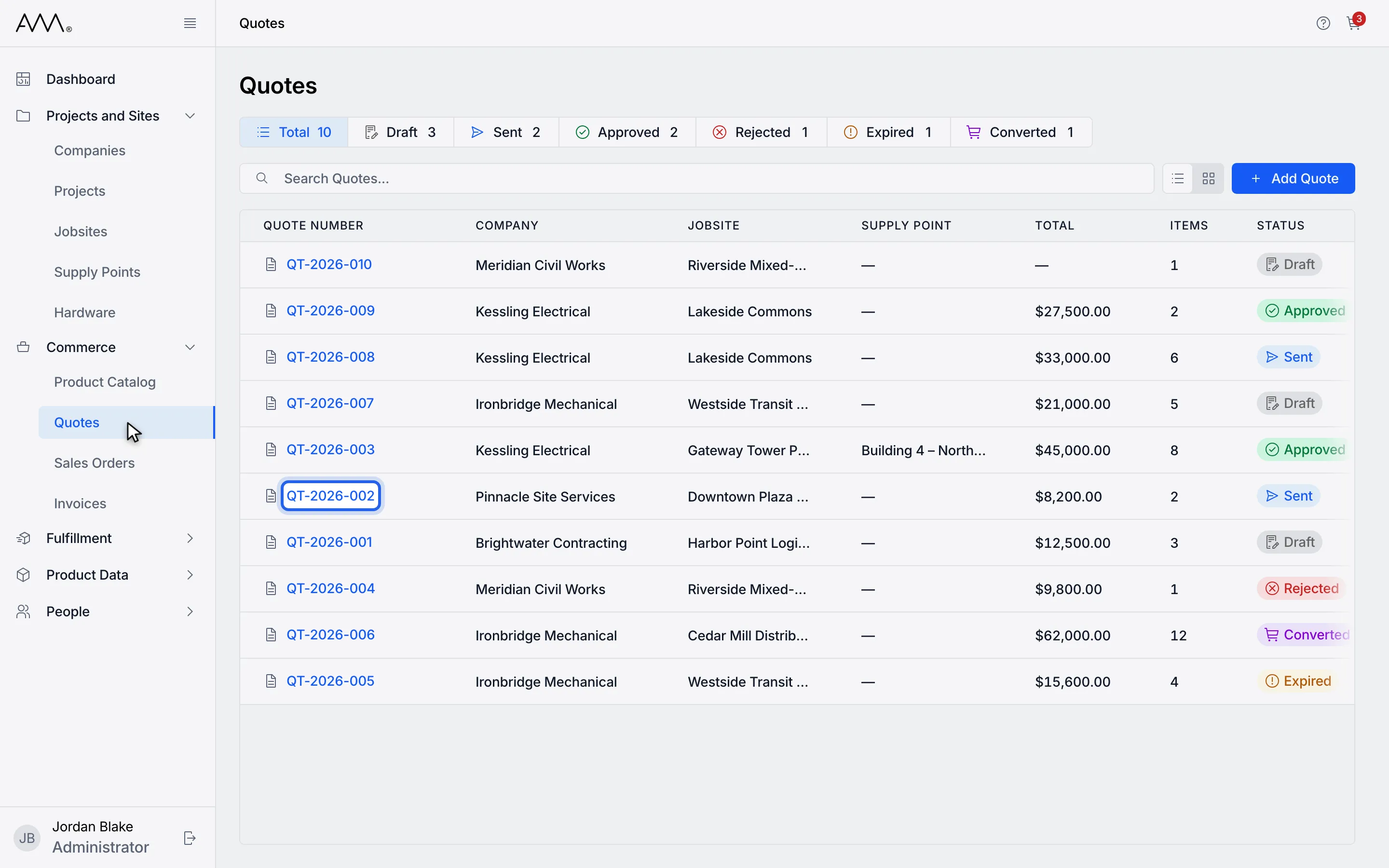
5Open a record by clicking its name or number.
6Breadcrumbs at the top show where you are. Click an earlier crumb to go back.
7Detail pages have tabs. Click a tab to switch sections.
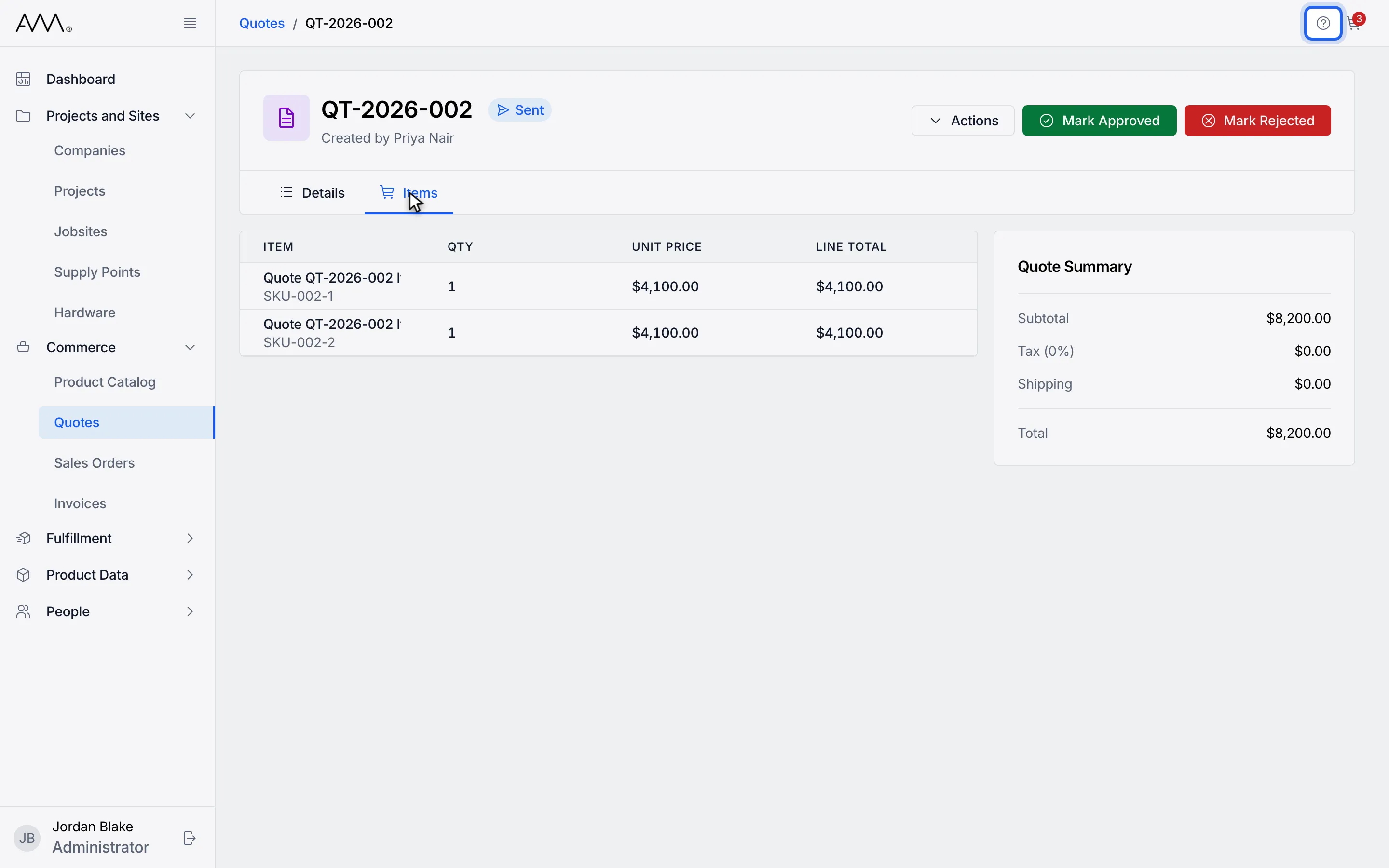
8The Help icon opens the Help Center page for the area you are in.
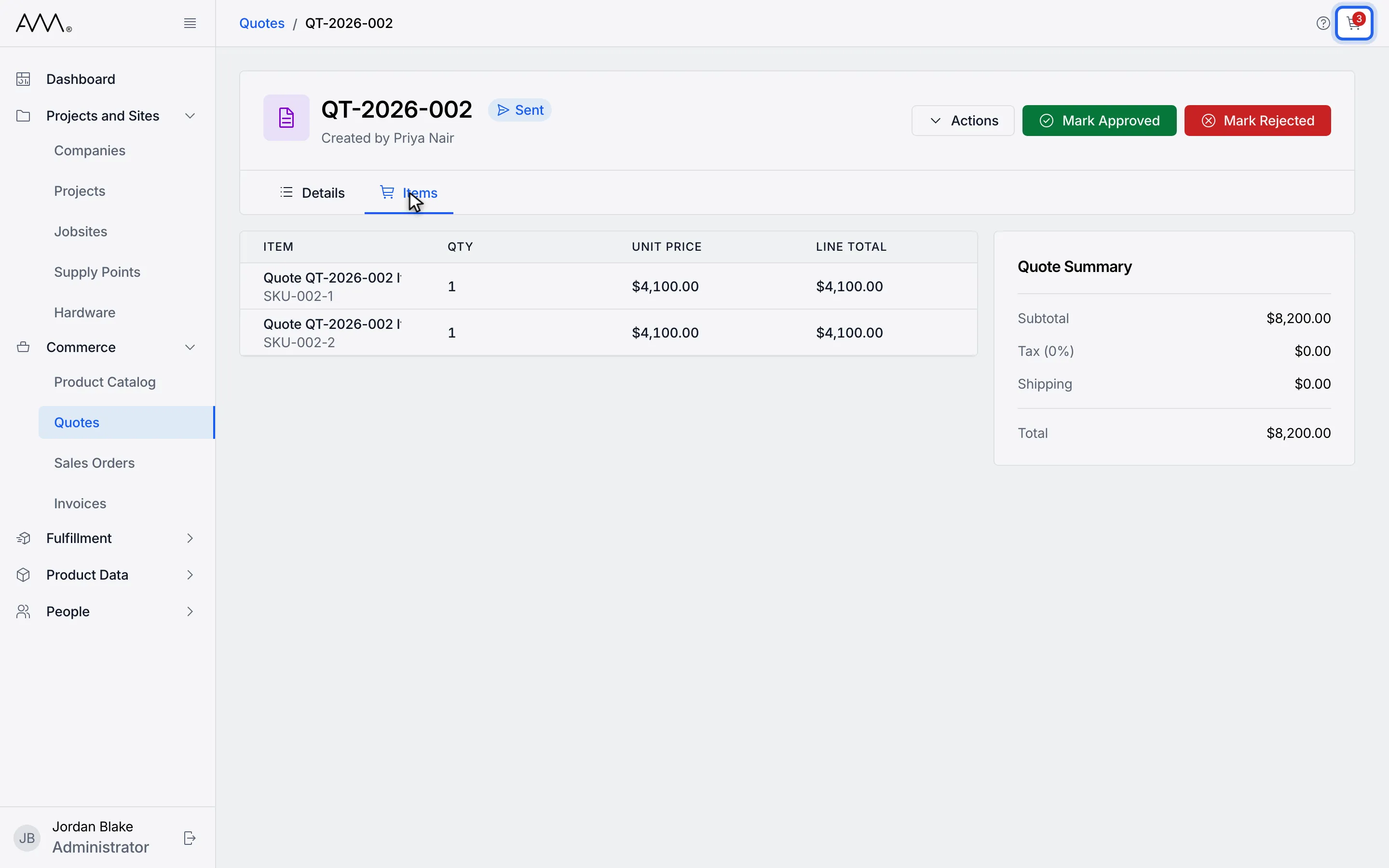
9The cart icon shows how many products are in your cart. Click it to open the cart.
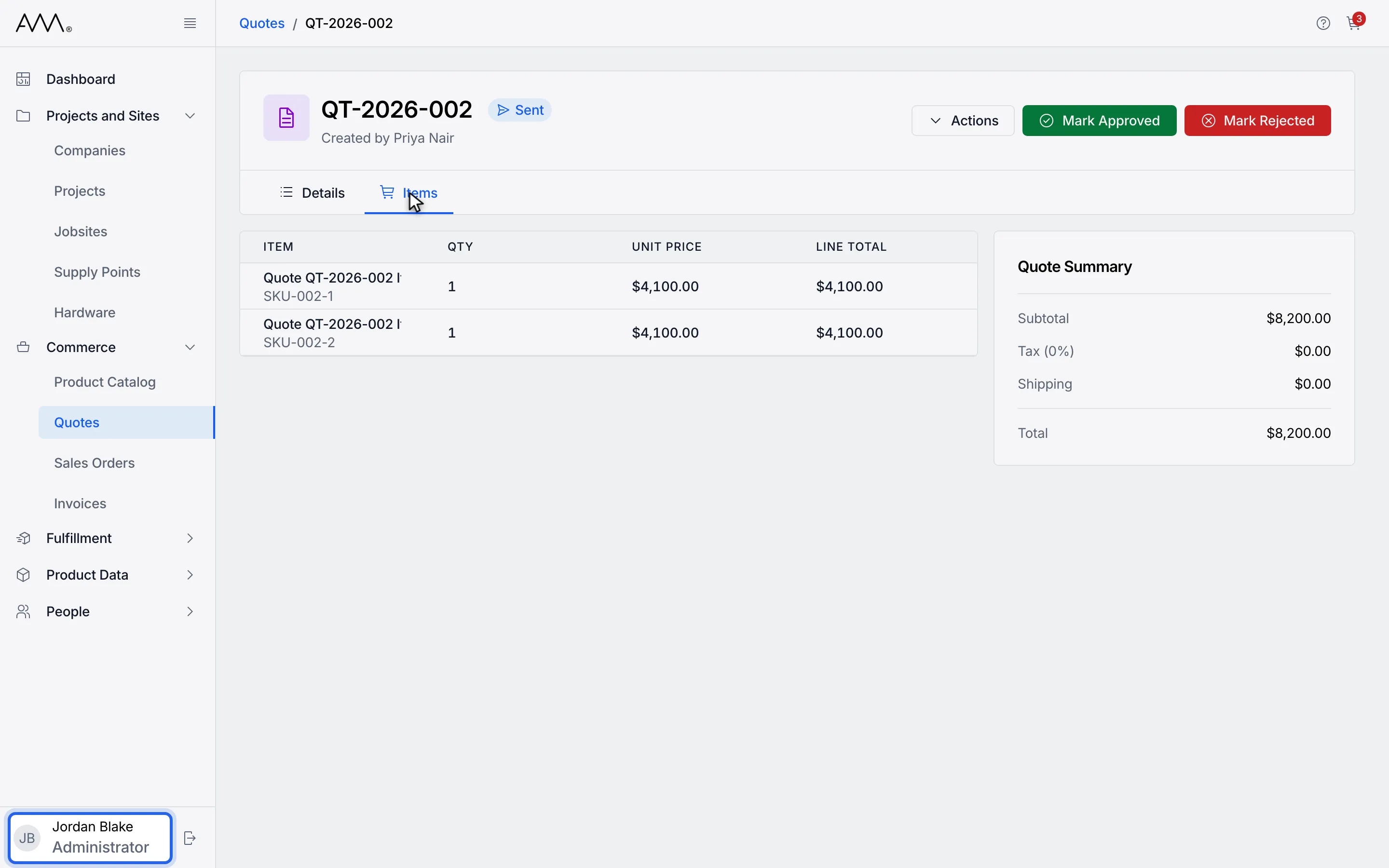
10Your name and role sit at the bottom of the sidebar. Click them to open Settings.
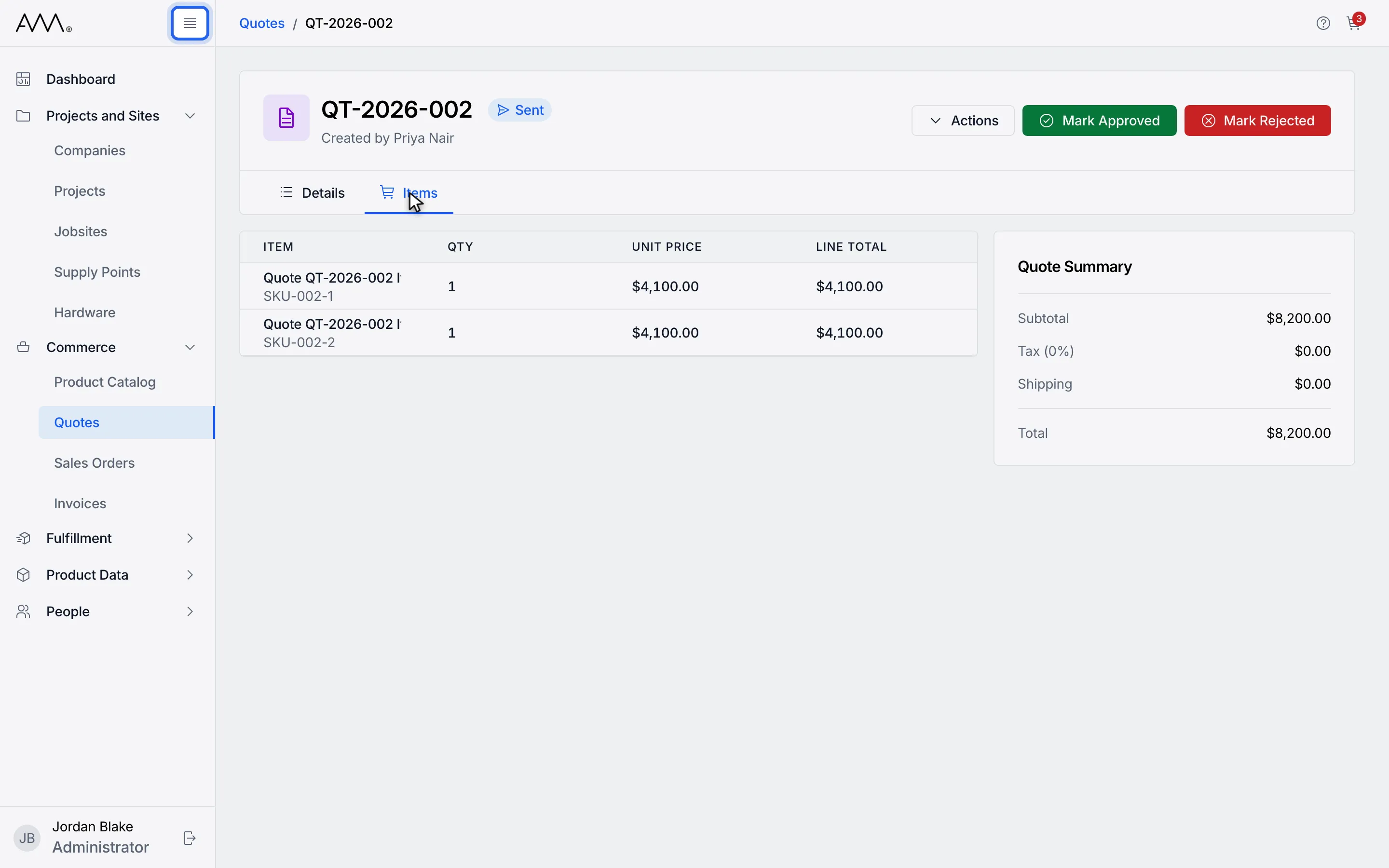
11Click Collapse sidebar to make more room. Click Expand sidebar to restore it.
12The sidebar, breadcrumbs, page tabs and the Help icon work the same way on every page.