Cancel a sales order
Cancel a sales order when the customer withdraws it or it was created by mistake. The order stays in the list for reference but can no longer be changed, and any Fulfillment Orders that have not shipped are cancelled with it.
- Open the order.
- Click Cancel Order in the header.
- Read the Cancel this Sales Order? dialog. It names the order and, for a Confirmed or In Fulfillment order, every linked Fulfillment Order that will be cancelled with it.
- Click Cancel Order to confirm, or Keep Order to go back without changes.
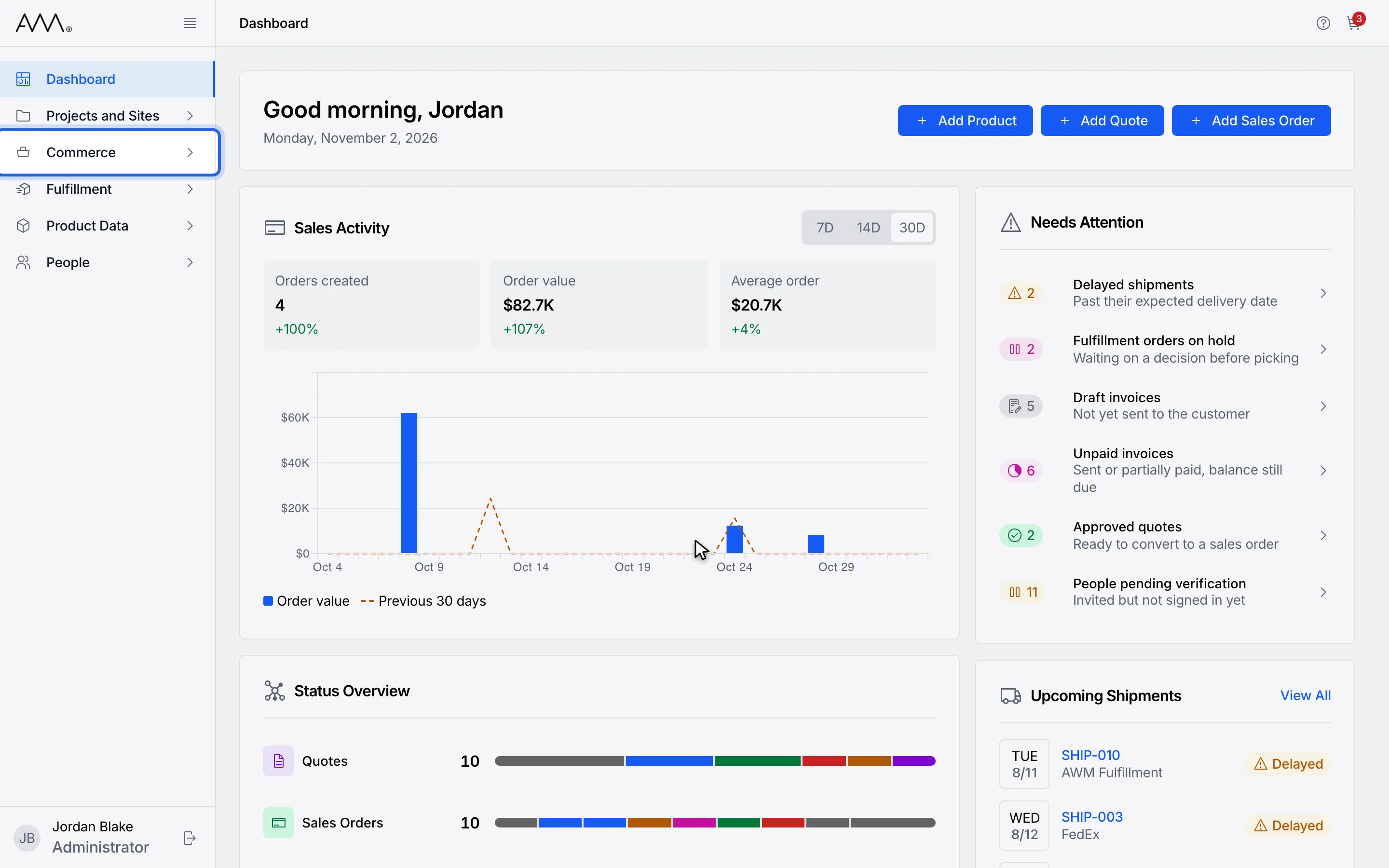
1In the sidebar, open Commerce.
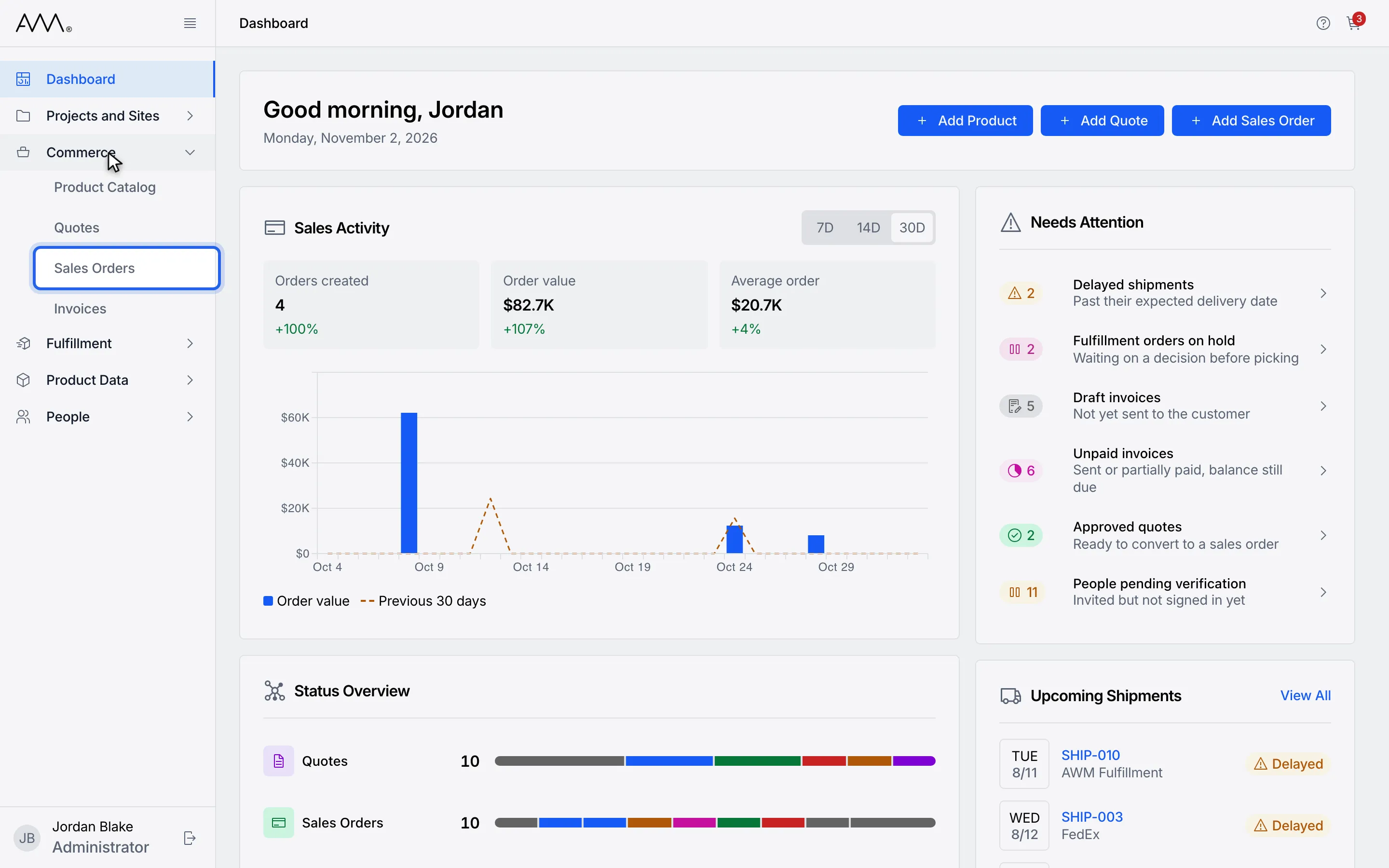
2Choose Sales Orders.
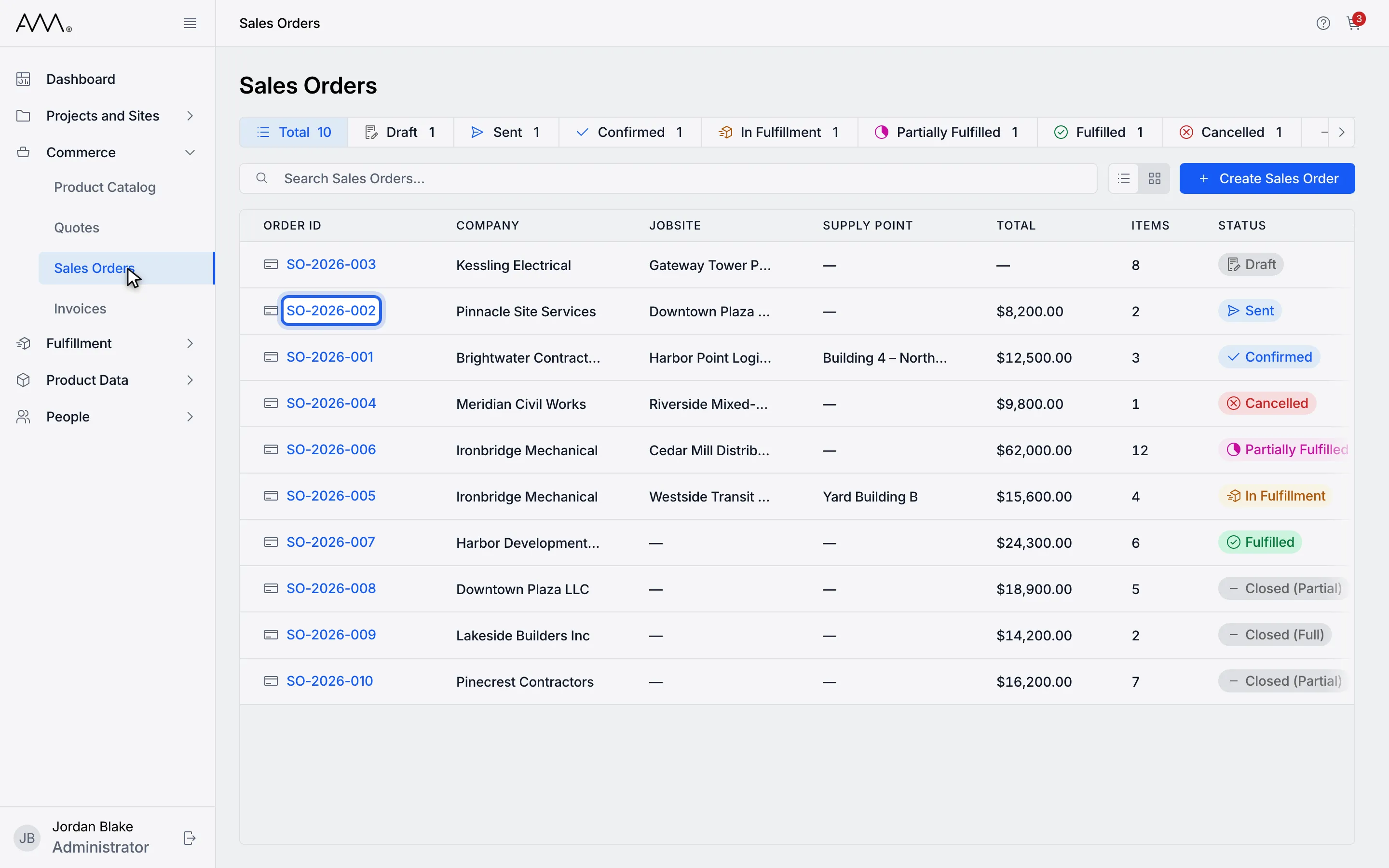
3Open the order you want to cancel.
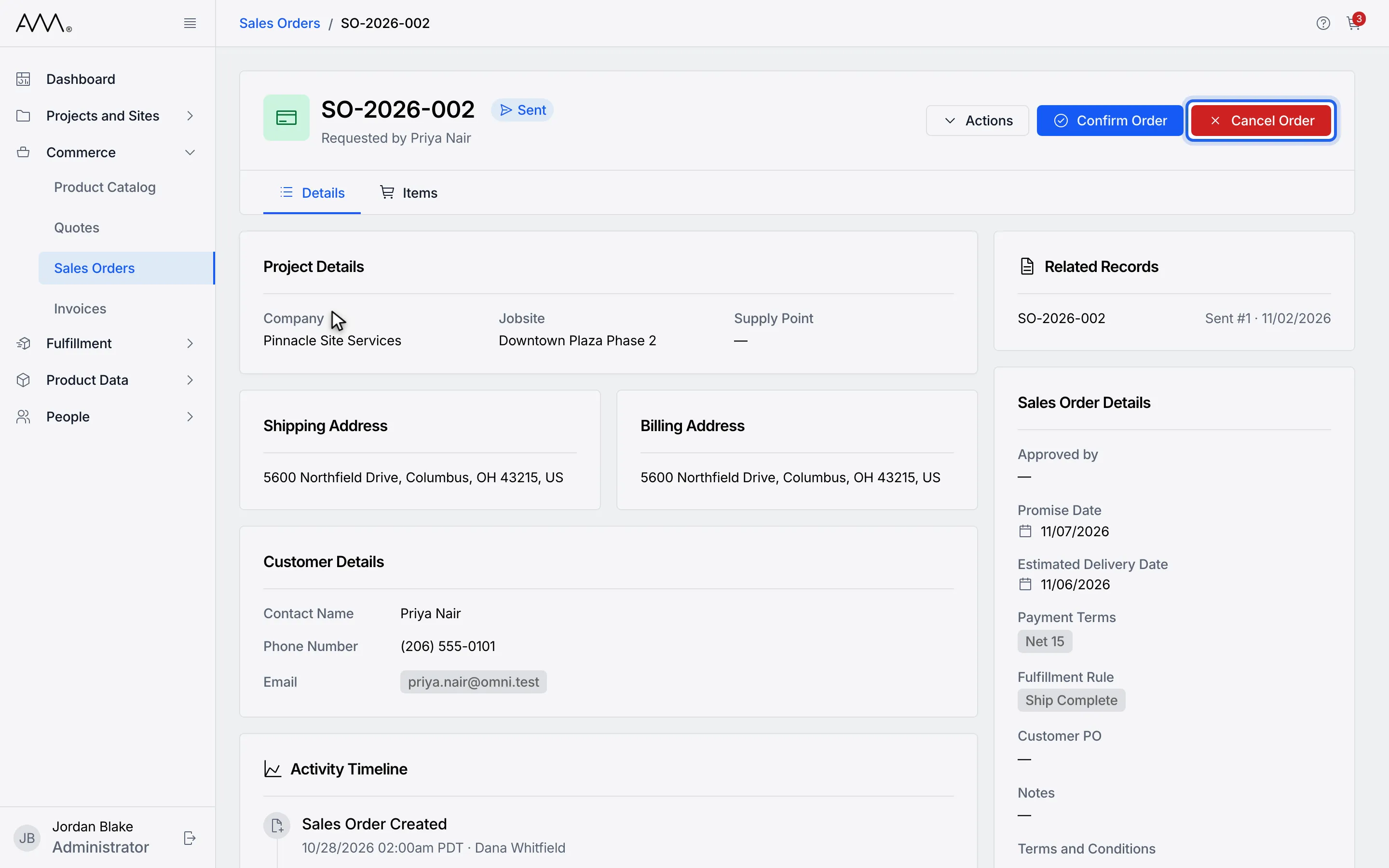
4Click Cancel Order in the header.
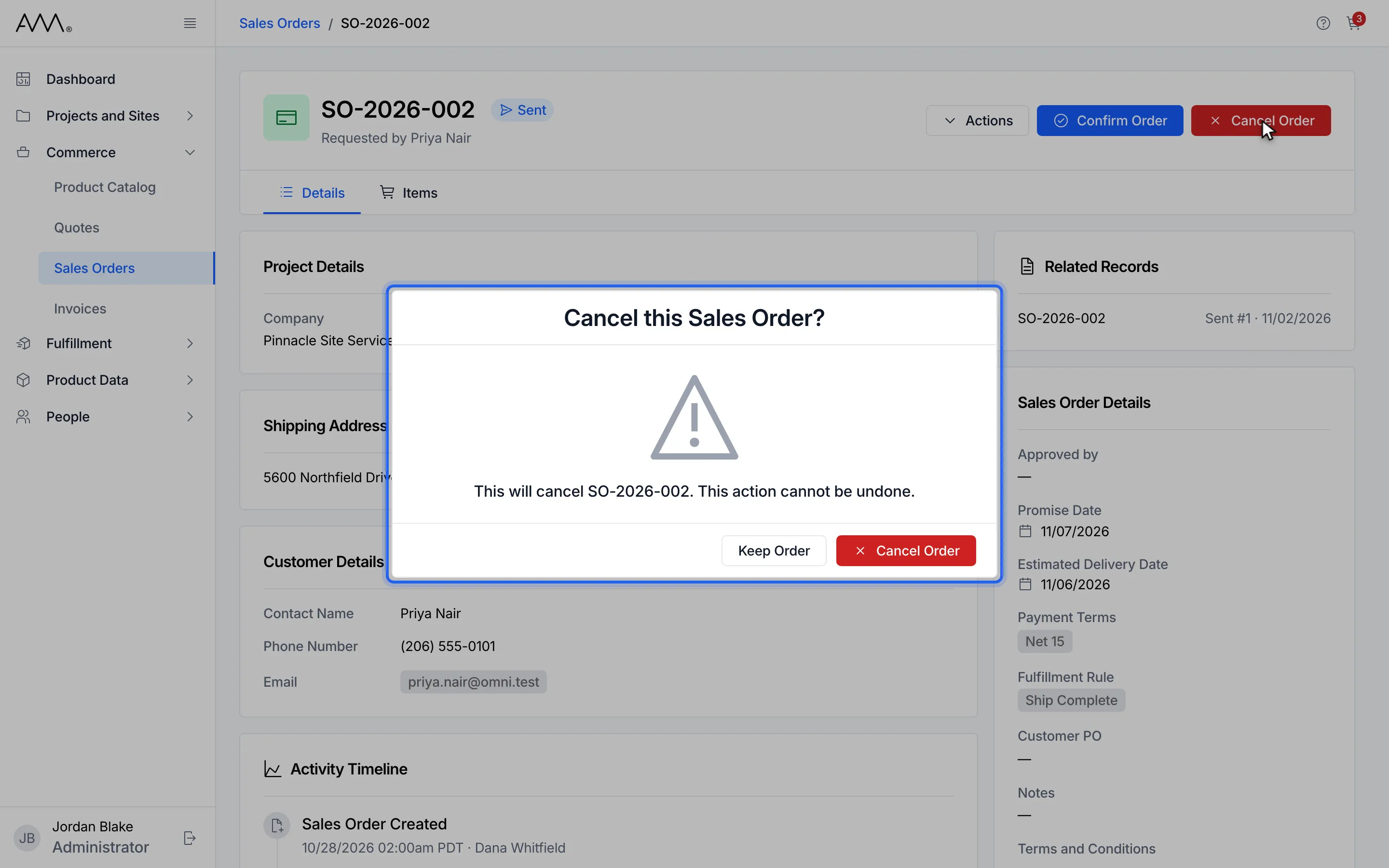
5Read Cancel this Sales Order? Keep Order closes it without changes.
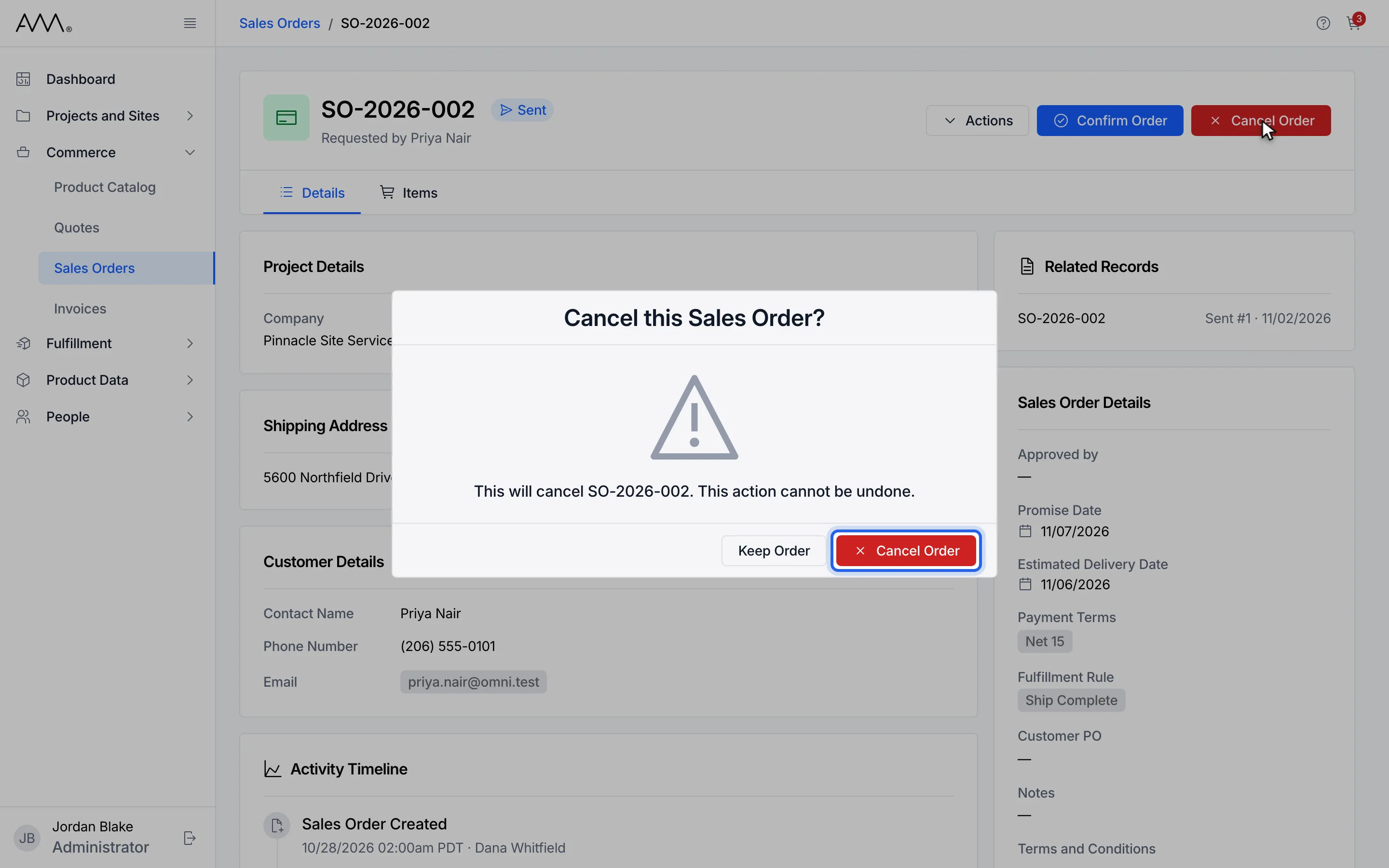
6Click Cancel Order to confirm.
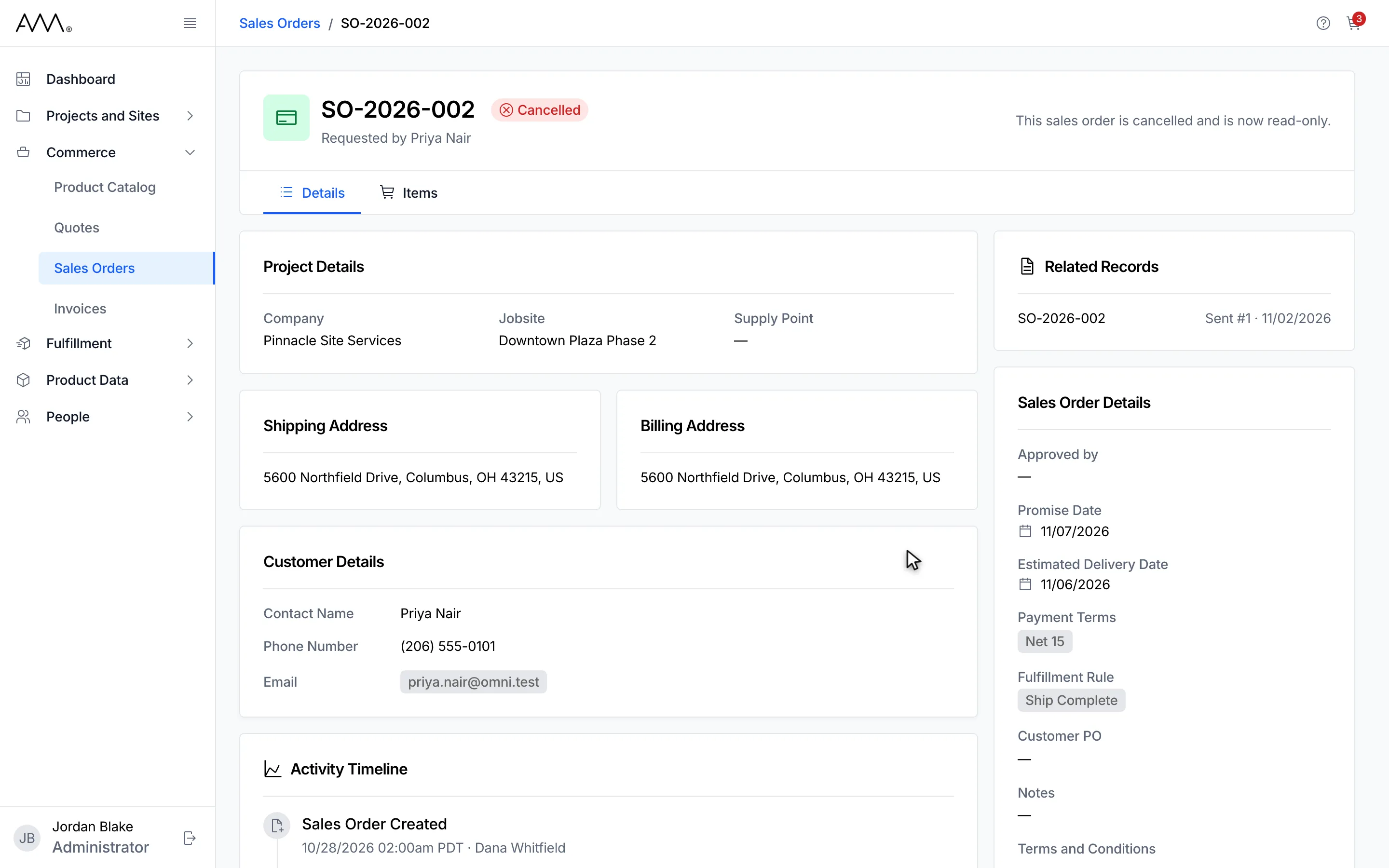
7The order is Cancelled and read-only.
8The order is Cancelled and read-only.
Watch this as a video (cancel a sales order)
When the order cannot be cancelled
Section titled “When the order cannot be cancelled”If one of the order’s Fulfillment Orders is already assigned to a shipment, clicking Cancel Order opens Can’t Cancel Sales Order instead of the confirmation: SO-2026-005 has Fulfillment Orders on active shipments. Remove them from their shipments, then cancel the order., followed by each Fulfillment Order and its shipment, for example FO-0002 on SHIP-001. The Fulfillment Order and shipment numbers are links when you have permission to view those records. Click Keep Order to close it; nothing changes. See Fulfillment Orders and Shipments.
1In the sidebar, open Commerce.
2Choose Sales Orders.
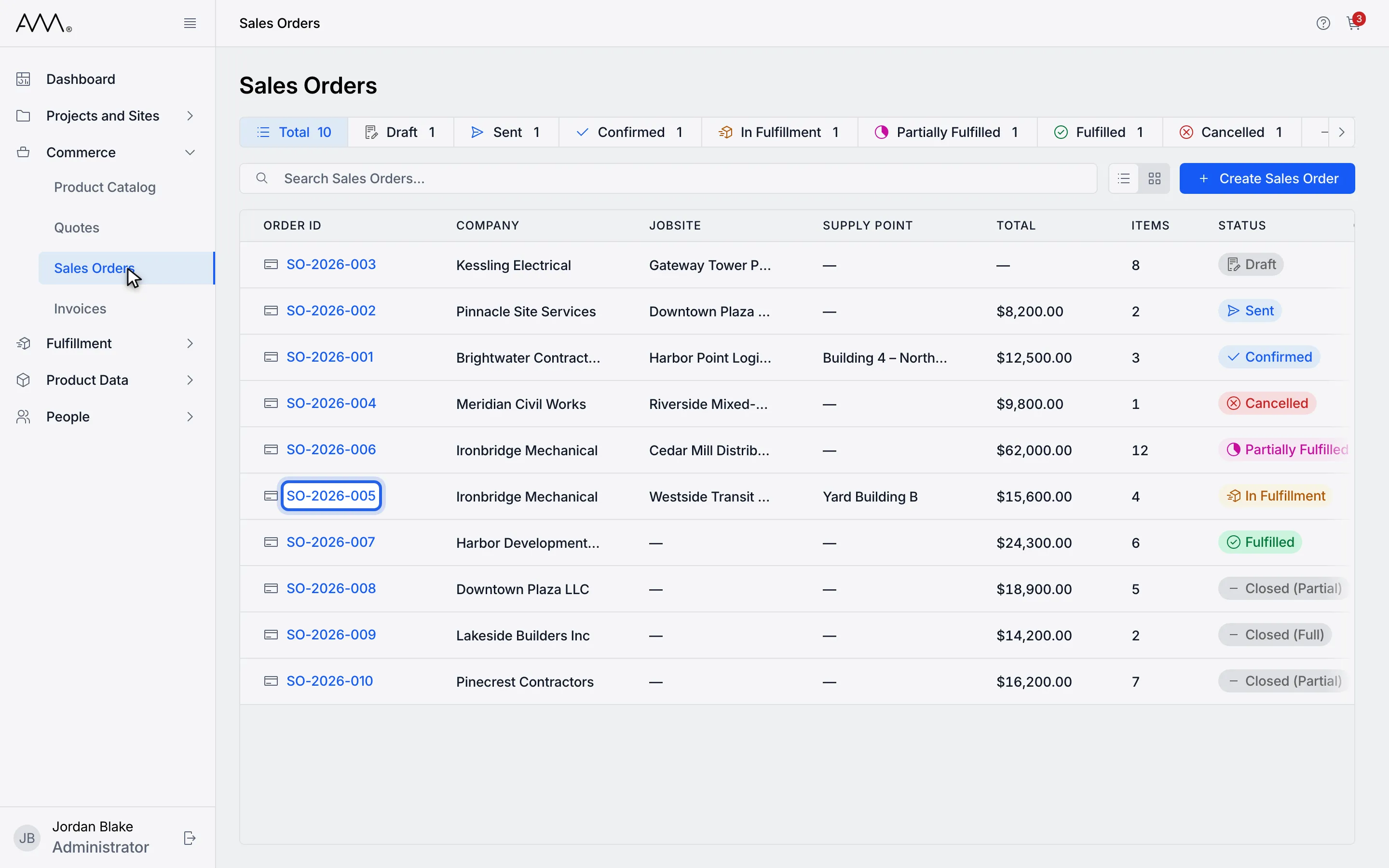
3Open an In Fulfillment order.
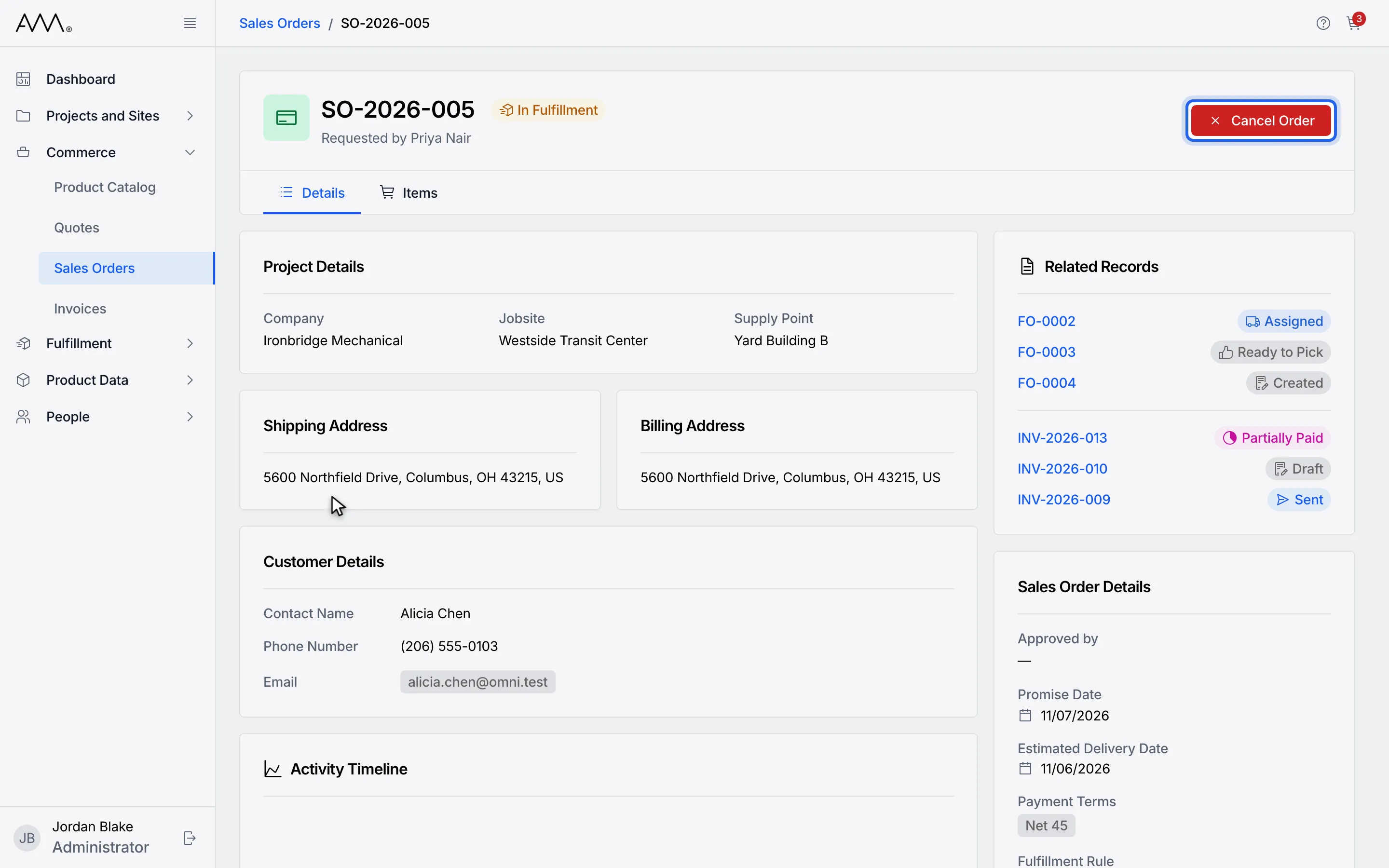
4Click Cancel Order in the header.
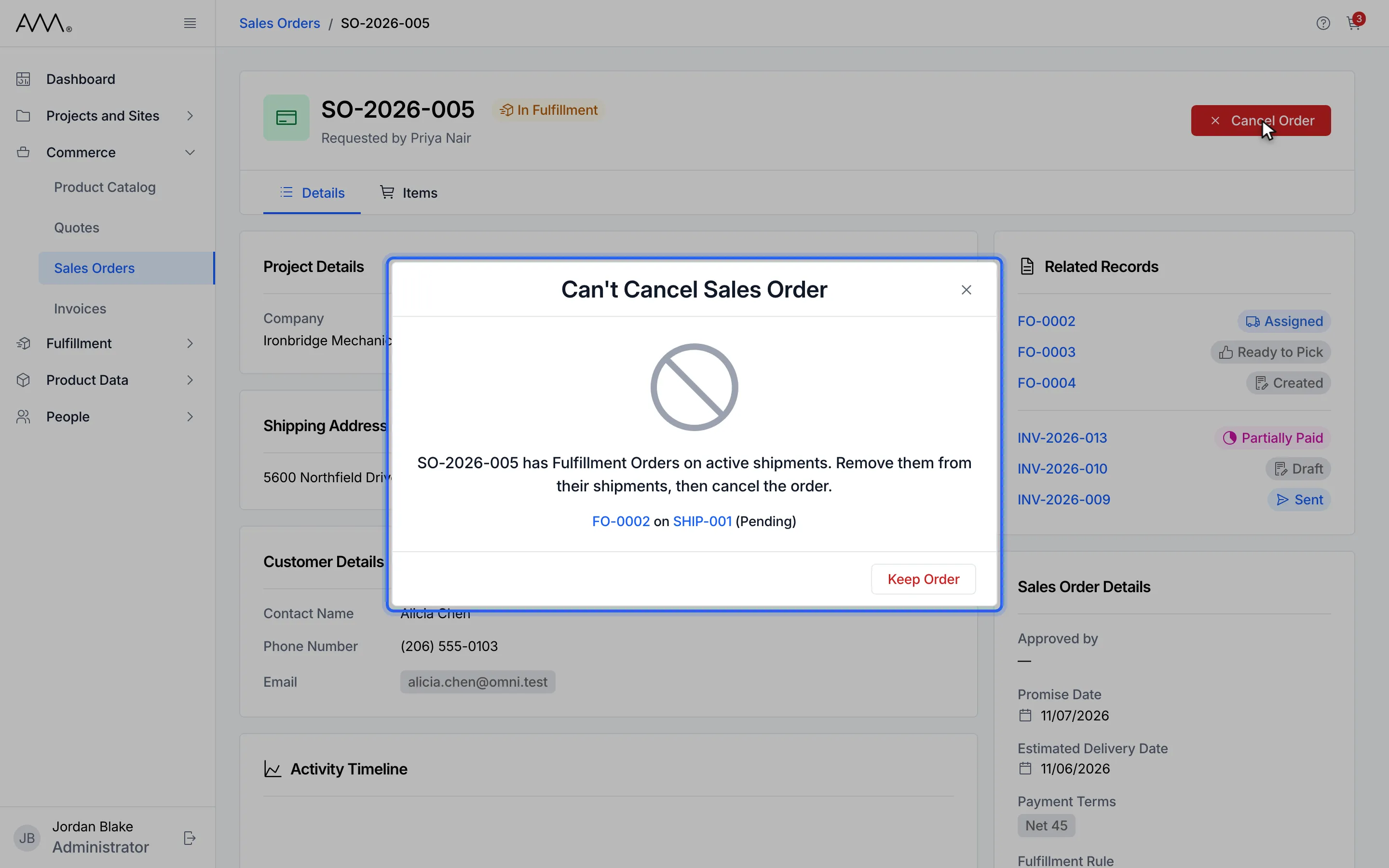
5Can't Cancel Sales Order lists the Fulfillment Orders on active shipments.
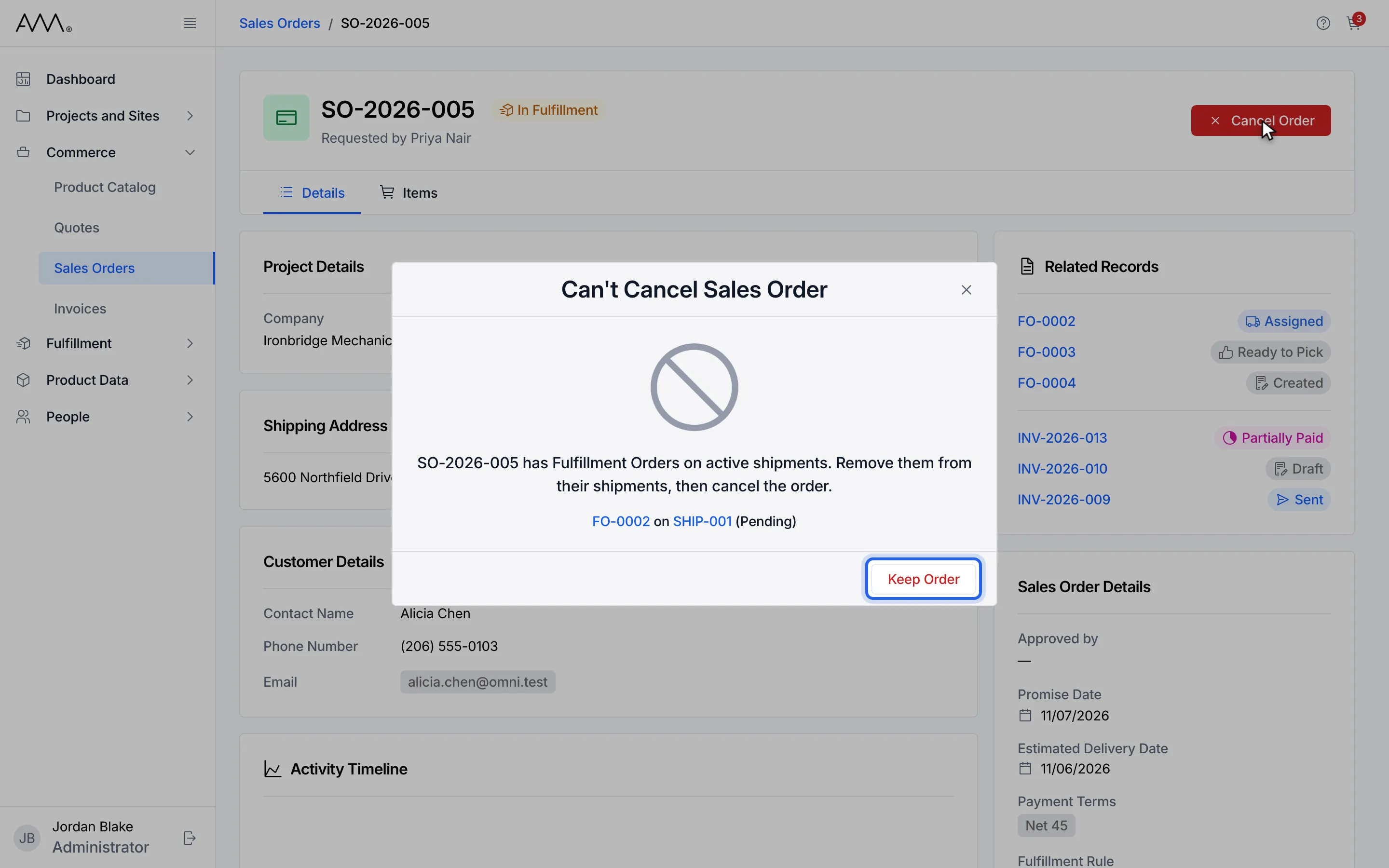
6Click Keep Order. Nothing changes.
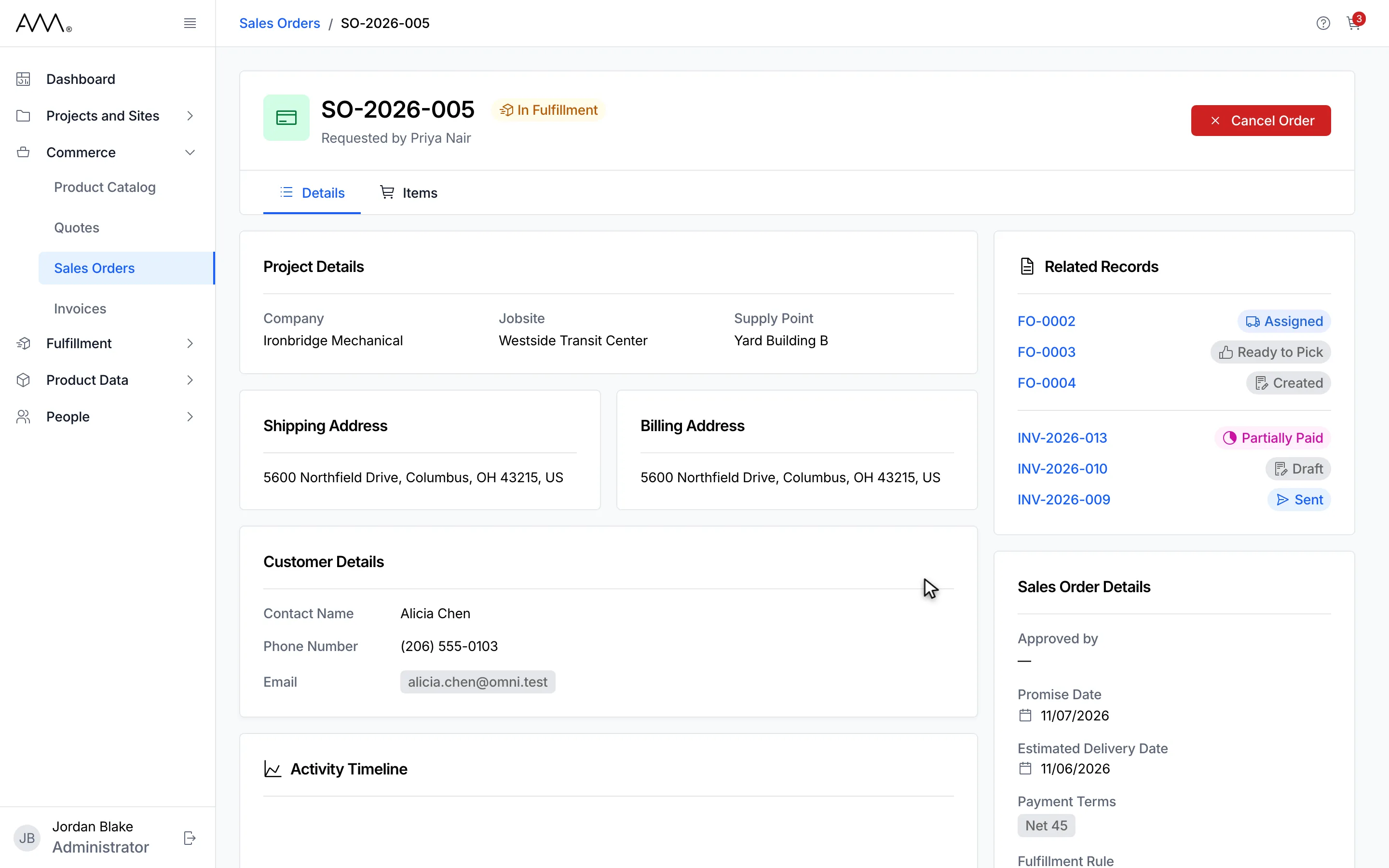
7The order stays In Fulfillment until its Fulfillment Orders leave their shipments.
Watch this as a video (when a sales order cannot be cancelled)
What happens next
Section titled “What happens next”The status becomes Cancelled and the header shows This sales order is cancelled and is now read-only. in place of the action buttons. There is no other message. The Activity Timeline records Sales Order Cancelled. If the order cannot be cancelled, the dialog stays open and shows the reason, for example Could not cancel the sales order. Please try again.