Invoices
An Invoice bills a customer for one delivered Fulfillment Order. Omni creates invoices for you: when a Fulfillment Order is delivered, its invoice appears in the Invoices list and under the sales order’s Related Records. You cannot create, edit or delete an invoice yourself. What you do with an invoice is download its PDF, send it, record the payments made against it and, if needed, void it.
You need the Invoices: Read permission to see Invoices in the sidebar.
The Invoices list
Section titled “The Invoices list”In the sidebar, open Commerce and choose Invoices. The newest invoices are listed first.
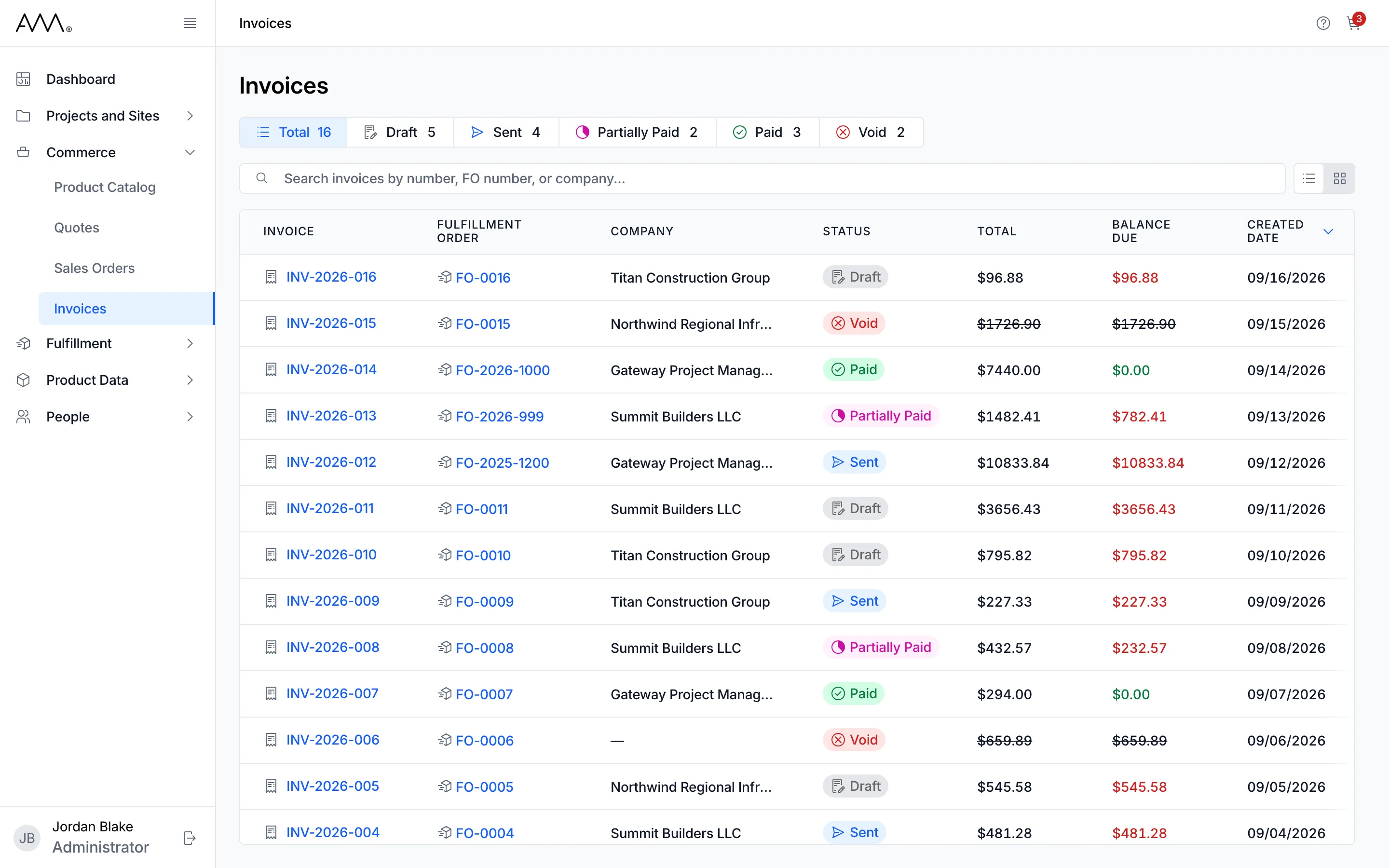
- Status chips show a count for each status: Total, Draft, Sent, Partially Paid, Paid and Void. Click a chip to show only that status, click more chips to combine them, and click Total to clear the filter.
- Search invoices by number, FO number, or company… filters the list by invoice number, fulfillment order number or company name.
- Click a column header to sort by that column; click it again to reverse the order.
- The view toggle switches between List view and Card view.
Each row shows Invoice, Fulfillment Order, Company, Status, Total, Balance Due and Created Date. Click the invoice number to open the invoice, or the Fulfillment Order number to open the fulfillment order. The Dashboard links to this list filtered to the invoices that need attention.
The invoice page
Section titled “The invoice page”The header shows the invoice number, its status and the actions available in that status. The page has four parts:
- Details: the Fulfillment Order, Sales Order and Quote the invoice came from (the quote shows a dash when the order did not come from one), then Company, Customer PO and Payment Terms, then Due Date and Created Date.
- Items: each billed line with its Quantity, Unit Price and Total. Click a column header to sort.
- Invoice Summary: Subtotal, Tax, Shipping, Total and Balance Due. The balance is red while something is owed and green once it reaches zero.
- Payment History: each payment with its date, amount, Method, Reference and Recorded by, newest first. This section appears once the first payment is recorded.
On a phone, the actions move into an Invoice actions menu and a bar at the bottom of the screen.
Statuses
Section titled “Statuses”Status changes by itself as you act on the invoice; you never set it directly. Download PDF is available in every status.
| Status | Meaning | Actions in the header |
|---|---|---|
| Draft | Created but not yet sent | Send Invoice, Record Payment, Void Invoice, Download PDF |
| Sent | Emailed at least once | Send Again, Record Payment, Void Invoice, Download PDF |
| Partially Paid | Payments so far are below the total | Record Payment, Download PDF |
| Paid | The balance is zero. Final. | Download PDF |
| Void | Cancelled. Its Total and Balance Due are shown struck through. Final. | Download PDF |
How-tos
Section titled “How-tos”- Find and open an invoice
- Download an invoice PDF
- Send an invoice
- Record a payment
- Void an invoice
- Invoice reference