Filter the price table and export prices
The Products tab can hold a long list. Narrow it with the search box and the Filters panel, then use Export to download exactly the products you are looking at.
- Open the price list from Price Lists. The Products tab shows first.
- Type part of a product name or SKU in Search products…. The table filters as you type.
- Click Filters to open the filter panel.
- Choose a filter. For example, open Price state and choose Override to show only products with an override price, or Inherited for the rest. A chip for each active filter appears above the table, such as Price state: Override; click a chip’s X to remove it, or Clear Filters to remove them all.
- Click Export. Its tooltip reads Exports products matching the current search and filters.
| Filter | What it does |
|---|---|
| Status | Show one or more product statuses. |
| Manufacturer | Show one or more manufacturers. |
| Price state | Override for products with an override price, Inherited for products priced by the global adjustment or list price. |
| Cost ($), List price ($), Final price ($) | Keep products within a Min and Max range. Fill in either or both. |
| Margin band | Show one or more bands: Below cost, Under 10%, 10–25%, 25–40%, 40%+. |
| Has price history | Show only products that have a price history. |
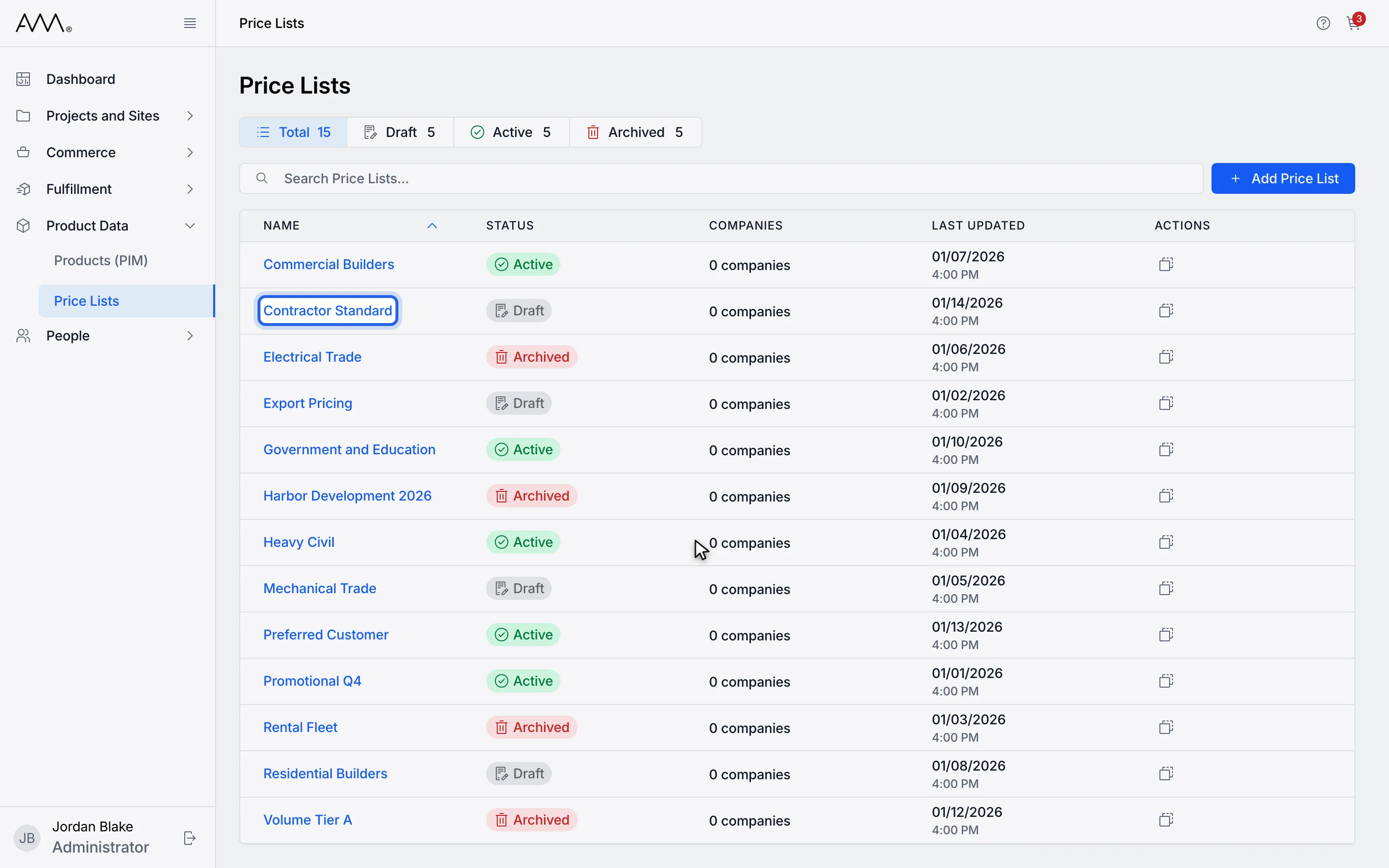
1Open the price list. The Products tab shows first.
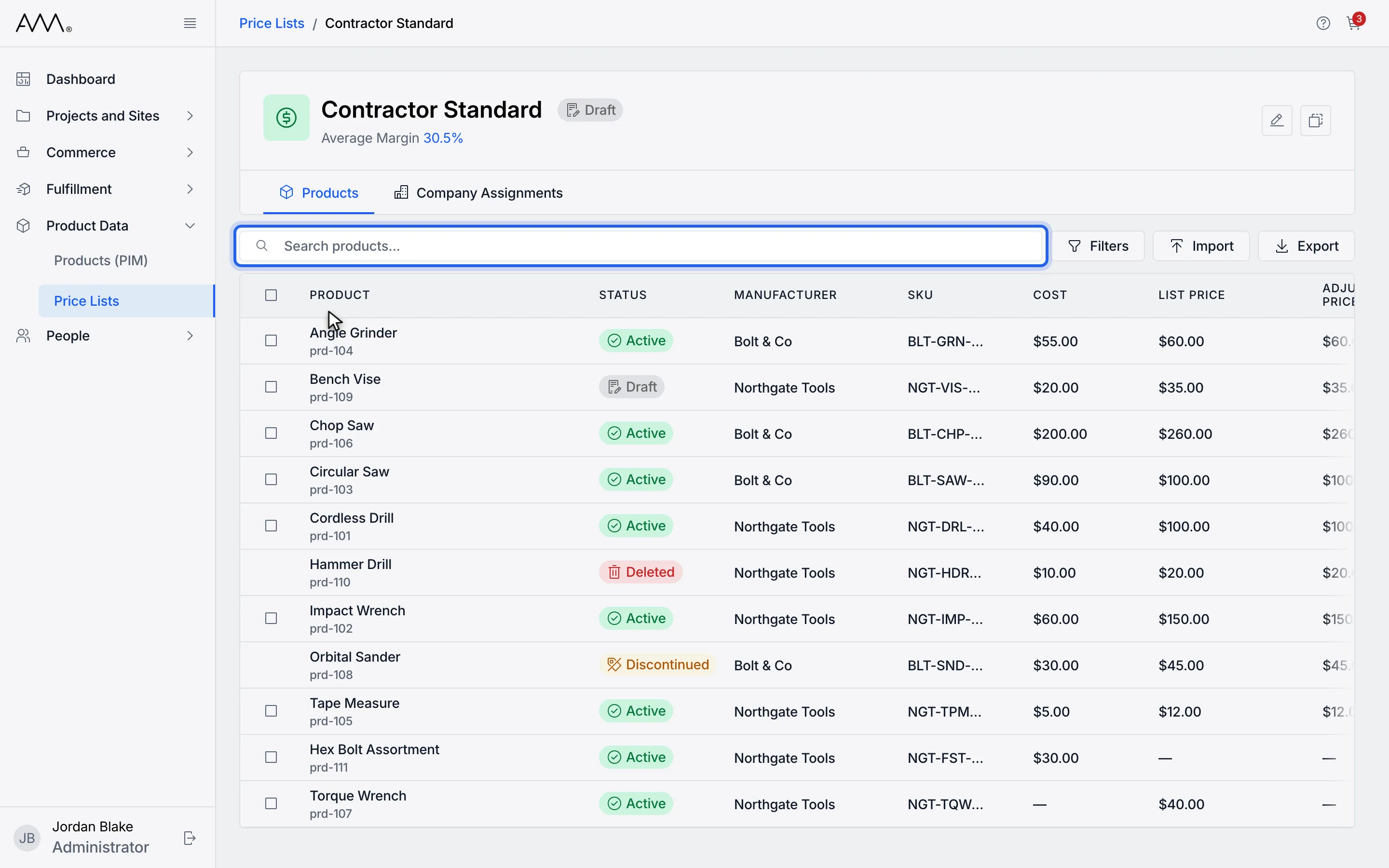
2Type part of a product name or SKU in the search box.
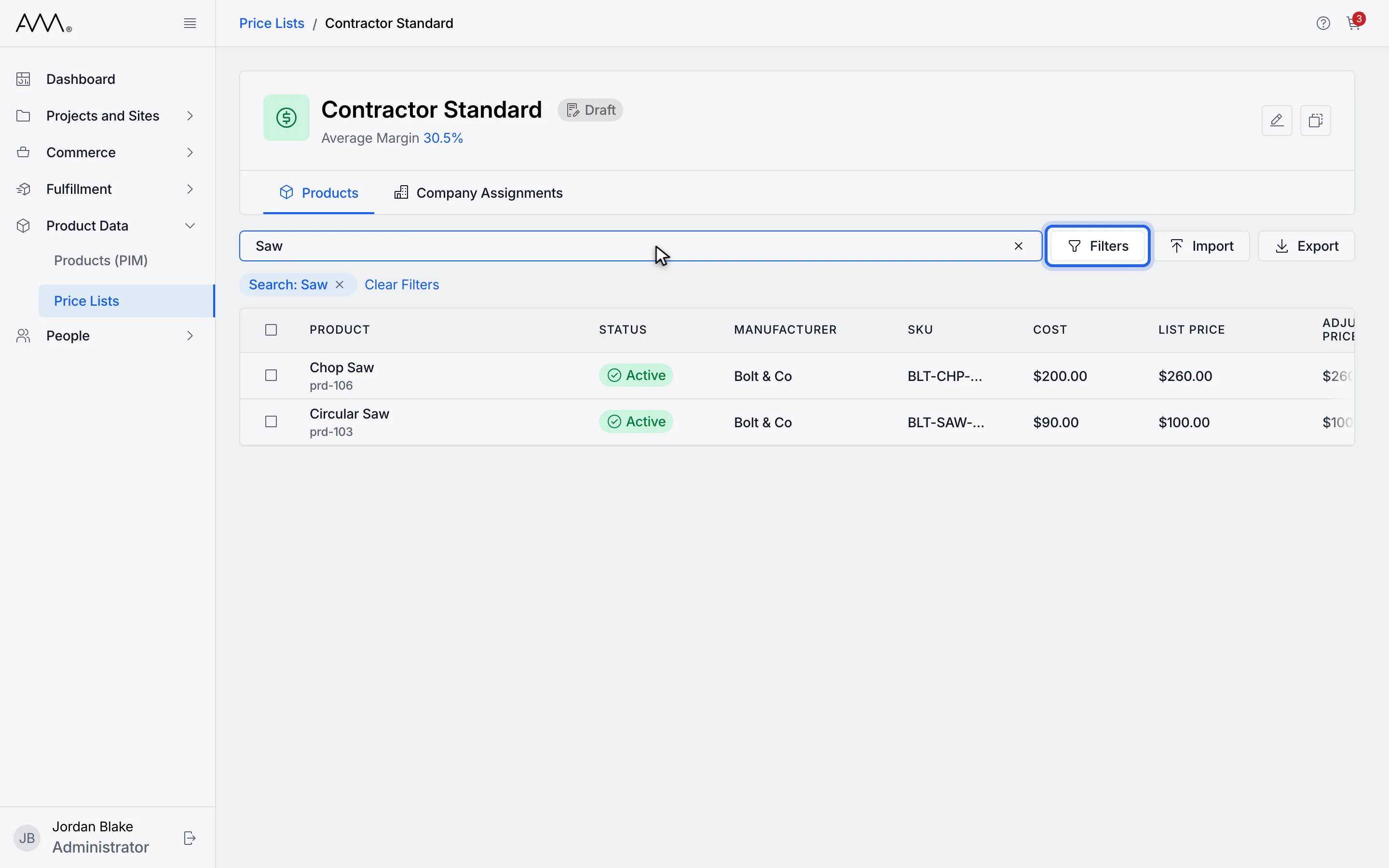
3Click Filters to open the filter panel.
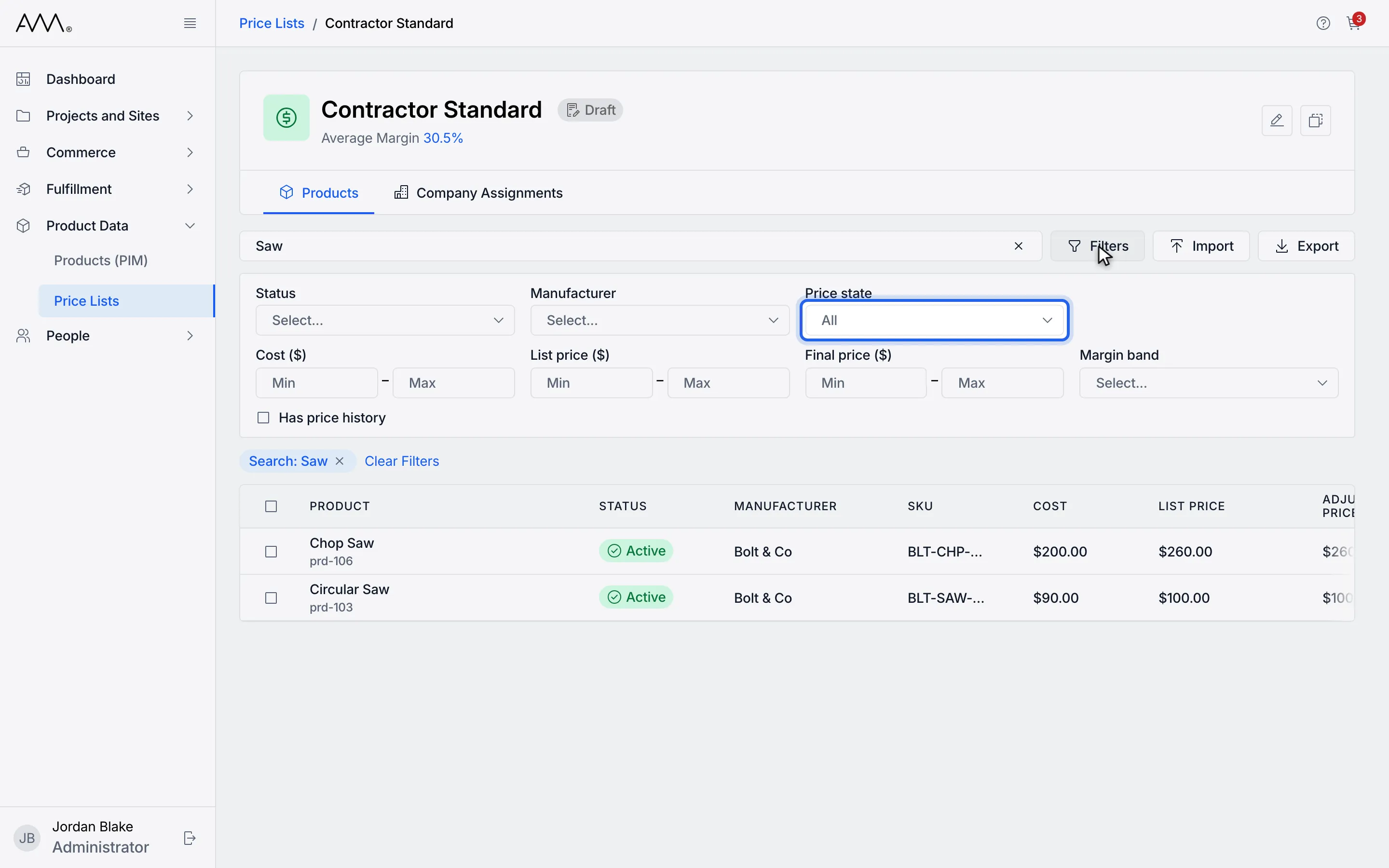
4Open a filter such as Price state.
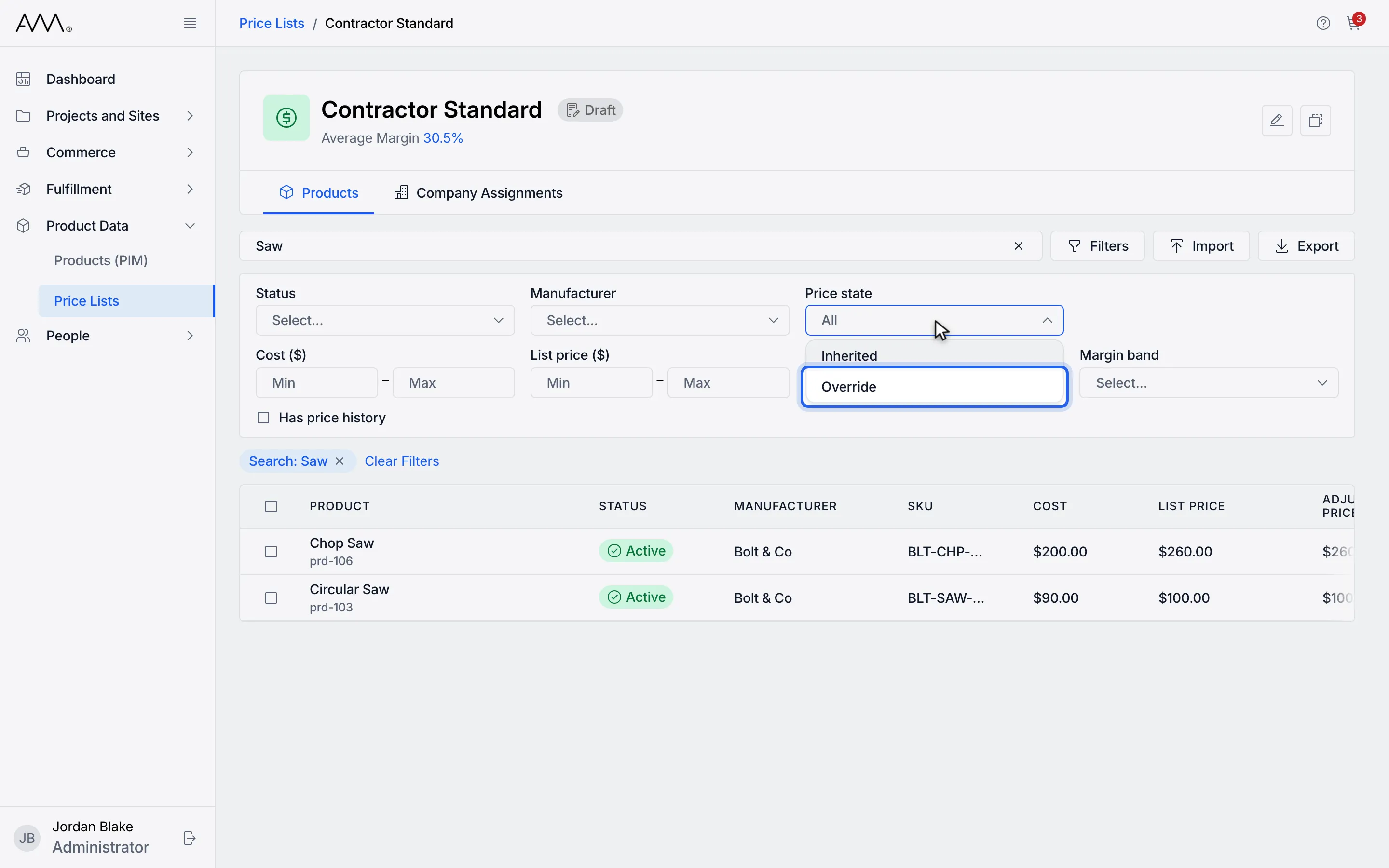
5Choose Override to show only products with an override price.
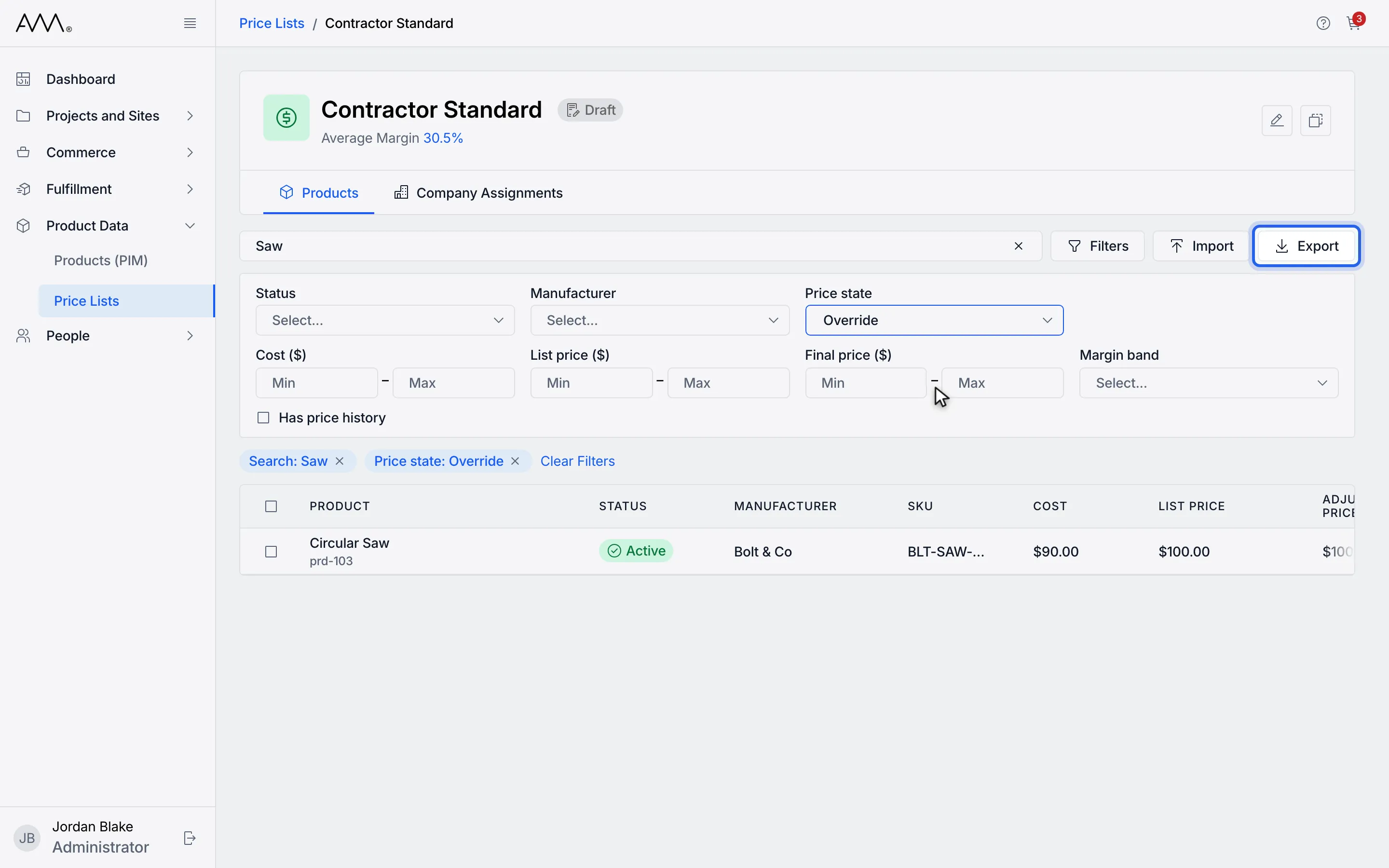
6Export includes only the products that match the current search and filters.
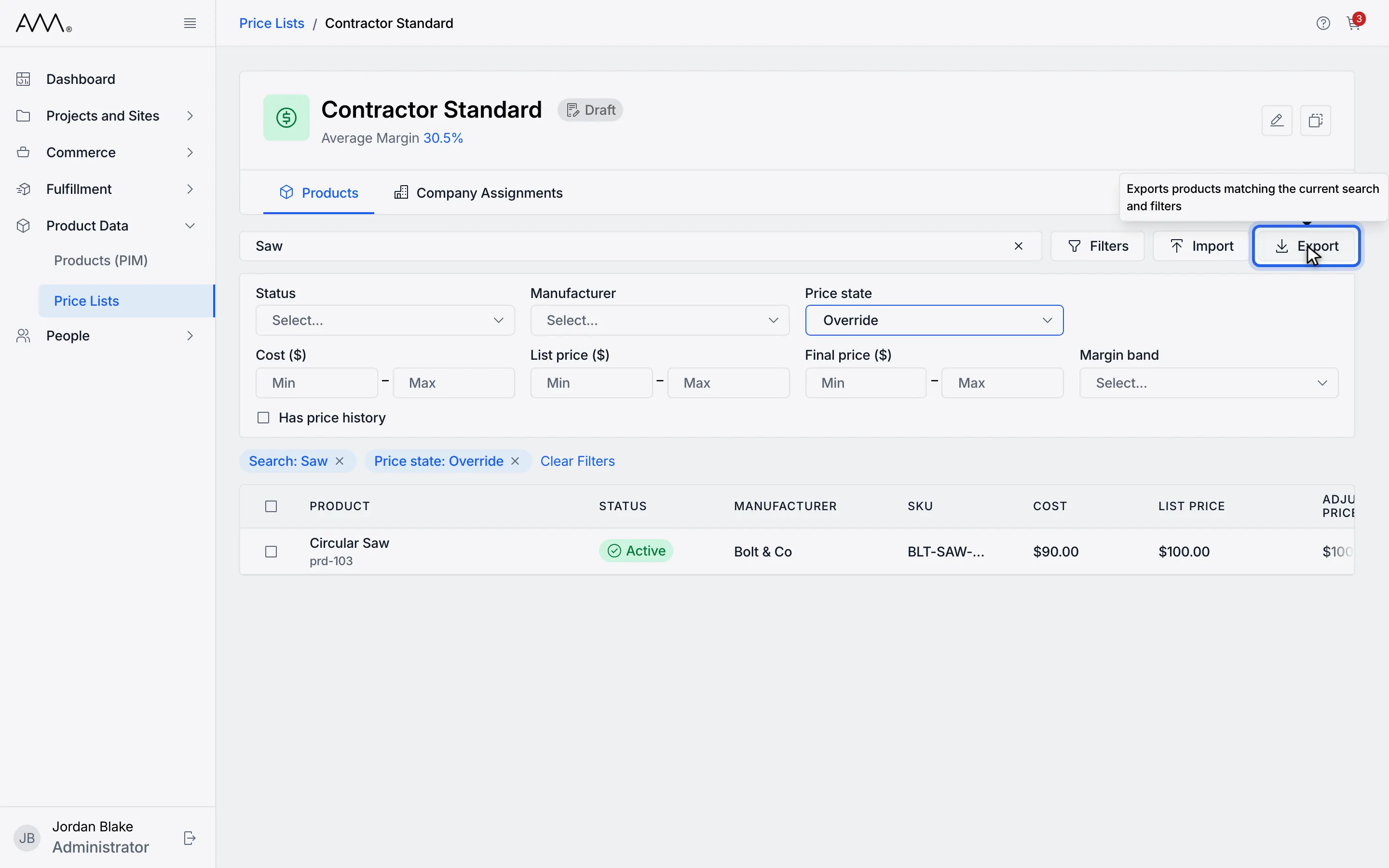
7Click Export to download the CSV file.
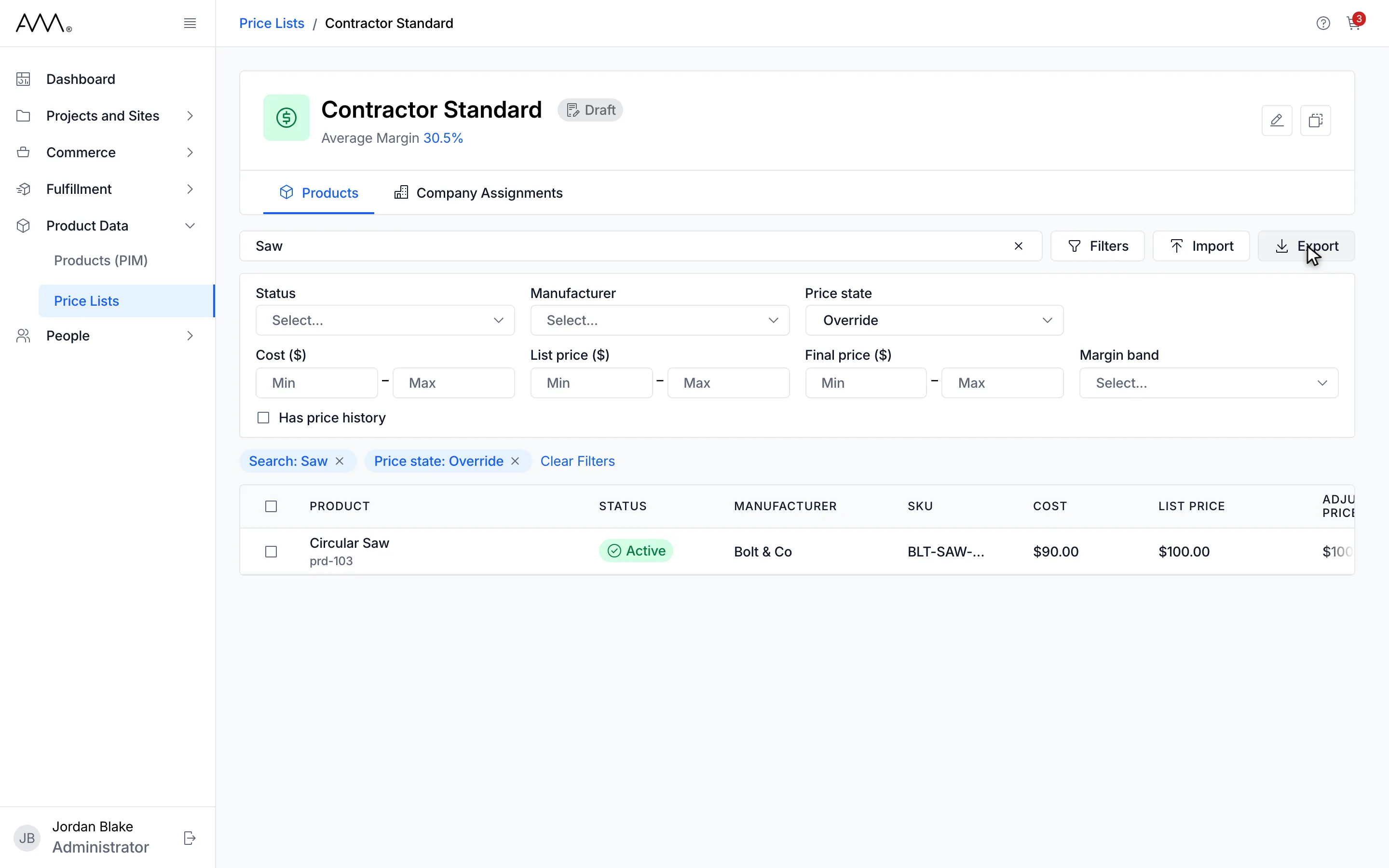
8The exported file contains the products that match the current search and filters.
Watch this as a video (filter the price table and export prices)
What happens next
Section titled “What happens next”Your browser downloads a file named after the price list in lower case with hyphens, for example contractor-standard-pricing.csv. It contains every product that matches the current search and filters, whatever its status, and the sort order has no effect. See the reference for the columns. If the export fails, the toast Export failed. Please try again. appears.