View a product's price history
Every change to a product’s override is recorded, so you can see how its price got to where it is.
- Open the price list from Price Lists. The Products tab shows first.
- Click the History icon at the far right of the product’s row. On a narrow screen, the icon sits on the product’s card.
- Read the Change History dialog. Entries are listed newest first; scroll down to load older ones. Close the dialog when you are done.
View price history1 / 4
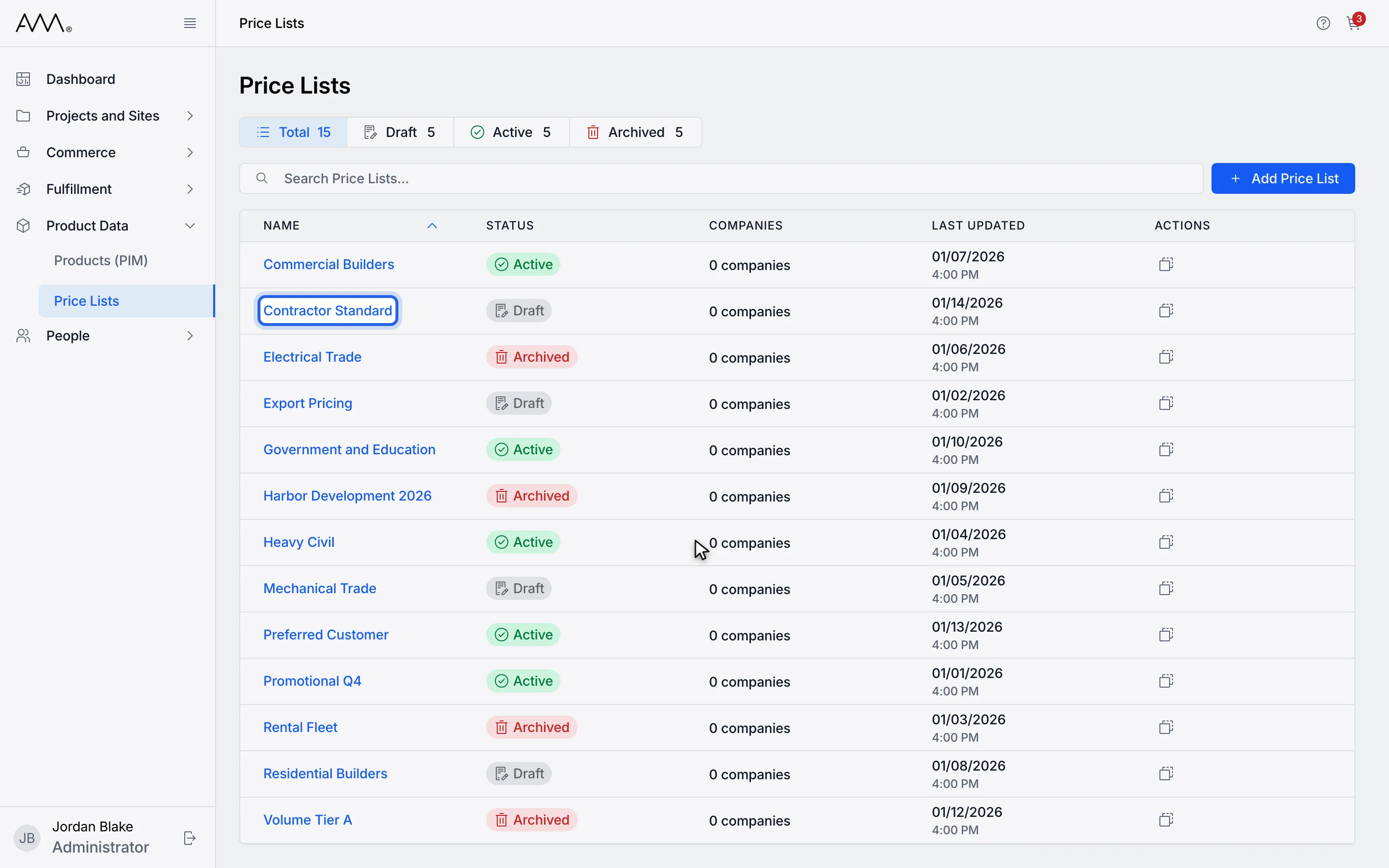
1Open the price list. The Products tab shows first.
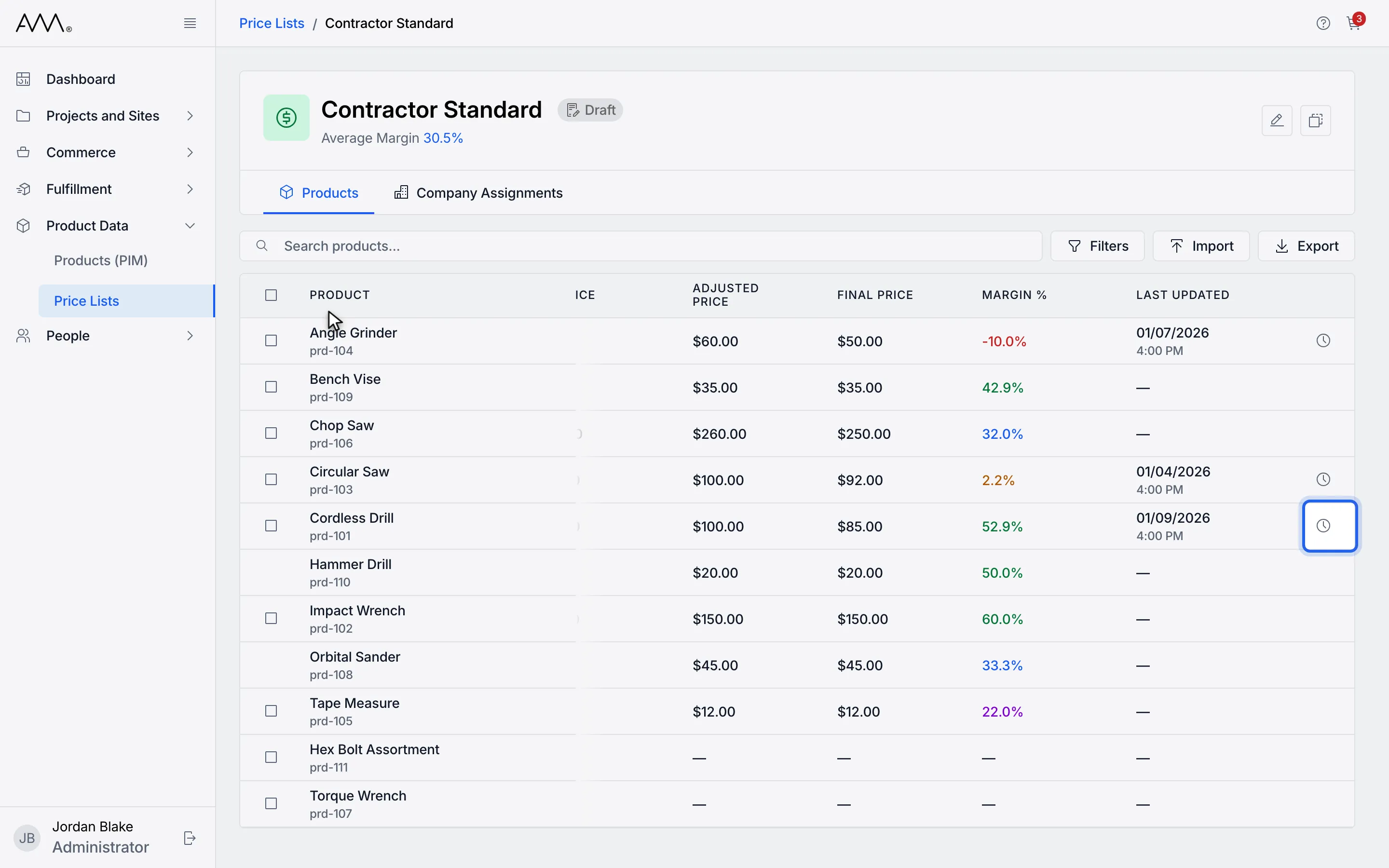
2Click the History icon at the end of the product row.
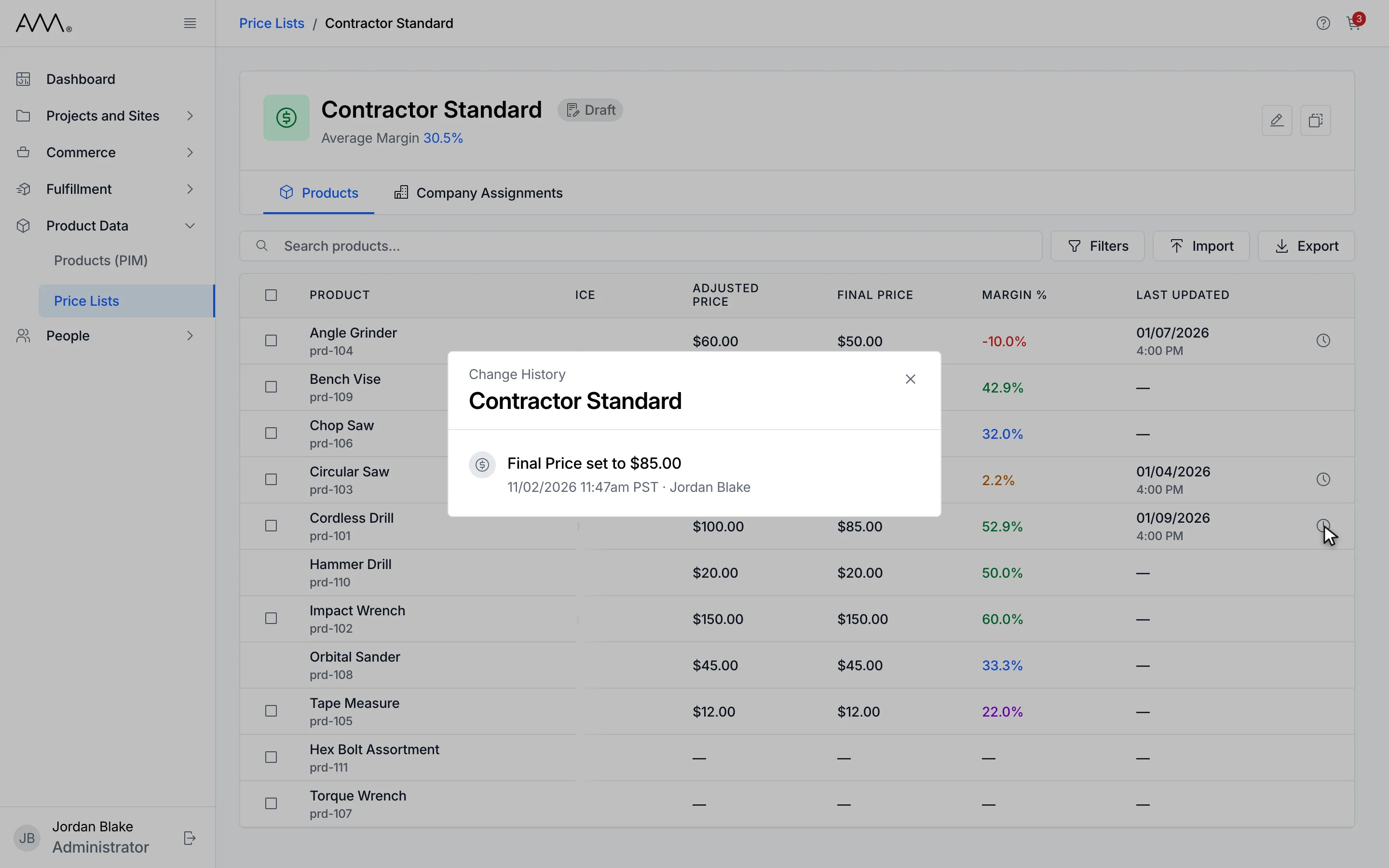
3Each entry shows what changed and when.
4Change History lists every price change for the product, newest first.
Watch this as a video (view price history)
What you see
Section titled “What you see”The dialog is headed Change History, then the price list’s name and, when one is set, Global Adjustment and its value. Each entry describes one change and when it happened, for example:
- Final Price set to $85.00
- Margin set to 2.2%
- Final Price changed $85.00 → $90.00
- Margin set to 10.0% (was Final Price $85.00)
- Final Price removed ($85.00 → Inherited)
- Override removed (→ Inherited)
While older entries load, the dialog shows Loading more…; if they cannot be loaded it shows Couldn’t load more. with a Retry button. A product whose override has no recorded changes yet shows No activity yet.