Find a shipment
The Shipments list shows every shipment with its status, carrier and dates, newest first. Use the status chips, the column sort and the search box together to get to one shipment quickly.
- In the sidebar, open Fulfillment and choose Shipments.
- Click a status chip such as In Transit to show only shipments in that status. Each chip shows a count. Click more chips to combine statuses, or Total to clear the filter.
- Click a column heading such as Carrier to sort by it. Click it again to reverse the order. Every heading sorts except Delivered.
- Type in Search Shipments… to match a shipment number, driver, fulfillment order number, sales order number, company or supply point name. The search does not match the carrier name.
- Click the Shipment ID to open the shipment.
Find a shipment1 / 8
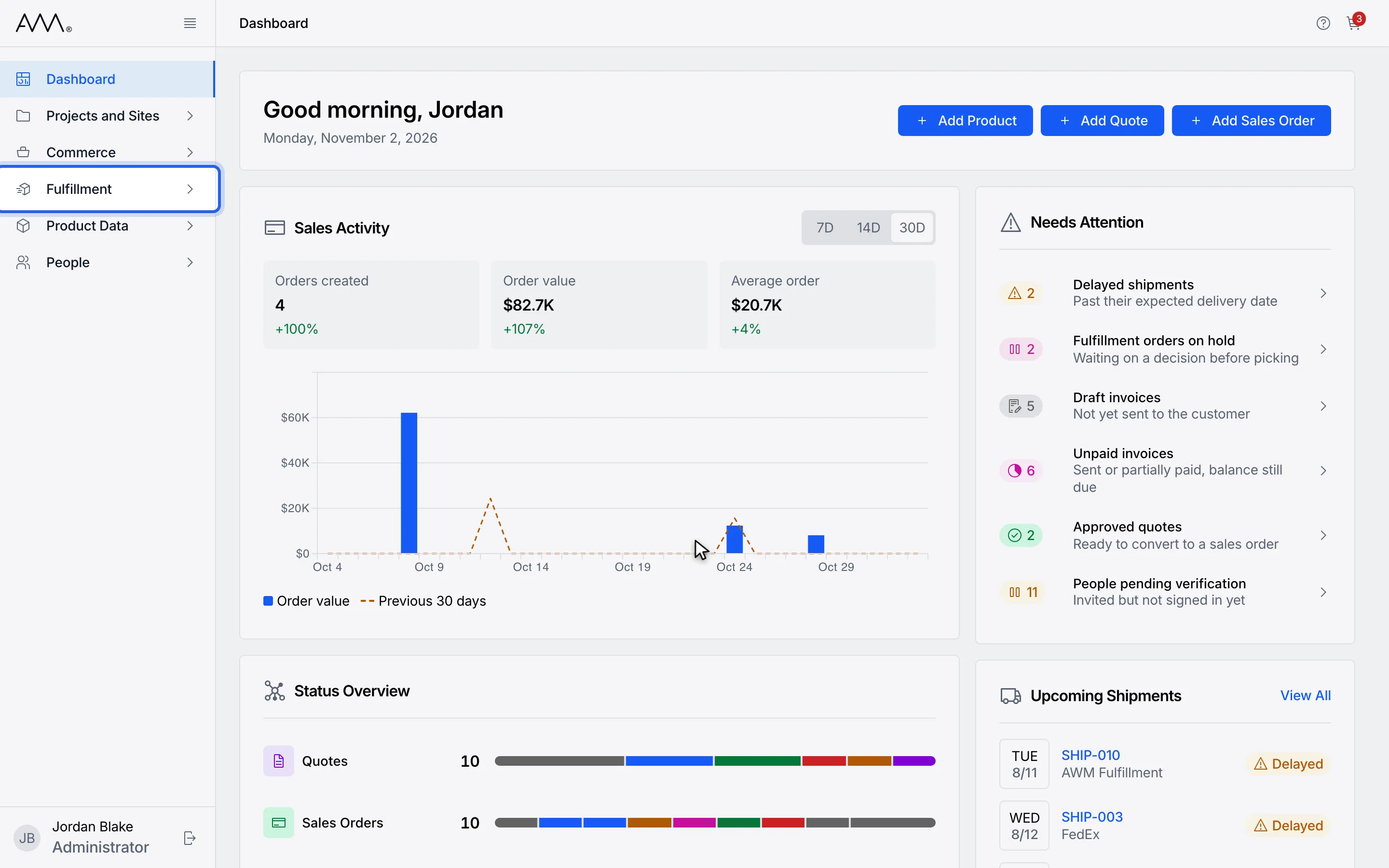
1In the sidebar, open Fulfillment.
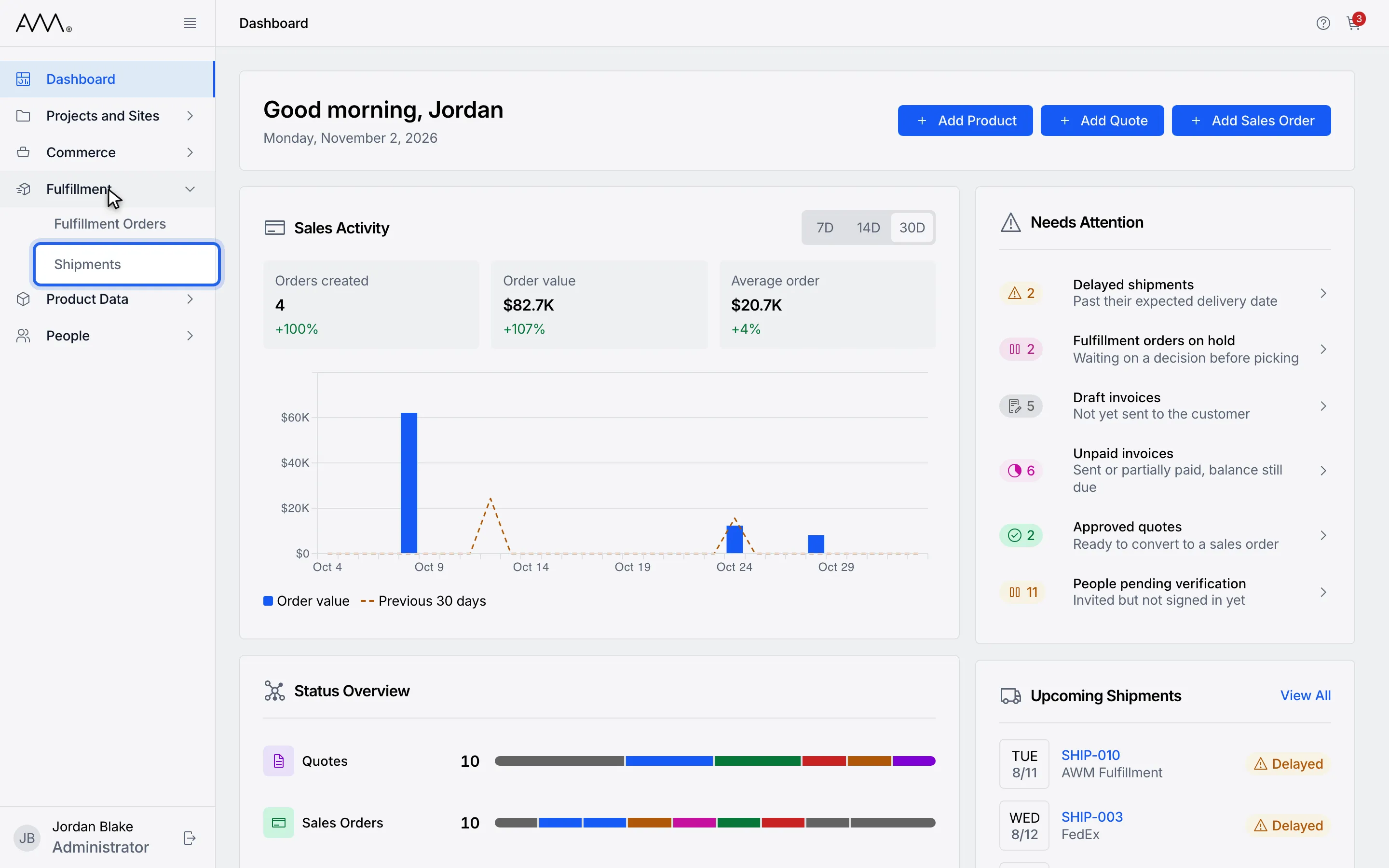
2Choose Shipments.
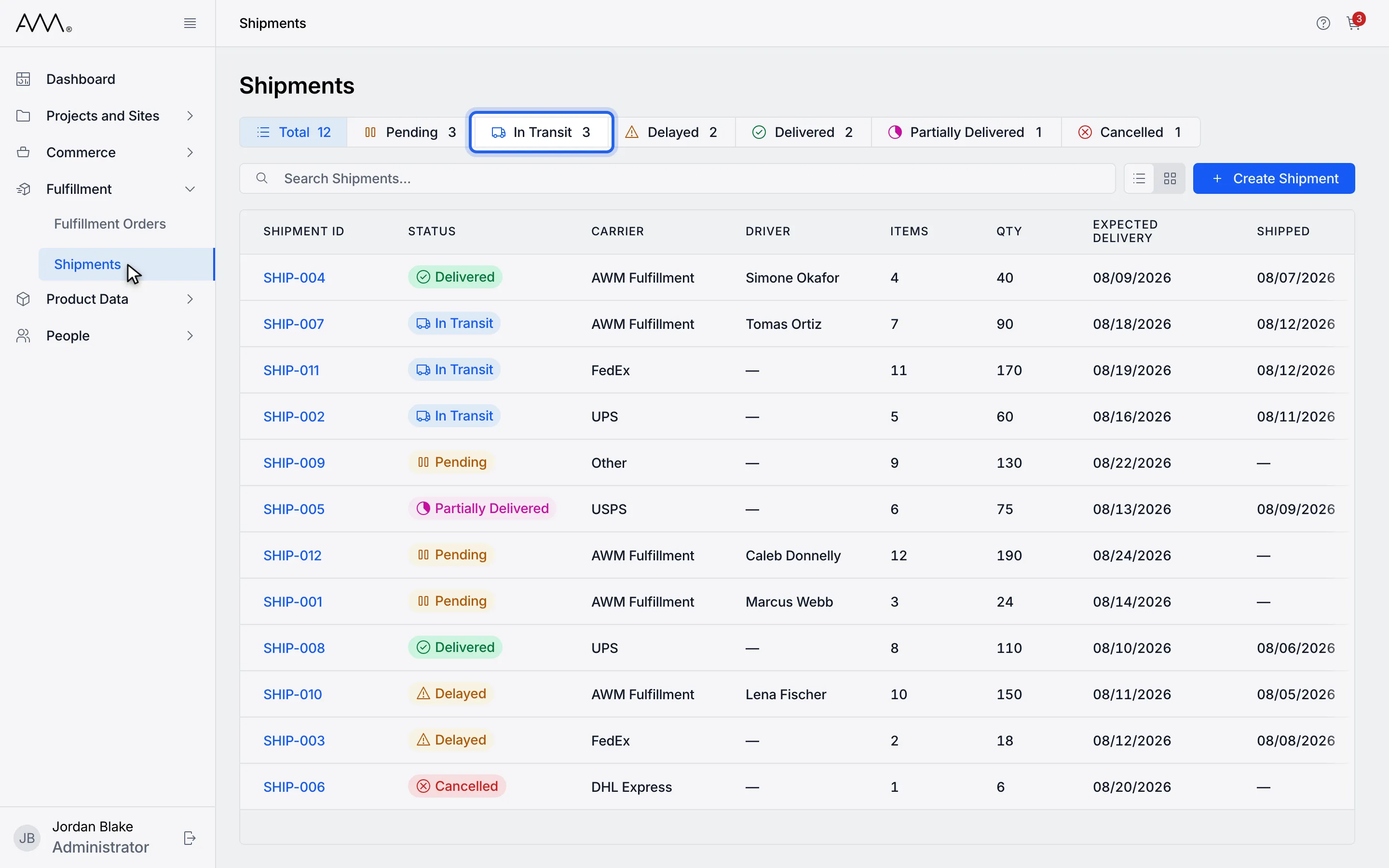
3Click a status chip such as In Transit to narrow the list. Each chip shows a count.
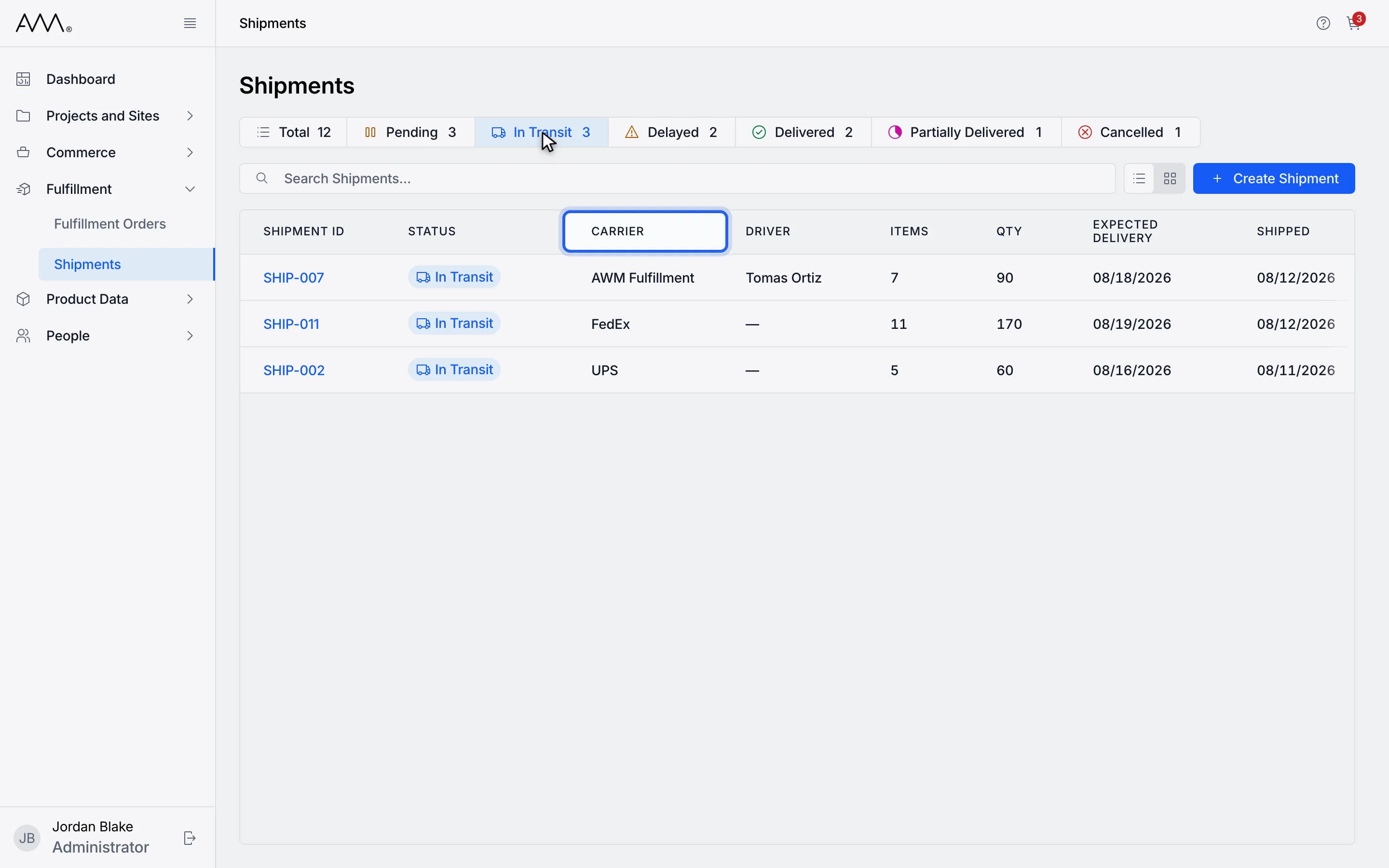
4Click a column heading to sort by it. Click it again to reverse the order.
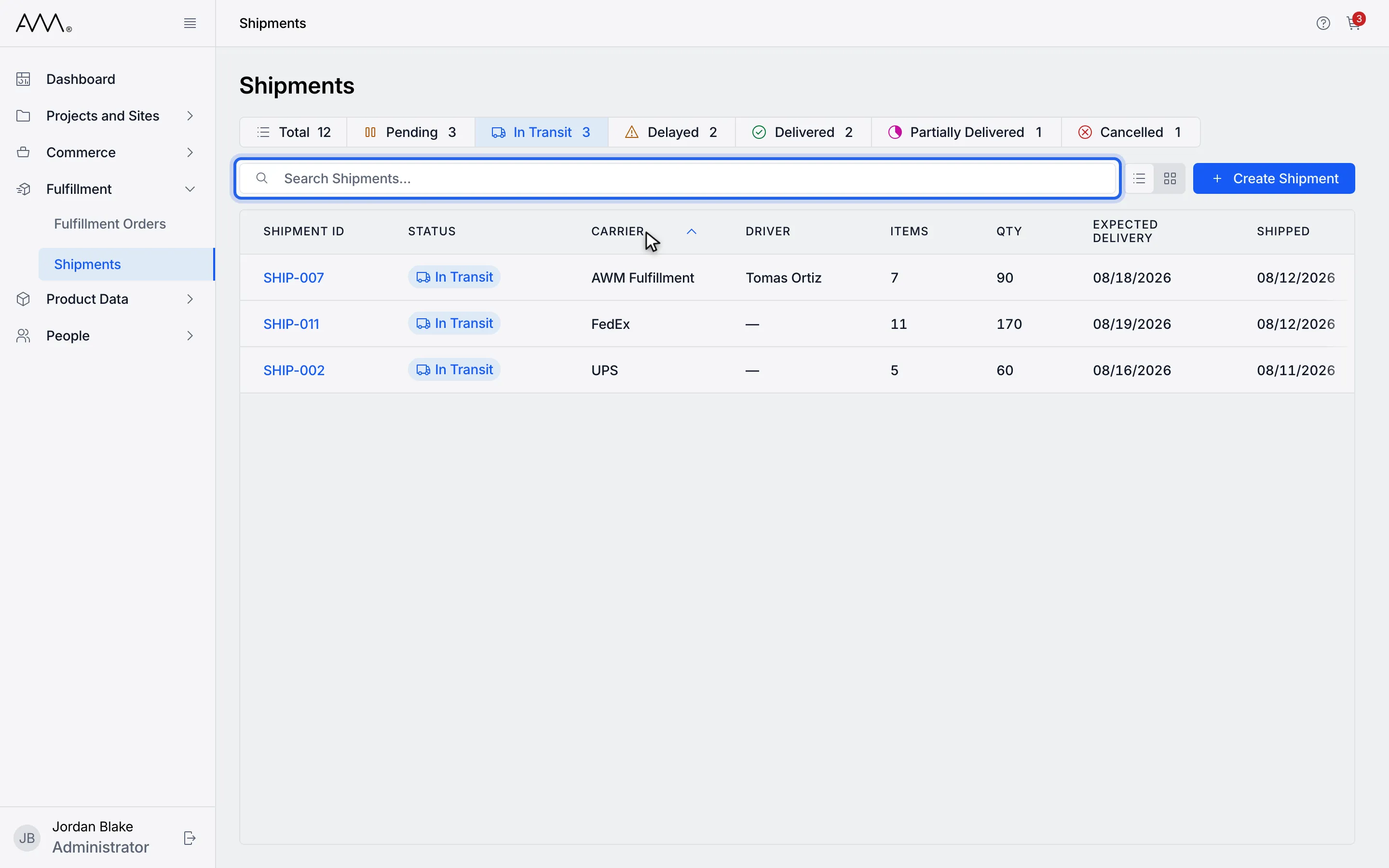
5Type a shipment number, driver, order number, company or supply point name.
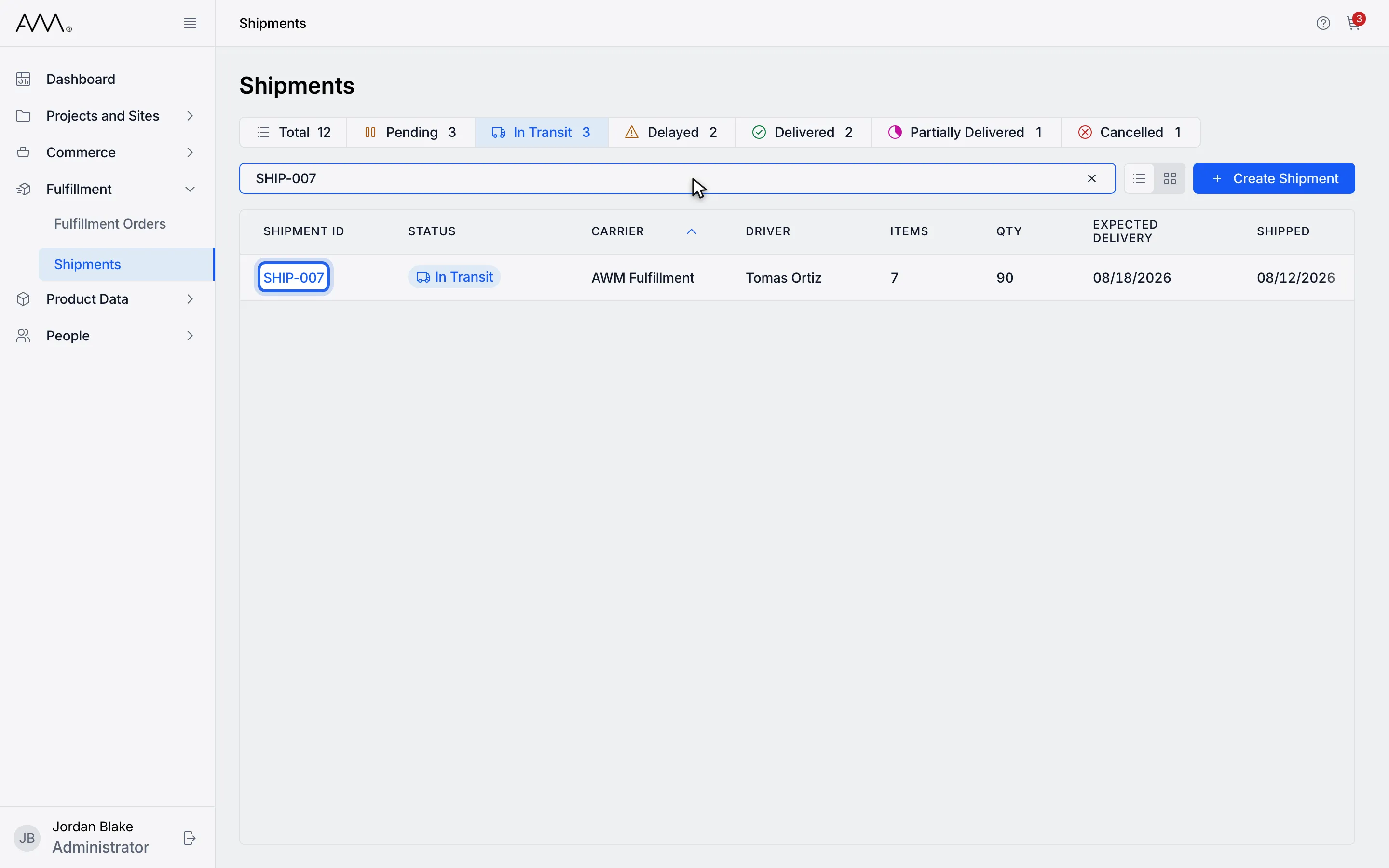
6Open a shipment by clicking its Shipment ID.
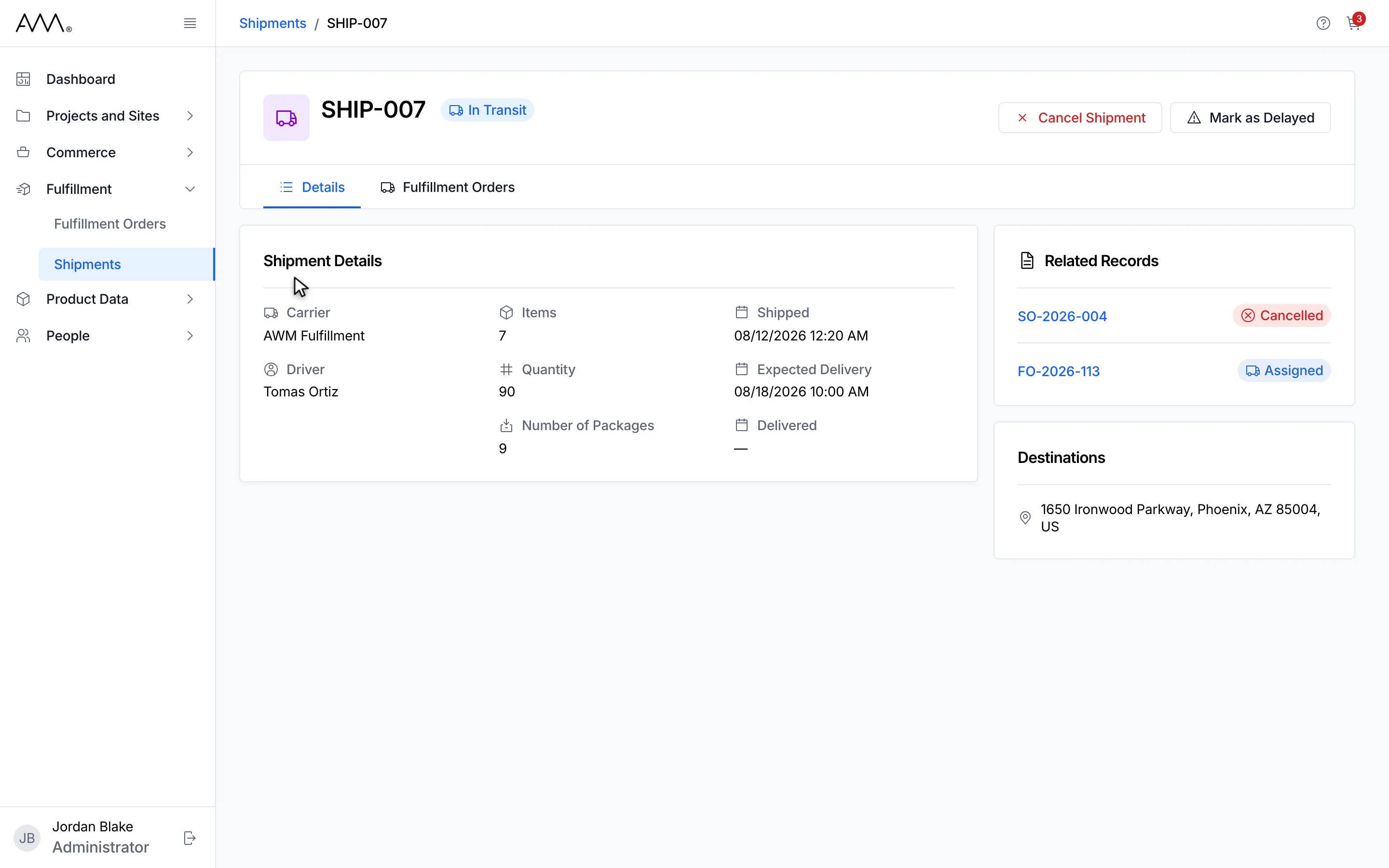
7The shipment opens on its Details tab.
8The shipment opens on its Details tab.
Watch this as a video (find a shipment)
If nothing matches, the list shows No shipments found with the hint Try adjusting your search or filter criteria.