Apply a company's price list
A quote uses Catalog Pricing until its company has an Active Price List. The Pricelist field in Quote Details shows which pricing is in use and offers the company’s price list once the company has one. Picking the company in Project Details applies its price list on its own; on a quote whose company is already set, pick the list in Pricelist.
If the company does not have a price list yet, assign one first.
- In the sidebar, open Product Data and choose Price Lists.
- Open an Active price list.
- Open the Company Assignments tab.
- Click Assign Company.
- In the Assign Companies dialog, type in Search companies… to find the company. Only companies without a price list are listed.
- Click the company card to select it.
- Click Assign 1 Company. The company appears in the list and a toast confirms the assignment.
Then apply the price list on the quote:
- In the sidebar, open Commerce and choose Quotes, then open a Draft or Sent quote for that company.
- Click Actions.
- Choose Edit.
- In Quote Details, open Pricelist. It offers the company’s price list and Catalog Pricing.
- Pick the company’s price list. Omni looks up the prices; while it does, the Company, Pricelist and line item controls are disabled.
- Check Pricelist and the line prices, then click Save Changes to keep the price list on the quote.
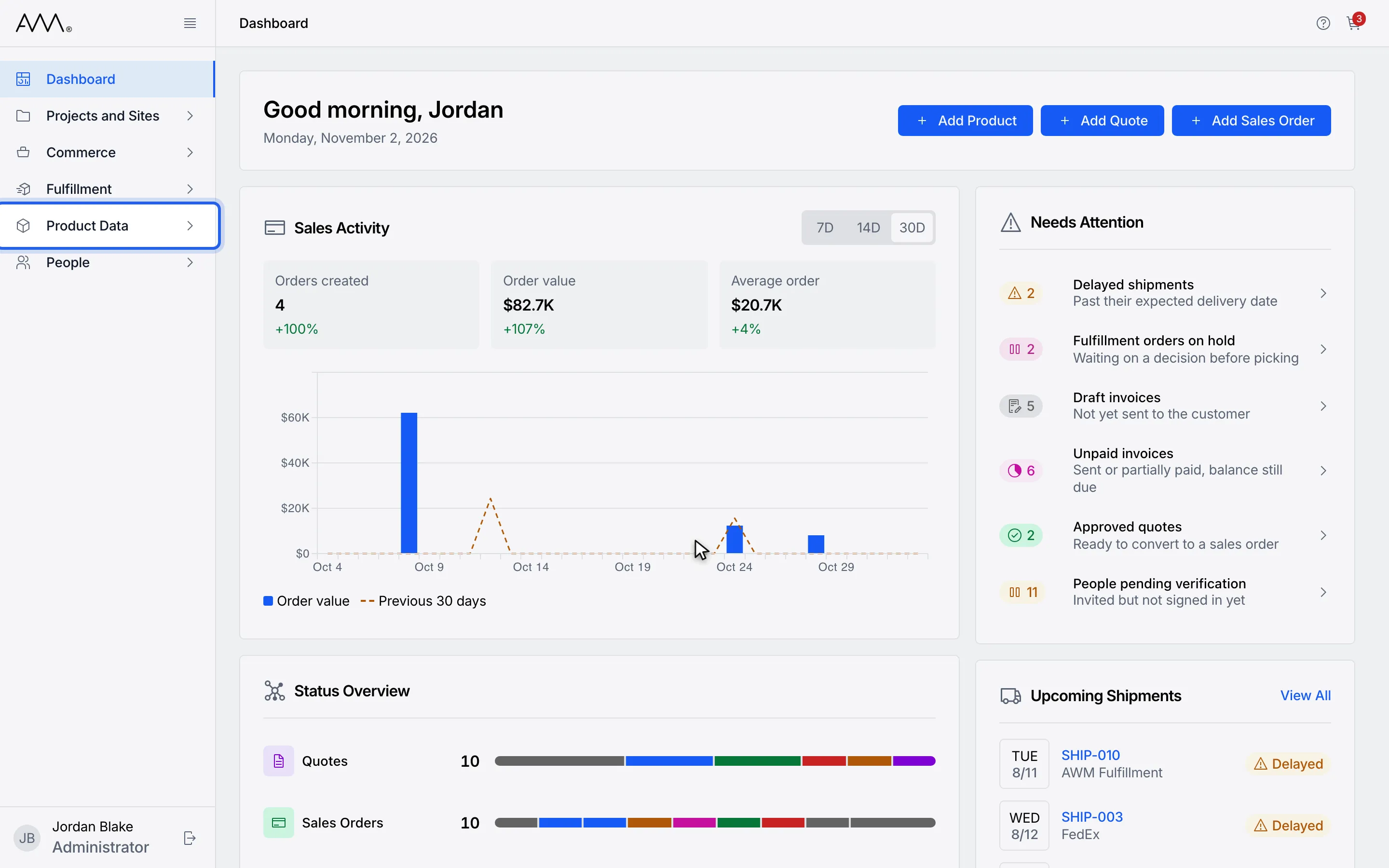
1In the sidebar, open Product Data.
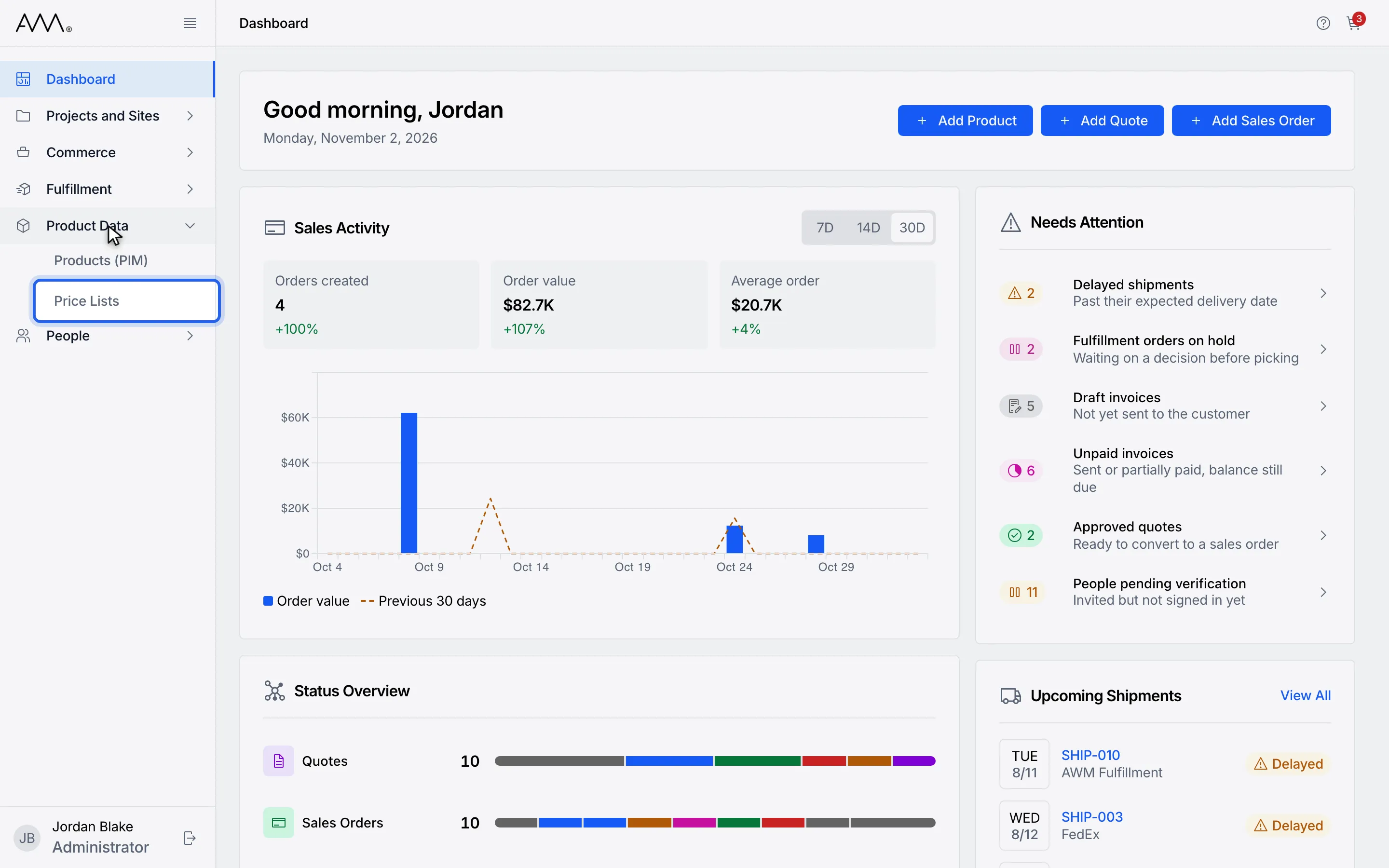
2Choose Price Lists.
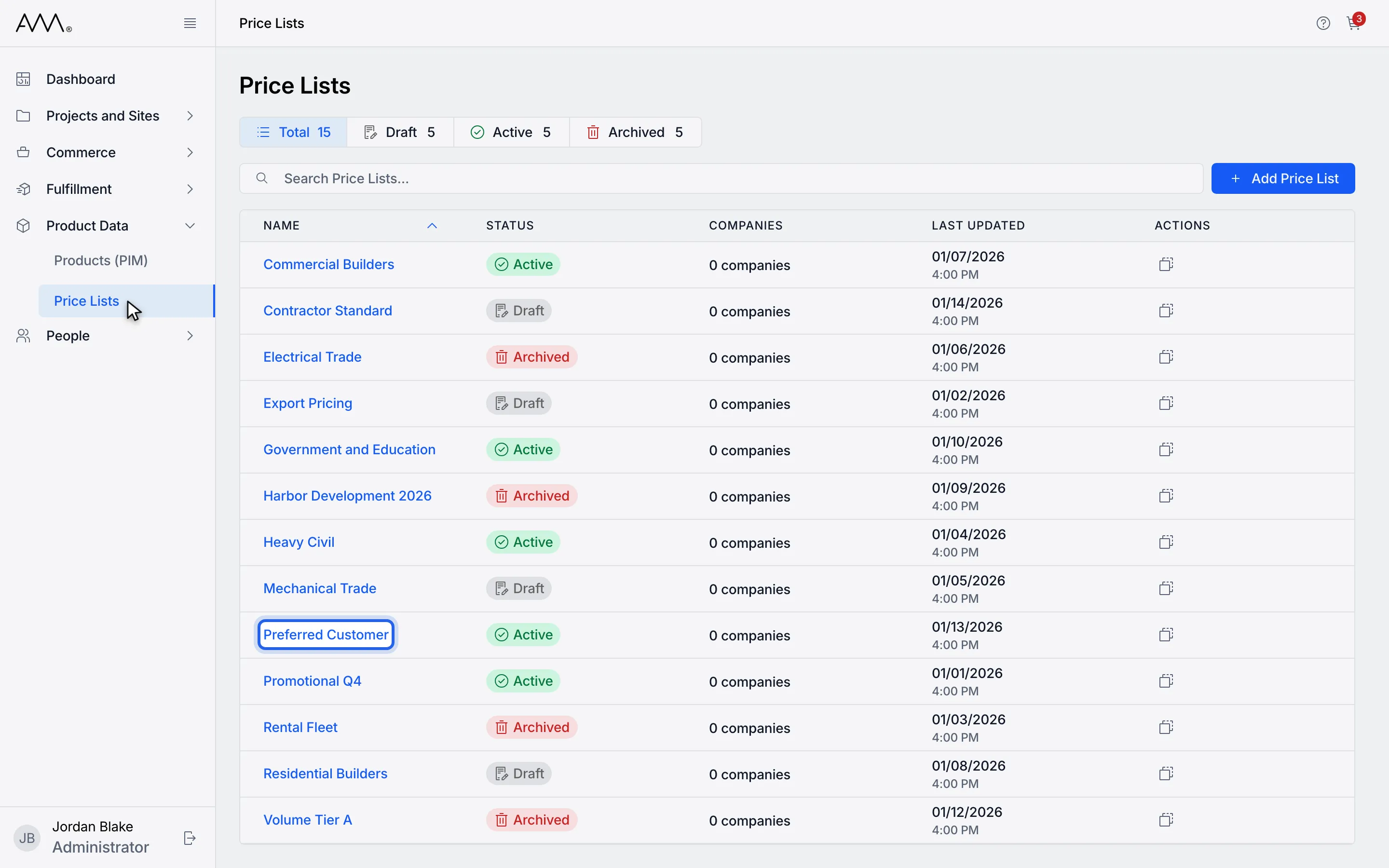
3Open an Active price list.
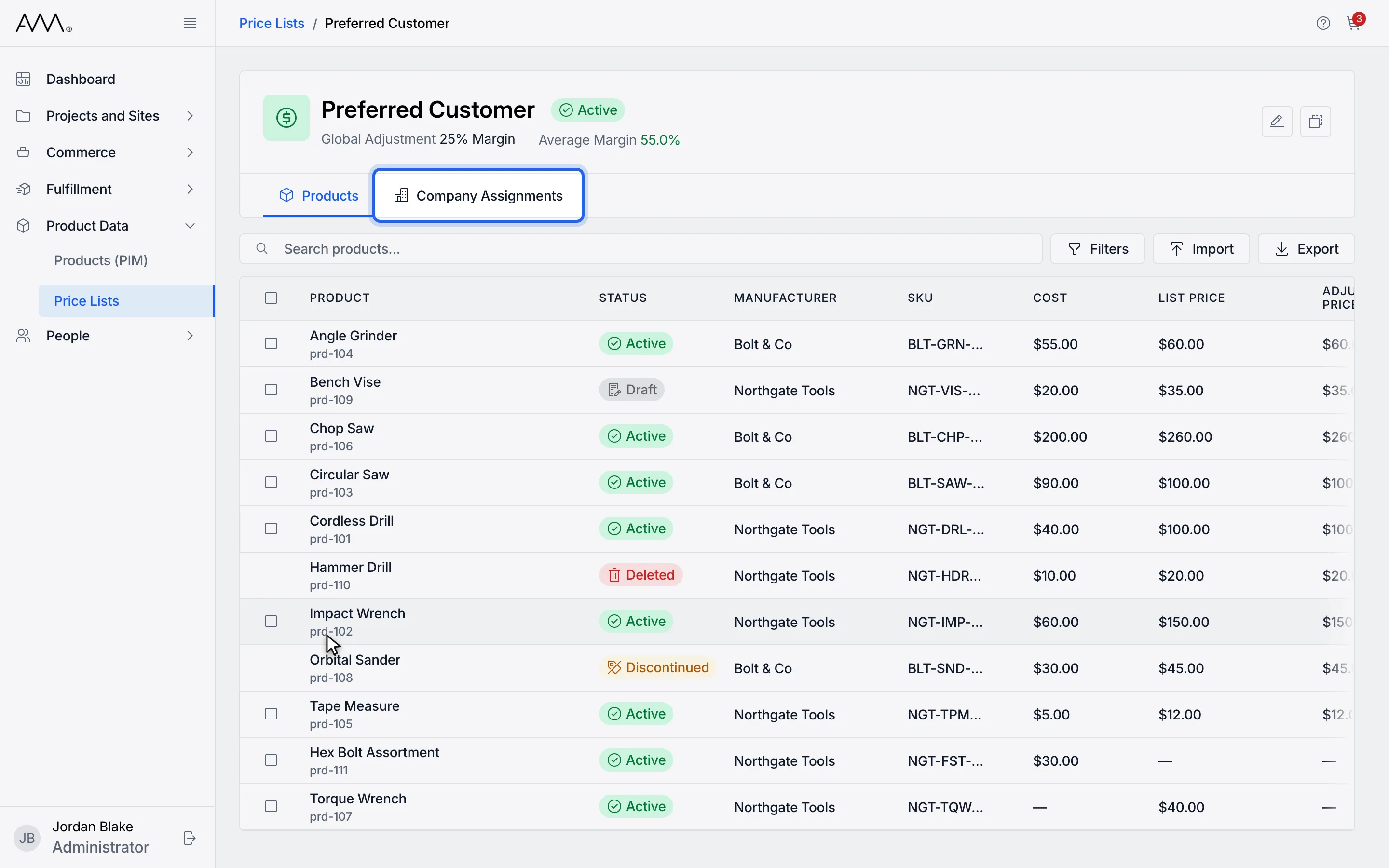
4Open the Company Assignments tab.
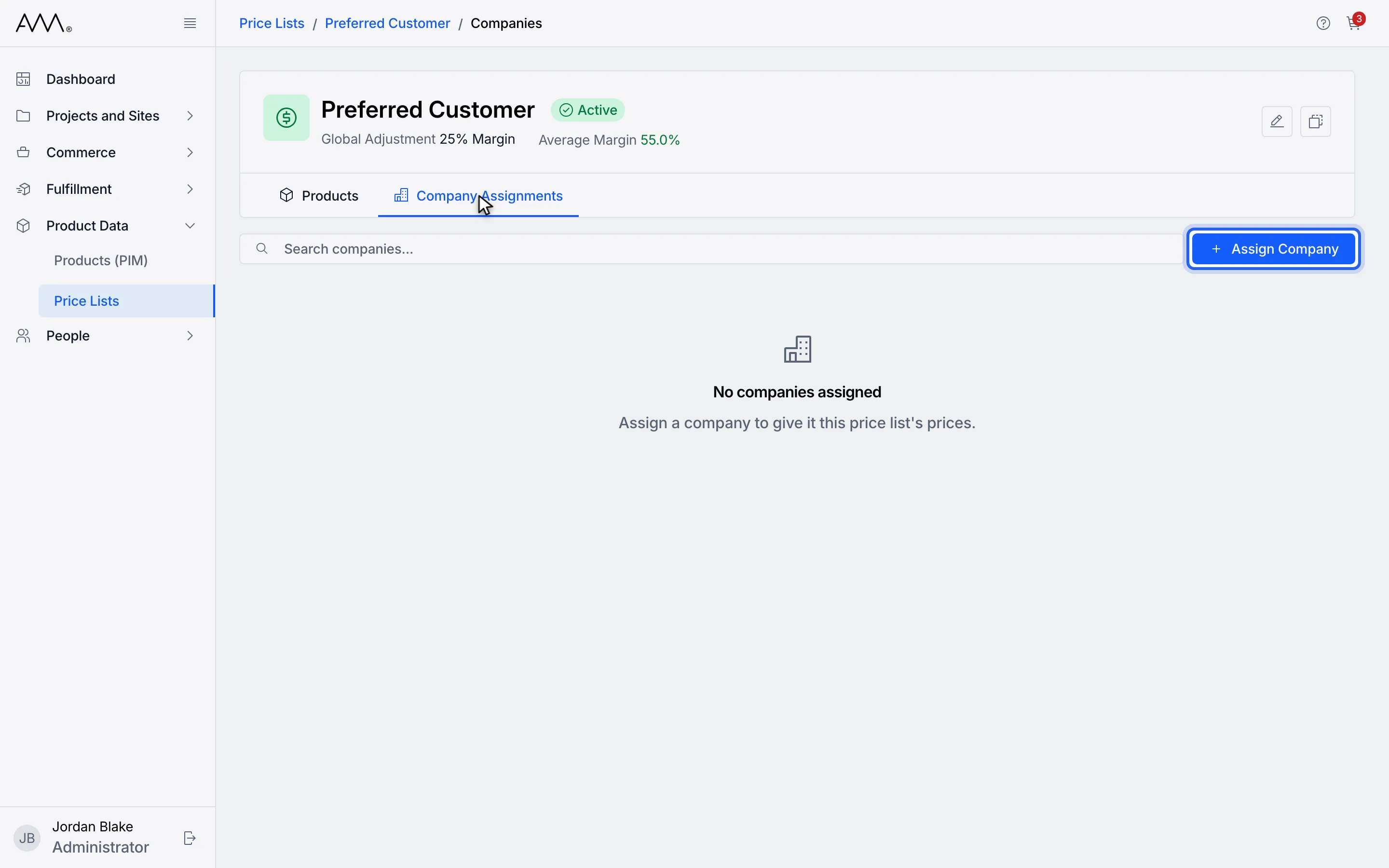
5Click Assign Company.
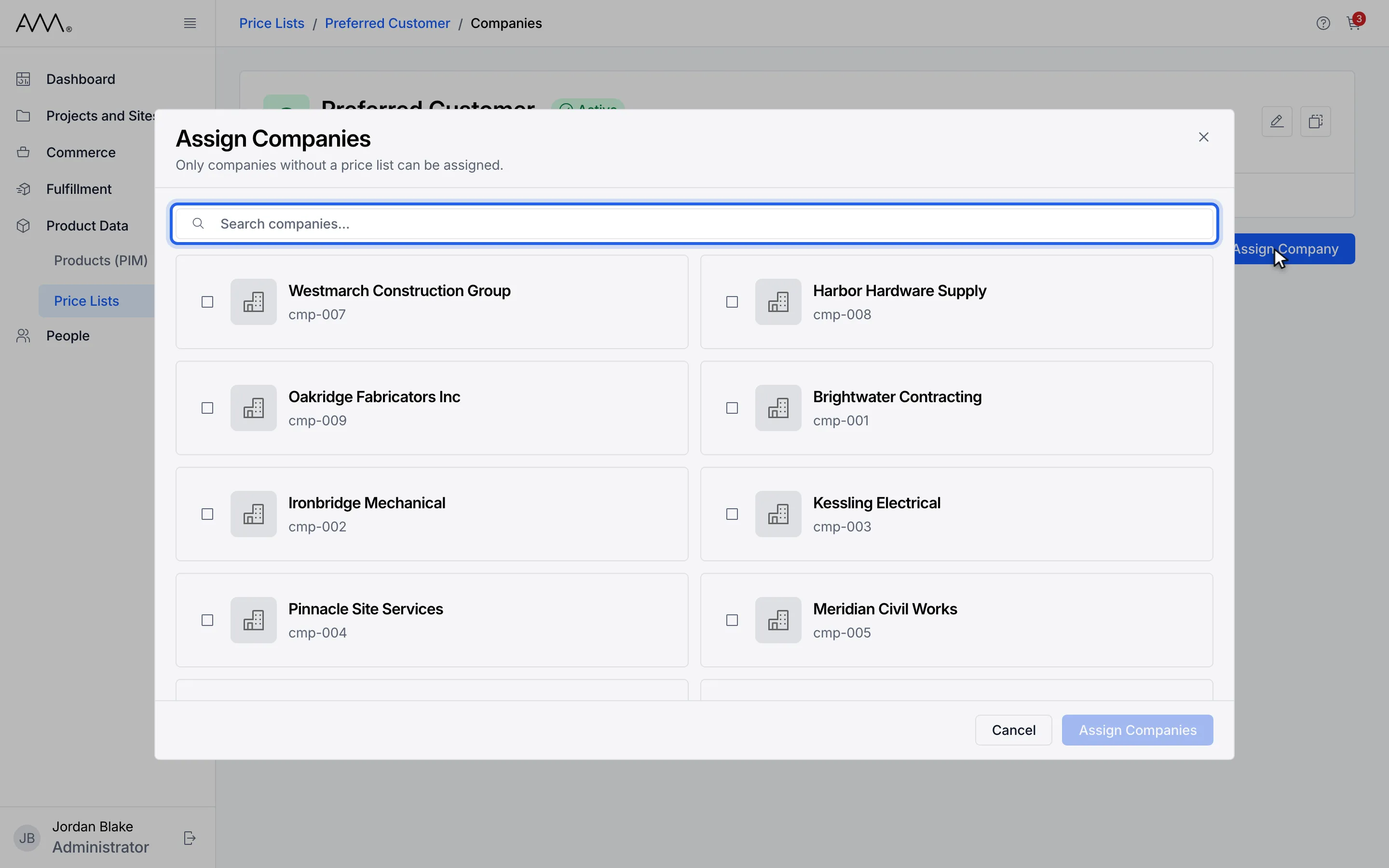
6Search for the company.
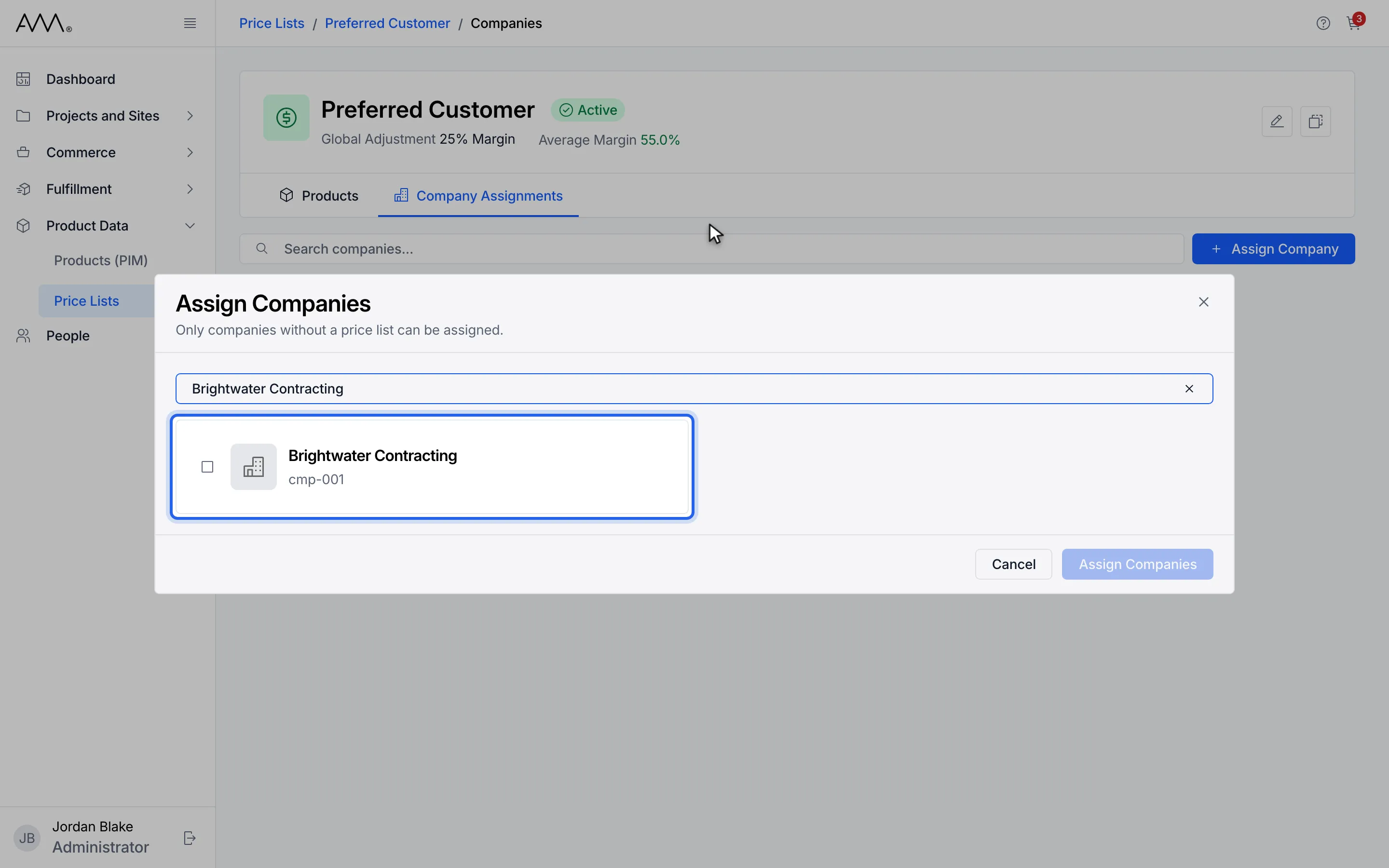
7Click the company card to select it.
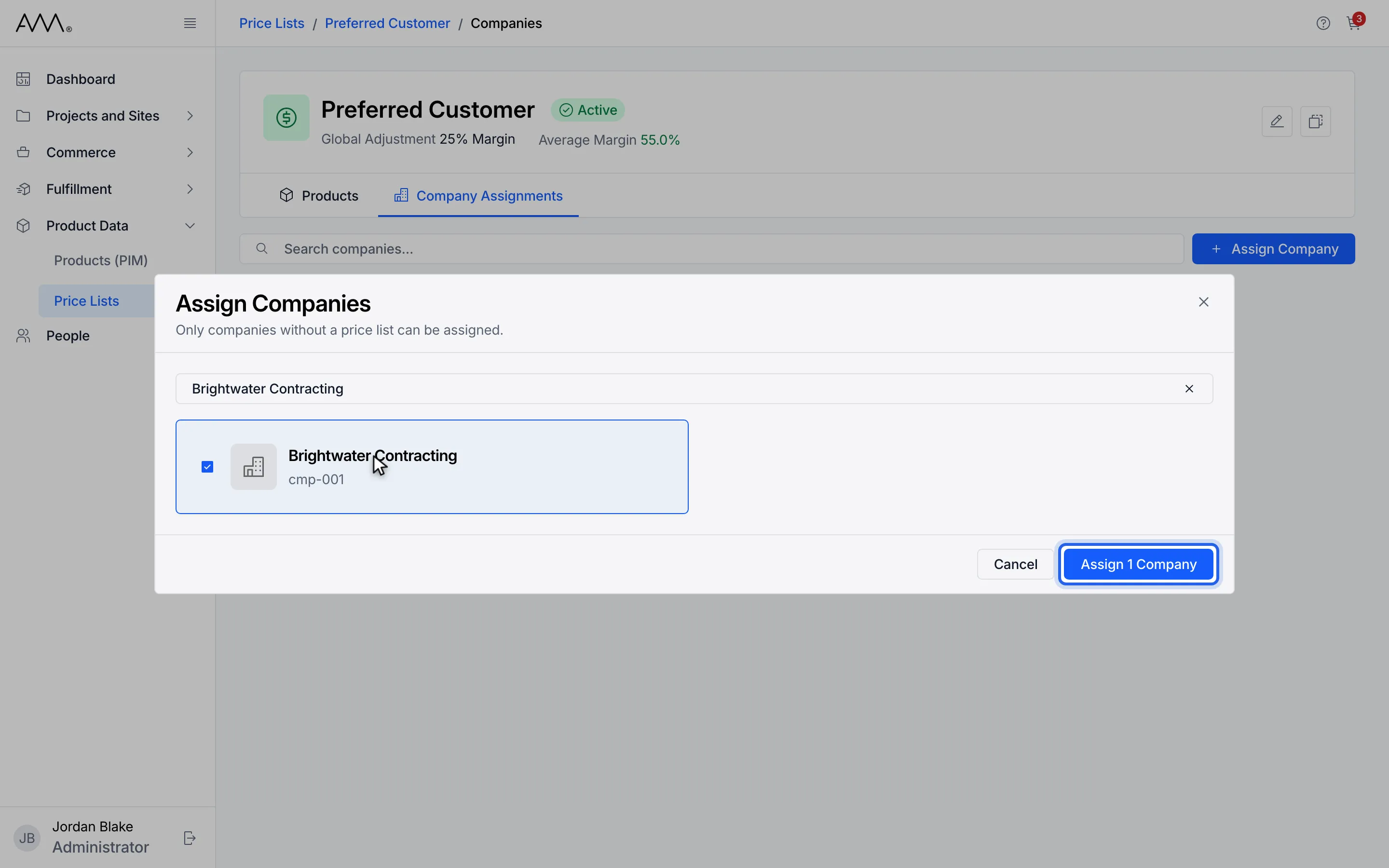
8Click Assign 1 Company.
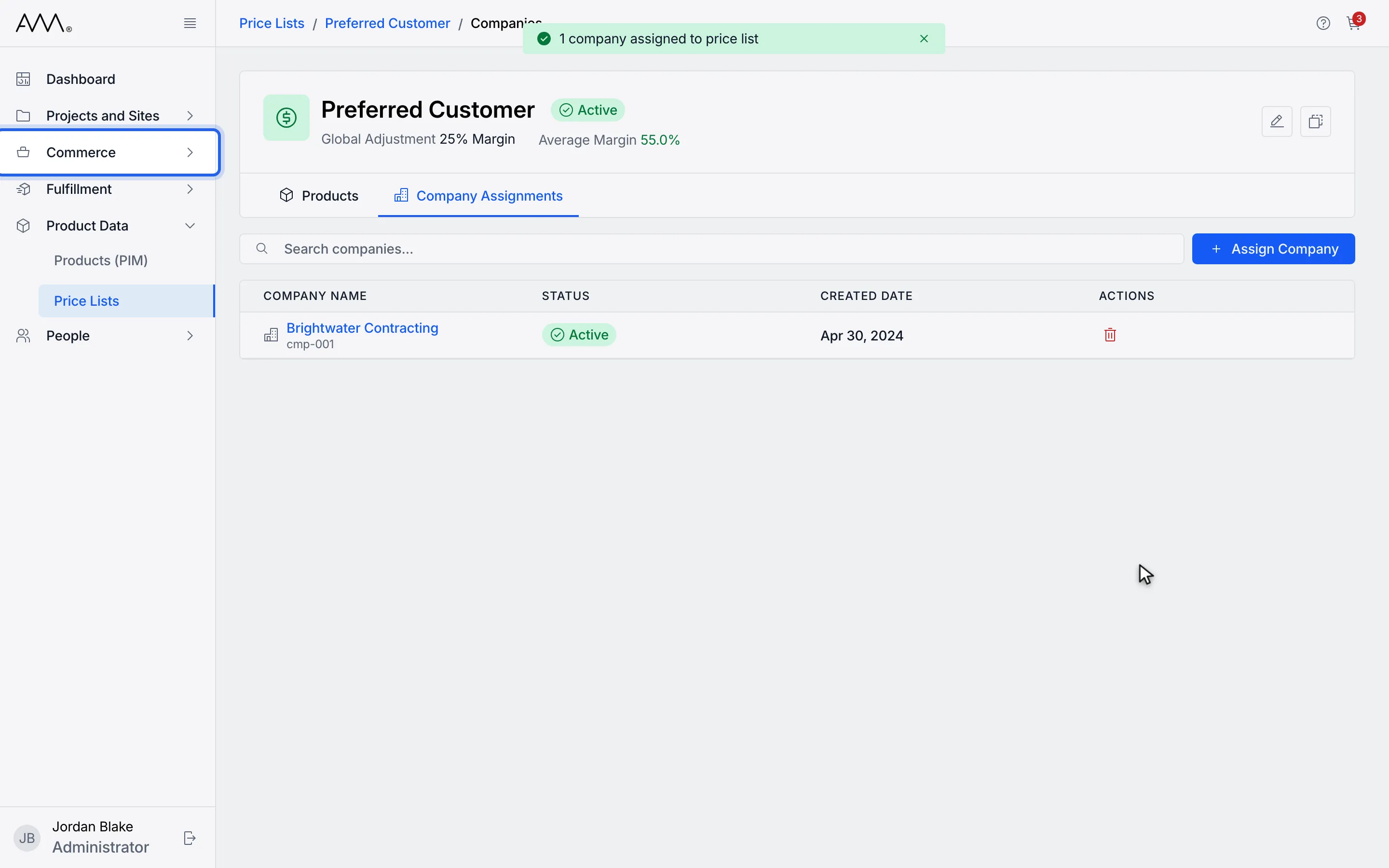
9Now open Commerce in the sidebar.
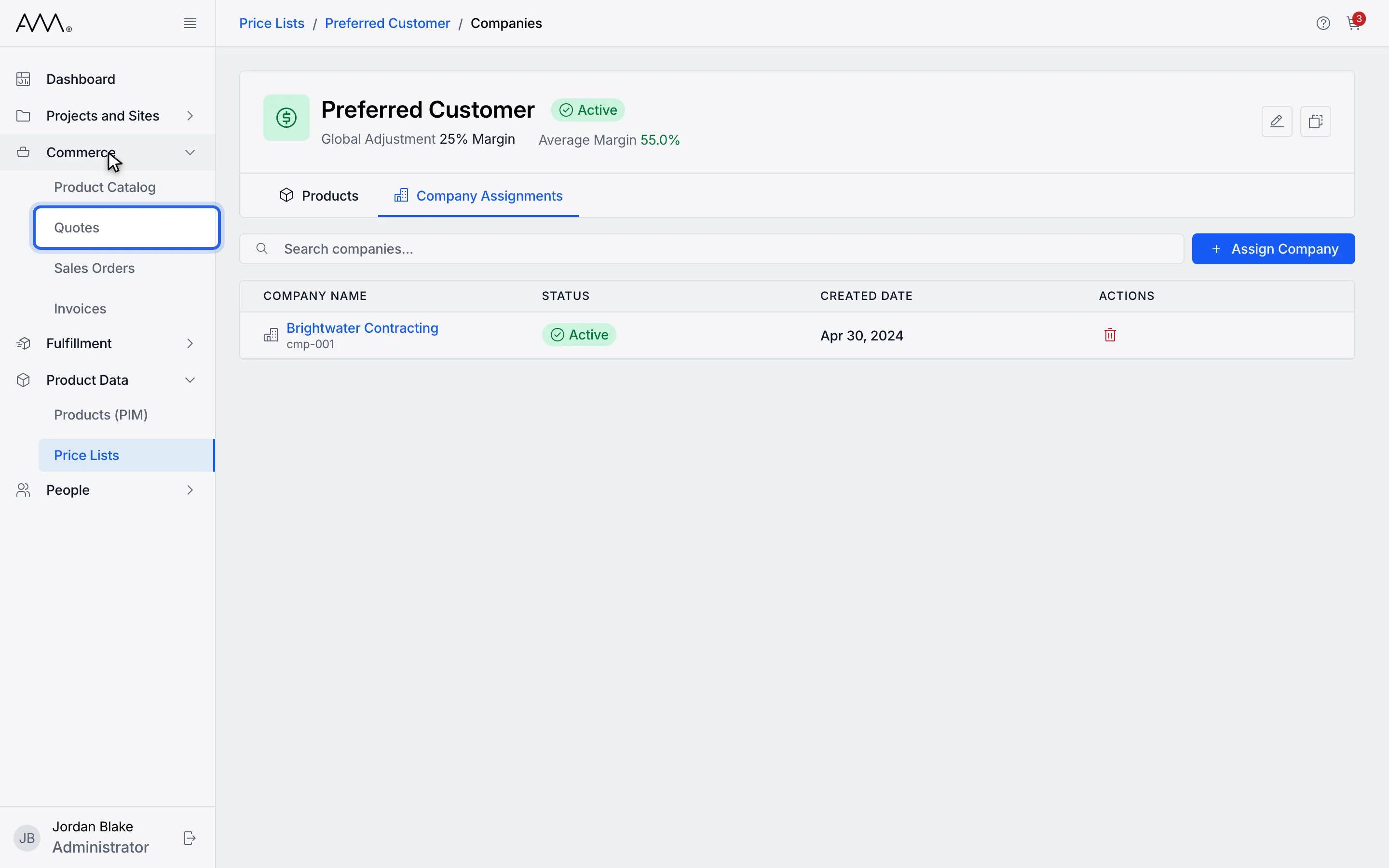
10Choose Quotes.
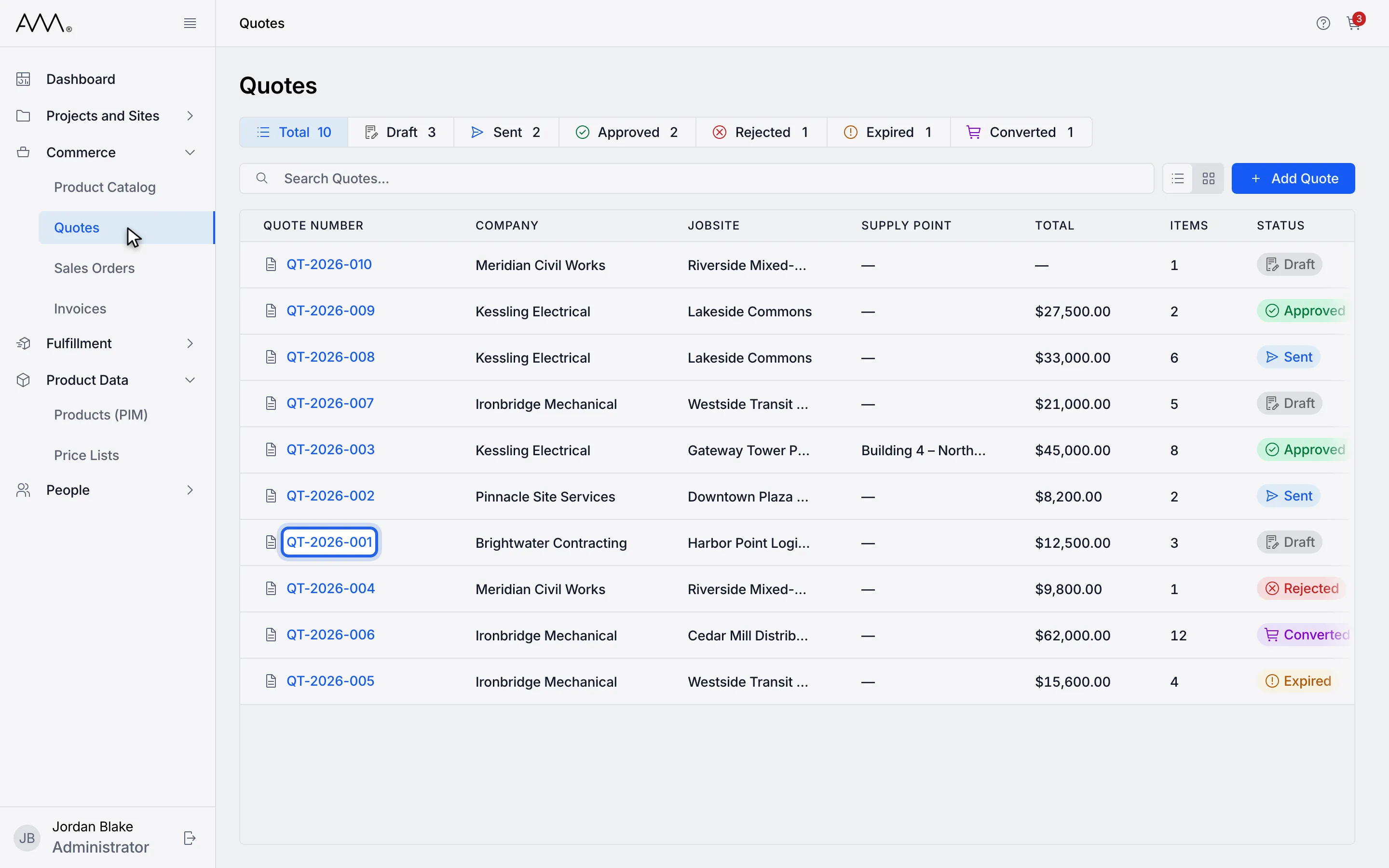
11Open a Draft or Sent quote for that company.
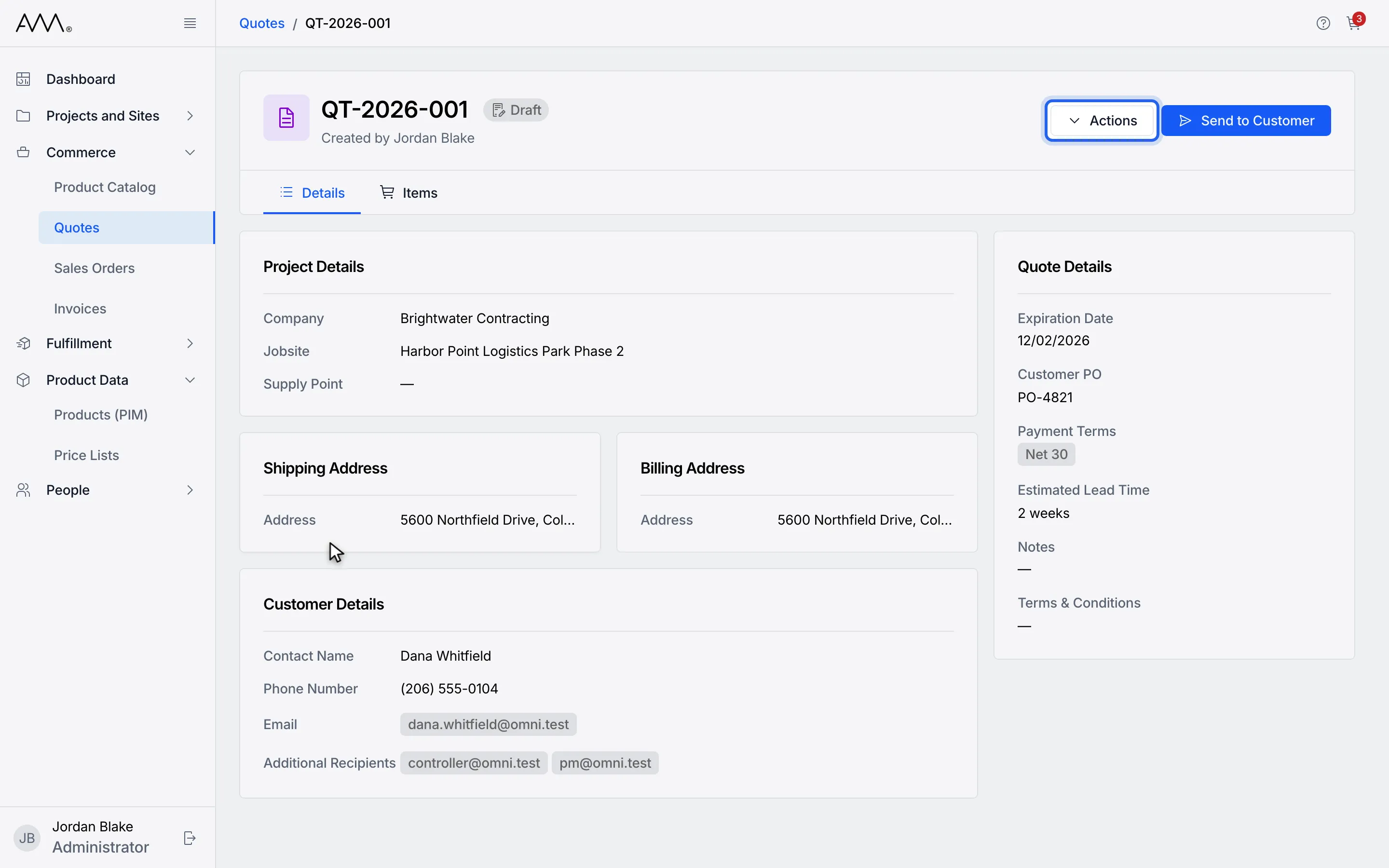
12Click Actions.
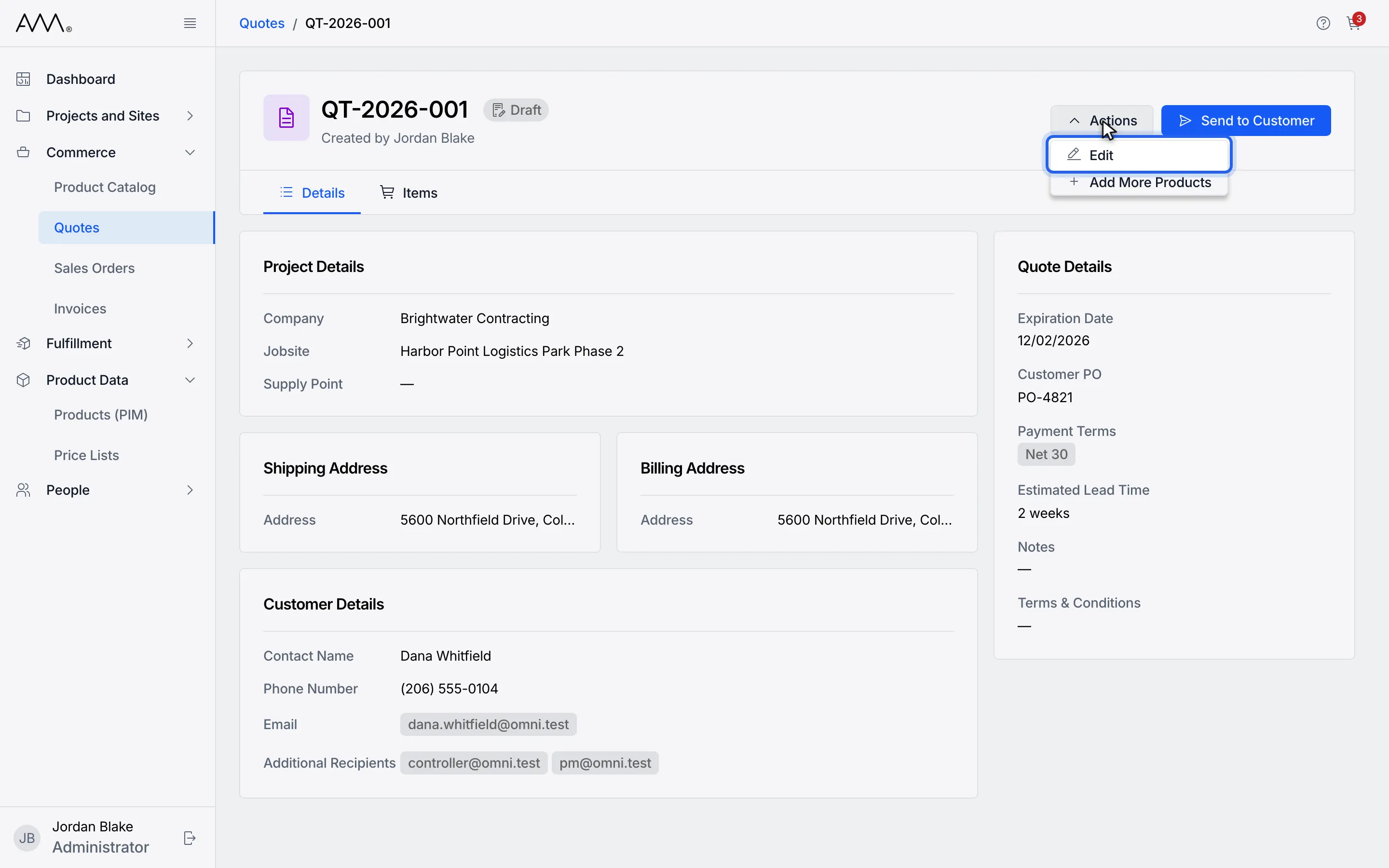
13Choose Edit.
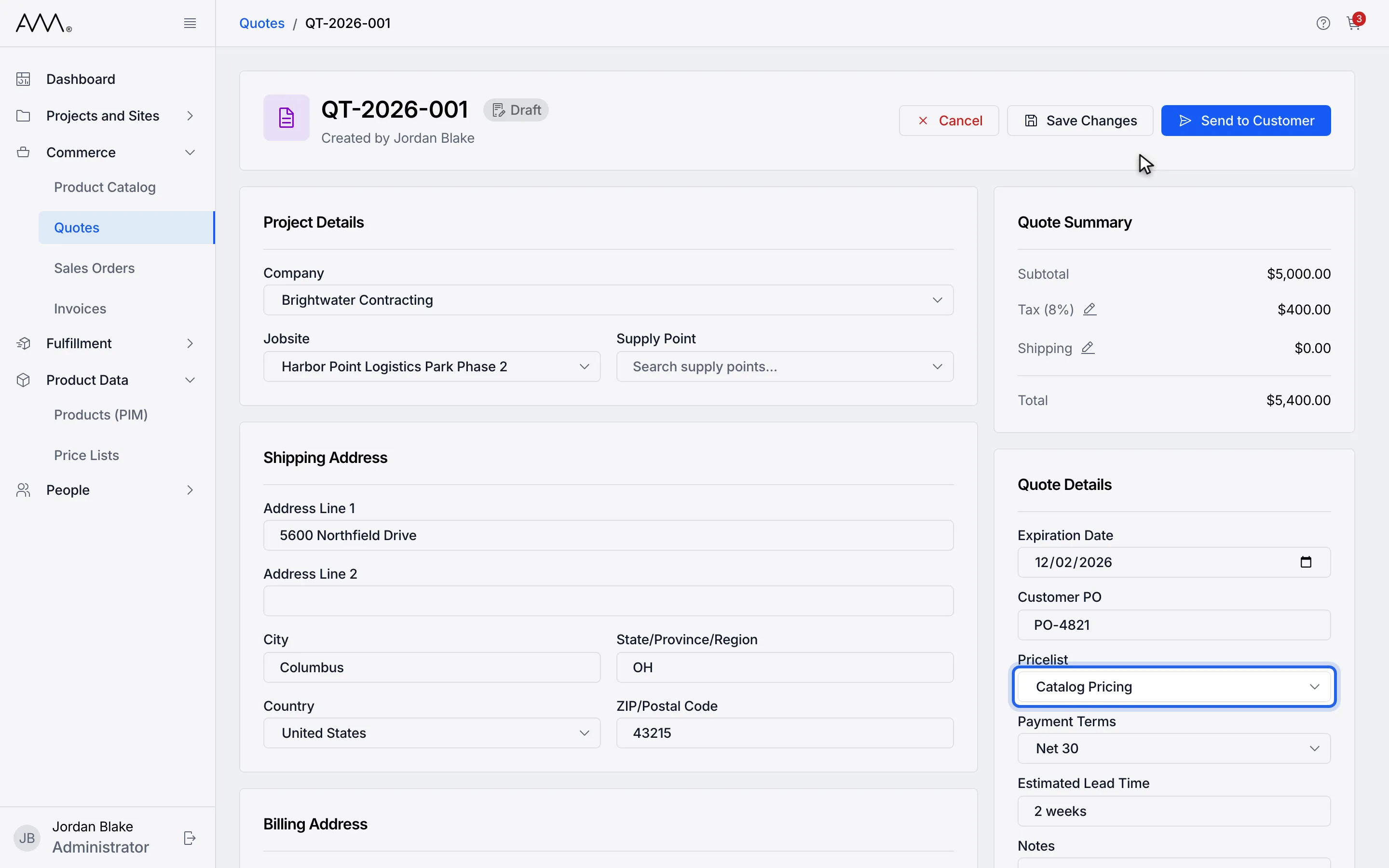
14In Quote Details, open Pricelist. It offers the company's price list.
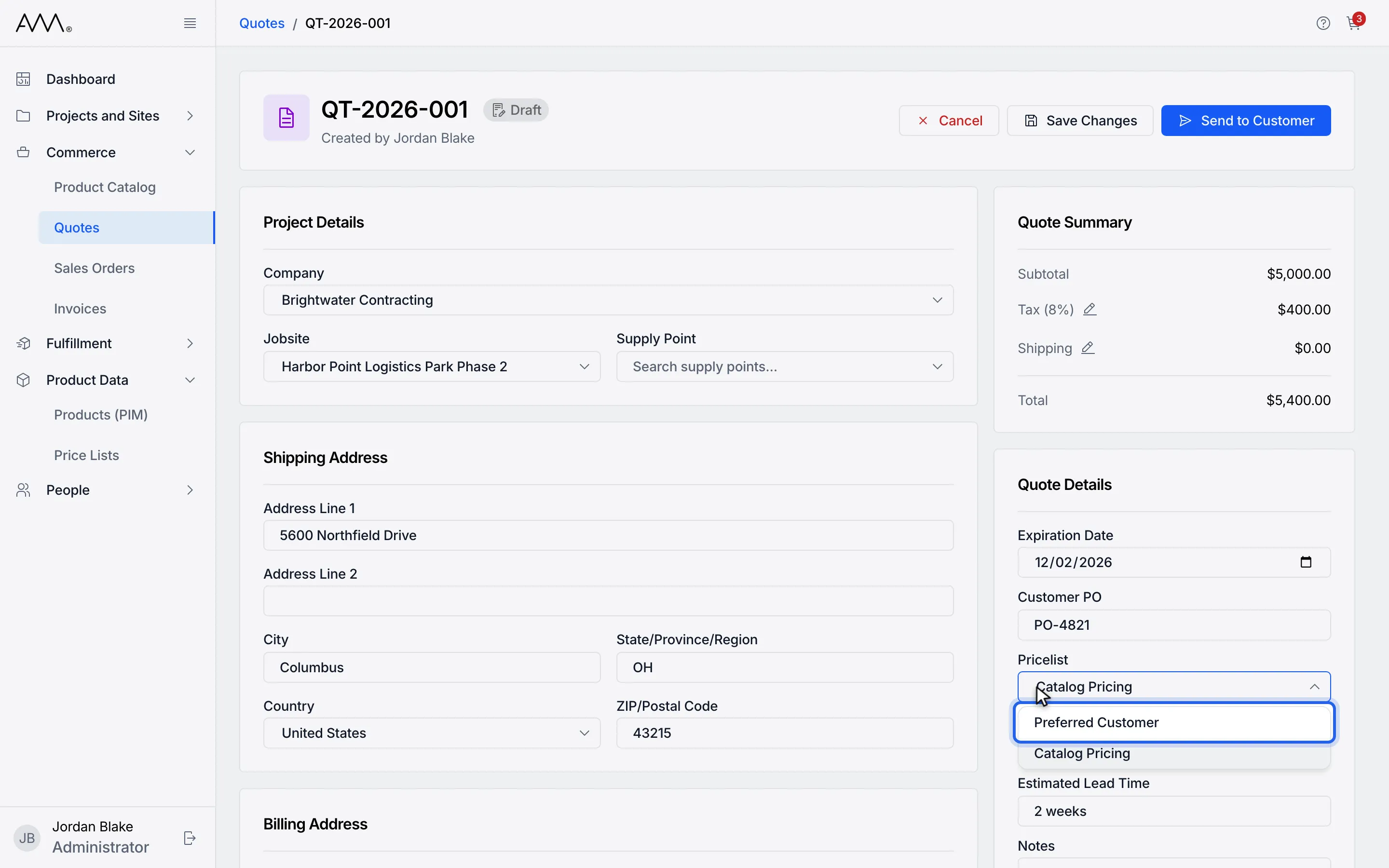
15Pick the company's price list.
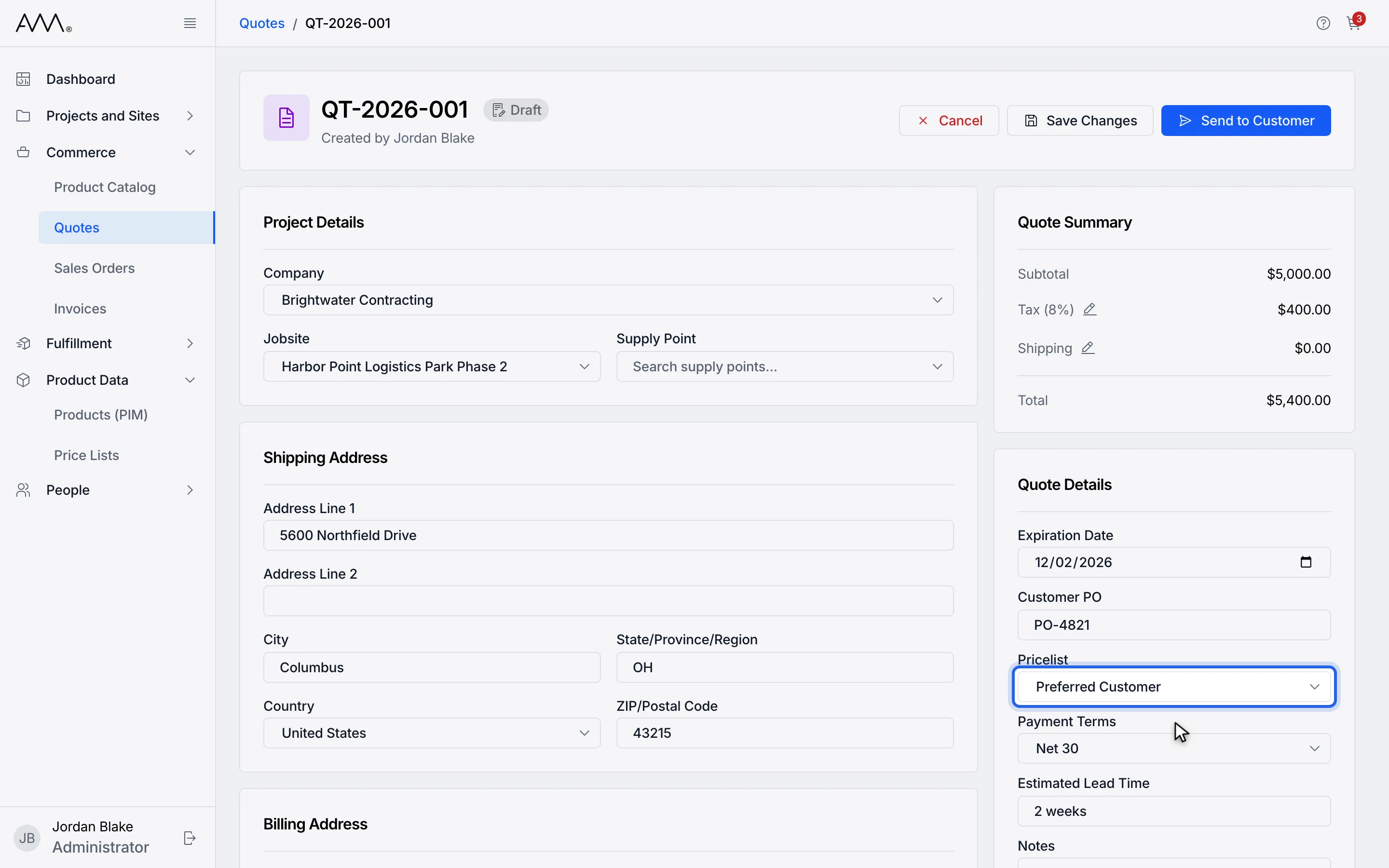
16Pricelist now shows the company's price list.
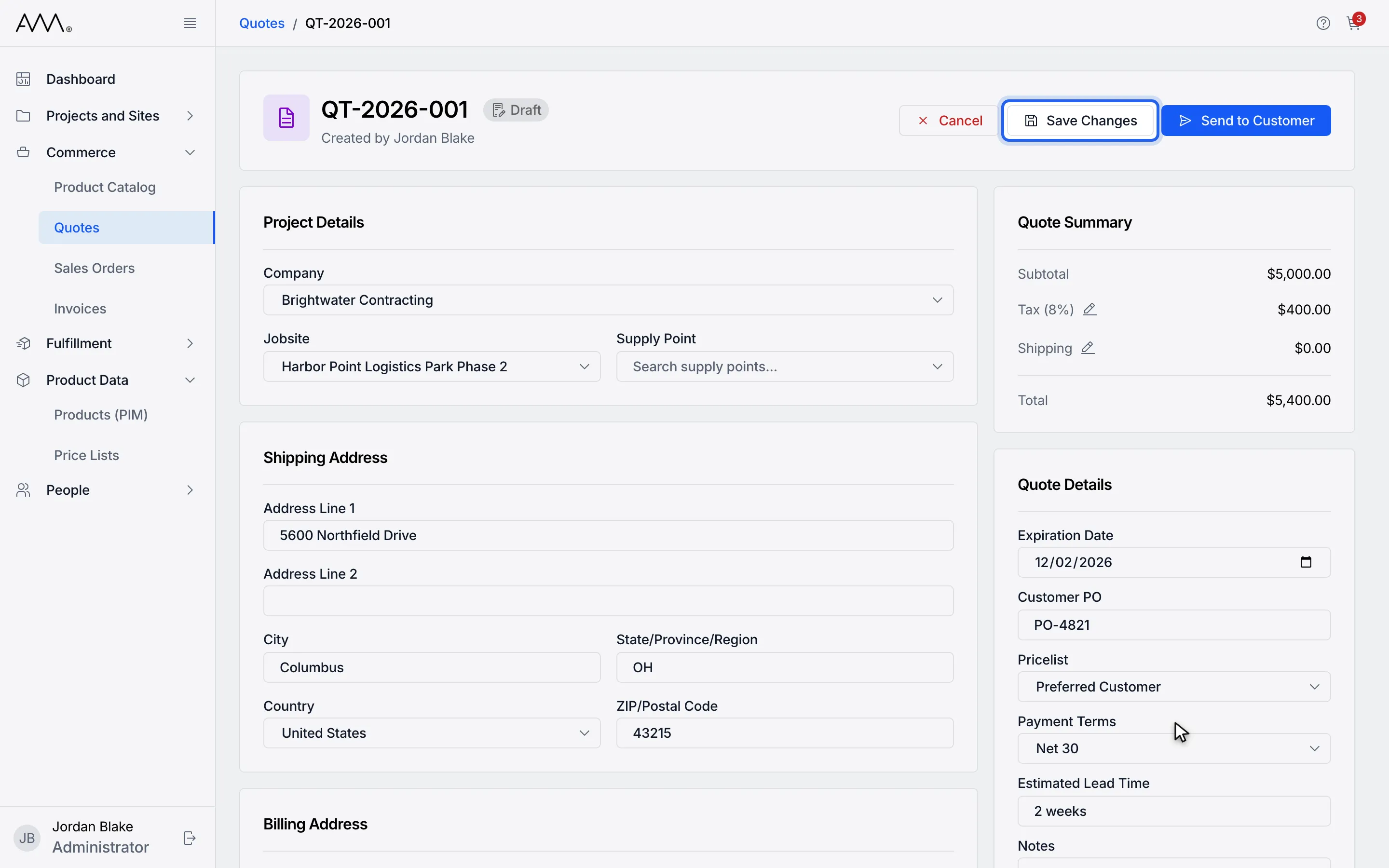
17Click Save Changes to keep the price list on the quote.
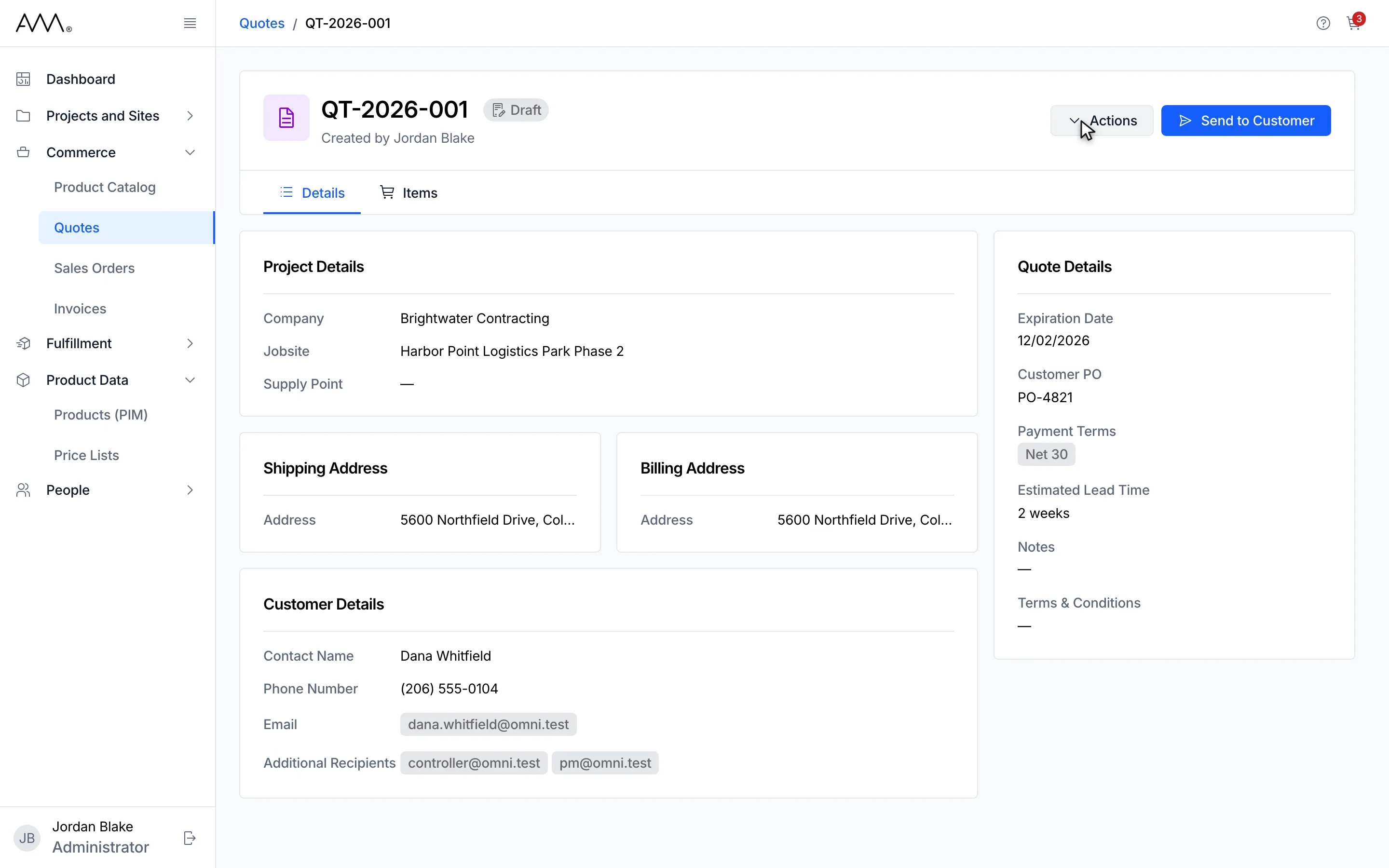
18The quote returns to view mode with the price list saved.
Watch this as a video (apply a company's price list)
What happens next
Section titled “What happens next”- Every line the price list covers takes its price from the list, overwriting any unit price you typed by hand. A product with an empty price on the list gets $0.00; a product the list does not cover keeps its price.
- To go back to catalog prices, choose Catalog Pricing in Pricelist.
- If the company’s price list is not Active, the field stays on Catalog Pricing with the hint Cannot apply pricelist - Company pricelist (name) is in Draft or … is Archived.
- If prices cannot be looked up, the toast reads Could not look up prices. Please try again. and nothing changes.
- When you reopen a saved quote and its price list no longer applies to the company, the field drops to Catalog Pricing with the hint (name) no longer applies to this company. Future prices will be based on Catalog Pricing. The saved line prices are kept until you re-price.
- Items you add later from the cart are priced from the quote’s saved price list.