Supply Points
A Supply Point is a physical location: a name, an optional Company, an address, a status and notes. Supply points are the places where hardware is installed. A supply point can be assigned to a Project and to a Jobsite at the same time, and one Hardware unit can be assigned to it. See how projects, jobsites and supply points fit together in the Projects overview.
You assign a supply point to a project or a jobsite from that record’s Supply Points tab, not from the supply point itself. See Assign and unassign supply points on a project and Assign and unassign supply points on a jobsite.
Supply Points live in the sidebar under Projects and Sites. You need the Supply Points: Read permission to see the entry.
The Supply Points list
Section titled “The Supply Points list”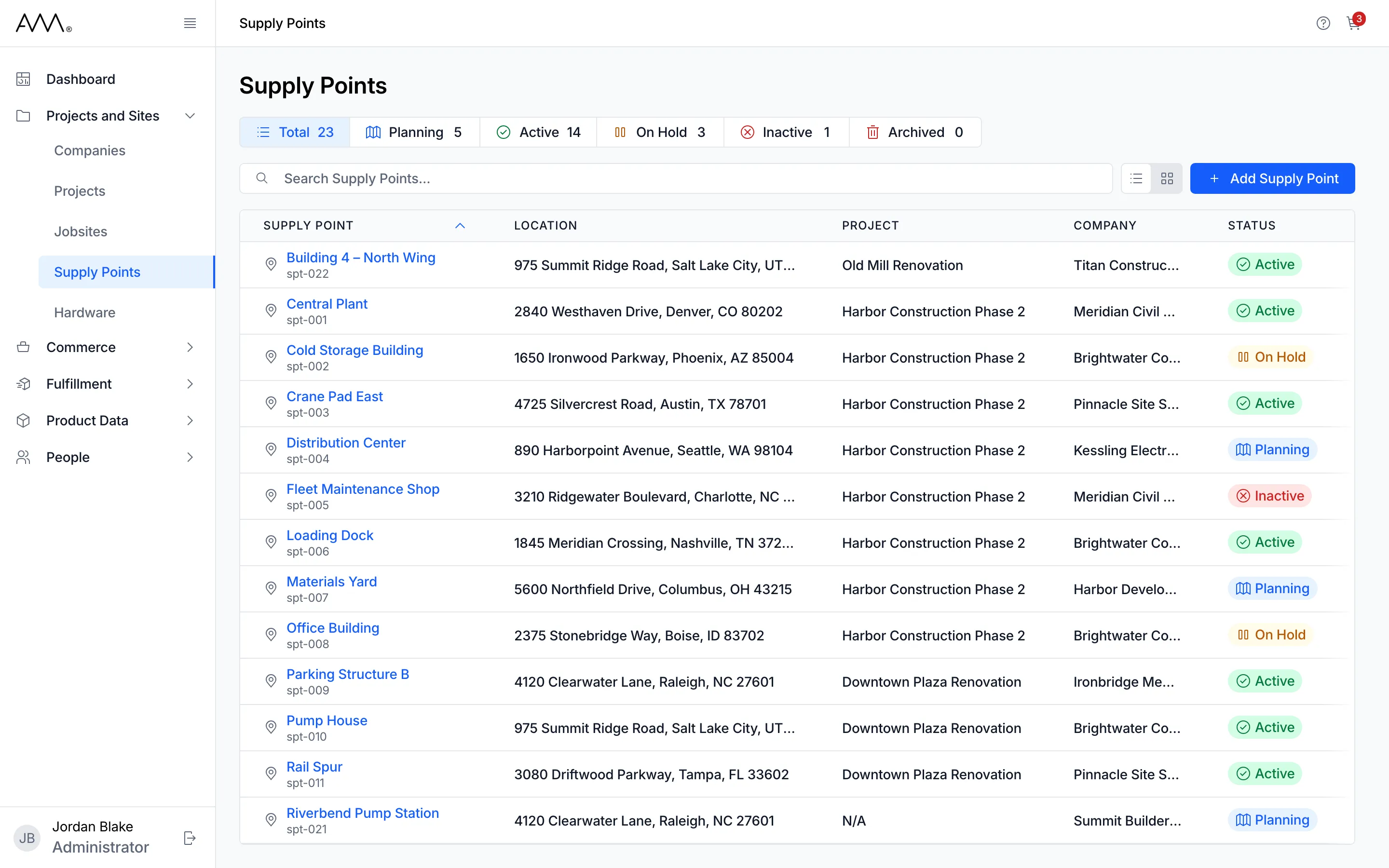
The list shows every supply point with its Location, Project, Company and Status. Above the list:
- The status pills Total, Planning, Active, On Hold, Inactive and Archived show a count each. Click a pill to show only that status, click more pills to add statuses, and click Total to clear the filter.
- Search Supply Points… matches the supply point name.
- The view toggle switches between List view and Card view. On narrow windows only the card view is shown.
- Add Supply Point opens the form for a new supply point. The button appears only if you have the Supply Points: Create permission.
In list view, click a column heading to sort by Supply Point, Location, Project, Company or Status; click it again to reverse the order. The list opens sorted by name. Your search, status filter and sort are part of the page address, so you can share the link. The Actions column holds an edit icon for each supply point; it appears only if you have the Supply Points: Update permission. When nothing matches, the list reads No supply points found with the hint Try adjusting your search or filter criteria.
The supply point page
Section titled “The supply point page”Click a supply point name to open it. The header shows the name, a status badge, the address and, with the Supply Points: Update permission, an Edit icon. Two tabs sit below it:
- Overview shows a Details card with Location (the full address, including the country), Jobsite (the name of the jobsite the supply point is on, as a link, or N/A) and Company, and a Notes card that reads No notes. when empty.
- Hardware lists the hardware unit assigned to this supply point, with a search box, a view toggle and an Assign Hardware button. See View the hardware on a supply point.
Statuses
Section titled “Statuses”| Status | Notes |
|---|---|
| Planning | Blue badge. |
| Active | The default for a new supply point. Green badge. |
| On Hold | Yellow badge with a pause icon. |
| Inactive | Red badge. |
| Archived | Red badge with a bin icon. Cannot be chosen when adding or editing a supply point, and Omni offers no action that archives one; the pill only filters the list. |
You can change a supply point between Planning, Active, On Hold and Inactive at any time.