Pick items and save progress
Use the Pick Tasks tab to record picks as you work. Entries are drafts until you click Save Progress, so you can pick part of an order, save, and come back later.
- In the sidebar, open Fulfillment and choose Fulfillment Orders.
- Click the pick icon on the order’s row, or open the order and click the Pick Tasks tab.
- For each line, enter the quantity picked in the Picked box, from 0 up to the line’s Quantity. Press Tab or Enter to commit the value. The Status column updates at once: Not Picked, a fraction such as 3/5, or Fully Picked.
- To record asset numbers, click Enter Asset Number on the line. In the Enter Asset Number dialog, type each number in Asset Number and click Add Asset Number (or press Enter). Each number becomes a tag you can remove.
- Click Pick followed by the count, for example Pick 1/3. The line’s Picked value becomes the number of tags.
- Click Save Progress. It is enabled only when you have unsaved changes.
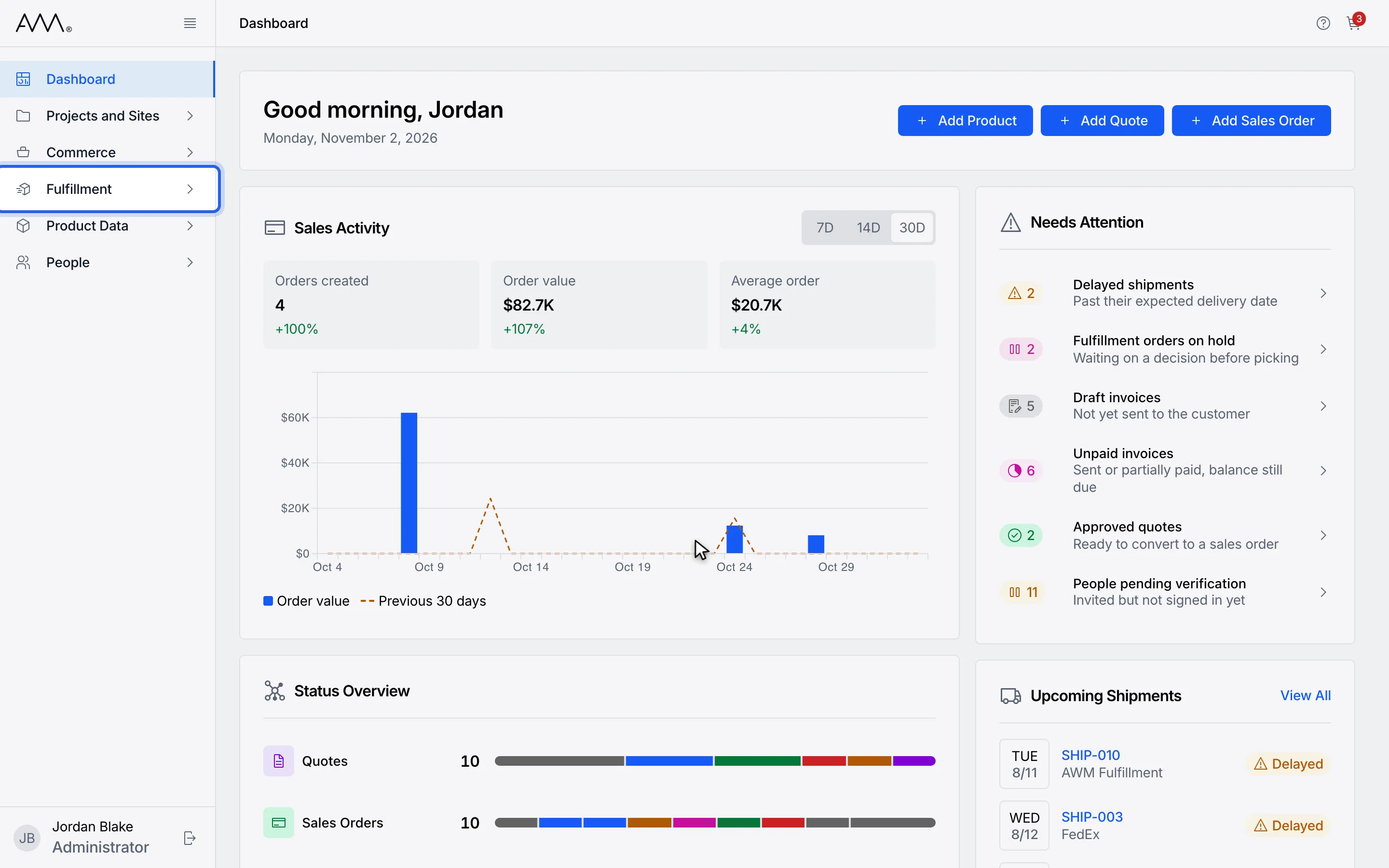
1In the sidebar, open Fulfillment.
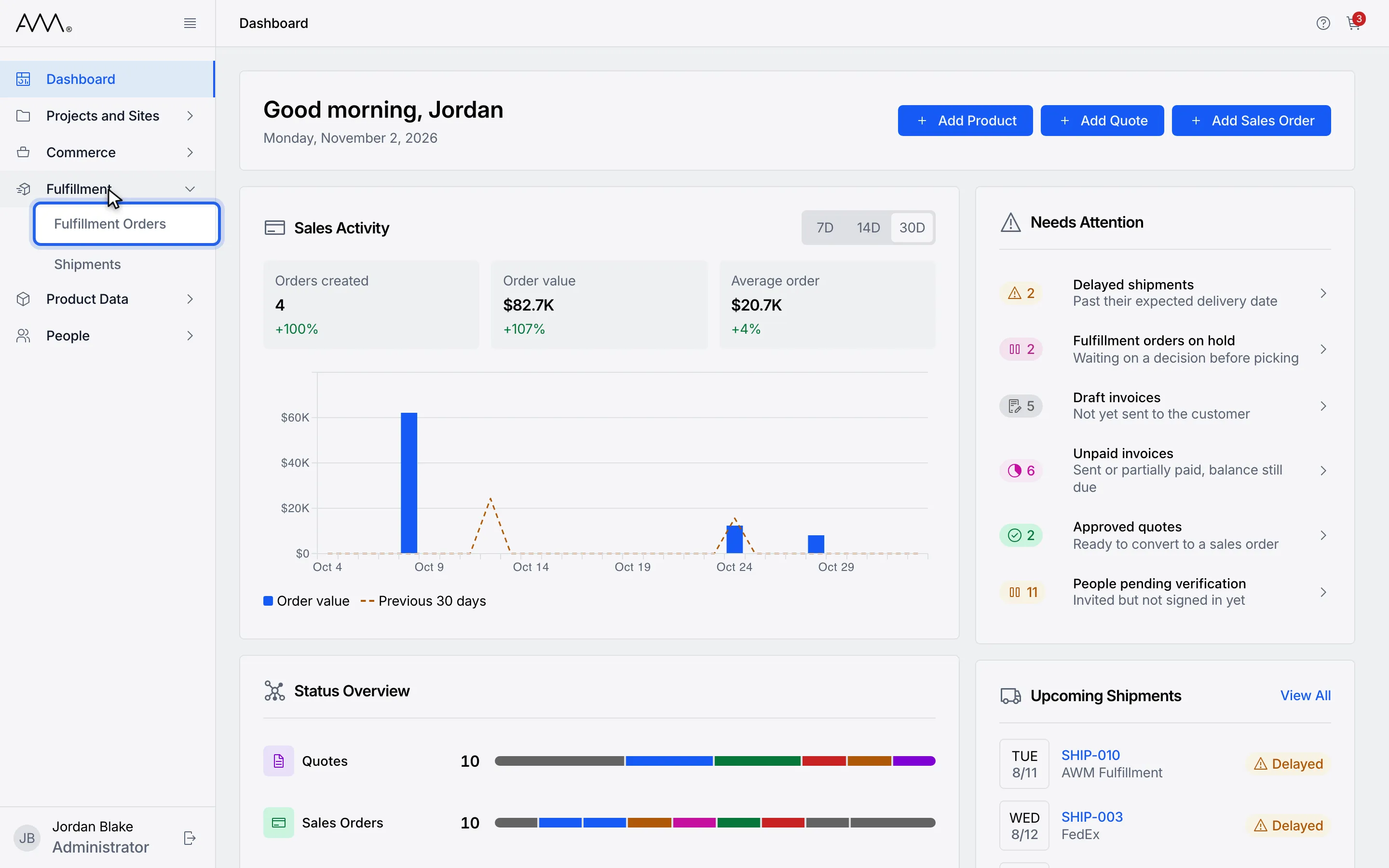
2Choose Fulfillment Orders.
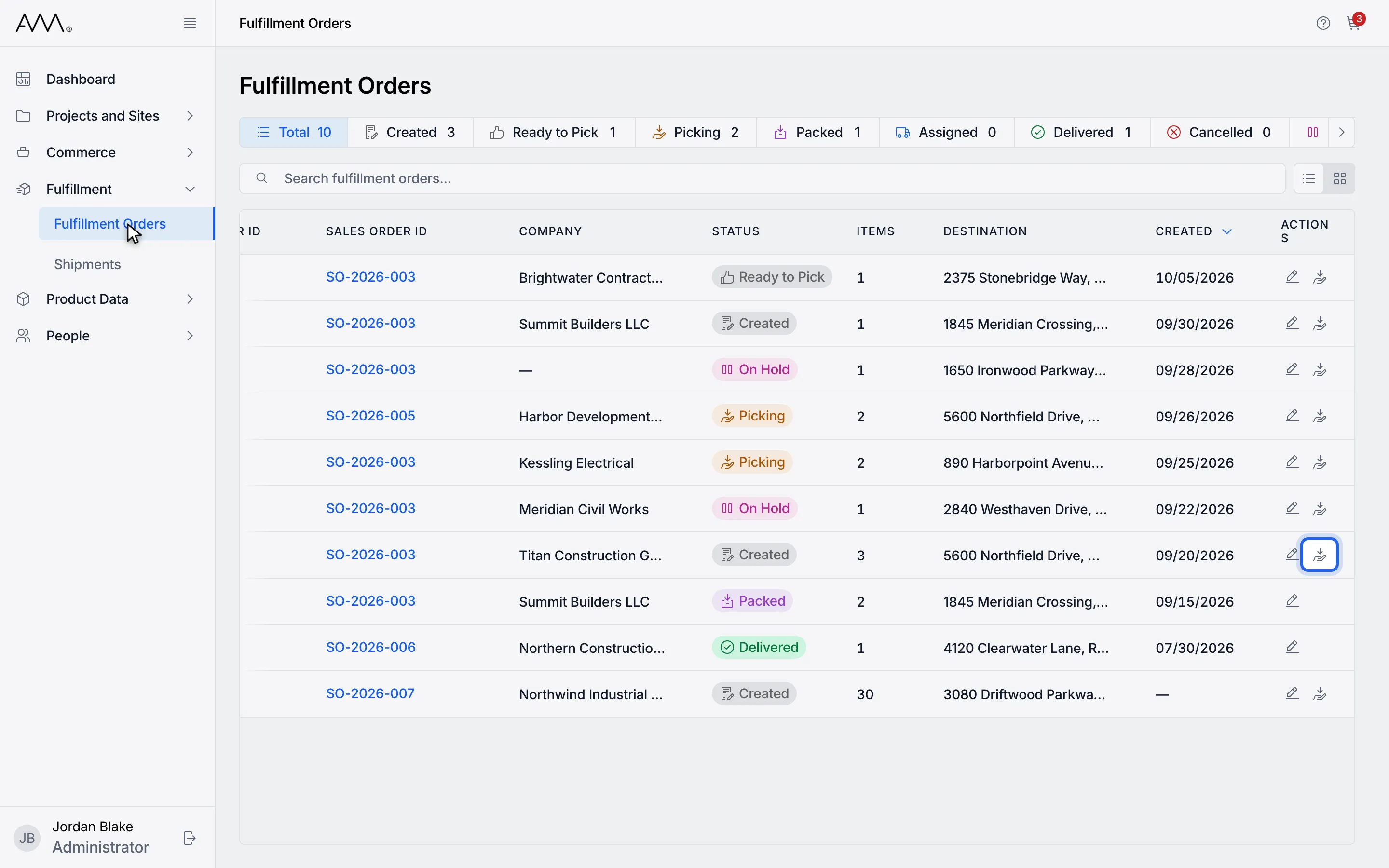
3Click the pick icon on the row to go straight to its Pick Tasks tab.
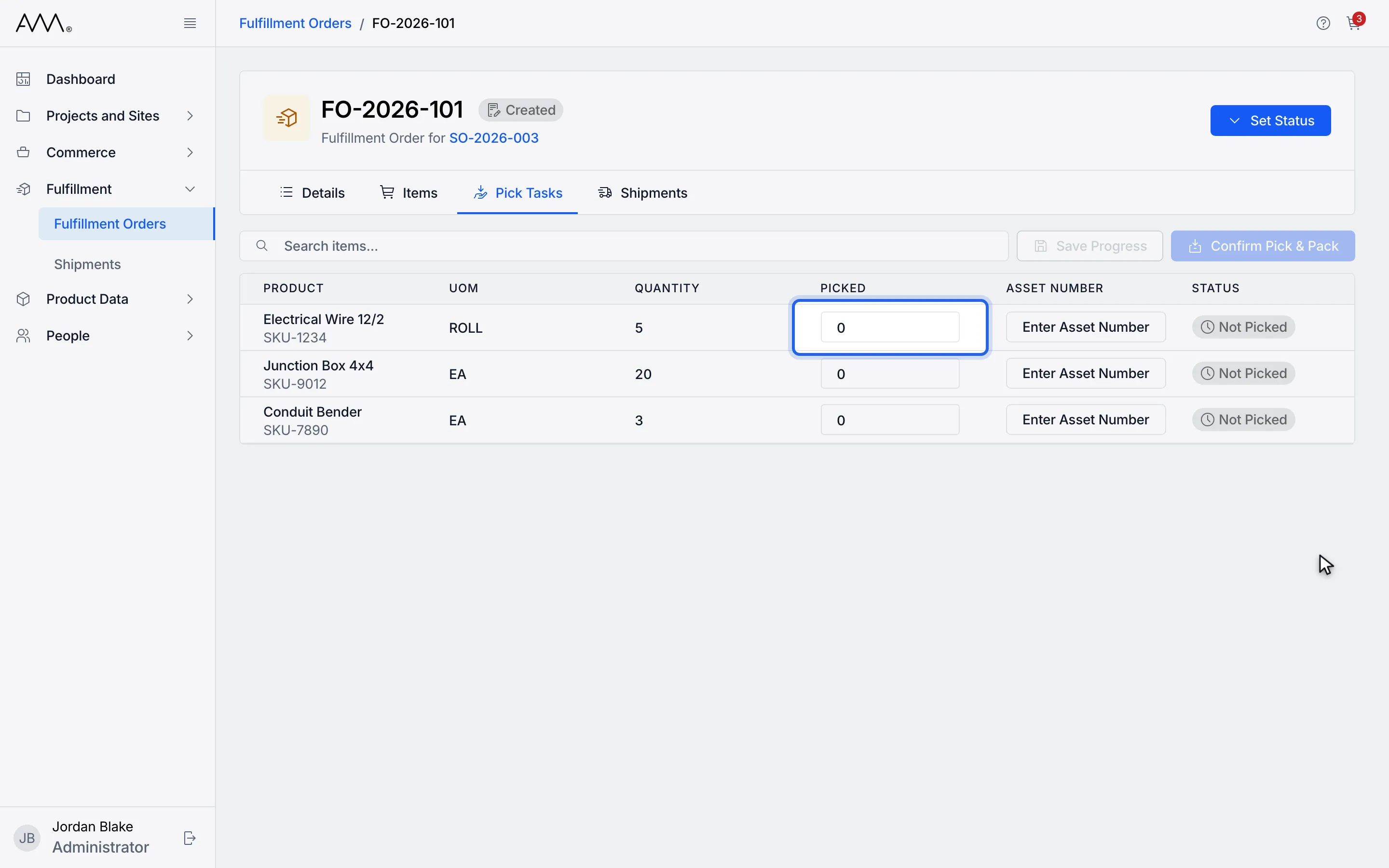
4Enter the quantity picked in the Picked box on each line.
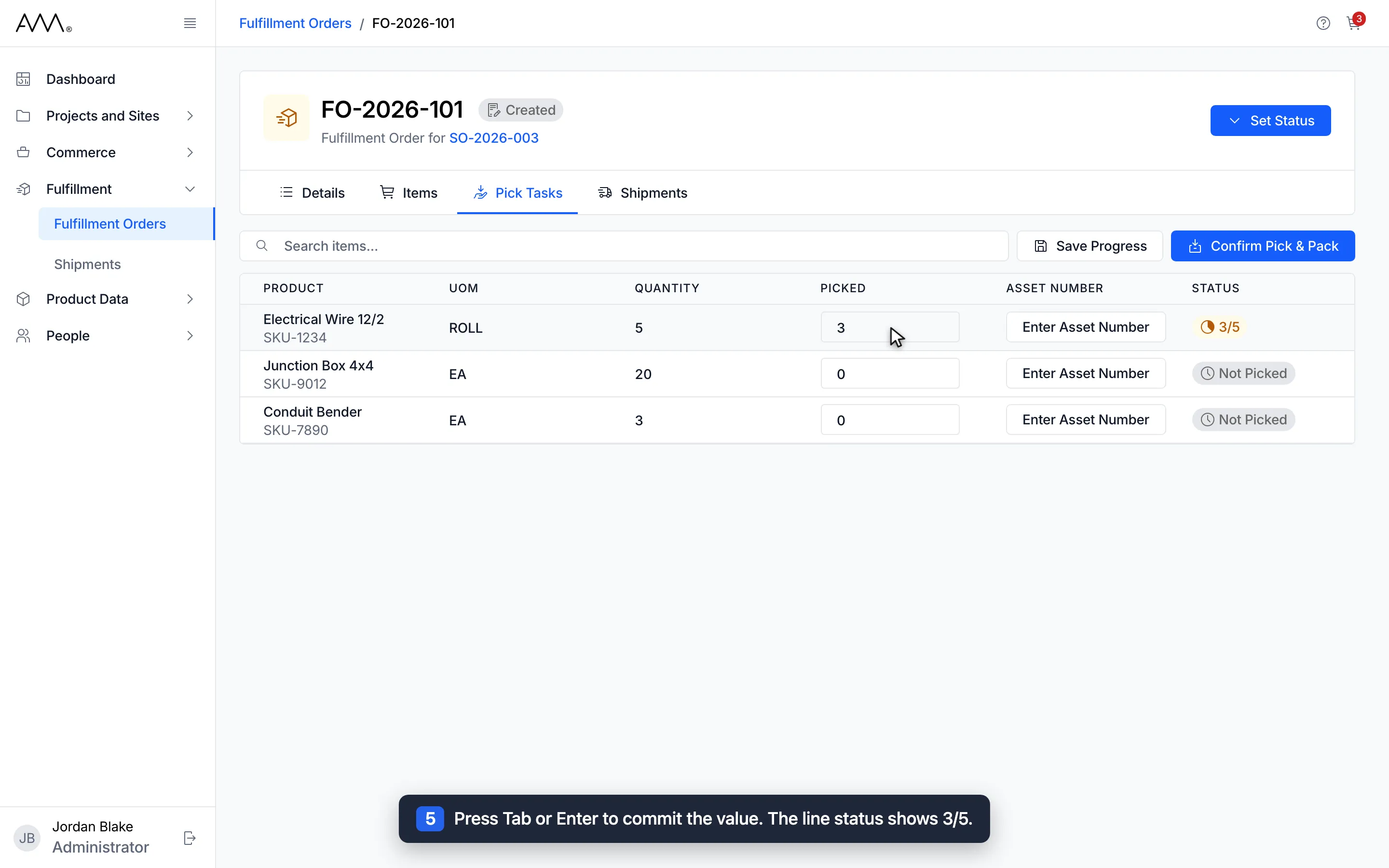
5Press Tab or Enter to commit the value. The line status shows 3/5.
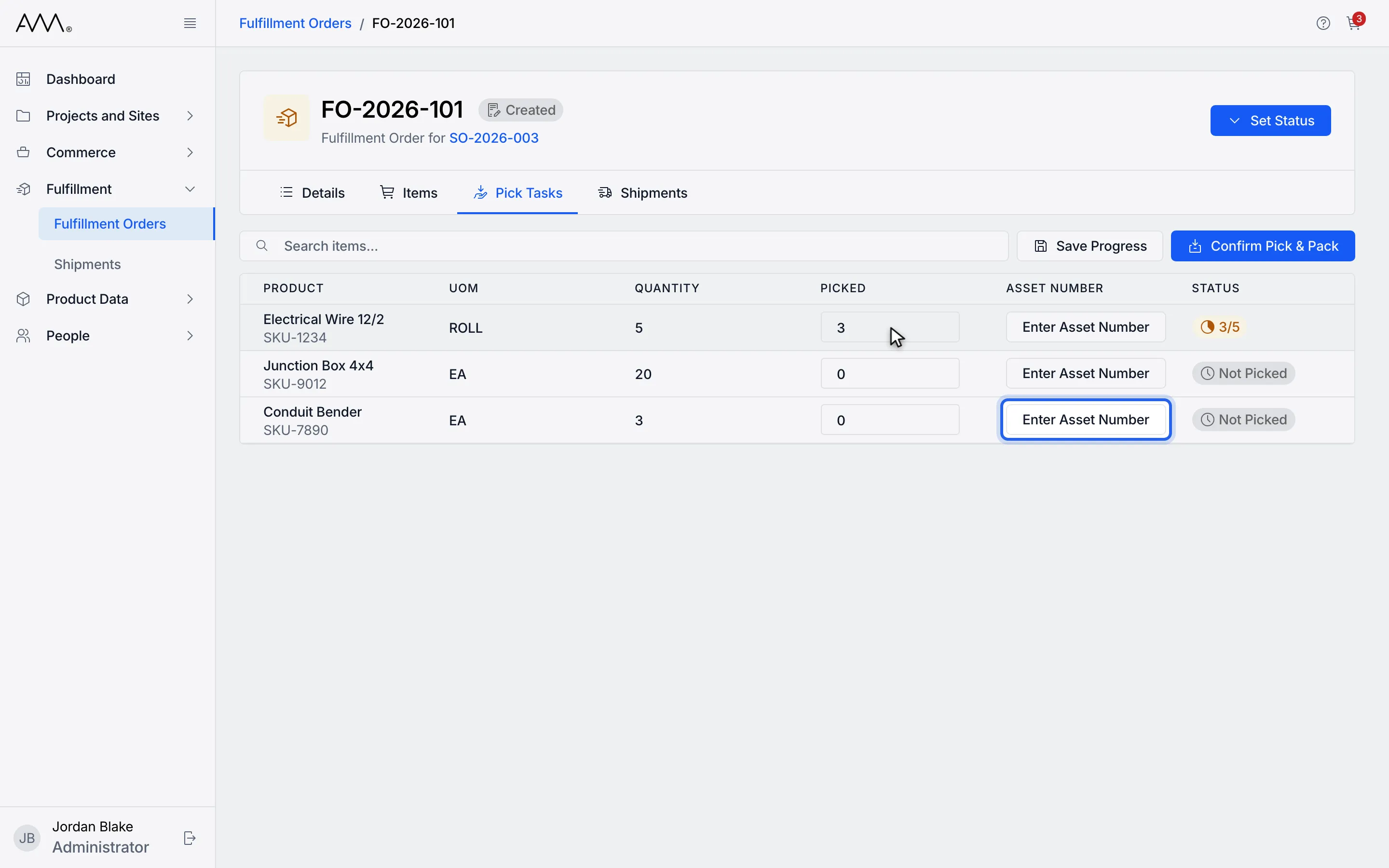
6To record asset numbers, click Enter Asset Number on the line.
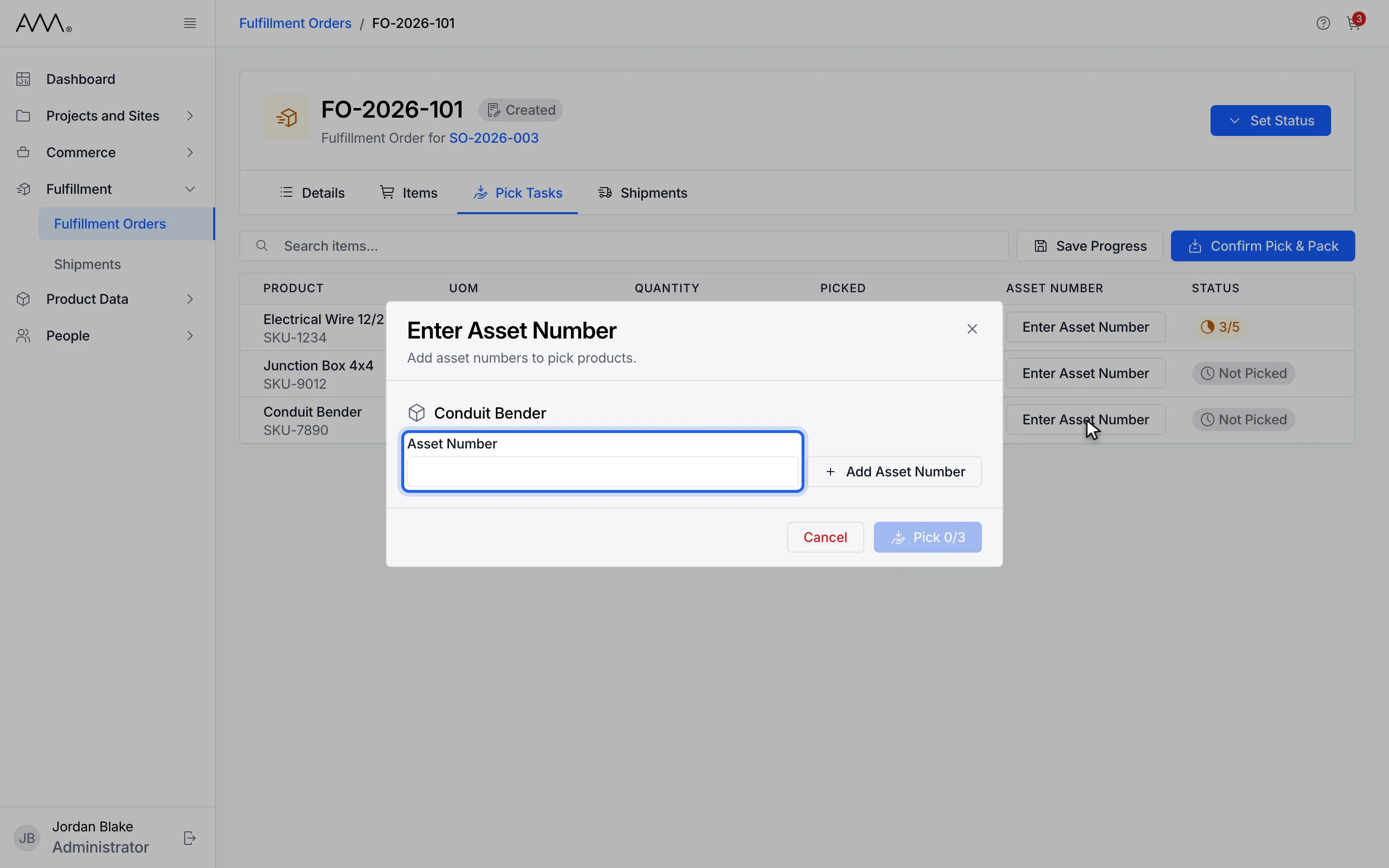
7Type an asset number.
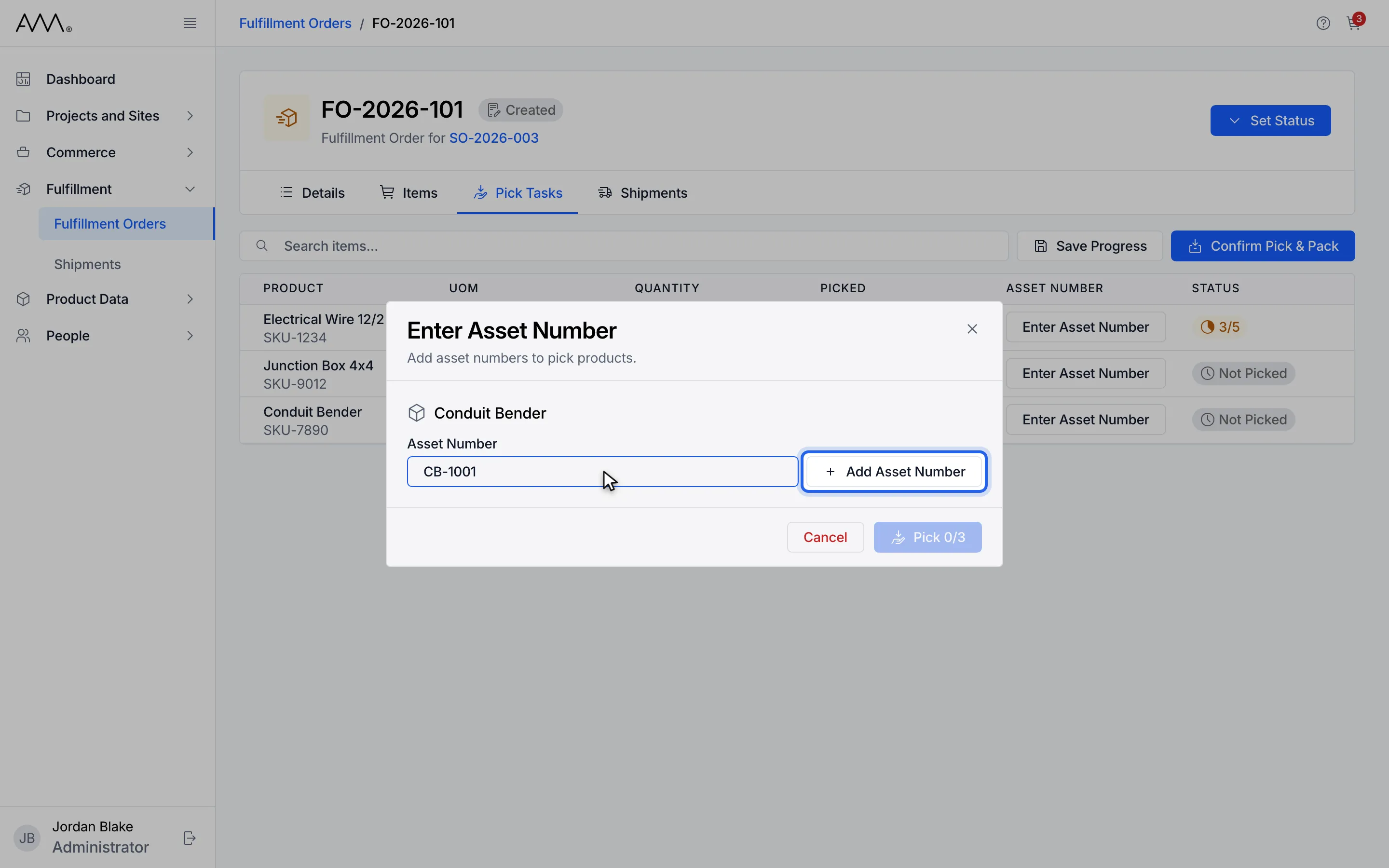
8Click Add Asset Number. The number appears as a tag.
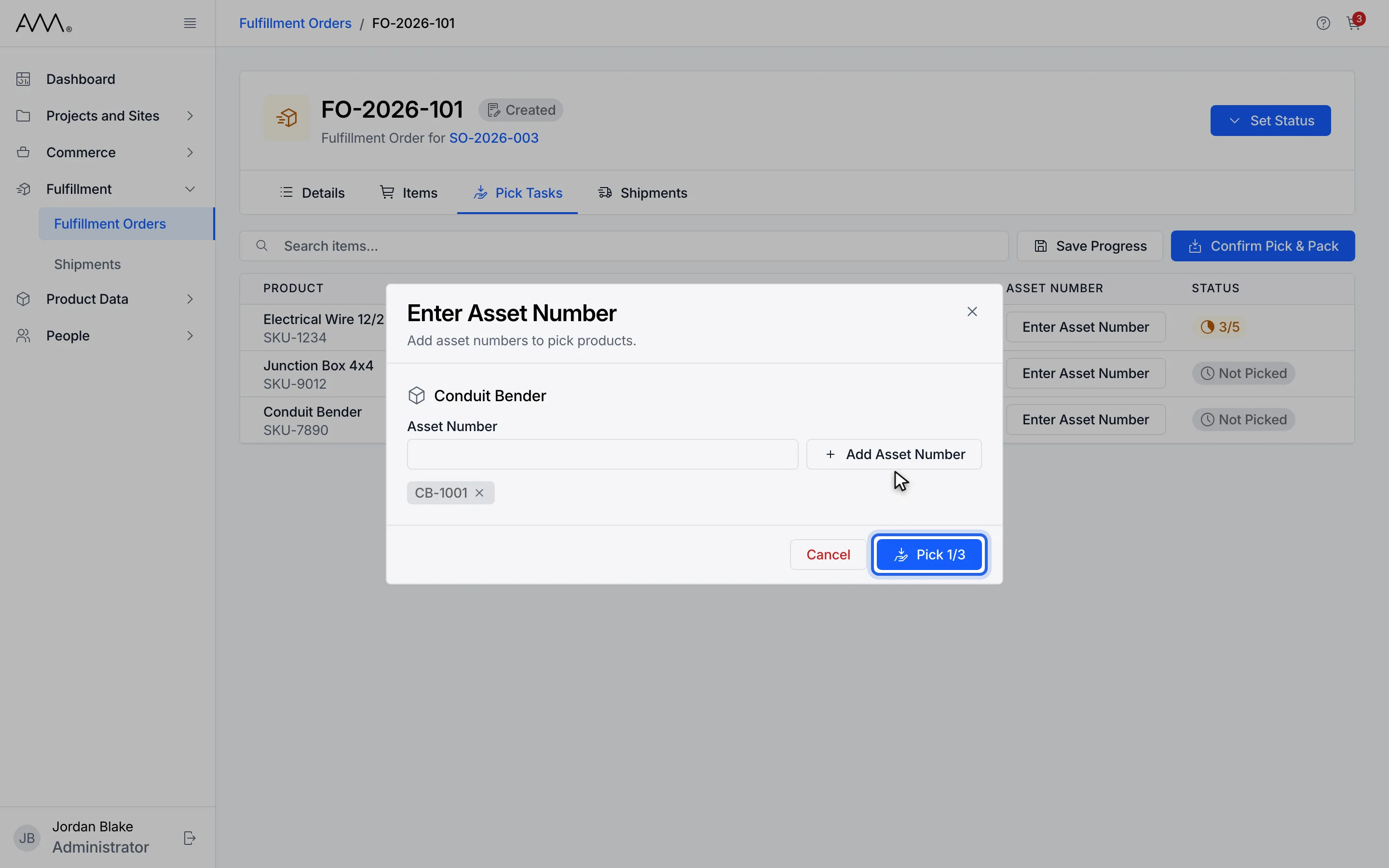
9Click Pick 1/3 to set the line's picked quantity to the number of tags.
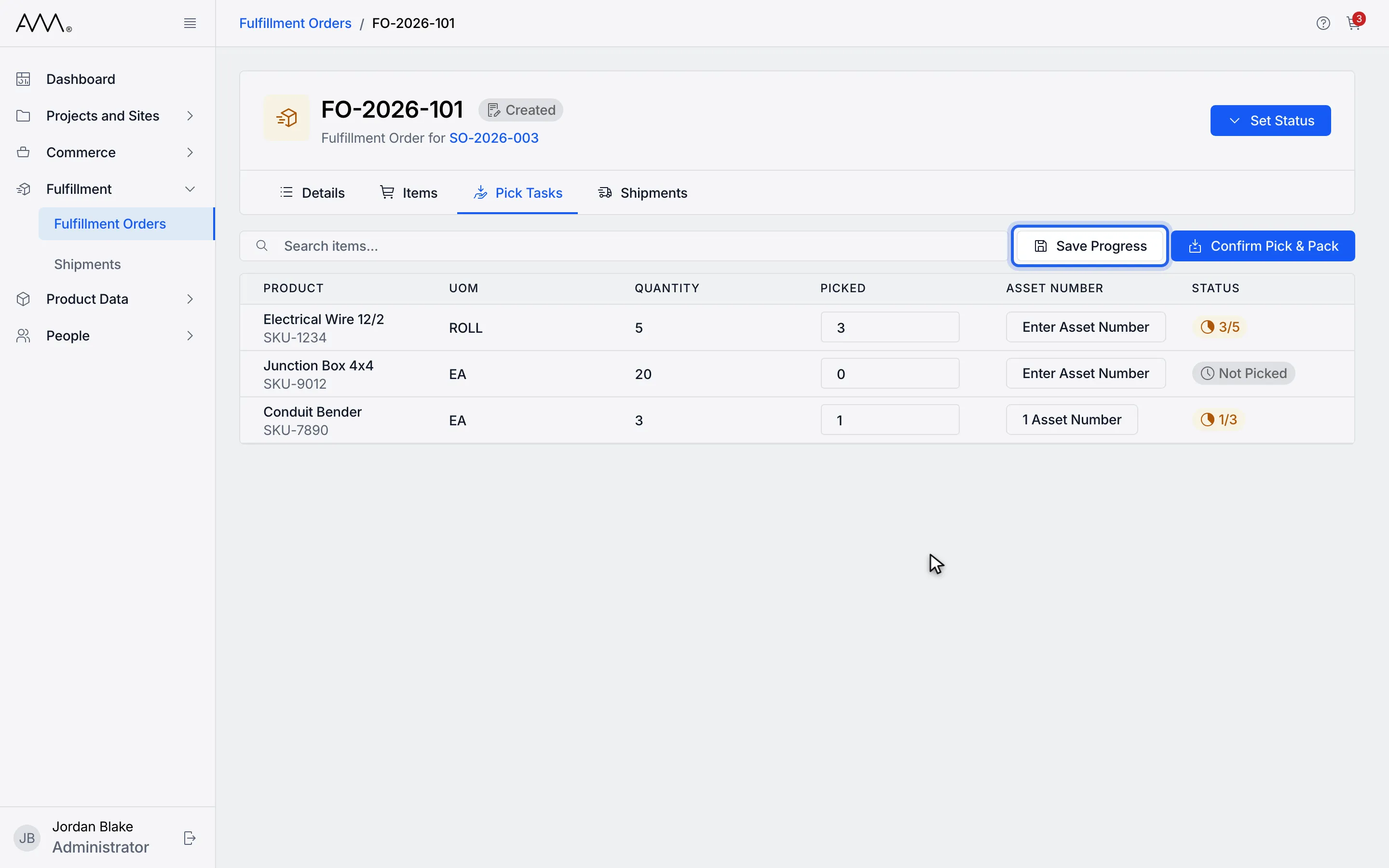
10Click Save Progress to keep your picks.
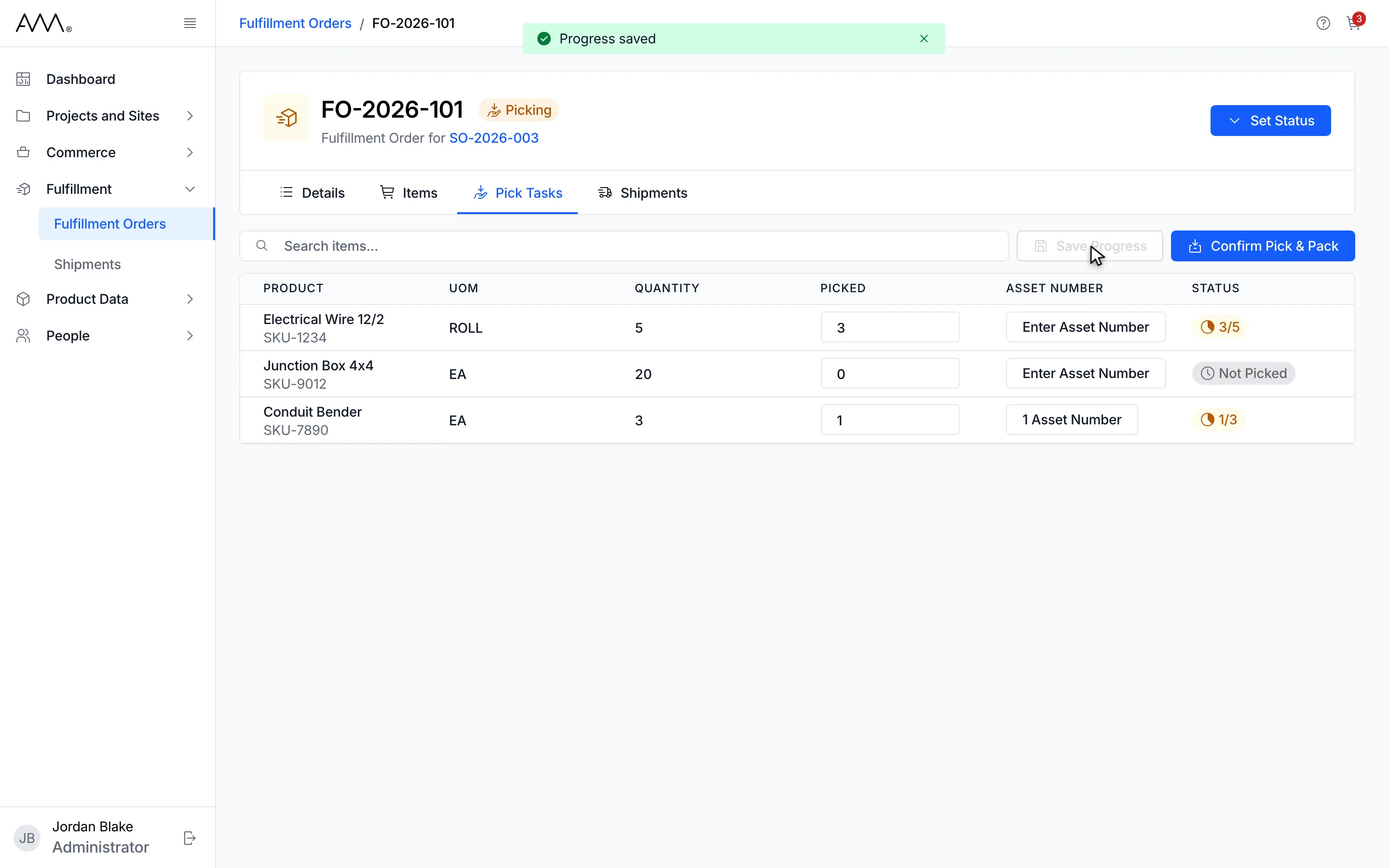
11A toast confirms Progress saved and the order status changes to Picking.
12The picks are saved and the order is in Picking.
Watch this as a video (pick items and save progress)
Asset numbers are optional. You can pick a line without them, and adding them does not change the line status on its own. Type in Search items… to filter long pick lists by product name or SKU. On a phone, each line is a card and you change Picked with its minus and plus buttons; Save Progress and Confirm Pick & Pack sit in a bar at the bottom of the screen.
What happens next
Section titled “What happens next”A toast confirms Progress saved. The first saved pick moves an order from Created, Ready to Pick or On Hold into Picking. When every line you need is picked, confirm pick and pack.
If a save leaves every line at 0 on an order that had picks, the order goes back to Created, its picks and asset numbers are cleared, and a toast says the order returned to Created. No items picked.
If saving fails, a toast says Could not save progress. Please try again. In the asset number dialog, a repeated number is refused with the message that it is already added to this line, and once the tags reach the line’s quantity the dialog says This line takes at most that quantity.