Mark a shipment departed, delayed, resumed or cancelled
The buttons in the shipment header follow the journey: Mark as In Transit when it leaves, Mark as Delayed if it is held up, Mark as In Transit again when it moves, and Cancel Shipment if it will not be completed. On a phone, Cancel Shipment sits in the Shipment actions menu and the forward action in a bar at the bottom of the screen.
- Open the shipment from the Shipments list.
- While it is Pending, click Mark as In Transit. In Mark As In Transit?, check Departed Date and Departed Time. They default to now and cannot be in the future. Click Mark as In Transit.
- While it is In Transit, click Mark as Delayed if it is held up, then Mark as Delayed in the Mark As Delayed? dialog.
- While it is Delayed, click Mark as In Transit and confirm. No date is asked for; the original departure is kept.
- To cancel, click Cancel Shipment in any of these statuses. Read the Cancel Shipment? dialog and click Cancel Shipment to confirm, or Keep Shipment to back out.
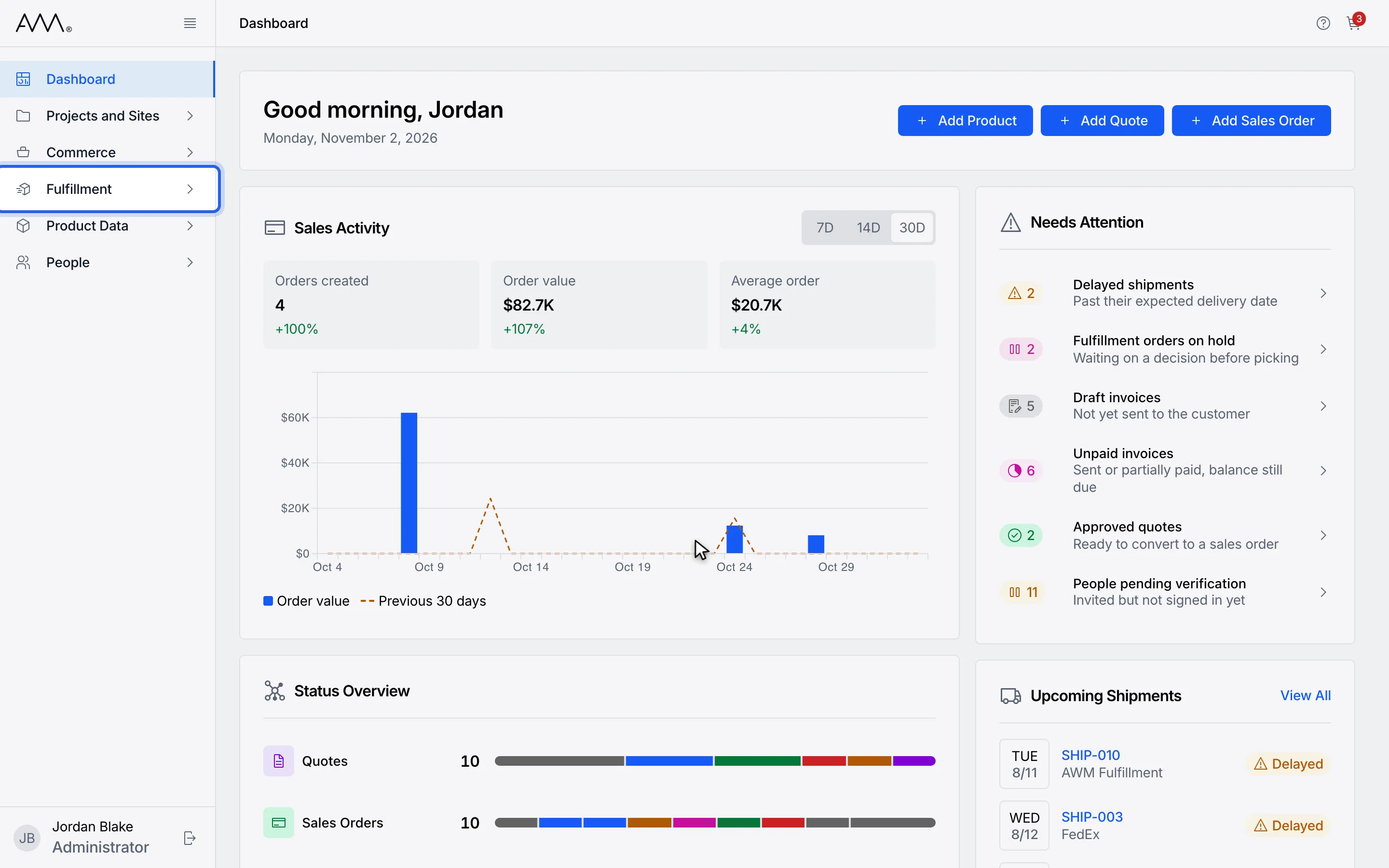
1In the sidebar, open Fulfillment.
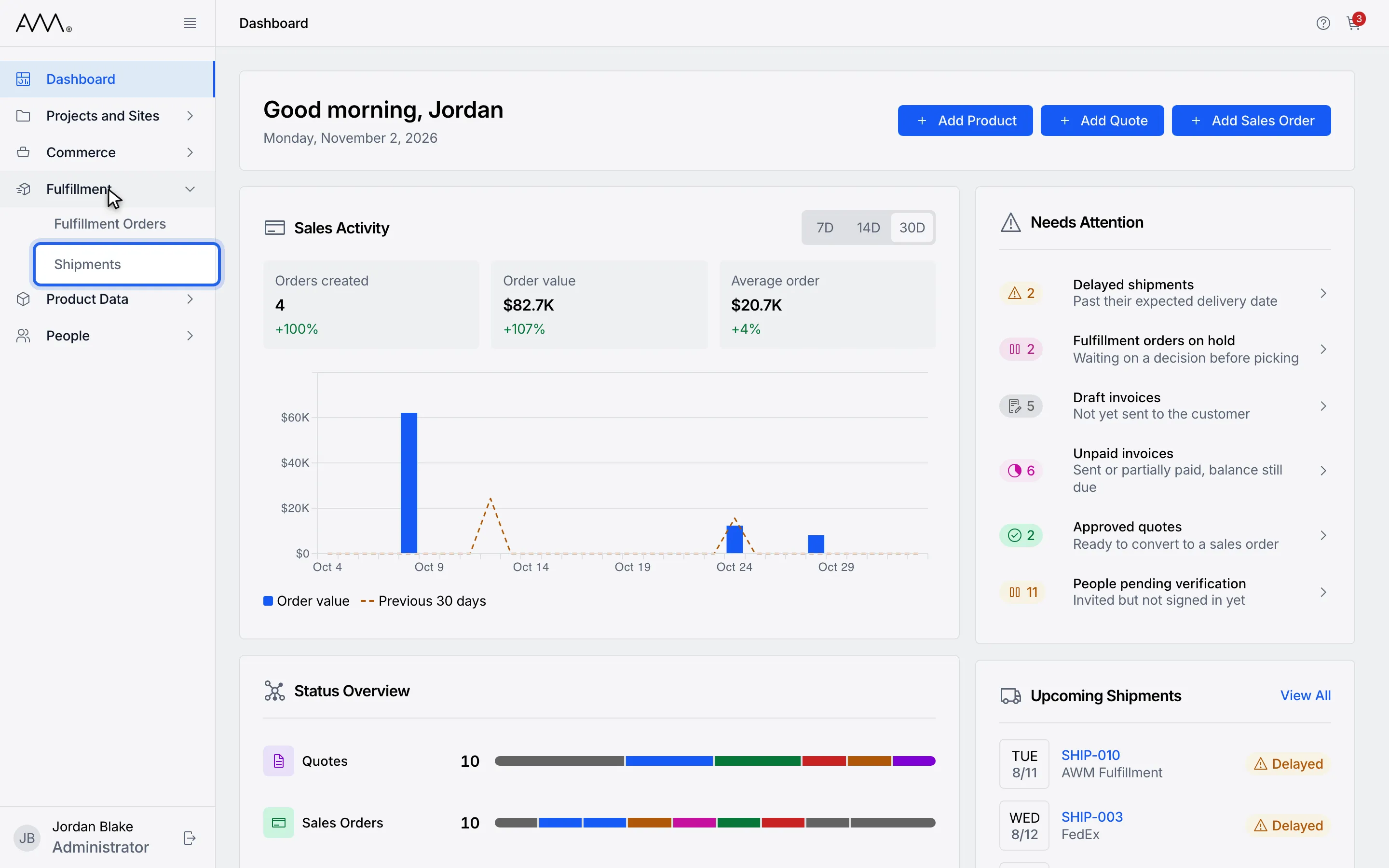
2Choose Shipments.
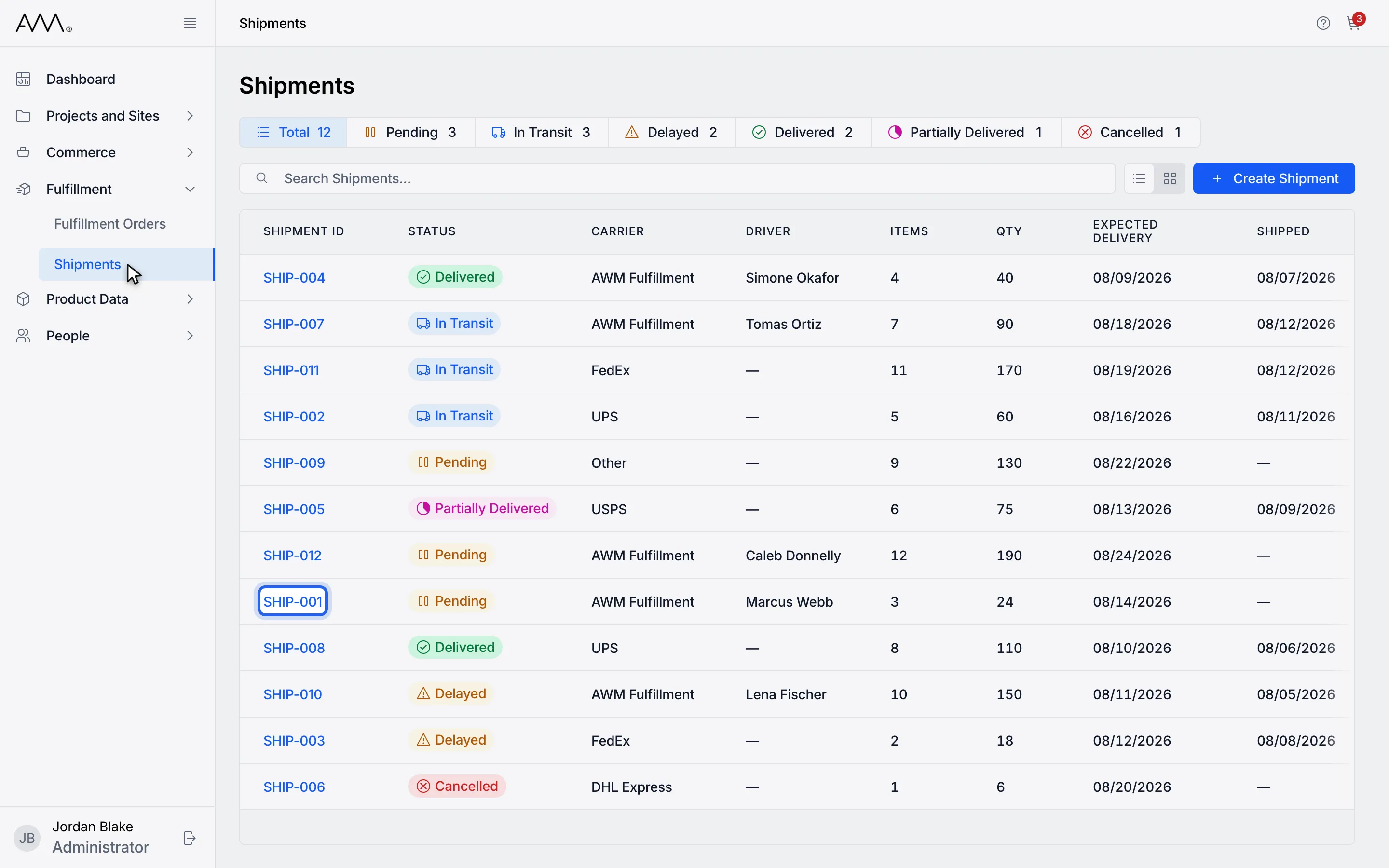
3Open a Pending shipment.
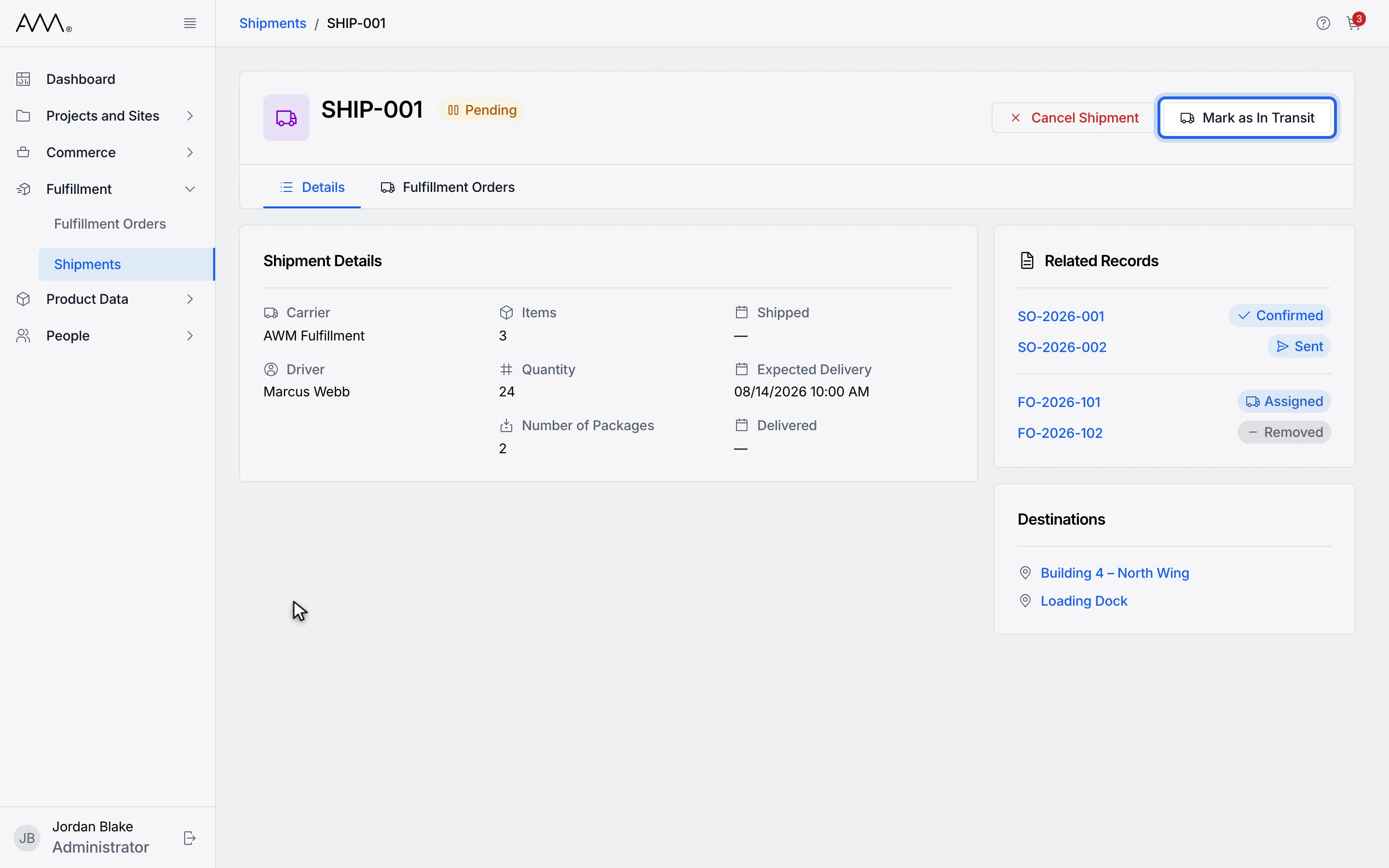
4When the shipment leaves, click Mark as In Transit.
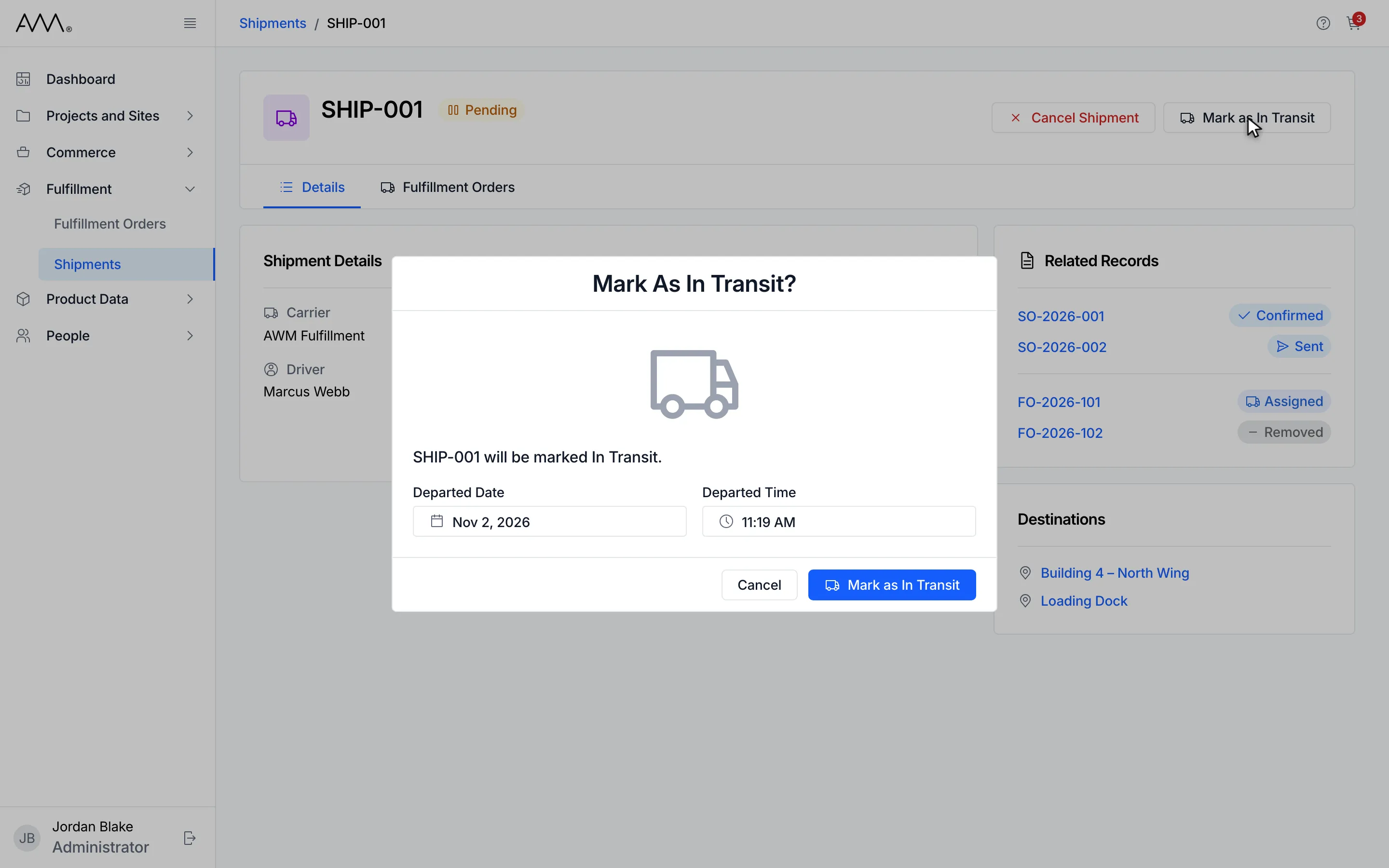
5Departed Date and Departed Time default to now. They cannot be in the future.
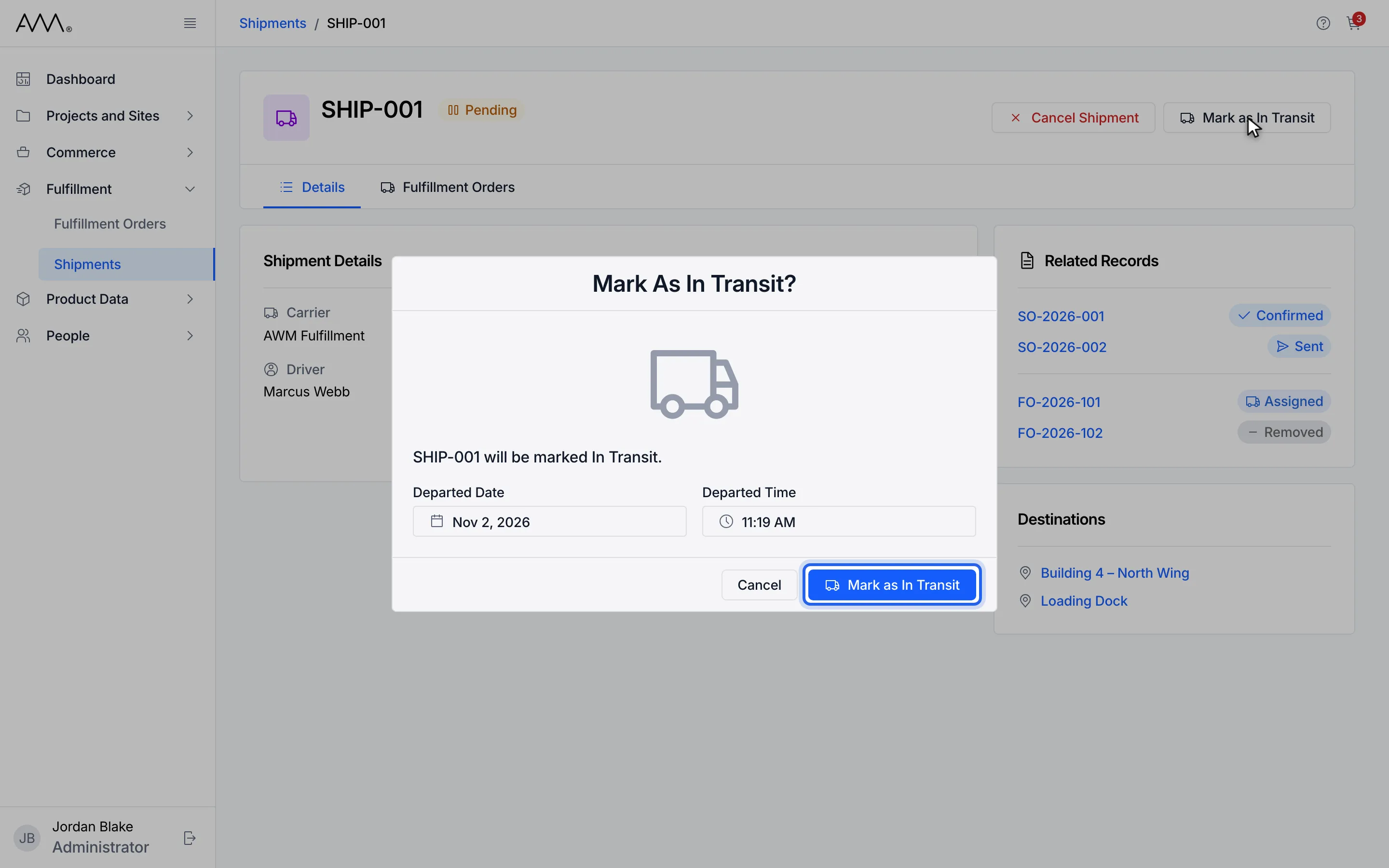
6Click Mark as In Transit to confirm.
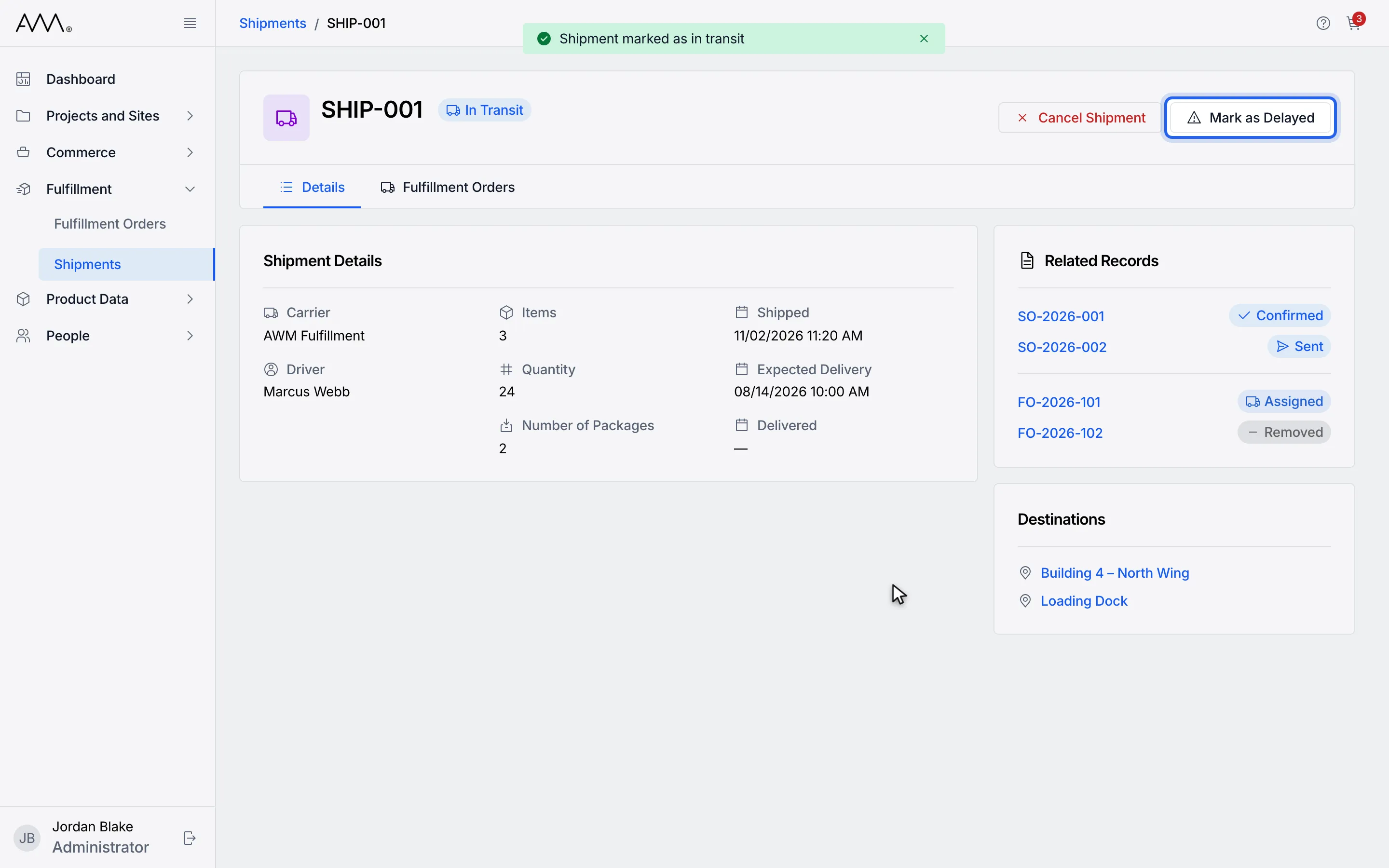
7If the shipment is held up, click Mark as Delayed.
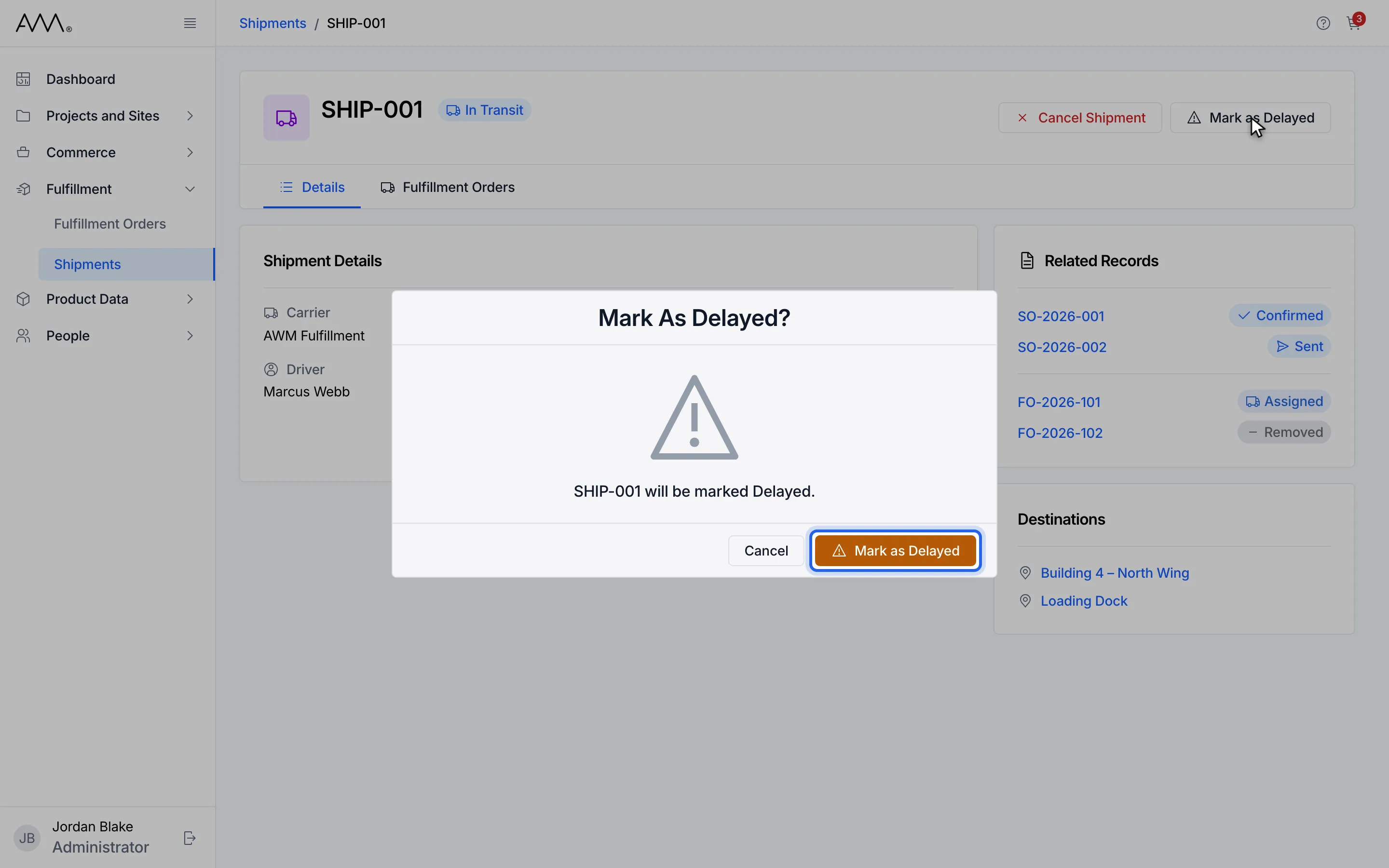
8Click Mark as Delayed to confirm.
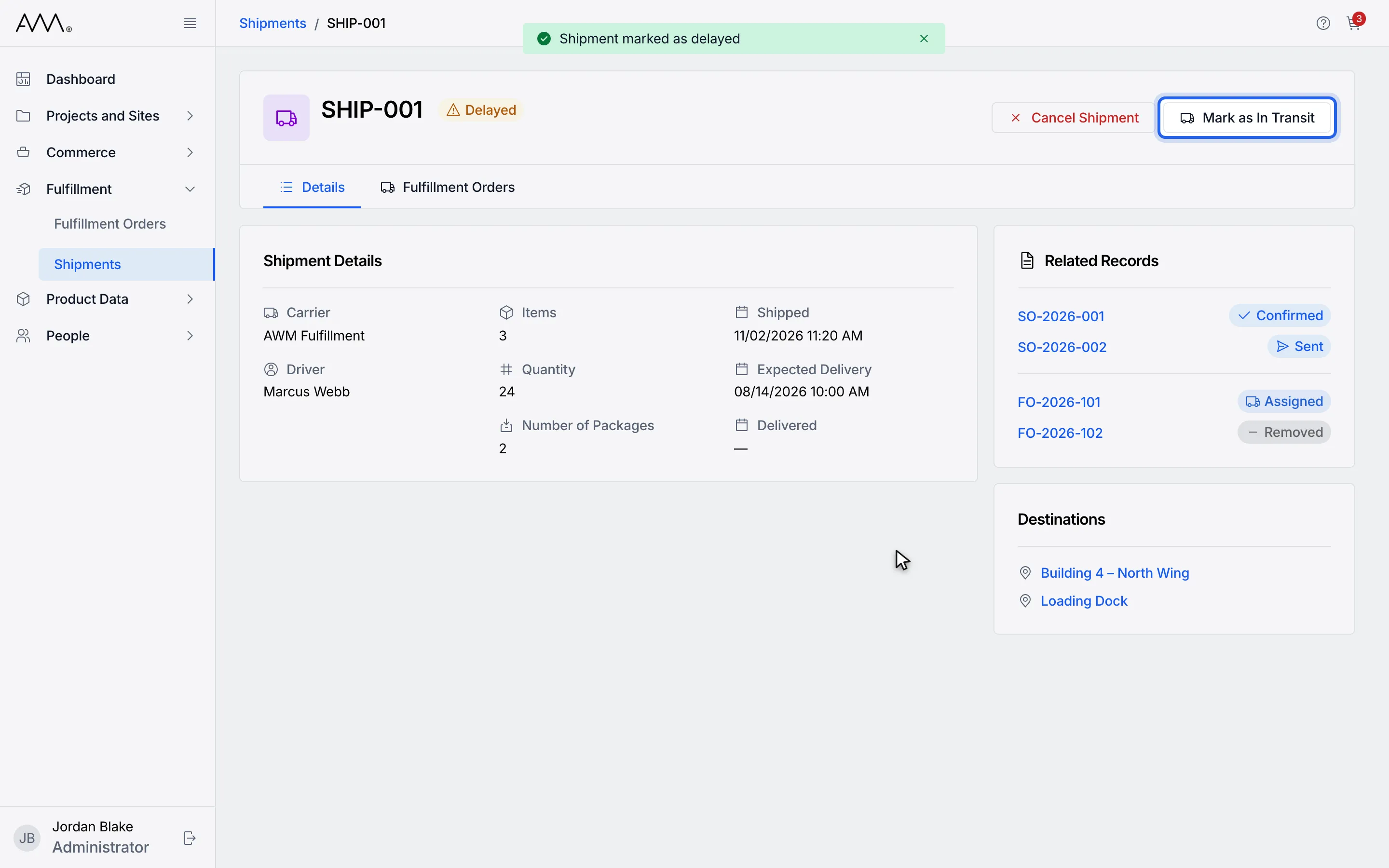
9When it moves again, click Mark as In Transit.
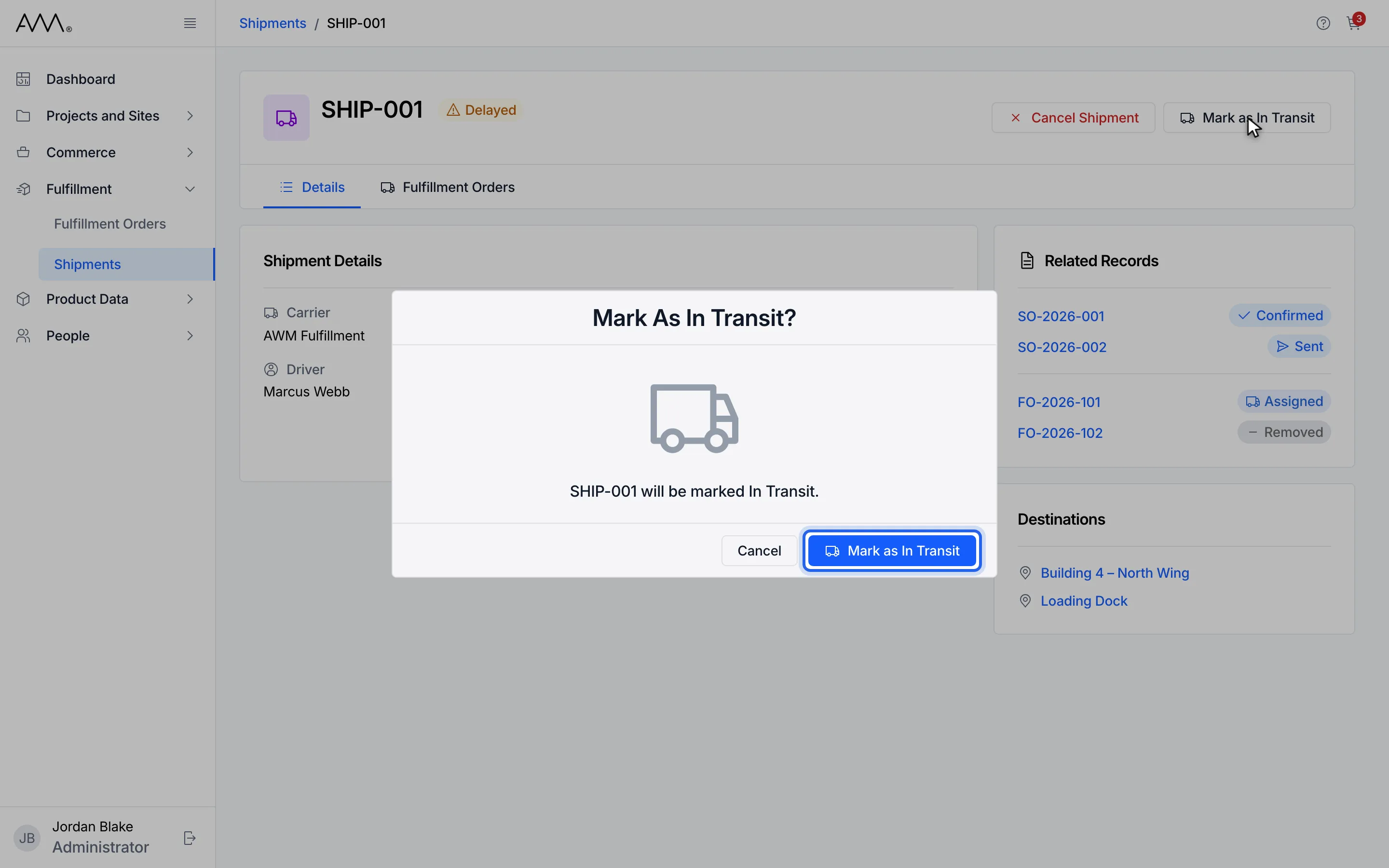
10Confirm. No date is asked for this time.
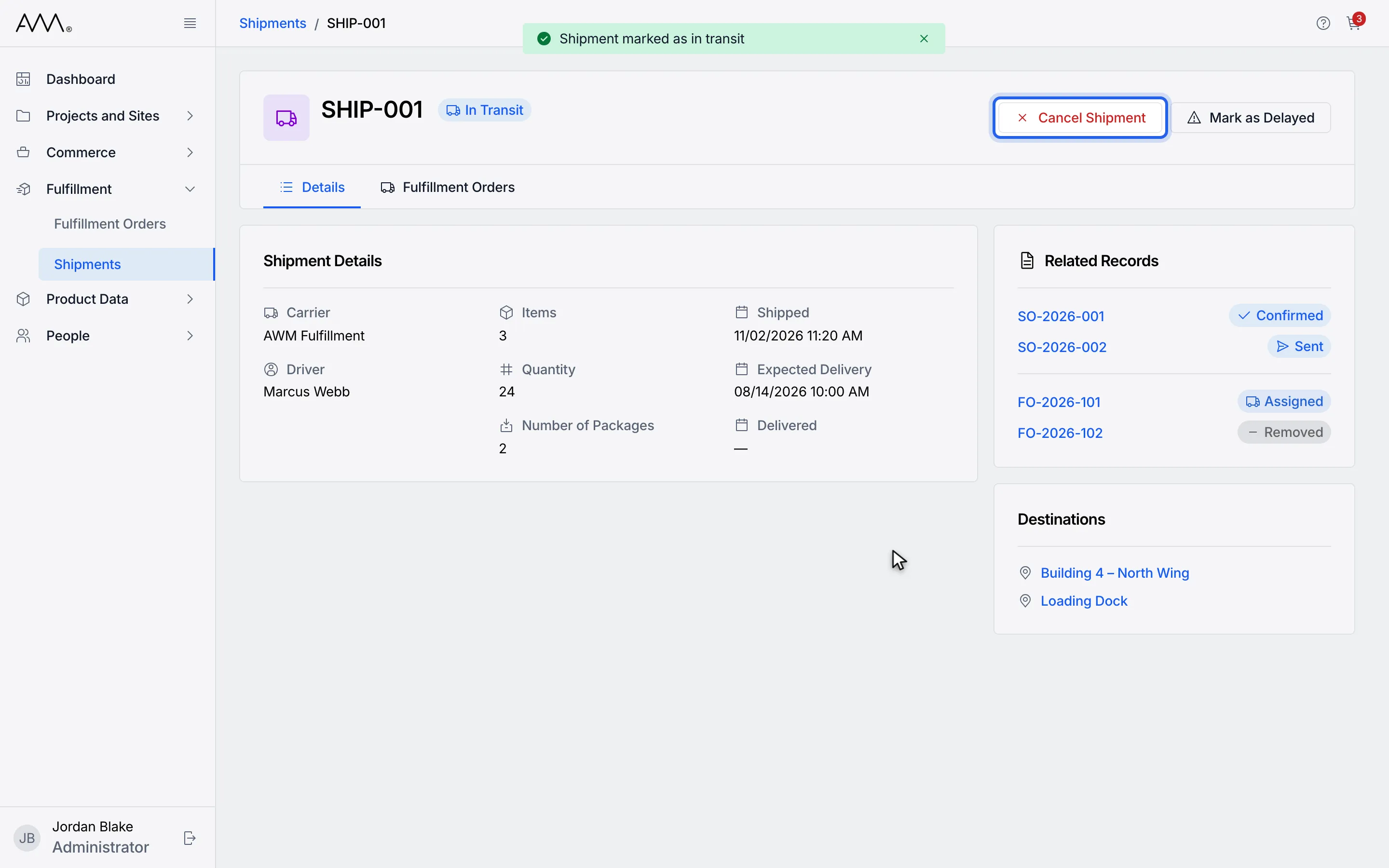
11To cancel, click Cancel Shipment.
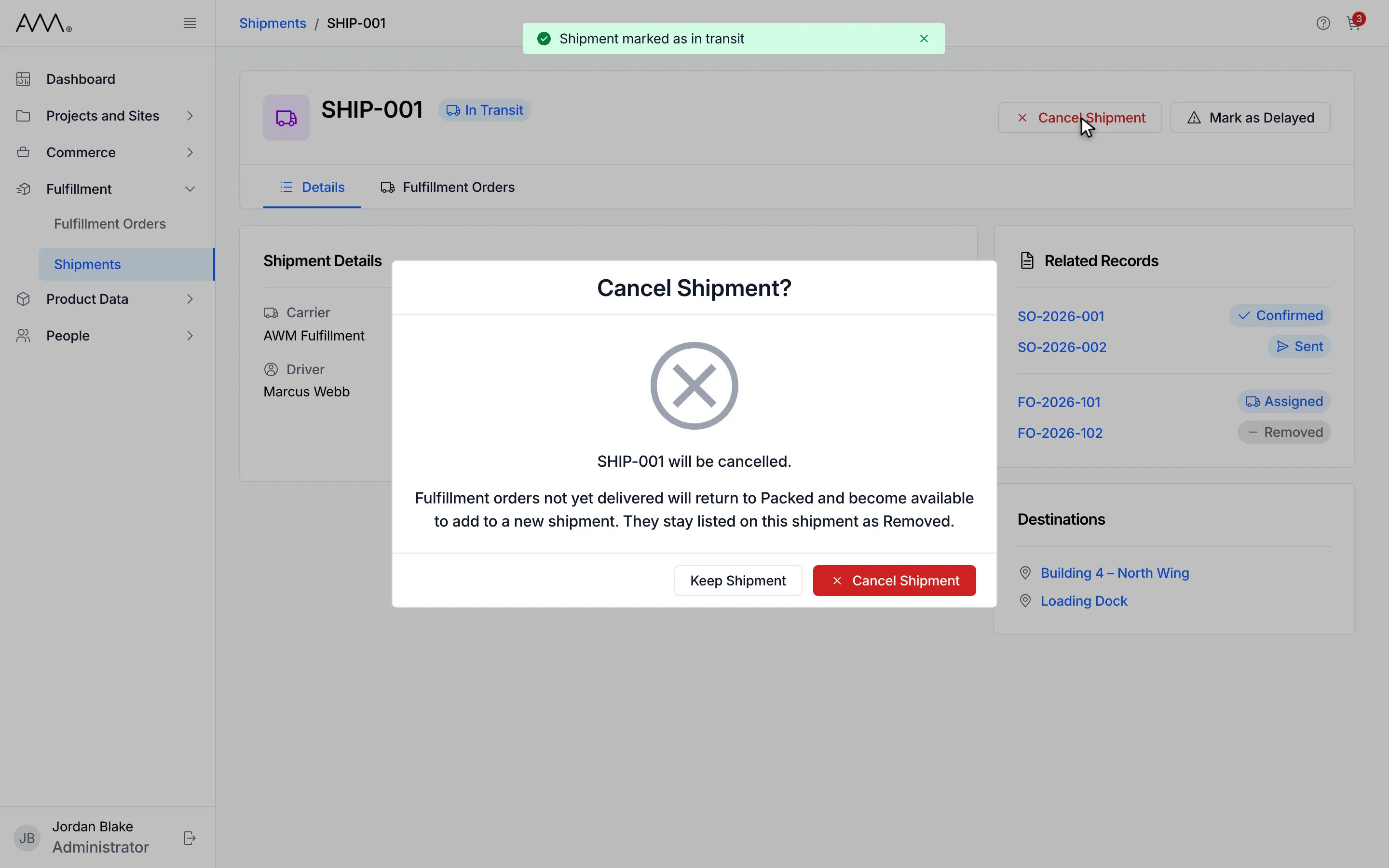
12Read the dialog. Undelivered orders return to Packed and stay listed as Removed.
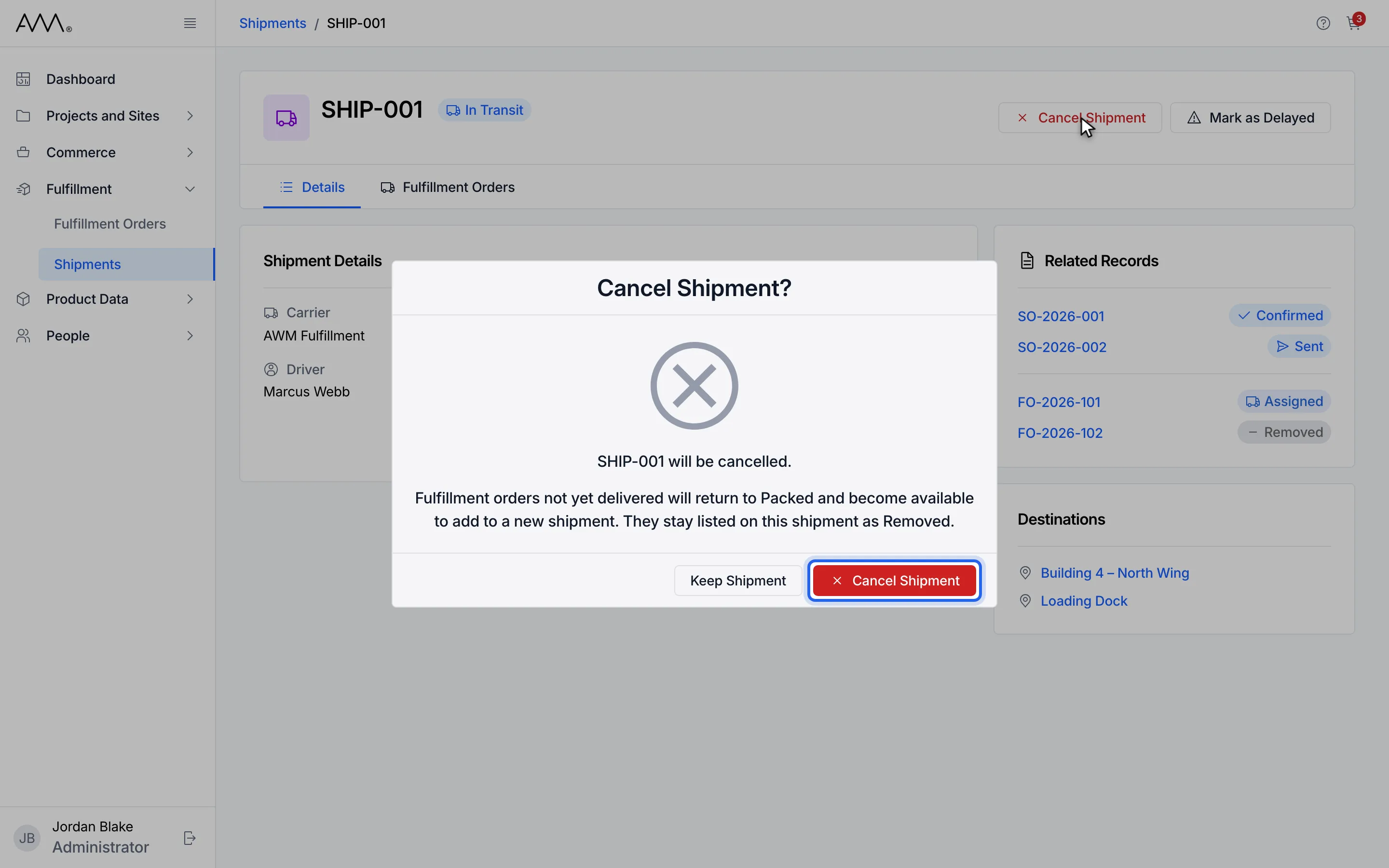
13Click Cancel Shipment to confirm, or Keep Shipment to back out.
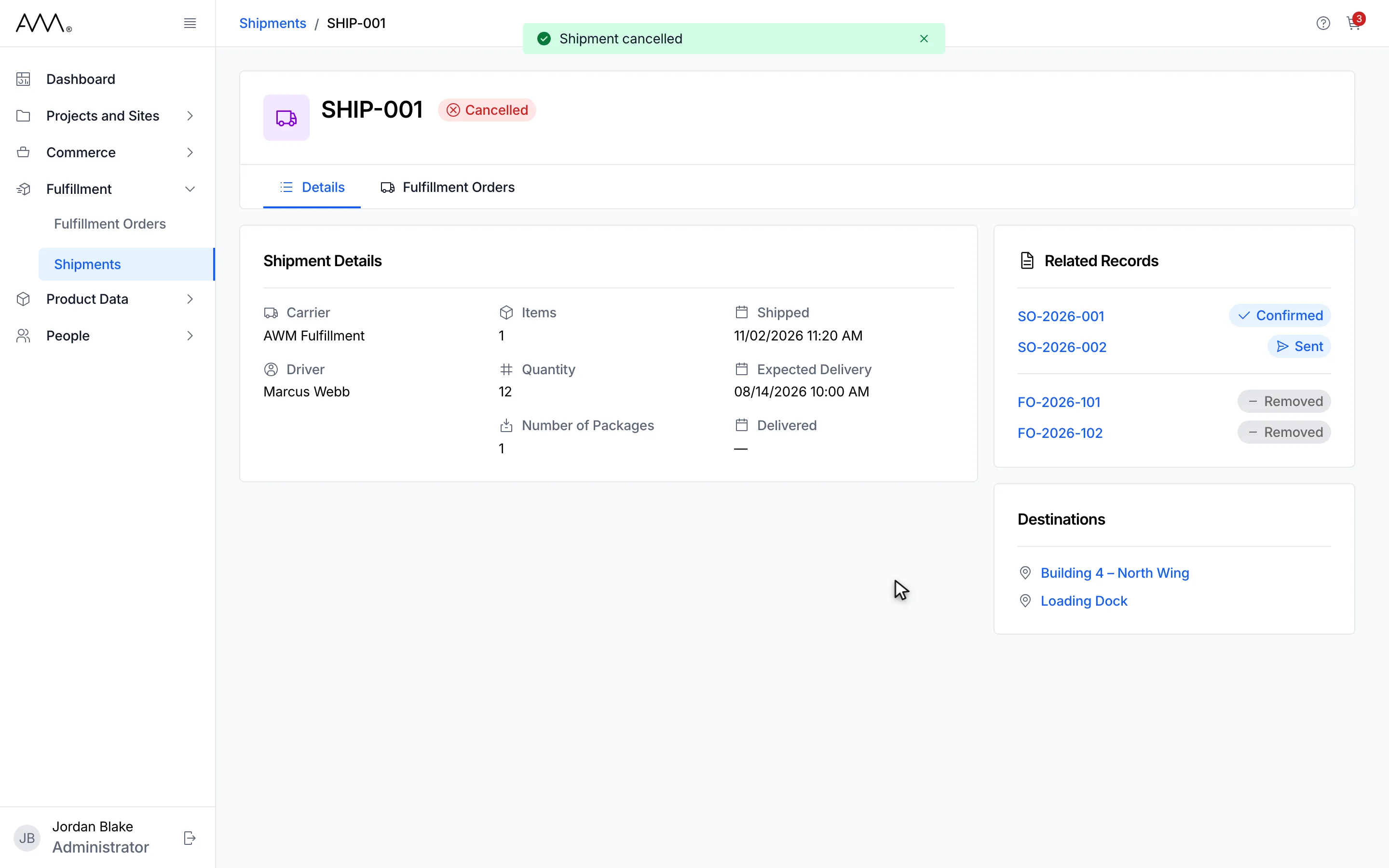
14The shipment is Cancelled and the header actions are gone.
15The shipment is Cancelled and the header actions are gone.
Watch this as a video (mark a shipment departed, delayed, resumed or cancelled)
What happens next
Section titled “What happens next”| Action | Toast | New status |
|---|---|---|
| Mark as In Transit from Pending | Shipment marked as in transit | In Transit, with Shipped set to the departed date and time |
| Mark as Delayed | Shipment marked as delayed | Delayed |
| Mark as In Transit from Delayed | Shipment marked as in transit | In Transit |
| Cancel Shipment | Shipment cancelled | Cancelled, or Partially Delivered if any order was delivered |
The departed date and time are refused with Enter the departed date and time., That departed date and time doesn’t exist in your time zone. or Departed time can’t be in the future. If the change is refused, the dialog shows the reason or Could not update the shipment. Please try again. When the shipment changed in the meantime and the action no longer applies, the dialog closes and the reason appears as a toast instead.