Set a product's UPC
The UPC column sits after SKU. Unlike every other cell, a UPC is written once: while a product has none you can type it in, and as soon as it is saved the cell becomes read-only for that product.
- In the sidebar, open Product Data and choose Products (PIM).
- Click the empty UPC cell on the product’s row. If the cell does not open, the product already has a UPC.
- Type the UPC and press Enter.
Set a UPC1 / 5
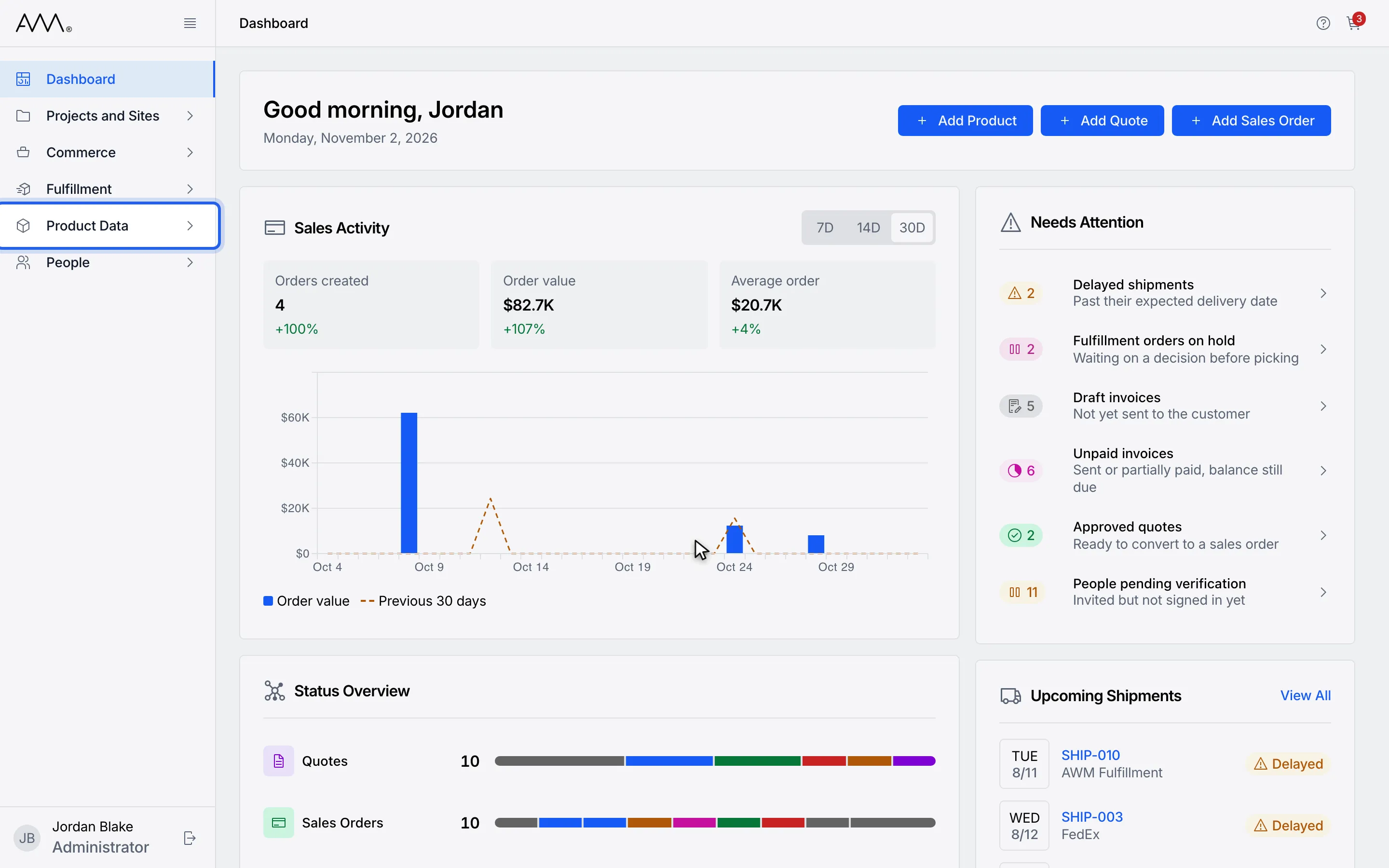
1In the sidebar, open Product Data.
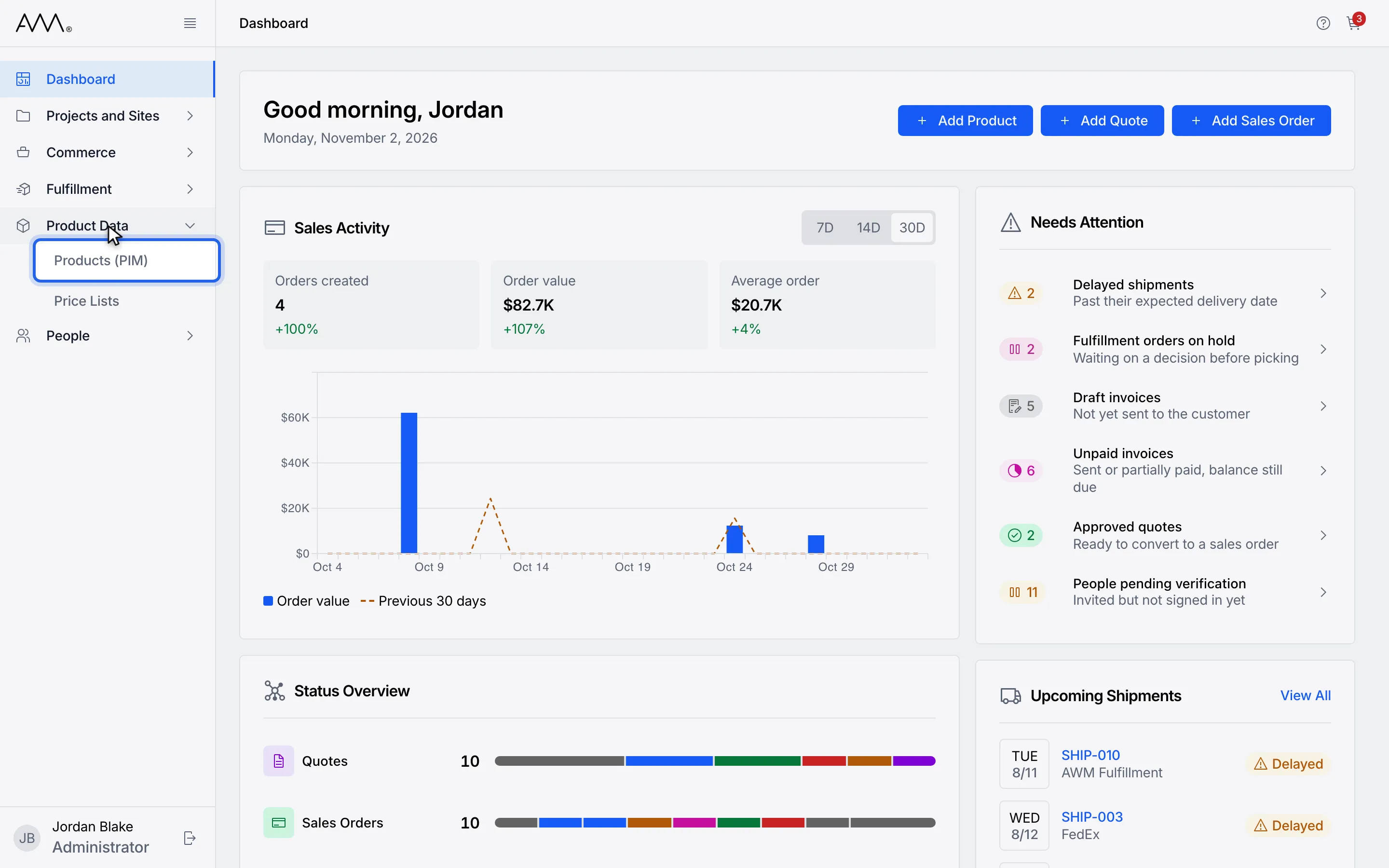
2Choose Products (PIM).
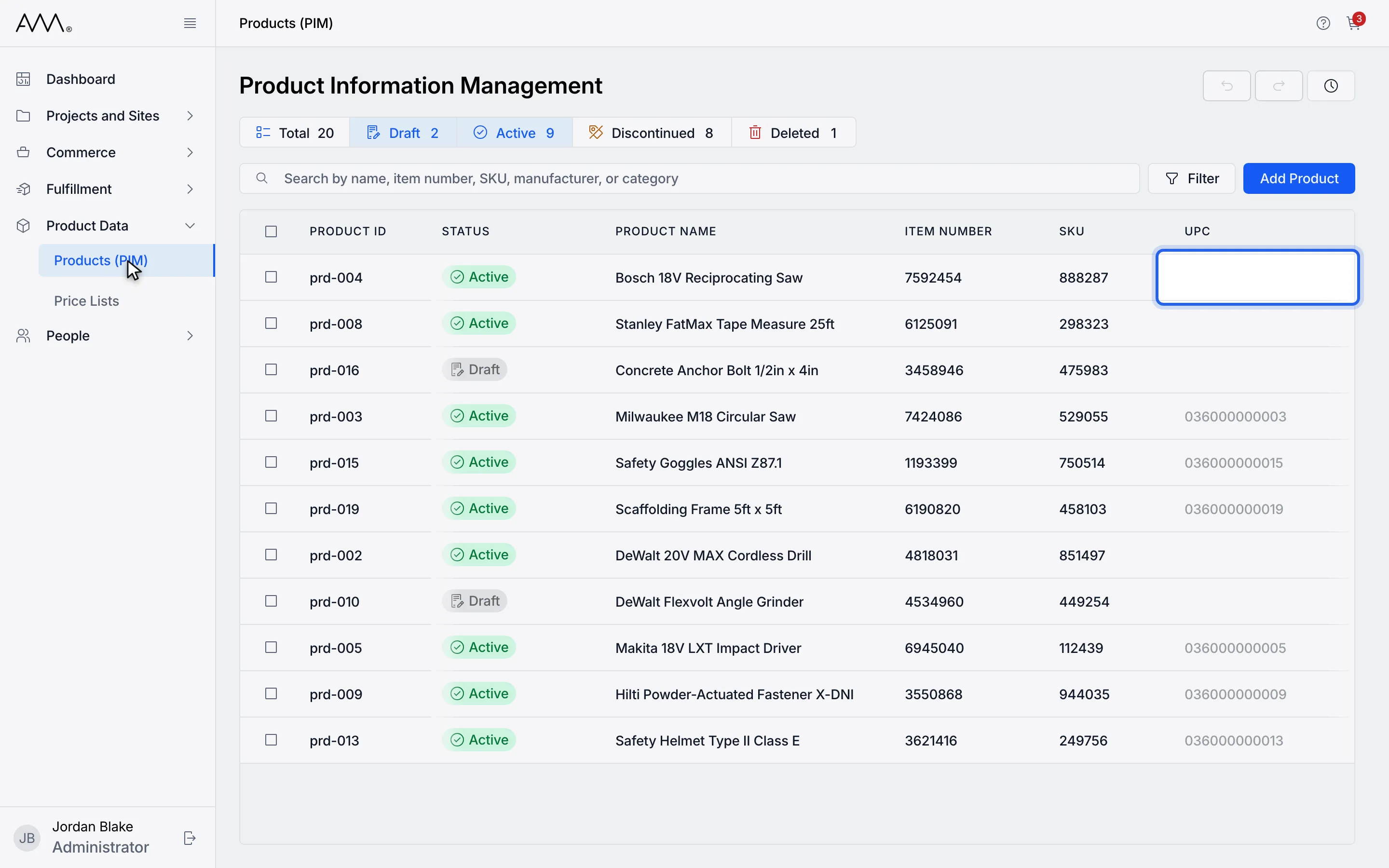
3Click the empty UPC cell on the product's row.
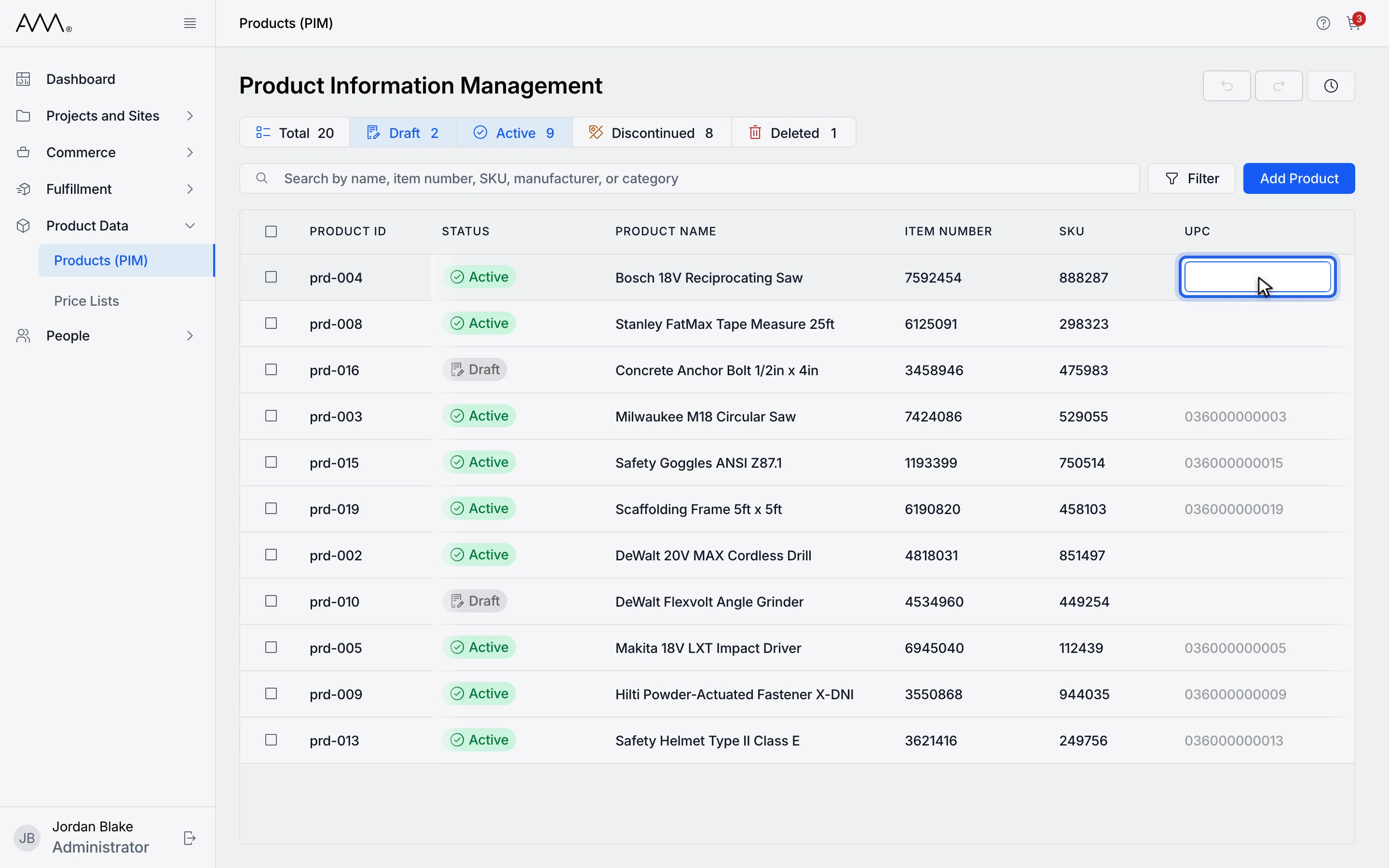
4Type the UPC and press Enter. It is saved once and cannot be changed.
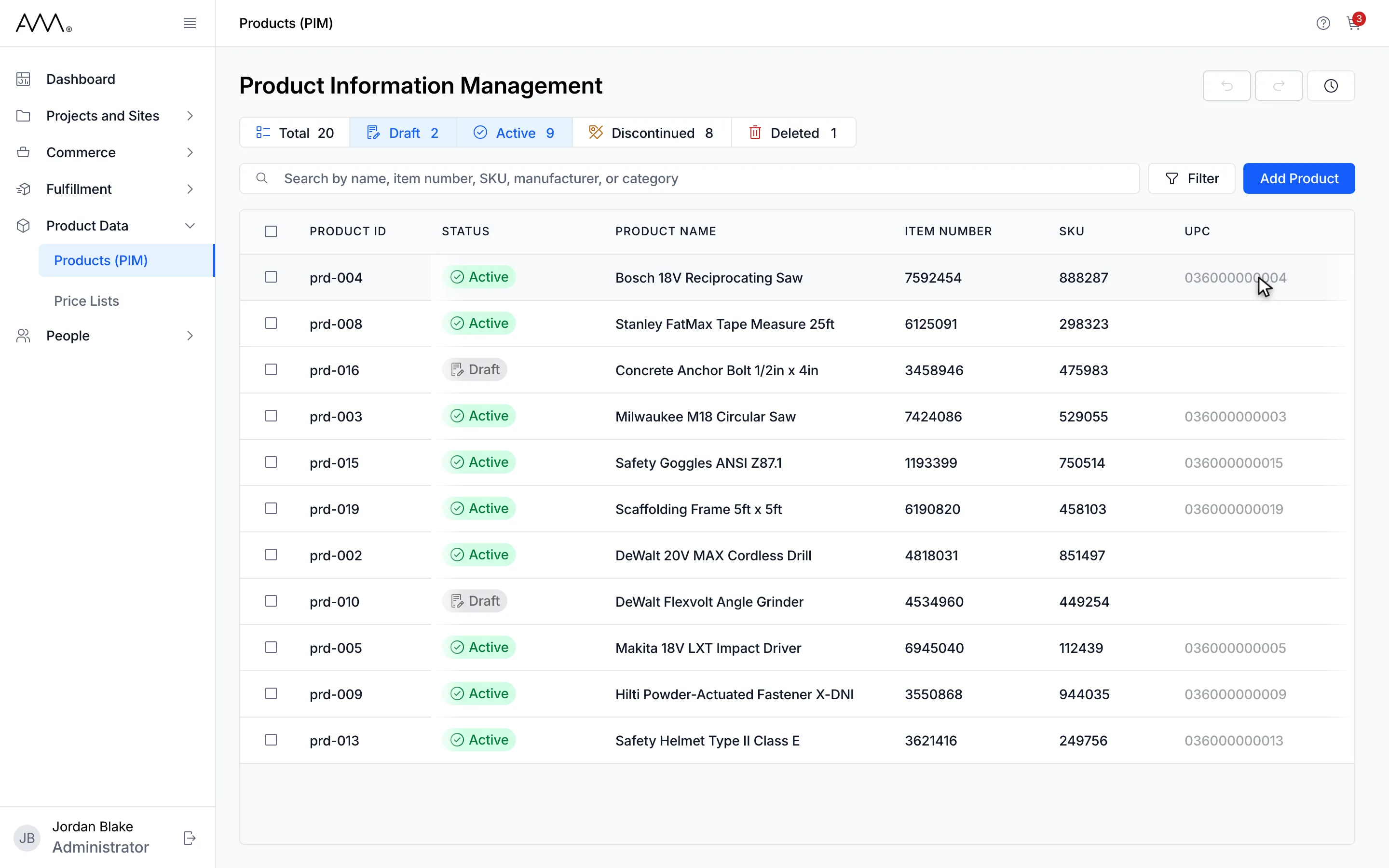
5The UPC is saved and its cell is now read-only for this product.
Watch this as a video (set a upc)
What happens next
Section titled “What happens next”- The row saves and the UPC cell shows the value as read-only.
- If the UPC is longer than 50 characters, Omni shows UPC must be 50 characters or fewer and nothing is saved.
- If another product already has that UPC, Omni shows UPC already used by another product and the cell keeps its old value.
- If someone else set a UPC on the product since you opened the page, Omni shows This product already has a UPC, refreshes the row and locks the cell.
- You can also fill in UPC on a new row while you are adding a product. See Add a product.