Send and confirm a sales order
Sending emails the order to the customer and moves it to Sent. Confirming marks it as accepted and moves it to Confirmed, the status from which fulfillment starts. You can send first and confirm later, or confirm a Draft straight away.
- Open a Draft order.
- Click Send to Customer. There is no confirmation dialog. A message confirms Sales order sent successfully and the status becomes Sent.
- Click Confirm Order. The status becomes Confirmed.
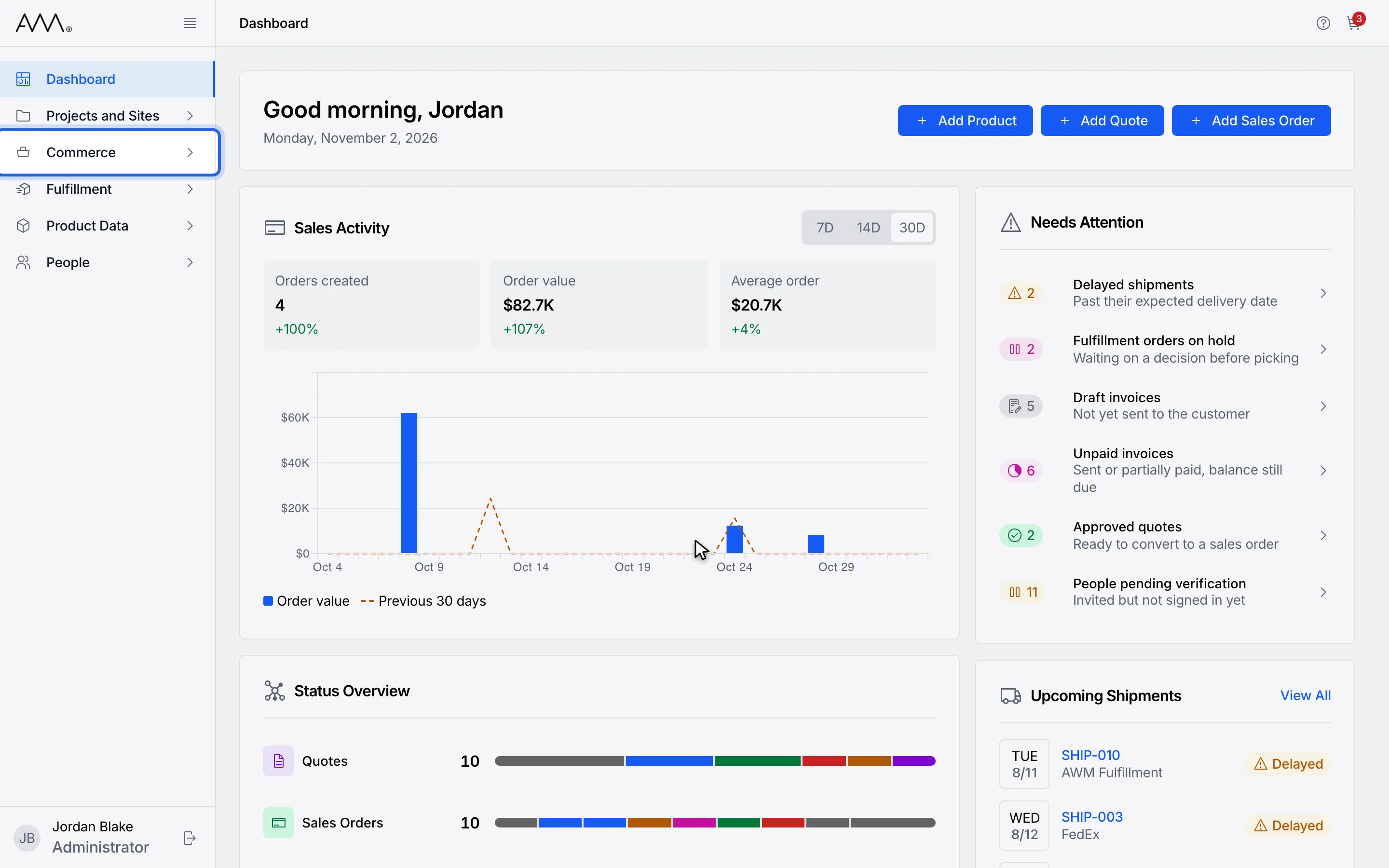
1In the sidebar, open Commerce.
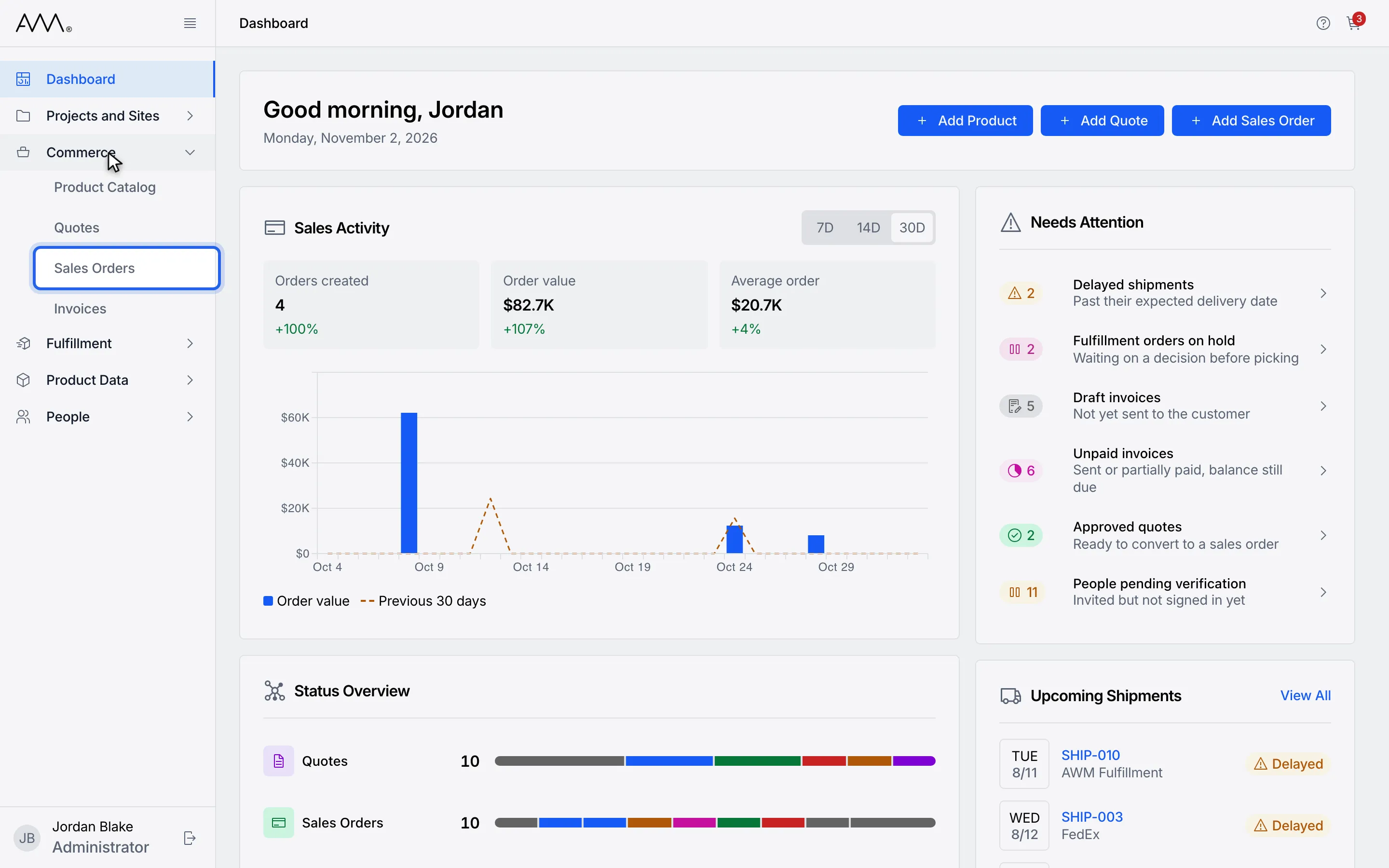
2Choose Sales Orders.
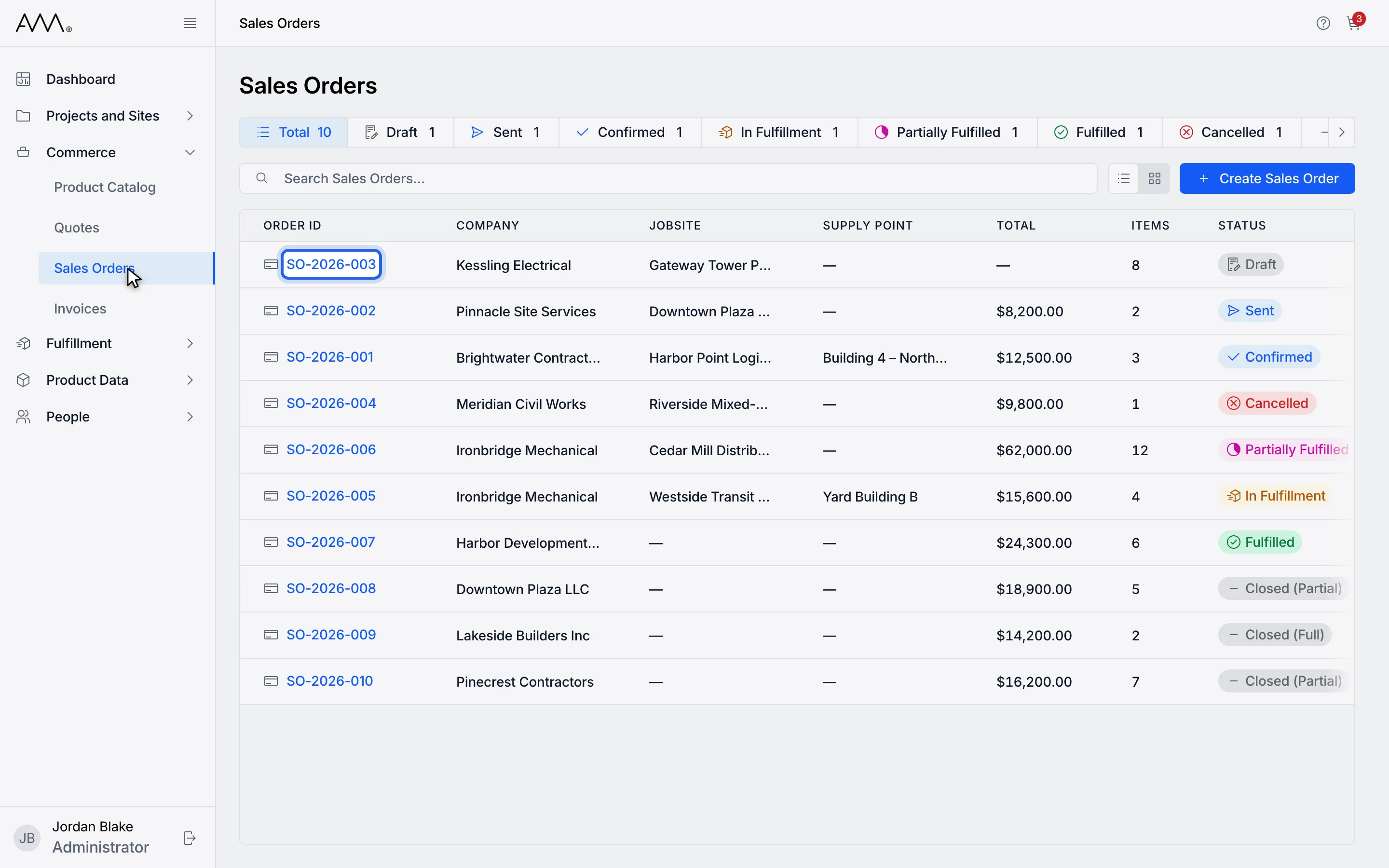
3Open a Draft order.
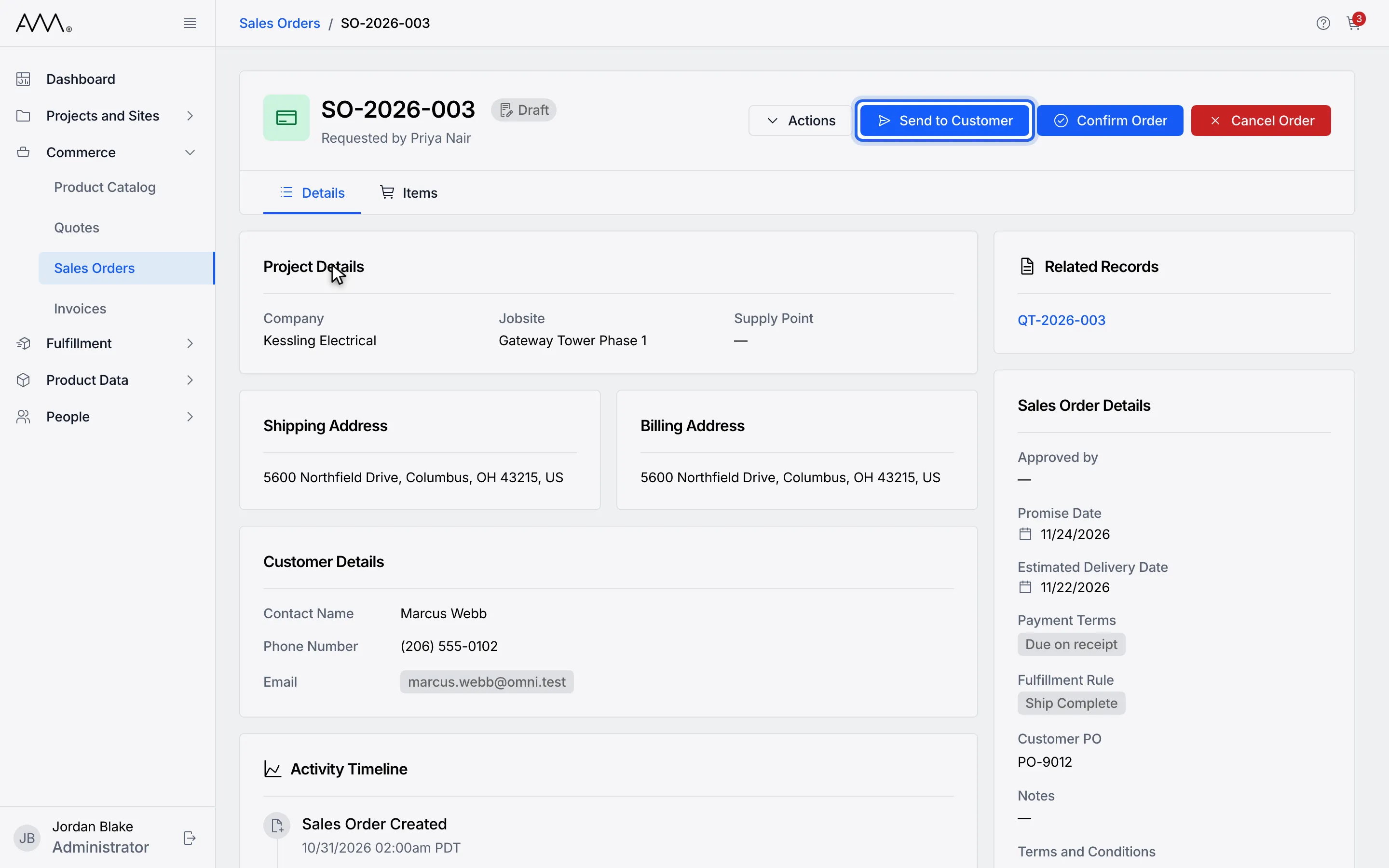
4Click Send to Customer. The order is emailed and becomes Sent.
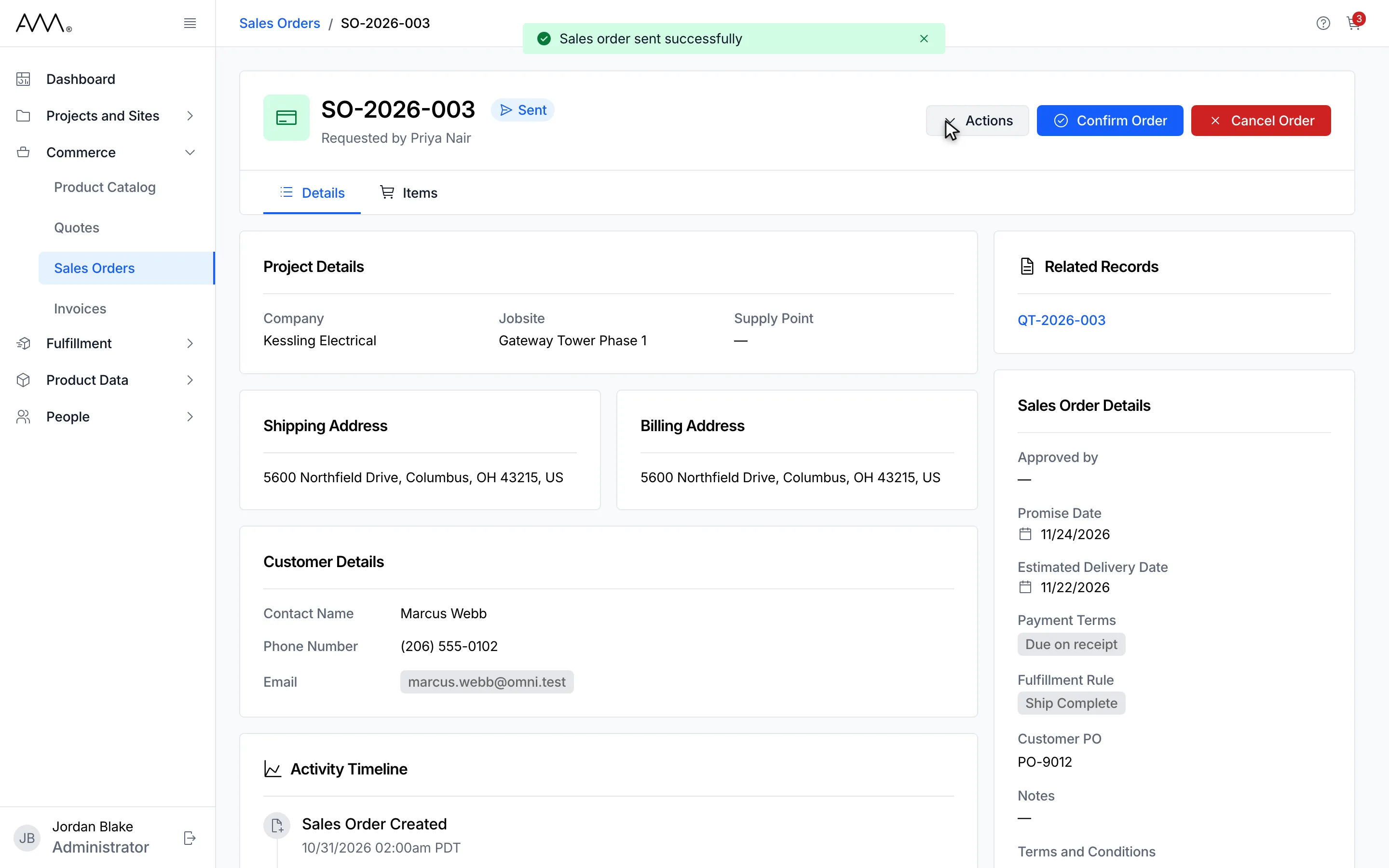
5A Sent order offers Confirm Order and Cancel Order; Resend is in the Actions menu.
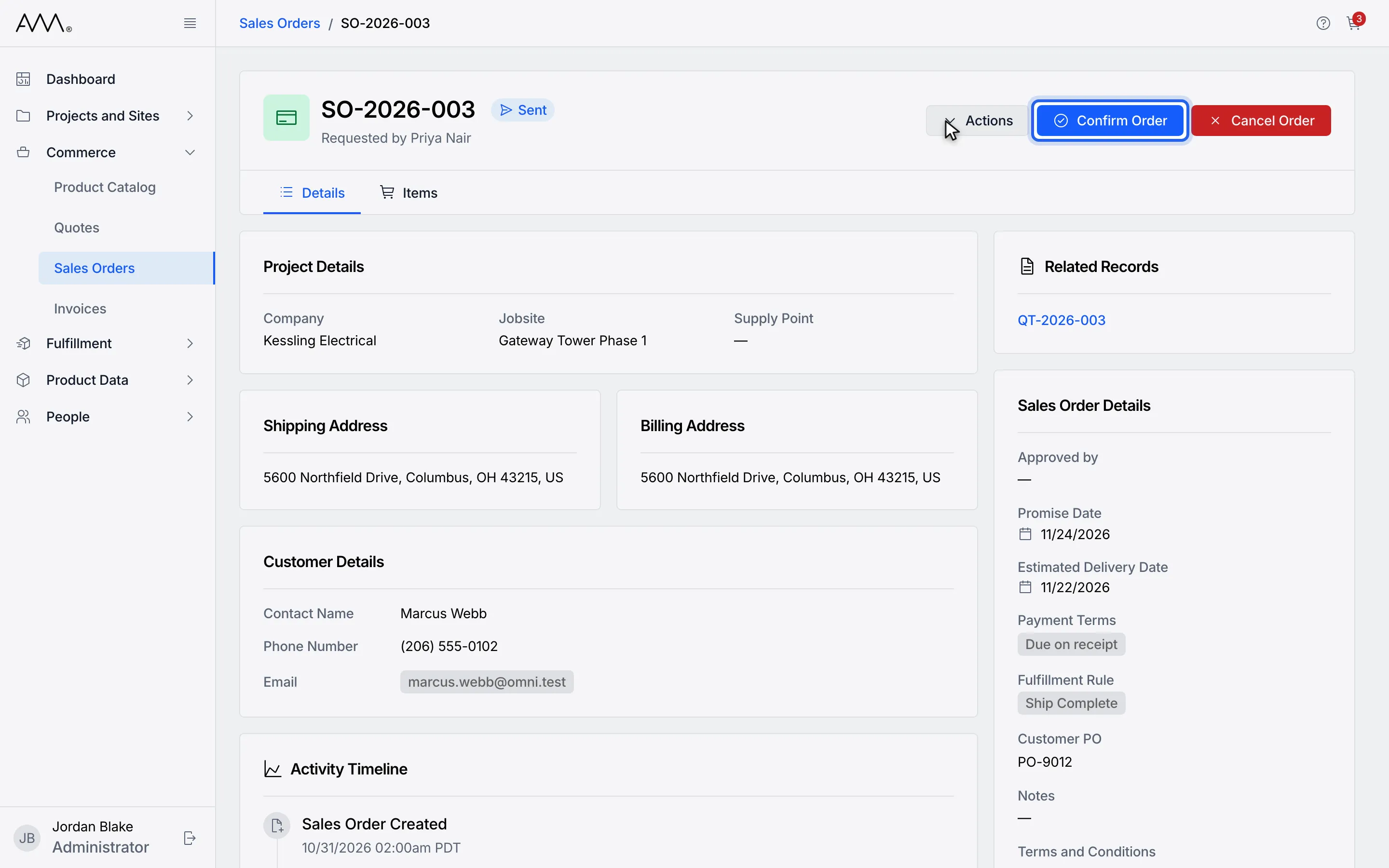
6Click Confirm Order. The status becomes Confirmed.
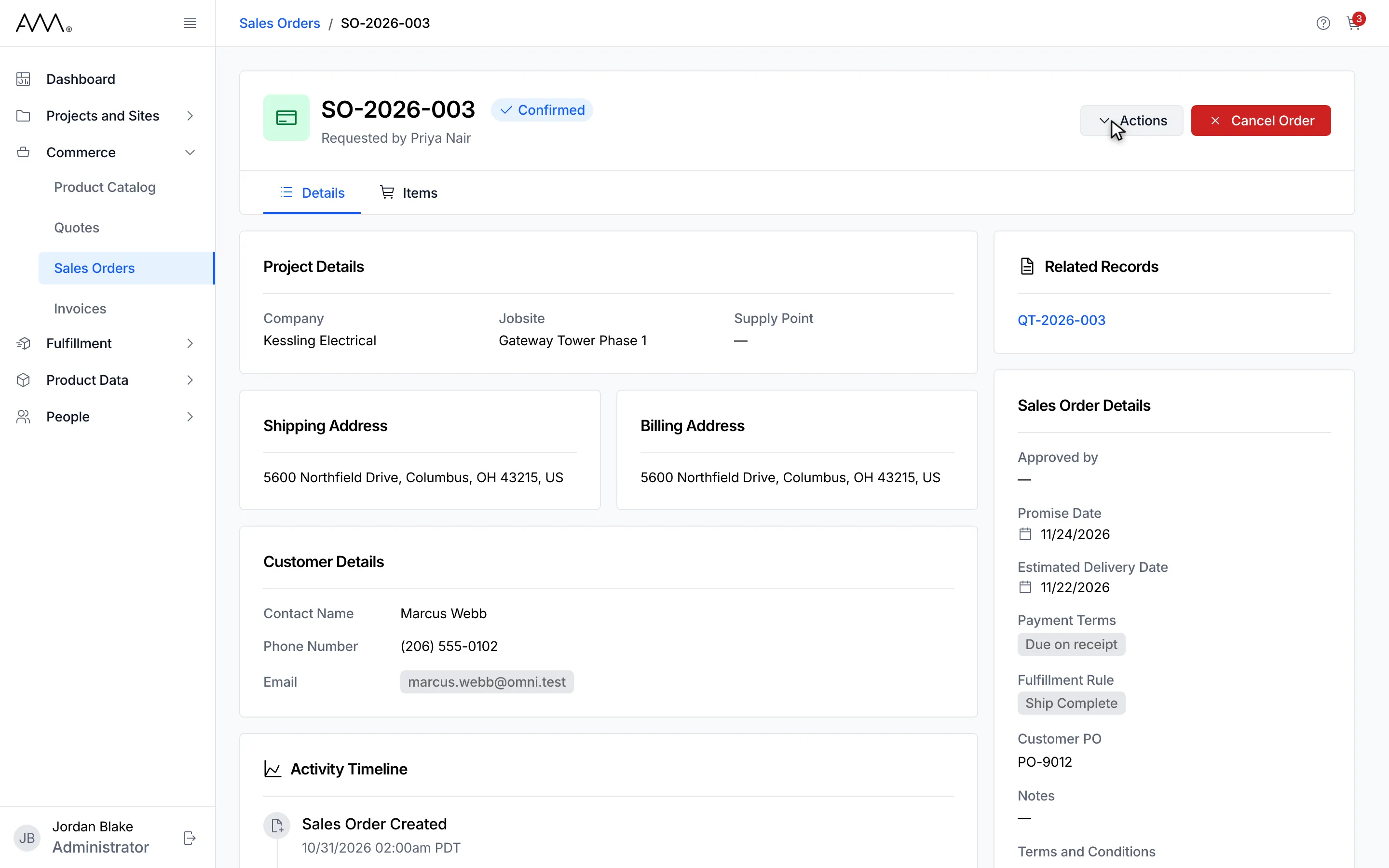
7The order is Confirmed. Cancel Order and the Actions menu stay in the header.
8The order is Confirmed. Cancel Order and the Actions menu stay in the header.
Watch this as a video (send and confirm a sales order)
Resend a sent order
Section titled “Resend a sent order”To email a Sent order again, click Actions in the header and choose Resend. A message confirms Sales order resent successfully and the status stays Sent. Each send is listed under Related Records as Sales Order Sends, with Sent #1, Sent #2 and so on and the date.
What happens next
Section titled “What happens next”The status badge in the header updates. Confirming shows no message; the badge is the confirmation. A Sent order can still be edited, resent, confirmed or cancelled. A Confirmed order can be edited, have products added, or be cancelled; once fulfillment starts, its status moves on to In Fulfillment by itself.
If the order has no customer email, nothing is sent and a message reads An email is required to send this sales order. Edit the order to add a customer email. If sending or confirming fails, a message reads Could not send the sales order. Please try again. or Could not confirm the sales order. Please try again.