Close a sales order
Closing finishes an order. A Fulfilled order closes as Closed (Full). A Partially Fulfilled order closes as Closed (Partial): what has been delivered stays delivered, and the Fulfillment Orders that have not been delivered are cancelled.
- Open a Partially Fulfilled or Fulfilled order.
- Click Close Order in the header.
- Read the Close This Sales Order? dialog. For a Partially Fulfilled order it names the Fulfillment Orders that will be cancelled and those already delivered.
- Click Close Order to confirm, or Keep Order Open to go back without changes.
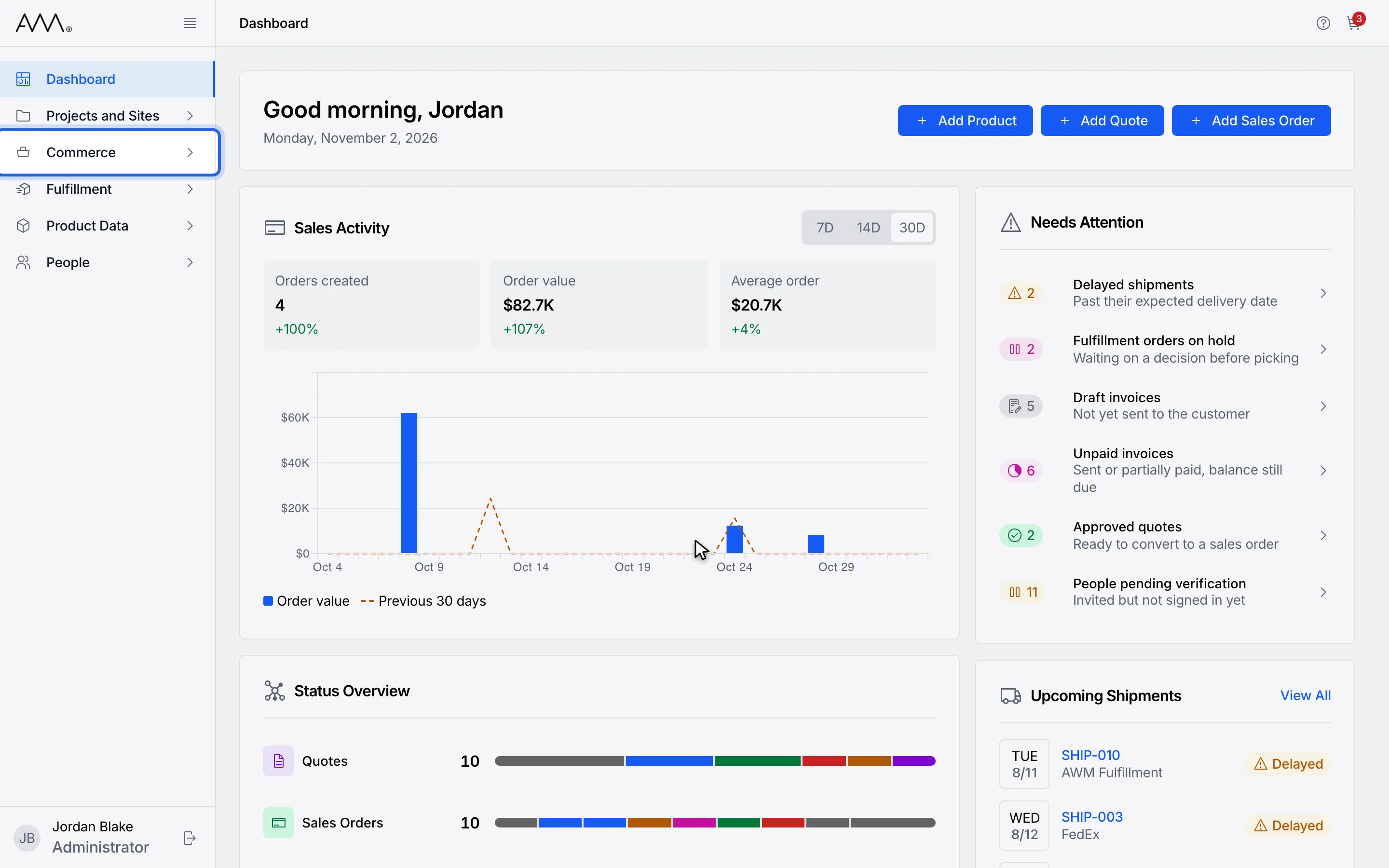
1In the sidebar, open Commerce.
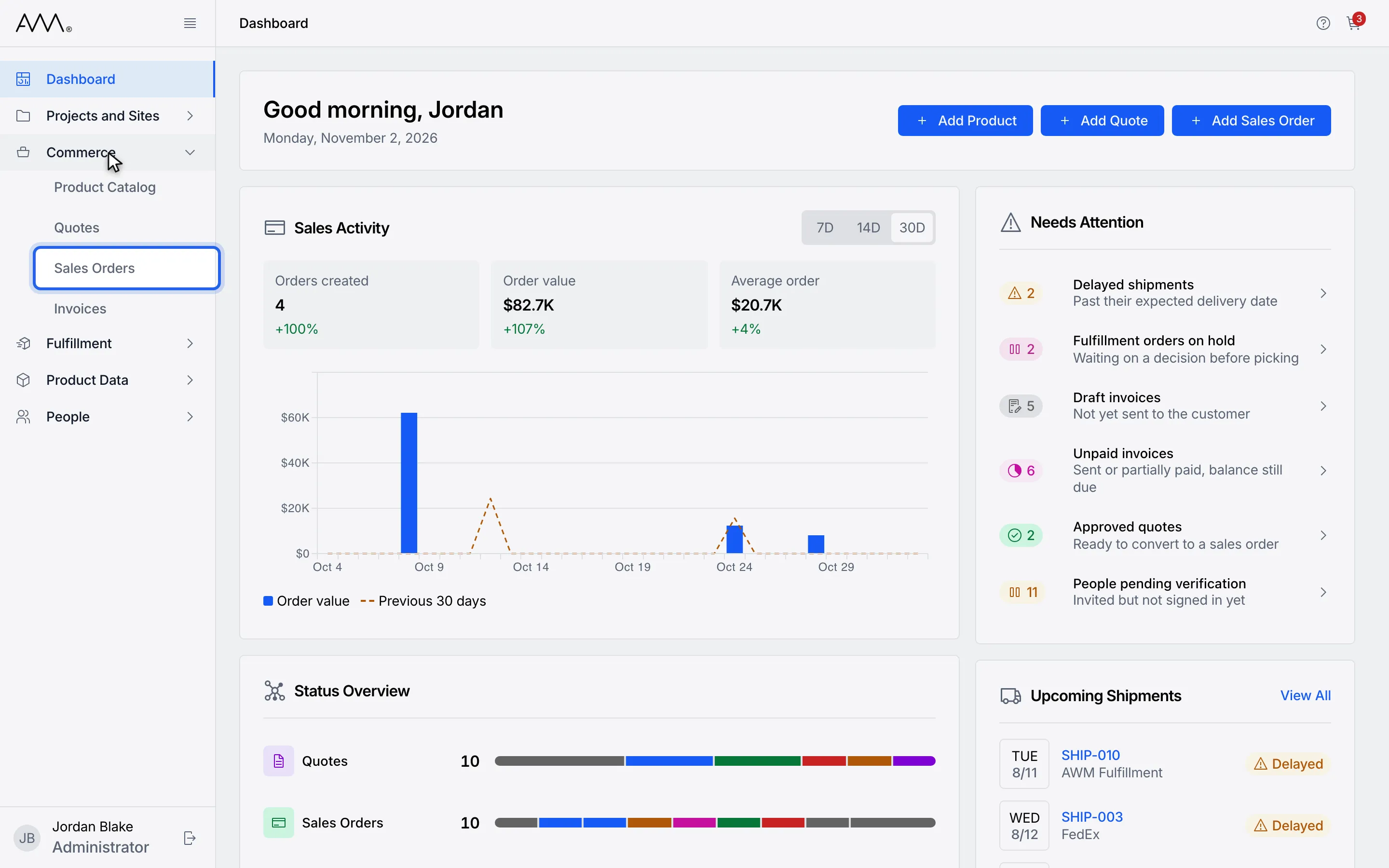
2Choose Sales Orders.
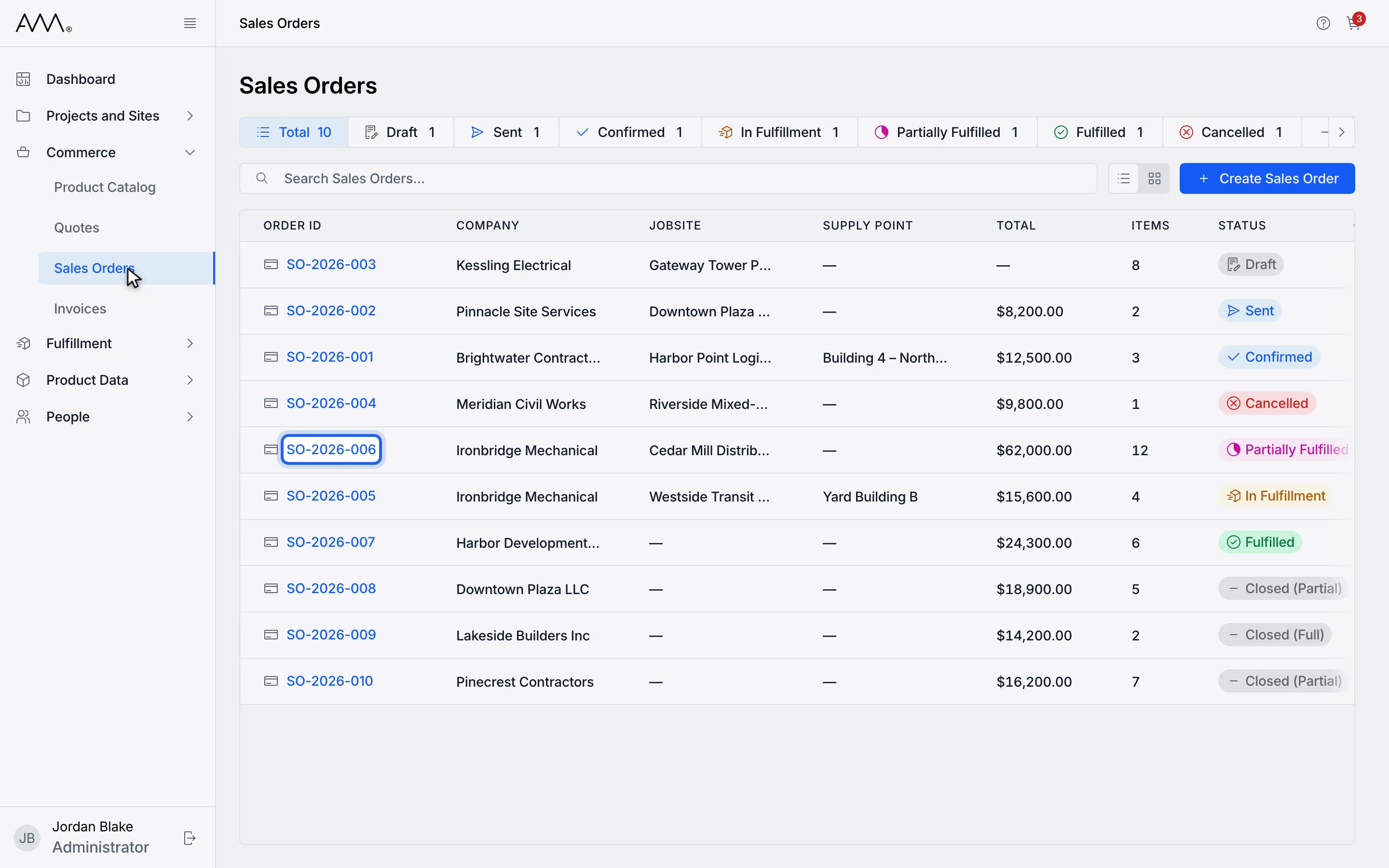
3Open a Partially Fulfilled or Fulfilled order.
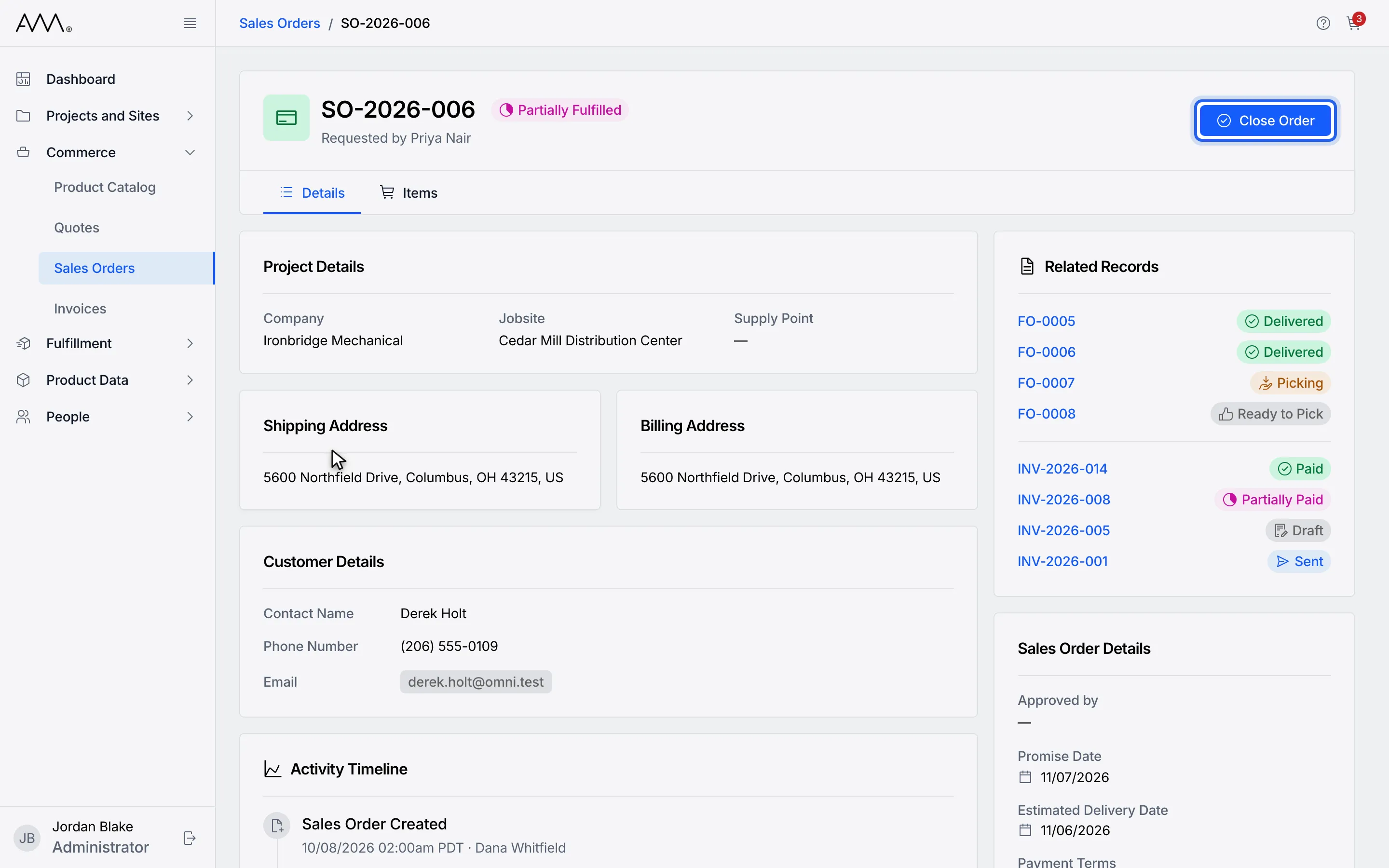
4Click Close Order in the header.
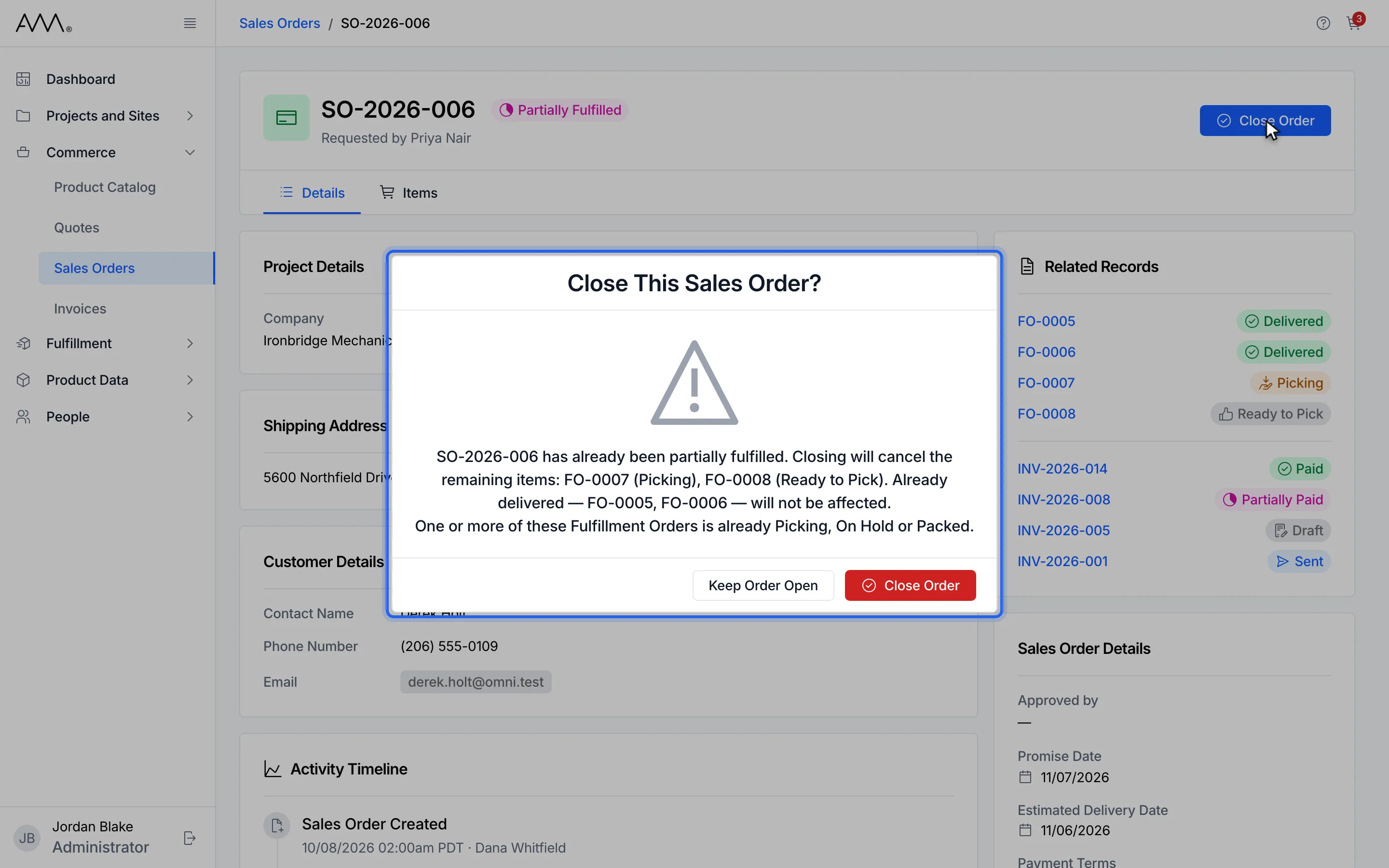
5Read Close This Sales Order? It names the Fulfillment Orders that will be cancelled.
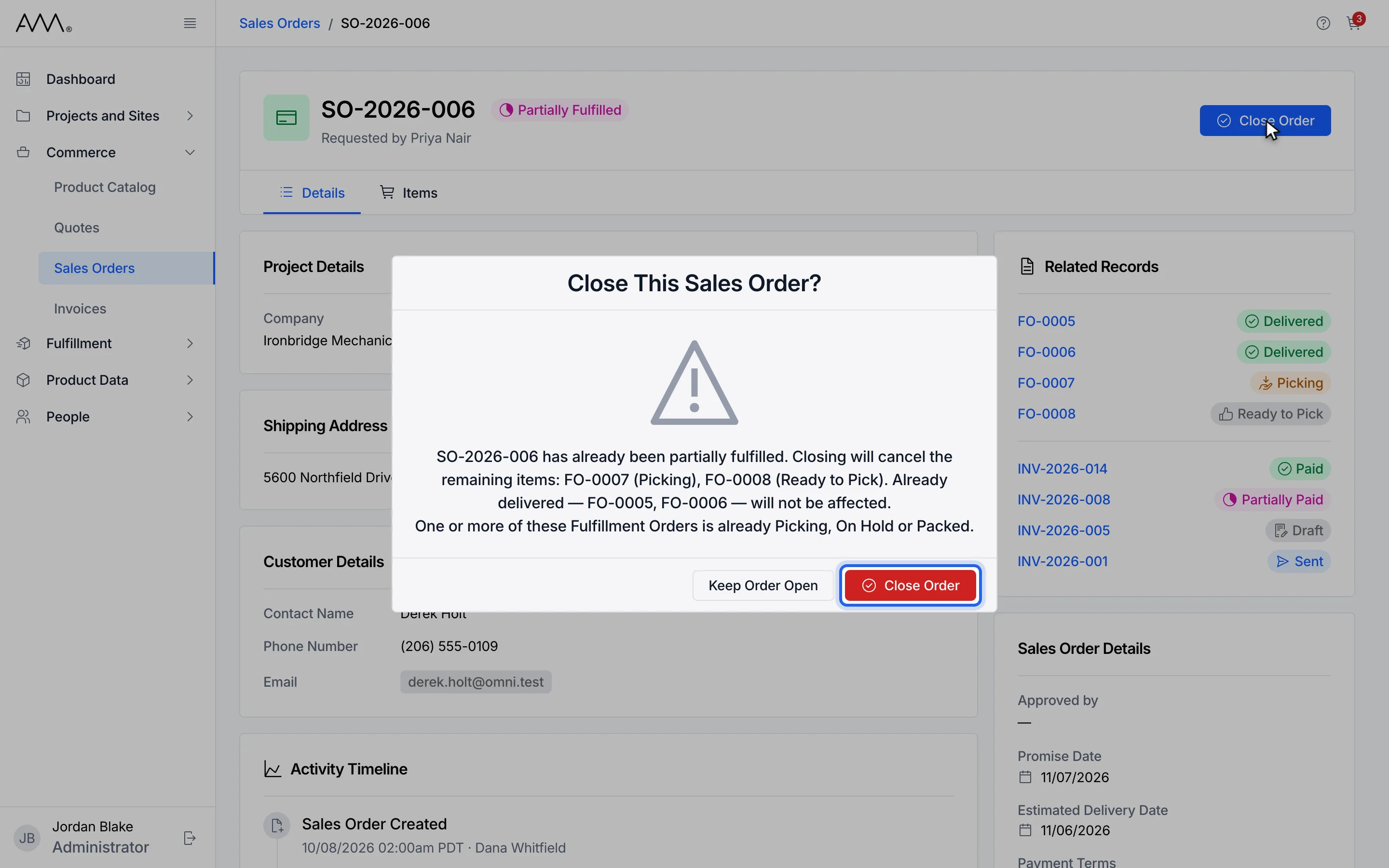
6Click Close Order to confirm.
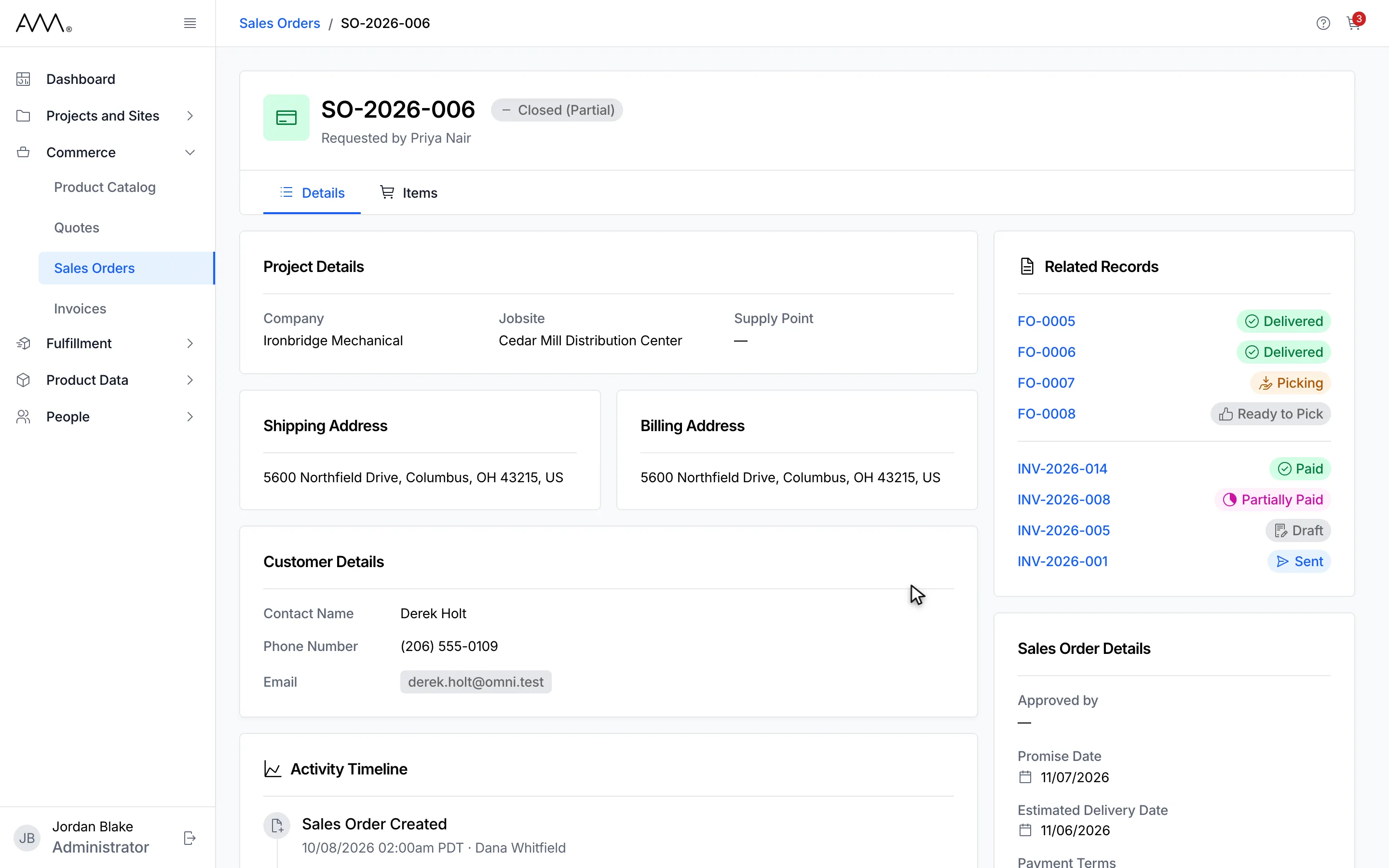
7The order is Closed (Partial). No further actions are offered.
8The order is Closed (Partial). No further actions are offered.
Watch this as a video (close a sales order)
If one of the order’s Fulfillment Orders is assigned to a shipment, Can’t Close Sales Order opens instead, listing each Fulfillment Order with its shipment and ending Remove them from their shipments, then close the order. Click Keep Order to close it; nothing changes. See Cancel a sales order for the same dialog when cancelling.
What happens next
Section titled “What happens next”The status becomes Closed (Full) or Closed (Partial) and the header offers no further actions. There is no other message. The Activity Timeline records Sales Order Closed (Full) or Sales Order Closed (Partial). The list’s Closed (Full) and Closed (Partial) chips count the closed orders. If the order cannot be closed, the dialog stays open and shows the reason, for example Could not close the sales order. Please try again.