Open a unit and read its tabs
A unit’s page shows its details, where it is now and everywhere it has been. Open it when you need to check a serial number, see which supply point a unit is on, or review its assignment history.
- In the sidebar, open Projects and Sites and choose Hardware.
- Click the unit’s serial number in the Hardware column, or on its card in Card view.
- Read the Overview tab. The Details card shows Serial Number, Hardware ID and Model. The Current Assignment card shows Jobsite, Supply Point and Owner. Anything not set shows N/A.
- Click the Assignments tab.
- Read the table. Each row is one assignment with Jobsite, Supply Point, Assigned Date, Unassigned Date and Status. The open assignment shows Current and a dash in Unassigned Date; finished ones show Completed. The most recent assignment is listed first.
- Click a column header to sort the history by that column.
Open a unit1 / 8
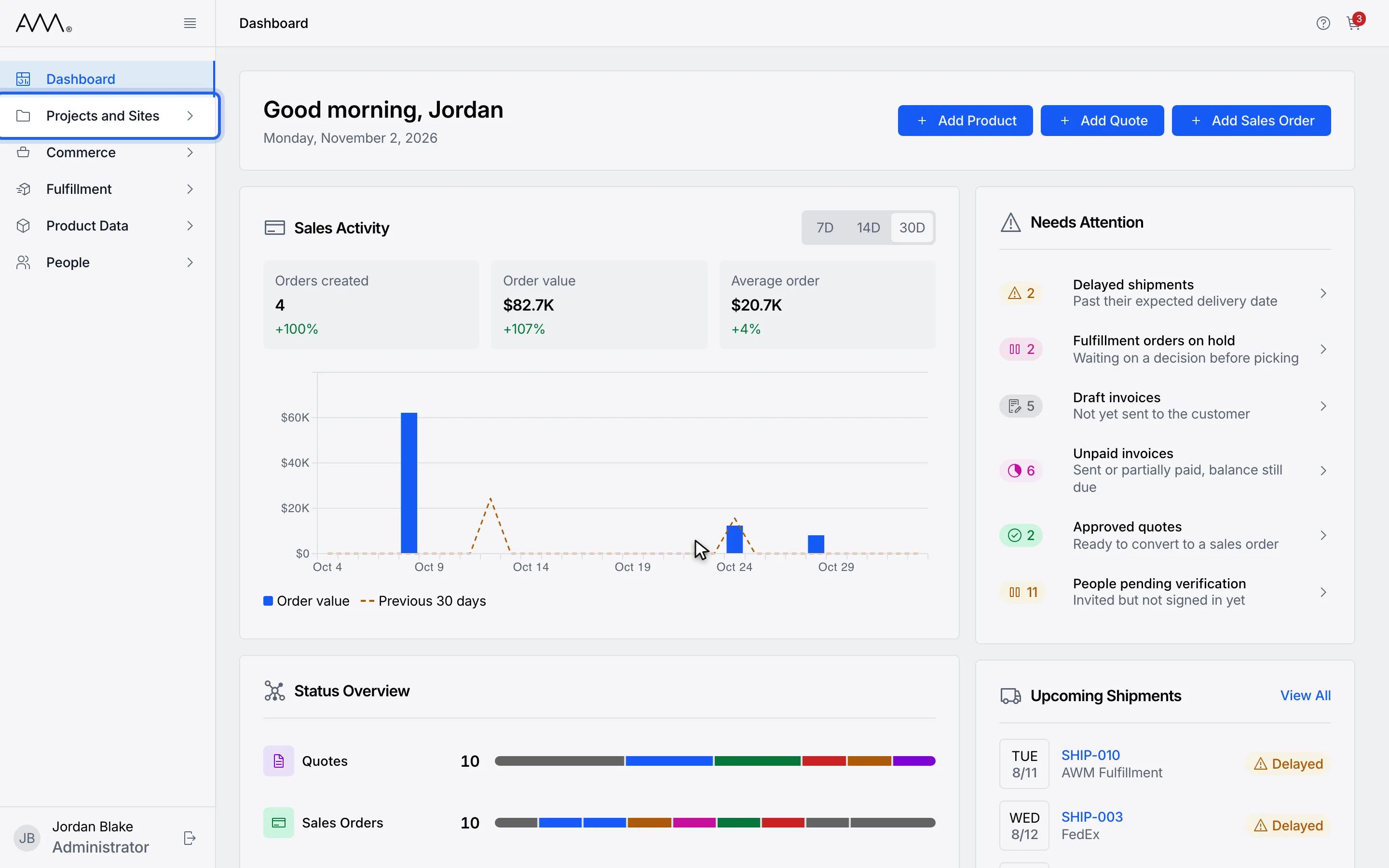
1In the sidebar, open Projects and Sites.
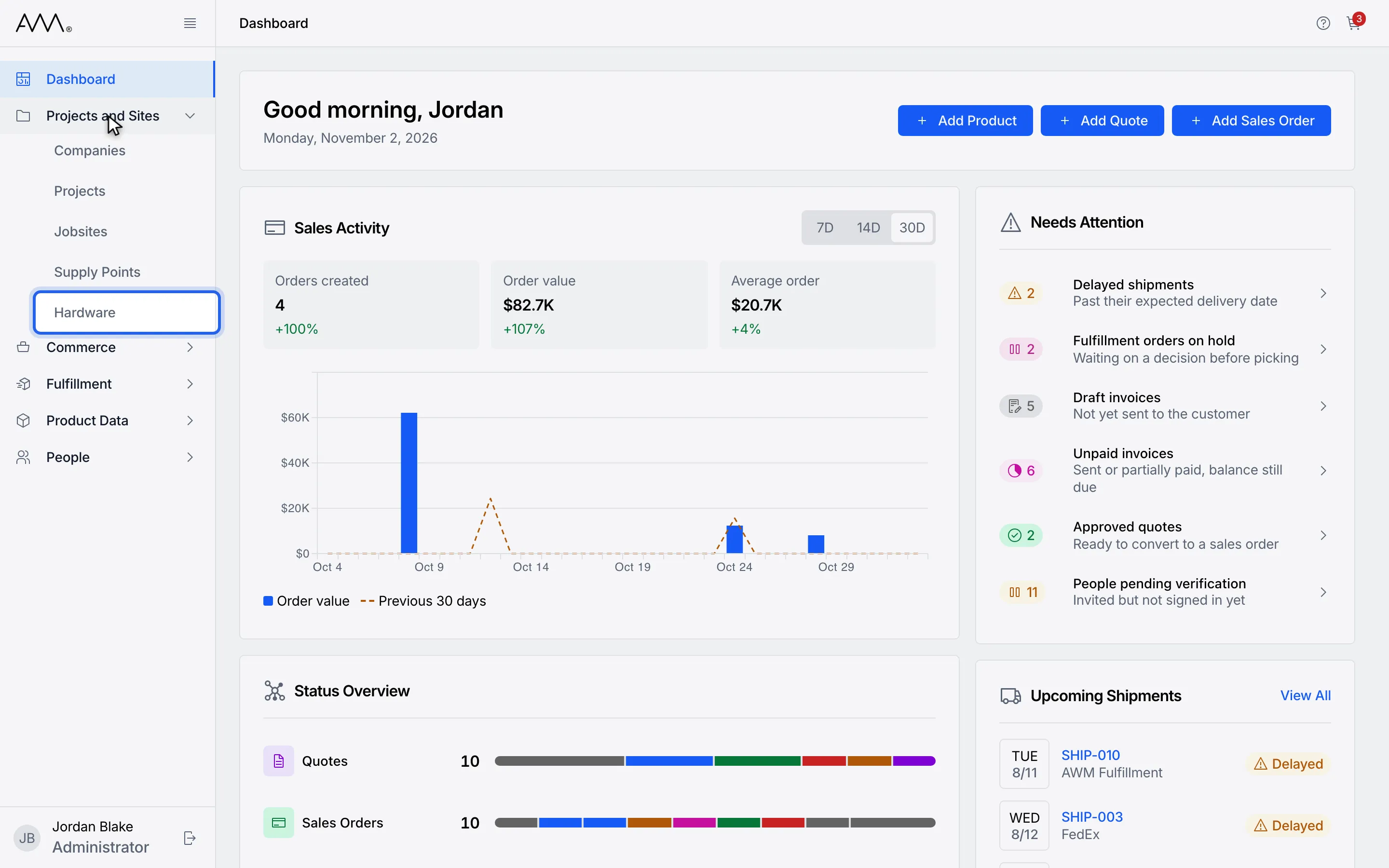
2Choose Hardware.
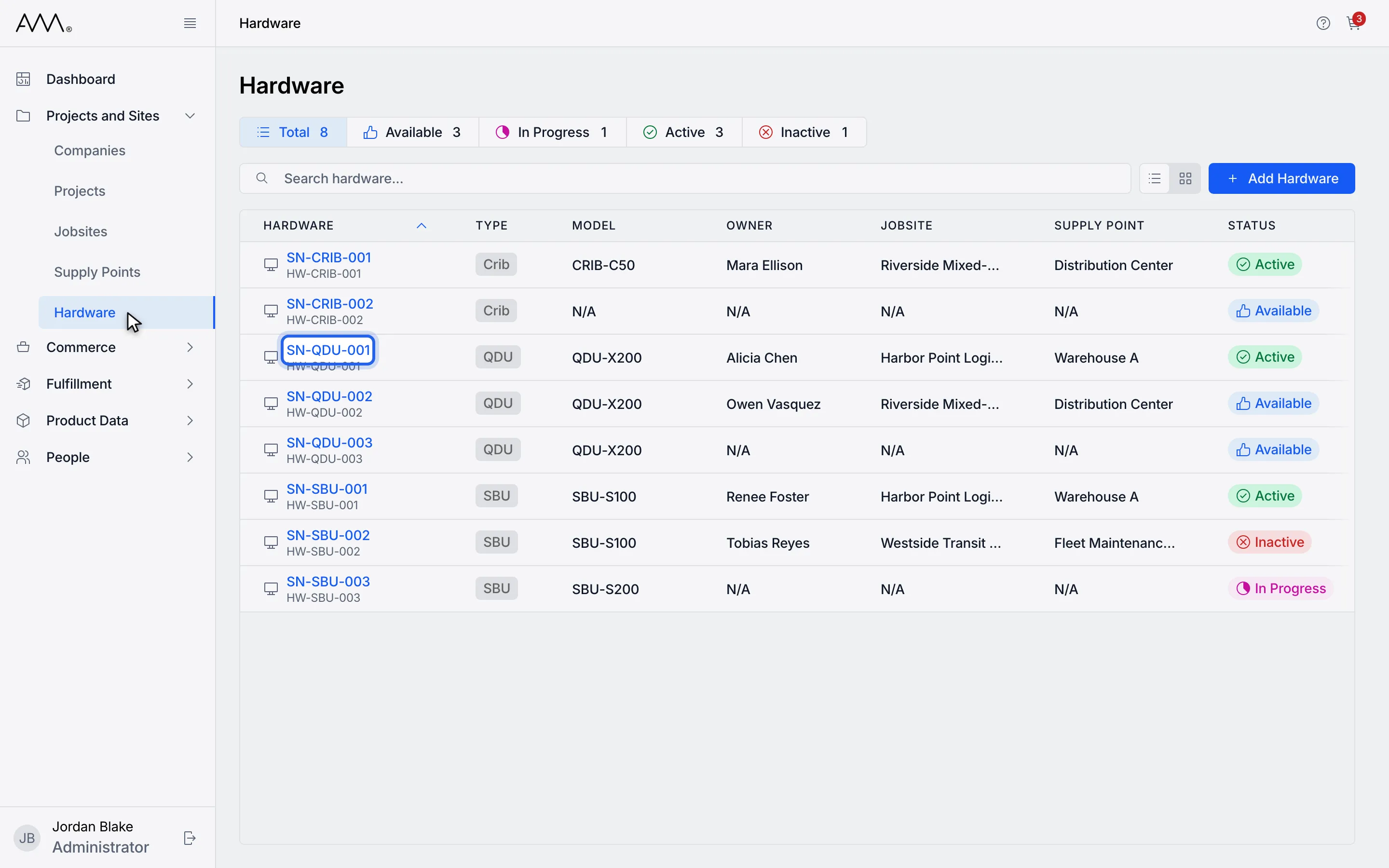
3Click the serial number in the Hardware column to open the unit.
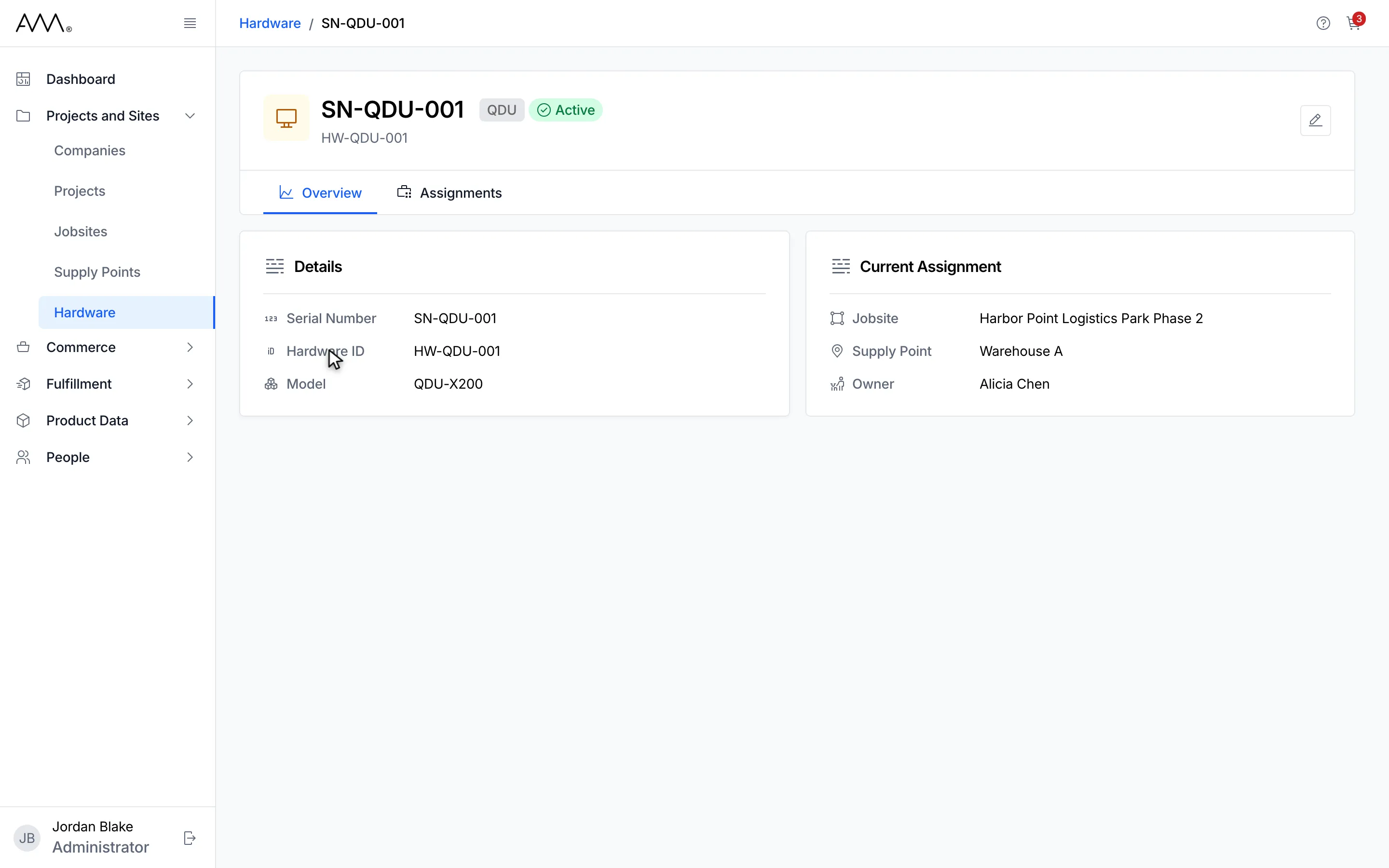
4The Overview tab shows Details and Current Assignment, including the Supply Point.
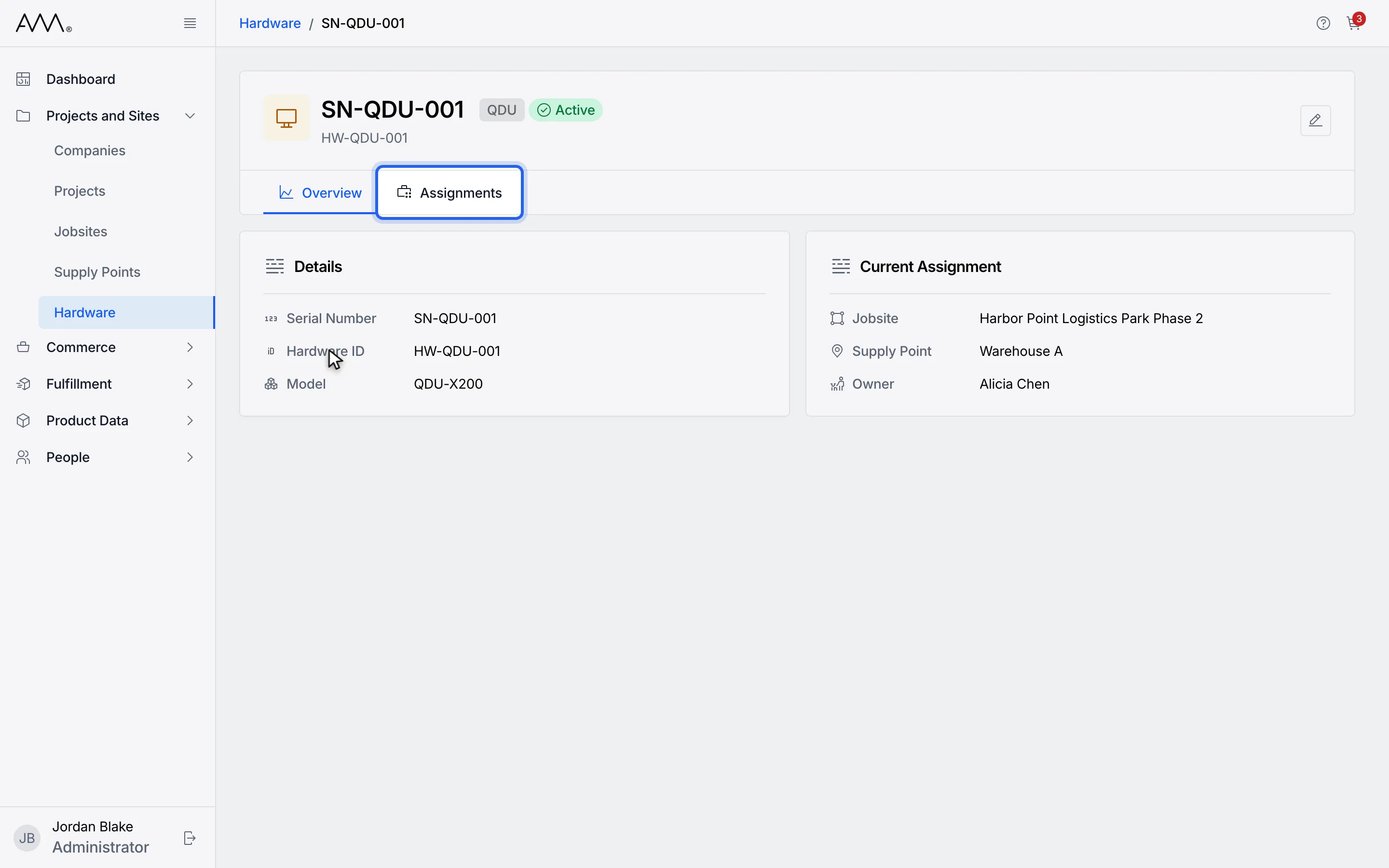
5Click the Assignments tab.
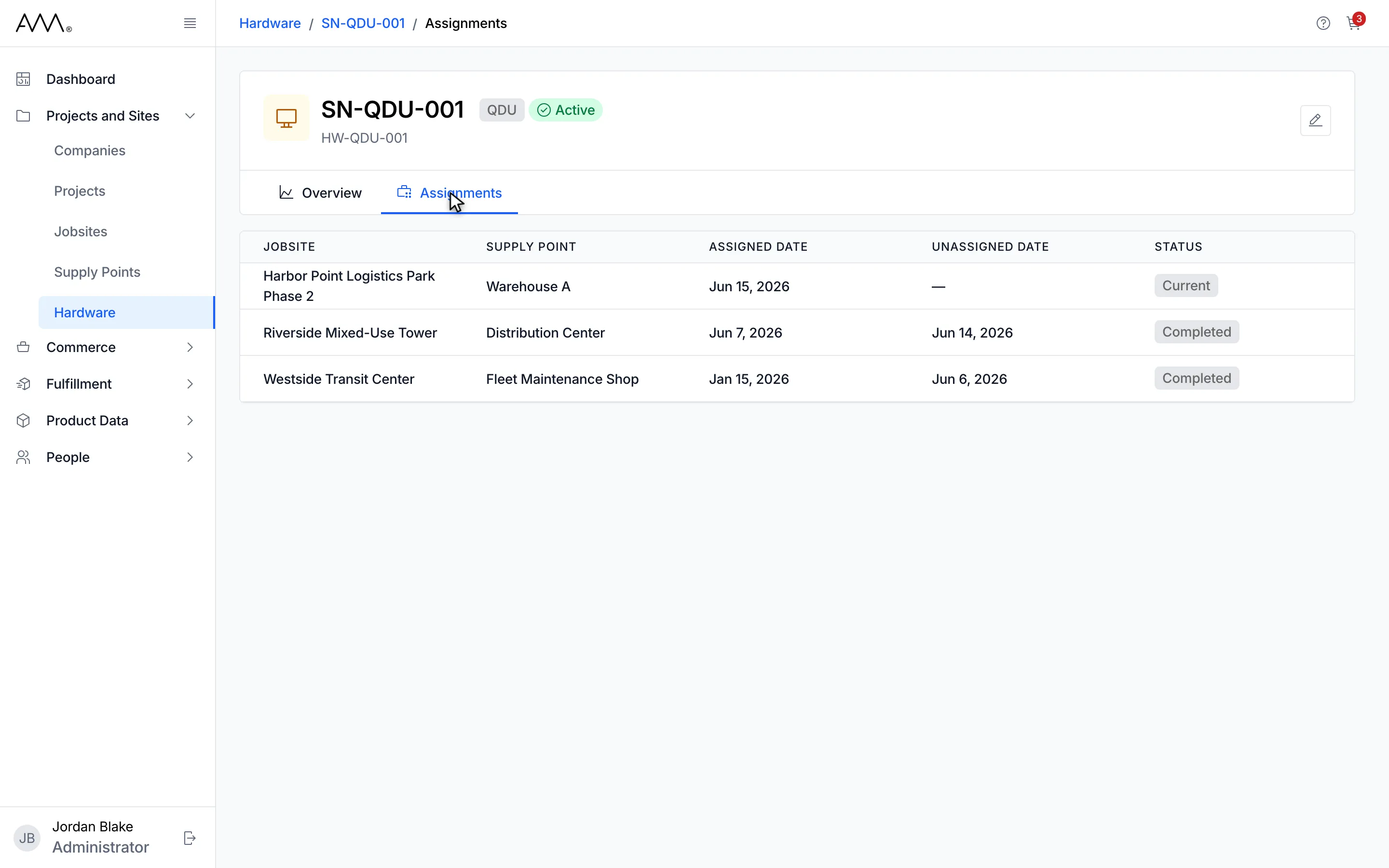
6Each row shows jobsite, supply point, dates and whether it is Current or Completed.
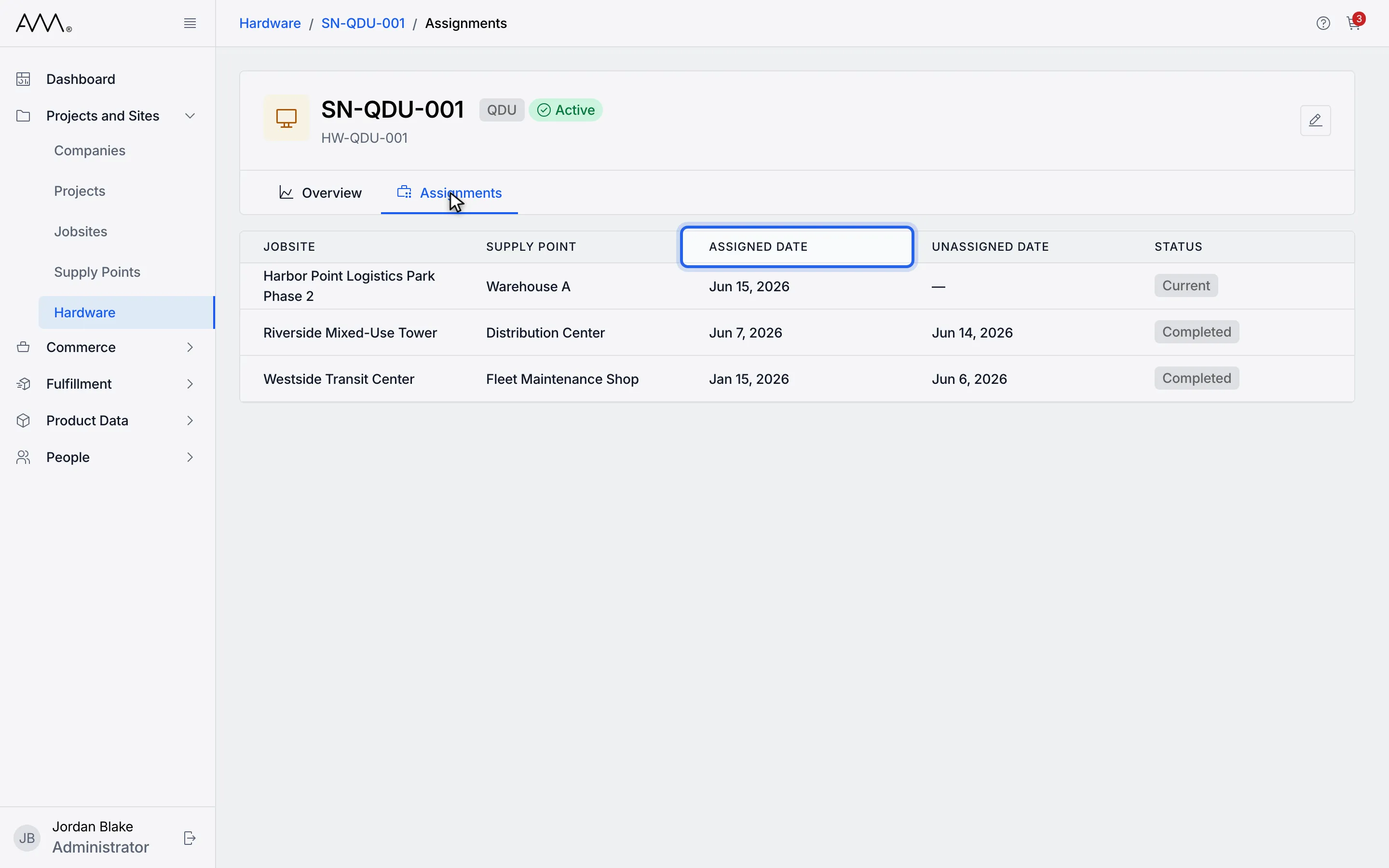
7Click a column header to sort the history.
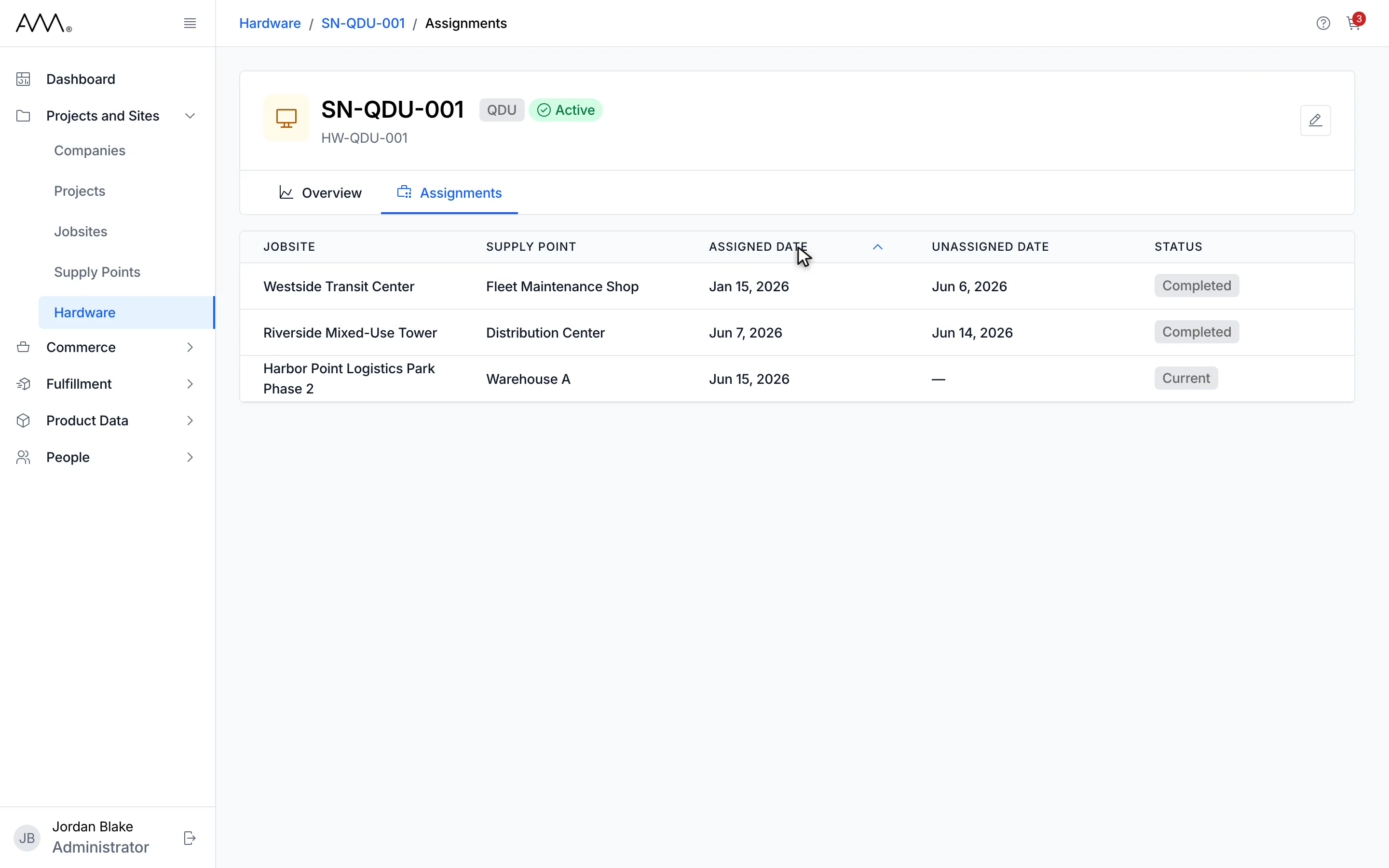
8The Assignments tab lists every jobsite and supply point the unit has been on.
Watch this as a video (open a unit)
What you see
Section titled “What you see”- The header shows the serial number, a type tag, the status badge, the hardware ID and, if you can edit, a pencil. See Edit hardware.
- A unit that has never been assigned shows No assignments found and This unit has not been assigned to any jobsite or supply point.
- If the history cannot be loaded, the tab shows Couldn’t load assignments and Something went wrong loading this unit’s assignment history. Please try again.
- Jobsite and Supply Point are shown as text, not links. To open the supply point itself, go to Supply Points.
- A link to a unit that no longer exists opens a 404 — Page not found page with a Go to Dashboard button.