Price Lists
A Price List is a named set of customer prices for your products. You assign it to one or more companies, and quotes and sales orders for those companies then use its prices instead of catalog pricing. Price Lists sits in the sidebar under Product Data, directly below Products (PIM).
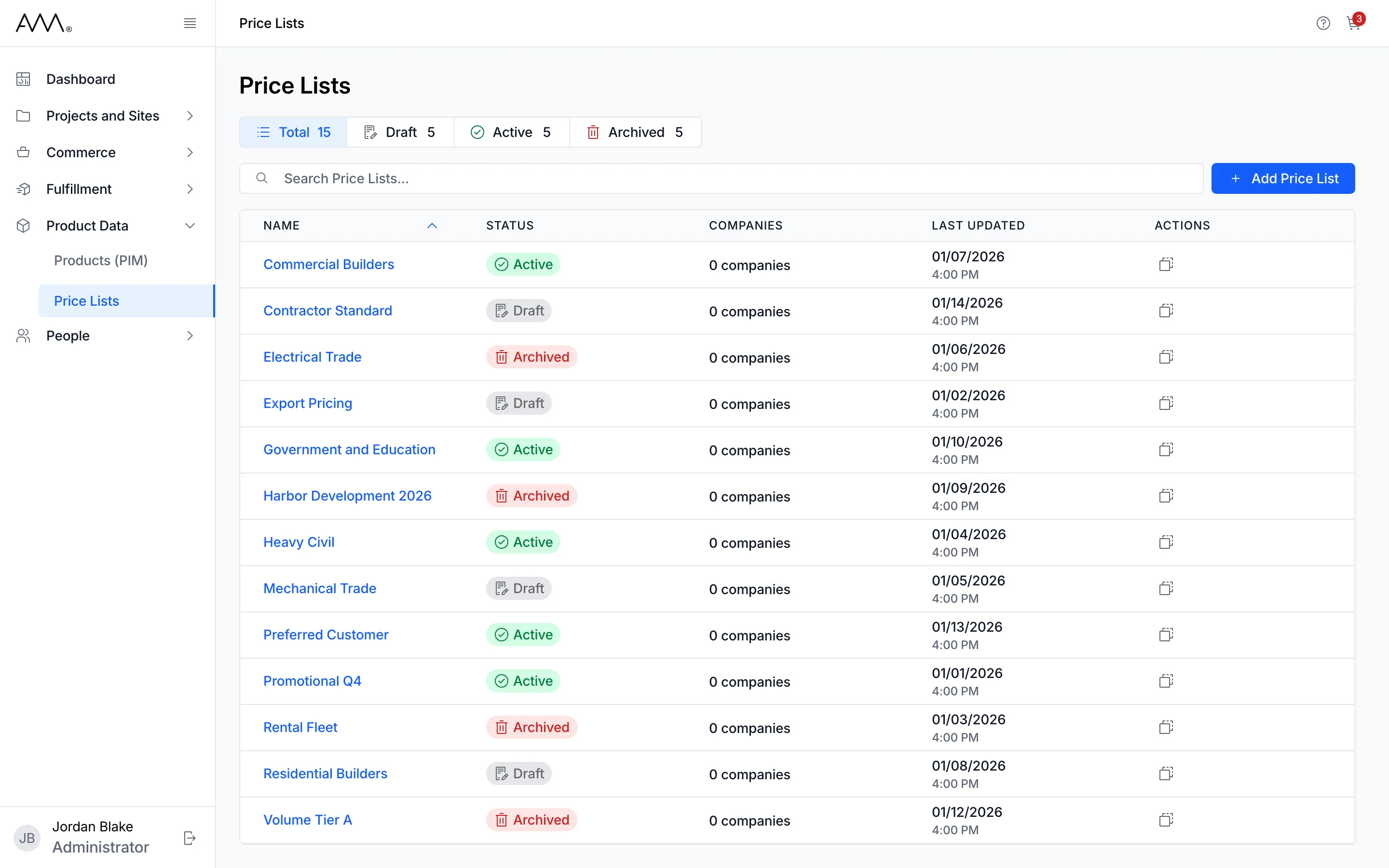
The list page
Section titled “The list page”The Price Lists page lists every price list with its Name, Status, Companies count and Last Updated date, sorted by name from A to Z. Press one or more of the Total, Draft, Active and Archived buttons to filter by status (Total clears the filter), type in Search Price Lists… to find one by name, and click a column header to sort. Add Price List creates a new one, and the icon in the Actions column duplicates a row.
The price list page
Section titled “The price list page”Click a name to open the price list. The breadcrumb reads Price Lists followed by the price list’s name. The header shows the name, its status badge, Global Adjustment and its value when one is set, and the Average Margin across every product with both a cost and a final price. Two icons at the right open Edit price list and Duplicate price list; on a narrow screen they sit in the Price list actions menu as Edit and Duplicate.
Two tabs sit below the header:
- Products lists every product with its COST, LIST PRICE, ADJUSTED PRICE, FINAL PRICE, MARGIN % and LAST UPDATED, plus a History icon on products whose price has been changed. Discontinued and Deleted products are listed for reference only: their price cells are read-only and they have no checkbox.
- Company Assignments lists the companies that receive this price list, Active and Inactive alike, with an Assign Company button and an unassign action on each row.
How a price is worked out
Section titled “How a price is worked out”Every product carries a cost and a list price from the product catalog. A price list layers two things on top:
- Global adjustment: one rule for every product, set in the Edit Price List dialog. Margin (%) prices each product at a margin on its cost. Percent Change (%) raises or lowers the Cost or List Price by a percentage. The result is the ADJUSTED PRICE. With None (use list price) the adjusted price is the list price.
- Overrides: a price set for one product, which replaces the adjusted price for that product only. You create one by editing a product’s FINAL PRICE or MARGIN %, by selecting products and clicking Apply pricing, or by importing a CSV.
The FINAL PRICE is what the customer pays: the override if there is one, otherwise the adjusted price. MARGIN % is (Final price − Cost) ÷ Final price, grouped into bands from Below cost to 40%+. A product with no cost or no final price shows a dash for its margin.
Statuses
Section titled “Statuses”| Status | What it means |
|---|---|
| Draft | Where new and duplicated price lists start. You can price products and assign companies, but quotes and sales orders do not apply a Draft price list. |
| Active | In use. Quotes and sales orders for the assigned companies use these prices. |
| Archived | Retired. Assign Company is hidden, though you can still unassign companies. Quotes and sales orders do not apply an Archived price list. |
You change the status in the Edit Price List dialog, with no confirmation step. Price lists cannot be deleted; archive them instead.
Companies, quotes and sales orders
Section titled “Companies, quotes and sales orders”A company holds one price list at a time, so the Assign Companies dialog lists only companies that have none. On a quote and on a sales order, the Pricelist field offers the company’s price list and Catalog Pricing; picking a company with an Active price list applies it and re-prices every line. If the company’s price list is Draft or Archived, the field shows a hint such as Cannot apply pricelist - Company pricelist Contractor Standard is in Draft and the lines use catalog pricing. Converting a quote to a sales order keeps the quote’s price list and prices. The reference lists every message. See also Quotes, Sales Orders and Companies.
Change history
Section titled “Change history”Every change to an override is recorded. Click the History icon at the end of a product row to open Change History, which lists each change with its timestamp, newest first. The icon stays available after an override has been cleared.