View your profile and security settings
The Settings page shows who you are signed in as and lets you manage the security of your own account. It has two cards: Profile and Security.
- Look at the bottom of the sidebar. It shows your initials, your name and your first role.
- Click your name. The Settings page opens, and the top bar shows Settings as the breadcrumb.
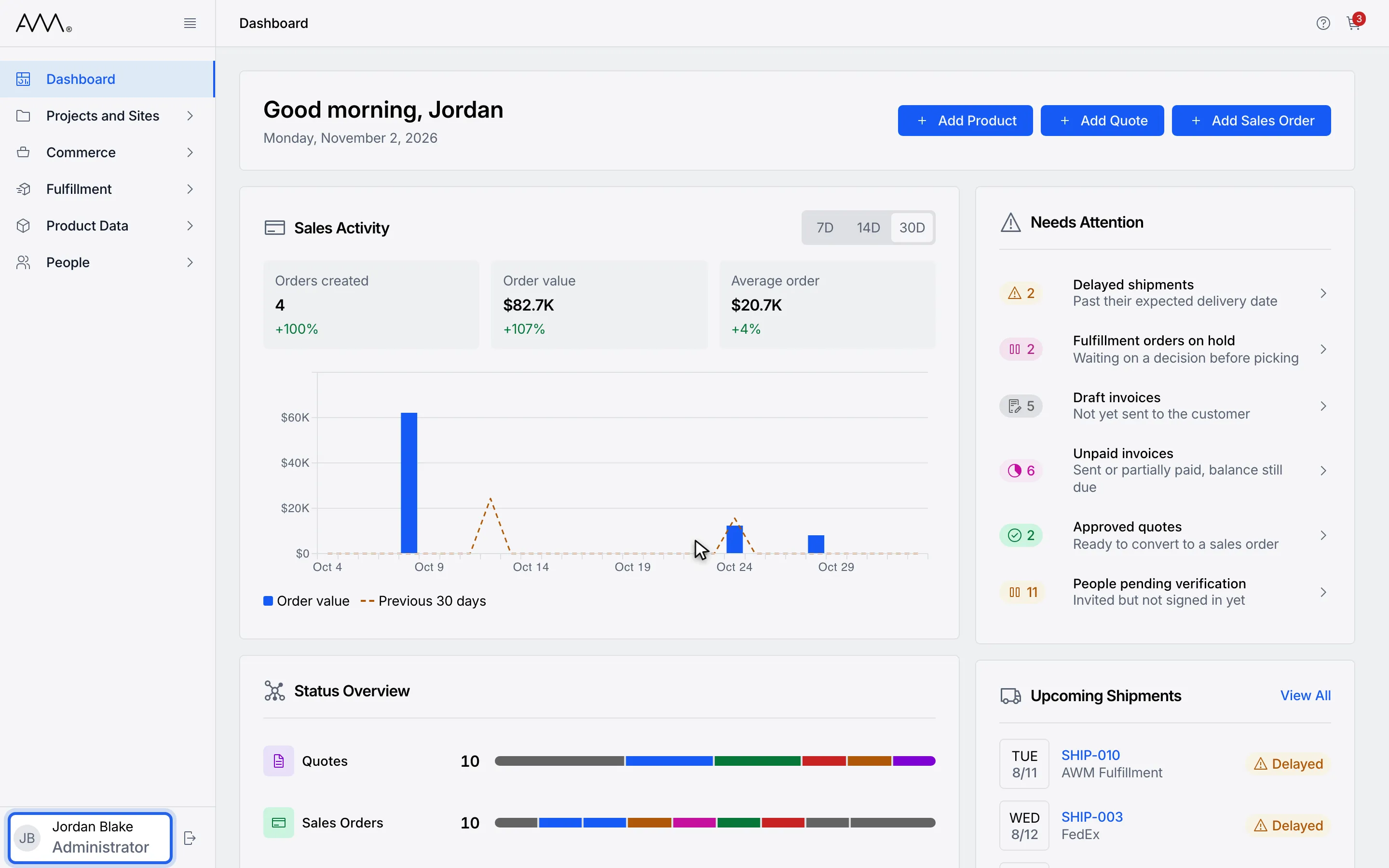
1The bottom of the sidebar shows your initials, your name and your first role.
2Click your name. The Settings page opens.
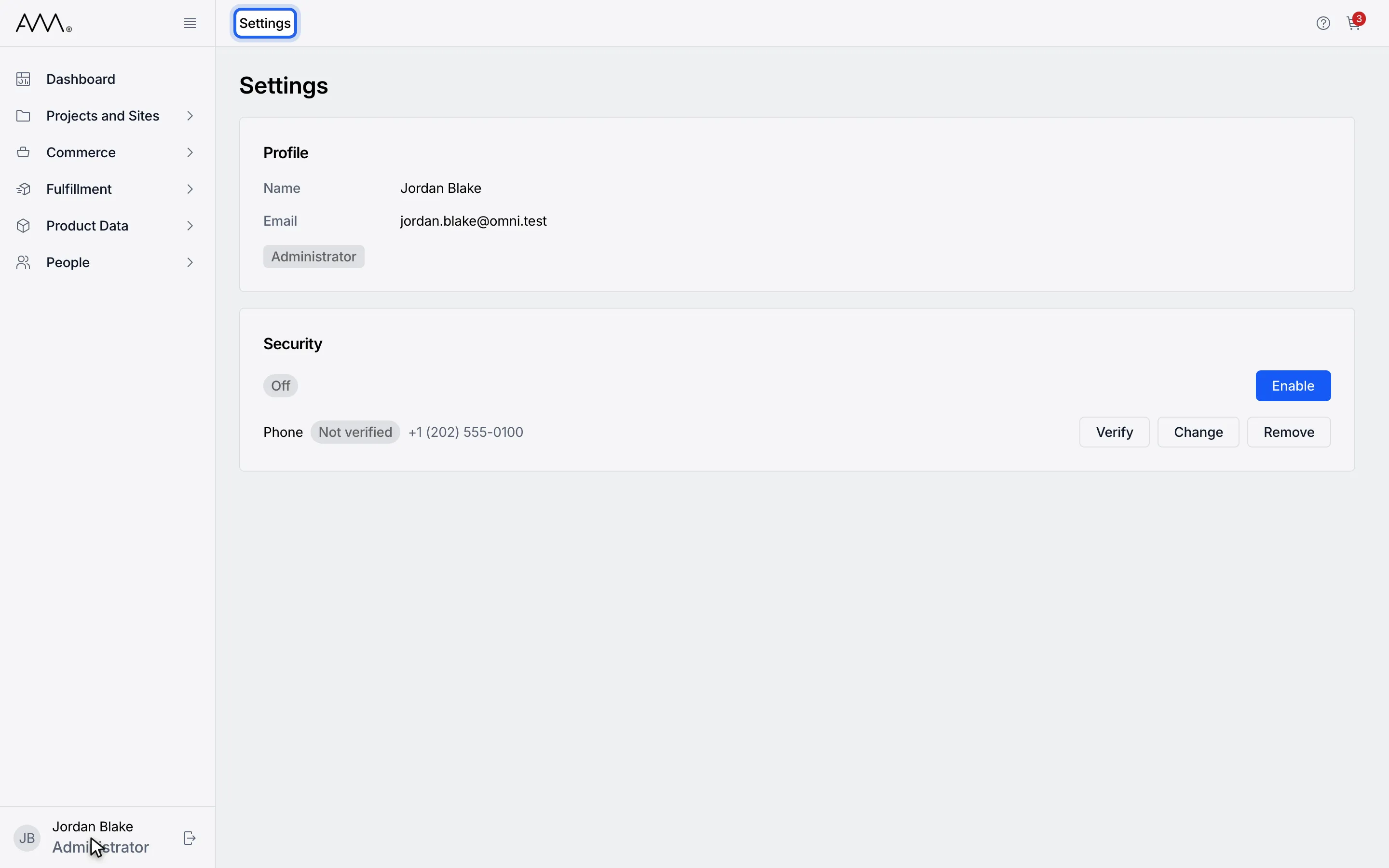
3The top bar shows the Settings breadcrumb.
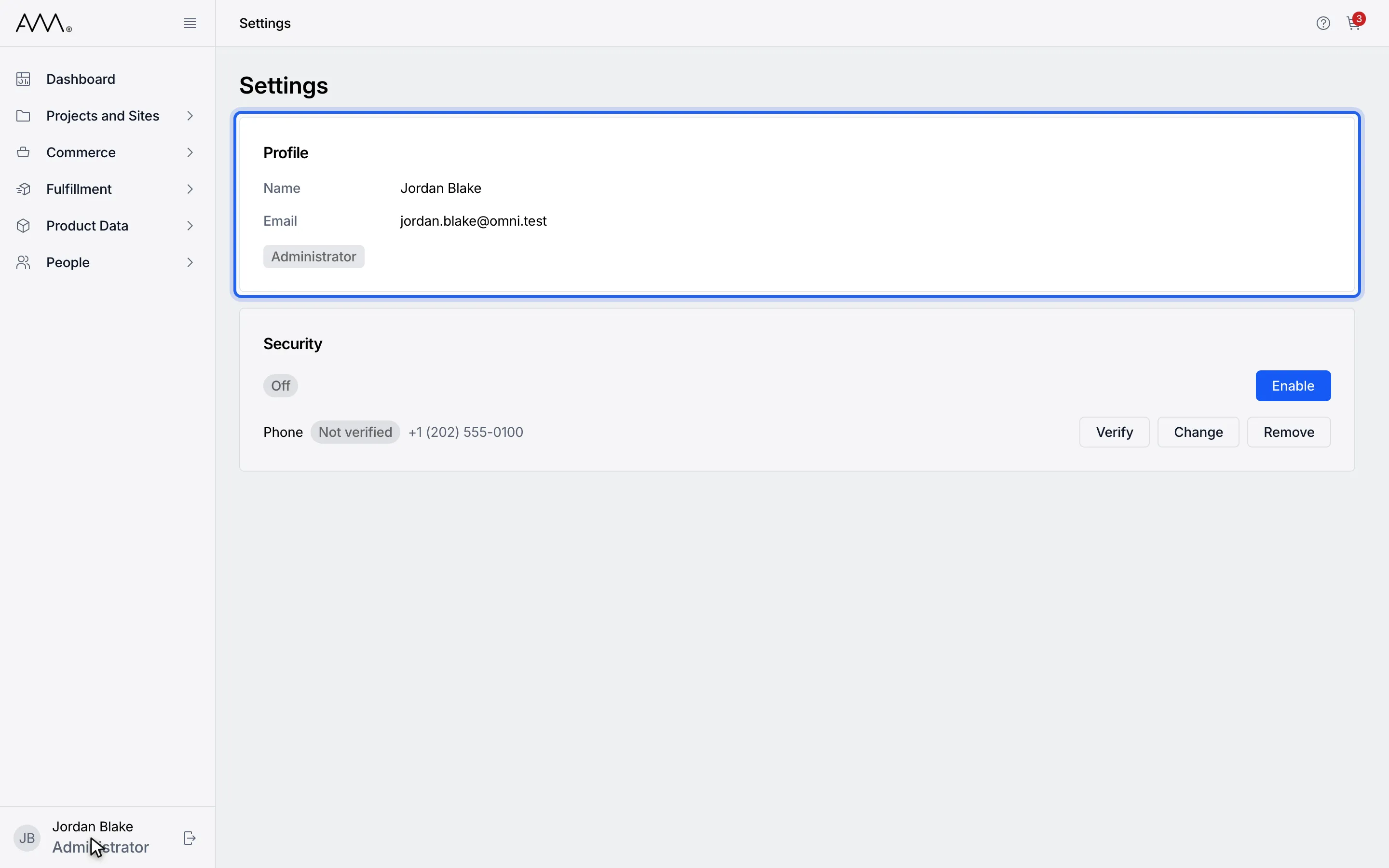
4The Profile card shows your name, email address and roles.
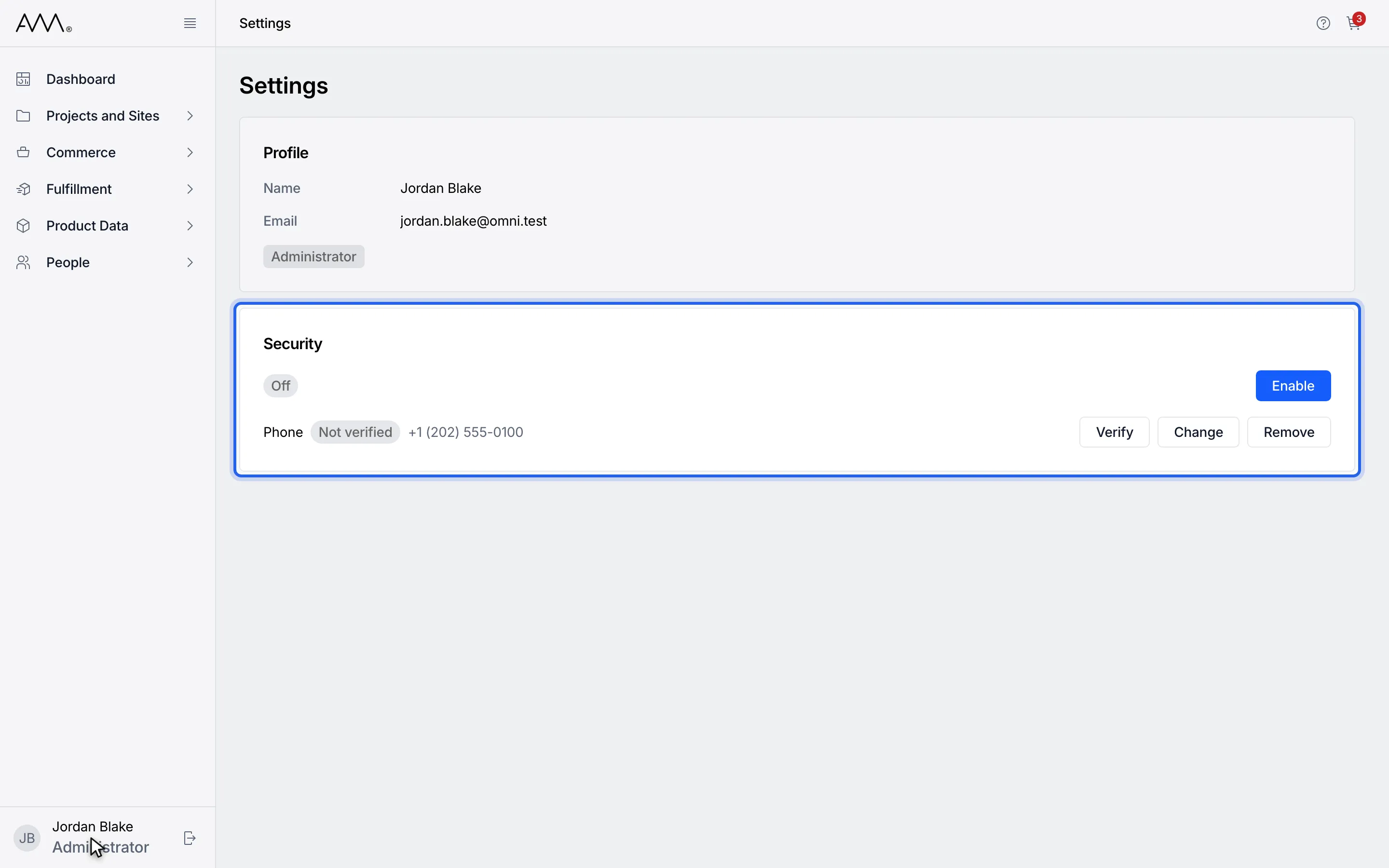
5The Security card shows two-factor authentication and your phone number.
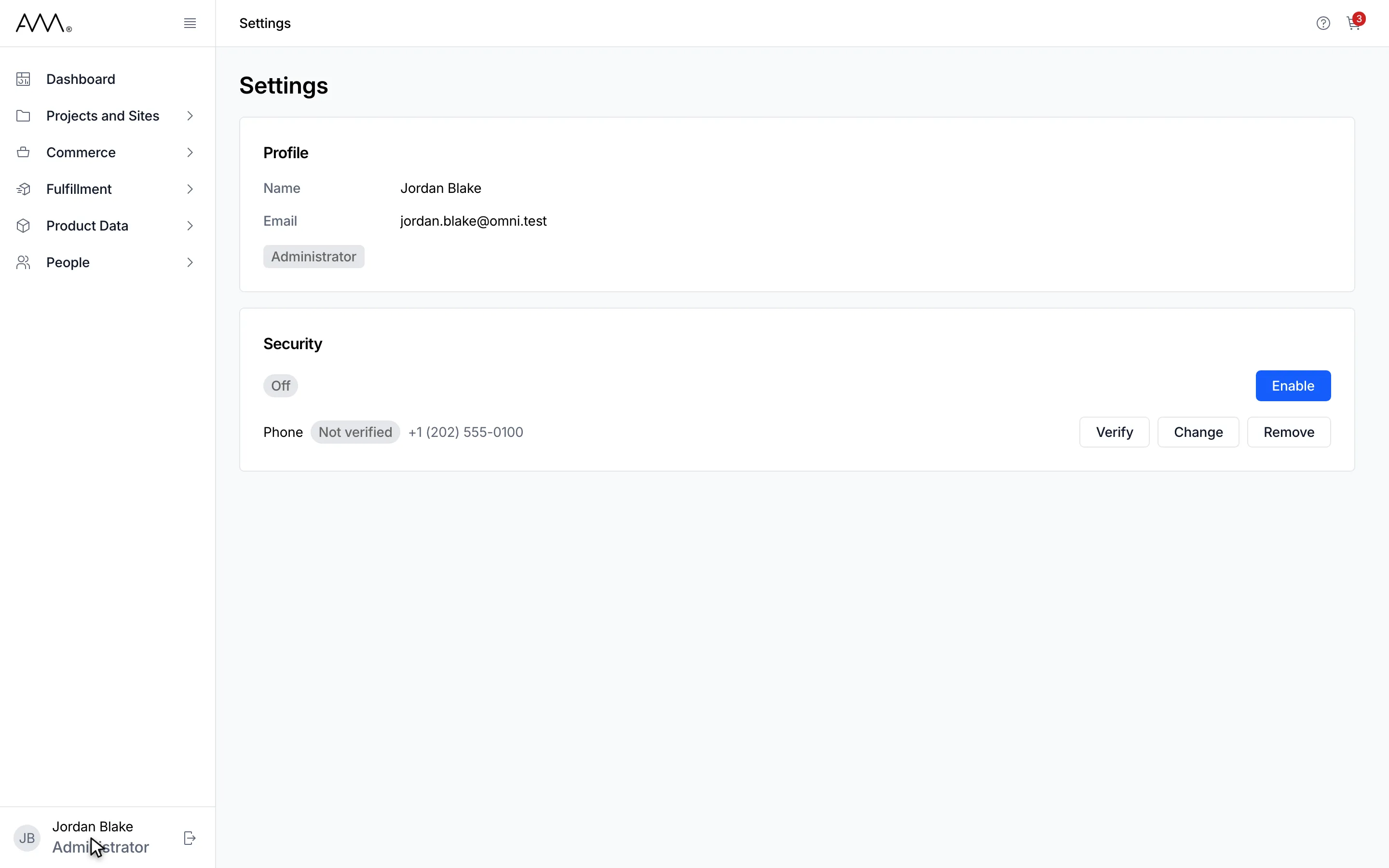
6Settings is where you manage your sign-in security.
Watch this as a video (open settings)
Profile card
Section titled “Profile card”| Row | What it shows |
|---|---|
| Name | Your first and last name. If no name is set, your email address appears here and at the bottom of the sidebar. |
| The email address on your account. | |
| Roles | One chip per role you hold, for example Administrator. |
The Profile card is read-only. You cannot change your name, email address or roles from this page.
Security card
Section titled “Security card”| Row | What it shows | Actions |
|---|---|---|
| Two-factor authentication | Off, or On followed by how many recovery codes you have left, for example 10 recovery codes remaining. | Enable when off; Regenerate codes and Turn off when on. |
| Phone | No phone number on your profile, or your number with Verified or Not verified. | Add phone number when there is none. With a number on file: Verify while it is unverified, then Change and Remove. |
See Set up two-factor authentication and Add, verify, change or remove your phone number for each of these actions.
If the card shows Unable to load your security status. Try again later. or Unable to load your profile details. Try again later., reload the page. In the second case the two-factor buttons still work.