Edit hardware
Edit a unit to correct its details or to move it to a new status, for example from Available to Active when it goes into service.
- In the sidebar, open Projects and Sites and choose Hardware.
- Click the unit’s serial number to open it.
- Click the edit pencil in the header. The Edit Hardware dialog opens with the prompt Make changes to the hardware details. It shows Loading hardware… while it fetches the unit’s latest details, then fills in the fields. The same pencil is in the Actions column of the list and on each card, so you can also start from there.
- Change any of Serial Number, Status, Type, Model or Owner. Save Changes stays disabled until something differs from the saved values.
- Click Save Changes.
Edit hardware1 / 8
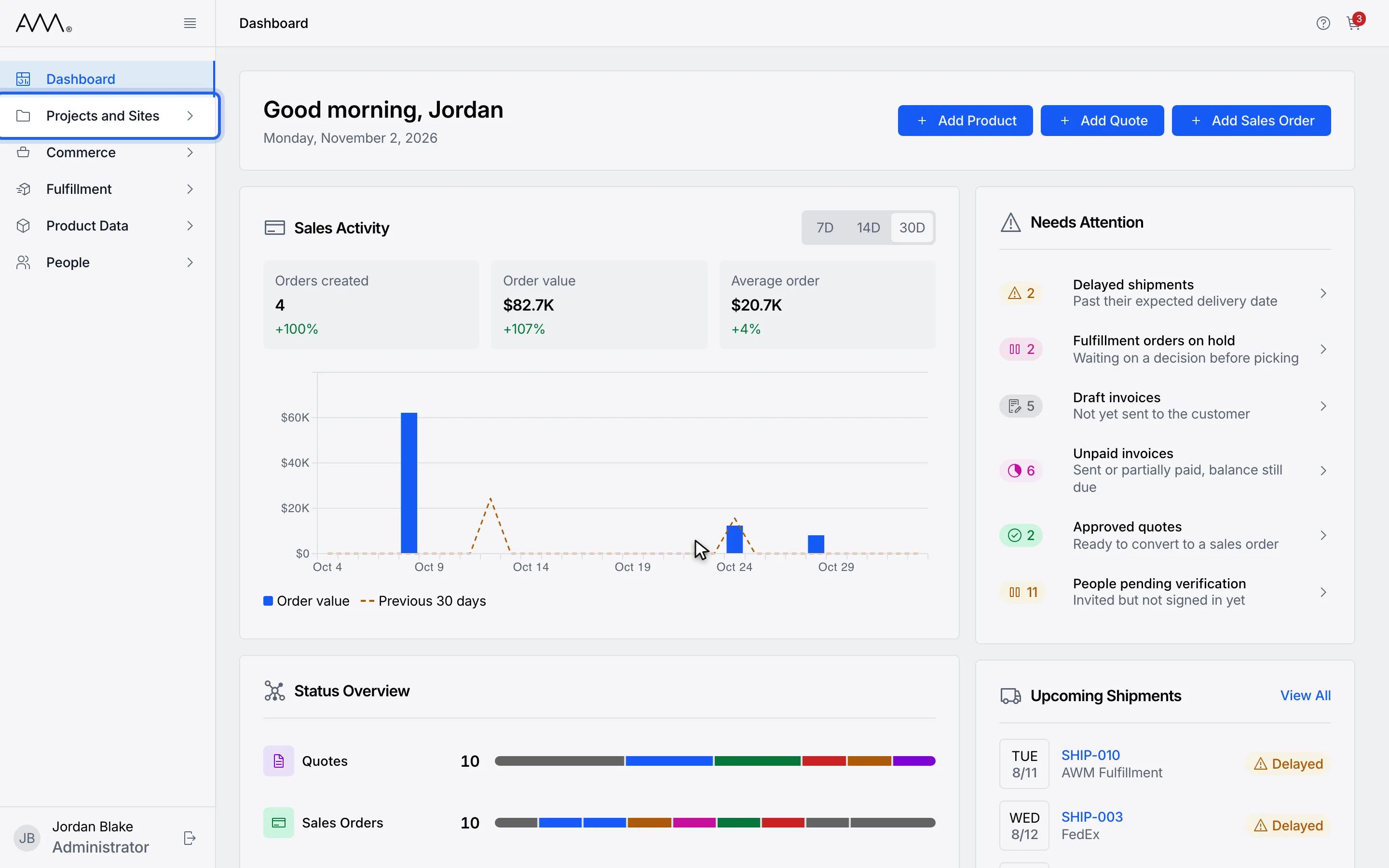
1In the sidebar, open Projects and Sites.
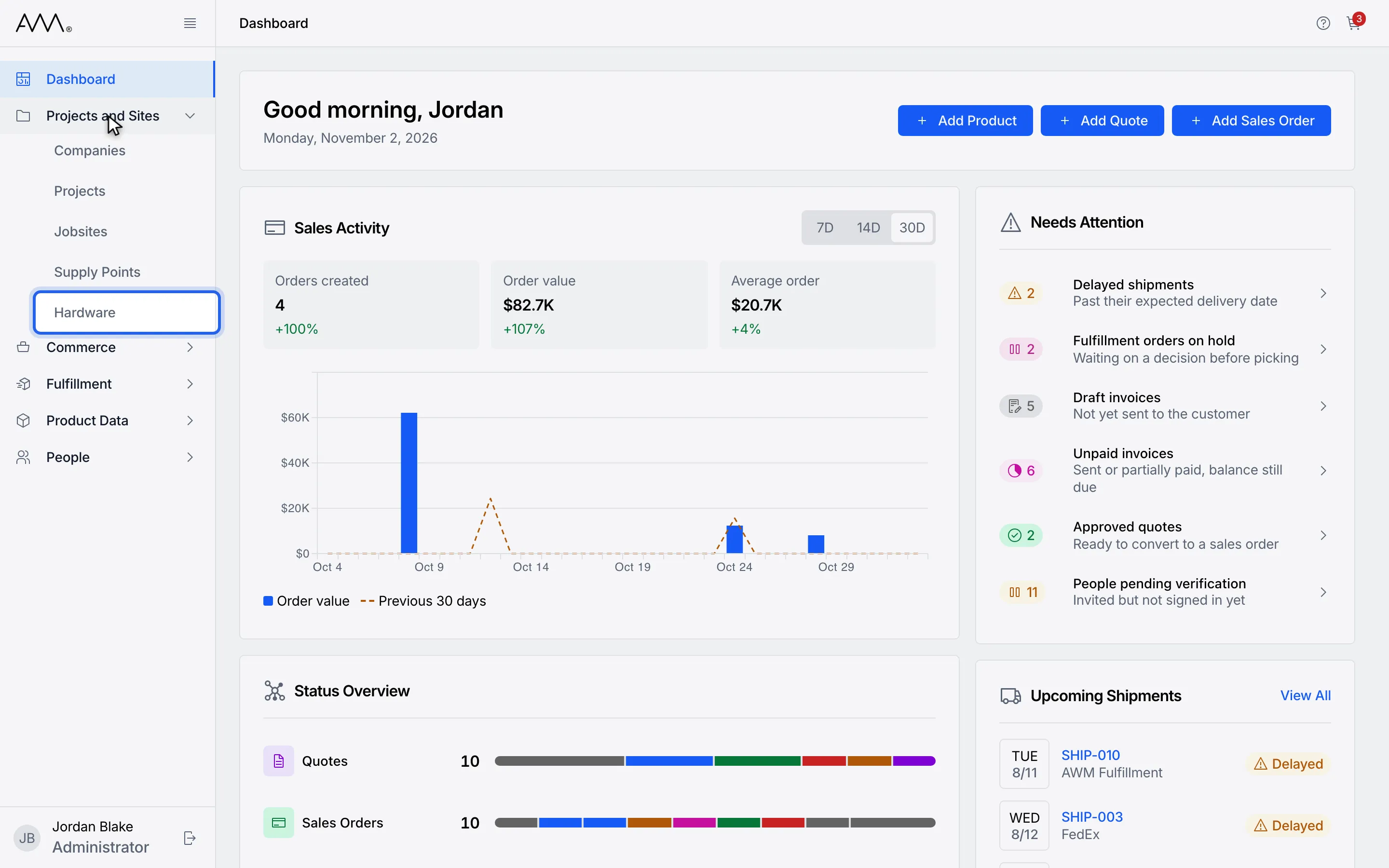
2Choose Hardware.
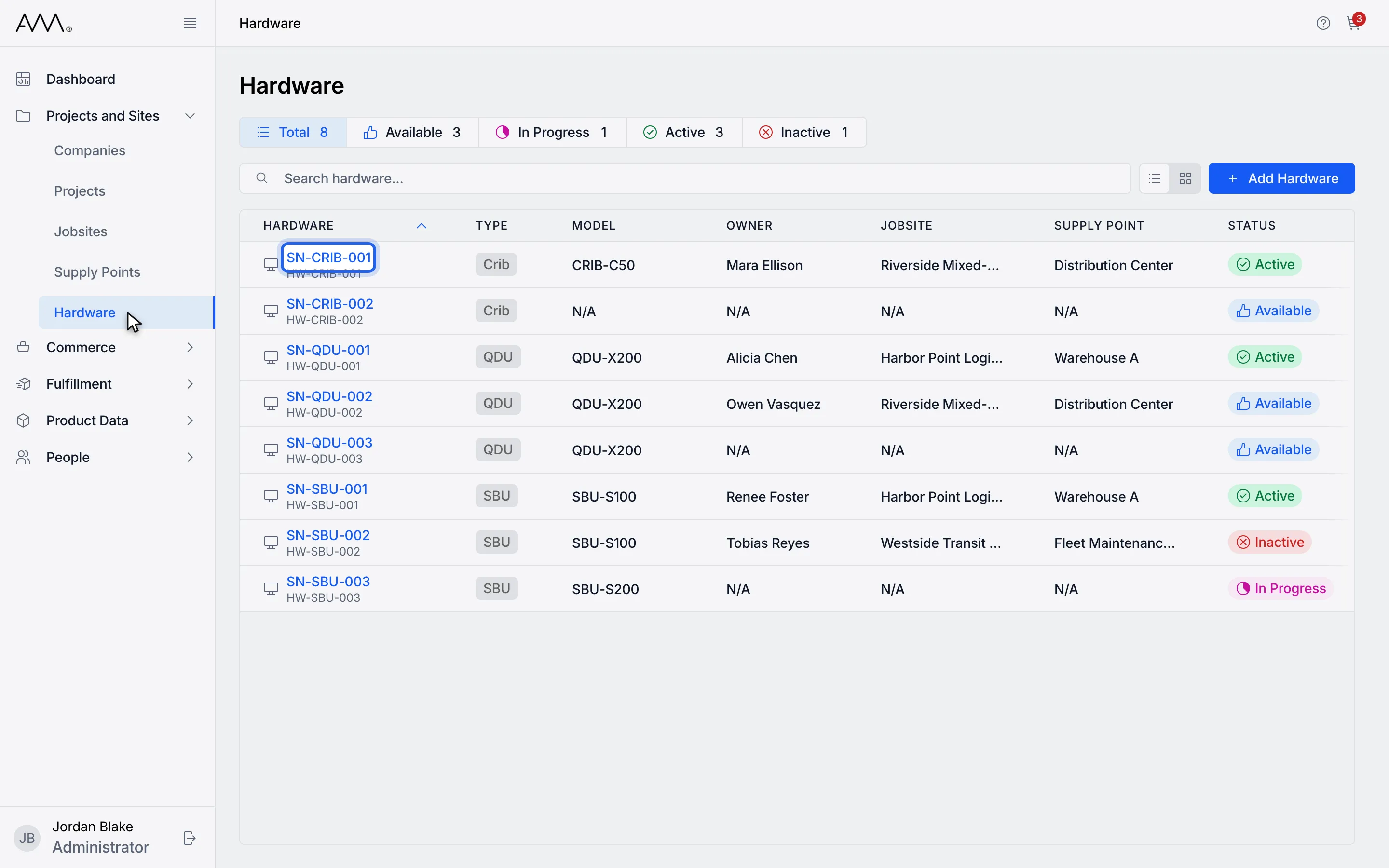
3Open the unit you want to change.
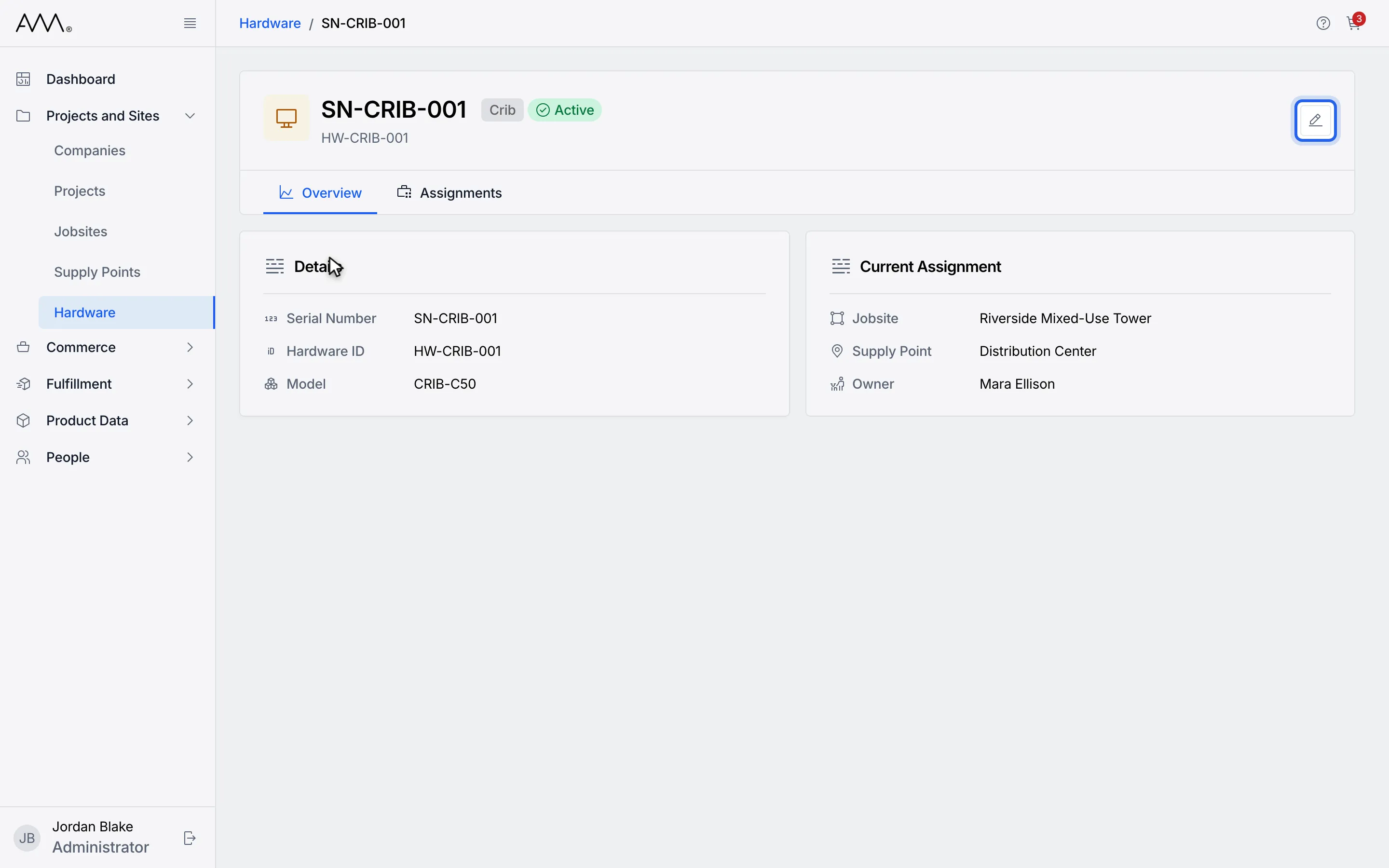
4Click the edit pencil in the header. The dialog loads the unit.
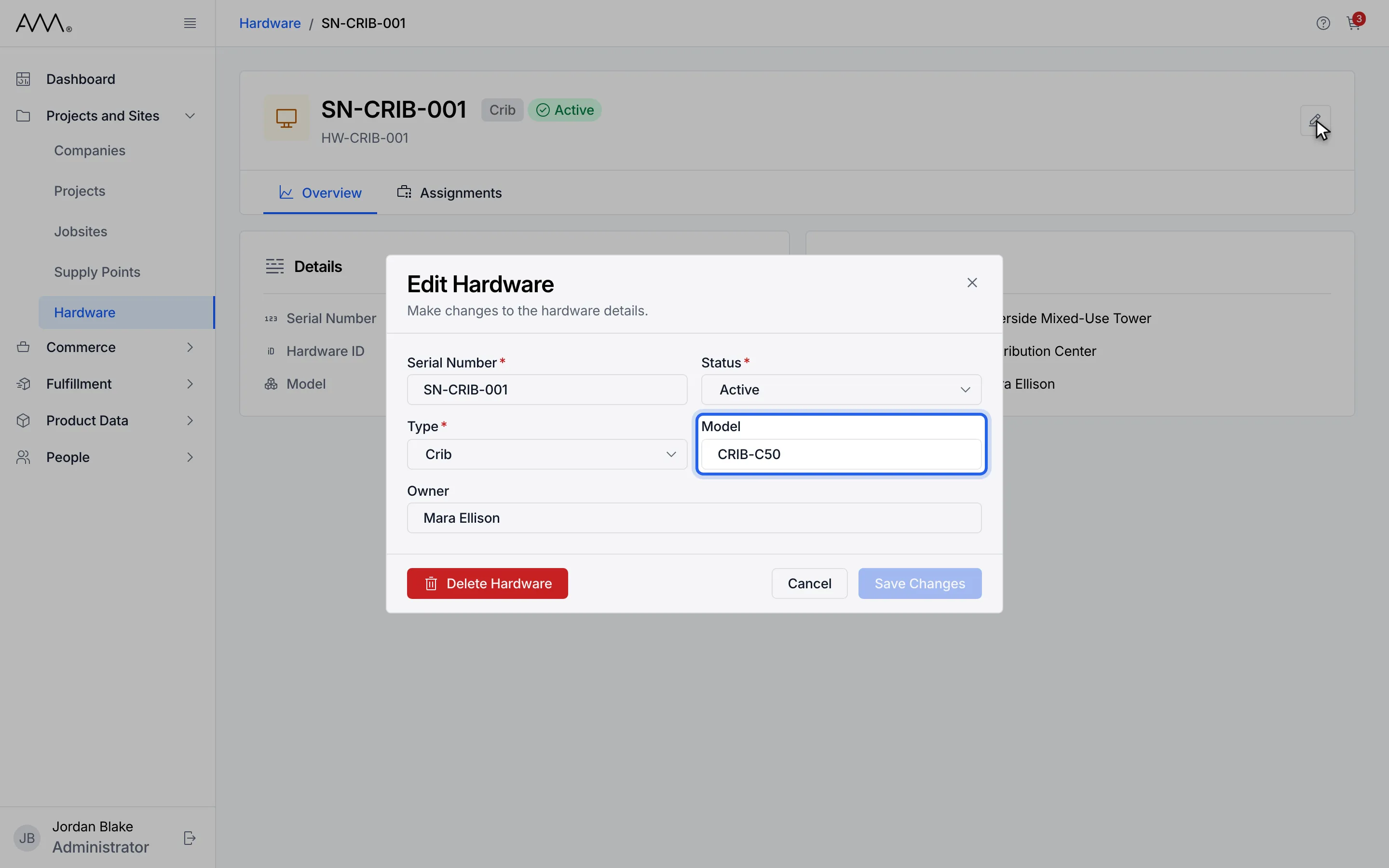
5Change any field, for example the Model.
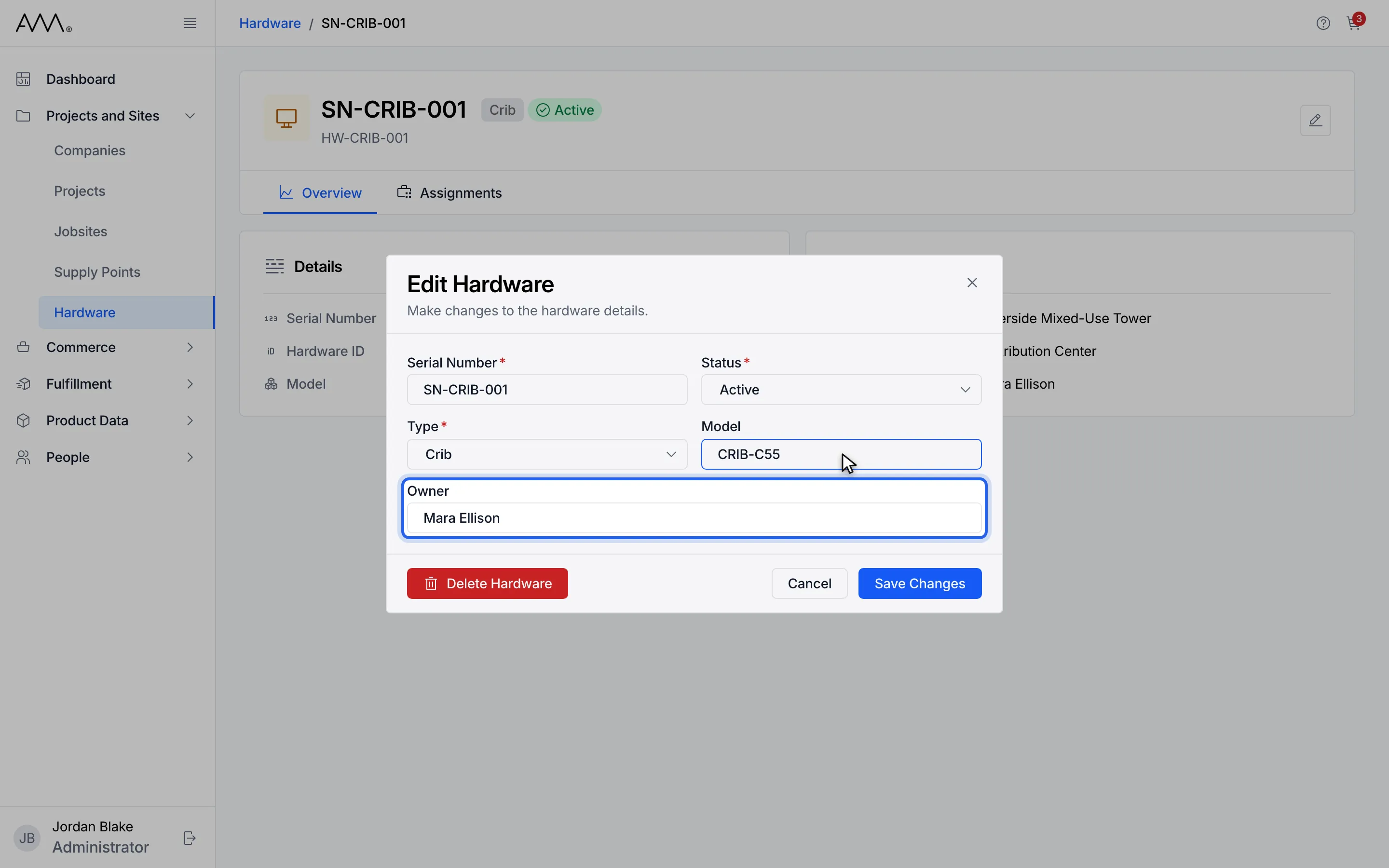
6Save Changes is enabled once something differs from the saved values.
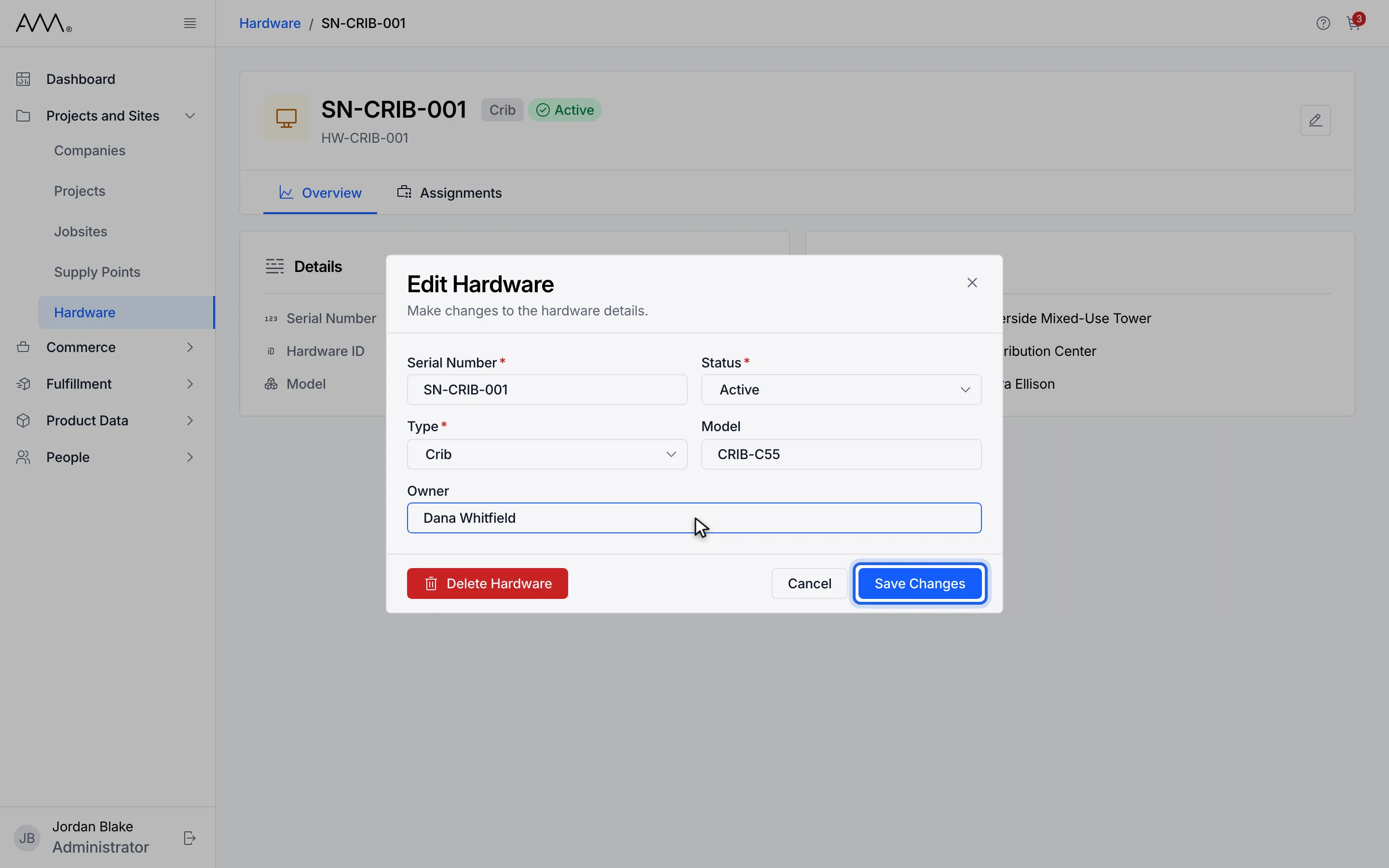
7Click Save Changes.
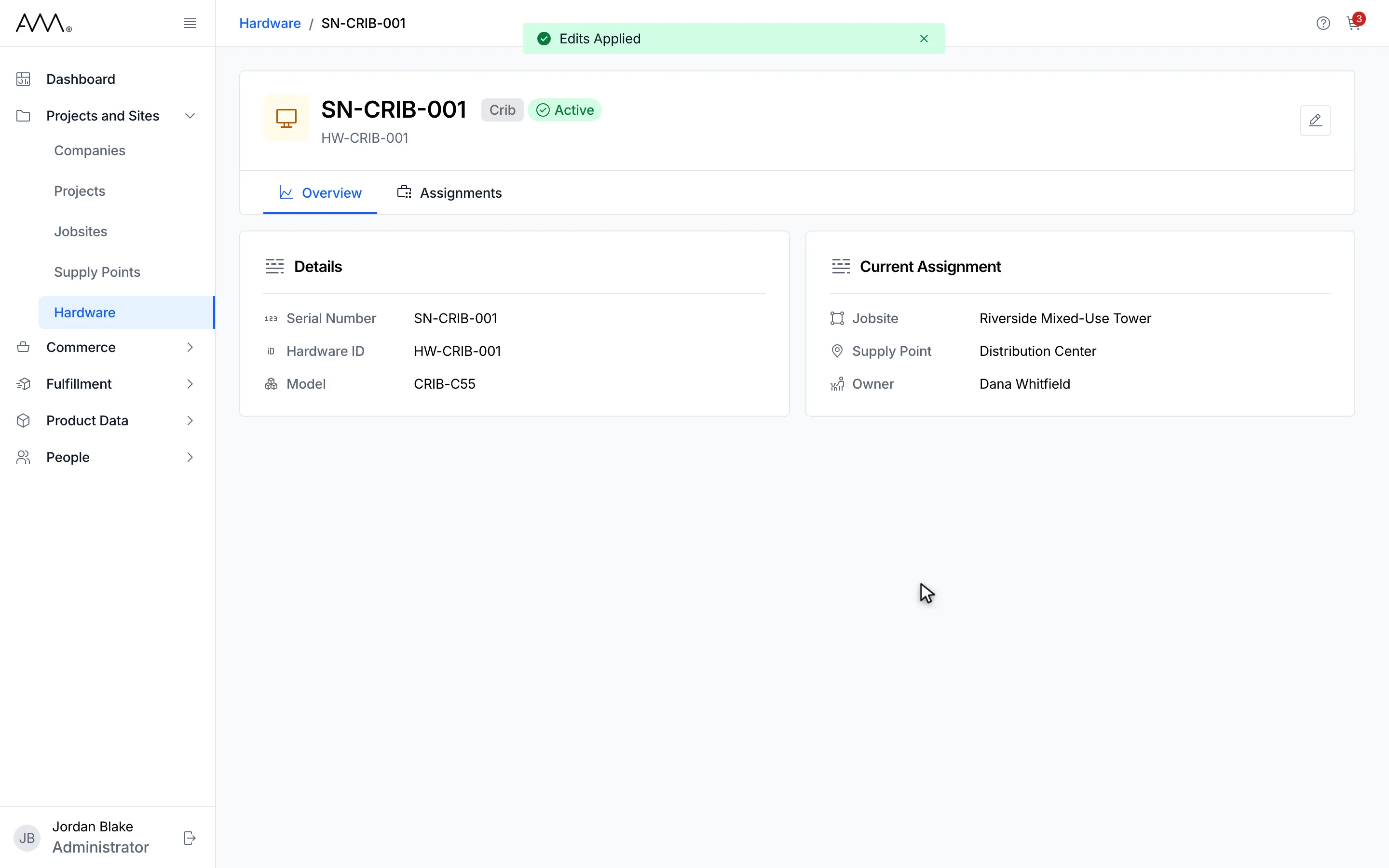
8An Edits Applied message appears and the unit page shows the saved details.
Watch this as a video (edit hardware)
What happens next
Section titled “What happens next”- An Edits Applied message appears, the dialog closes and the unit’s page and the list show the new values. Editing never changes where the unit is assigned.
- Clearing Model or Owner leaves it blank. It shows as N/A.
- If you change the serial number to one that is already registered, the message from the server appears under Serial Number.
- If you close the dialog with unsaved changes, Omni asks Discard unsaved changes? Click Discard to close without saving.
- If the unit’s details cannot be fetched, the dialog shows Couldn’t load hardware details. with a Retry button, and a Failed to load hardware. message appears.
- The Delete Hardware button at the bottom left of the dialog is covered in Delete hardware.