Add a company
Add a company before you link people, projects or quotes to it. A new company is Active unless you set its status to Inactive.
-
In the sidebar, open Projects and Sites and choose Companies.
-
Click Add Company. The Add Company dialog opens.
-
Fill in the form.
Field Required What to enter Name Yes The company’s name. Status Yes Active is selected for you. Choose Inactive if the company should not be offered in new records. Types No One or more of Contractor, Hardware Owner and Manufacturer. Click anywhere outside the list to close it. To remove a type, click the x on its tag. Addresses No Click Add Address for each address, up to three. Choose the type (Corporate, Billing or Shipping) and type the address, or pick a suggestion if one appears. Each type can be used once. Click the remove icon to drop a row. -
Click Create Company. The button stays disabled until the form is valid.
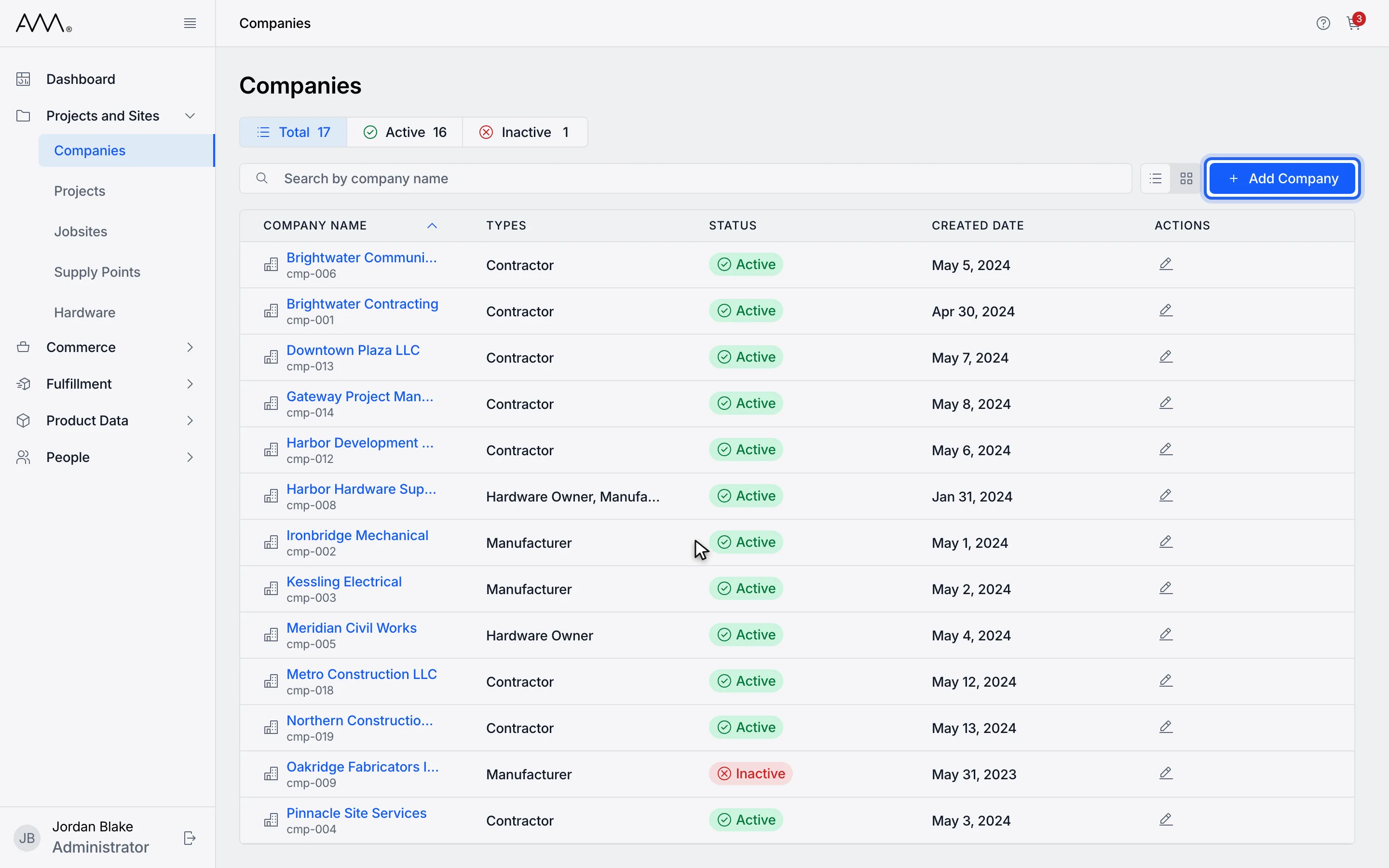
1Click Add Company.
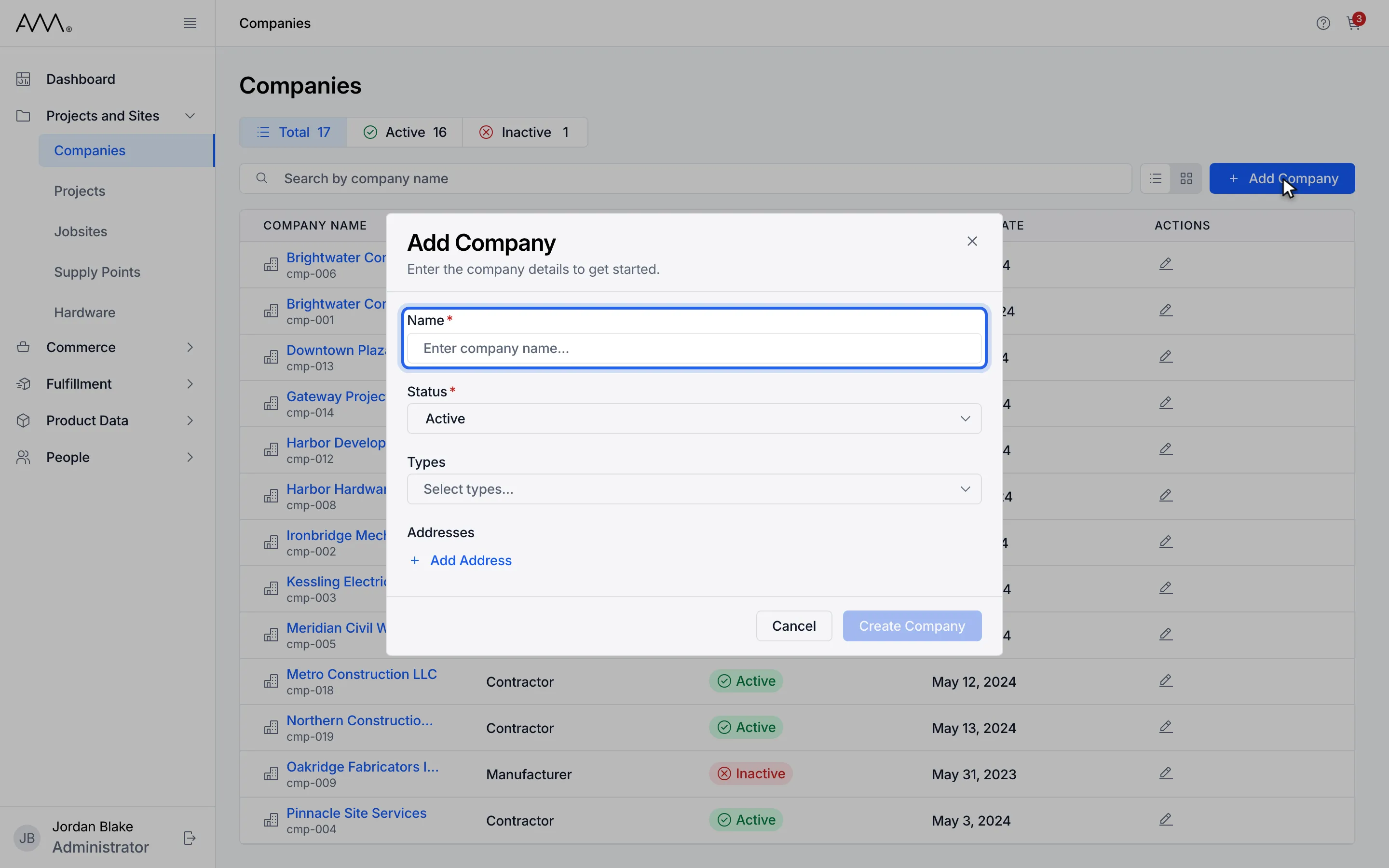
2Enter the company name.
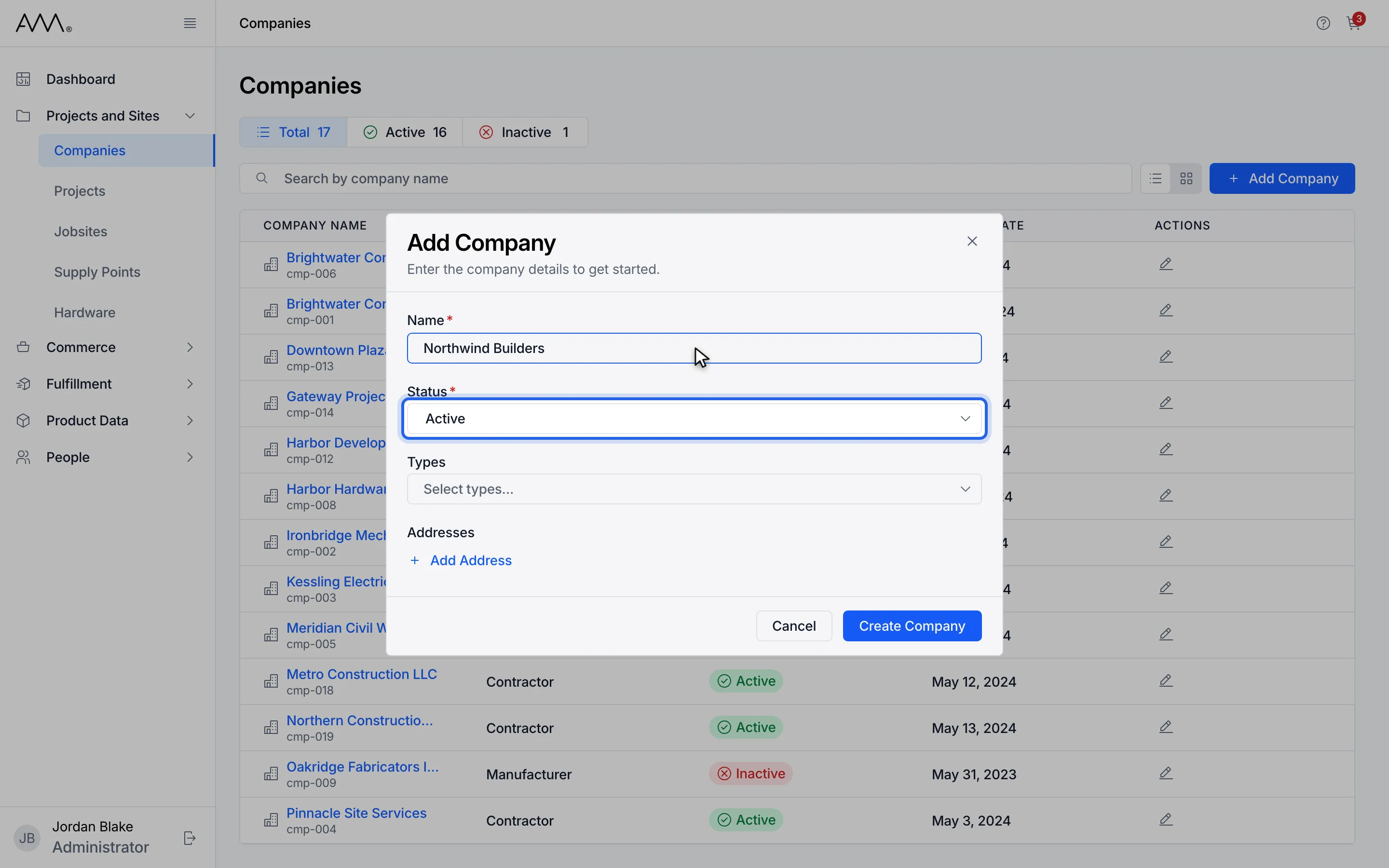
3Status starts as Active. Inactive companies are not offered in new records.
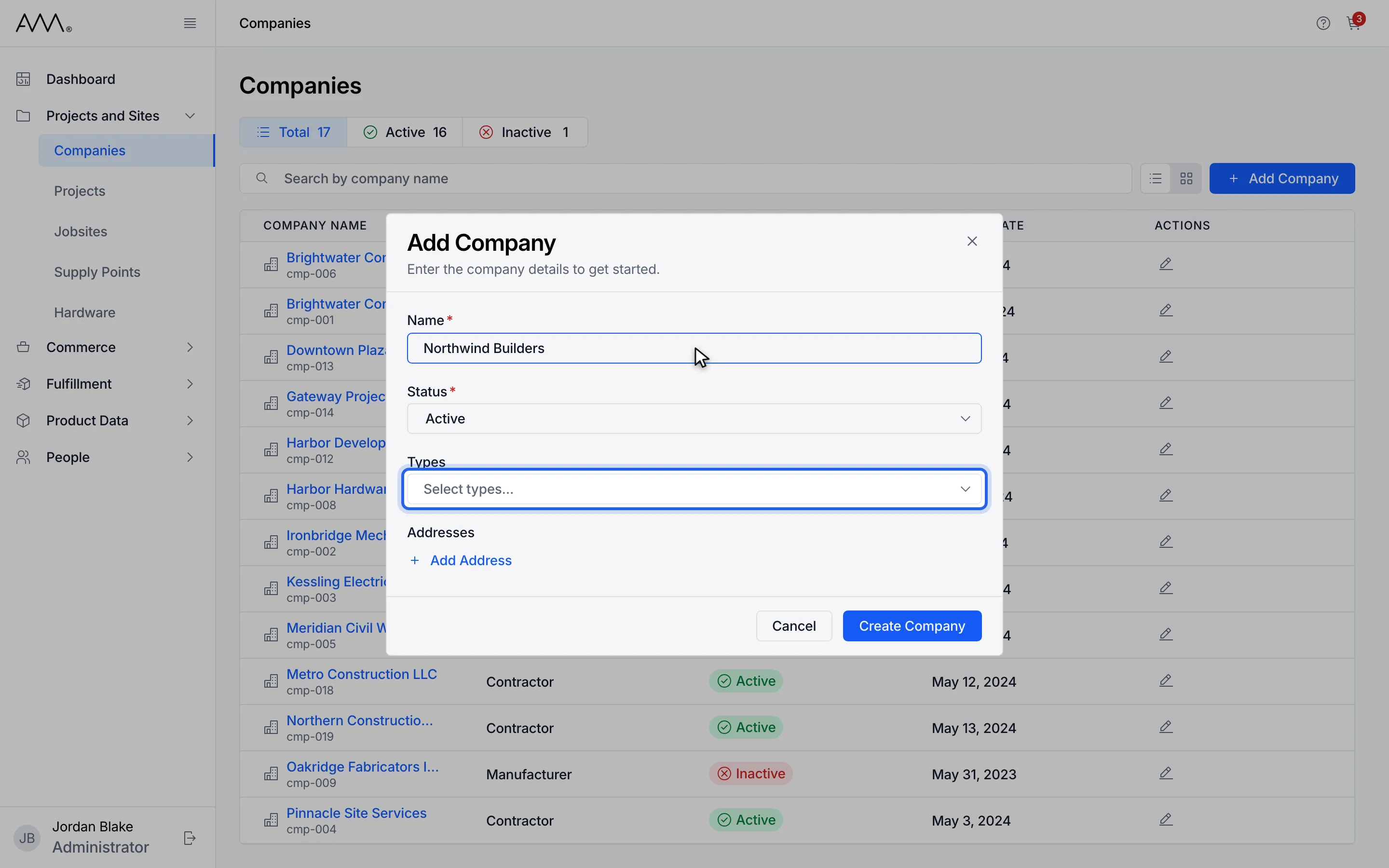
4Open Types.
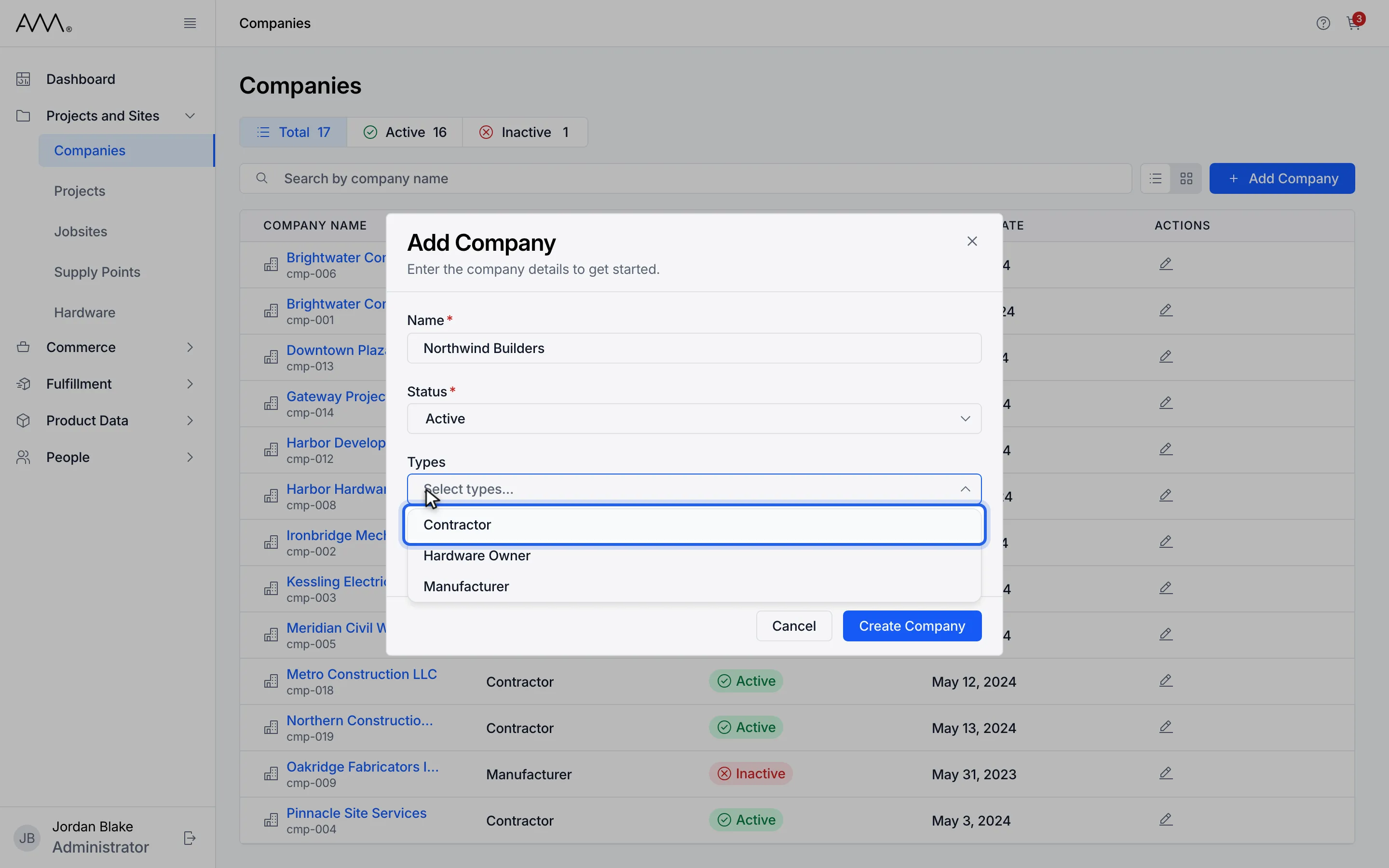
5Choose one or more types.
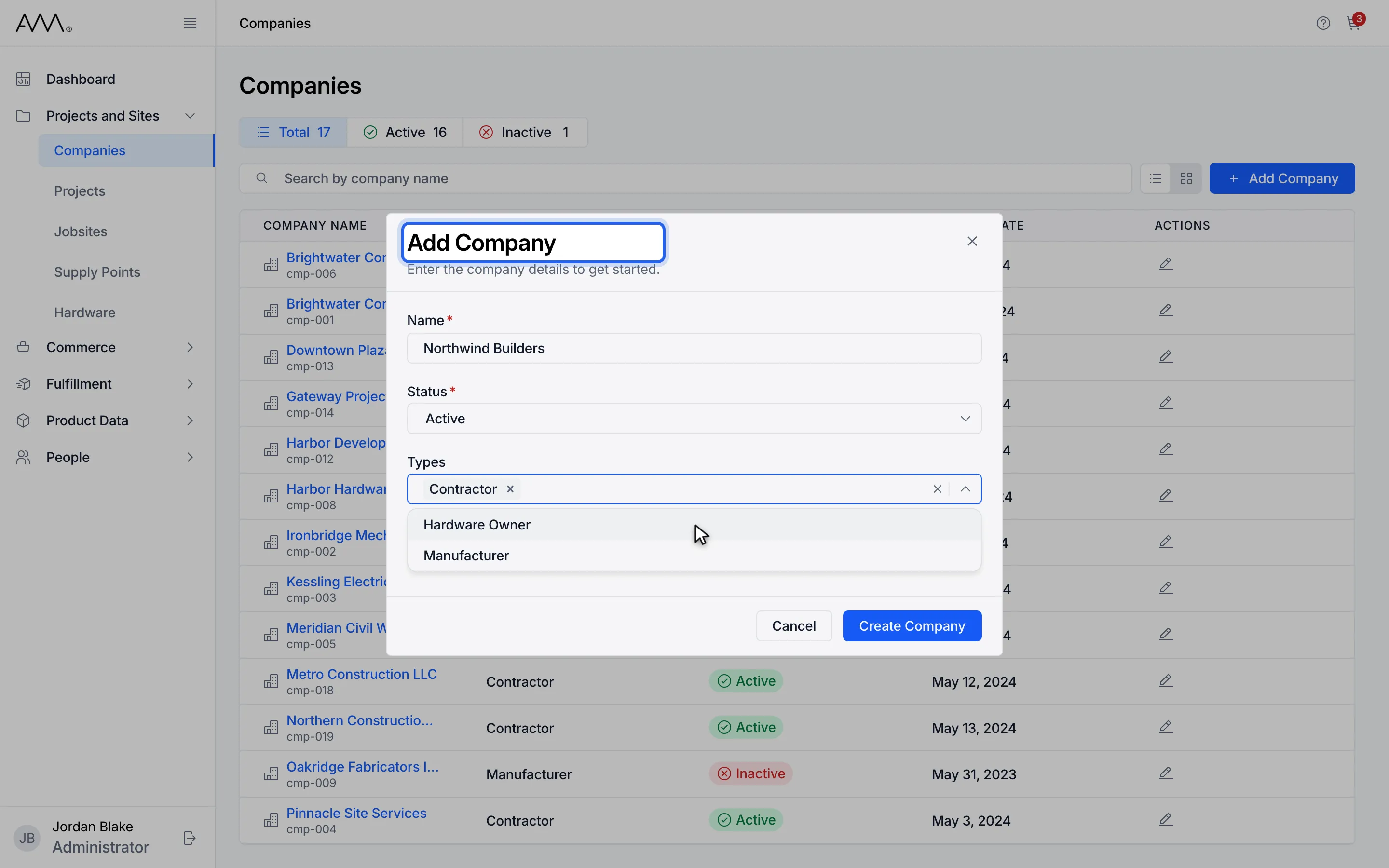
6Click anywhere outside the list to close it.
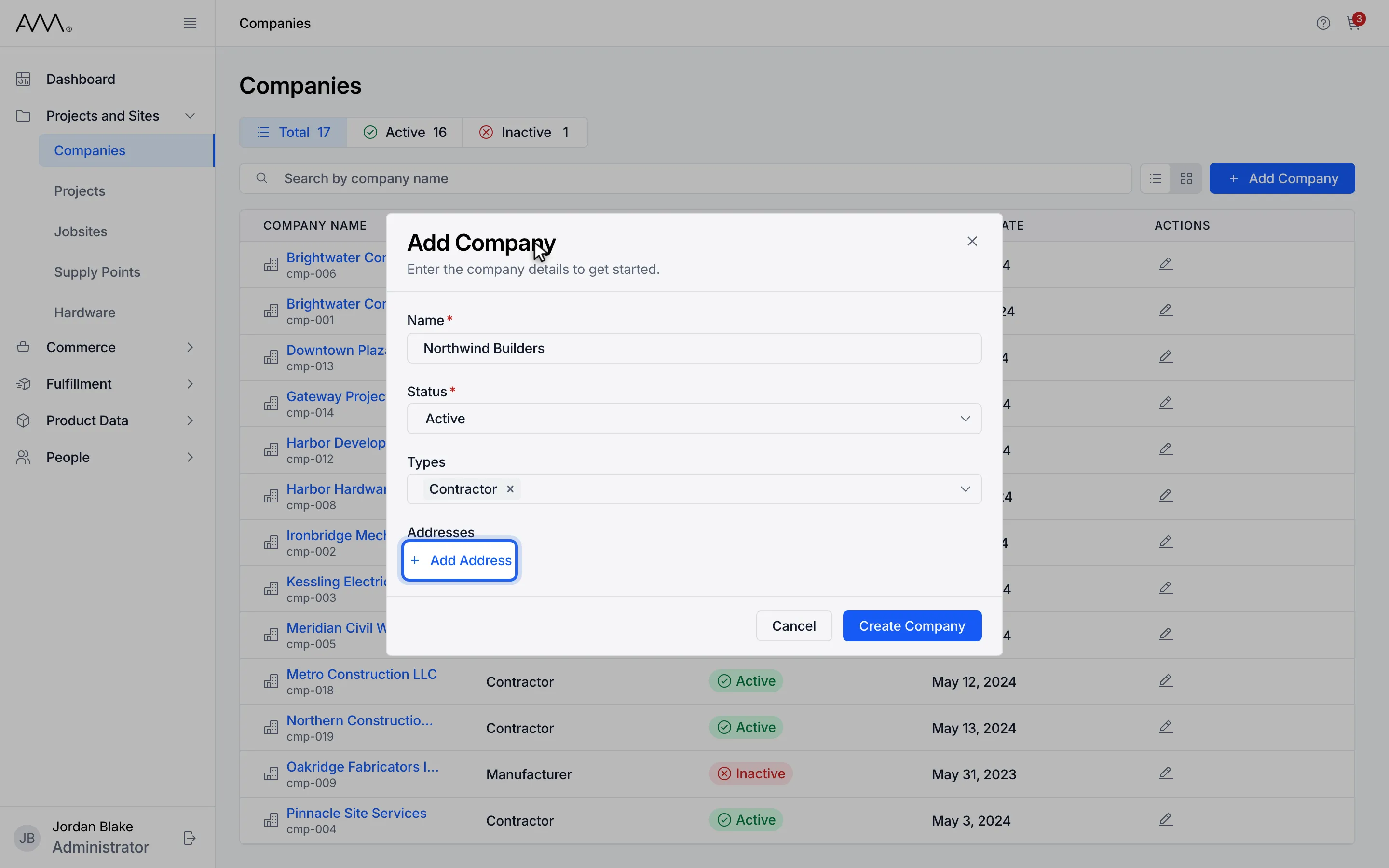
7Click Add Address to add up to three addresses.
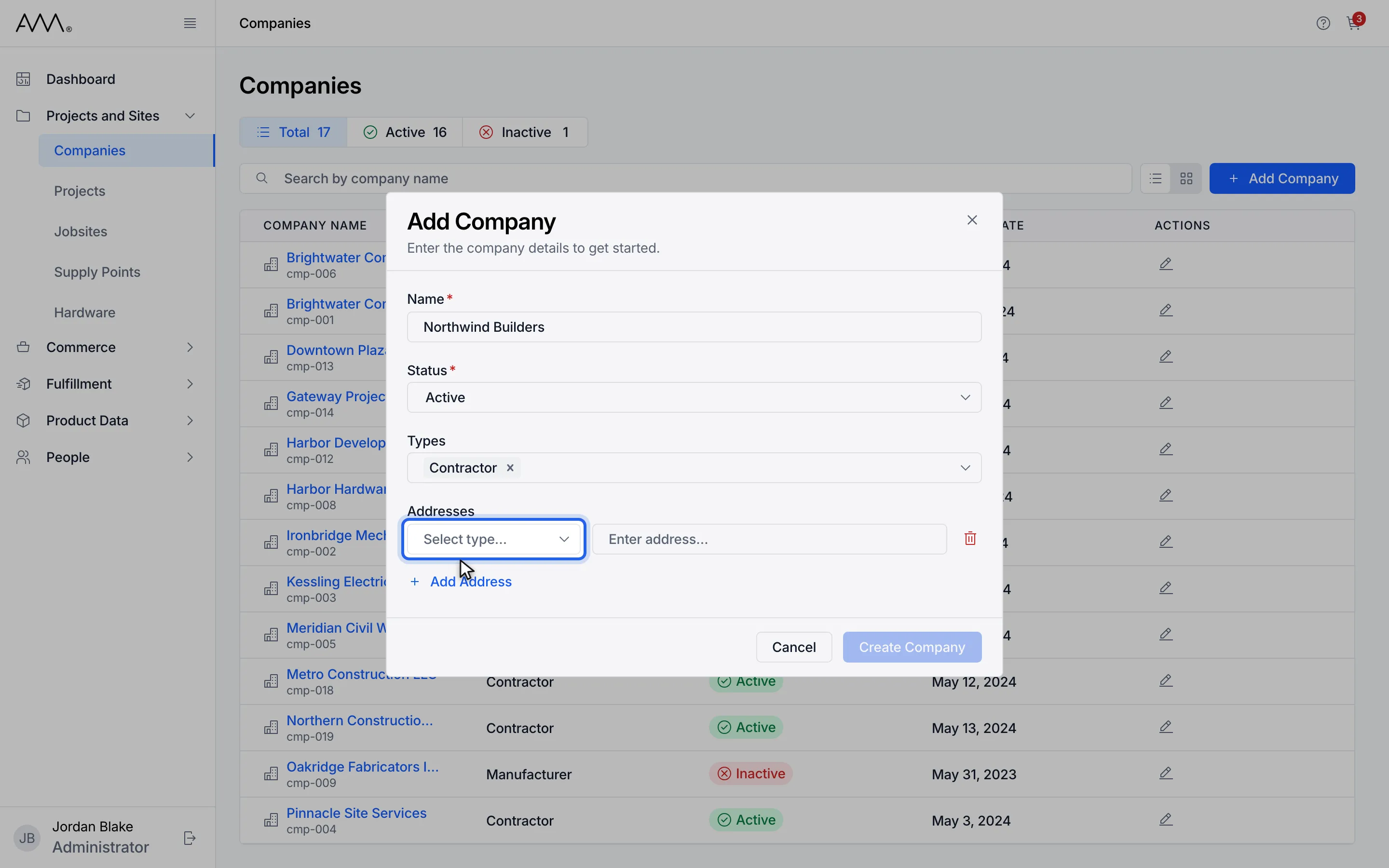
8Choose the address type.
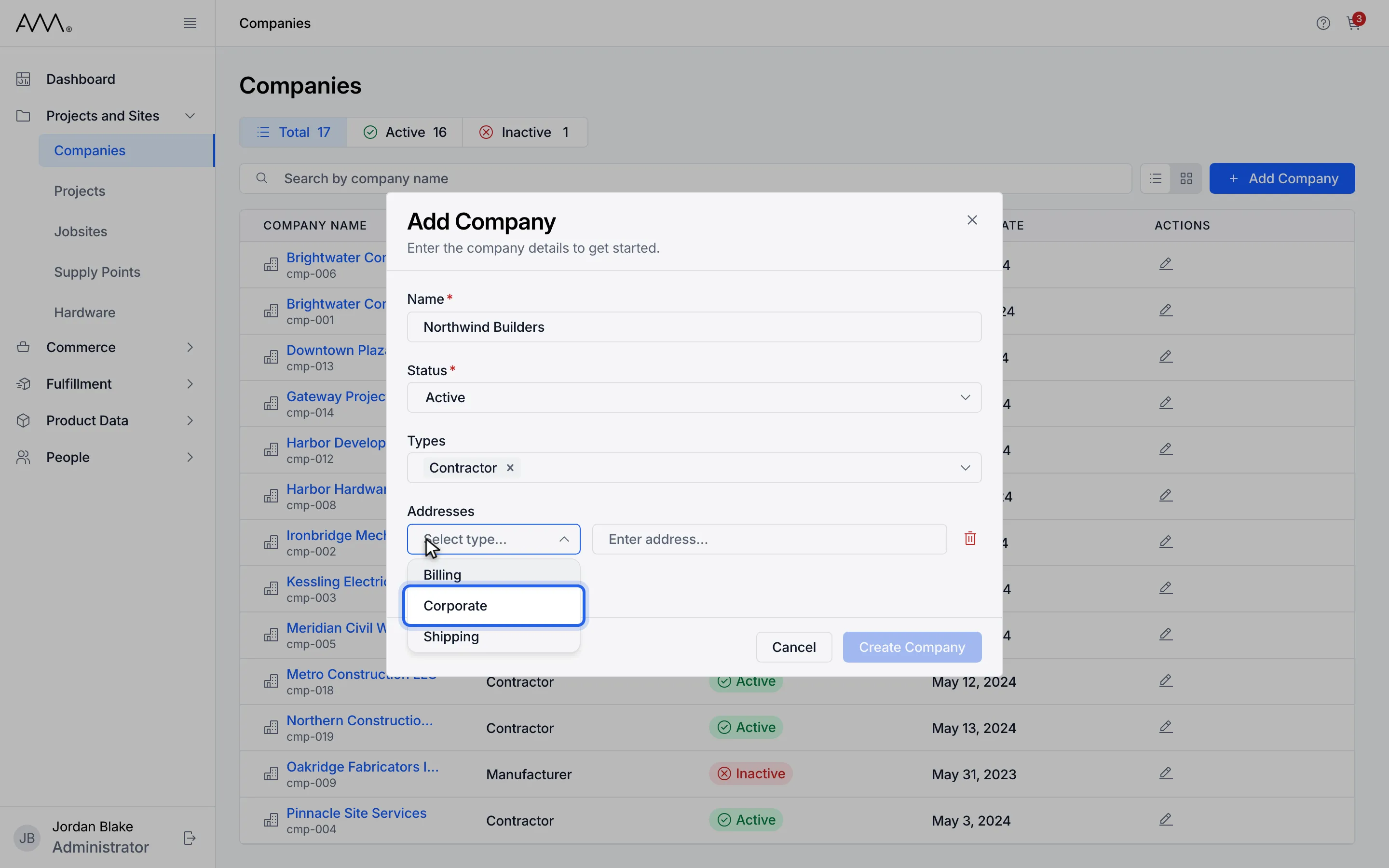
9Each type can be used once.
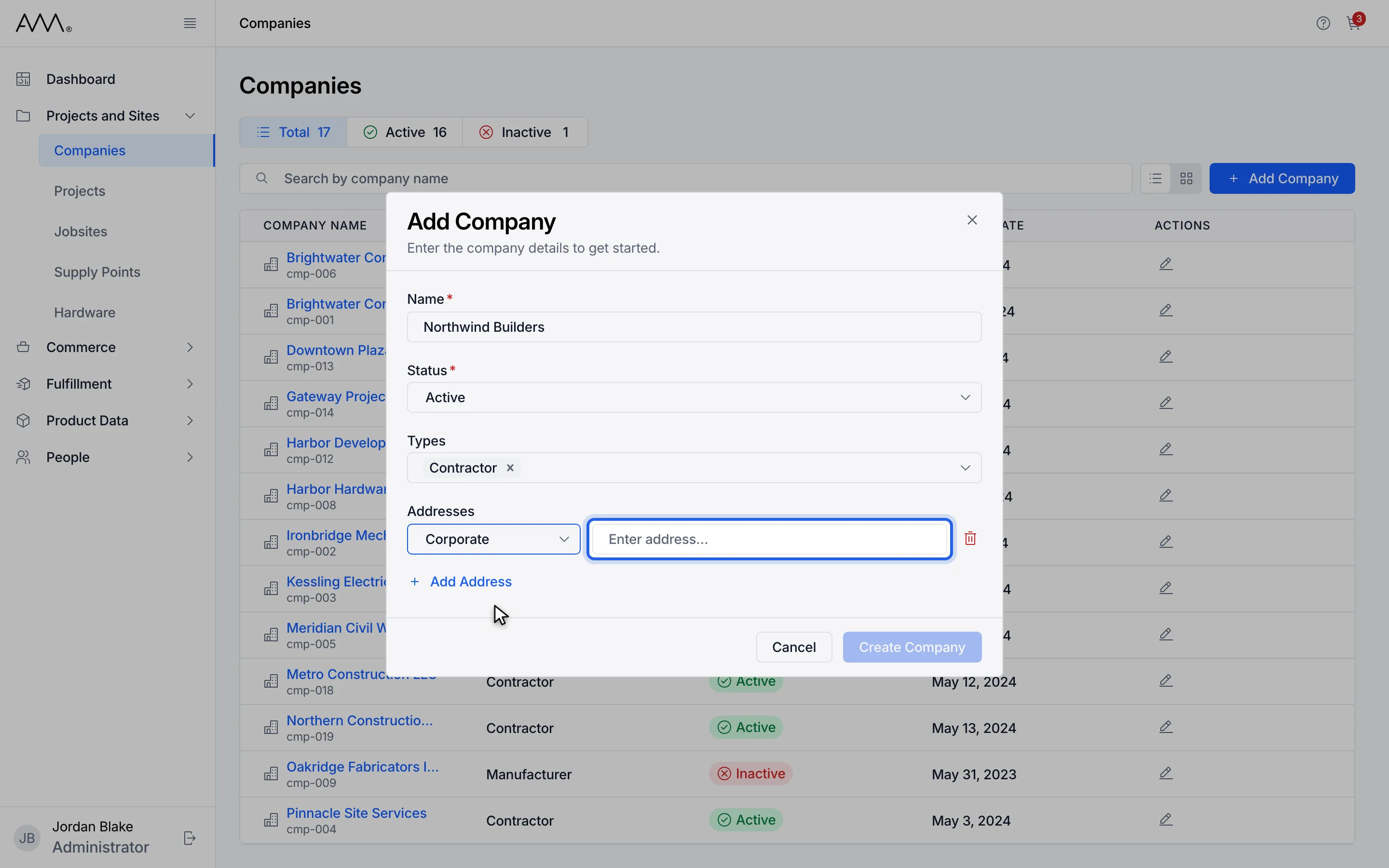
10Enter the address.
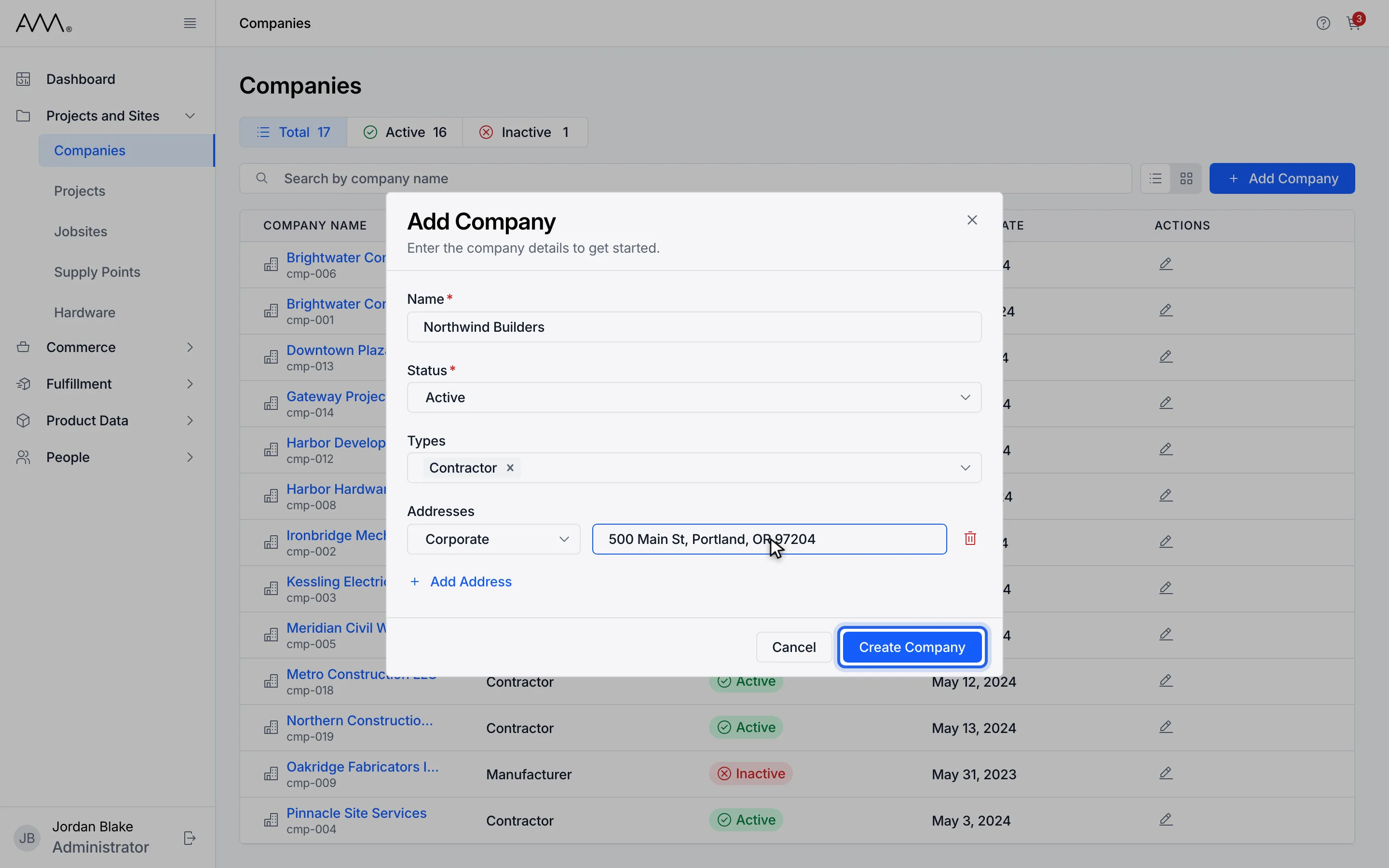
11Click Create Company.
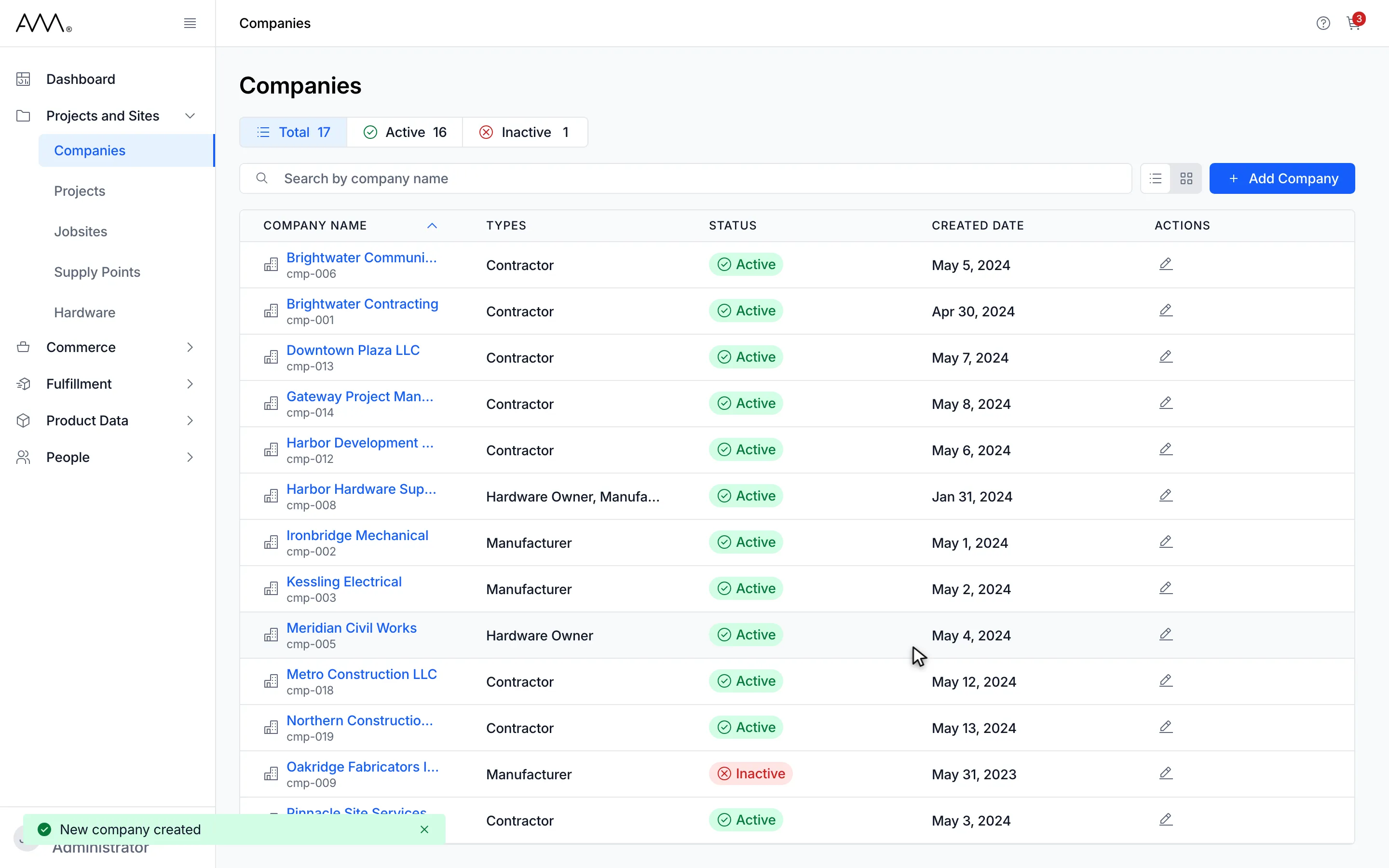
12Omni shows New company created and closes the dialog.
Watch this as a video (add a company)
What happens next
Section titled “What happens next”Omni shows New company created, closes the dialog and refreshes the list.
If the name is already in use, the dialog stays open and shows A company with this name already exists. under Name. If something else goes wrong, Omni shows Couldn’t create company. Please try again.