Edit a shipping charge and tracking numbers
The Shipping Charge and Tracking cells on the Fulfillment Orders tab are editable in place while the shipment is still moving. Each change saves on its own; there is no Save button and no toast.
- Open the shipment and click the Fulfillment Orders tab.
- Click the Shipping Charge box on an Assigned row and type the new amount in US dollars. A blank box saves as 0.
- Press Enter or click away. The value is saved and shown with two decimals.
- Click the Tracking button on the row. It reads + Tracking when there are no numbers yet, or the count followed by Tracking.
- In Tracking Numbers, type a number in Enter tracking number and click Add (or press Enter). Click the cross on a number to remove it. Each add or remove saves at once.
- Press Escape or click outside to close. The button shows the new count.
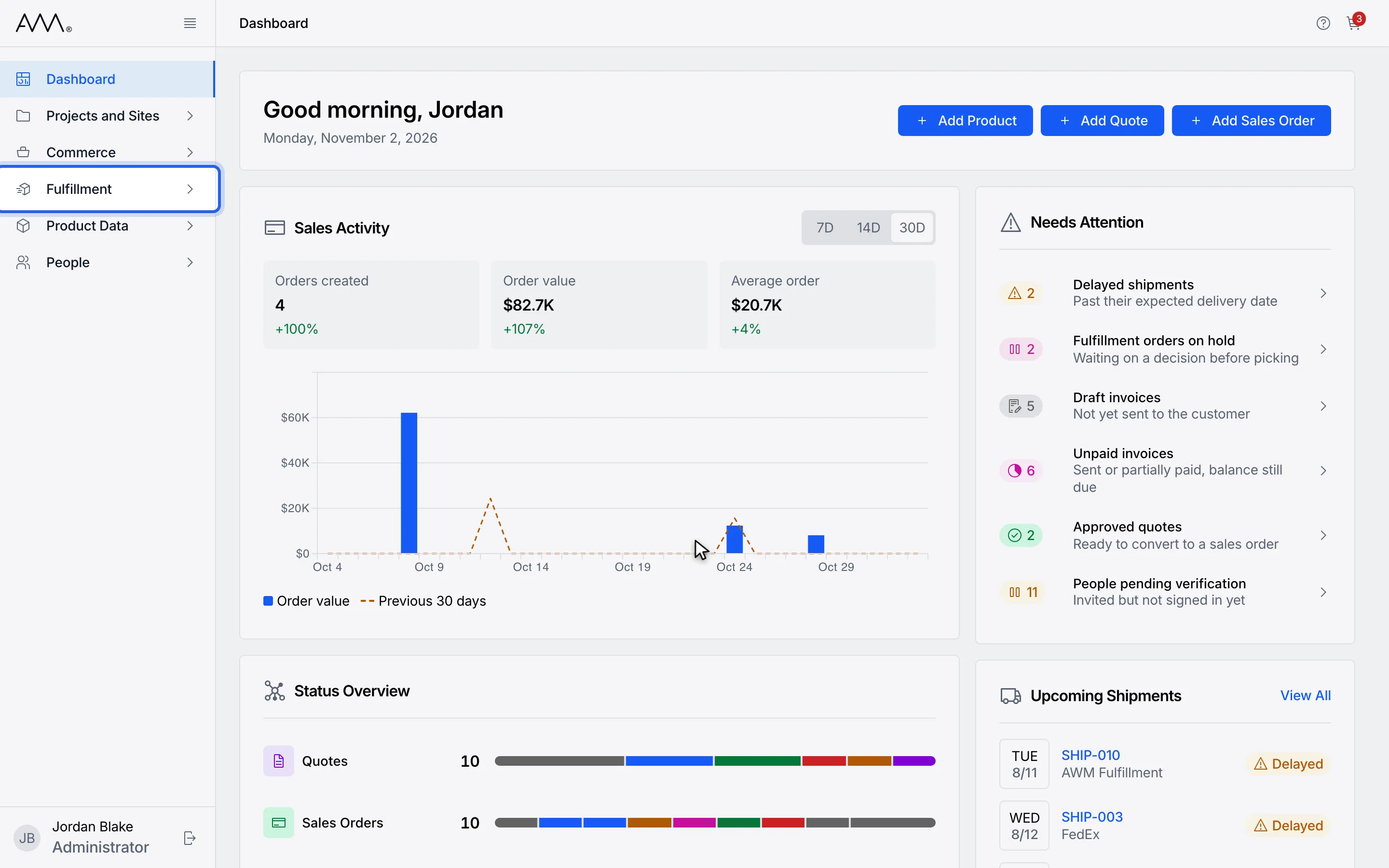
1In the sidebar, open Fulfillment.
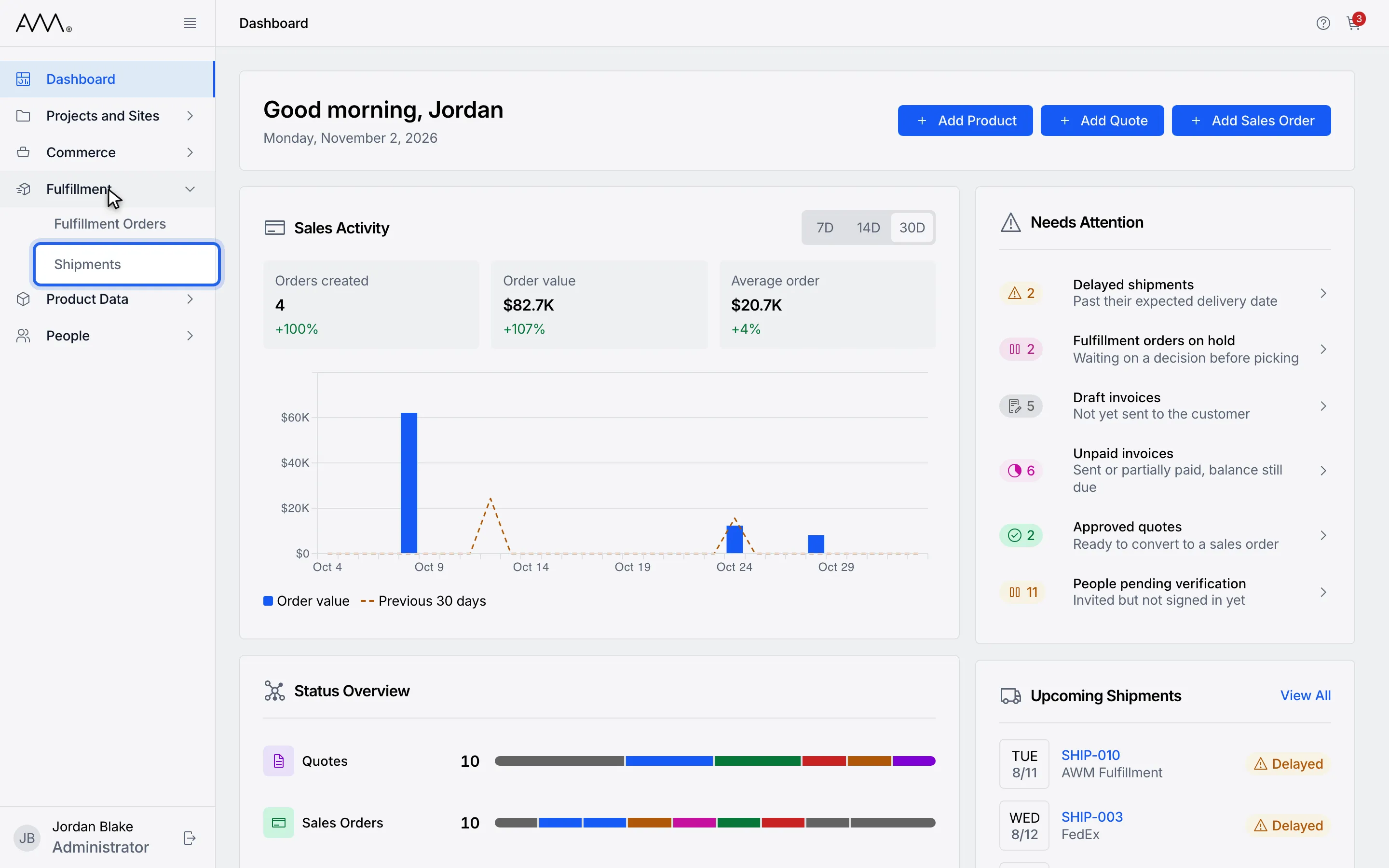
2Choose Shipments.
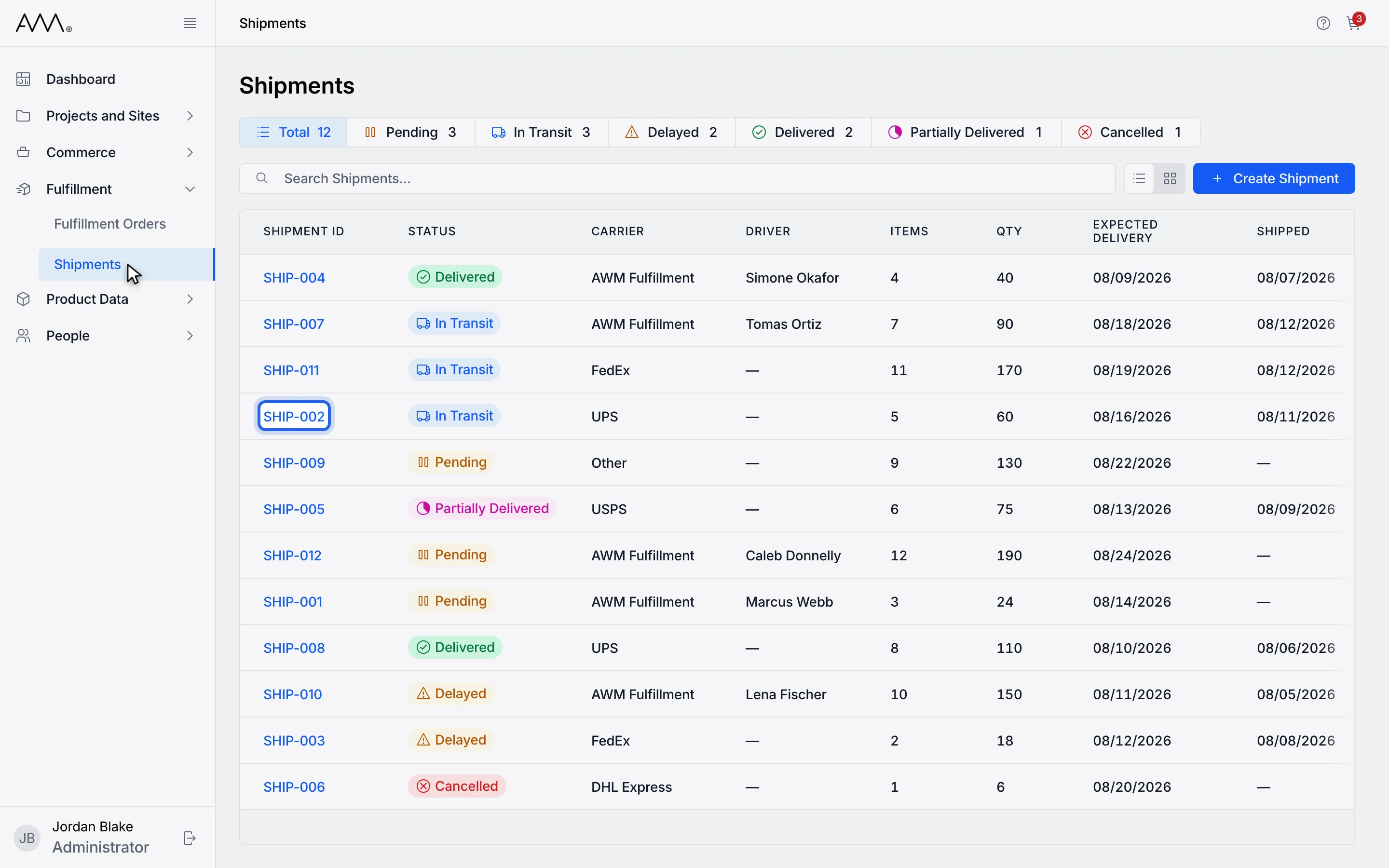
3Open the shipment.
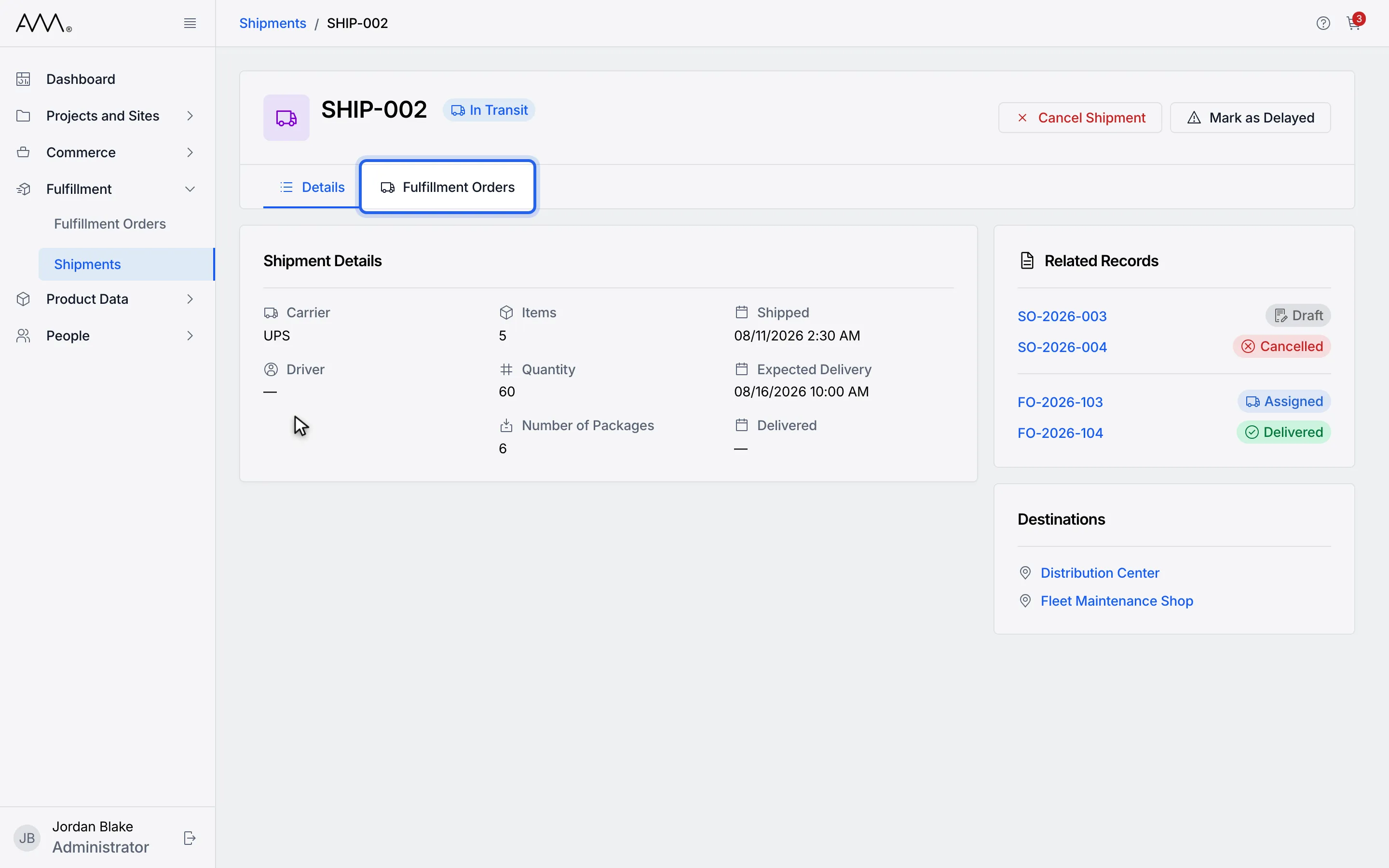
4Open the Fulfillment Orders tab.
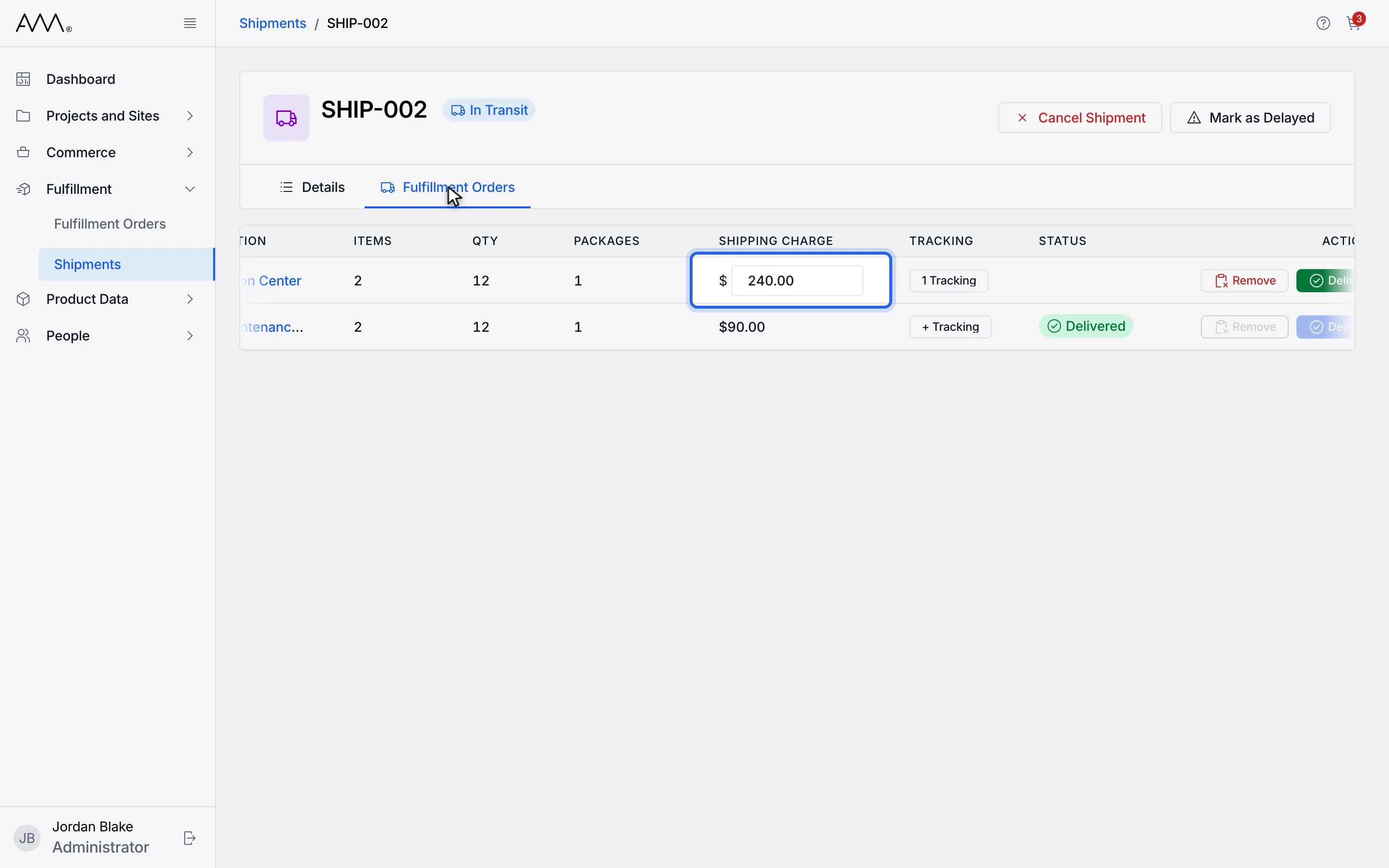
5Type a new Shipping Charge on an Assigned line.
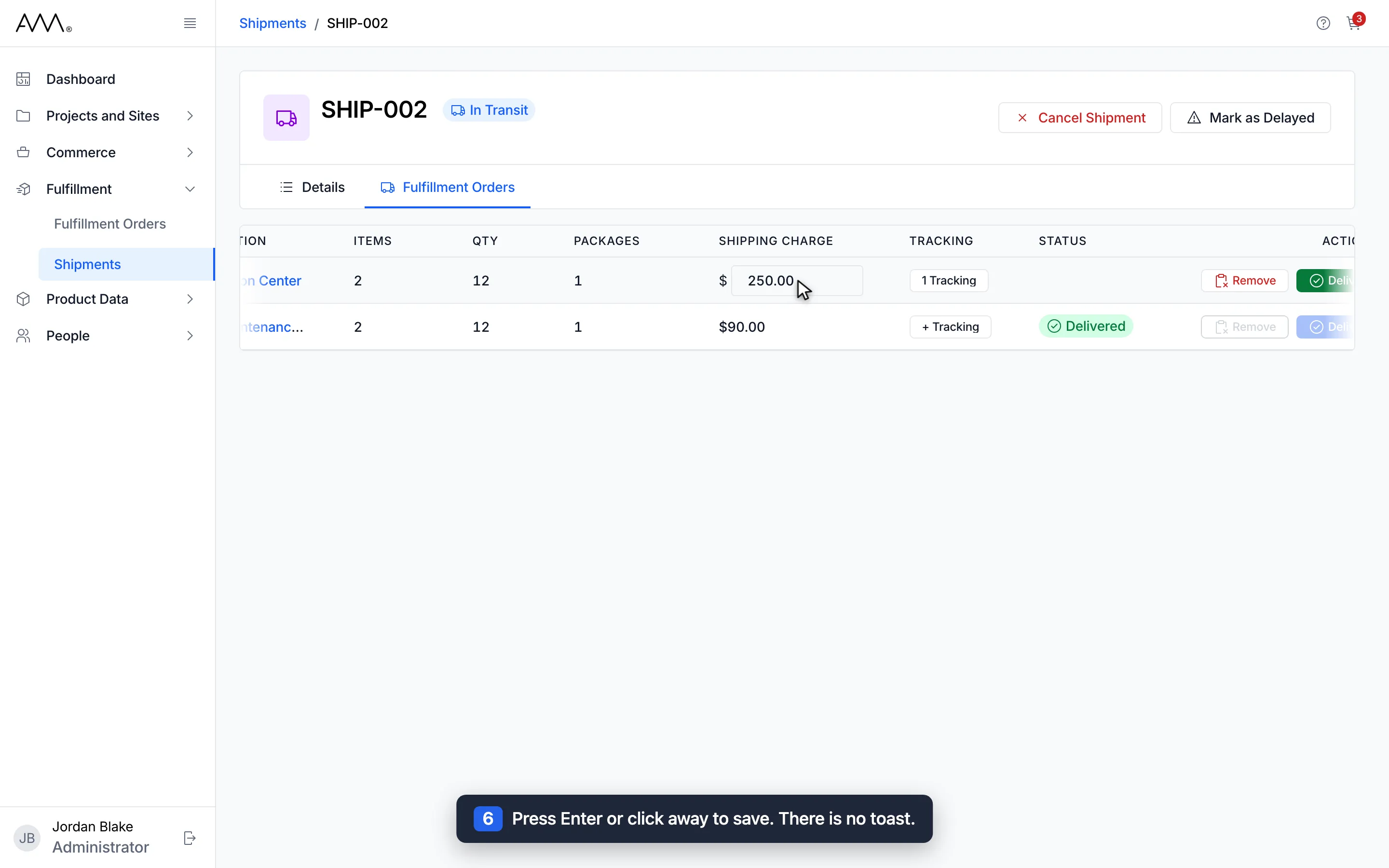
6Press Enter or click away to save. There is no toast.
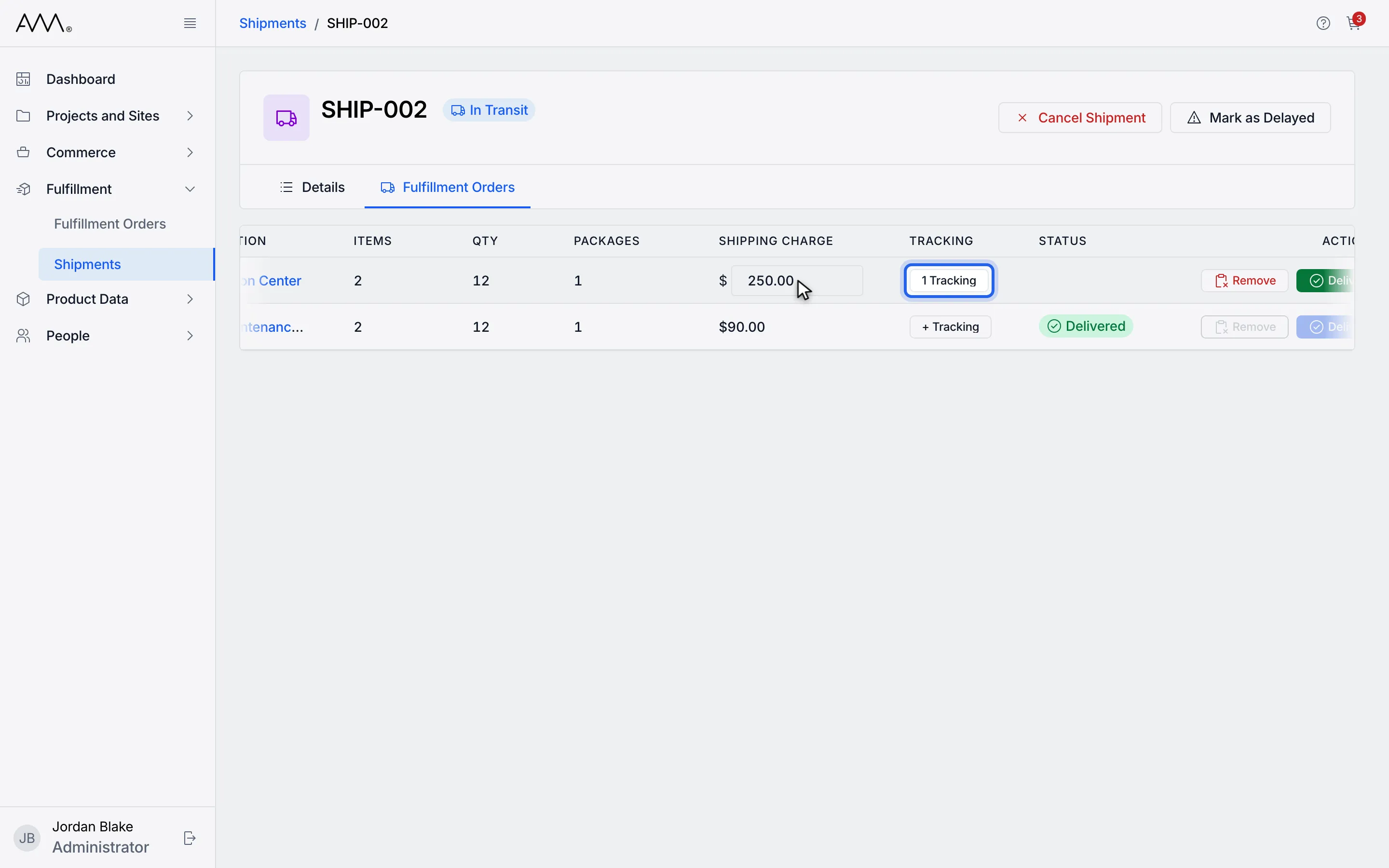
7Click the Tracking button on the line.
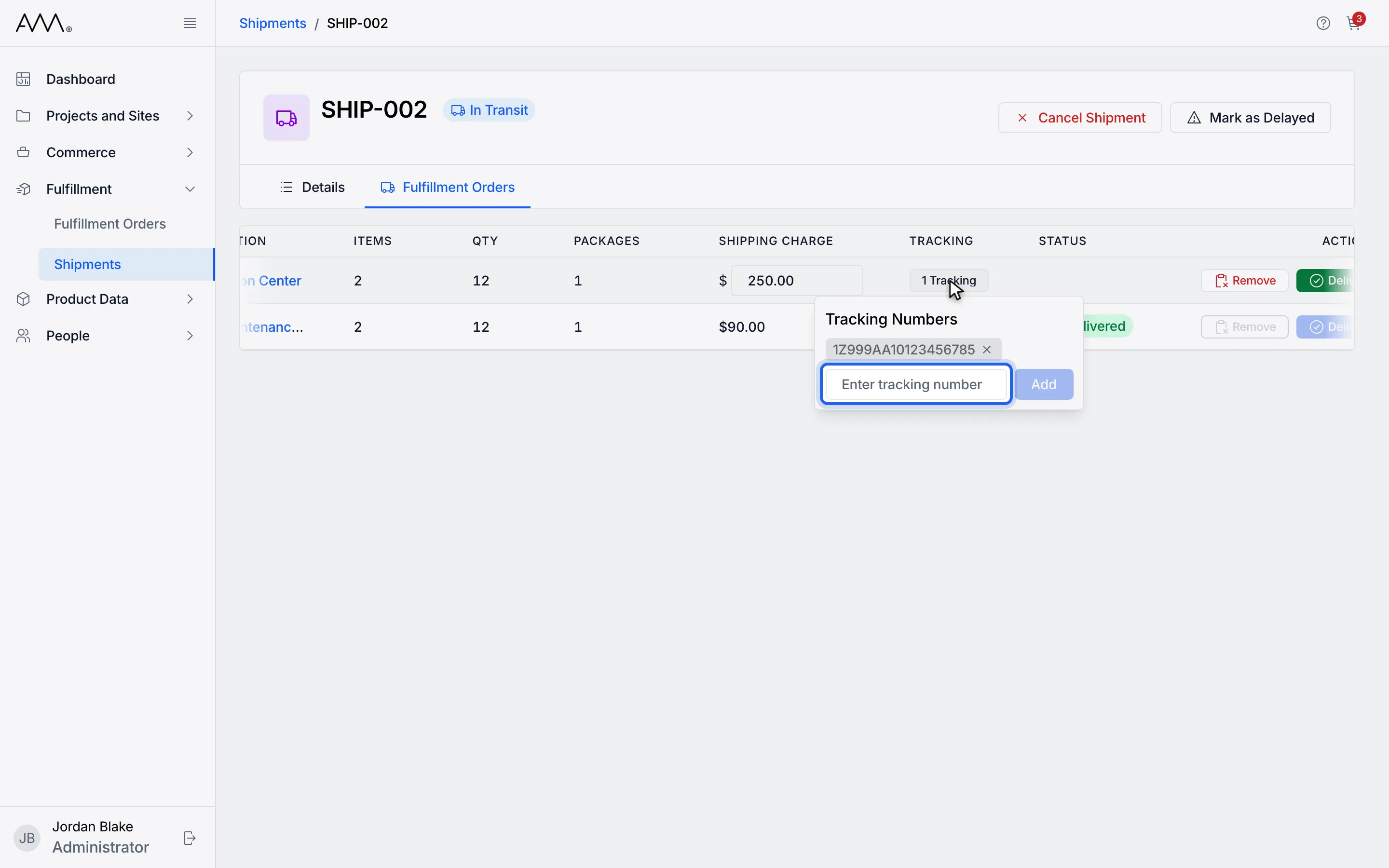
8Type a tracking number.
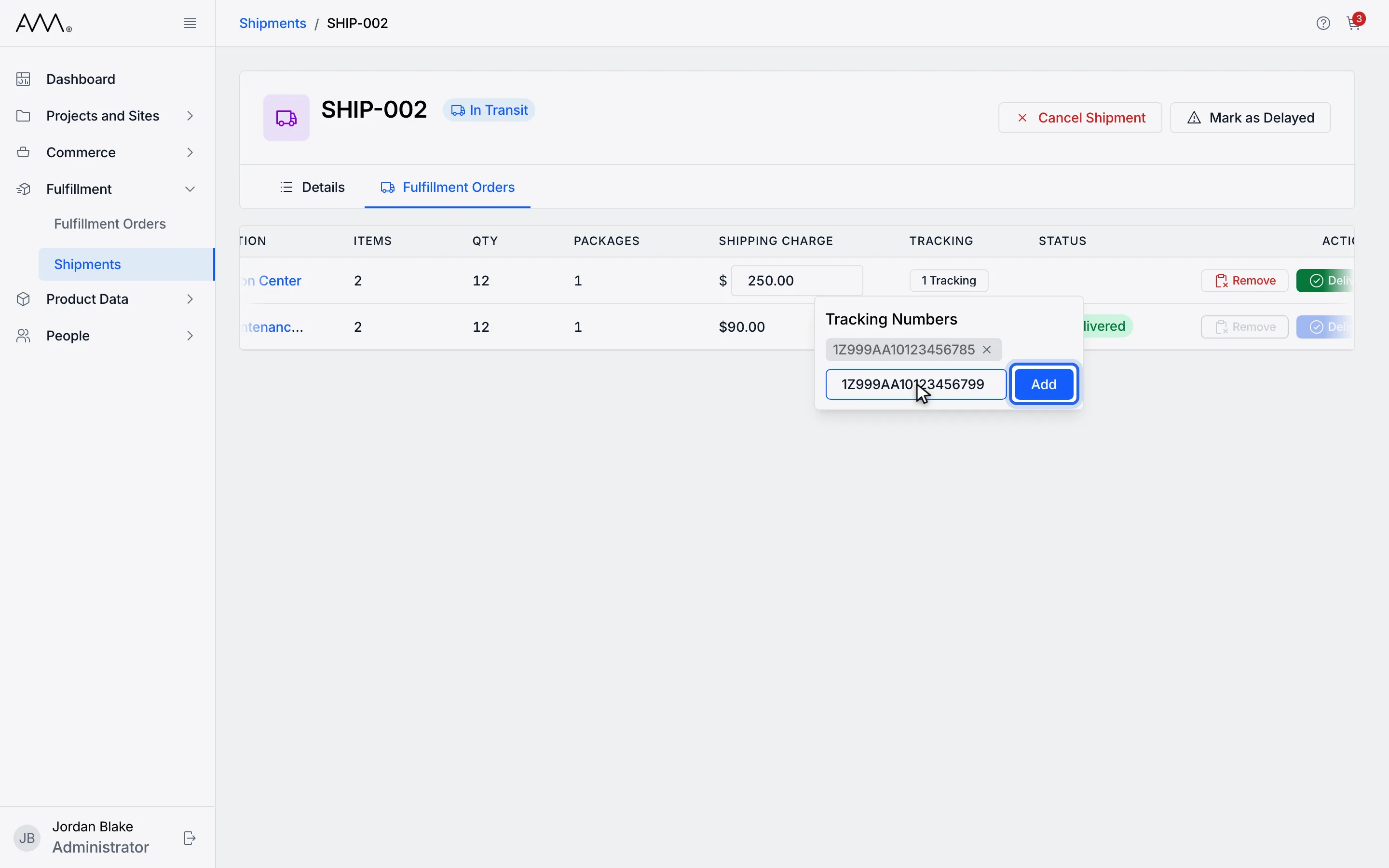
9Click Add. The number is saved at once.
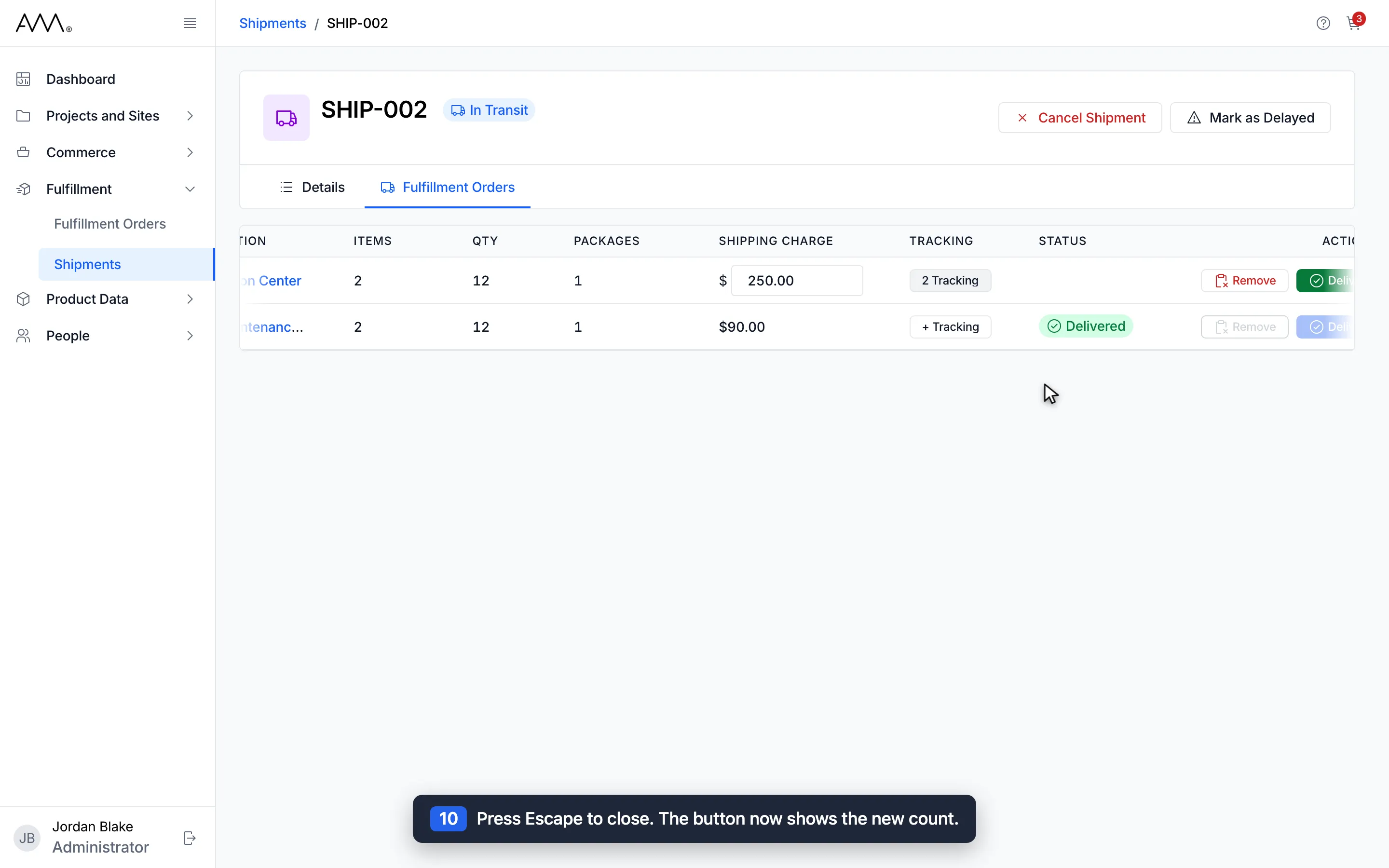
10Press Escape to close. The button now shows the new count.
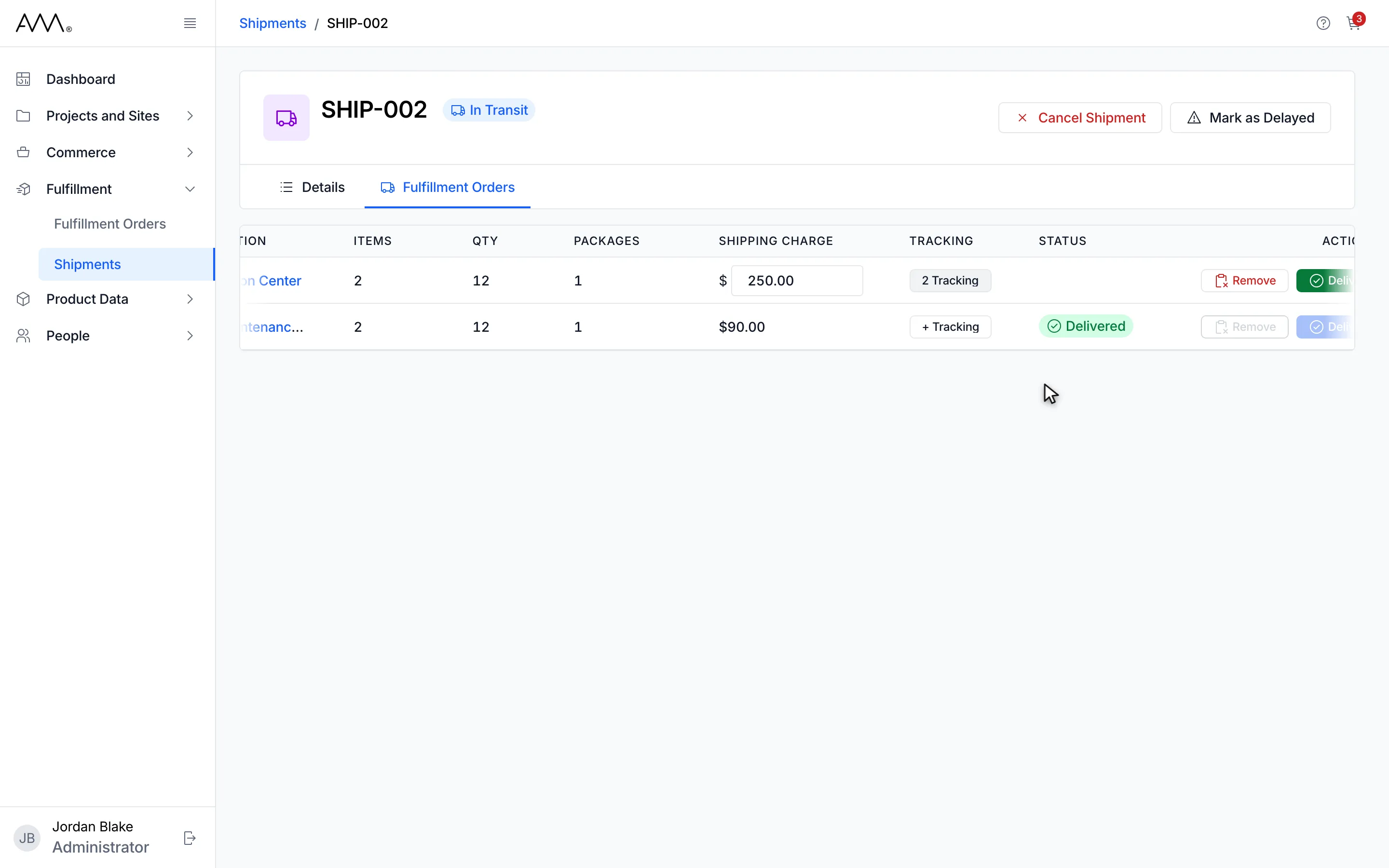
11The new charge is saved and the Tracking button shows the updated count.
Watch this as a video (edit a shipping charge and tracking numbers)
What happens next
Section titled “What happens next”Nothing else changes; the row shows the new charge or count. If a charge cannot be saved, a toast shows the reason or Could not update the shipment. Please try again., and the box goes back to the saved value. A failed tracking change shows the same kind of toast.
In the tracking popover, an entry is refused with [number] is already added., Tracking numbers can be up to 50 characters. or A fulfillment order can hold up to 100 tracking numbers.
On a Delivered row the charge is shown as text, on a Removed row as a dash. On a finished shipment, or without the update permission, the tracking popover lists the numbers without an input, or shows a dash when there are none.