Remove a fulfillment order from a shipment
Remove an order when it should not travel on this shipment after all. It returns to Packed and can be added to a new shipment, while its row stays on this shipment marked Removed.
- Open the shipment and click the Fulfillment Orders tab.
- Click Remove on the order’s row.
- In Remove Fulfillment Order?, click Remove to confirm, or Keep Fulfillment Order to back out.
- If the order is the last Assigned one and nothing on the shipment was delivered, the dialog is Remove Last Fulfillment Order? instead. Click Remove & Cancel Shipment to confirm, or Keep Fulfillment Order.
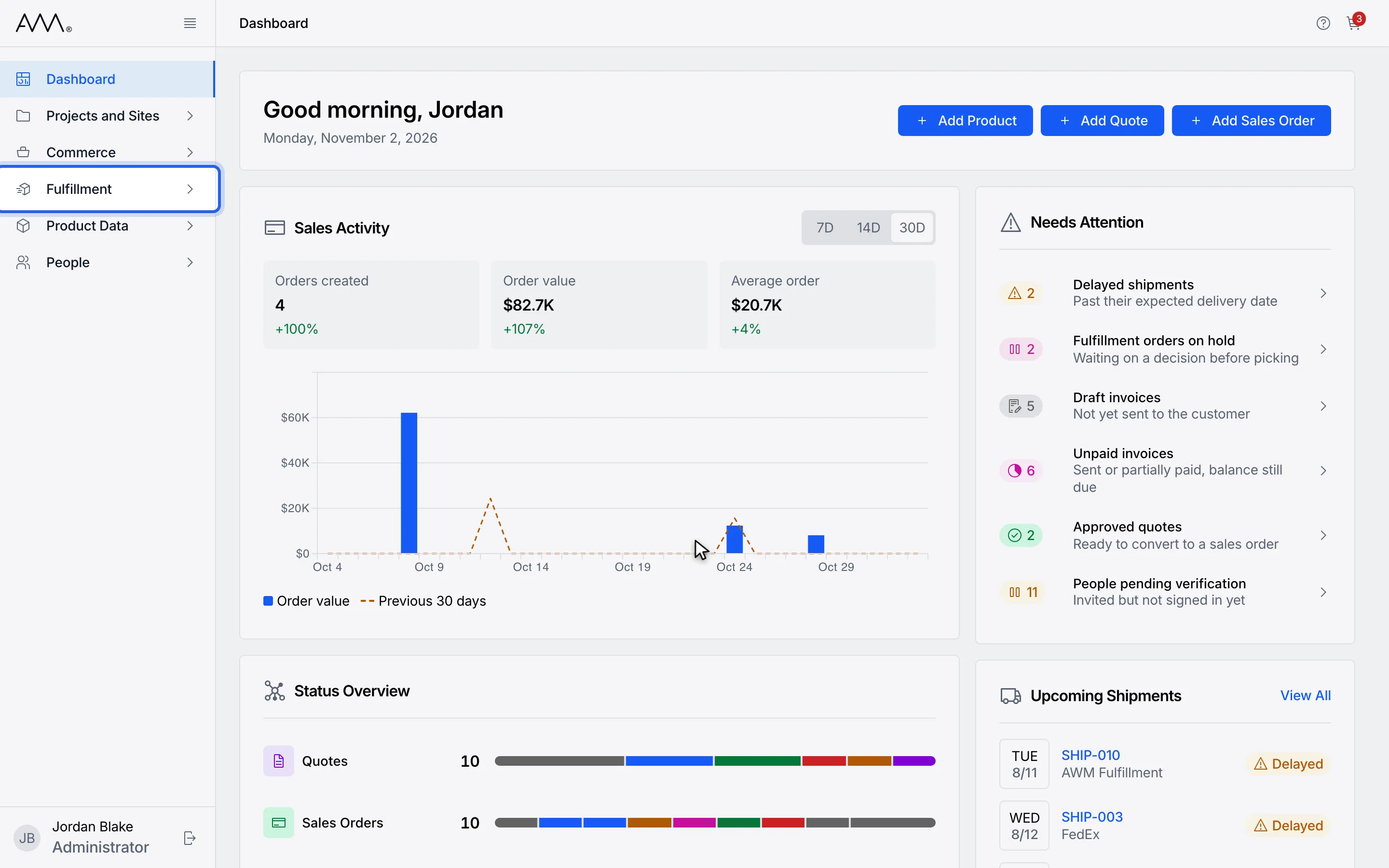
1In the sidebar, open Fulfillment.
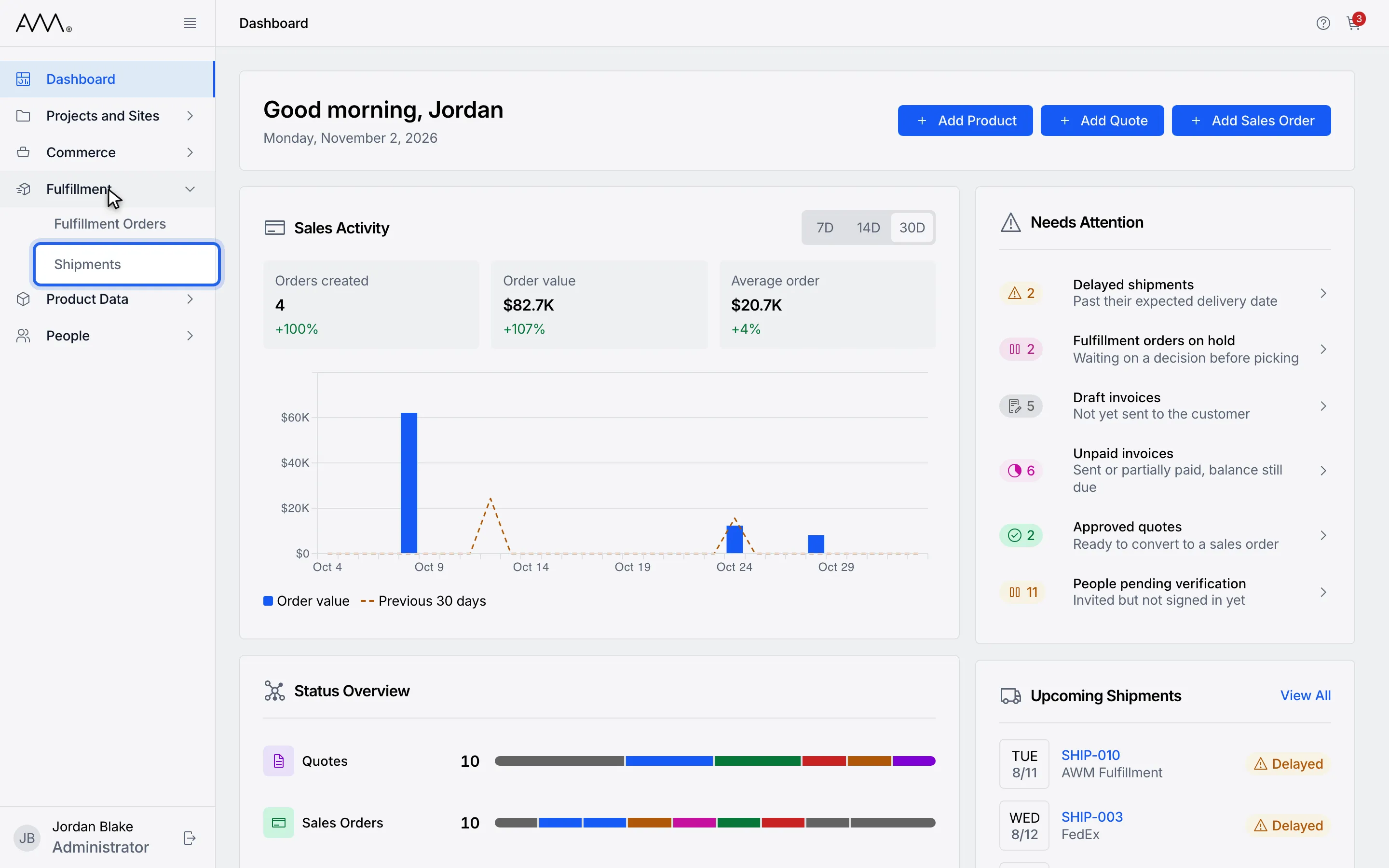
2Choose Shipments.
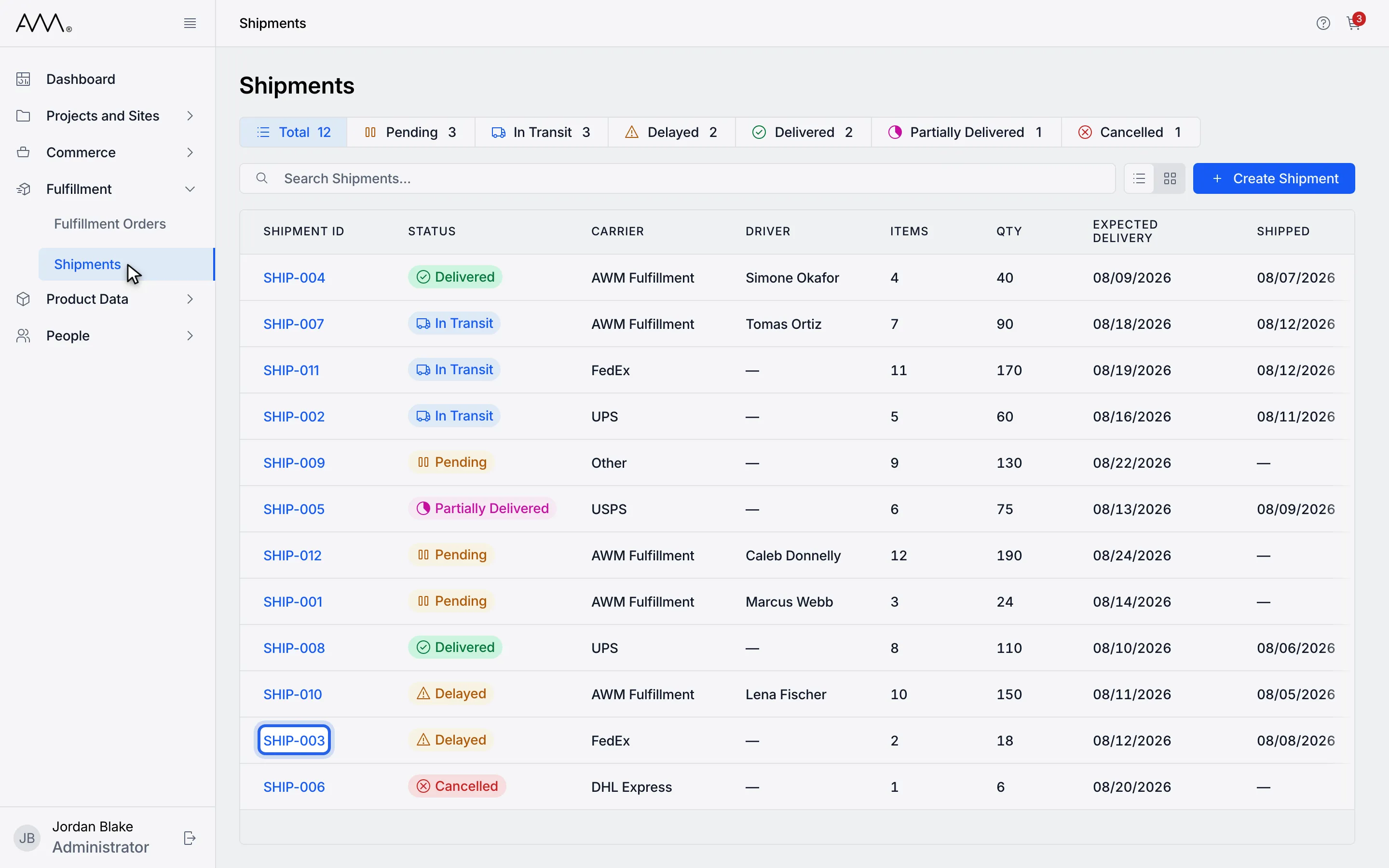
3Open the shipment.
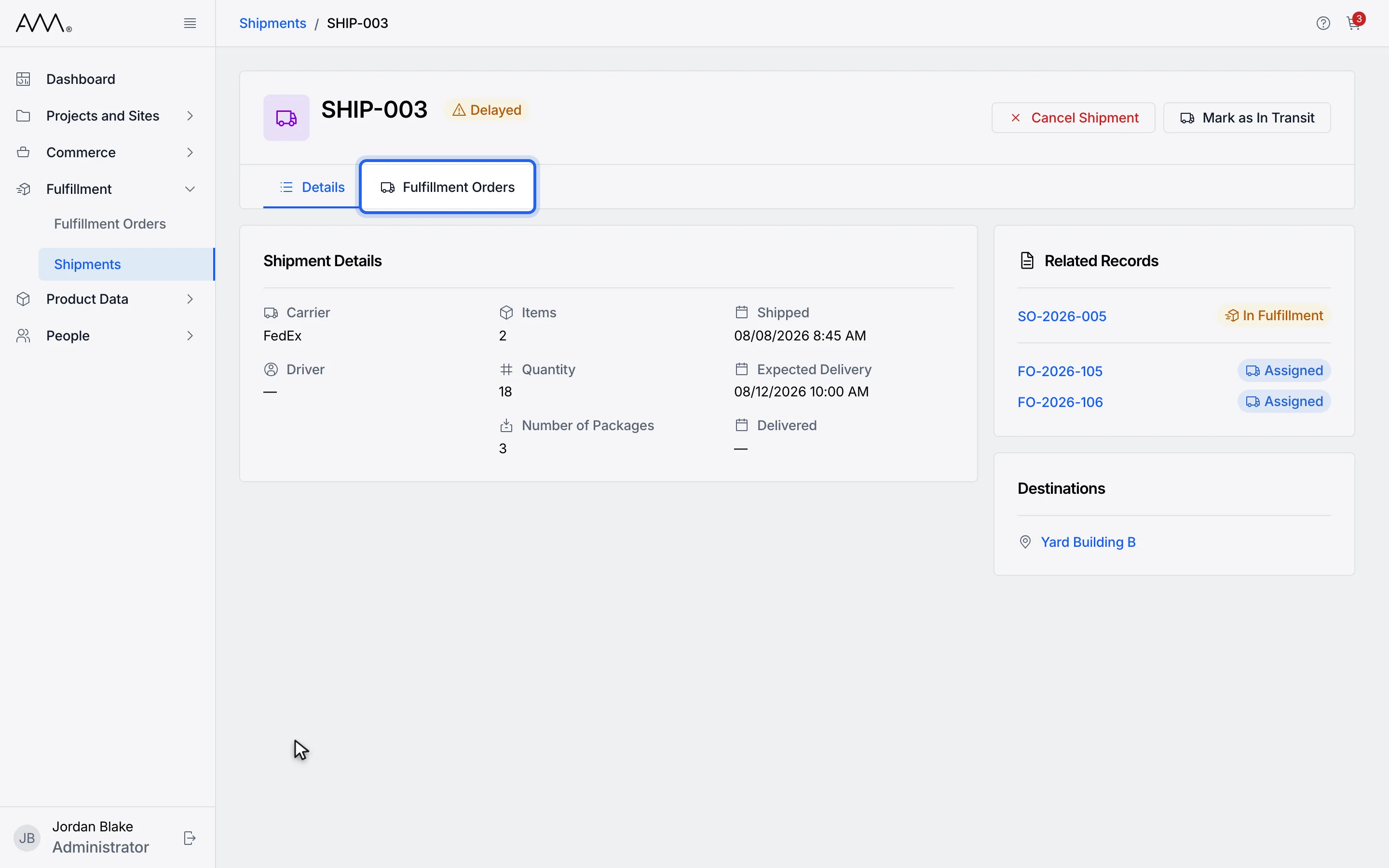
4Open the Fulfillment Orders tab.
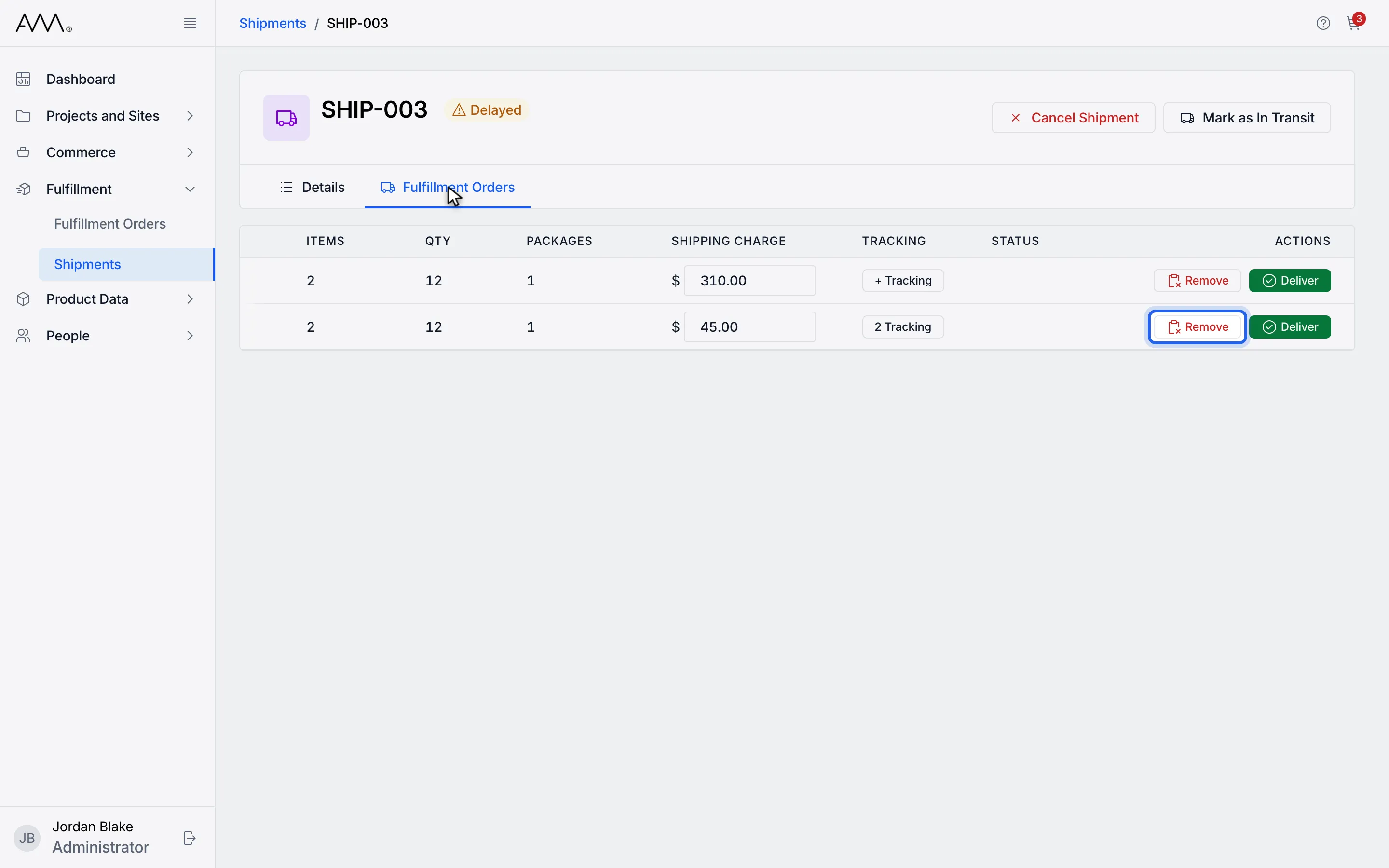
5Click Remove on the order to take off the shipment.
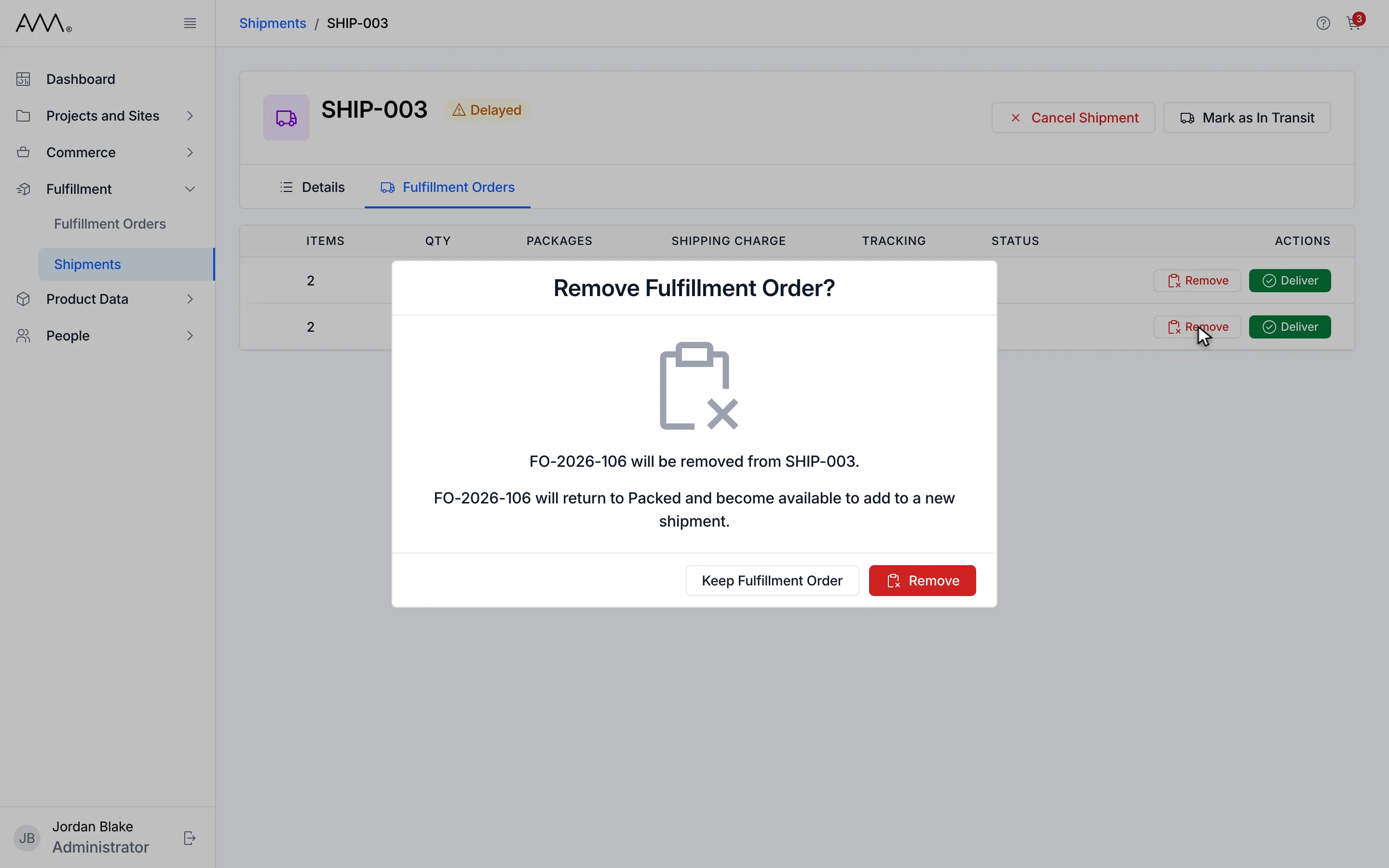
6Remove Fulfillment Order? explains that the order returns to Packed.
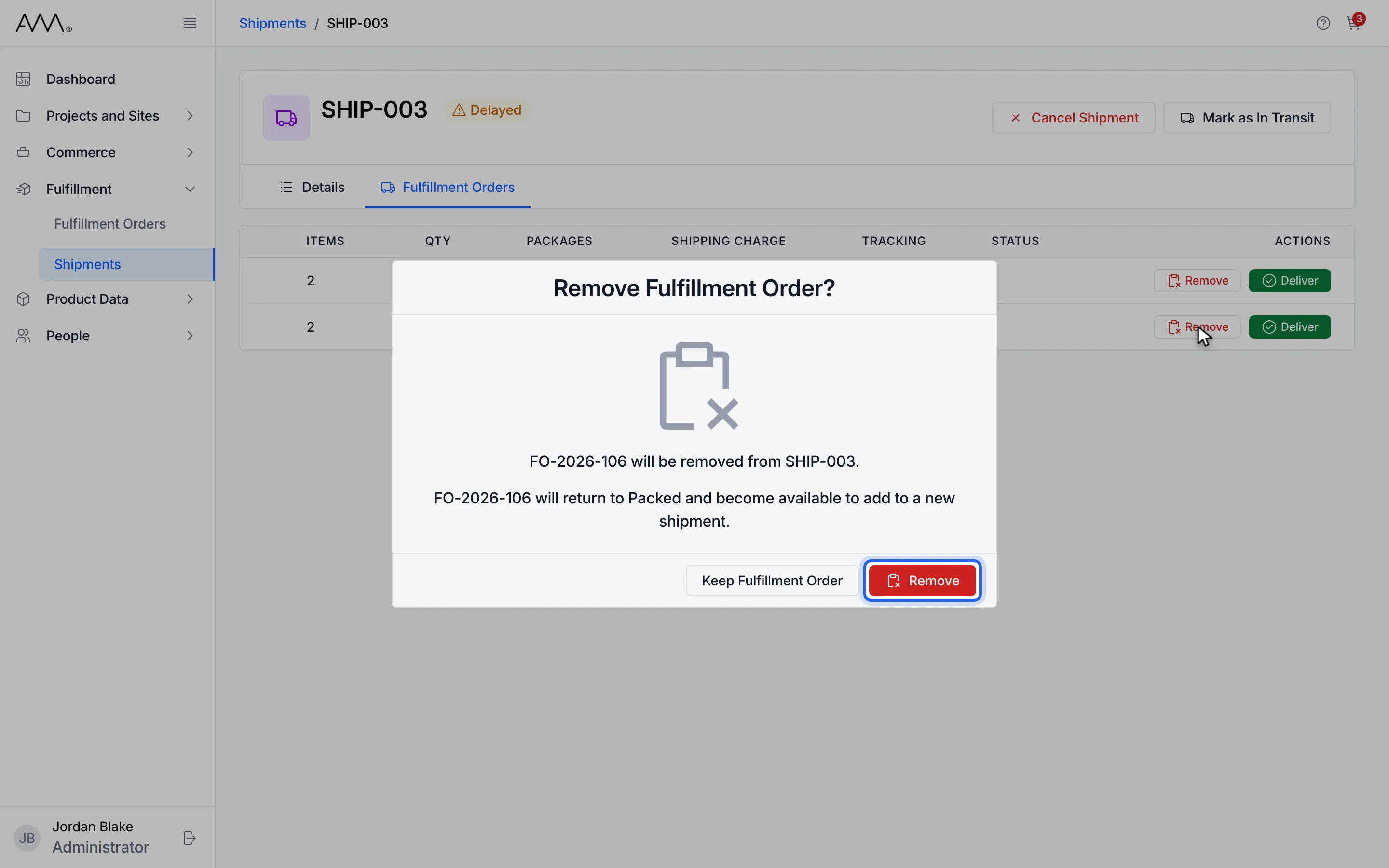
7Click Remove to confirm.
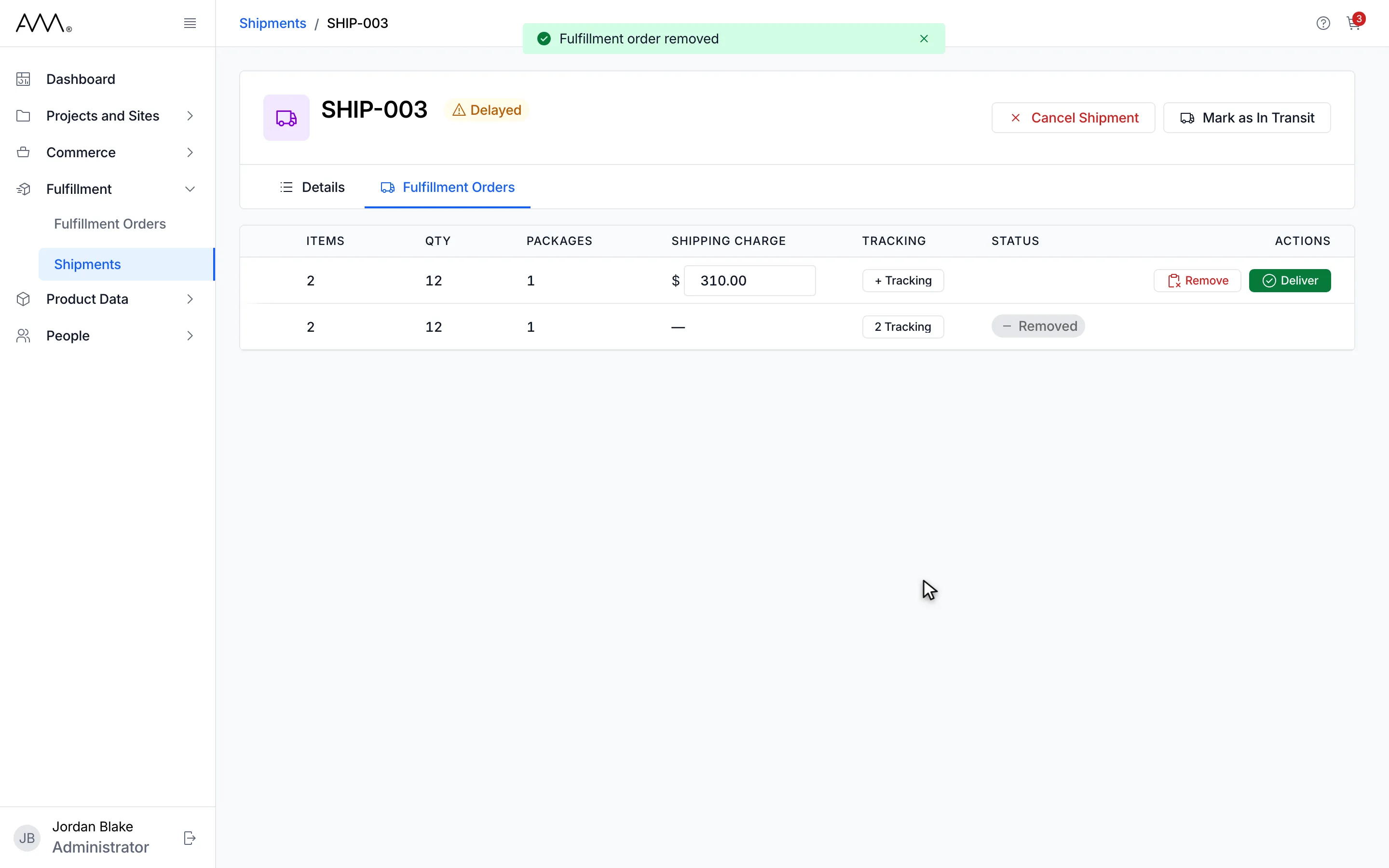
8The row stays listed as Removed and a toast confirms it.
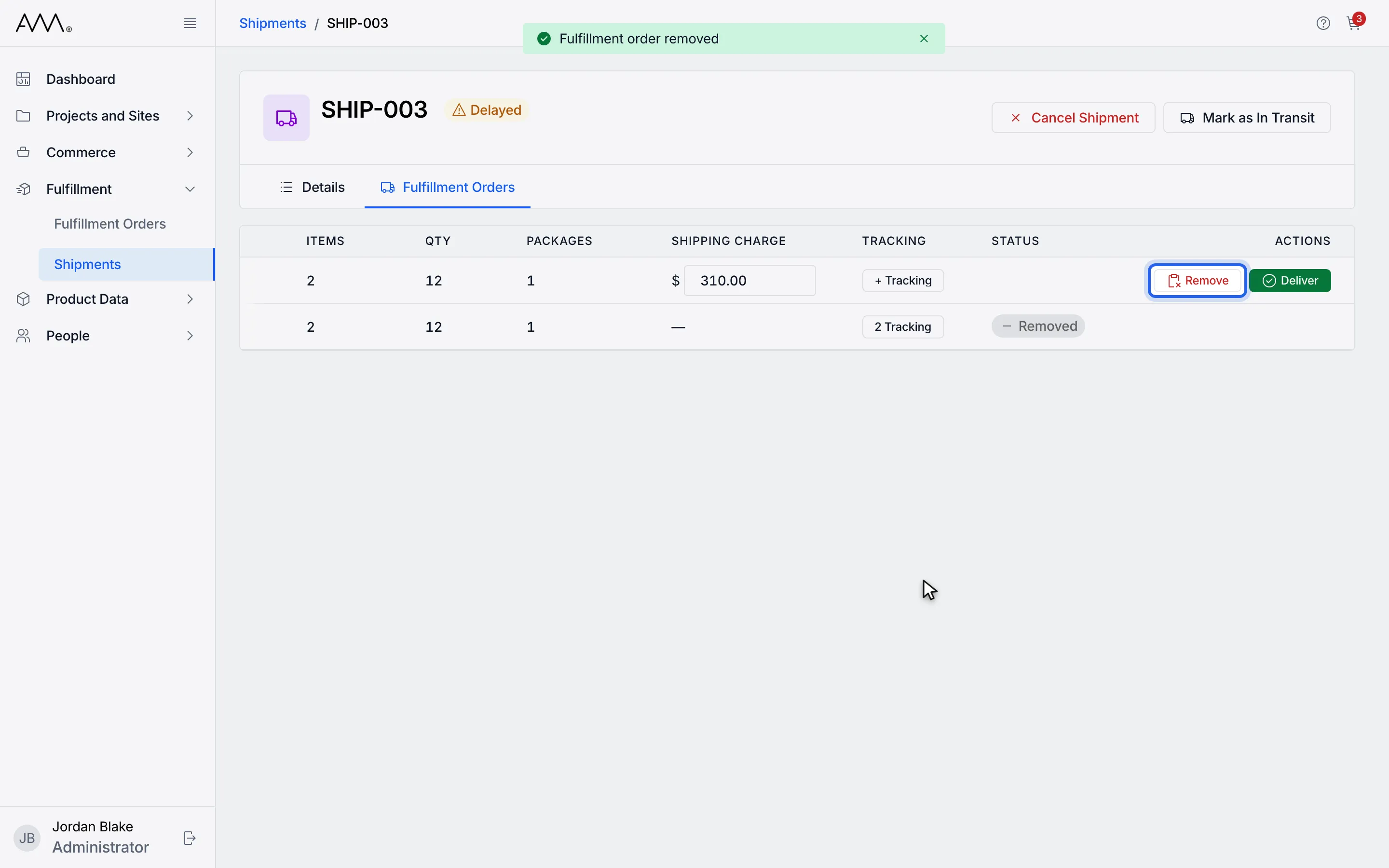
9Removing the last order is different. Click Remove on it.
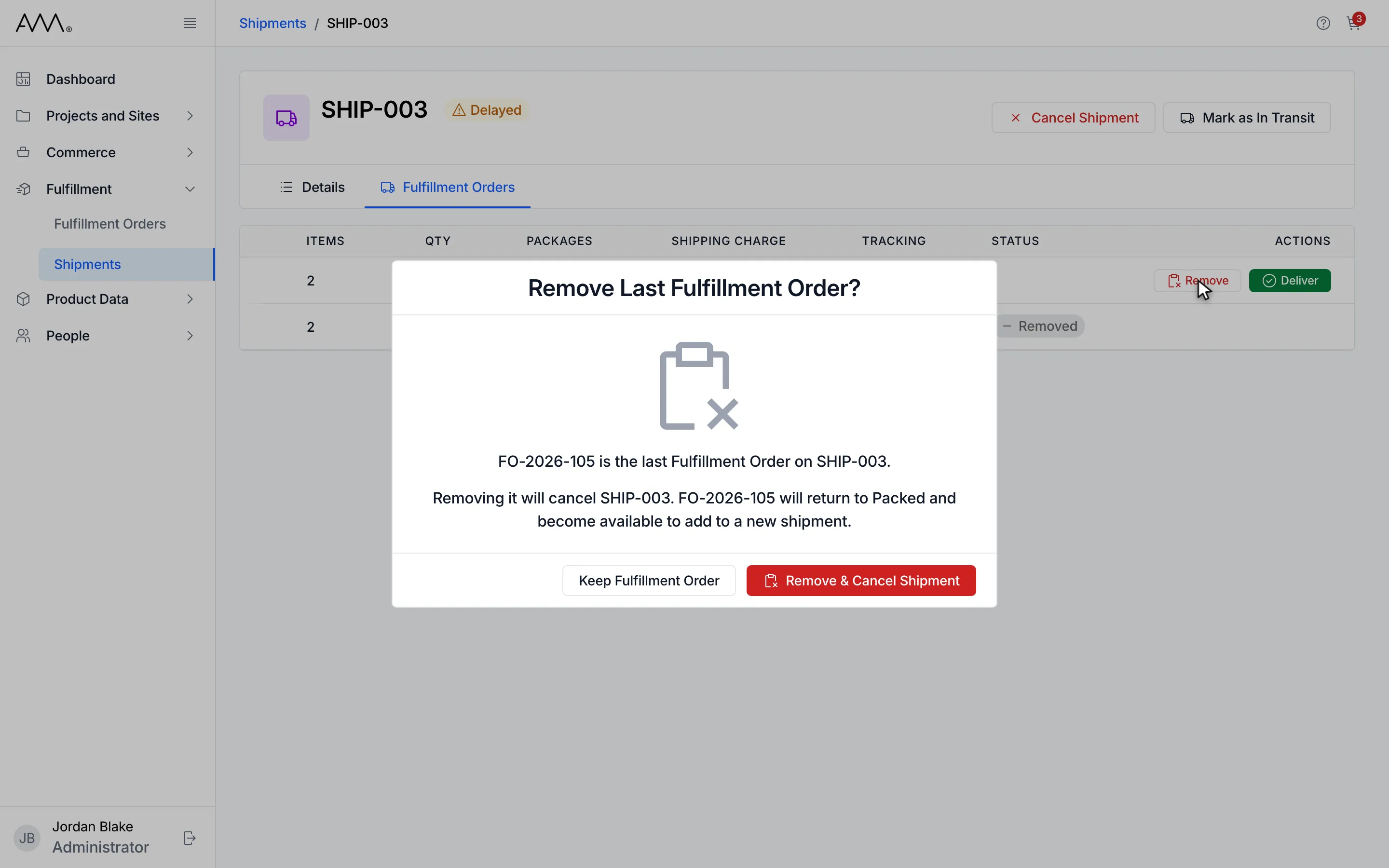
10Remove Last Fulfillment Order? warns that the shipment will be cancelled.
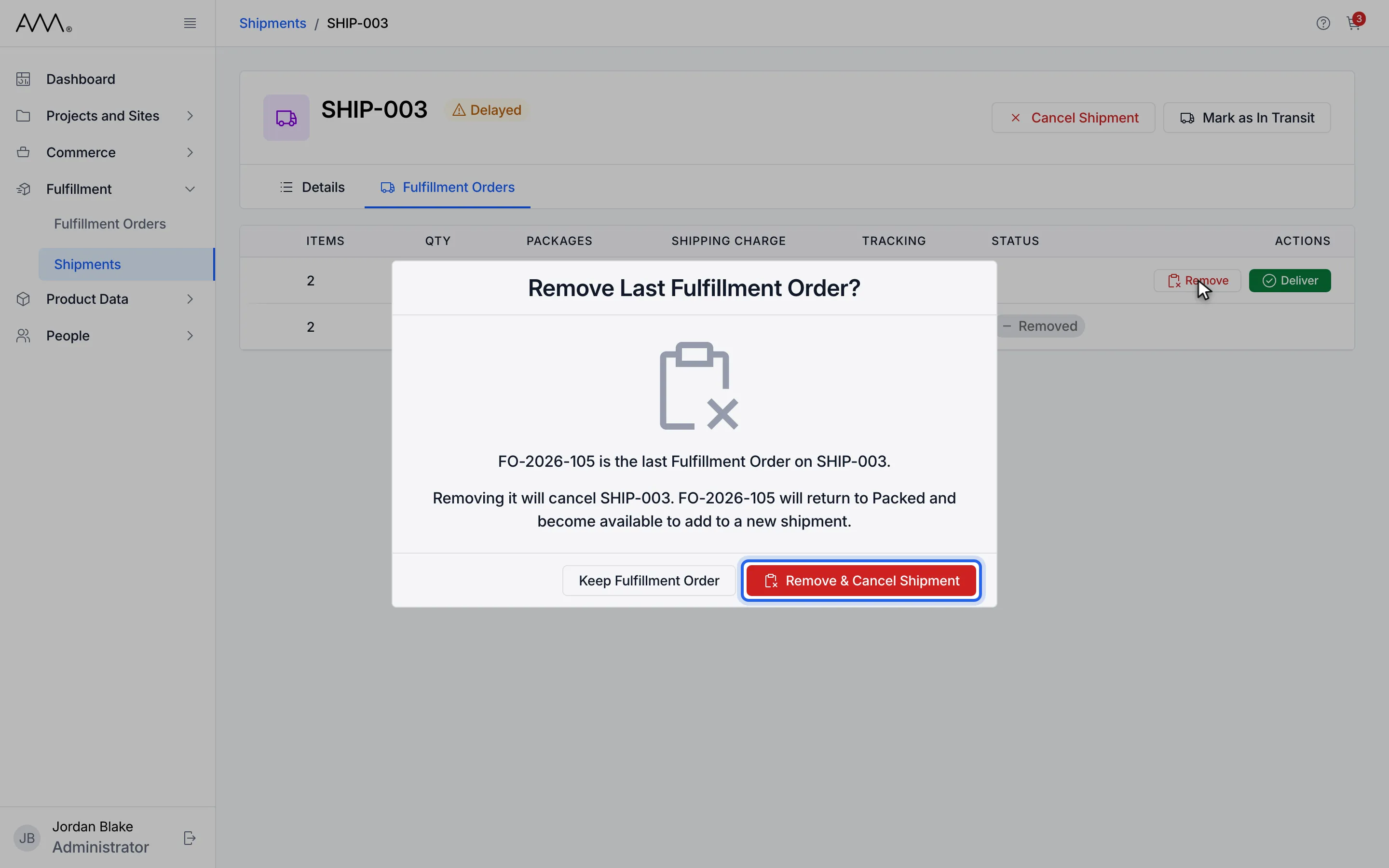
11Click Remove & Cancel Shipment, or Keep Fulfillment Order to back out.
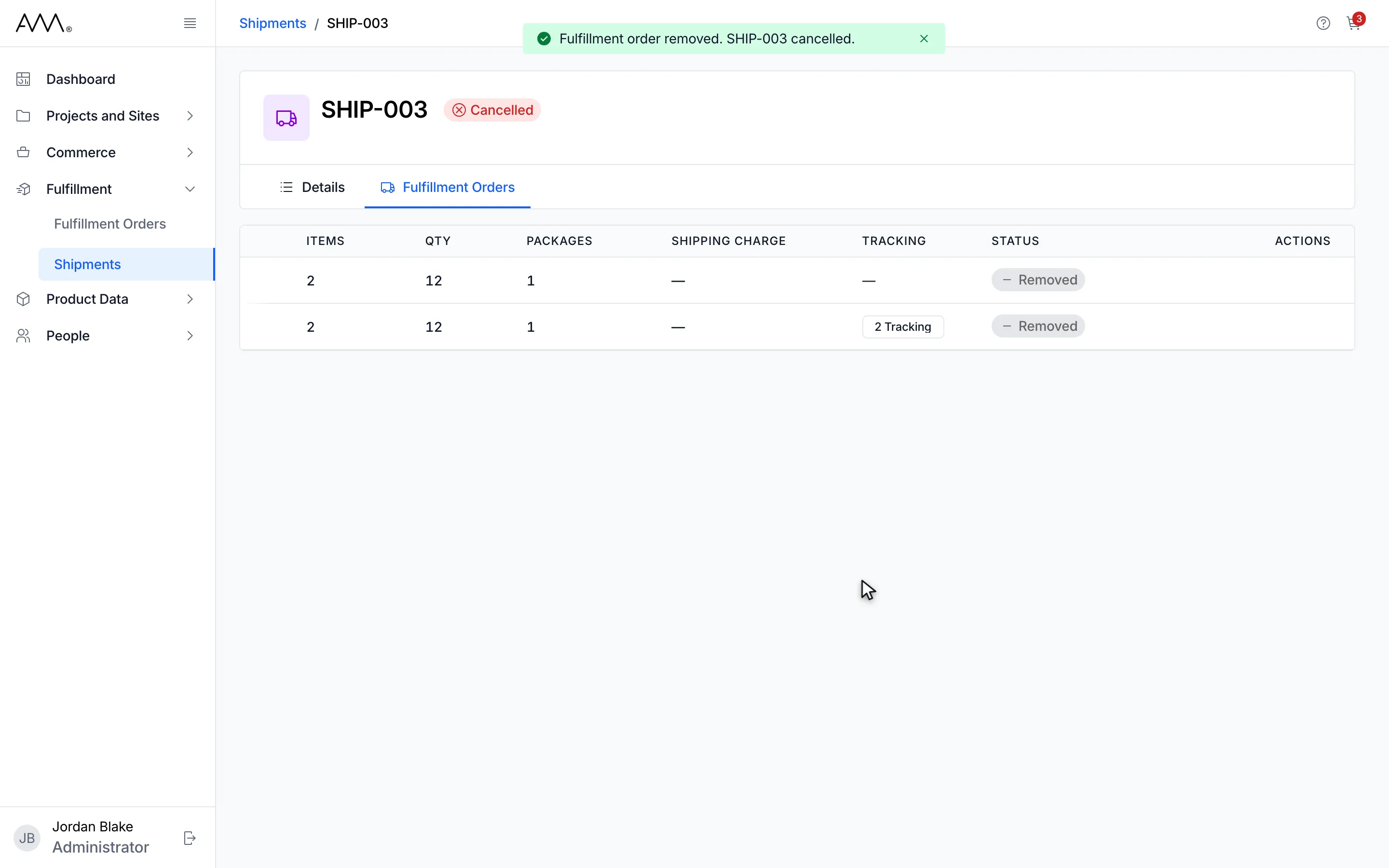
12Both orders are Removed and the shipment is Cancelled.
13Both orders are Removed and the shipment is Cancelled.
Watch this as a video (remove a fulfillment order from a shipment)
What happens next
Section titled “What happens next”A toast confirms Fulfillment order removed. The row stays on the shipment with the status Removed, its shipping charge shows a dash and it has no buttons. The shipment’s items, quantity and packages drop by the removed order’s counts.
After Remove & Cancel Shipment, the toast reads Fulfillment order removed. followed by the shipment number cancelled., and the header badge shows Cancelled.
If the action is refused, the dialog shows the reason or Could not update the shipment. Please try again. When the shipment changed in the meantime and the action no longer applies, the dialog closes and the reason appears as a toast.