Verify your identity with two-factor authentication
When two-factor authentication is on for your account, clicking Sign In takes you to the Verify Your Identity page instead of straight into Omni. You prove it is you with a second step, then Omni opens as usual.
Use your authenticator app
Section titled “Use your authenticator app”- Sign in with your email address and password. The Verify Your Identity page opens with Enter the 6-digit code from your authenticator app.
- Open your authenticator app and read the current code for Omni.
- Type the six digits into Authenticator Code. Omni checks the code as soon as you type the last digit; you can also click Verify.
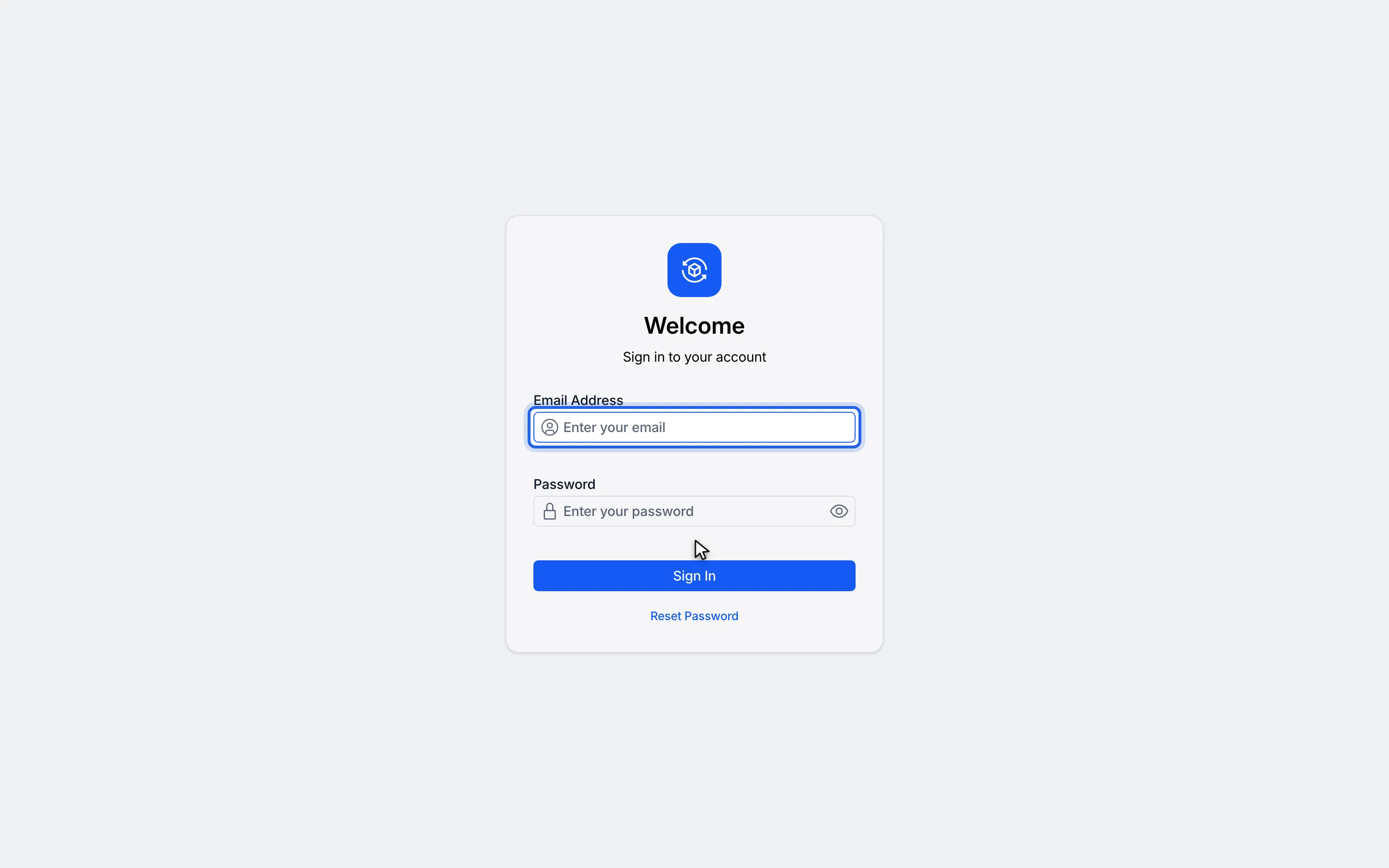
1Sign in with your email address and password.
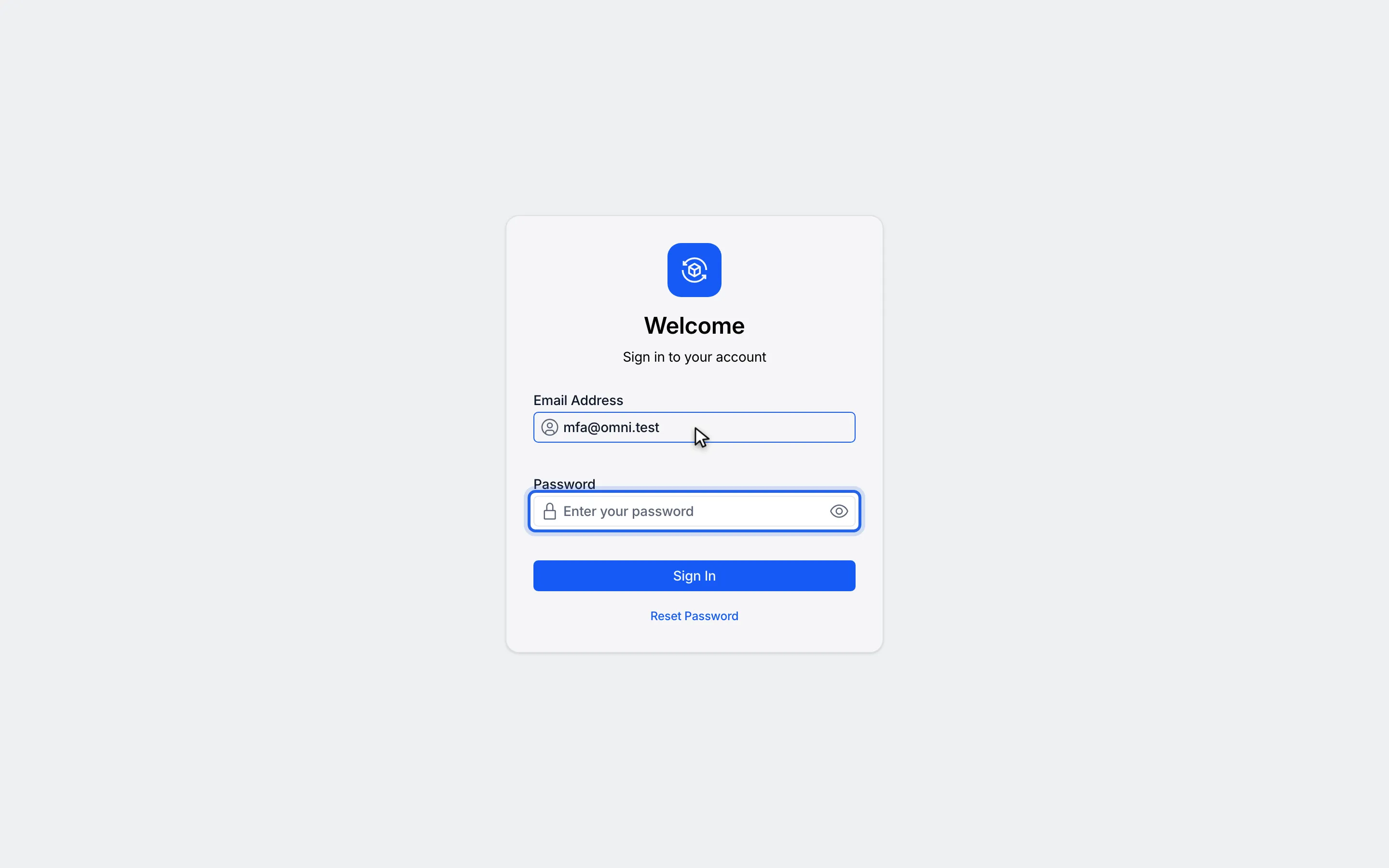
2In Password, enter your password.
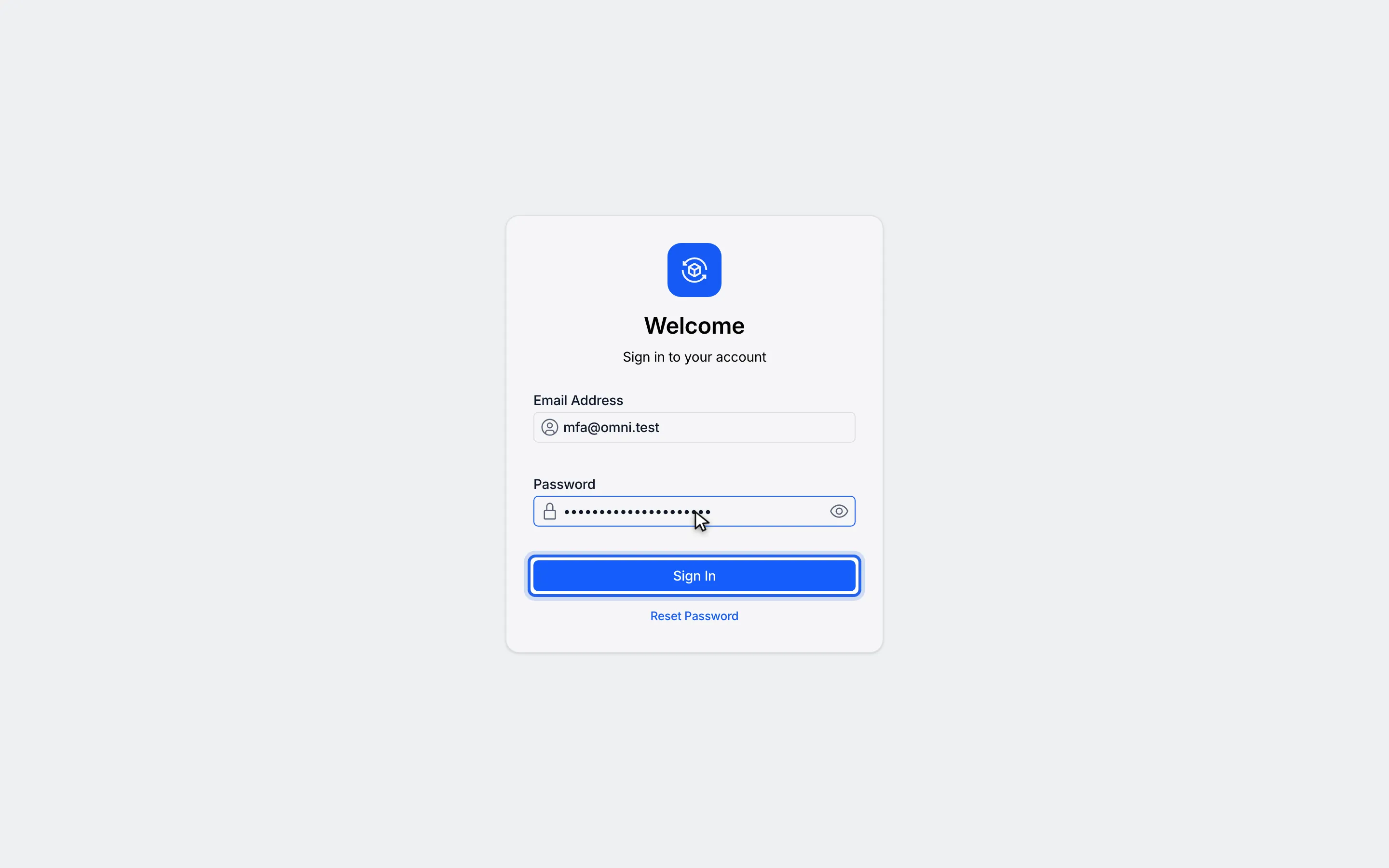
3Click Sign In. The Verify Your Identity page opens.
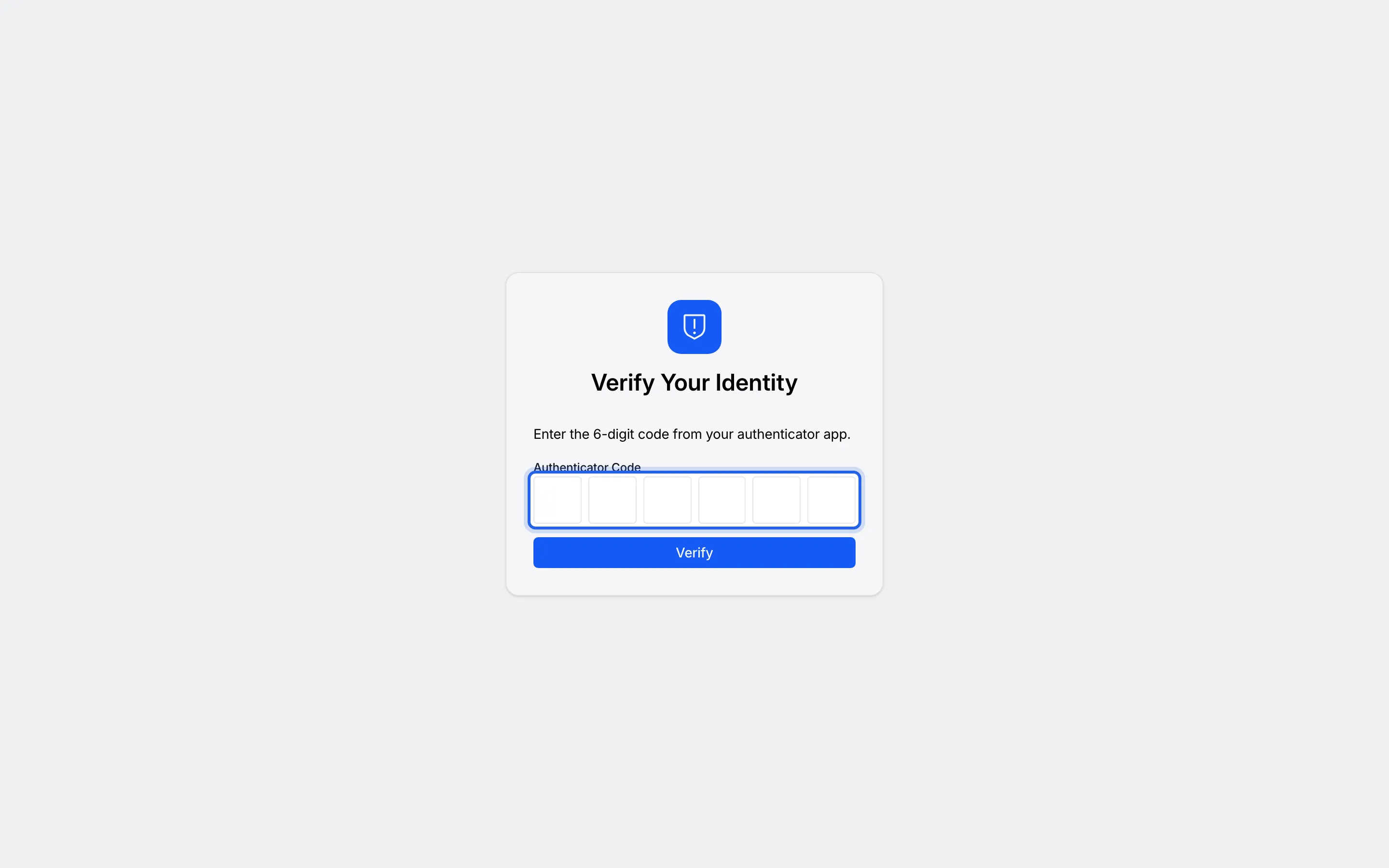
4Type the six digits into Authenticator Code. Omni checks the code on the last digit.
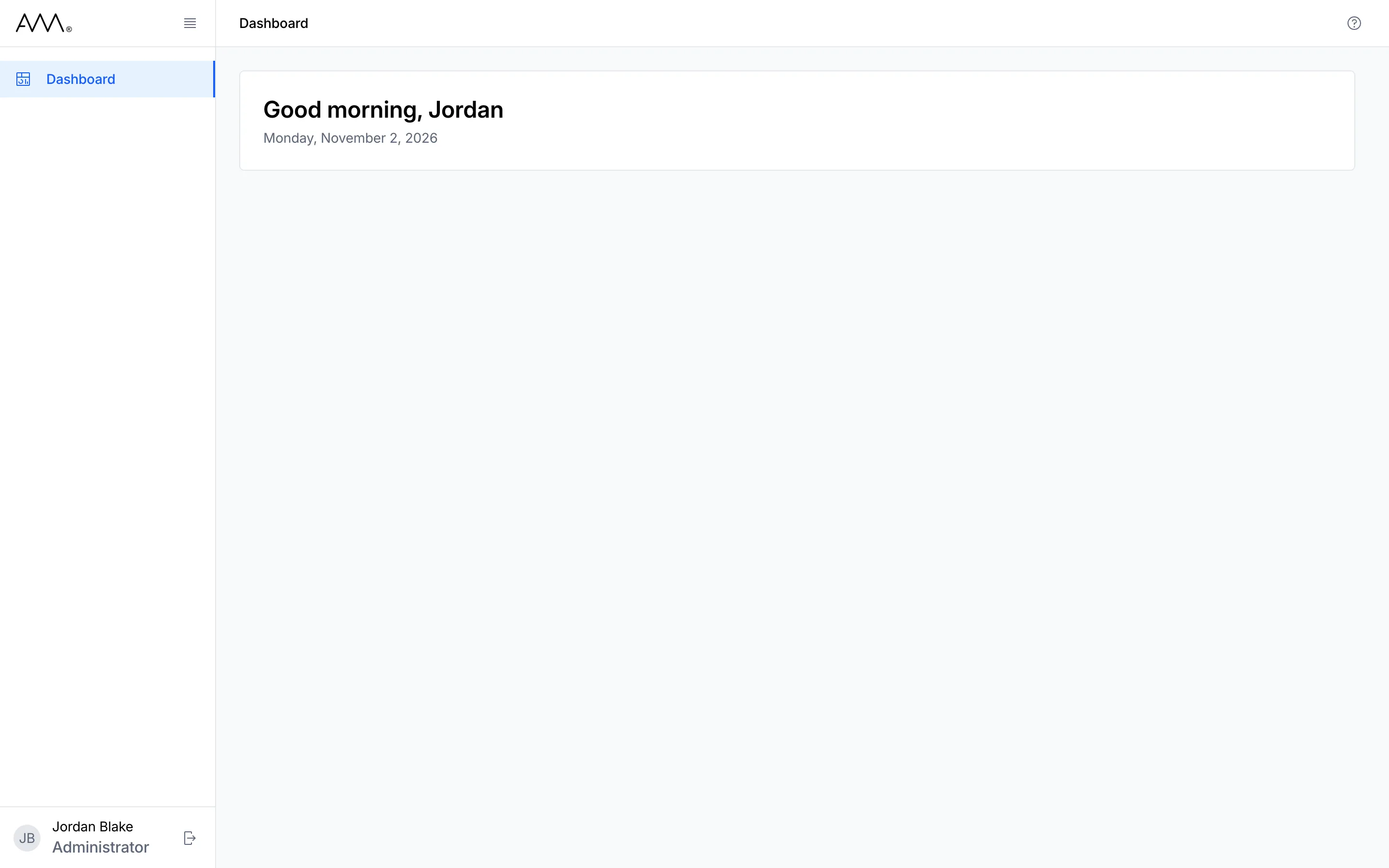
5Omni opens on the Dashboard.
Watch this as a video (verify with an authenticator code)
Use a recovery code
Section titled “Use a recovery code”Use a recovery code if you cannot open your authenticator app. Each code works once.
- Sign in with your email address and password.
- On the Verify Your Identity page, under Verification method, choose Recovery Code. The page shows Enter one of your backup recovery codes.
- In Recovery Code, enter one of the codes you saved.
- Click Verify.
1Sign in with your email address and password.
2In Password, enter your password.
3Click Sign In. The Verify Your Identity page opens.
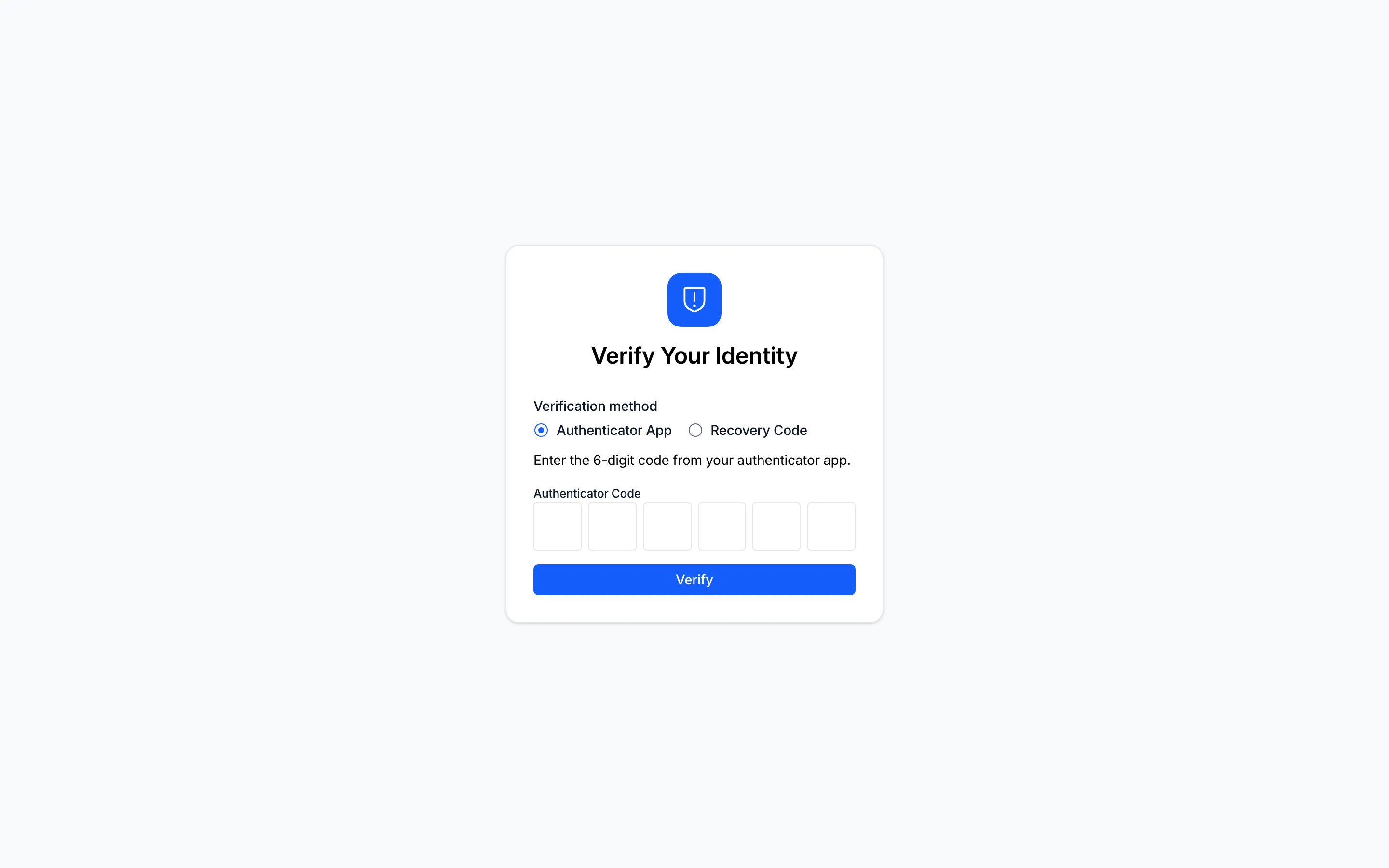
4With several methods available, the page offers a Verification method choice.
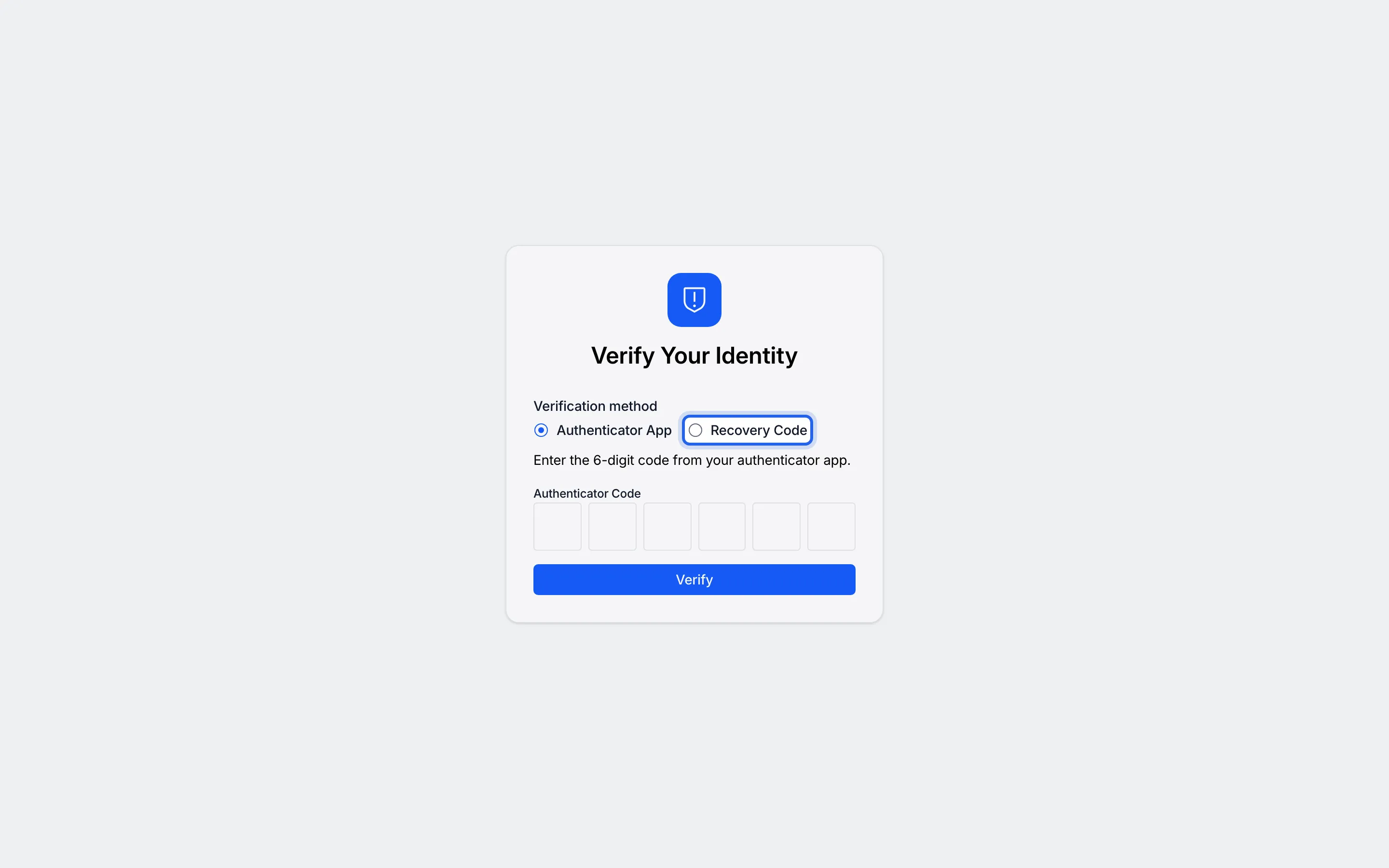
5Under Verification method, choose Recovery Code.
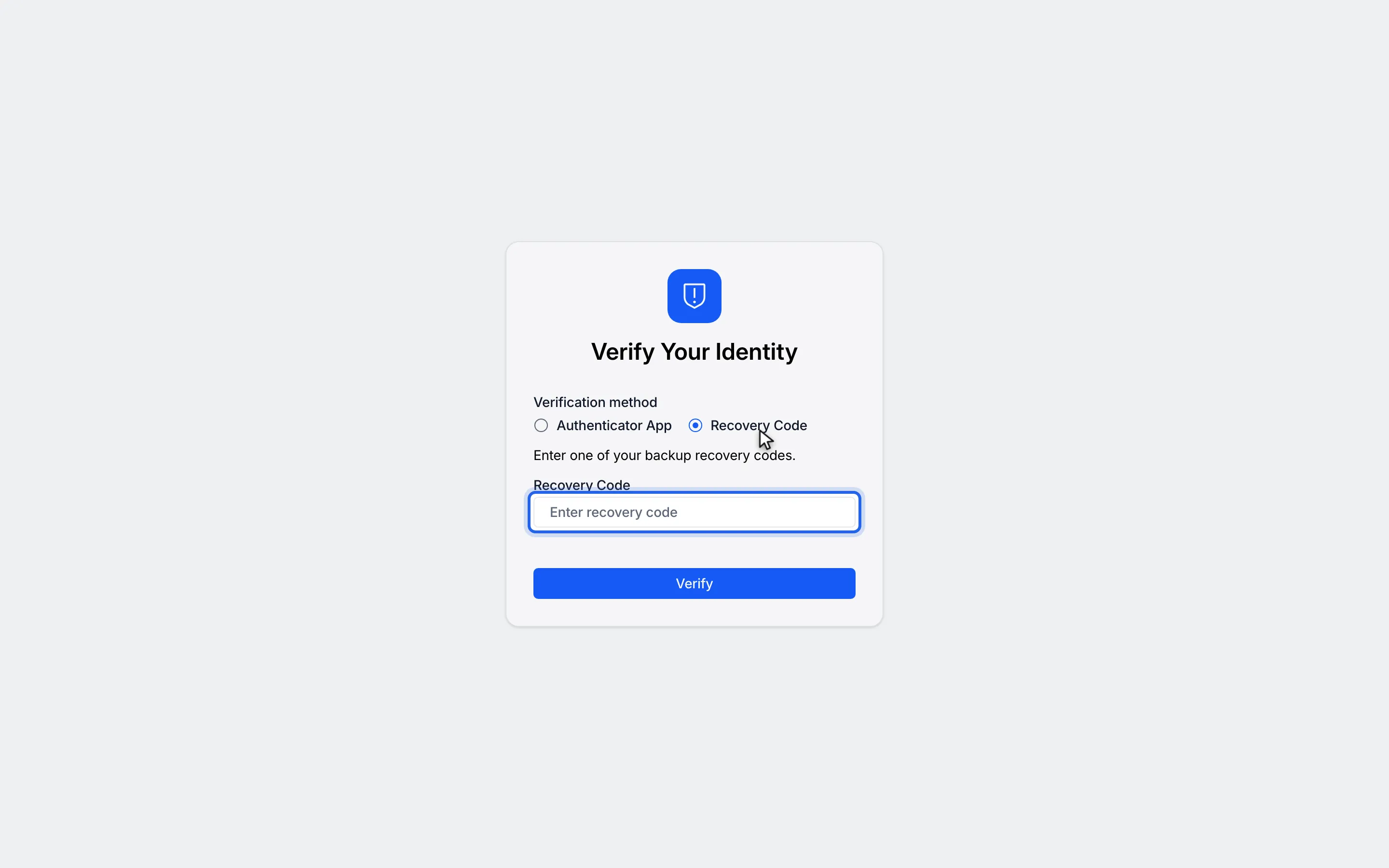
6In Recovery Code, enter one of the codes you saved.
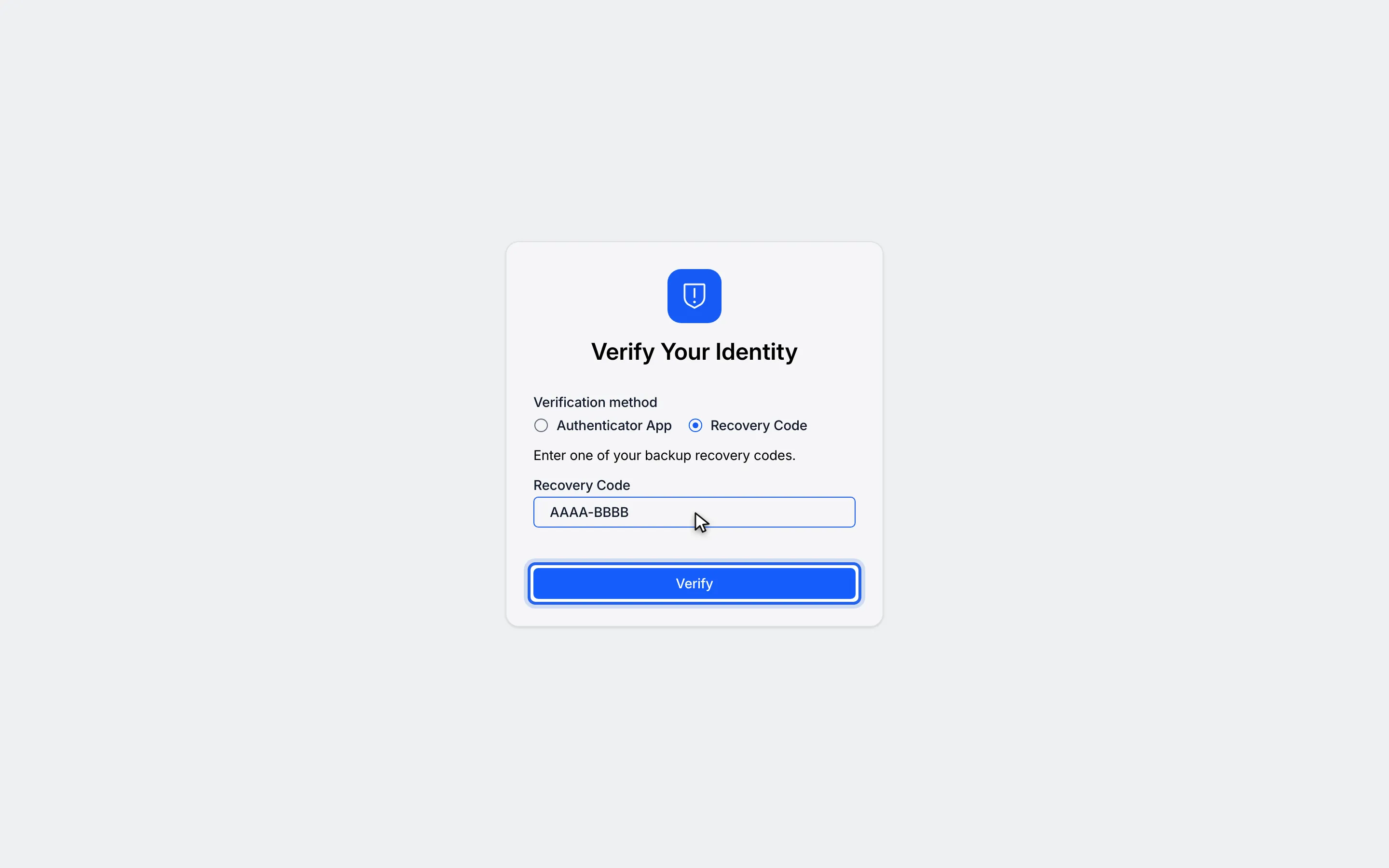
7Click Verify.
8Omni opens on the Dashboard.
Watch this as a video (use a recovery code)
Get a one-time code by email or text message
Section titled “Get a one-time code by email or text message”Your administrator may also make a code sent by email or text message available.
- On the Verify Your Identity page, under Verification method, choose Email Code or SMS Code. If it is the only method available to you, Omni sends the code as soon as the page opens.
- Click Send code. The page then reads Enter the code sent to your email address. or Enter the code sent to your phone via SMS.
- Type the six digits into One-Time Code. Omni checks the code as soon as you type the last digit.
A code is valid for ten minutes; the page shows Code expires in followed by the time left, and Code expired — resend to get a new one once it has run out. Resend code becomes available one minute after the last send; until then it reads Resend in followed by a countdown.
What happens next
Section titled “What happens next”Omni opens on the Dashboard, or on the page you were trying to reach.
If you see a message
Section titled “If you see a message”| Message | What to do |
|---|---|
| Code is required | Enter a code before clicking Verify. |
| Invalid or expired code. | The code field is cleared. Enter the current code from your app, or a recovery code you have not used. |
| Session expired. Please sign in again. | Open Omni again and sign in from the start. |
| MFA method unavailable. Please sign in again. | Open Omni again and sign in from the start. |
| Could not send the code. Please try again. | Click Send code or Resend code again. |
| Too many attempts. Please sign in again. (shown on the sign-in page) | Too many codes were requested. Sign in again to start over. |
| Identity verified, but sign-in could not be completed. Please retry. | Your code was accepted but Omni could not open. Click Continue to try again. |
The Verify Your Identity page has no link back to the sign-in page. To start over, open Omni again.