Add a product
A new product starts as a blank row in the grid. The product is created the moment you save the first cell; after that you fill in the rest like any other row.
- In the sidebar, open Product Data and choose Products (PIM).
- Click Add Product. Any search and filters are cleared, the grid scrolls to the top and a new row opens with STATUS set to Draft and the cursor in PRODUCT NAME. This works on an empty grid too.
- Type the product name and press Enter. The product is created and receives a PRODUCT ID.
- Click the other cells in the row and fill them in. See Edit a product inline for how each kind of cell works and the Products reference for what each column holds.
Add a product1 / 5
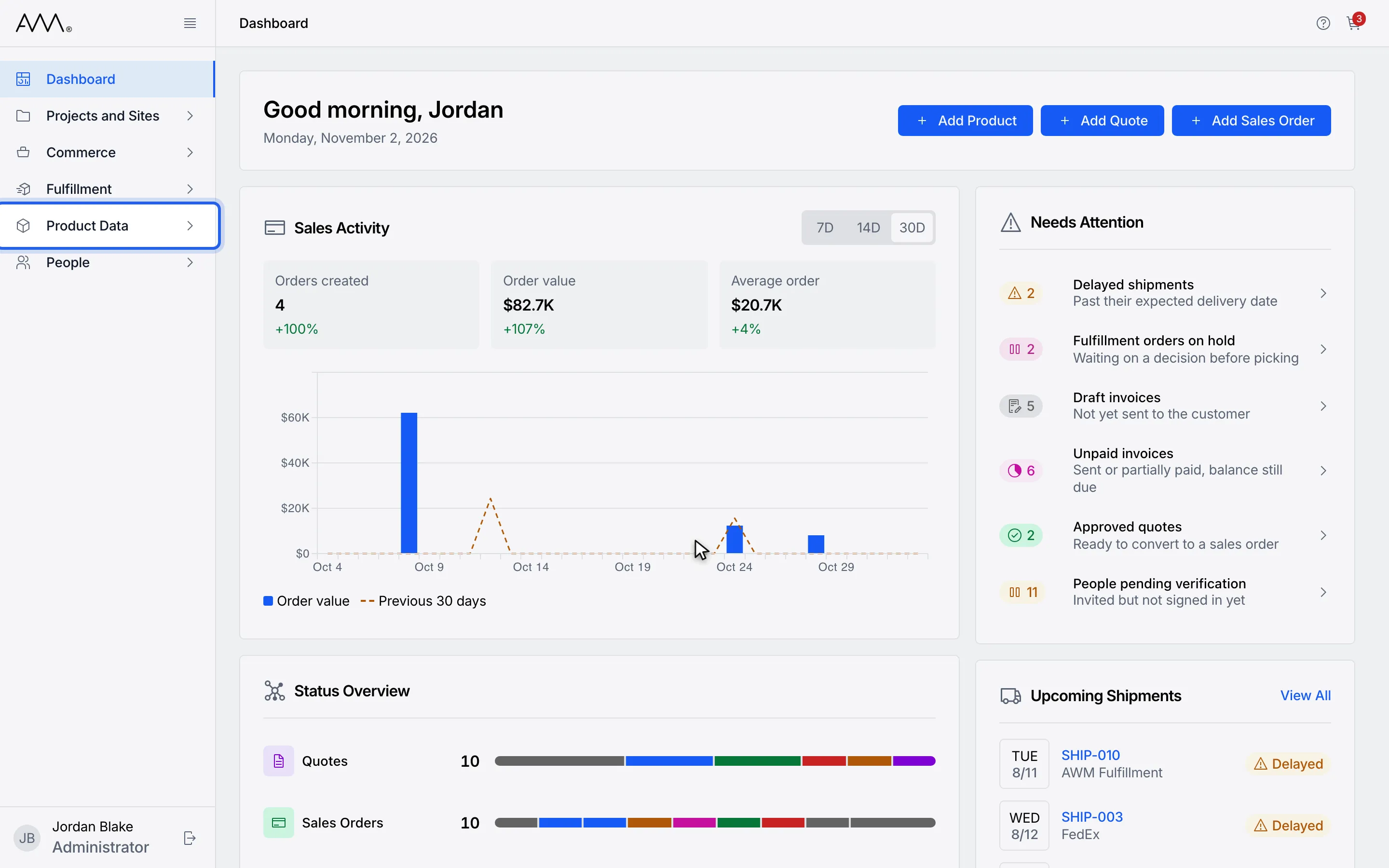
1In the sidebar, open Product Data.
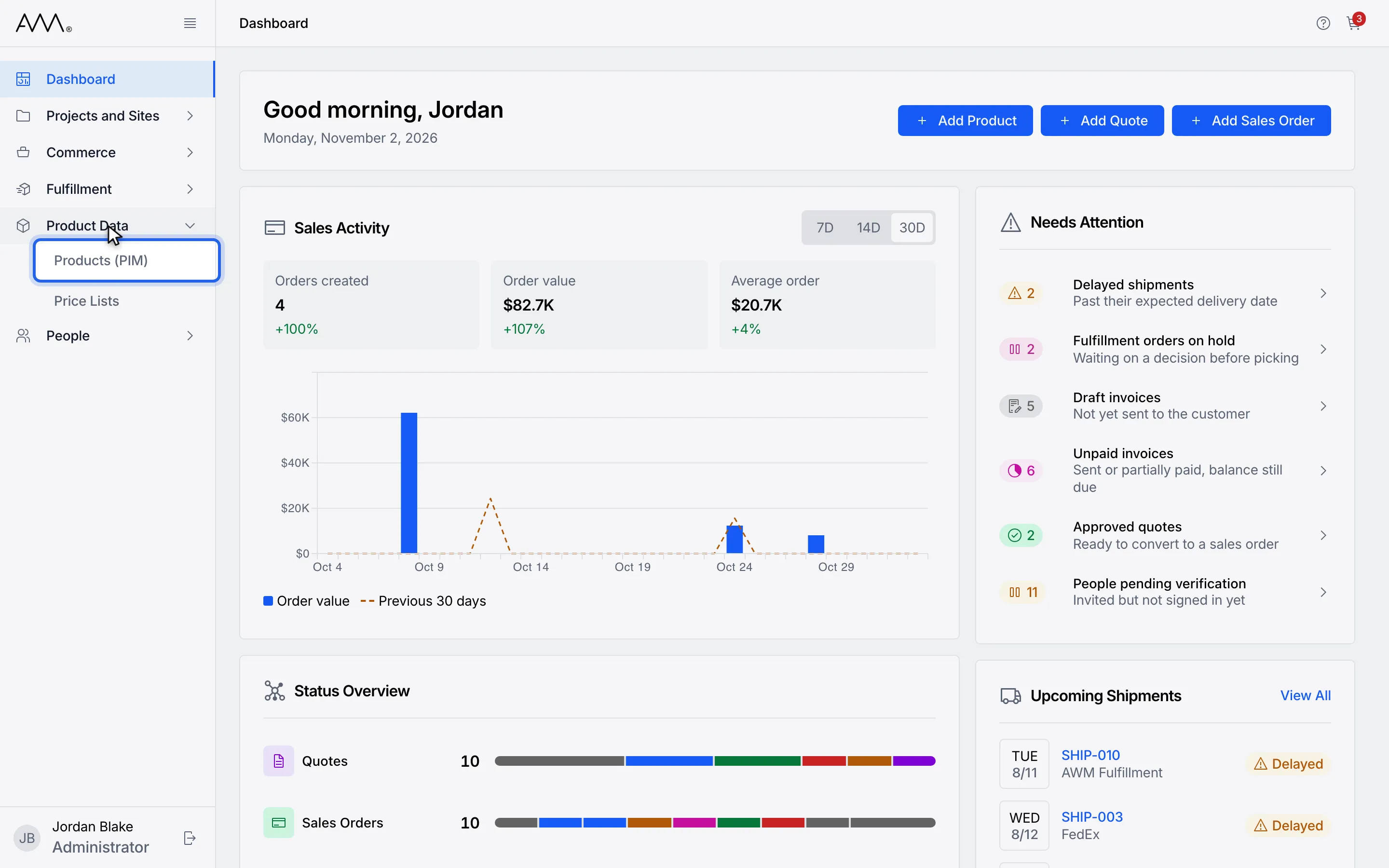
2Choose Products (PIM).
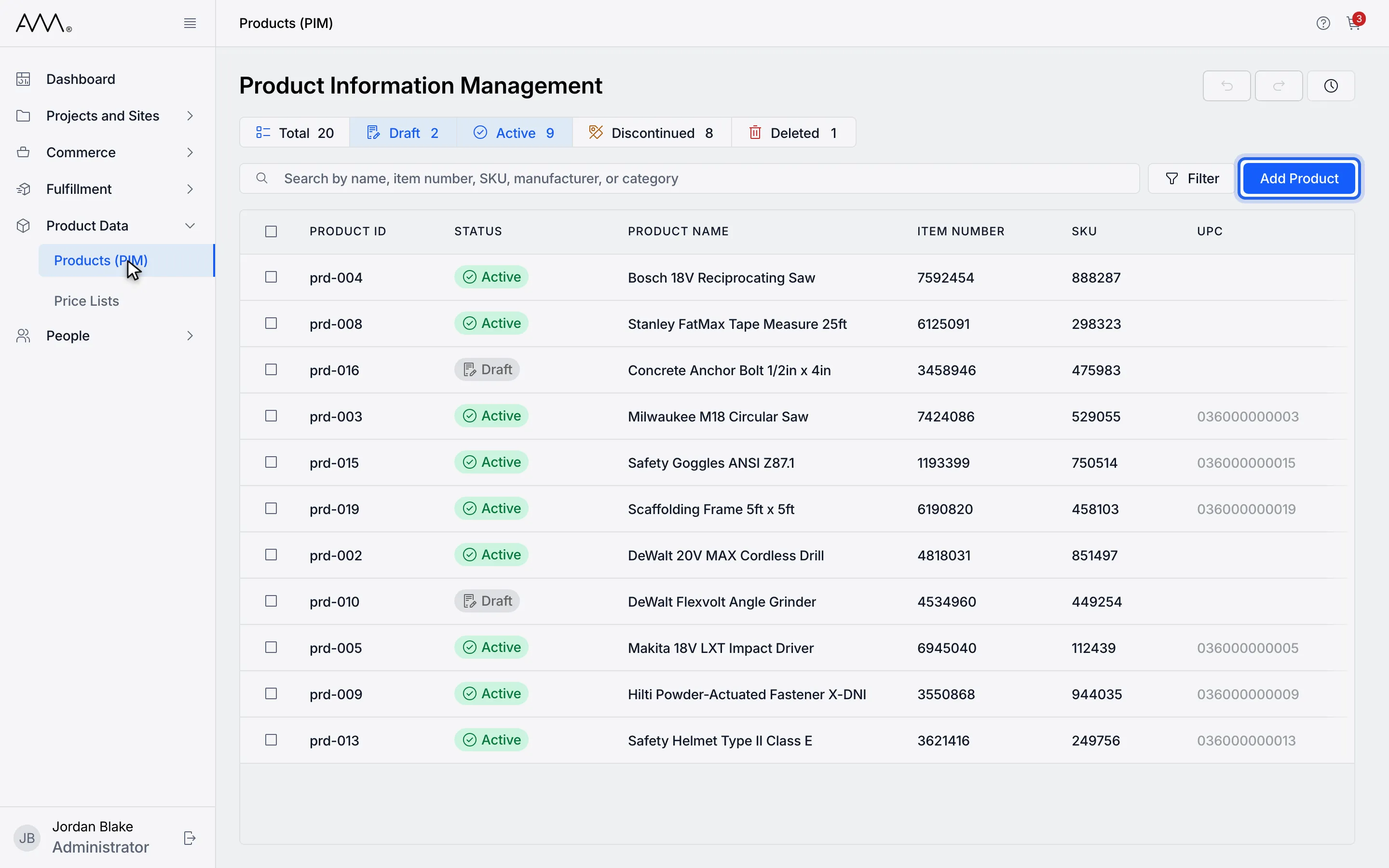
3Click Add Product. A new row opens at the top with STATUS set to Draft.
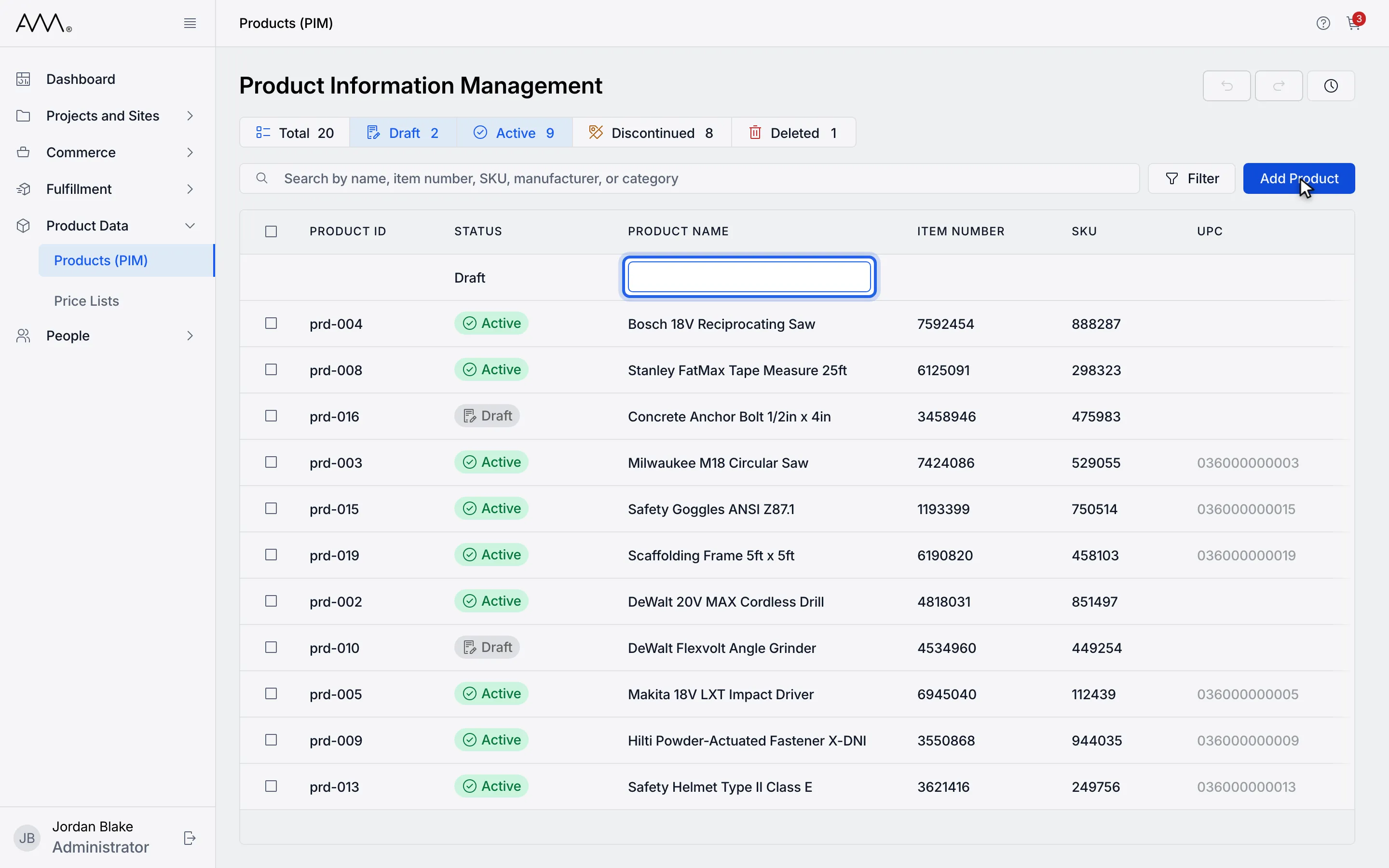
4Type the product name and press Enter. The product is created.
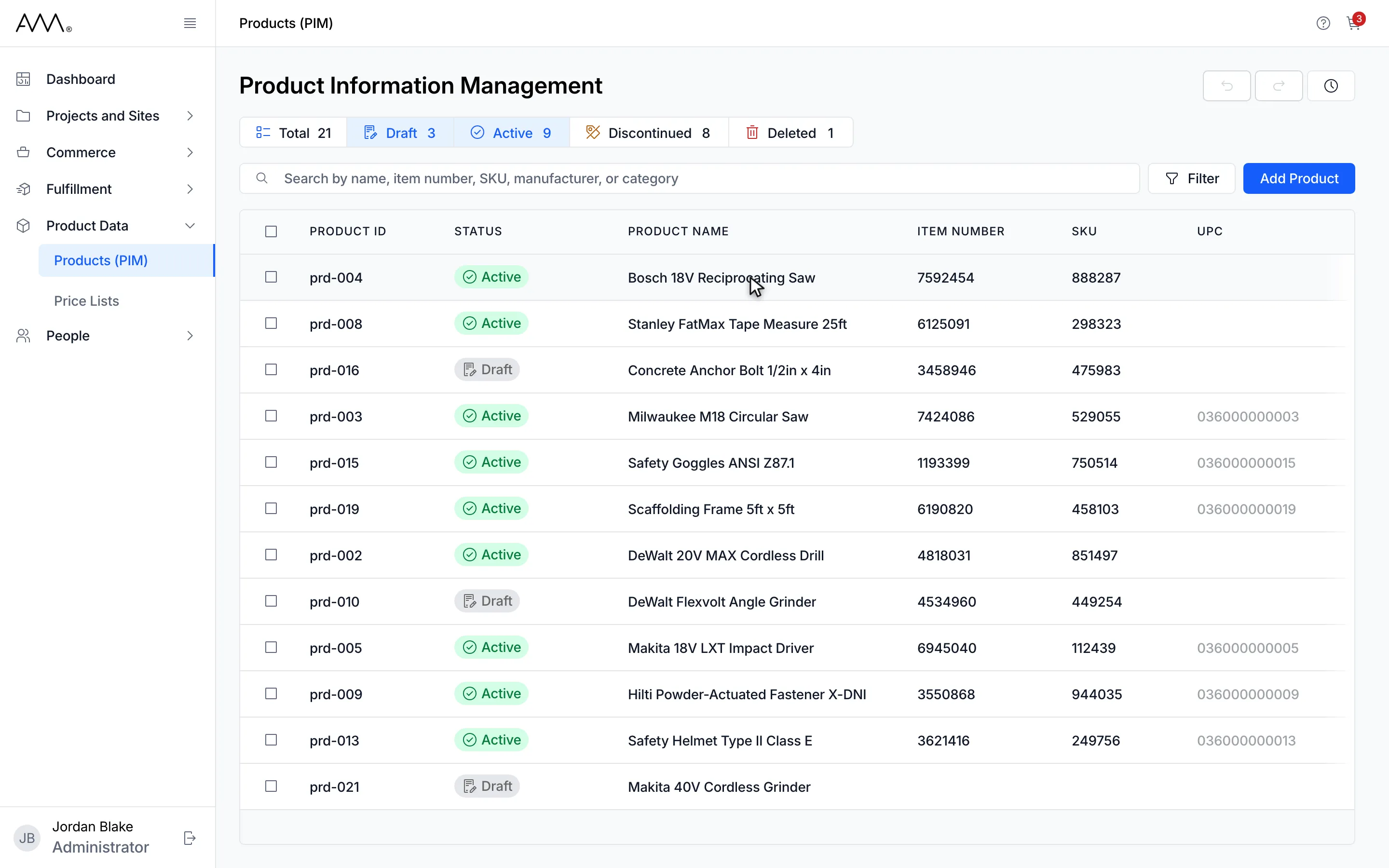
5The new product has a PRODUCT ID and edits like any other row.
Watch this as a video (add a product)
What happens next
Section titled “What happens next”- No field is required, so you can save the row with the name alone and come back later.
- The new product appears in the grid as Draft. If Draft is not selected in the status chips, the product is hidden as soon as it is saved and a warning tells you:
Product created as "Draft" — hidden by your current status filter.Click Draft or Total to see it. - If the first value is rejected, for example a SKU or UPC that another product already uses, an error message explains why and the row stays open so you can correct it.
- There is no way to cancel the new row once it is open; if you do not want the product, save it and then delete it (see Delete products).