Create a quote from the cart
A quote starts from the Shopping Cart. Put the products you want to offer in the cart, then turn the cart into a quote. Omni creates a Draft with the cart lines as its line items, empties the cart and opens the quote so you can fill in the customer details.
- On the Shopping Cart page, click Add to Quote.
- Choose Add to New Quote. The new quote opens in edit mode.
- Check the line items. Each cart line becomes a line item with its cart quantity and price, and the Quote Summary shows the totals.
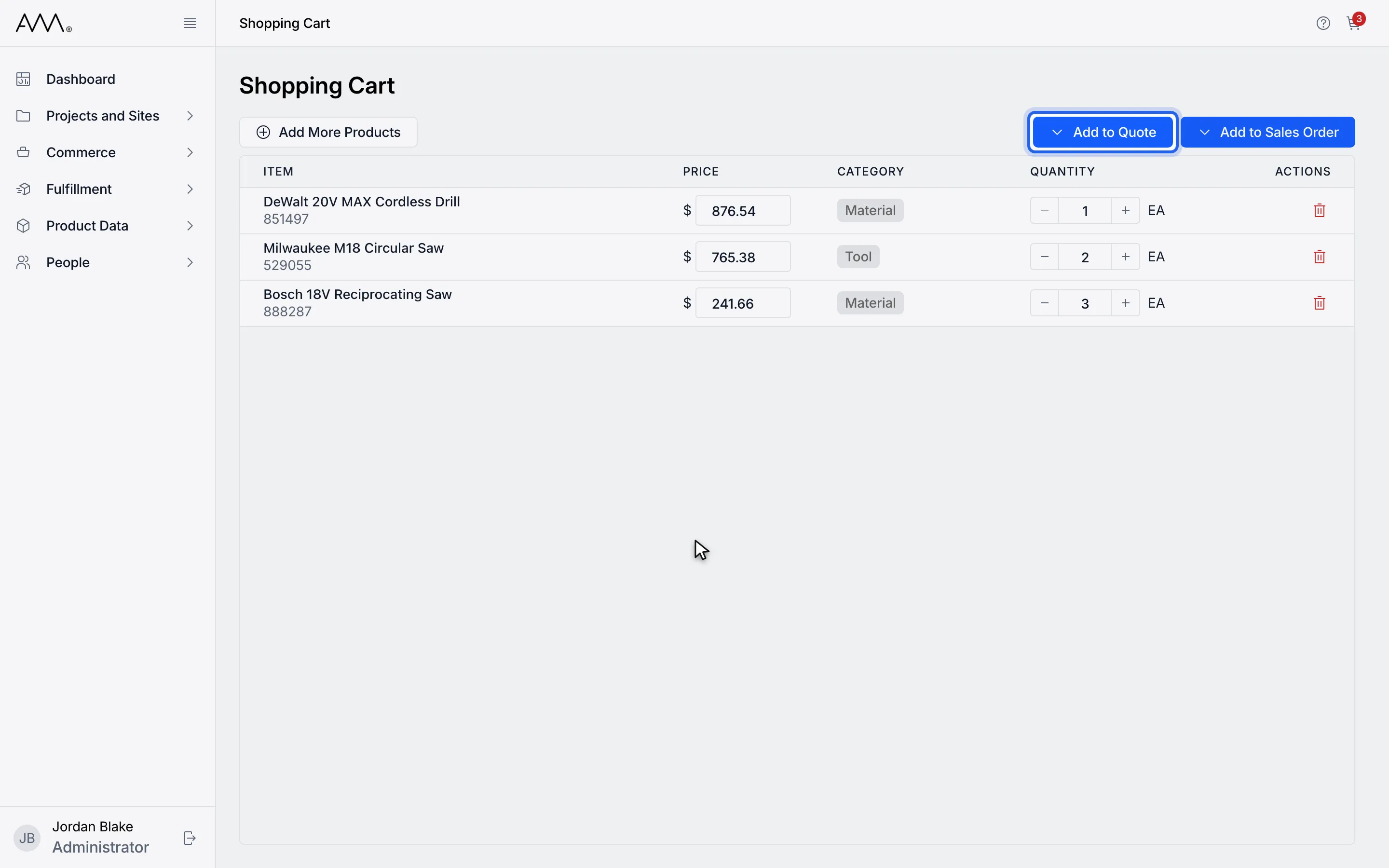
1On the Shopping Cart page, click Add to Quote.
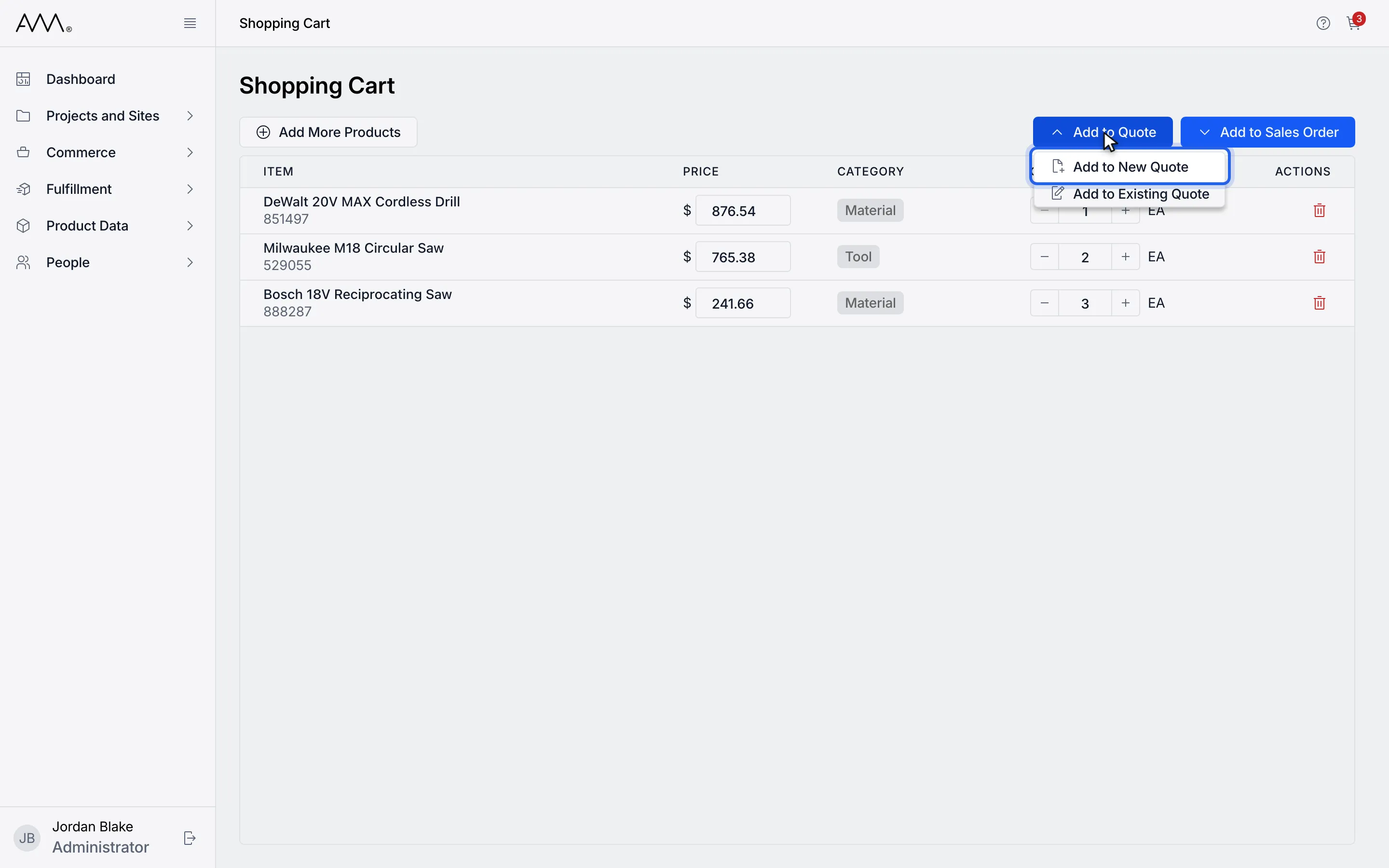
2Choose Add to New Quote.
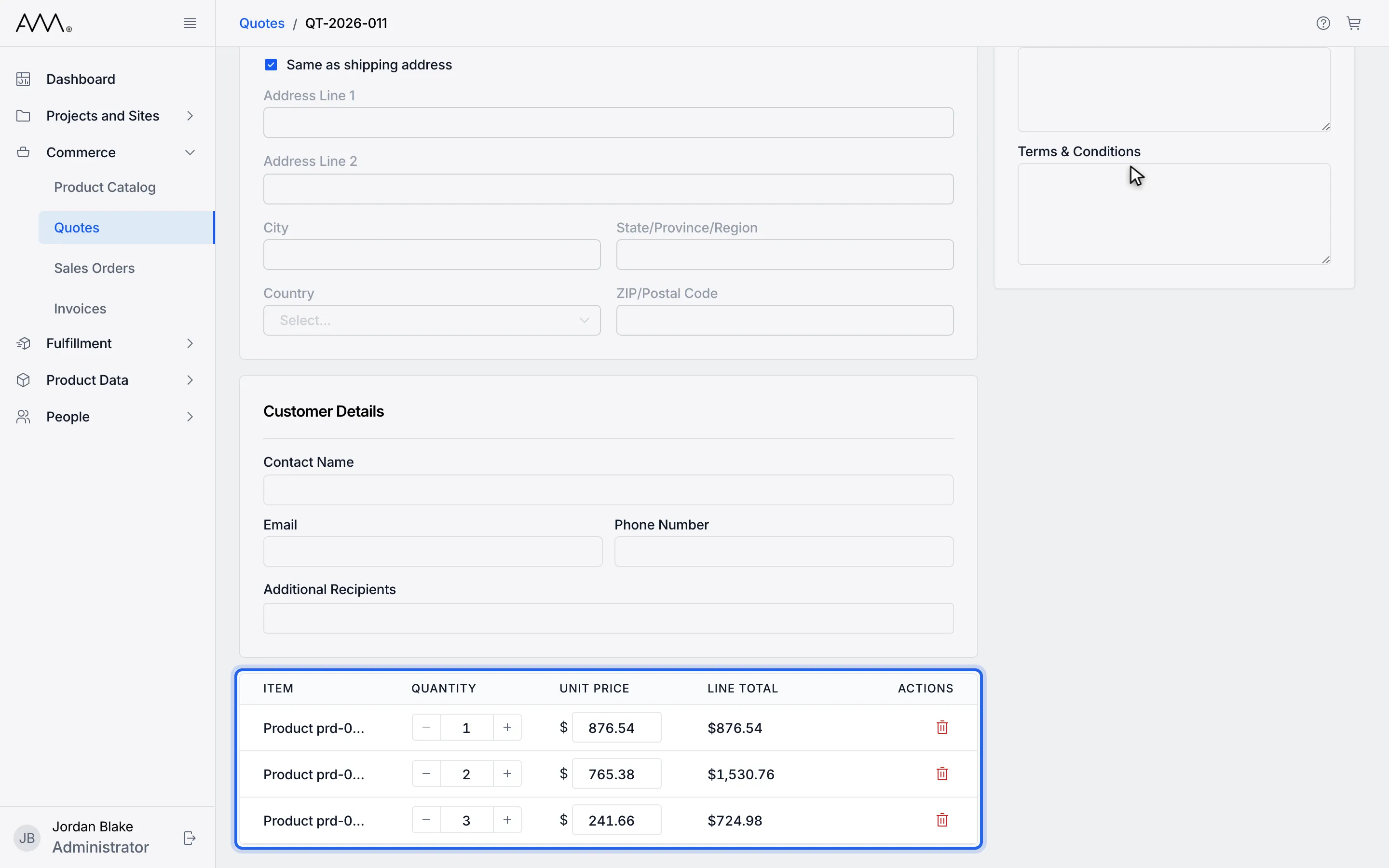
3A new Draft quote opens in edit mode. The cart lines are its line items.
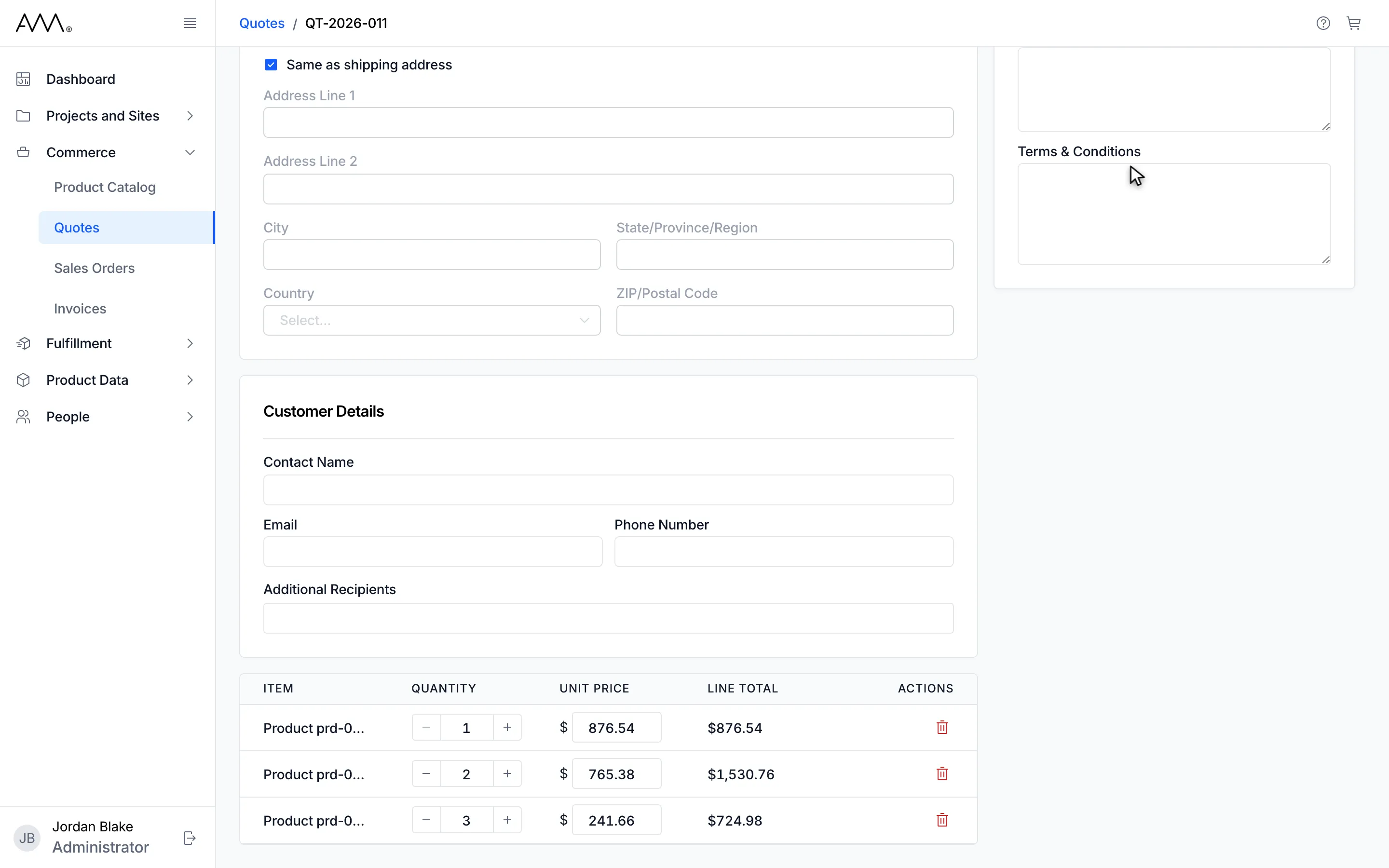
4The new Draft quote is open in edit mode, ready to fill in, save or send.
Watch this as a video (create a quote from the cart)
What happens next
Section titled “What happens next”The quote is a Draft. Its Expiration Date is 30 days from today, Payment Terms is Net 30 and Pricelist is Catalog Pricing. Company, addresses and customer contact are empty. From here you can:
- Fill in the details and click Save Changes. See Edit a quote.
- Pick the company, jobsite and supply point. See Pick the company, jobsite and supply point.
- Price the quote from the company’s price list. See Apply a company’s price list.
- Click Send to Customer to save and send in one go. The quote needs an Email or an Additional Recipient first. See Send a quote to the customer.
If the quote cannot be created you see the toast Could not create the quote. Please try again. If the quote is created but the cart cannot be emptied, the toast reads Quote created, but the cart could not be cleared. and the quote still opens.