Set up two-factor authentication
Two-factor authentication adds a second step to sign-in: a code from an authenticator app on your phone. You manage it from the Security card on your Settings page, along with the recovery codes that get you in if you lose the app.
Turn on two-factor authentication
Section titled “Turn on two-factor authentication”- Click your name at the bottom of the sidebar to open Settings.
- In the Security card, click Enable. The Set up authenticator app dialog opens.
- Scan the QR code with your authenticator app, or enter the code below it manually. The dialog reads Scan this QR code with your authenticator app, or enter the code below manually.
- Type the six-digit code from your app into Authenticator Code. Omni checks it as soon as you type the last digit; you can also click Verify.
- The dialog switches to Save your recovery codes. Copy the recovery codes somewhere safe, then tick I’ve saved these.
- Click Done.

1Click your name at the bottom of the sidebar to open Settings.
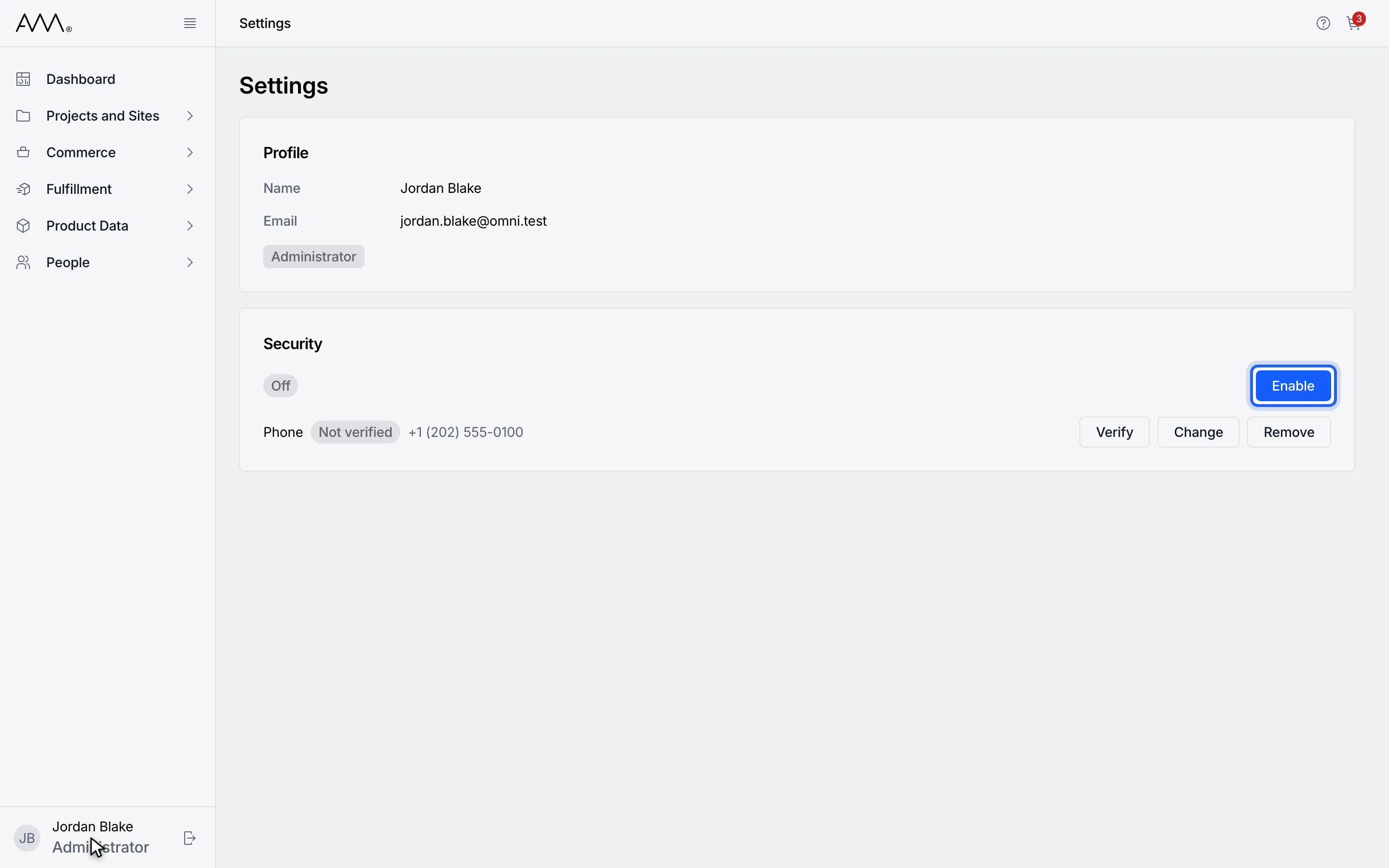
2In the Security card, click Enable.
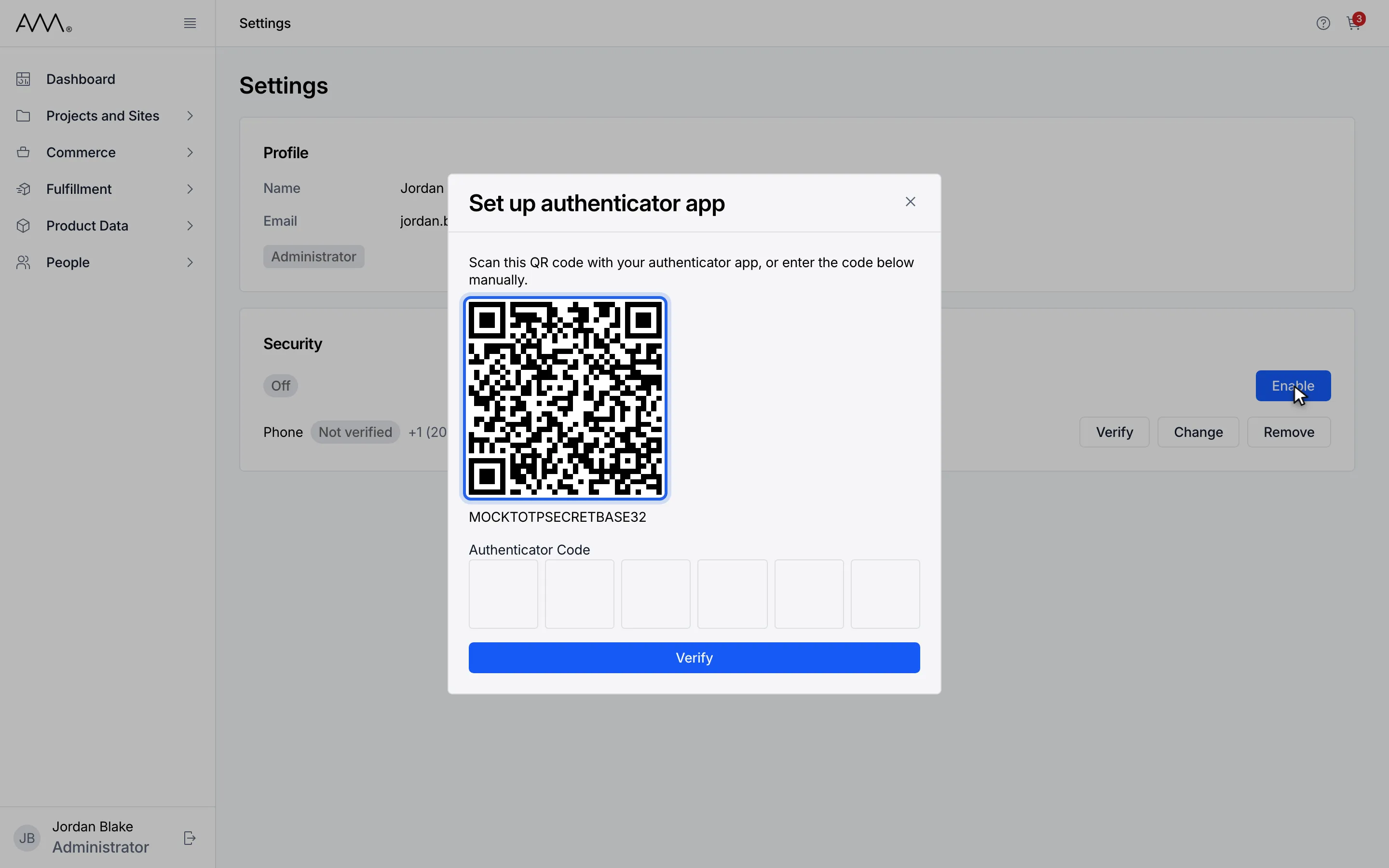
3Scan the QR code with your authenticator app, or enter the code below it manually.
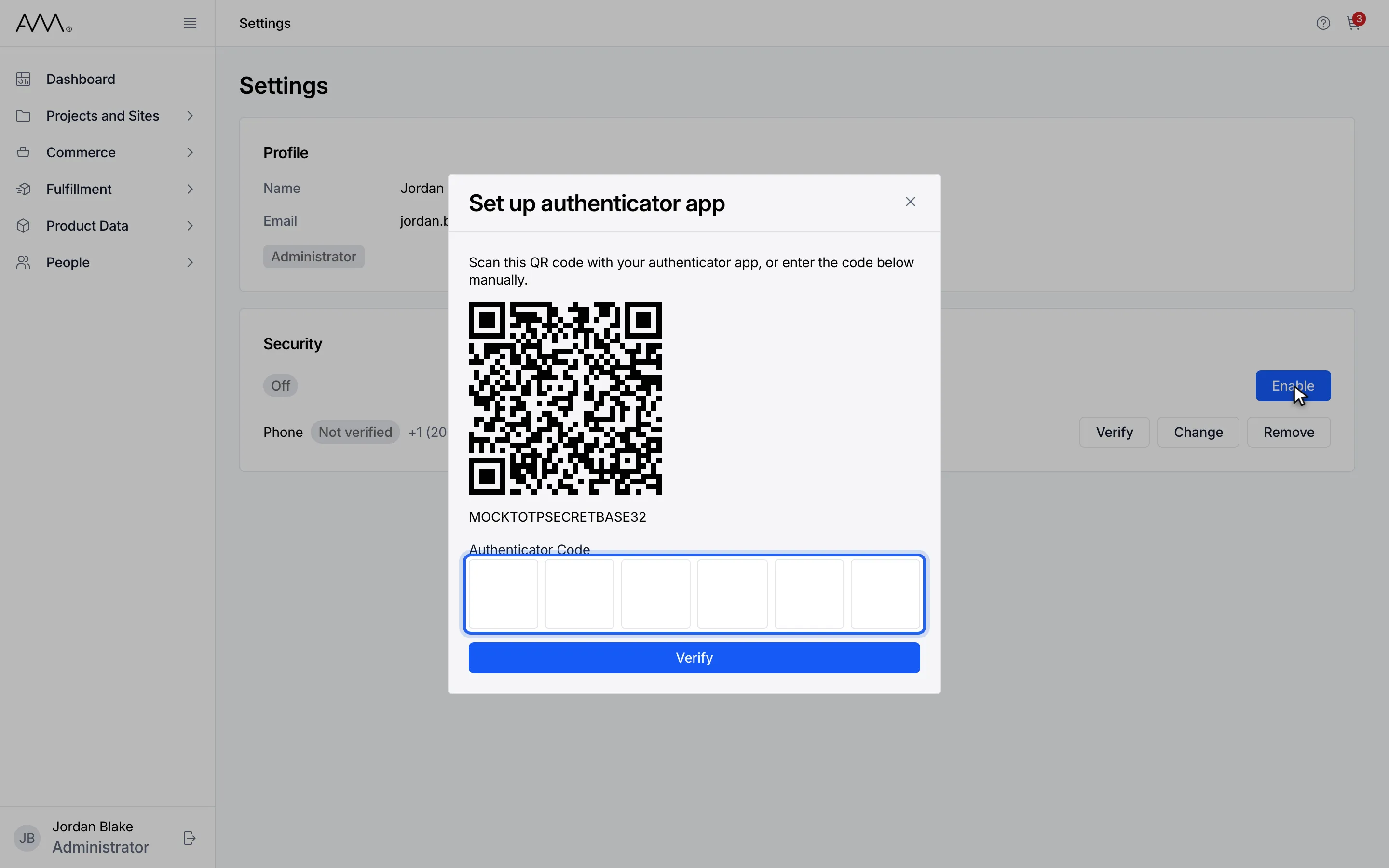
4Type the six-digit code from your app into Authenticator Code.
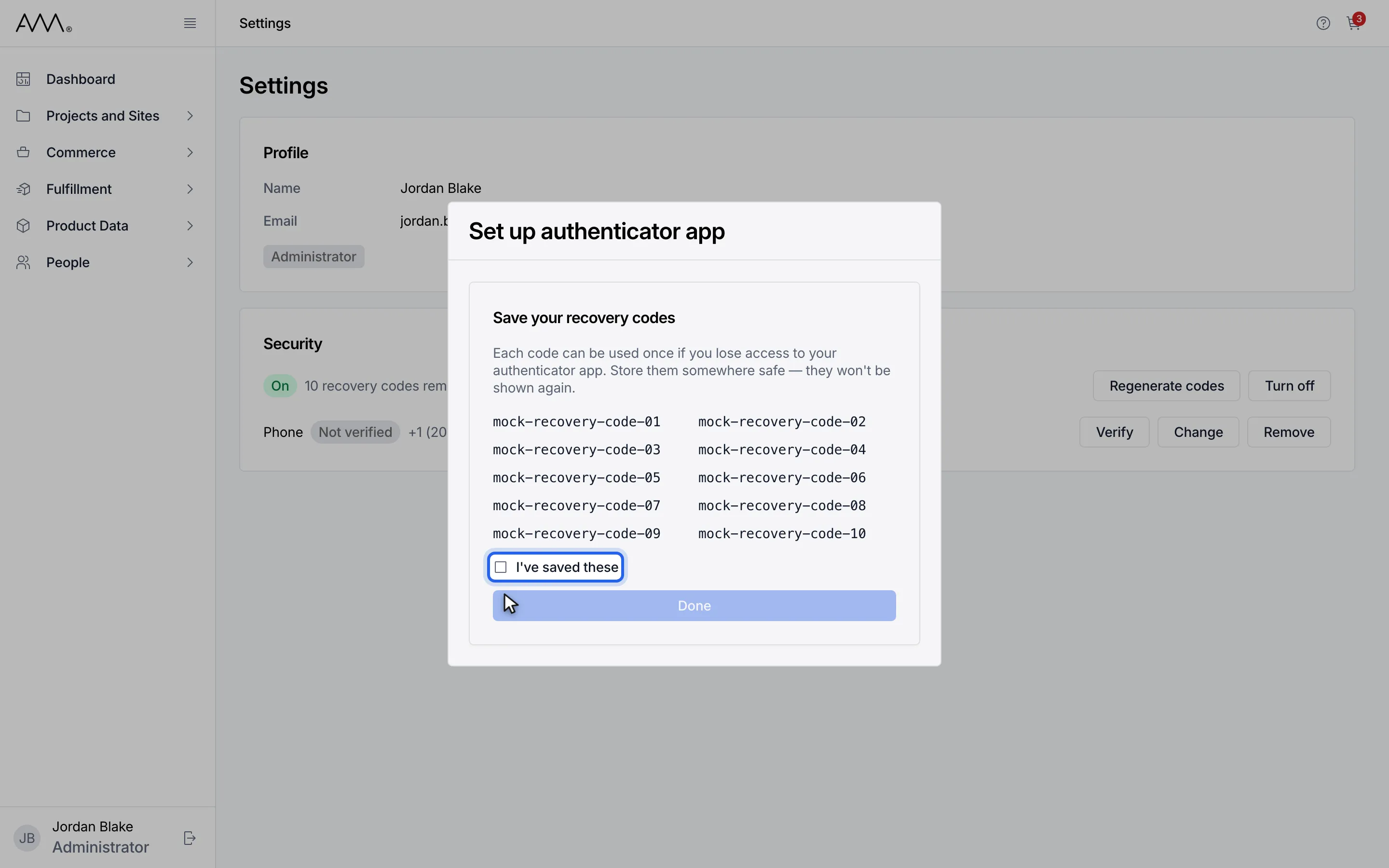
5Copy the recovery codes somewhere safe, then tick I've saved these.
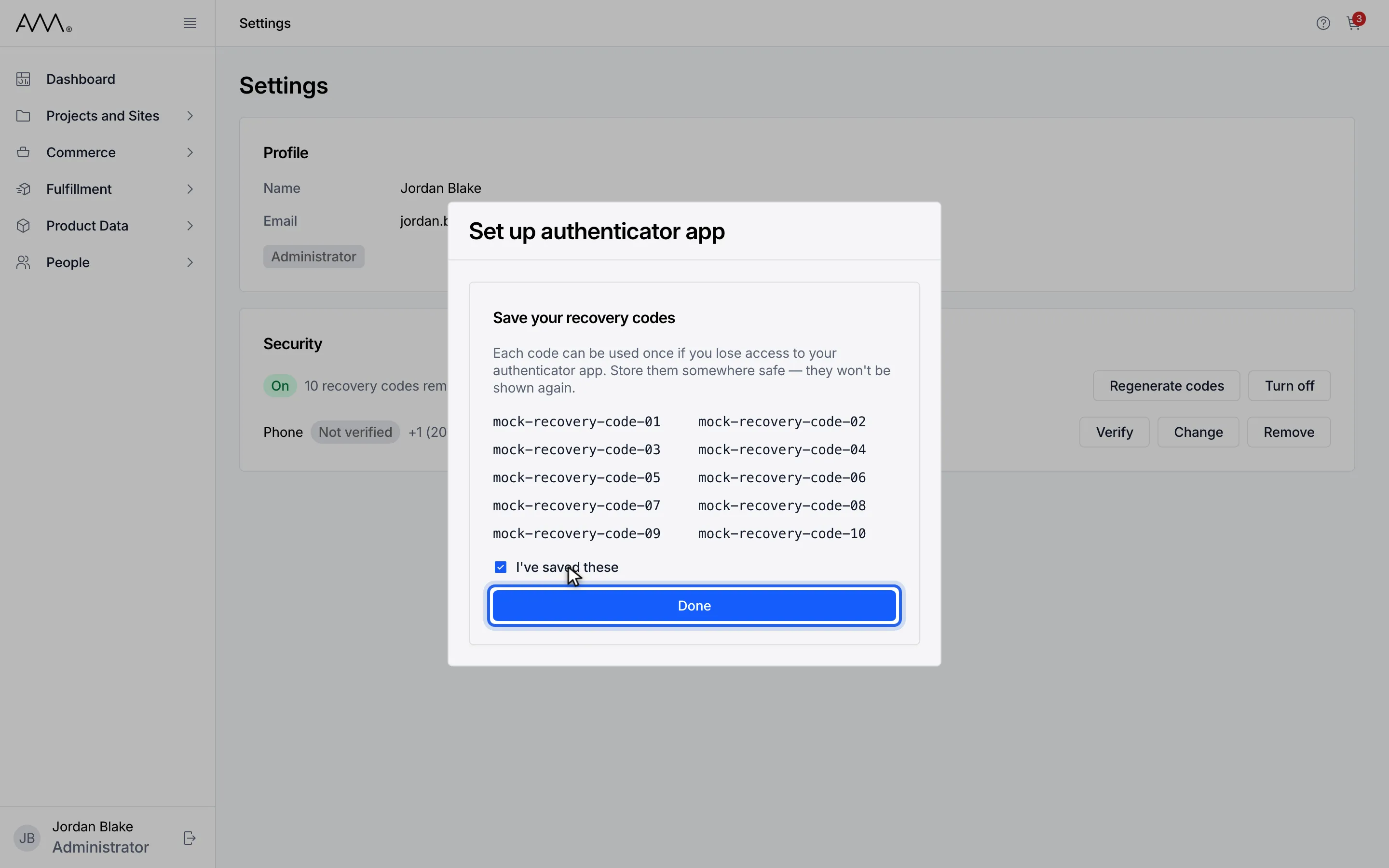
6Click Done.
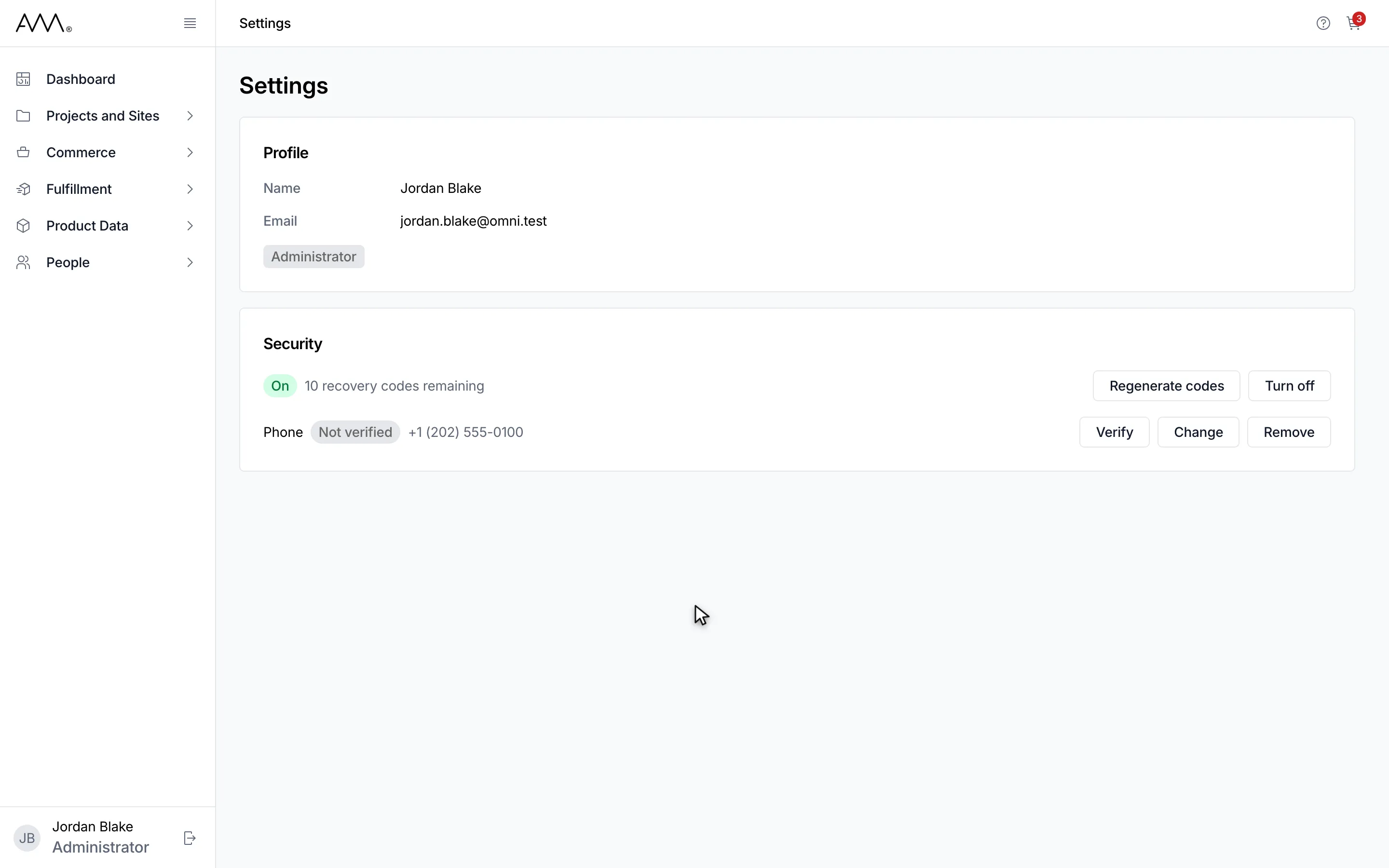
7The Security card now shows On and how many recovery codes remain.
Watch this as a video (turn on two-factor authentication)
What happens next
Section titled “What happens next”The badge in the Security card changes from Off to On and shows how many recovery codes you have, for example 10 recovery codes remaining. The buttons change to Regenerate codes and Turn off. There is no confirmation message. From your next sign-in, Omni asks for a code. See Verify your identity with two-factor authentication.
If the code is wrong the dialog shows The verification code is incorrect. and stays on the code step. Unable to start enrollment. Try again later. means the dialog could not begin; close it and try again later.
Regenerate recovery codes
Section titled “Regenerate recovery codes”Make a new set when you are running low on codes or think the old ones may have been seen by someone else.
- Click your name at the bottom of the sidebar to open Settings. Two-factor authentication must be On.
- In the Security card, click Regenerate codes.
- Read the warning, then click Regenerate codes in the dialog to confirm.
- Copy the new codes somewhere safe, then tick I’ve saved these.
- Click Done.
1Click your name at the bottom of the sidebar to open Settings.
2Two-factor authentication must be On. If the badge shows Off, click Enable first.
3Enter the code from your authenticator app.
4Tick I've saved these.
5Click Done. The badge shows On.
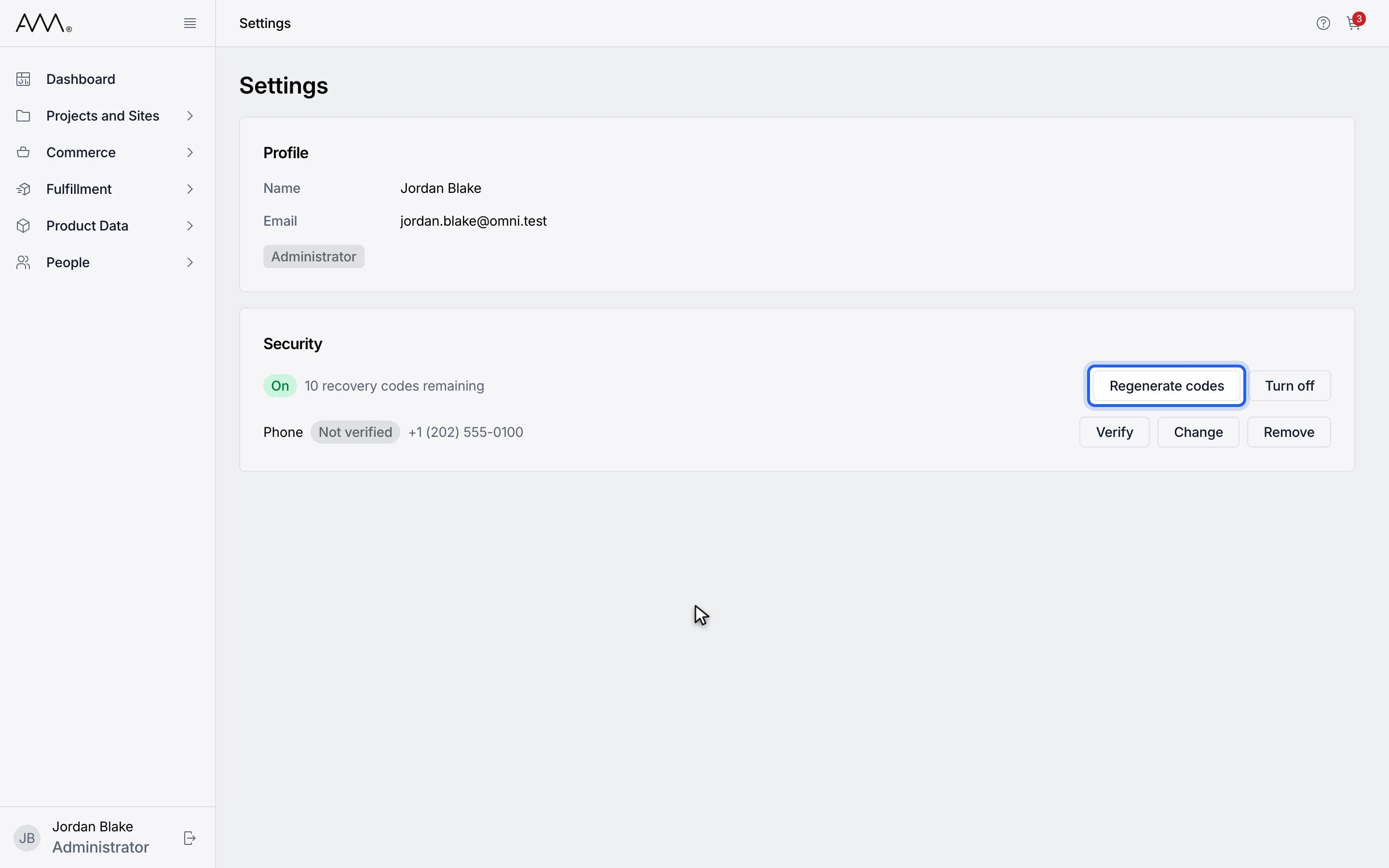
6In the Security card, click Regenerate codes.
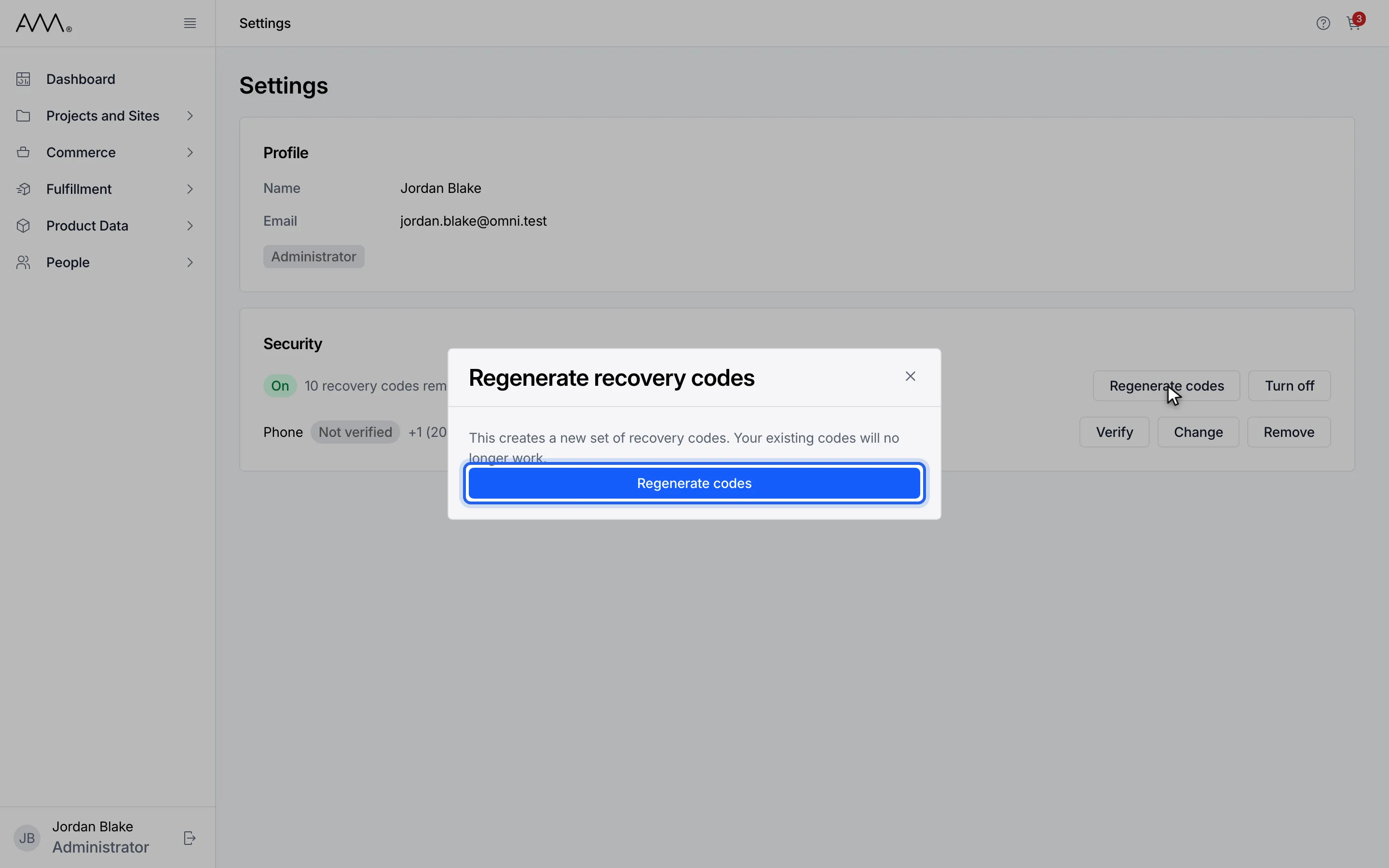
7Read the warning, then click Regenerate codes in the dialog to confirm.
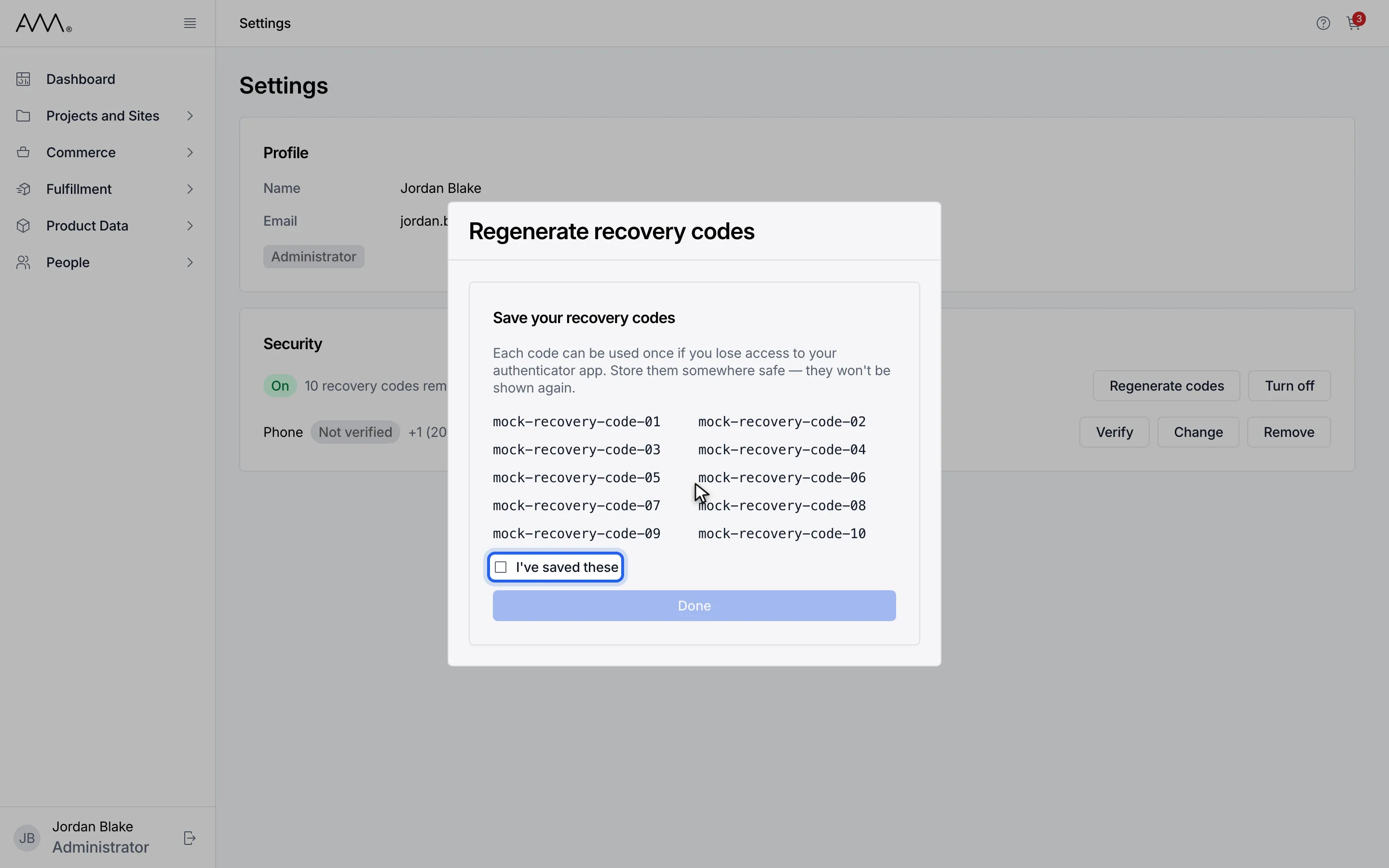
8Copy the new codes somewhere safe, then tick I've saved these.
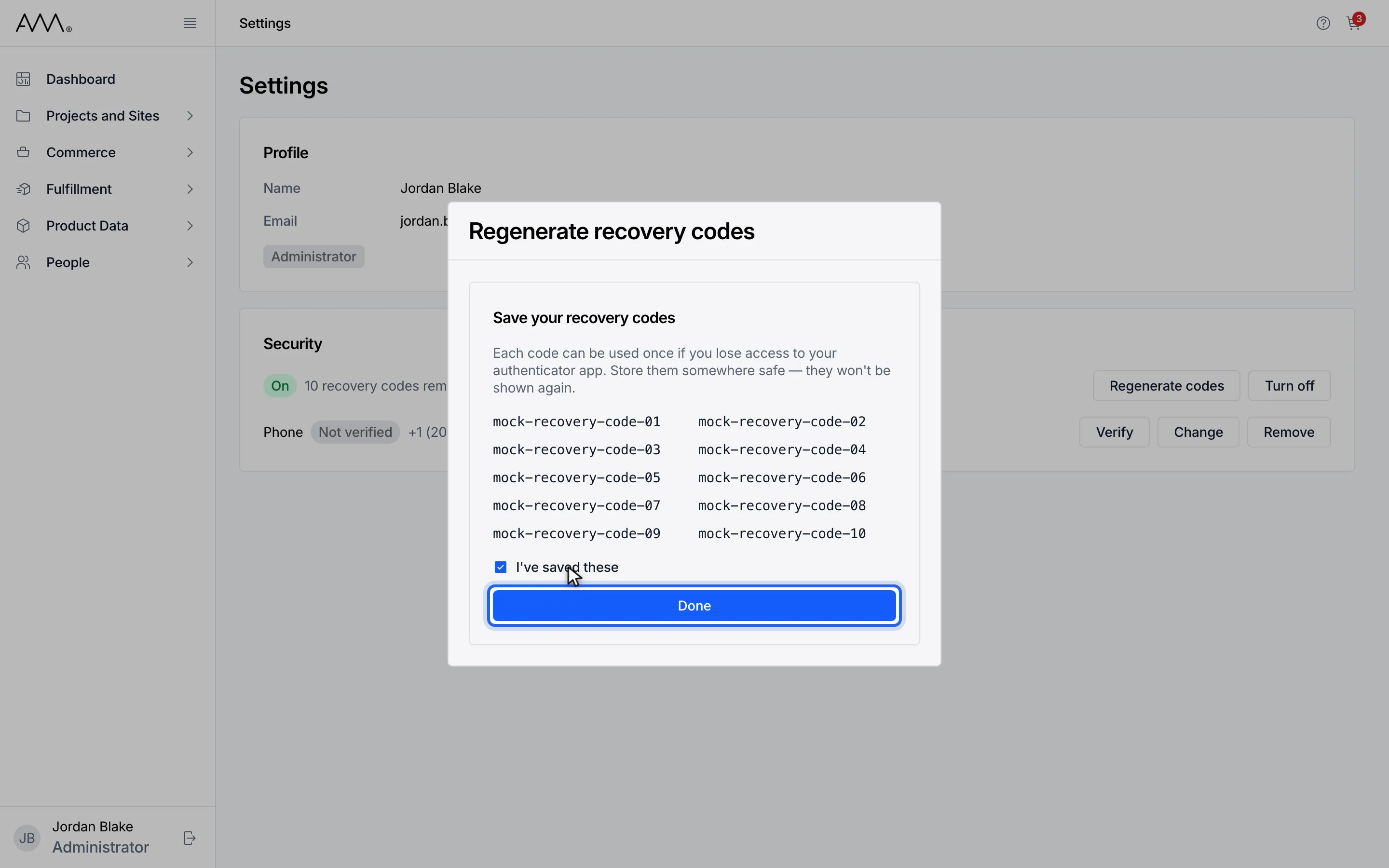
9Click Done.
10Your old codes no longer work. The card shows how many new codes remain.
Watch this as a video (regenerate recovery codes)
Turn off two-factor authentication
Section titled “Turn off two-factor authentication”- Click your name at the bottom of the sidebar to open Settings. Two-factor authentication must be On.
- In the Security card, click Turn off. The Turn off two-factor authentication dialog asks you to Enter your password to confirm.
- In Password, enter your Omni password.
- Click Turn off.
1Click your name at the bottom of the sidebar to open Settings.
2Two-factor authentication must be On. If the badge shows Off, click Enable first.
3Enter the code from your authenticator app.
4Tick I've saved these.
5Click Done. The badge shows On.
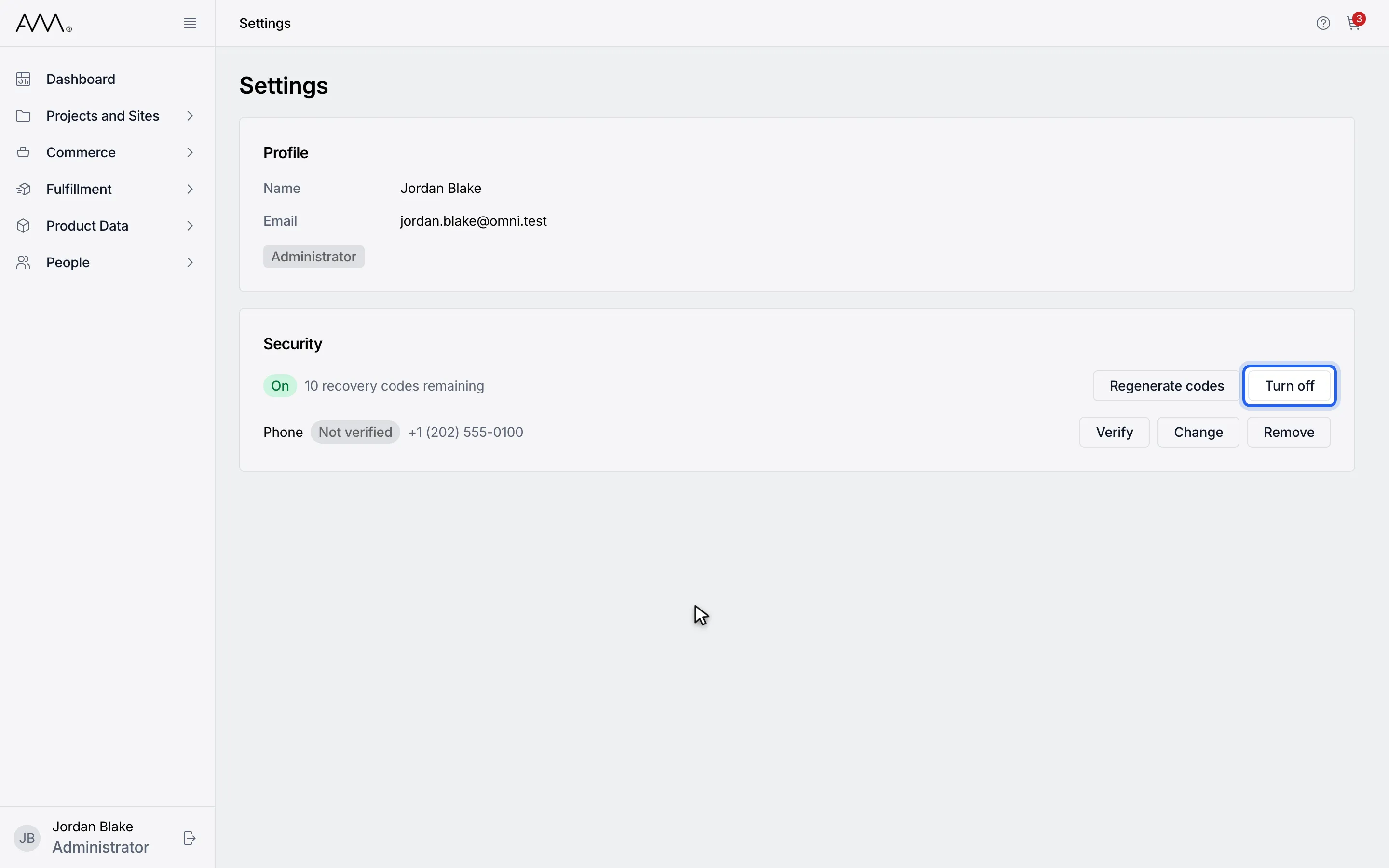
6In the Security card, click Turn off.
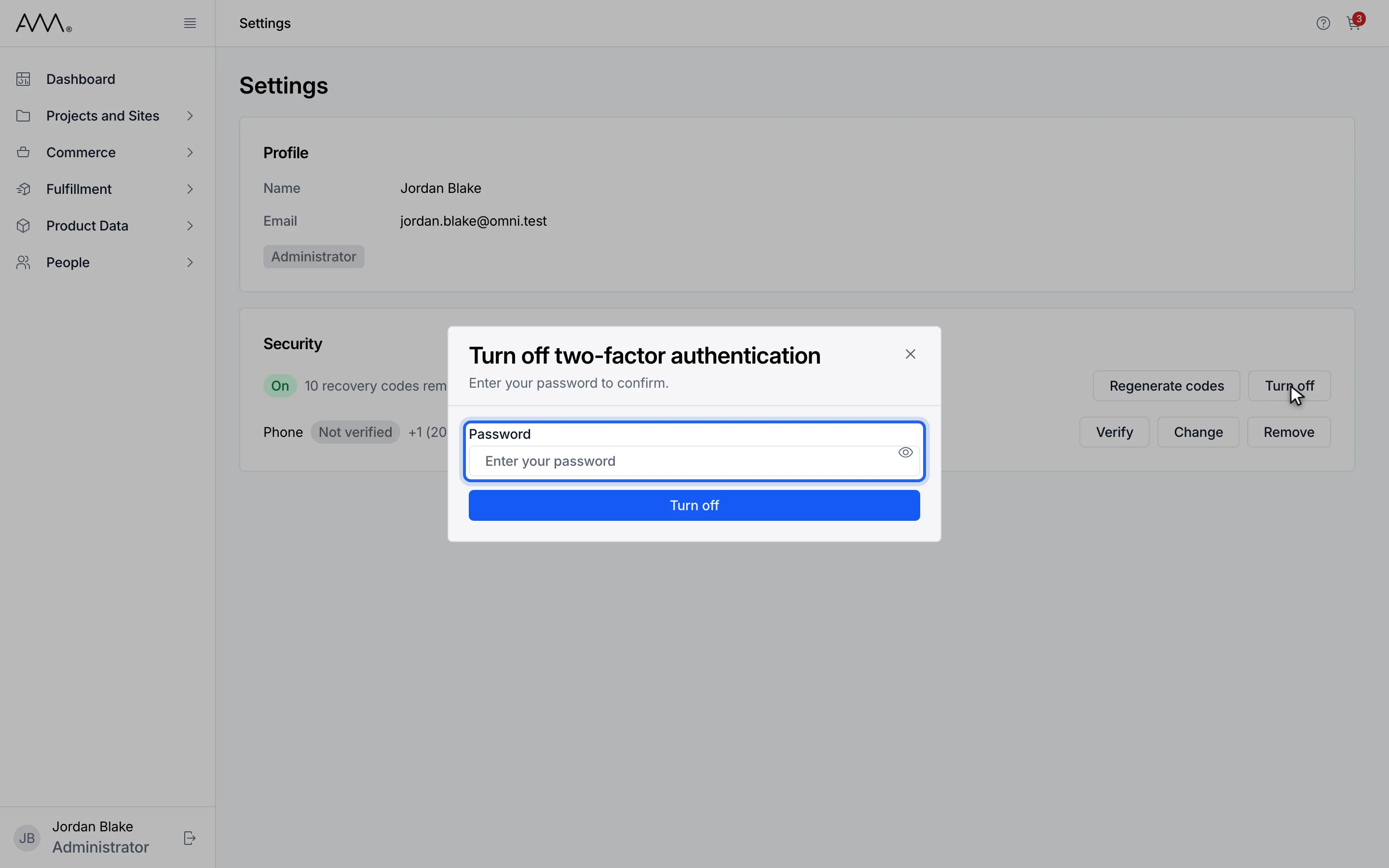
7In Password, enter your Omni password to confirm.
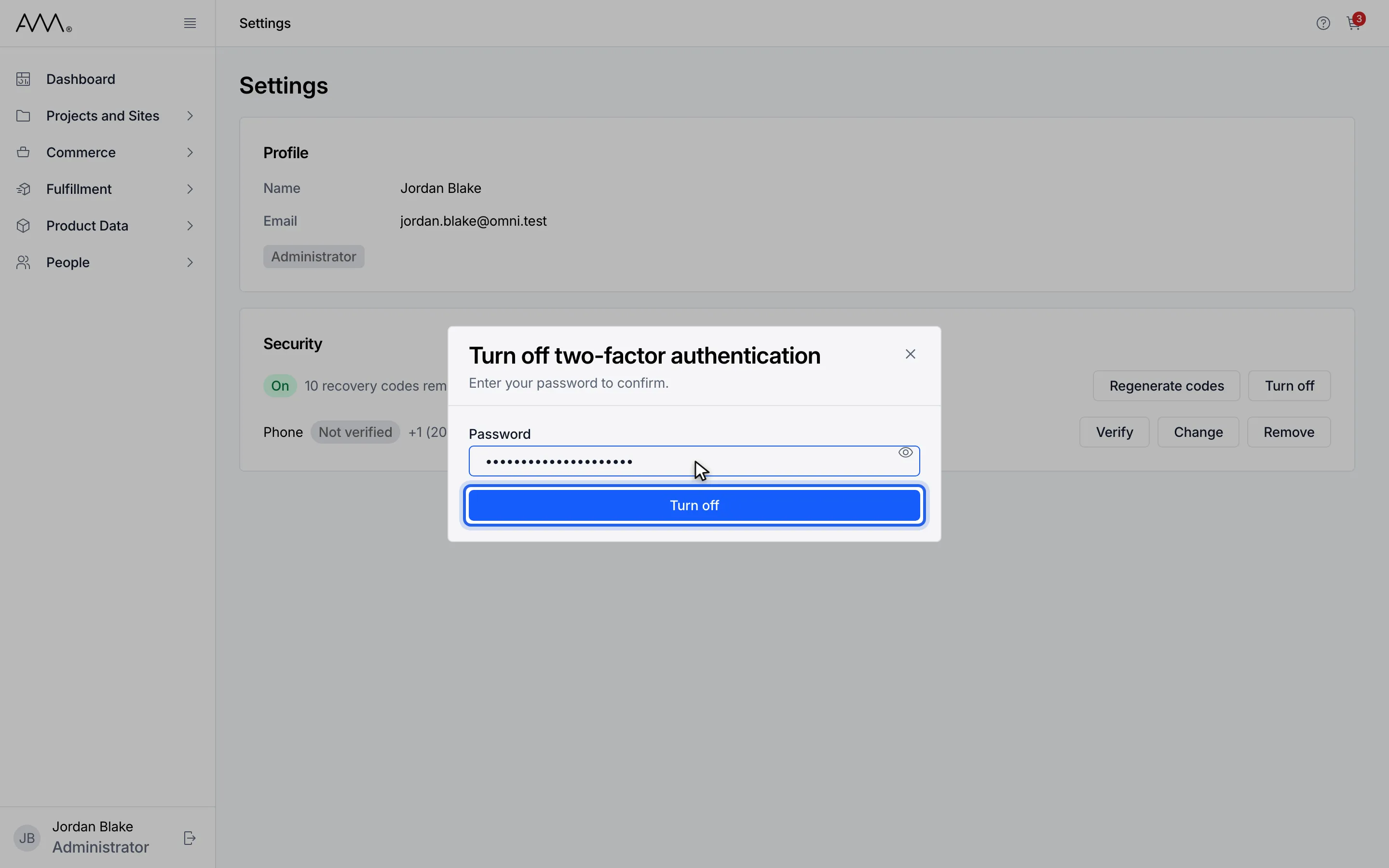
8Click Turn off.
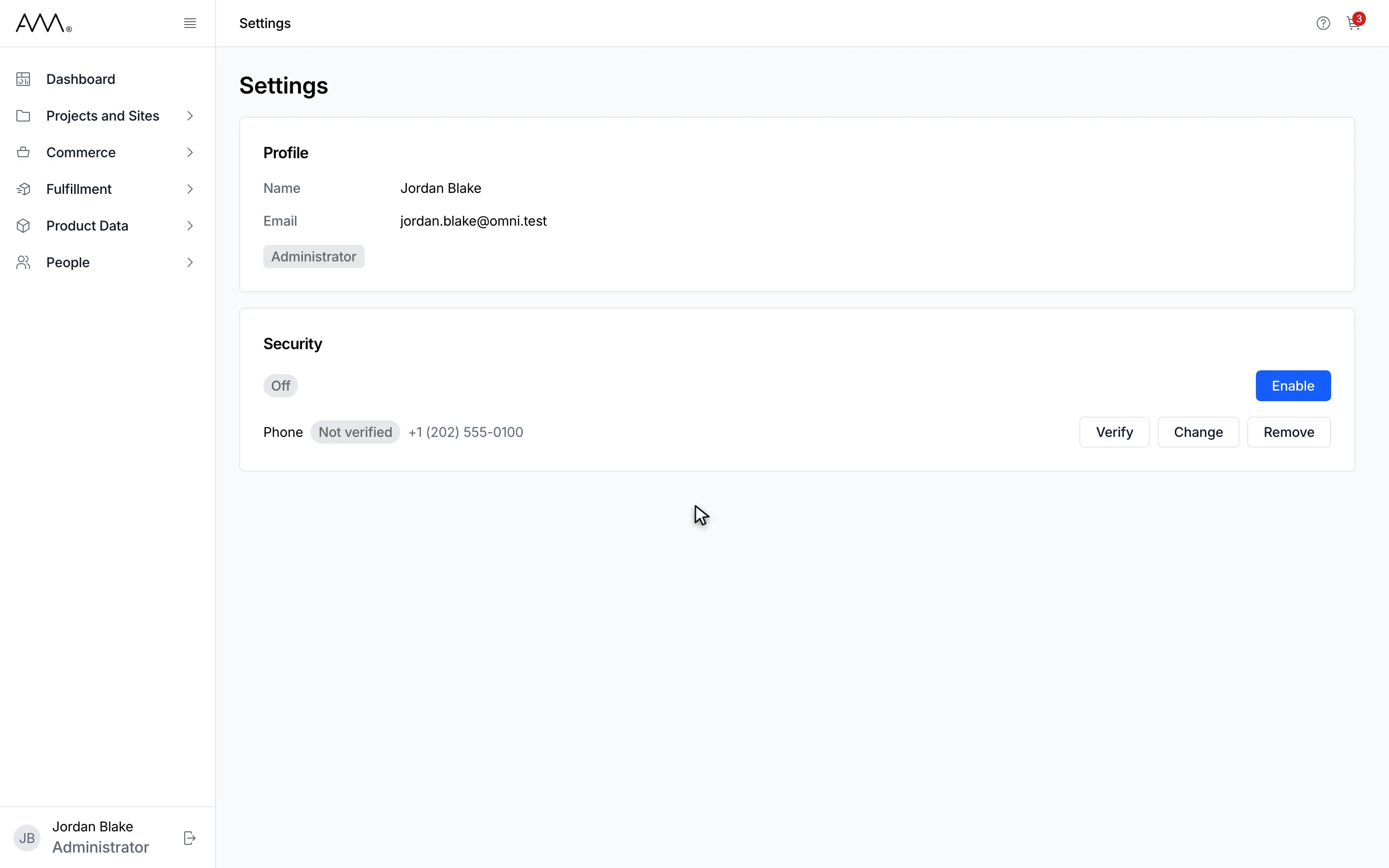
9The Security card now shows Off.
Watch this as a video (turn off two-factor authentication)
The badge changes to Off and the Enable button returns. Turning off removes every second-step method from your account, not only the authenticator app. If the password is wrong the field shows Incorrect password. and two-factor authentication stays on.