Add more products to a sales order
An order’s edit form has no control for adding a line. To add products, pick them in the Product Catalog and send the cart to the existing order instead of creating a new one. You can start from the order or from the catalog.
- Open the order.
- Click Actions in the header.
- Choose Add More Products. The Product Catalog opens.
- Add the products you need to the cart, then click View Cart. See Catalog and Cart.
- Click Add to Sales Order.
- Choose Add to Existing Sales Order. The Add To Existing Sales Order dialog lists the orders that can take more items.
- Click the order’s row to select it. To find it, type in Search sales orders by number, client, or project… or filter with Status (All statuses, Draft, Sent or Confirmed). The columns are Order Number, Company, Project (the jobsite), Supply Point, Total, Items, Status and Created; click a header to sort.
- Click Add Cart to Sales Order.
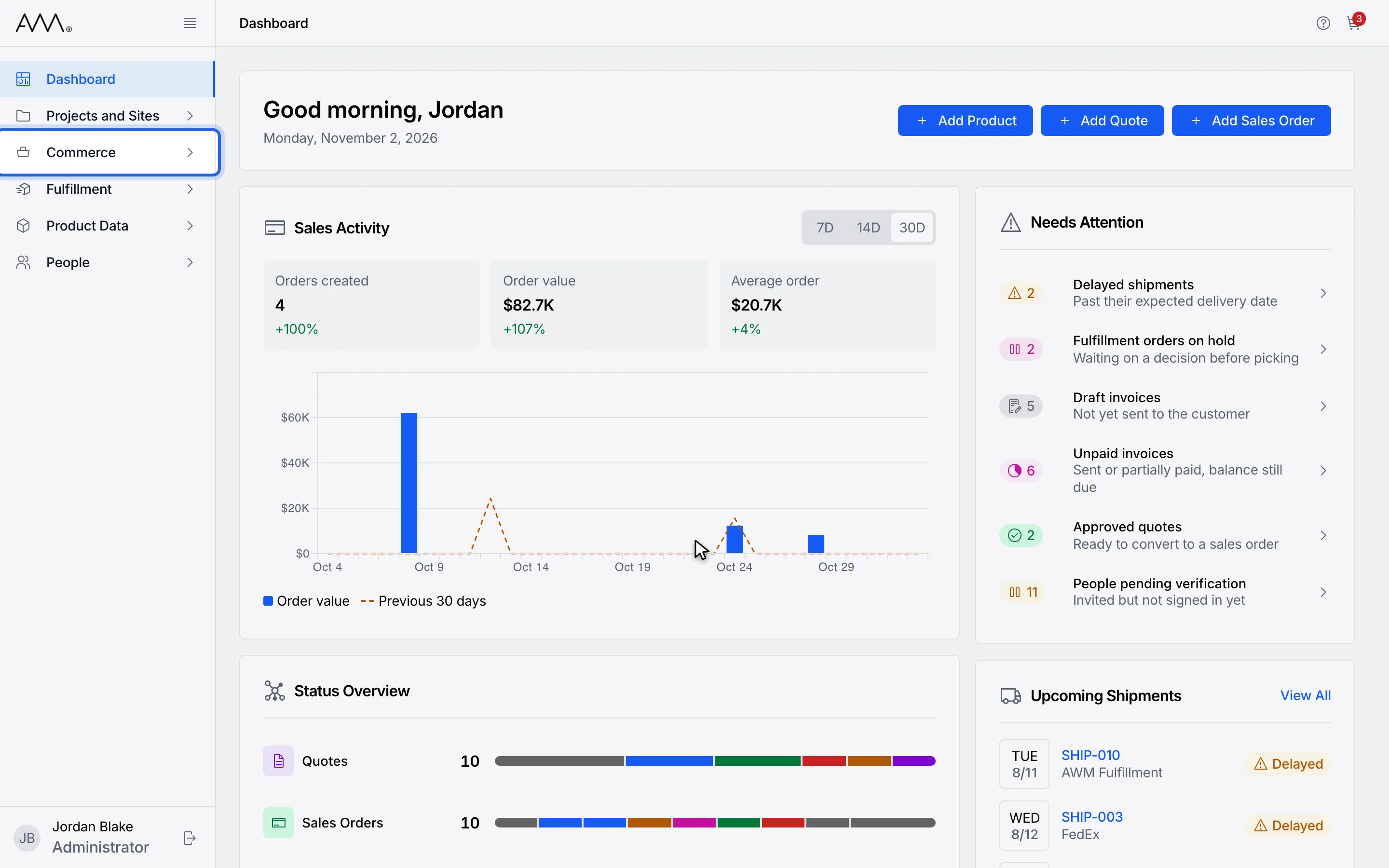
1In the sidebar, open Commerce.
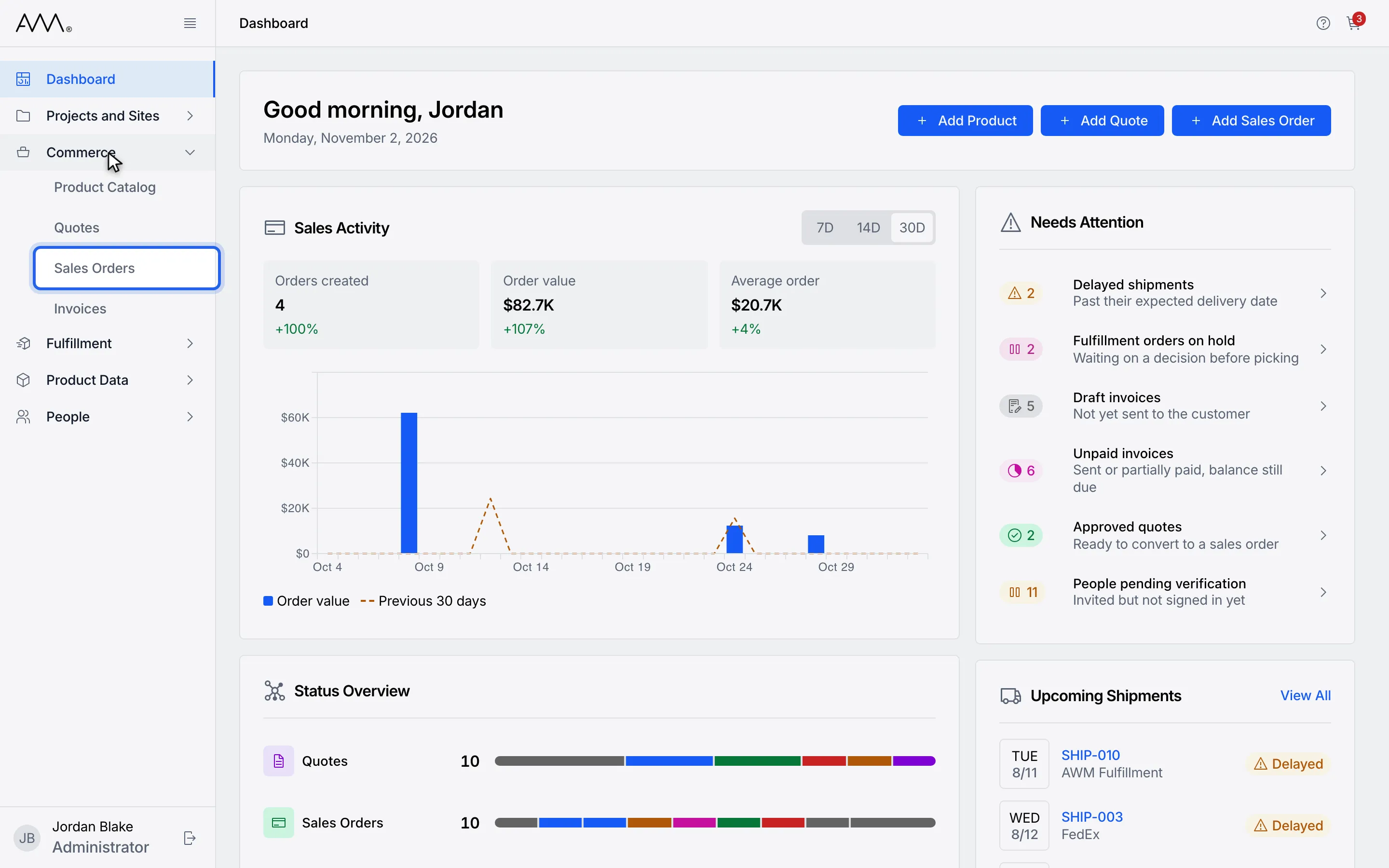
2Choose Sales Orders.
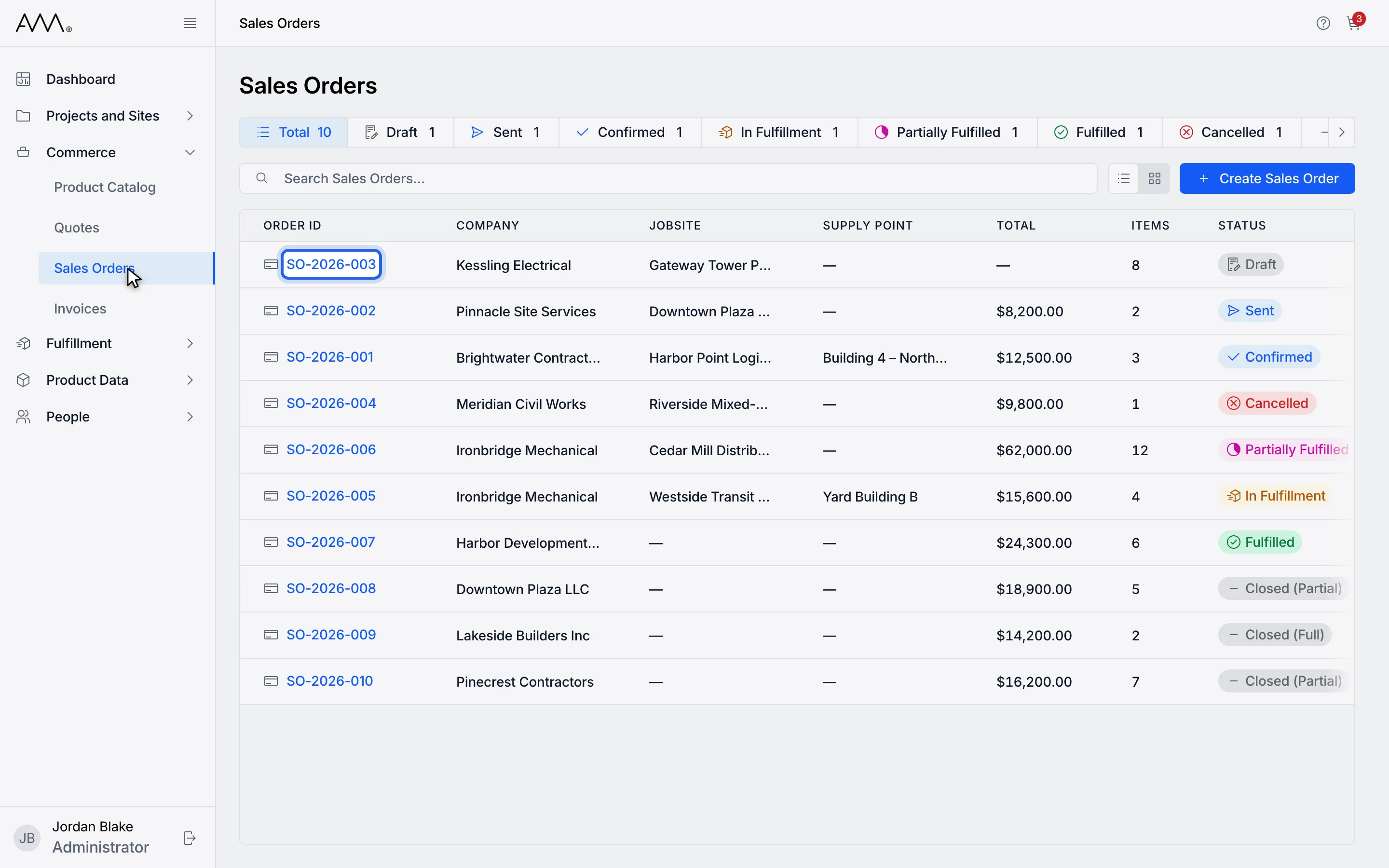
3Open a Draft, Sent or Confirmed order.
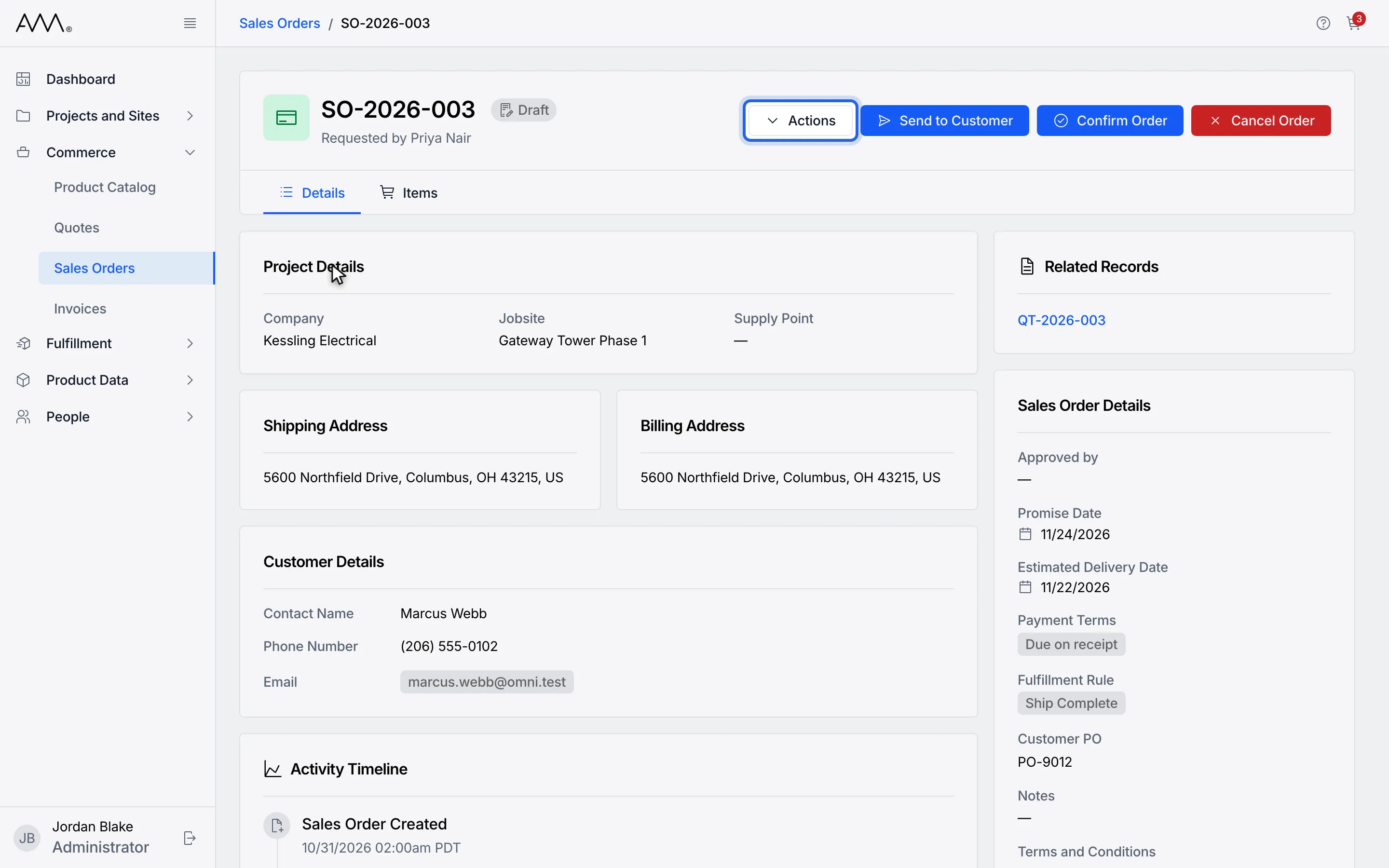
4Click Actions in the header.
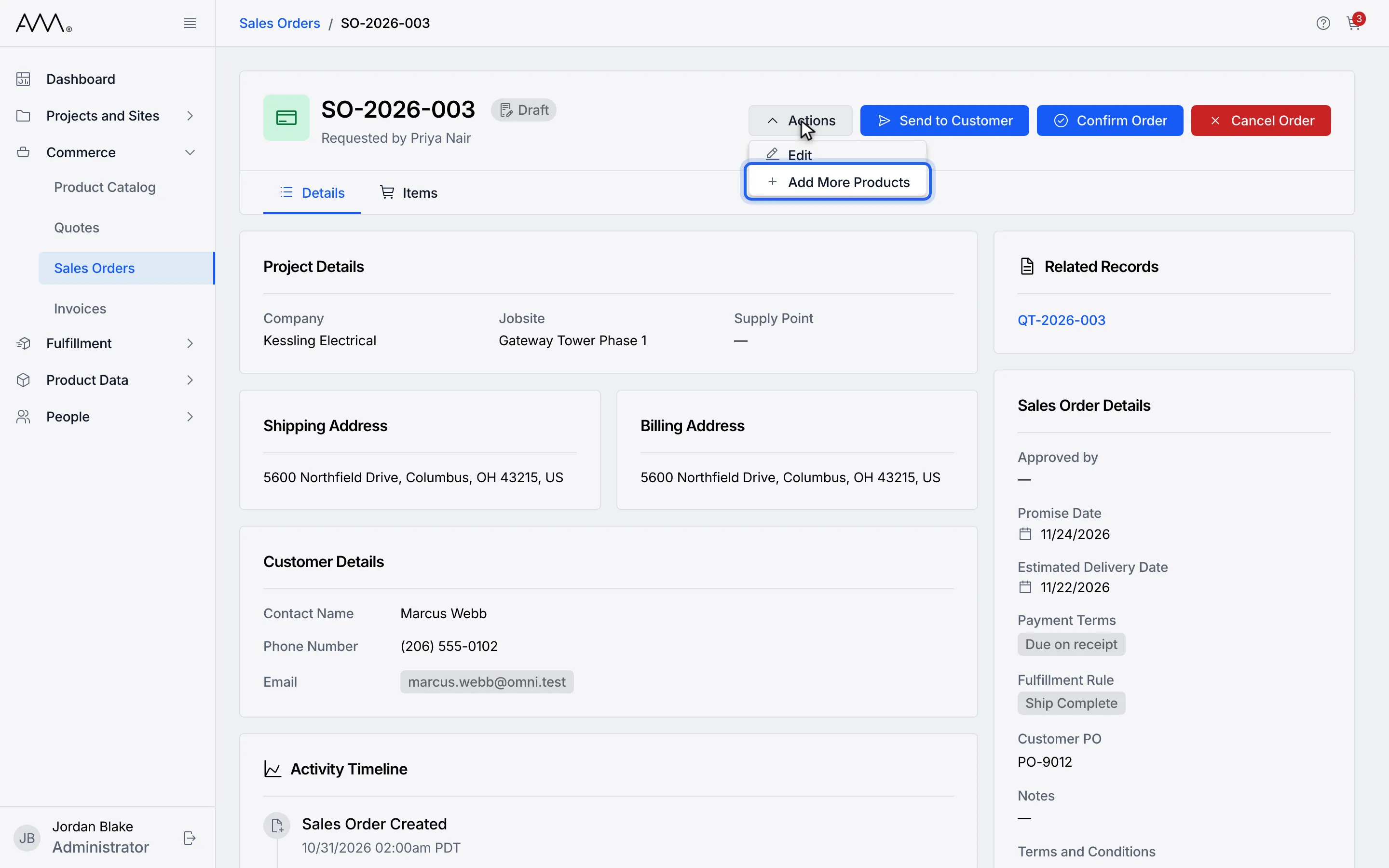
5Choose Add More Products. The Product Catalog opens.
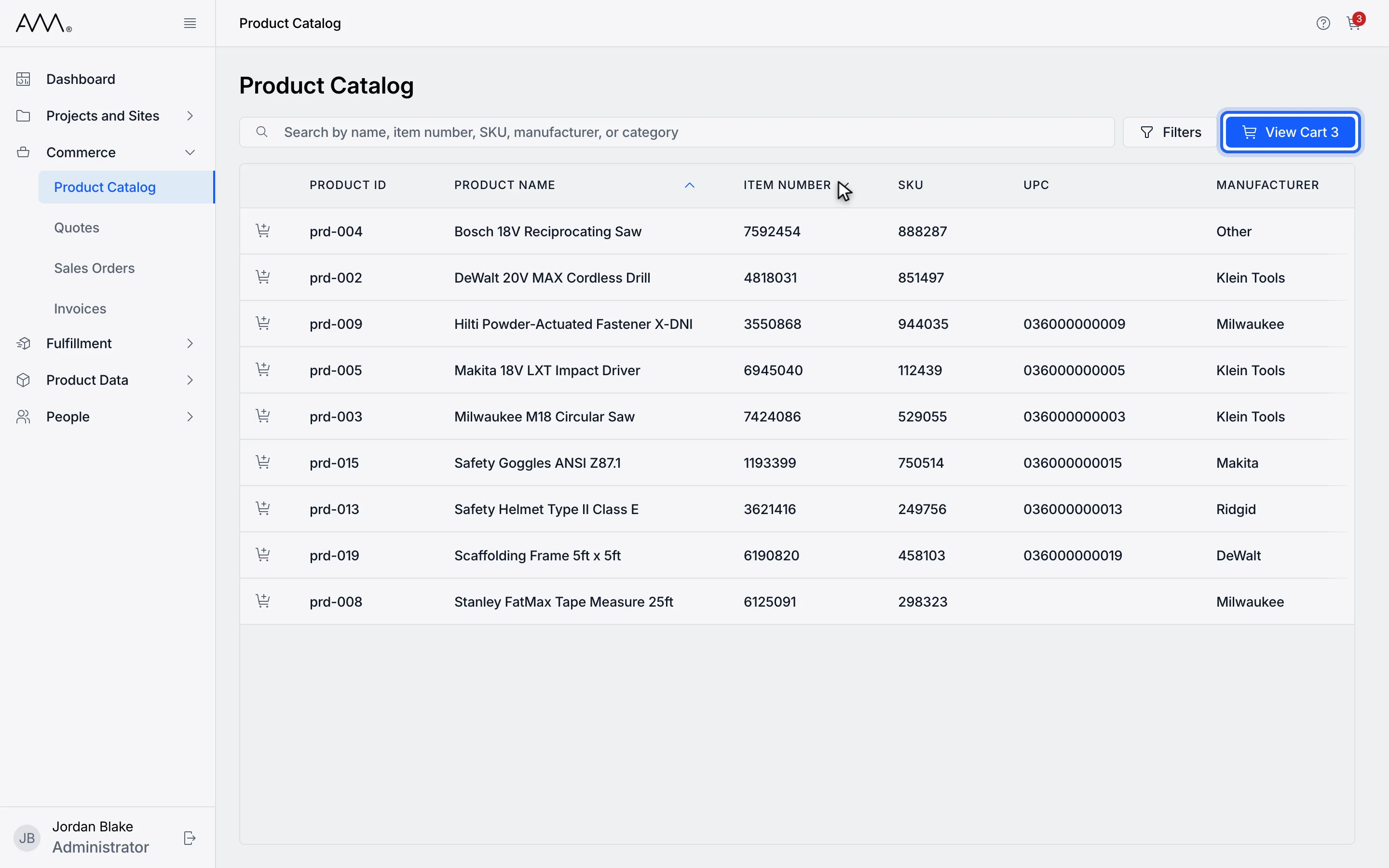
6Add the products you need to the cart, then click View Cart.
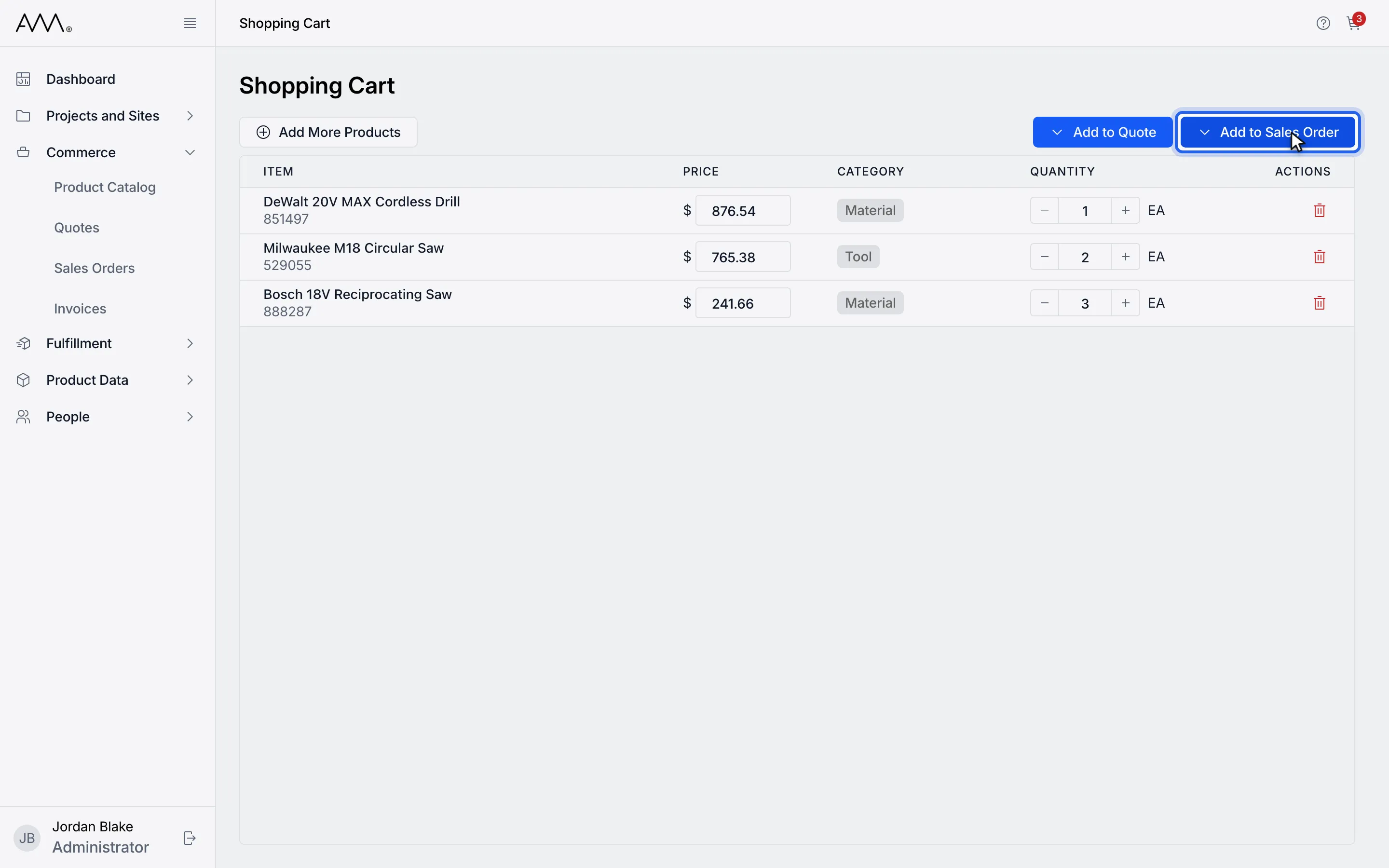
7Click Add to Sales Order.
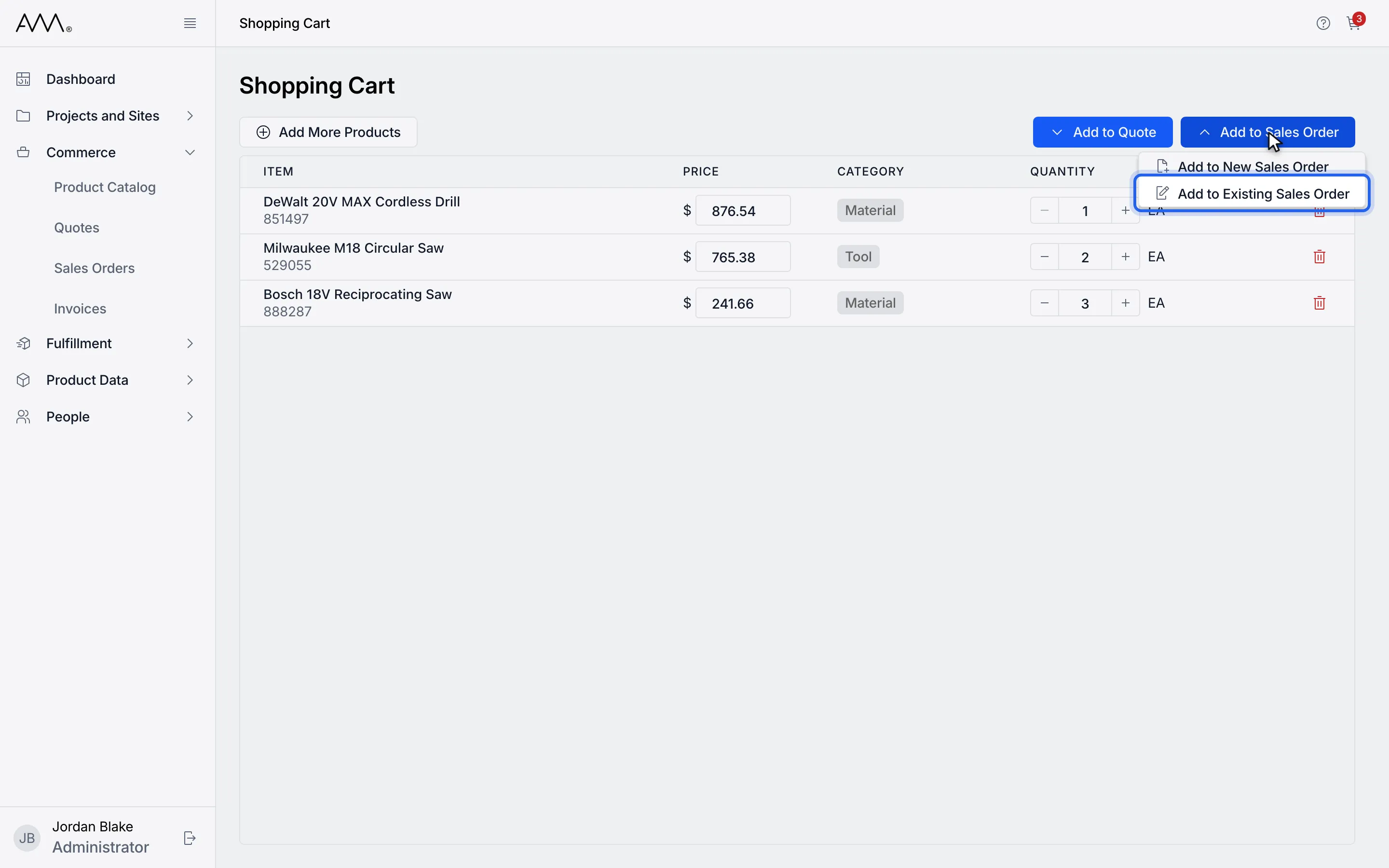
8Choose Add to Existing Sales Order.
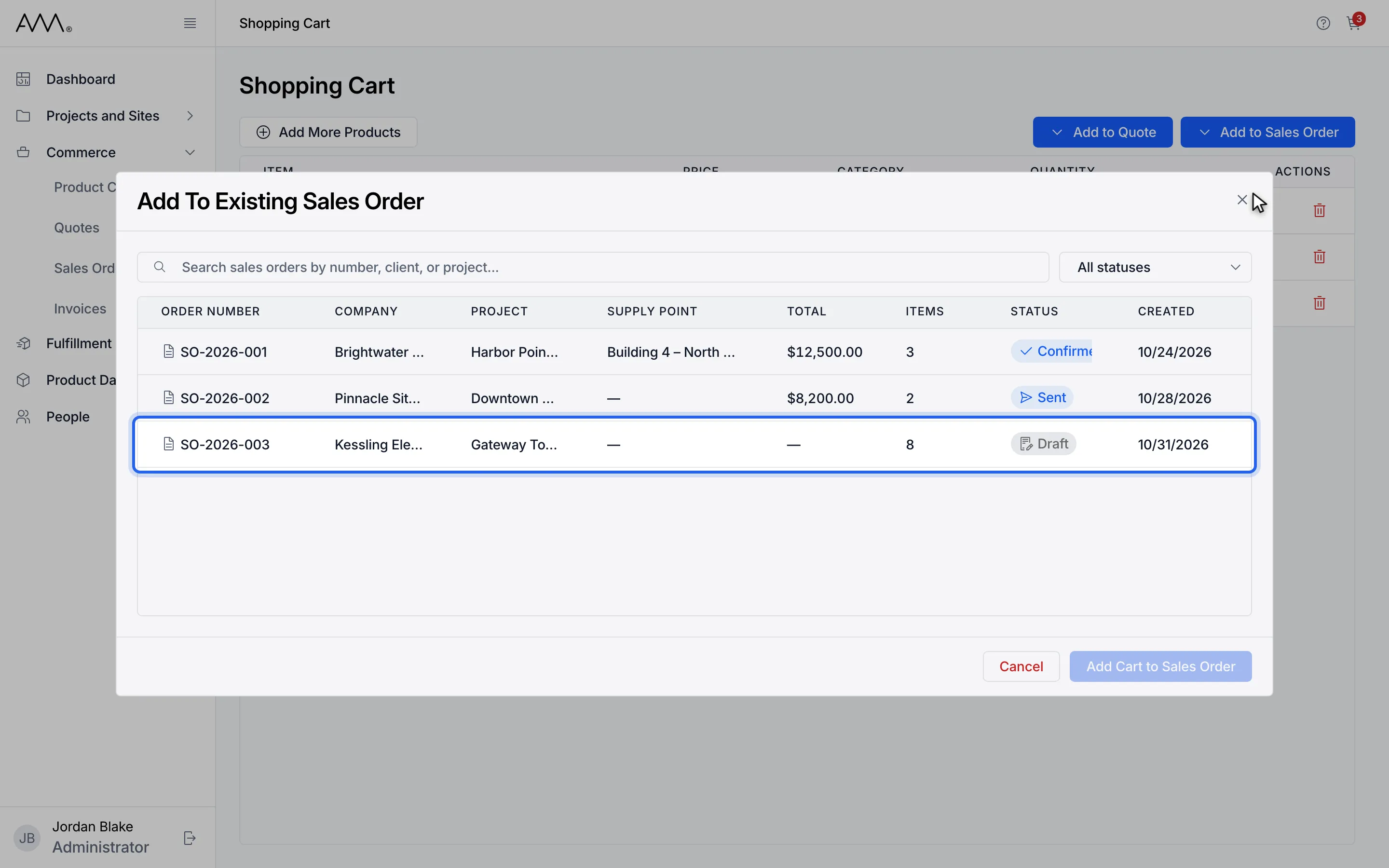
9Click the order to select it. Search or filter by Status to find it.
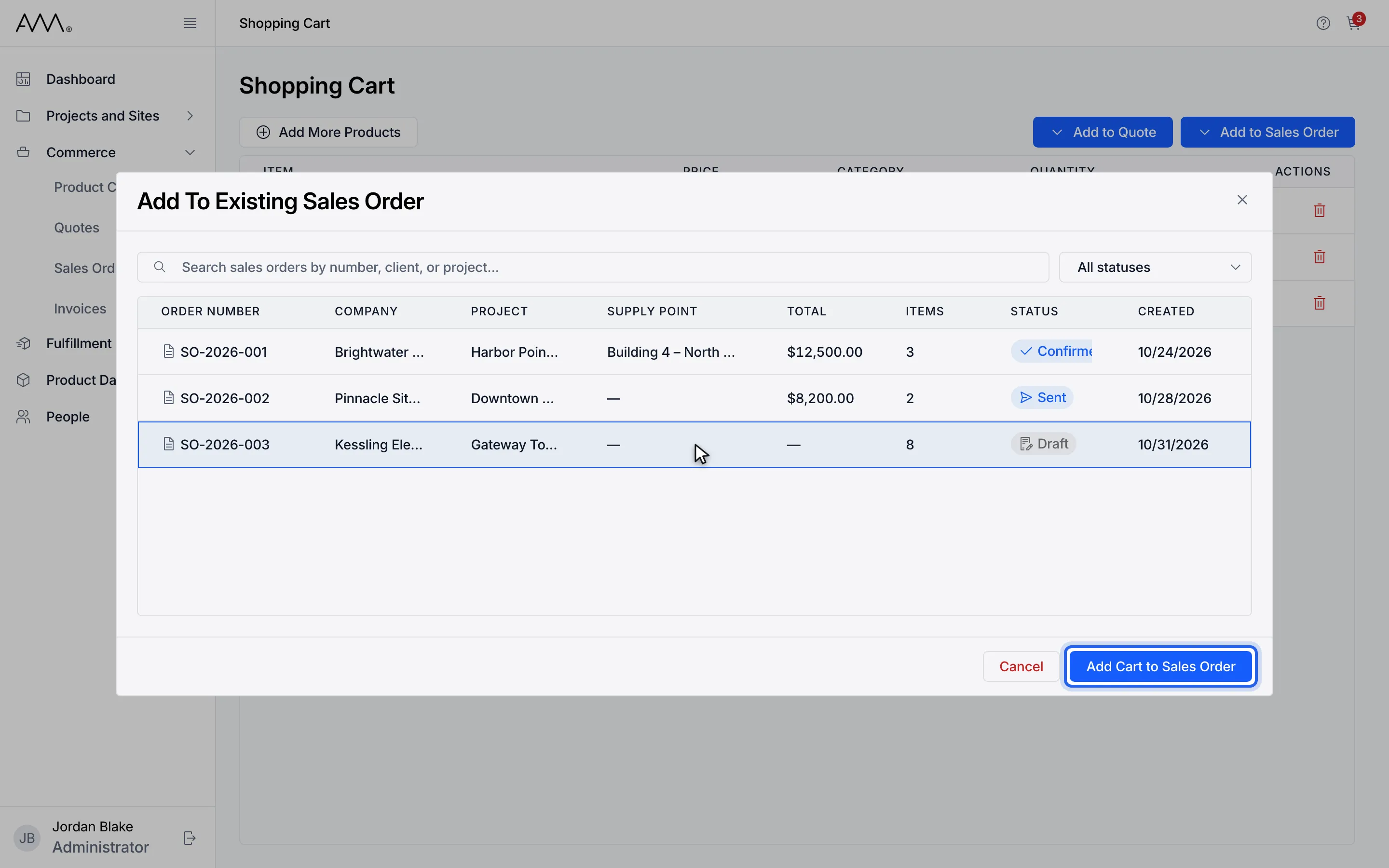
10Click Add Cart to Sales Order.
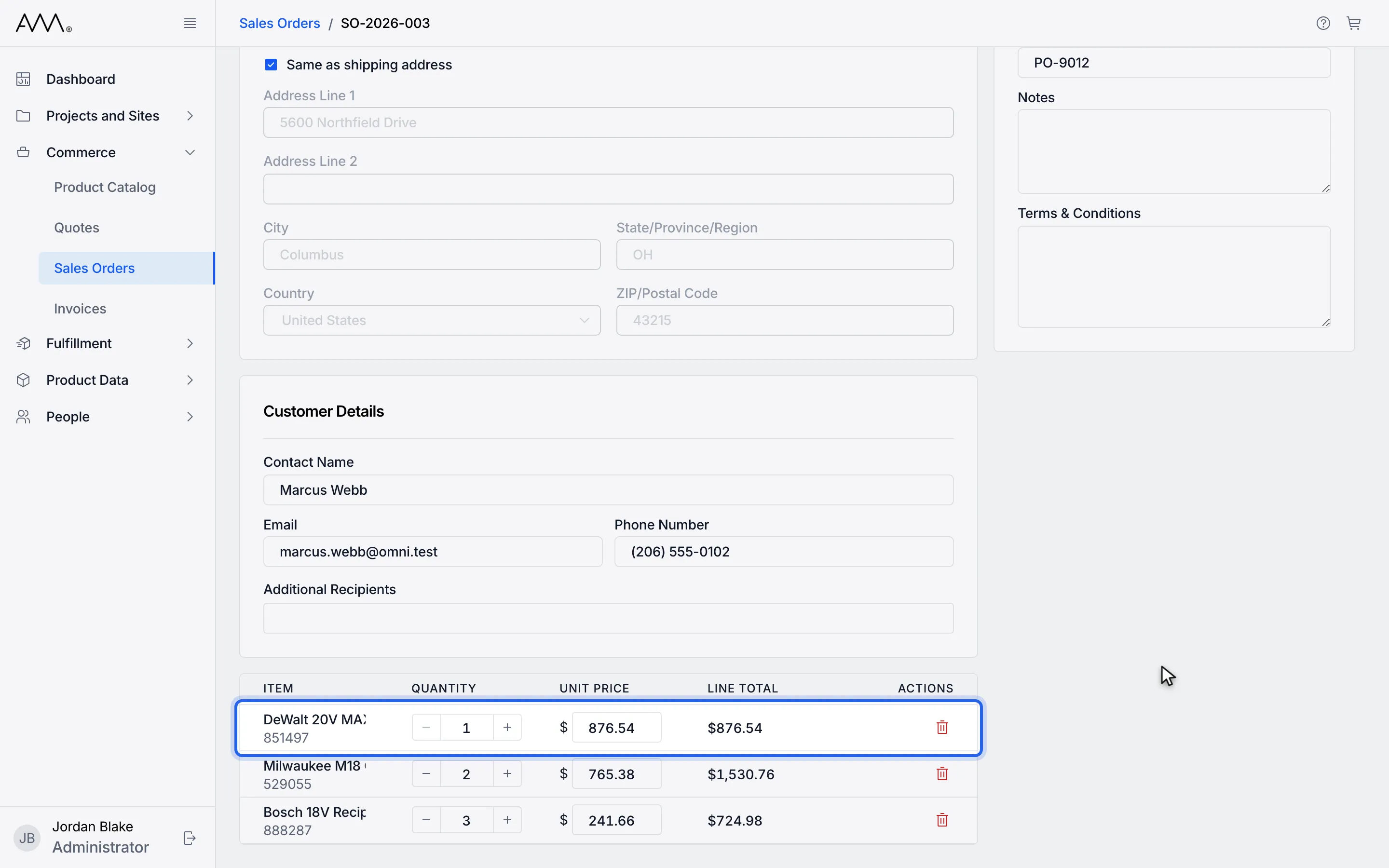
11The order opens in edit mode with the cart items added as line items.
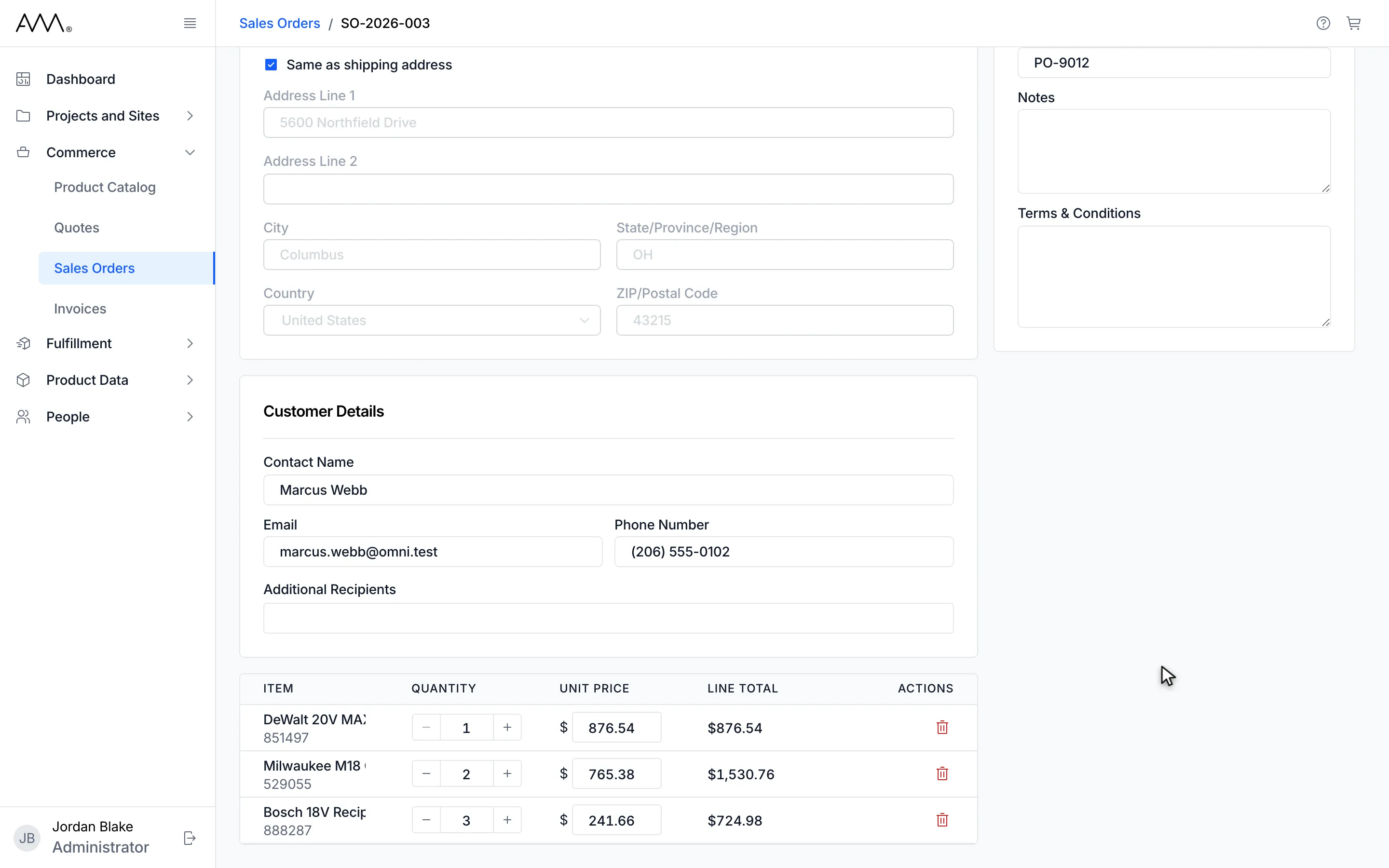
12The order opens in edit mode with the cart items added as line items.
Watch this as a video (add more products to a sales order)
What happens next
Section titled “What happens next”The cart’s products are added to the order and the cart is emptied. If a product is already on the order, its quantity is increased rather than listed twice. The order opens in edit mode with the existing and new lines; the items are already saved, so adjust quantities or prices if you need to and click Save Changes, or click Cancel to go back to the order. There is no confirmation message.
If no order qualifies, the dialog shows No eligible sales orders found and Only Draft, Sent and Confirmed orders can receive more items. If the orders cannot be listed, it reads Couldn’t load sales orders. If the items cannot be added, the dialog stays open and explains why, for example Could not add items to the sales order. Please try again. If they are added but the cart still holds them, a message reads Items added, but the cart could not be cleared.