Unassign hardware from a supply point
Unassign a unit when it leaves a supply point and nothing replaces it. The unit stays in the Hardware section and becomes available to assign to another supply point.
- In the sidebar, open Projects and Sites and choose Supply Points.
- Click the supply point’s name to open it.
- Click the Hardware tab.
- Click the remove icon on the unit’s card, or in the Actions column in List view.
- Read the confirmation, then click Unassign Hardware.
Unassign hardware from a supply point1 / 7
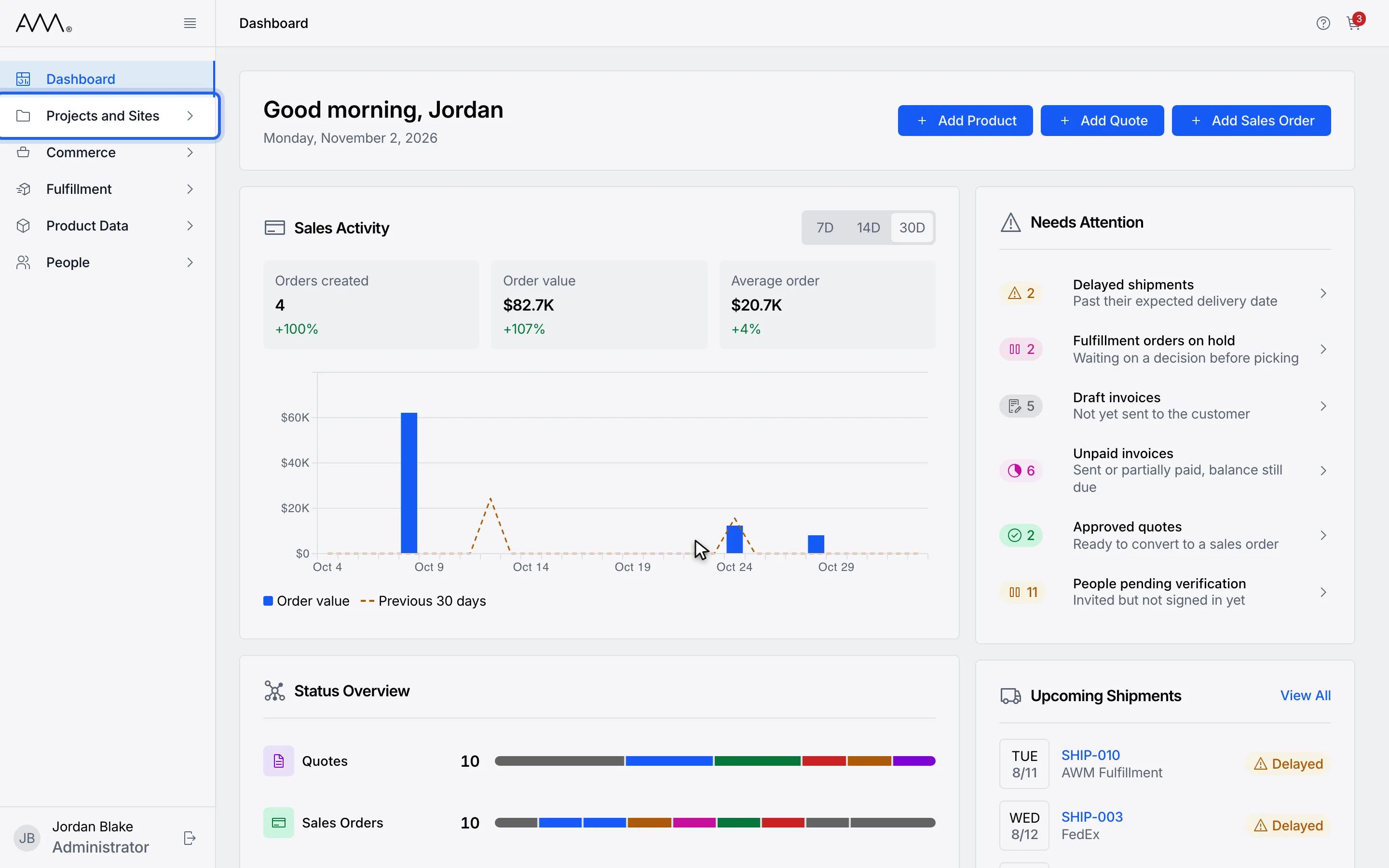
1In the sidebar, open Projects and Sites.
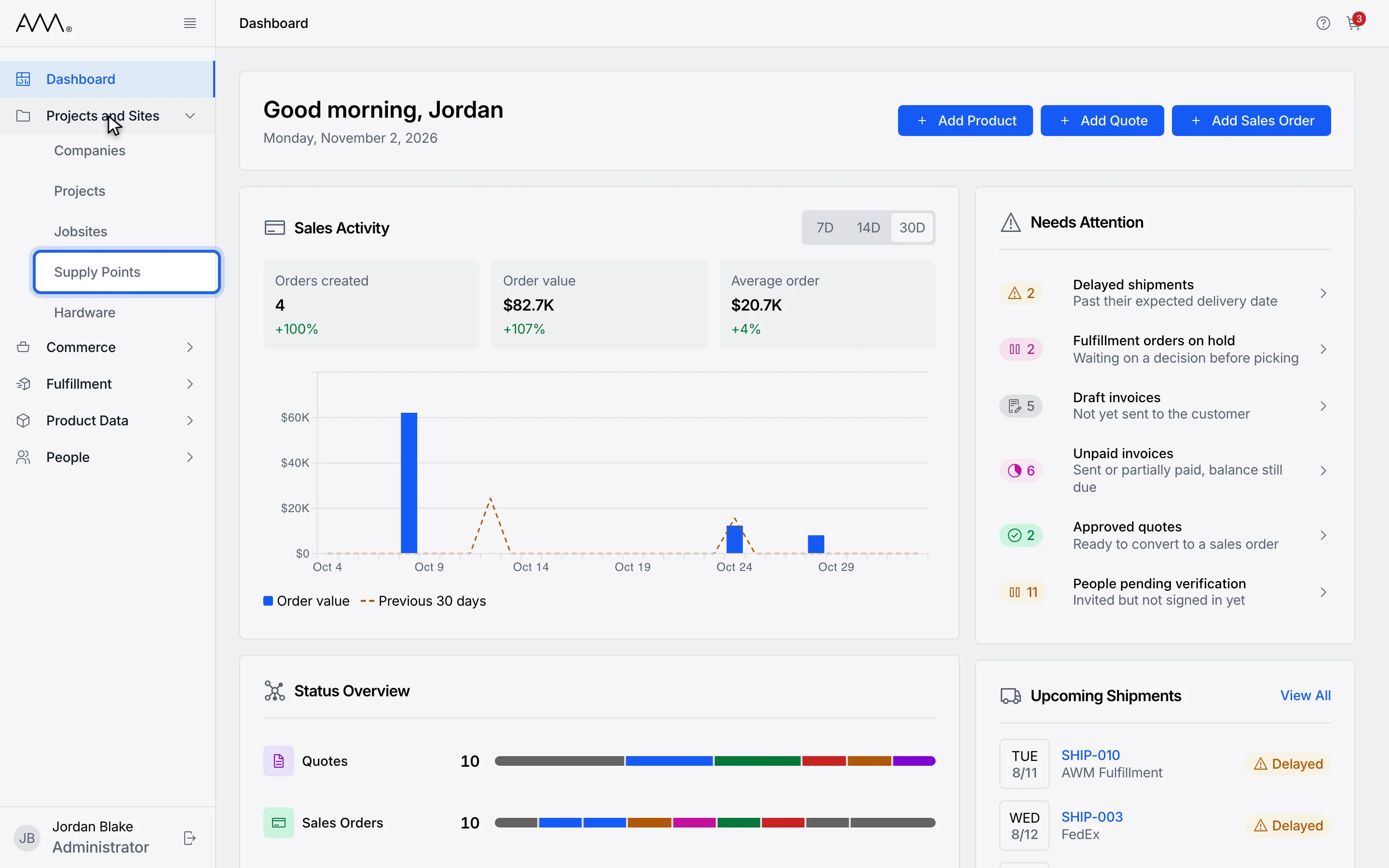
2Choose Supply Points.
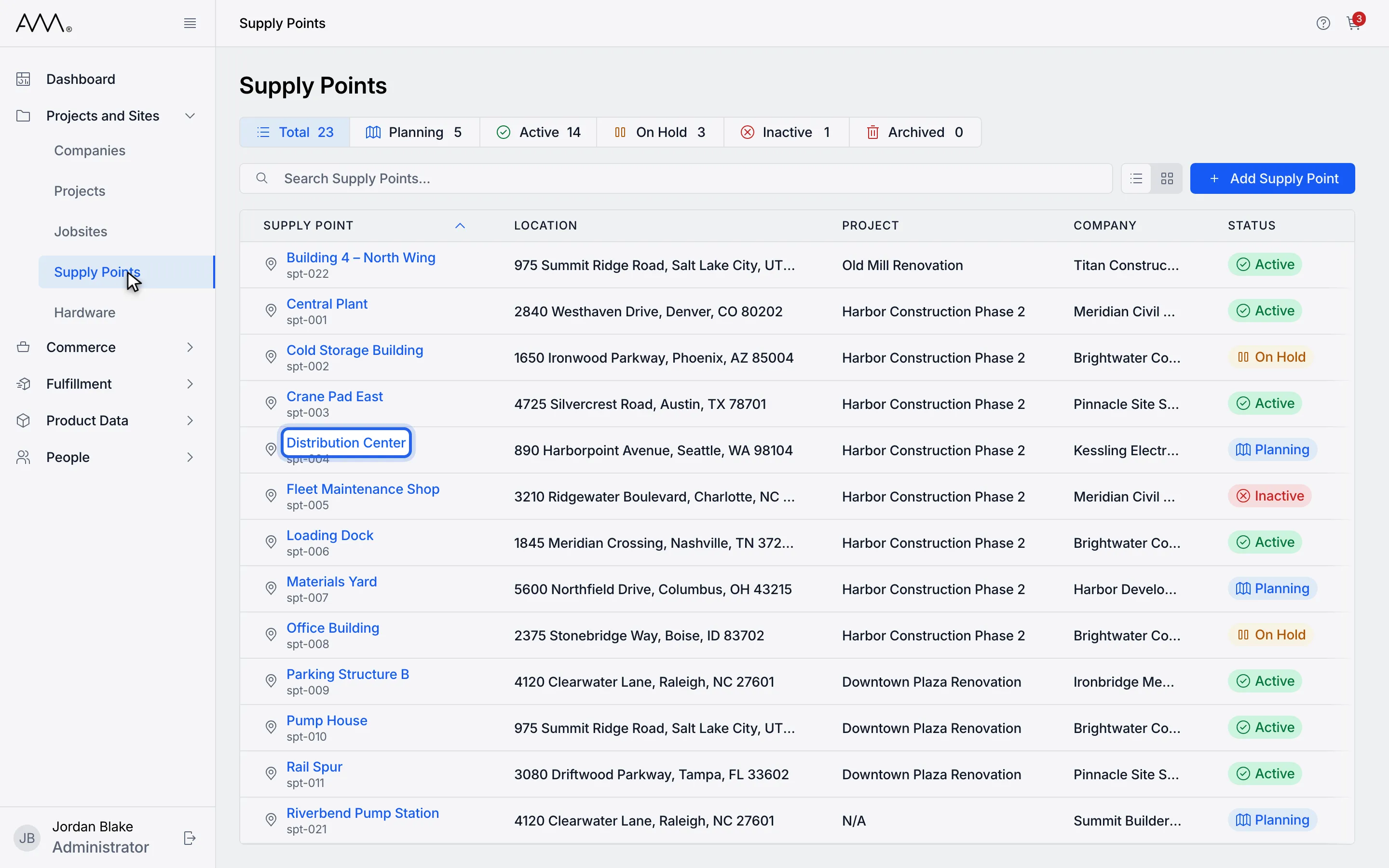
3Open the supply point.
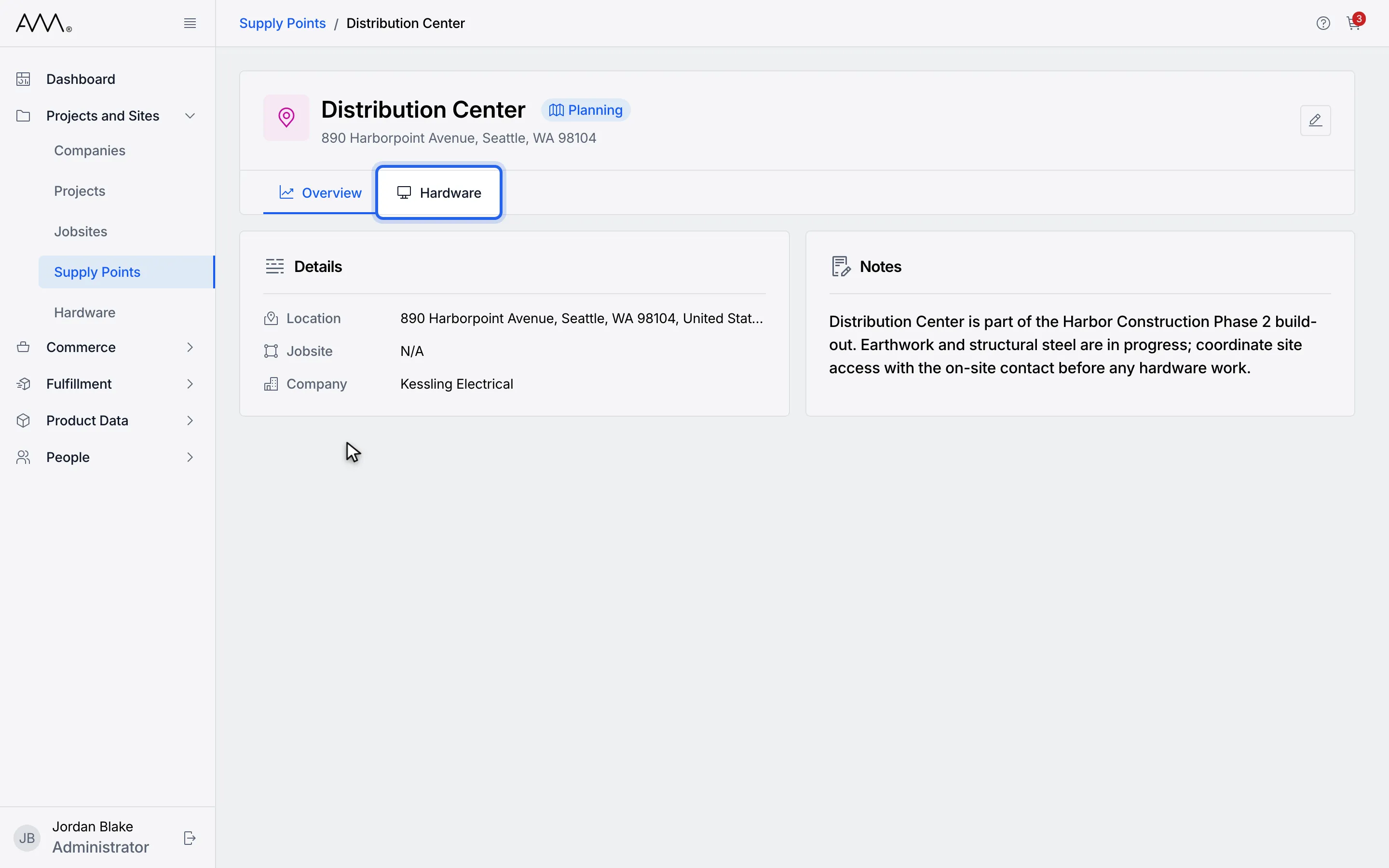
4Click the Hardware tab.
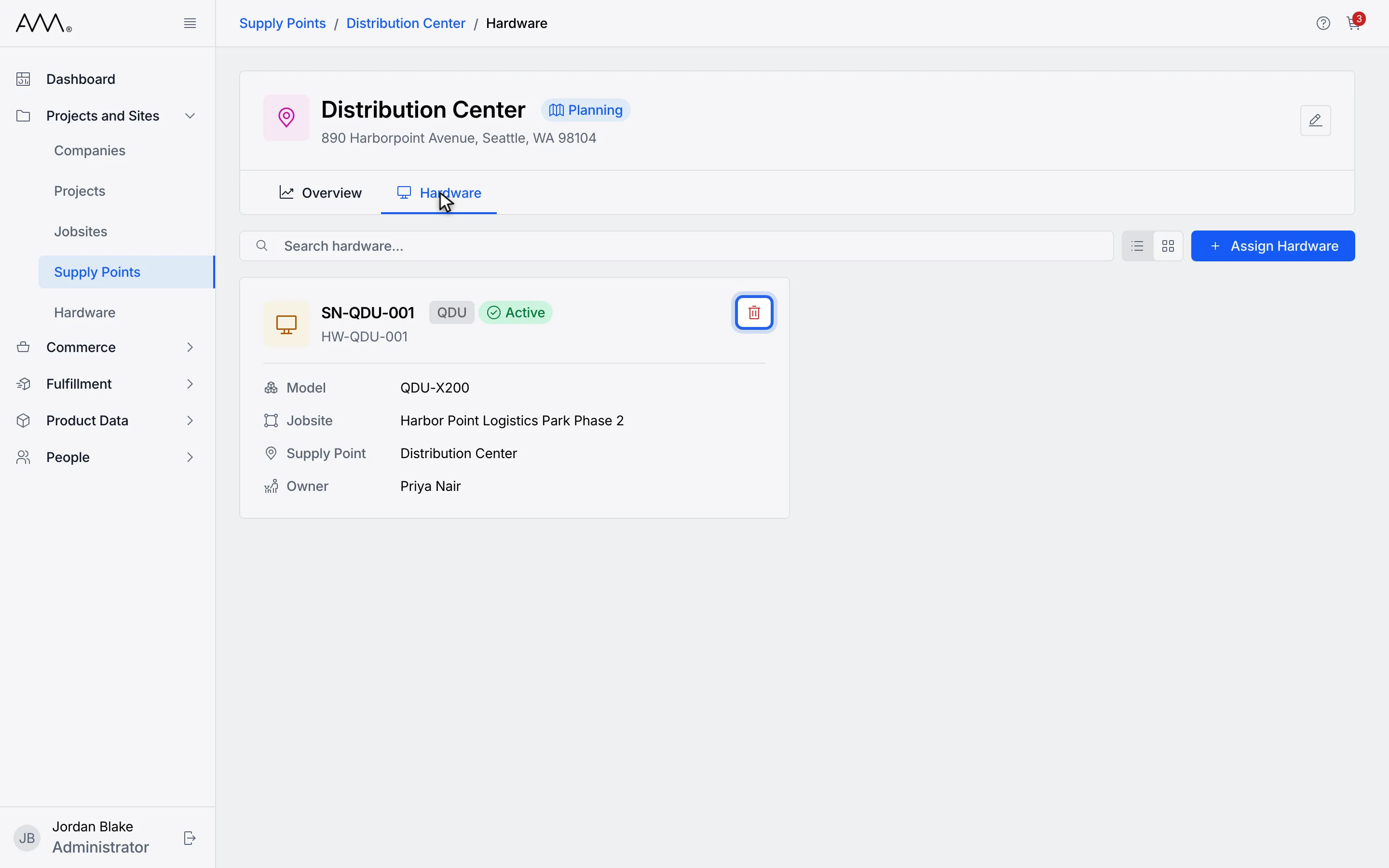
5Click the remove icon on the unit's card.
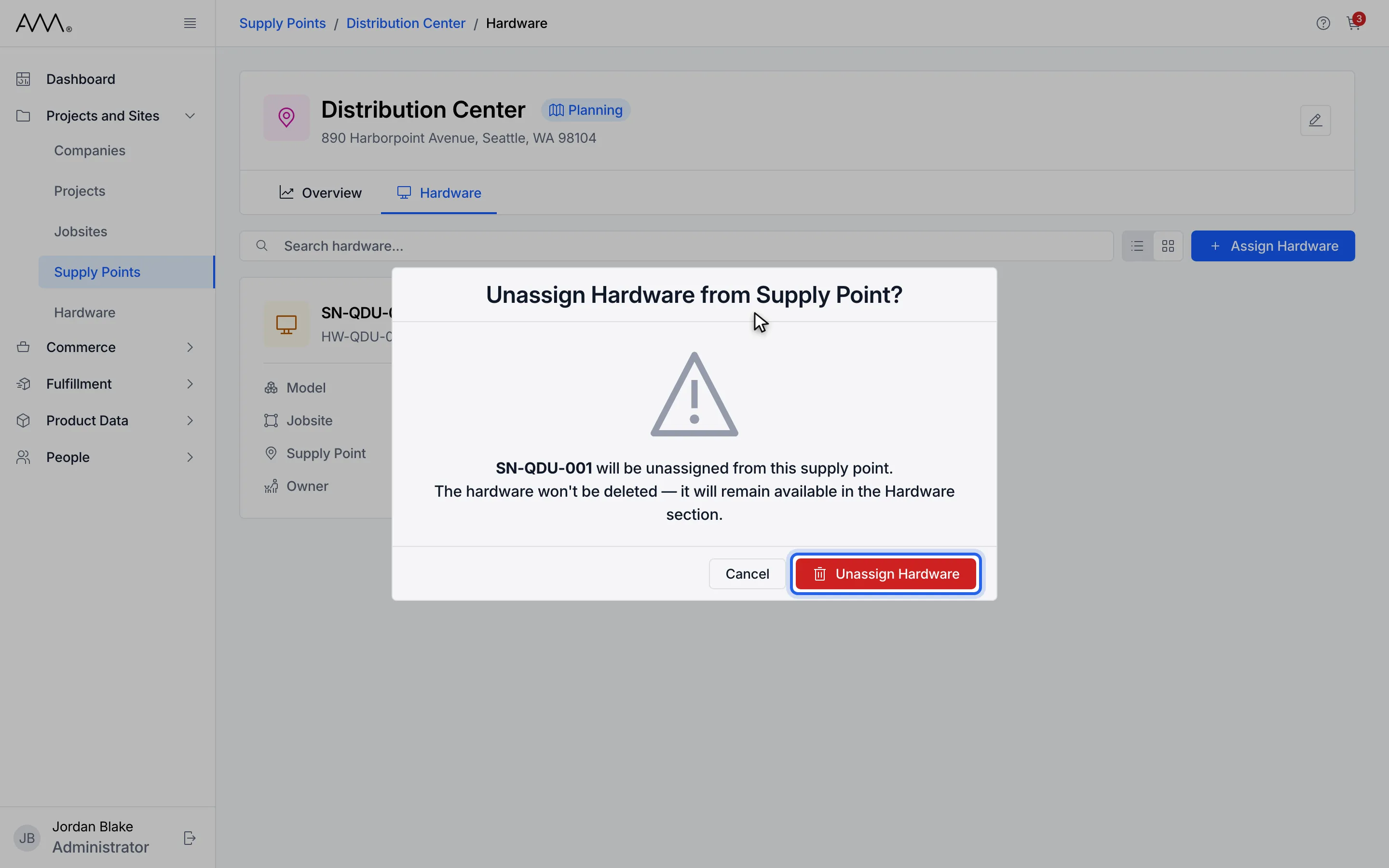
6Read the confirmation, then click Unassign Hardware.
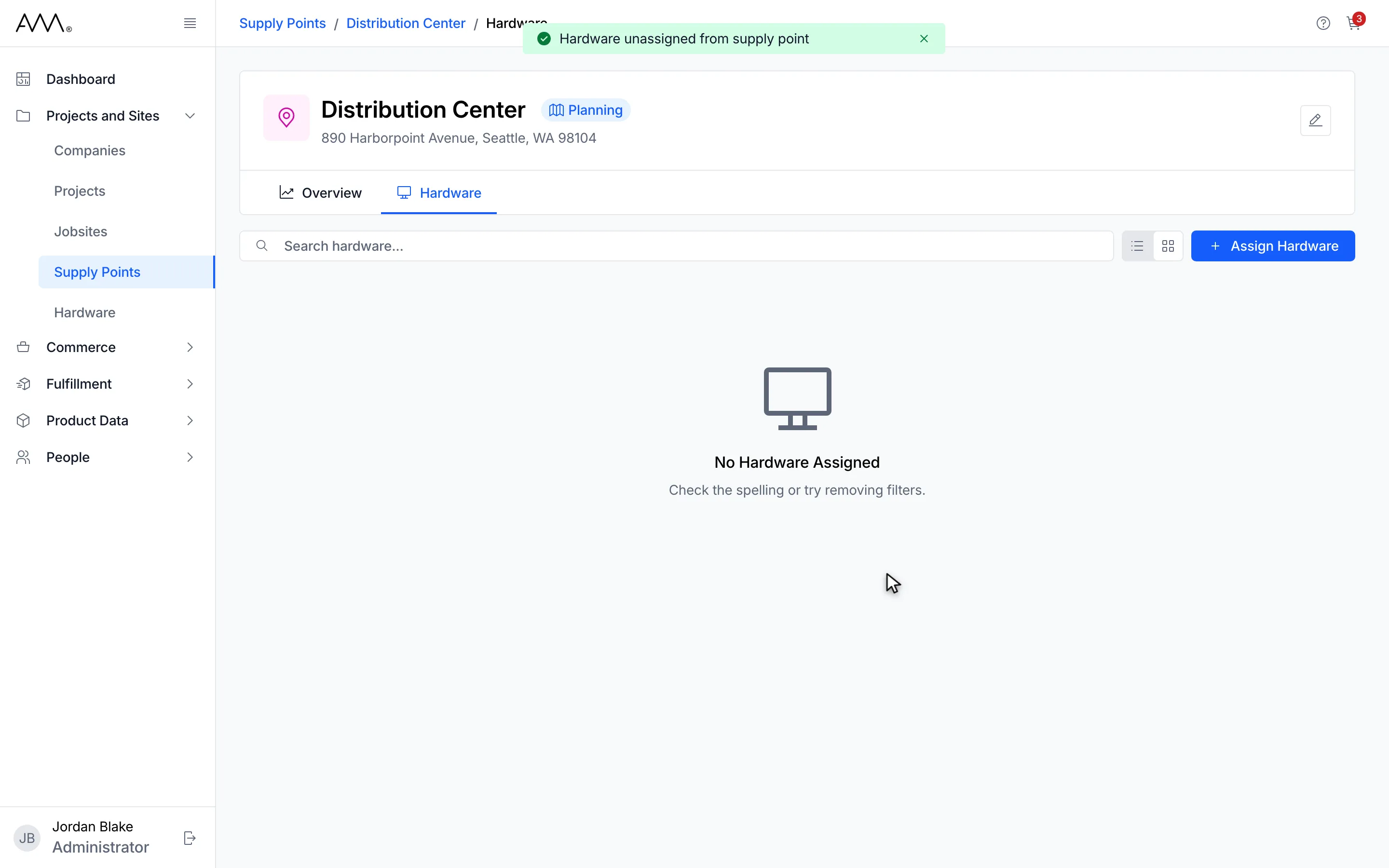
7A Hardware unassigned from supply point message appears and the tab is empty.
Watch this as a video (unassign hardware from a supply point)
What happens next
Section titled “What happens next”- A Hardware unassigned from supply point message appears and the tab shows No Hardware Assigned.
- The unit’s assignment is closed, so it appears in the Assign Hardware list of every supply point.
- If the unassignment fails, the dialog stays open and shows the error so you can try again.