Create and edit a price list
A new price list needs only a name. Once it exists, the Edit Price List dialog is where you rename it, change its status and set or change the global adjustment that applies to every product on it.
- In the sidebar, open Product Data, choose Price Lists and click Add Price List.
- In the Create Price List dialog, enter a Name. You can leave Default Adjustment at None (use list price) and set it later.
- Click Create Price List. The toast New price list created appears and the new price list opens in Draft status.
- Click the Edit price list icon at the right of the header.
- Open Status and choose Draft, Active or Archived.
- Open Default Adjustment and choose Margin (%) or Percent Change (%). The value fields appear below it.
- Enter the value. For Percent Change (%), also choose Based On.
- Click Save Changes. The button stays disabled until you have changed something.
- If the adjustment cannot work out a price for every product, the dialog Some products can’t be priced appears. Click Apply anyway to save; you can price those products yourself later.
| Field | Required | What to enter |
|---|---|---|
| Name | Yes | A name no other price list uses. Name is required shows if you leave it empty. |
| Status | Yes, when editing | Draft, Active or Archived. The field is not shown when creating. |
| Default Adjustment | Yes | None (use list price), Margin (%) or Percent Change (%). |
| Margin % (Based on Cost) | With Margin (%) | A number from 0 up to, but not including, 100, kept to two decimal places. Margin is always worked out on cost. |
| Percent | With Percent Change (%) | A number from -100 to 1000, kept to two decimal places. A negative value lowers the price. |
| Based On | With Percent Change (%) | Cost or List Price. |
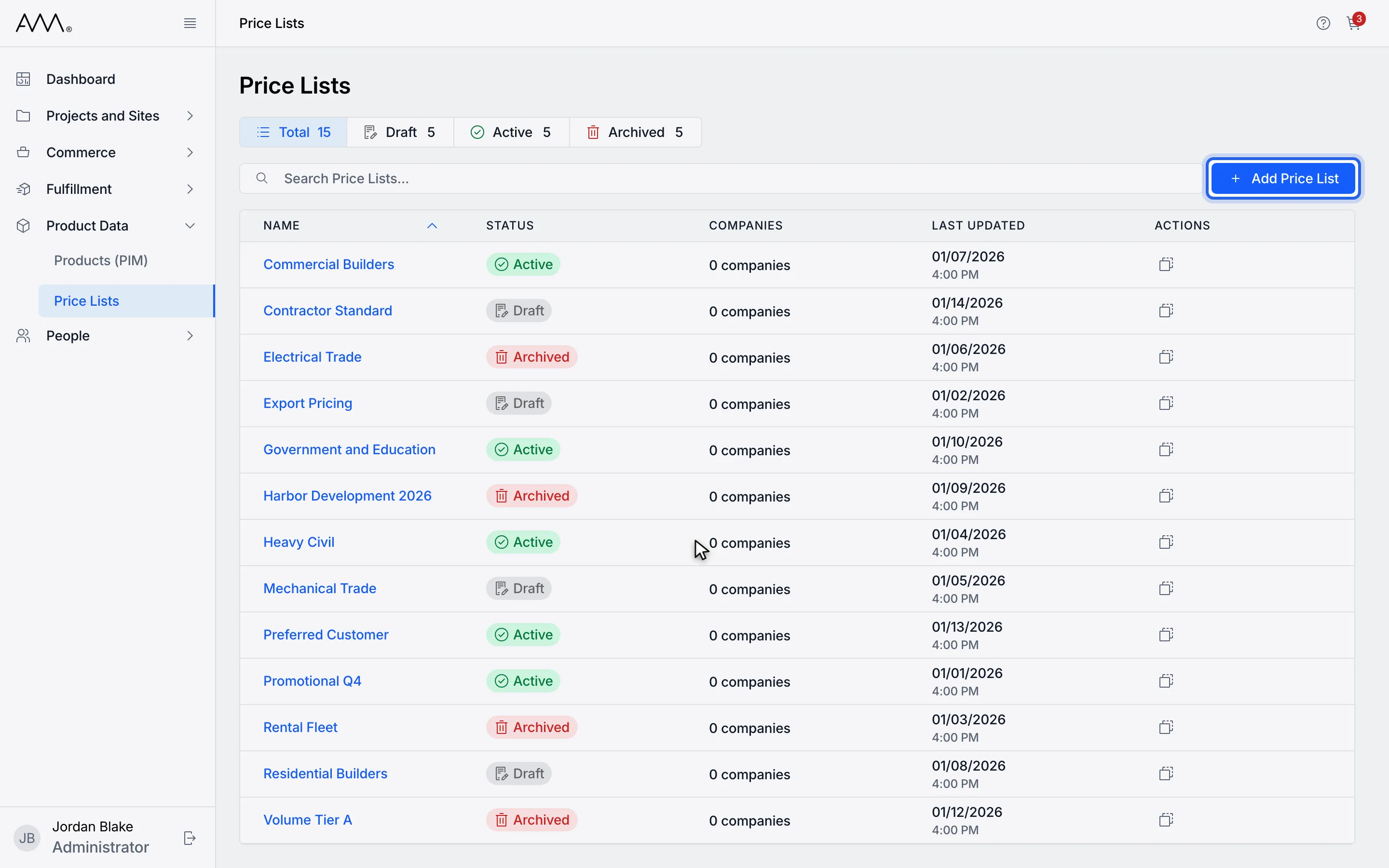
1Click Add Price List.
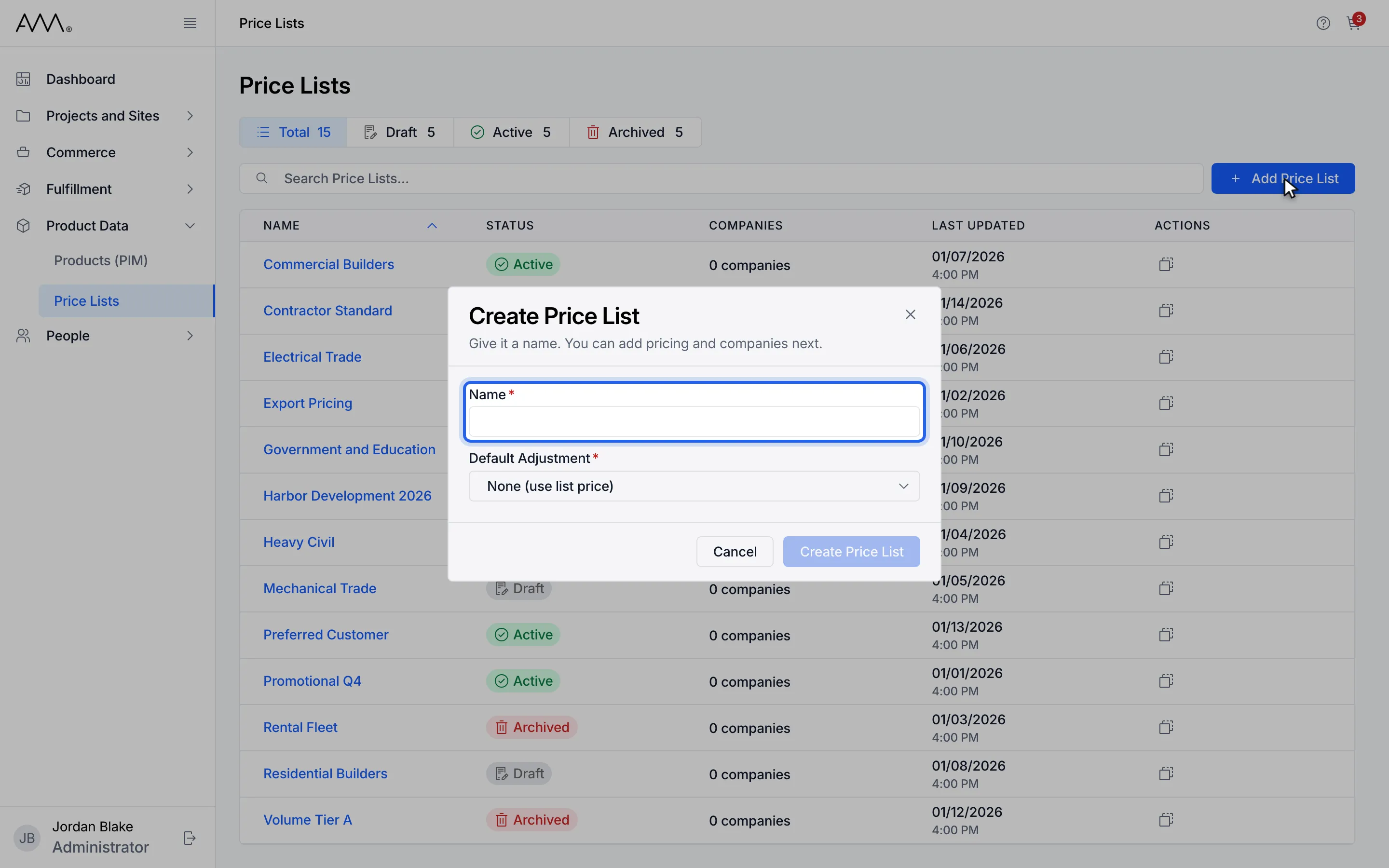
2Enter a name. Pricing and companies come later.
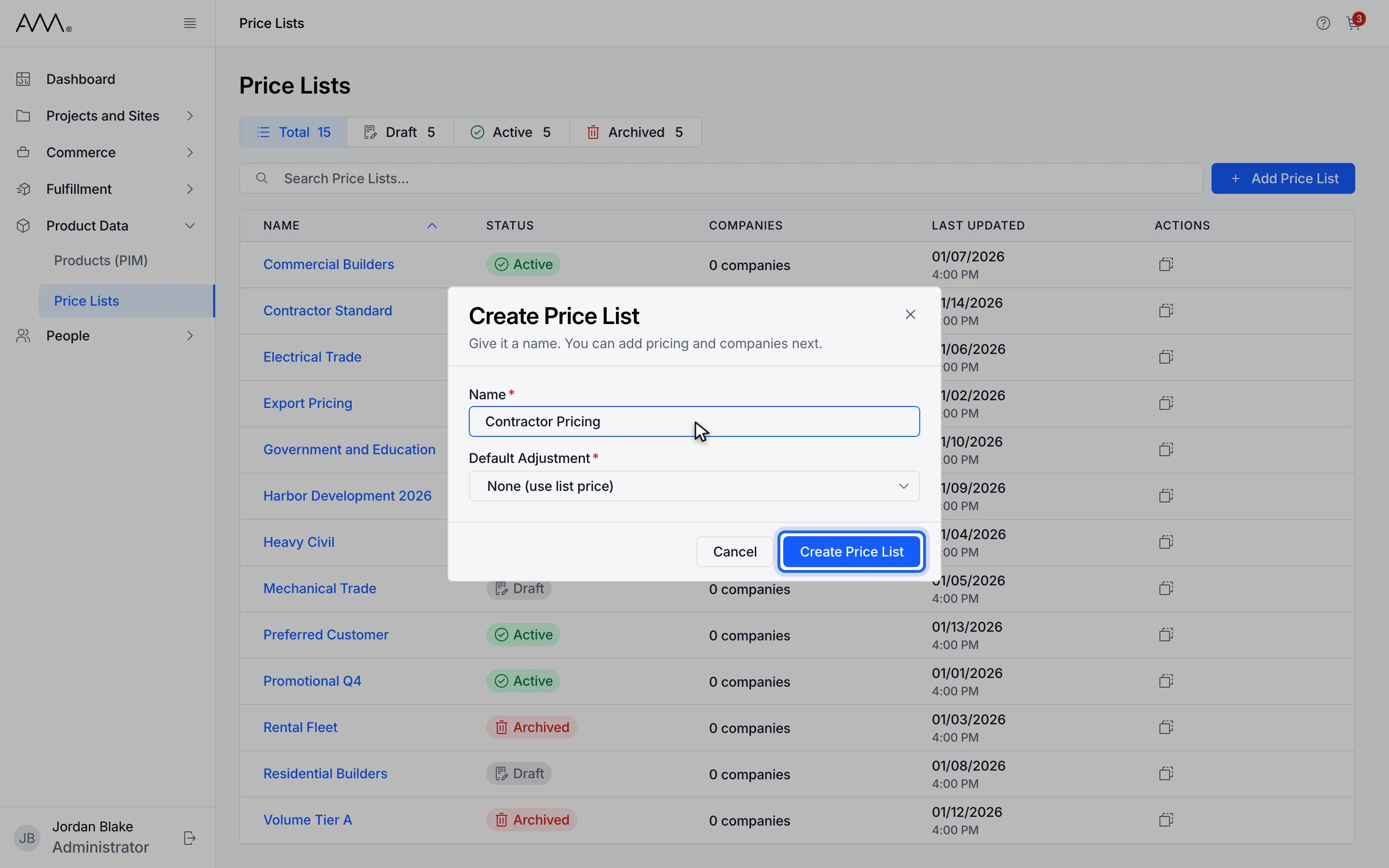
3Click Create Price List.
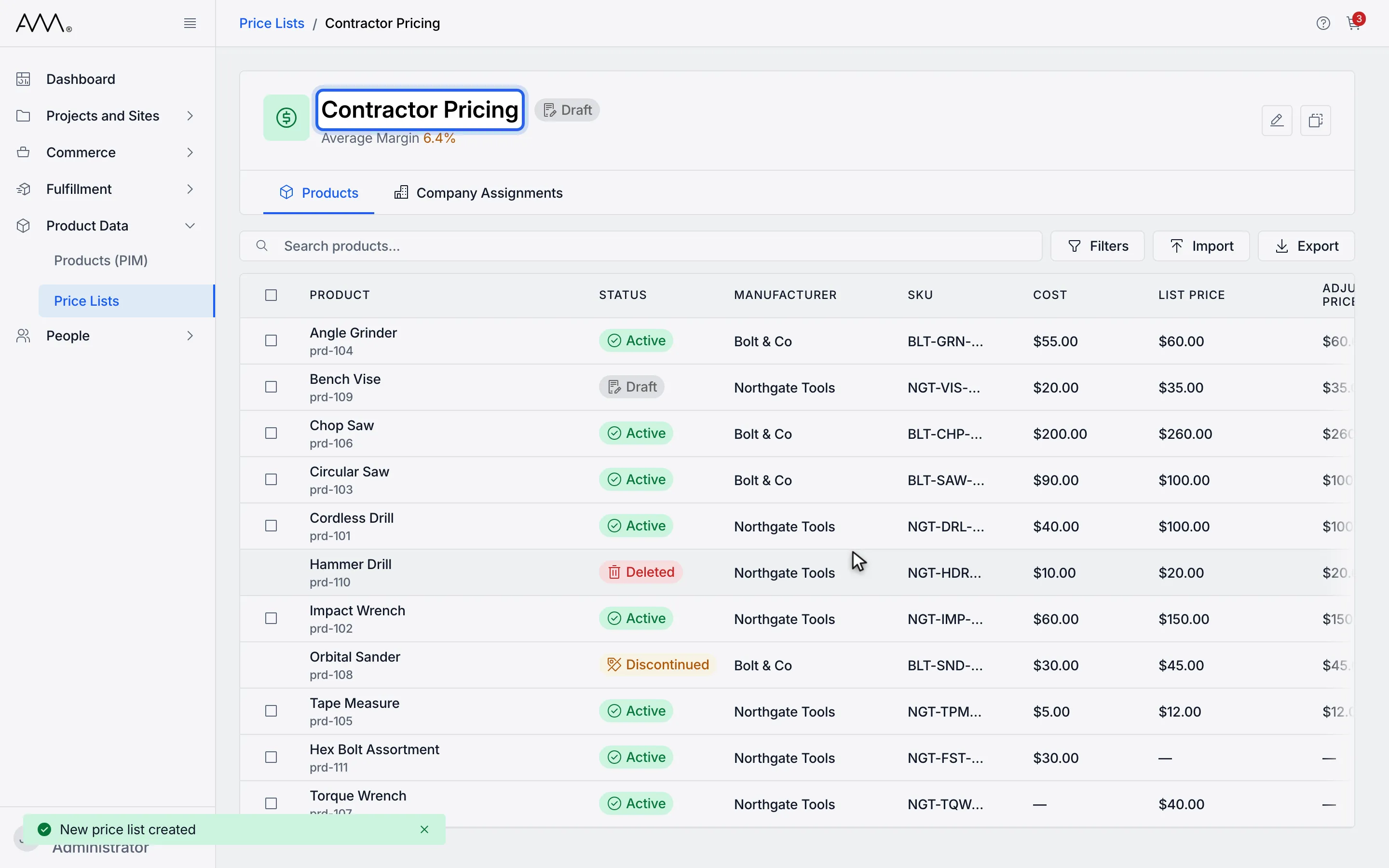
4The new price list opens in Draft status.
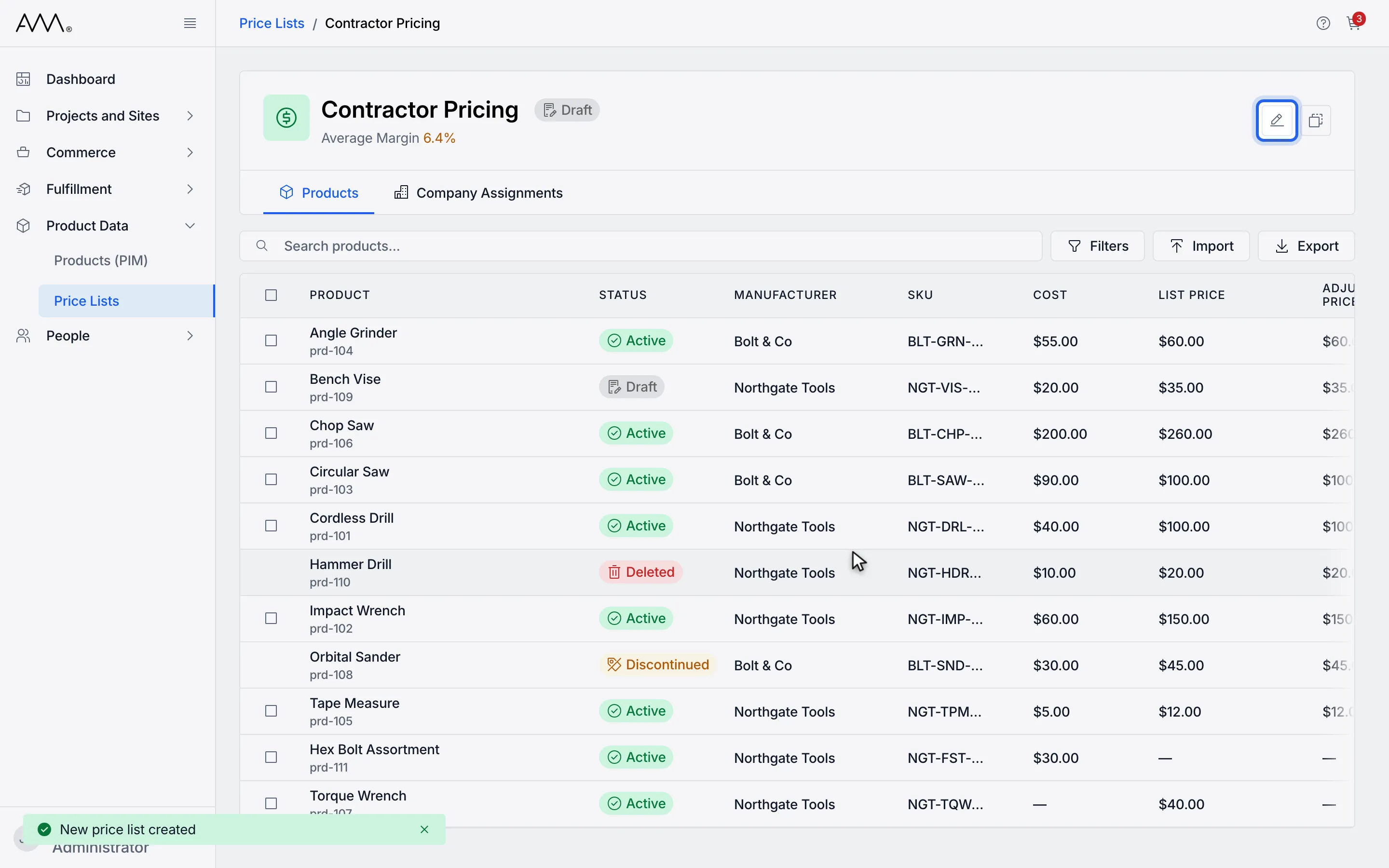
5Click the Edit price list icon in the header.
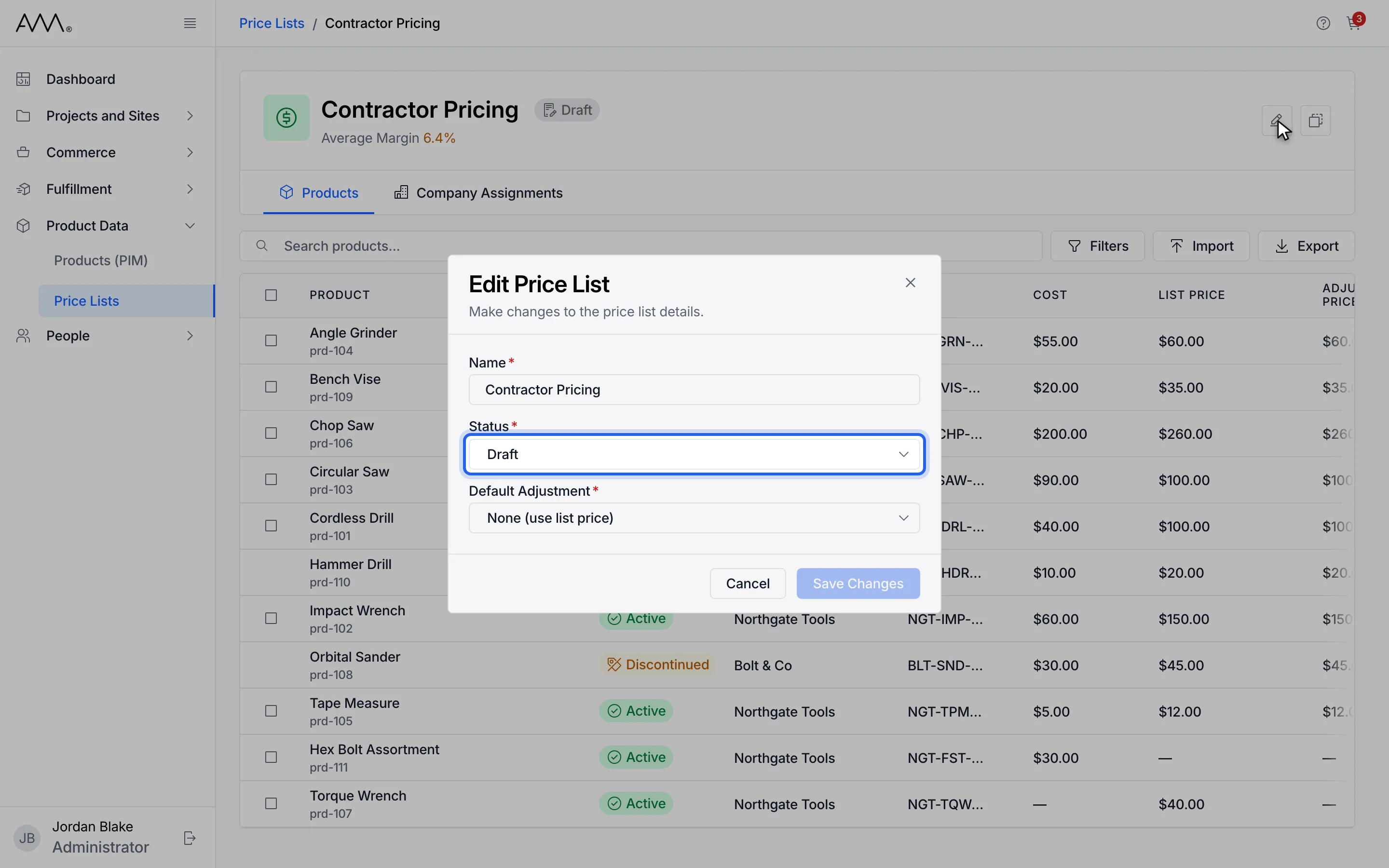
6Open Status.
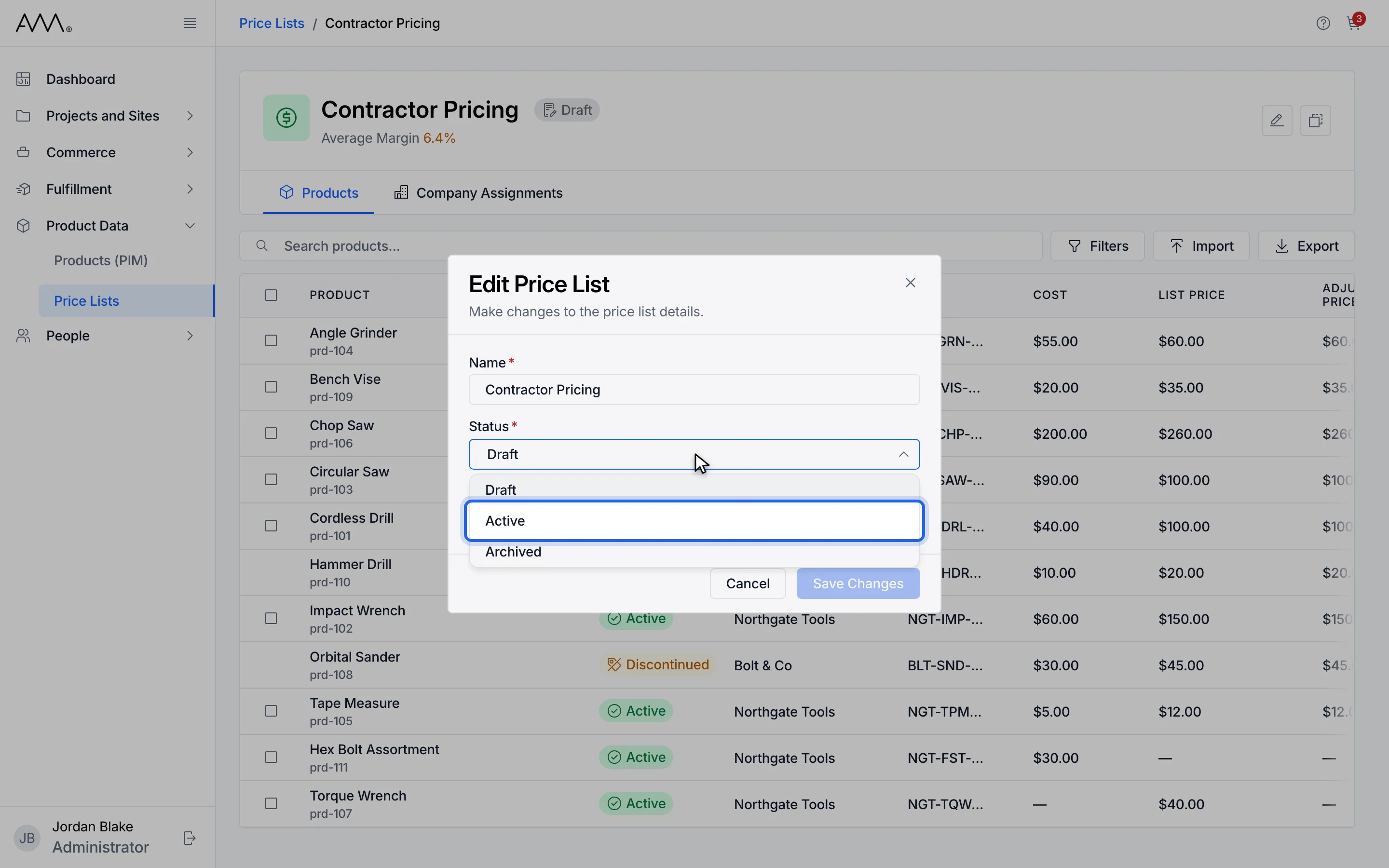
7Choose Draft, Active or Archived.
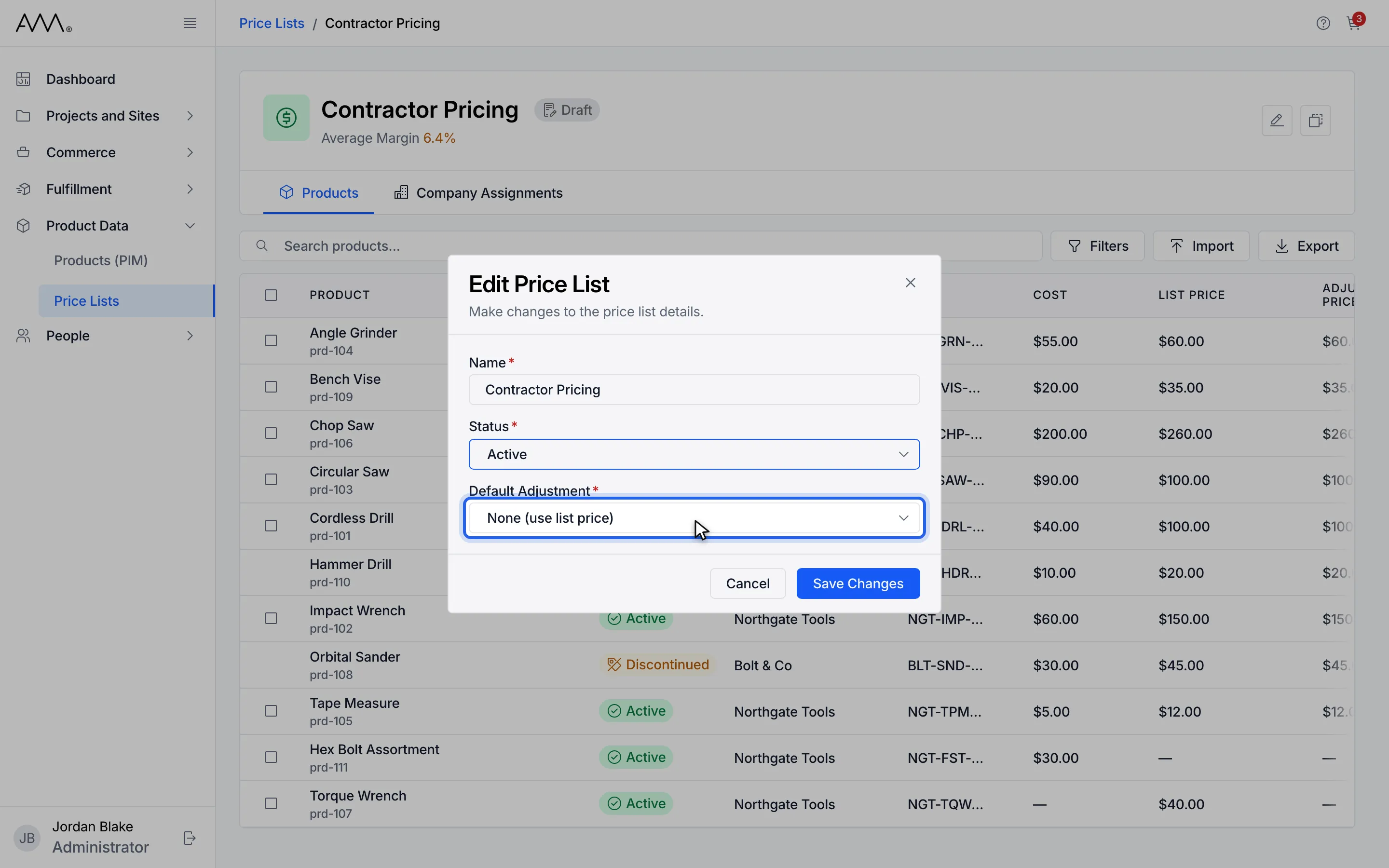
8Open Default Adjustment.
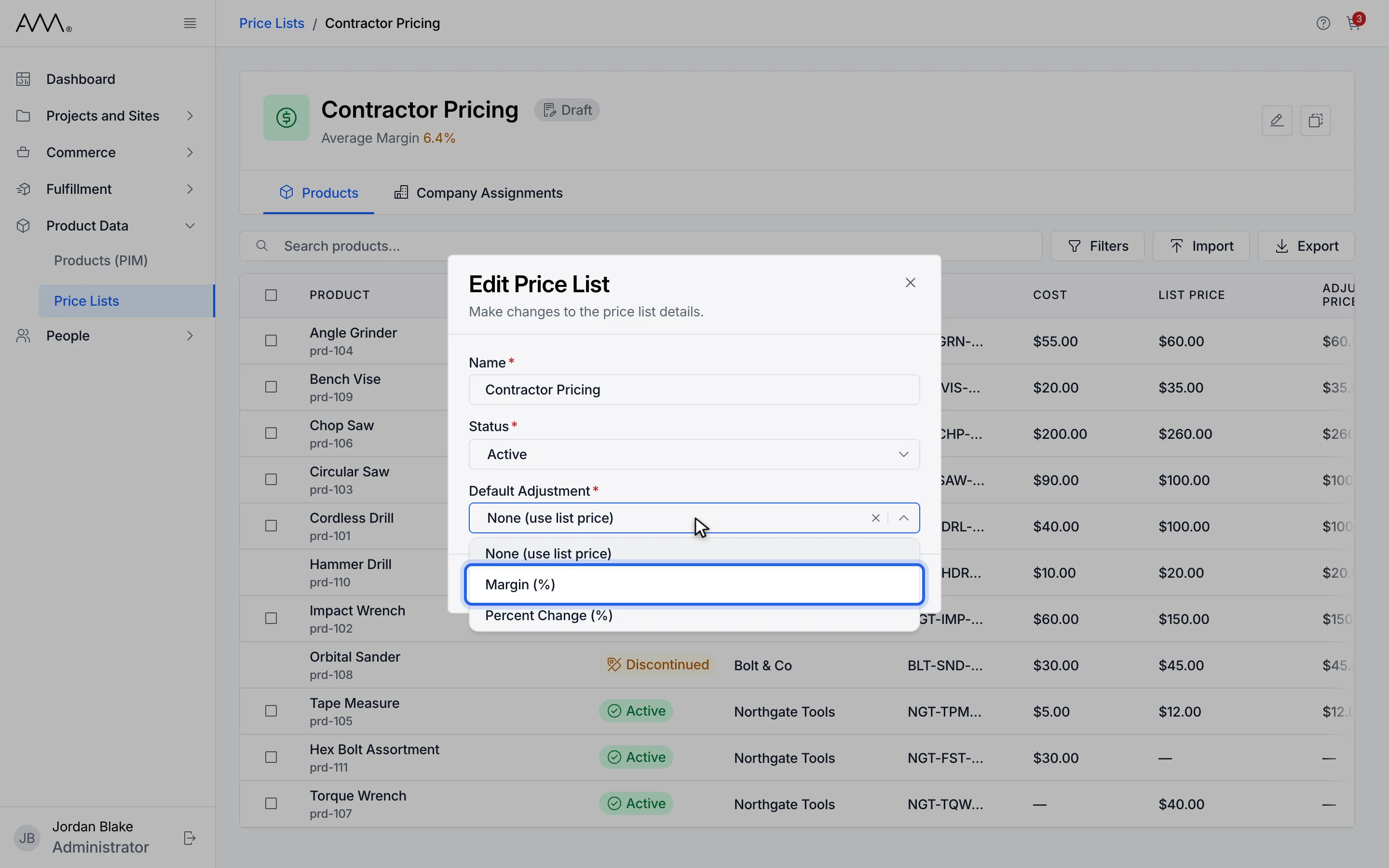
9Choose Margin (%) or Percent Change (%) to adjust every price.
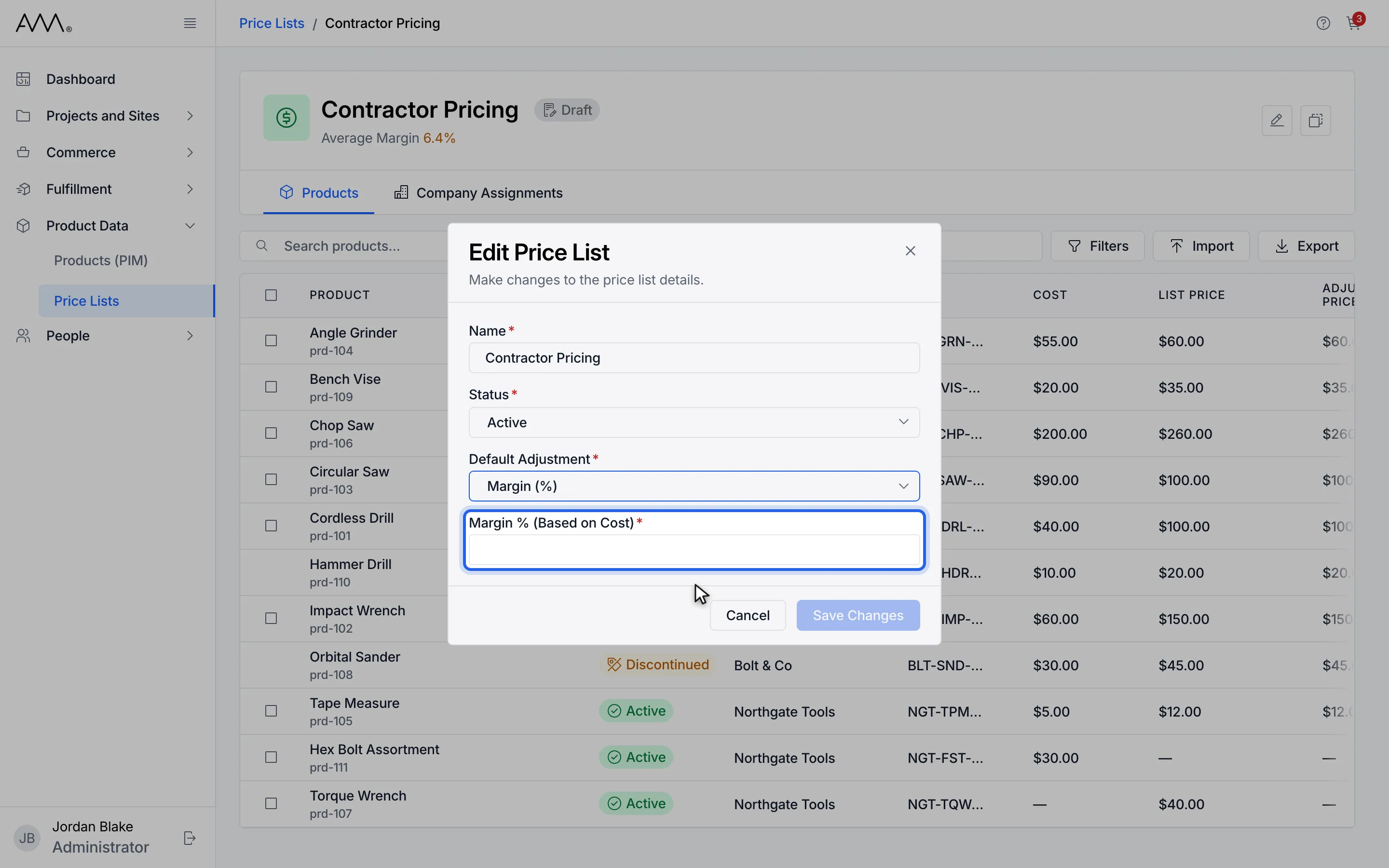
10Enter the margin percentage.
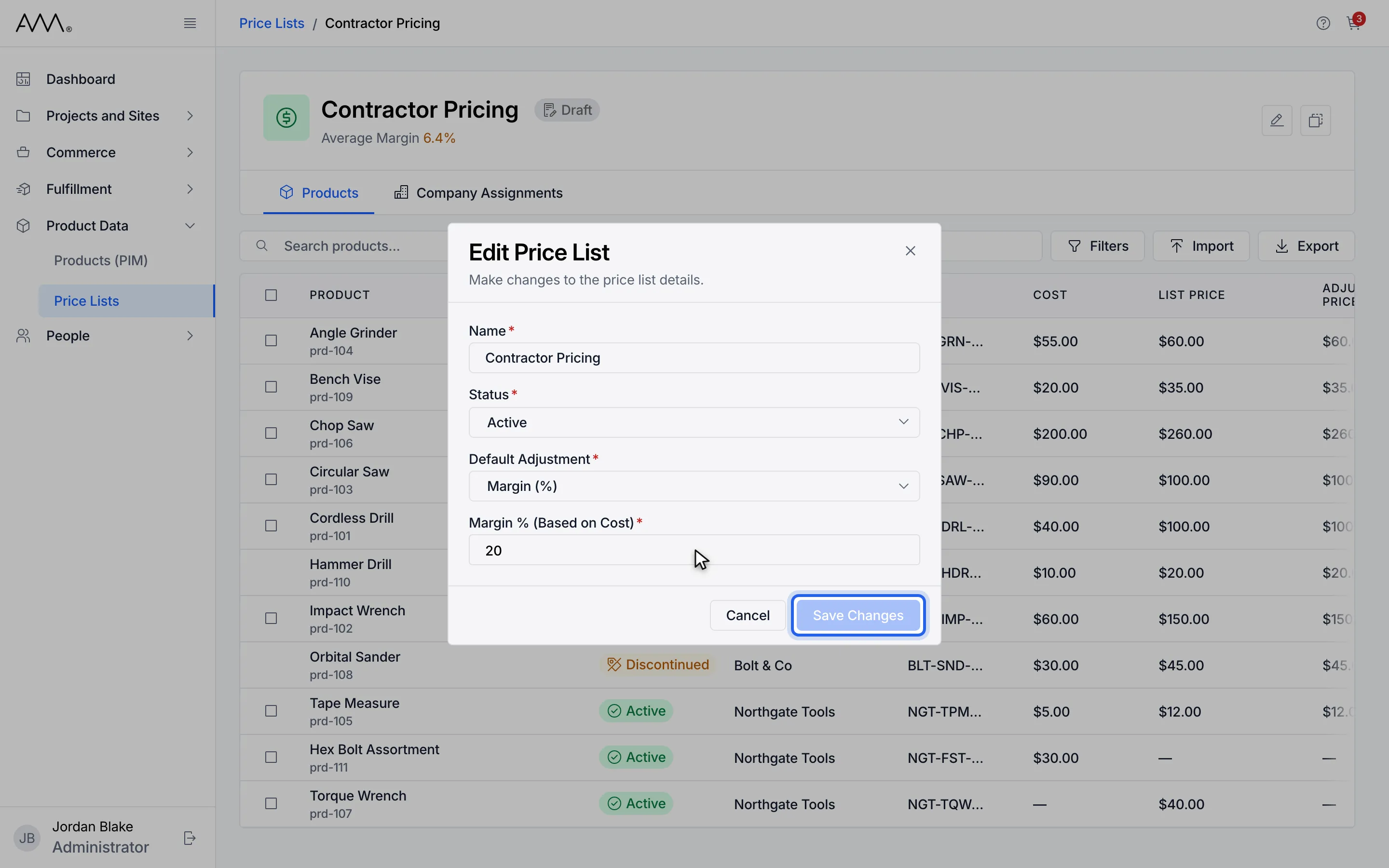
11Click Save Changes.
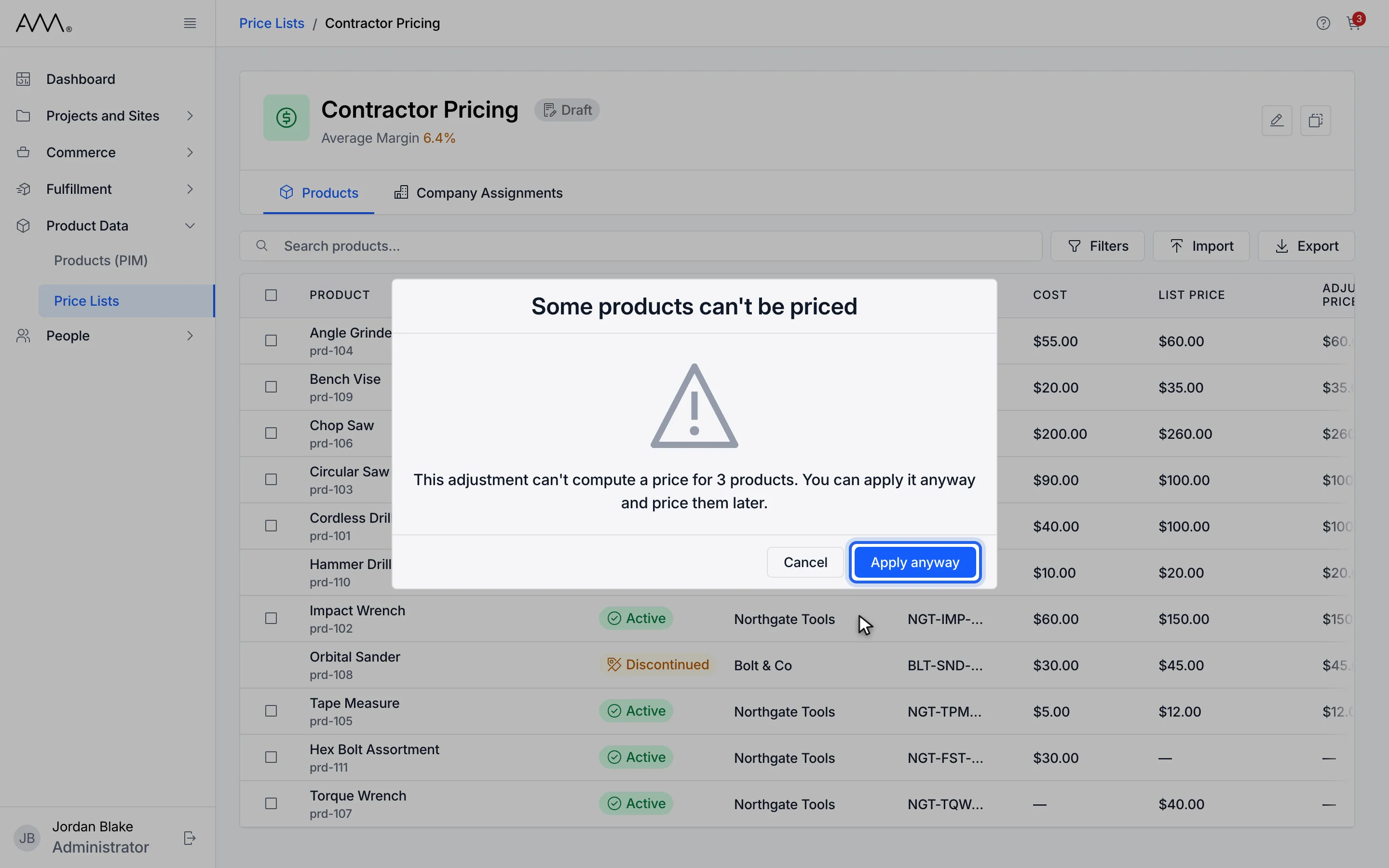
12If some products have no cost, click Apply anyway. You can price them later.
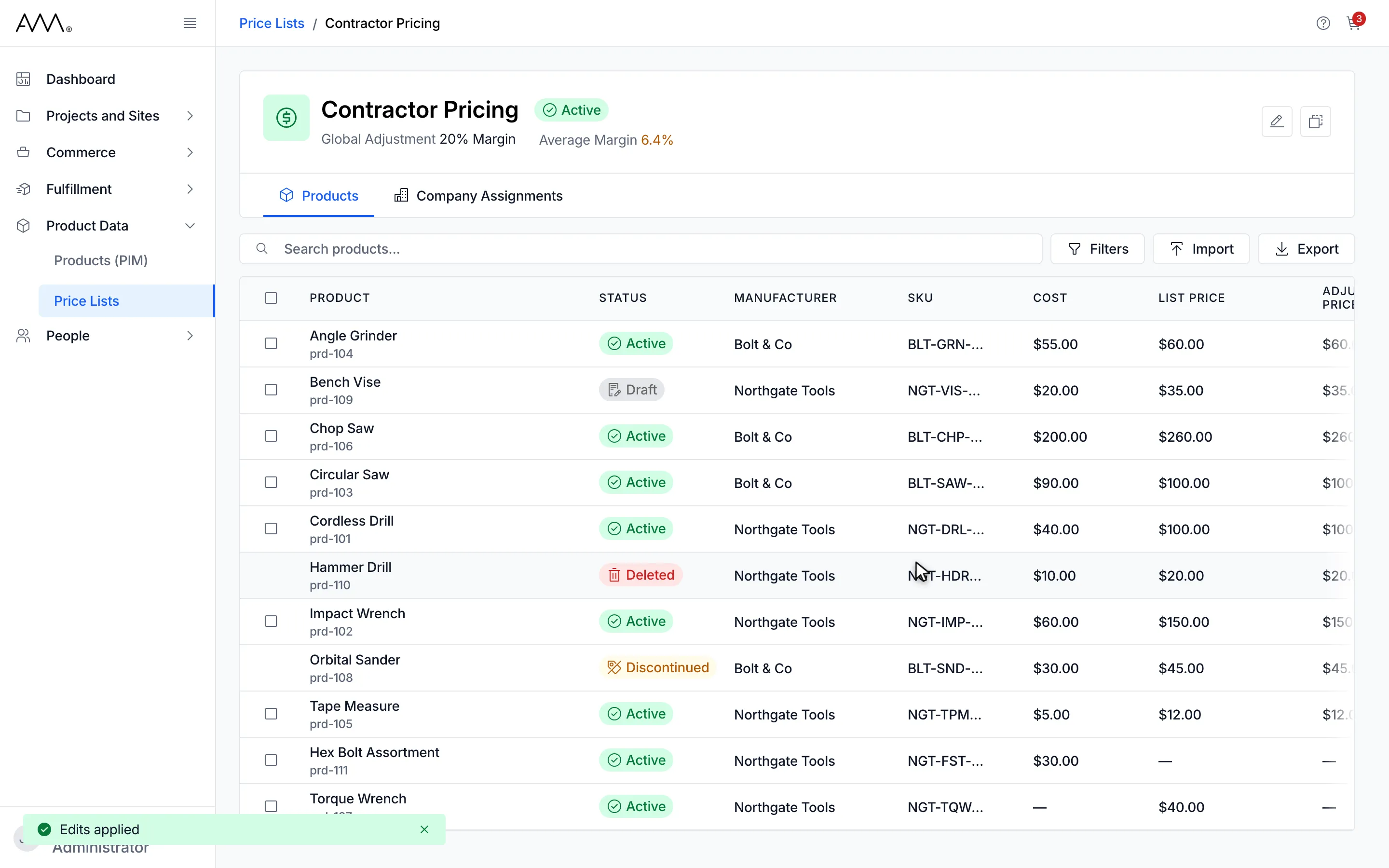
13The header shows the new status and the global adjustment.
Watch this as a video (create and edit a price list)
What happens next
Section titled “What happens next”After saving, the toast Edits applied appears and the dialog closes. The header, the breadcrumb and the Price Lists page show the new name, status and adjustment, for example Global Adjustment 20% Margin or Global Adjustment +10% on List Price. Products without an override take their price from the new rule; products with an override keep it.
A status change takes effect as soon as you save and asks for no confirmation. Only an Active price list is applied on quotes and sales orders for the companies assigned to it; see Assign companies to a price list.
If the name is already taken, the error shows under Name when you save. If saving fails for another reason, the toast reads Couldn’t create price list. Please try again. or Couldn’t save price list. Please try again.