Download the packing slip
Every packed order has a packing slip. Omni downloads it for you the moment you confirm pick and pack, and you can download it again at any time from the order’s header, for example to print another copy for the shipper.
- In the sidebar, open Fulfillment and choose Fulfillment Orders.
- Click the Packed chip, or search for the order, and open it.
- Click Download Packing Slip in the header. It has taken the place of Set Status. The button is busy while the file is prepared, and it handles one download at a time.
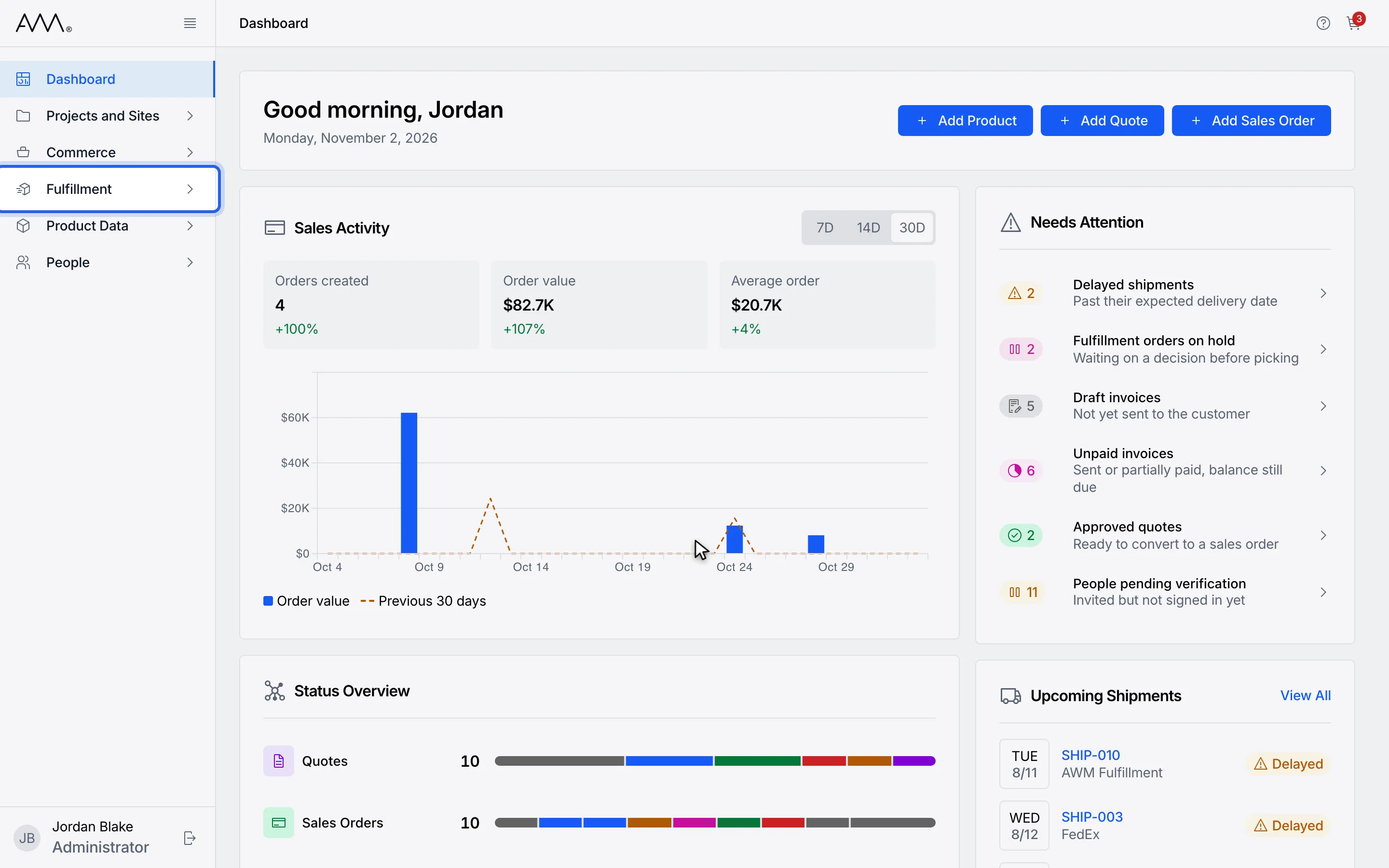
1In the sidebar, open Fulfillment.
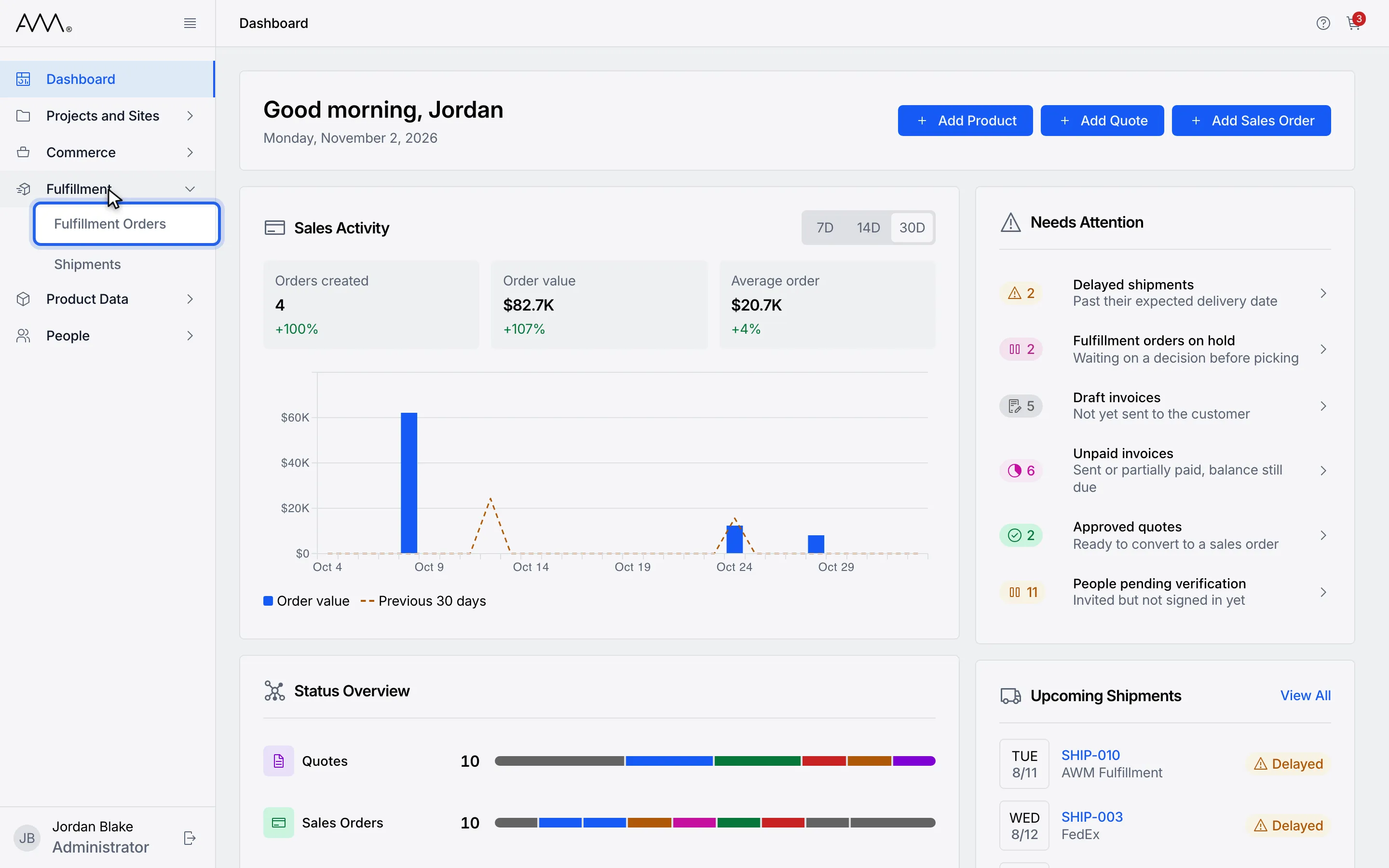
2Choose Fulfillment Orders.
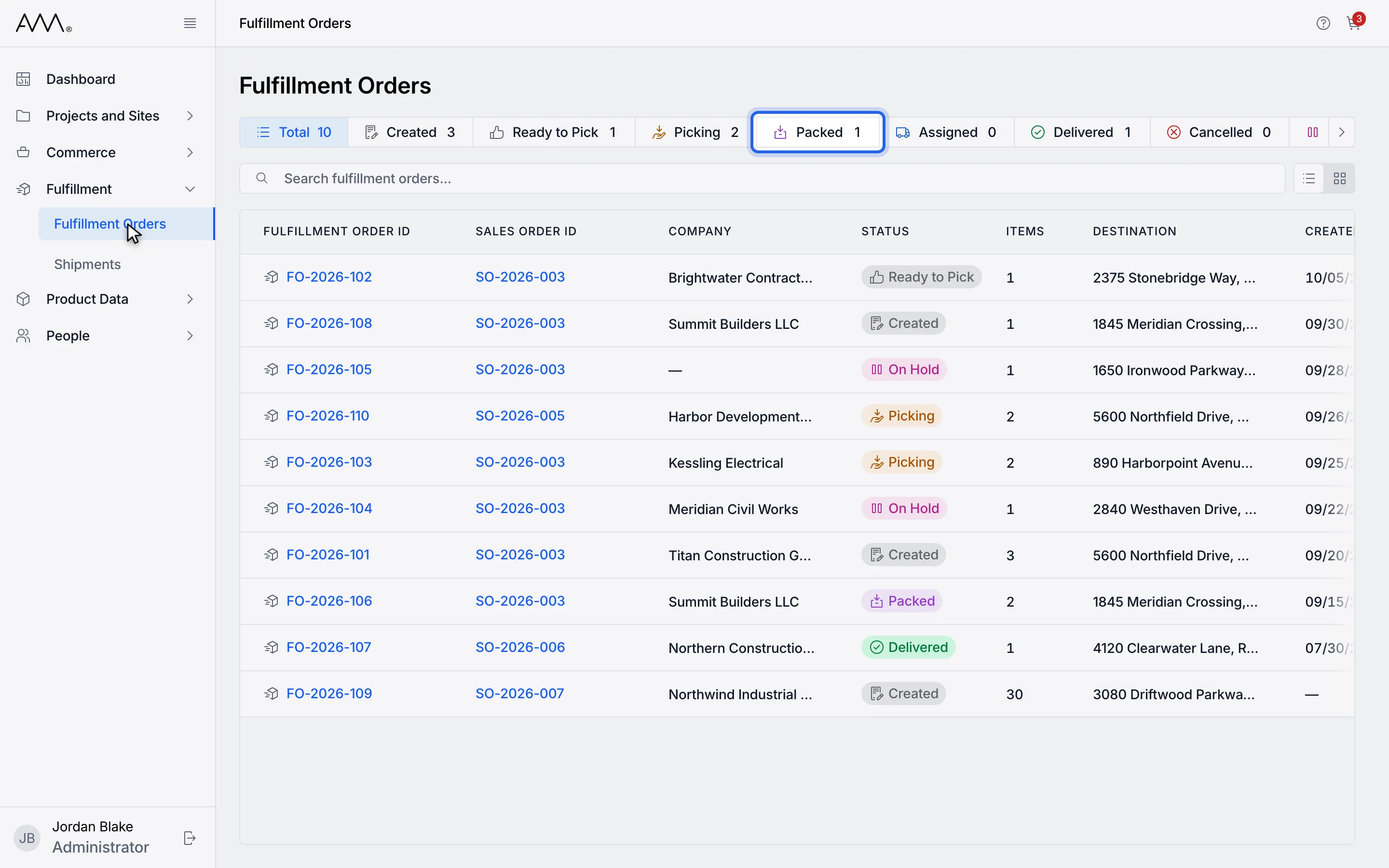
3Click the Packed chip to list the orders that have been packed.
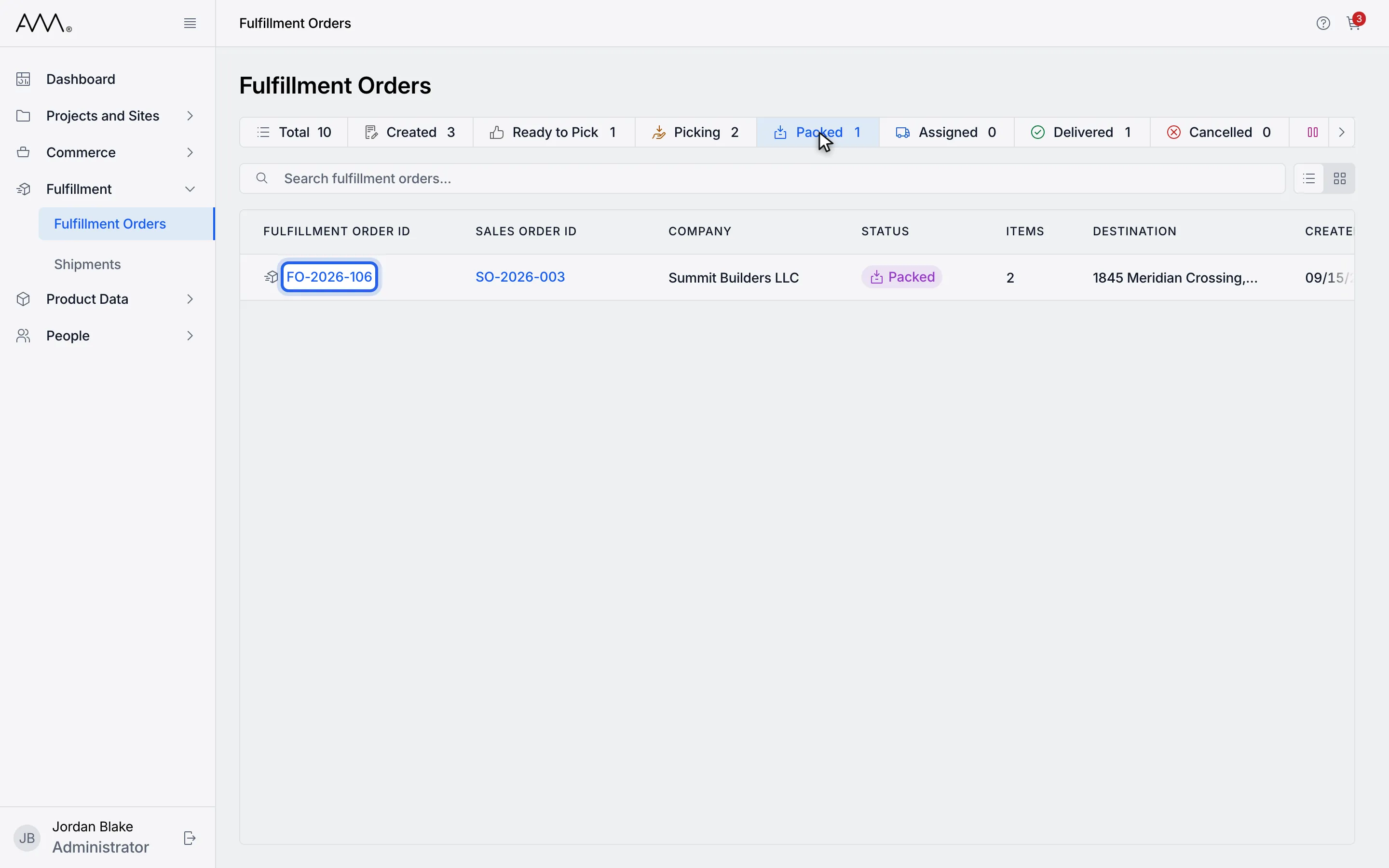
4Open the order.
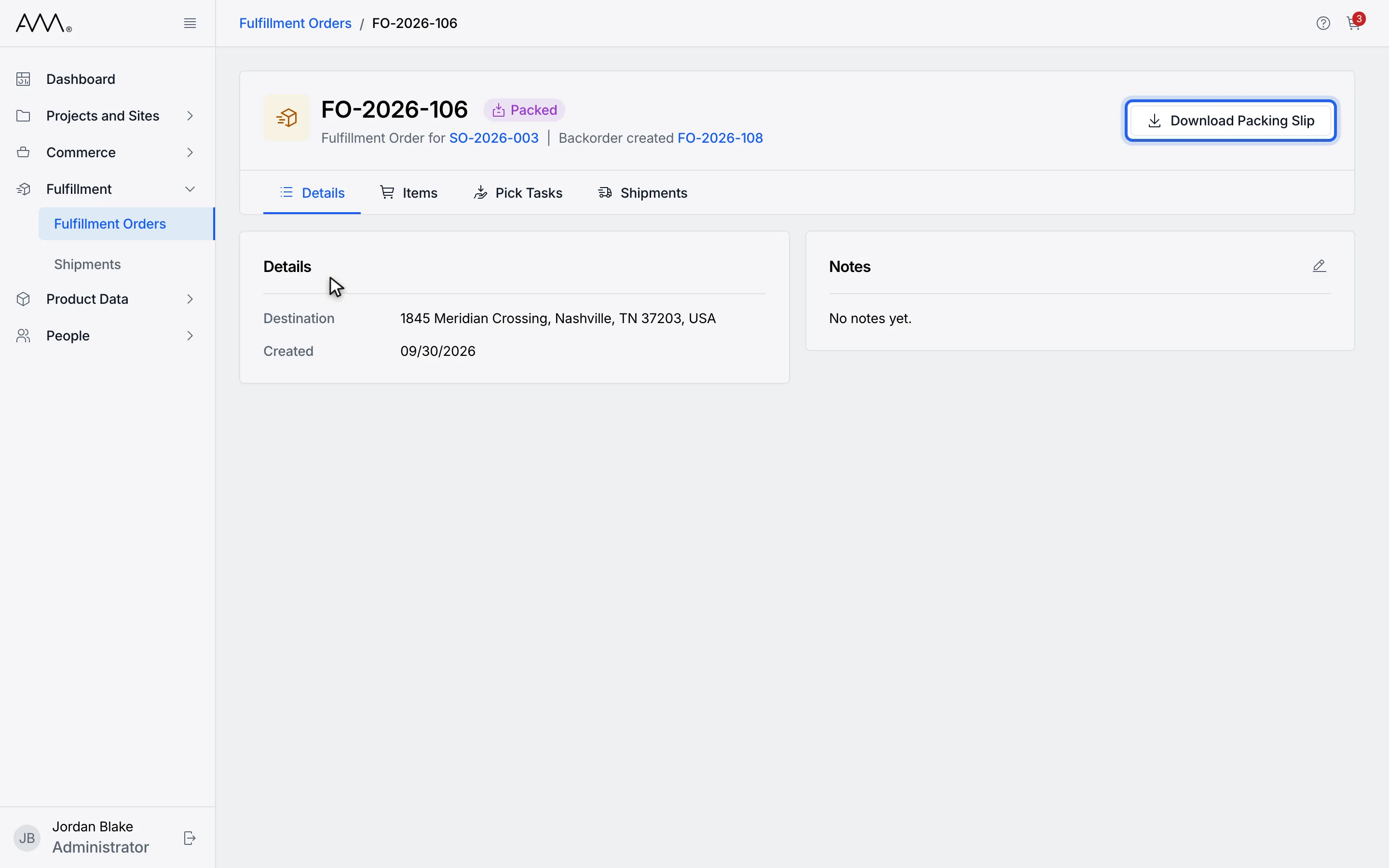
5Click Download Packing Slip, which replaces Set Status once an order is packed.
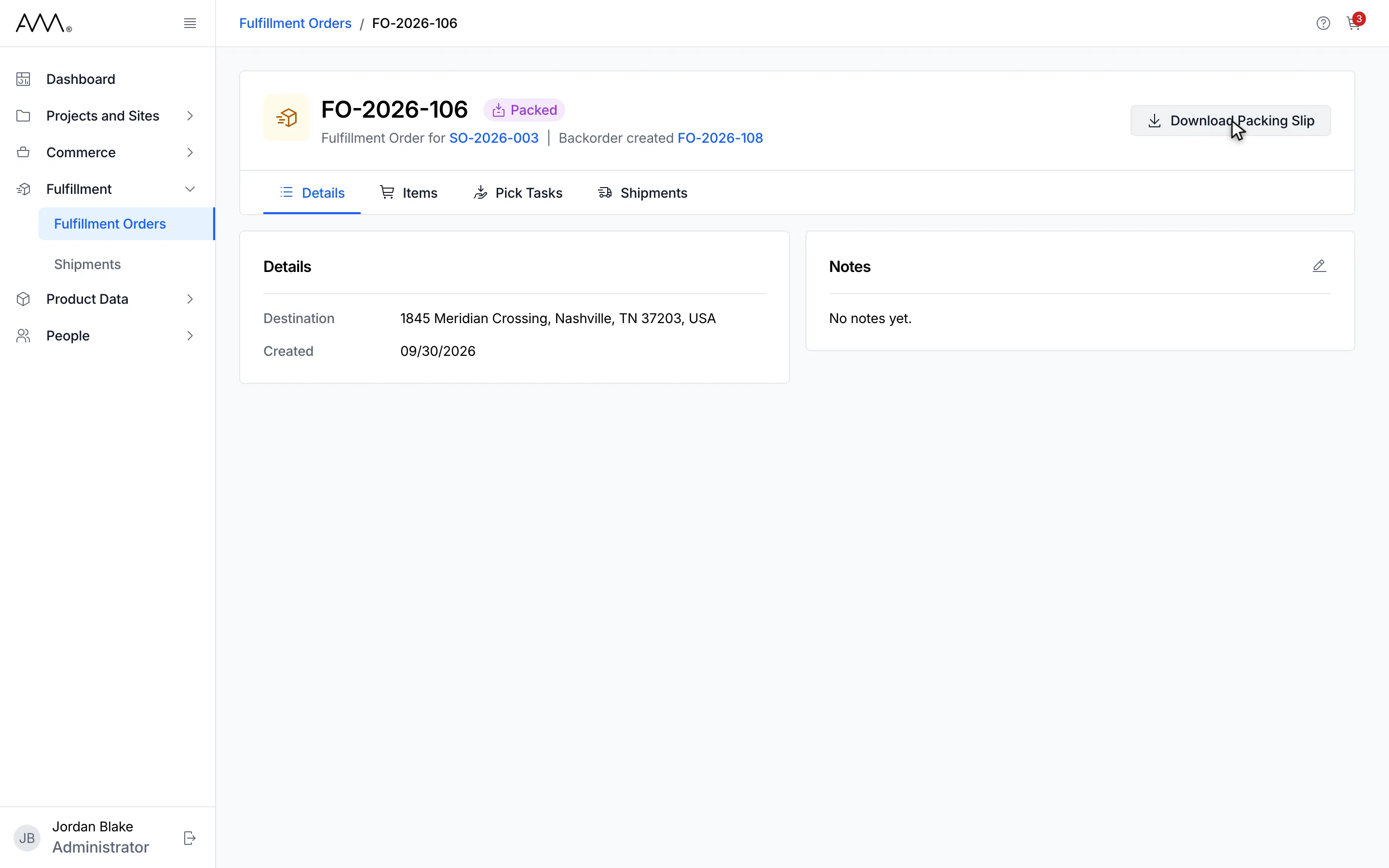
6Your browser saves the packing slip as a PDF named after its packing slip number.
Watch this as a video (download the packing slip)
What happens next
Section titled “What happens next”Your browser saves the packing slip as a PDF named after its packing slip number. Nothing on the order changes.
If the file cannot be fetched, a toast says Download failed. Please try again. When the automatic download after confirm pick and pack fails instead, the warning reads Packing slip could not be downloaded. Use Download Packing Slip on the fulfillment order to try again. The order is packed all the same, so use this button to try again.