Product Catalog and Cart
The Product Catalog is the list of products AWM currently sells. The Shopping Cart is where you collect products from the catalog, set quantities and prices, and then hand the whole set over to a new or existing quote or sales order in one step.
Where to find them
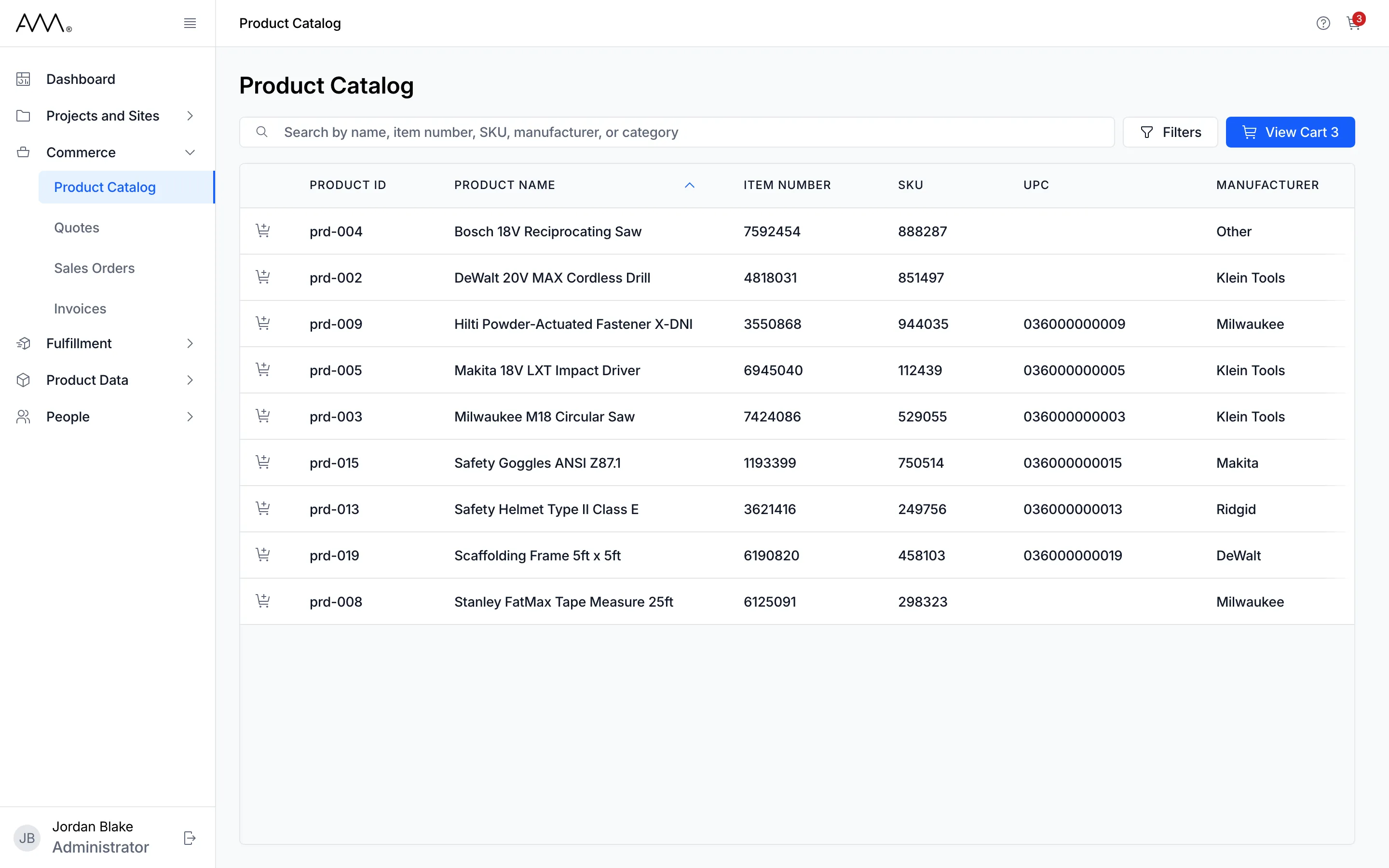
Section titled “Where to find them”In the sidebar, open Commerce and choose Product Catalog. The Add Quote and Add Sales Order buttons on the Dashboard open the catalog too. The cart is not in the sidebar: open it with the View Cart button on the catalog or with the cart icon at the right of the top bar. Both show how many different products are in the cart, and the cart icon is available on every page. The Help icon in the top bar opens this section of the Help Center from either page.
The Product Catalog
Section titled “The Product Catalog”The catalog shows only active products, so everything in it can be sold. It is always a table (there is no card view) and it is read-only: to change product details, use Products (PIM). It opens sorted by PRODUCT NAME from A to Z, with an arrow on that header.
Its columns, in order, are PRODUCT ID, PRODUCT NAME, ITEM NUMBER, SKU, UPC, MANUFACTURER, CATEGORY, VENDOR, VENDOR PART #, VENDOR COST (USD), LIST PRICE (USD), UNIT OF MEASURE, GROSS WEIGHT (LB), WIDTH (IN), HEIGHT (IN), DEPTH (IN), LEAD TIME, SHORT DESCRIPTION, LONG DESCRIPTION, LAST UPDATED and UPDATED BY. The UPC cell is blank for a product that has none. The table scrolls sideways. At the start of each row is an add-to-cart button.
Above the table are the search box, the Filters button and View Cart. See Browse and search the catalog.
The Shopping Cart
Section titled “The Shopping Cart”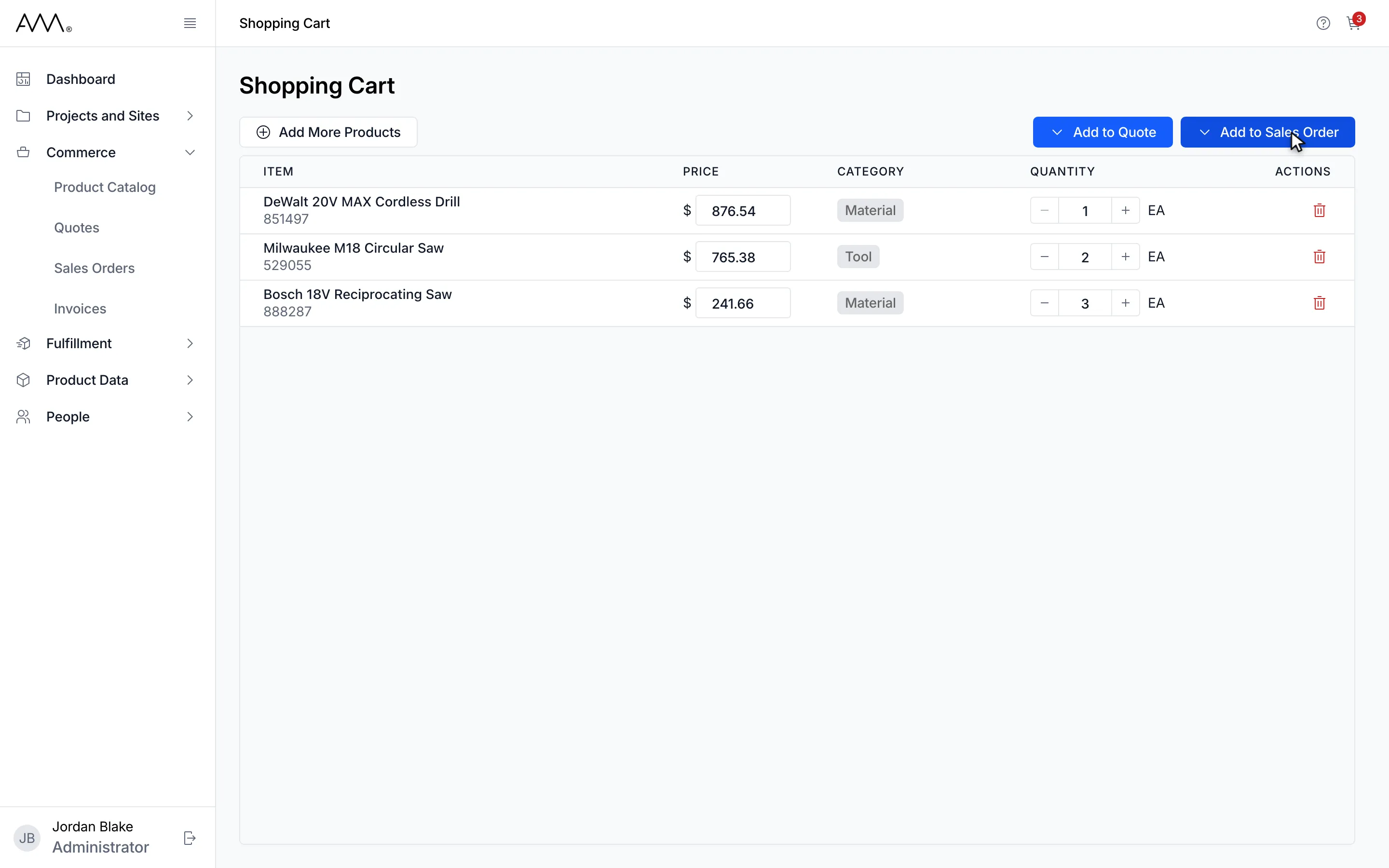
The cart is one table with a row per product: ITEM (name and SKU), PRICE (the unit price, which you can change), CATEGORY, QUANTITY (with − and + buttons and the unit of measure) and ACTIONS (remove). Click a column header to sort. Above the table are Add More Products, which takes you back to the catalog, and the two hand-off menus Add to Quote and Add to Sales Order. When the cart is empty it reads Your cart is empty and Browse the product catalog to add items. See Build a cart.
The cart is reloaded every time you open it, so a product that was renamed or repriced in Products (PIM) shows its current name and price. There is no button to empty the cart. Remove lines one at a time, or hand the cart over to a quote or sales order, which empties it for you.
From cart to quote or sales order
Section titled “From cart to quote or sales order”Add to Quote offers Add to New Quote and Add to Existing Quote; Add to Sales Order offers Add to New Sales Order and Add to Existing Sales Order. Each takes every line in the cart, with its quantity and price, into the quote or order, empties the cart, and then opens that quote or order for you to finish. A new quote or order is created as a Draft at once; there is no form to fill in first. See Start a quote from the cart and Start a sales order from the cart.
Permissions
Section titled “Permissions”| To do this | You need |
|---|---|
| Open the Product Catalog | Product Catalog: Read |
| See the cart icon and View Cart, and open the cart | Cart: Read |
| Add products to the cart | Cart: Create |
| Change a line’s price or quantity | Cart: Update |
| Remove a line | Cart: Delete |
| See Add to Quote | Quotes: Create and Quotes: Read |
| Use Add to Existing Quote | Quotes: Update as well |
| See Add to Sales Order | Sales Orders: Create and Sales Orders: Read |
| Use Add to Existing Sales Order | Sales Orders: Update as well |
Controls you do not have permission for are hidden or disabled. Ask an administrator if you need one.