Assign and unassign supply points
A jobsite’s Supply Points tab lists the supply points that belong to it. Assign supply points from there, and unassign one when it no longer belongs to the jobsite.
- In the sidebar, open Projects and Sites and choose Jobsites.
- Click the jobsite name to open it.
- Click the Supply Points tab.
- Click Assign Supply Point. The Assign Supply Point dialog lists the supply points that are not on any jobsite, each with its Location, Contact and Company. Type in Search supply points… to narrow the list by name; more load as you scroll.
- Click a supply point’s card to tick it.
- Click Assign Supply Point.
- To unassign a supply point, click the unassign icon on its card, or in the Actions column in list view.
- Read the warning, then click Unassign Supply Point to confirm.
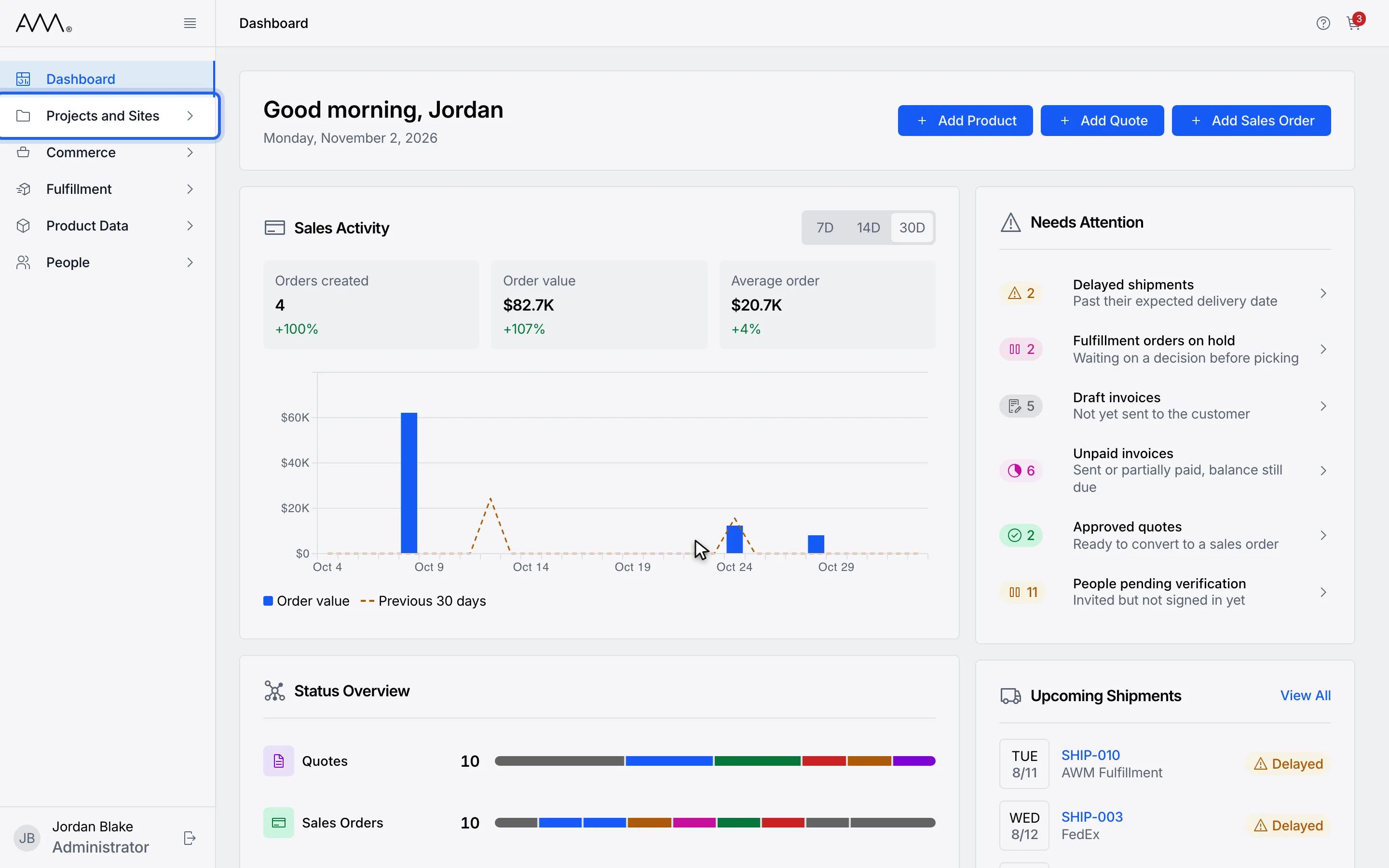
1In the sidebar, open Projects and Sites.
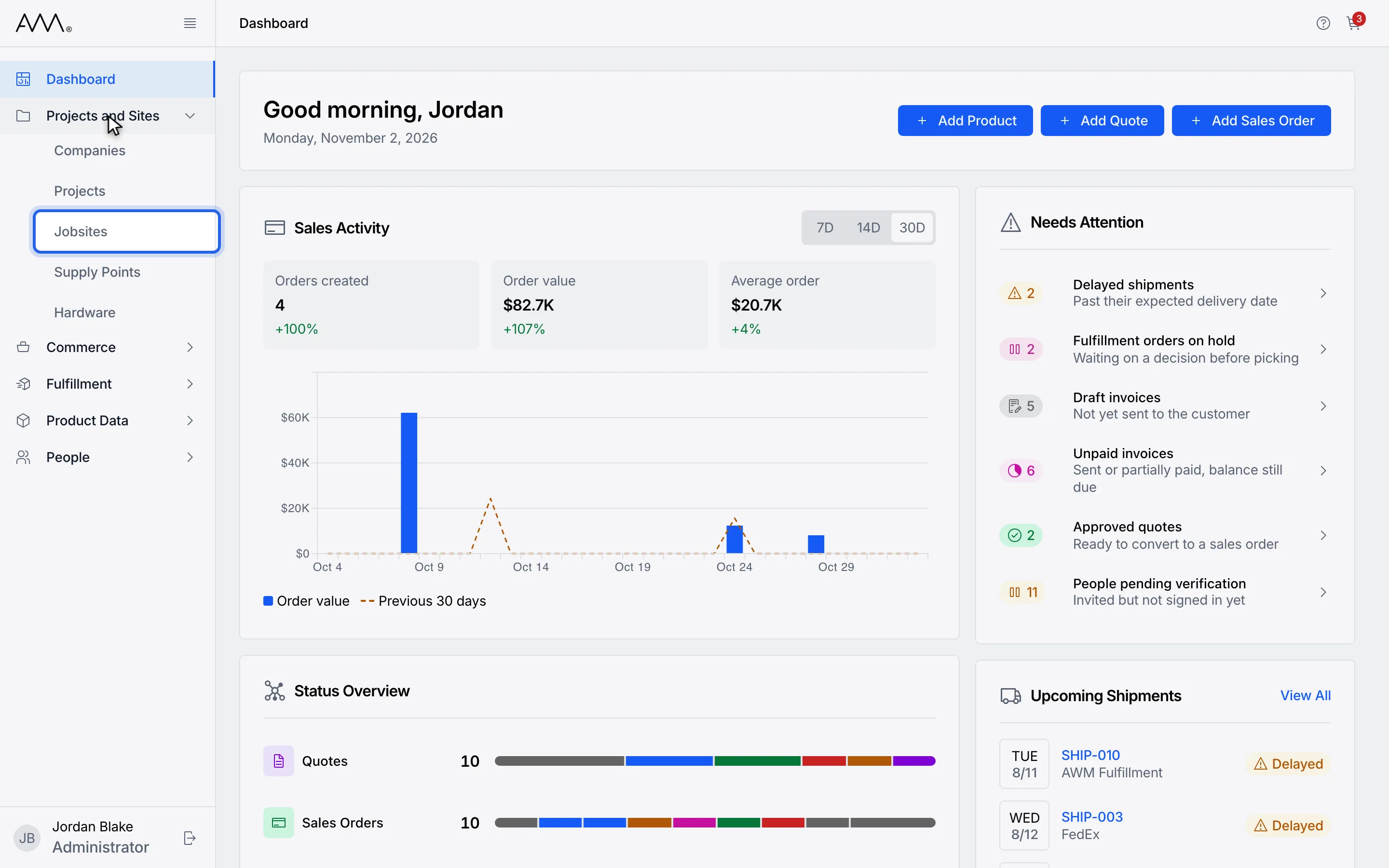
2Choose Jobsites.
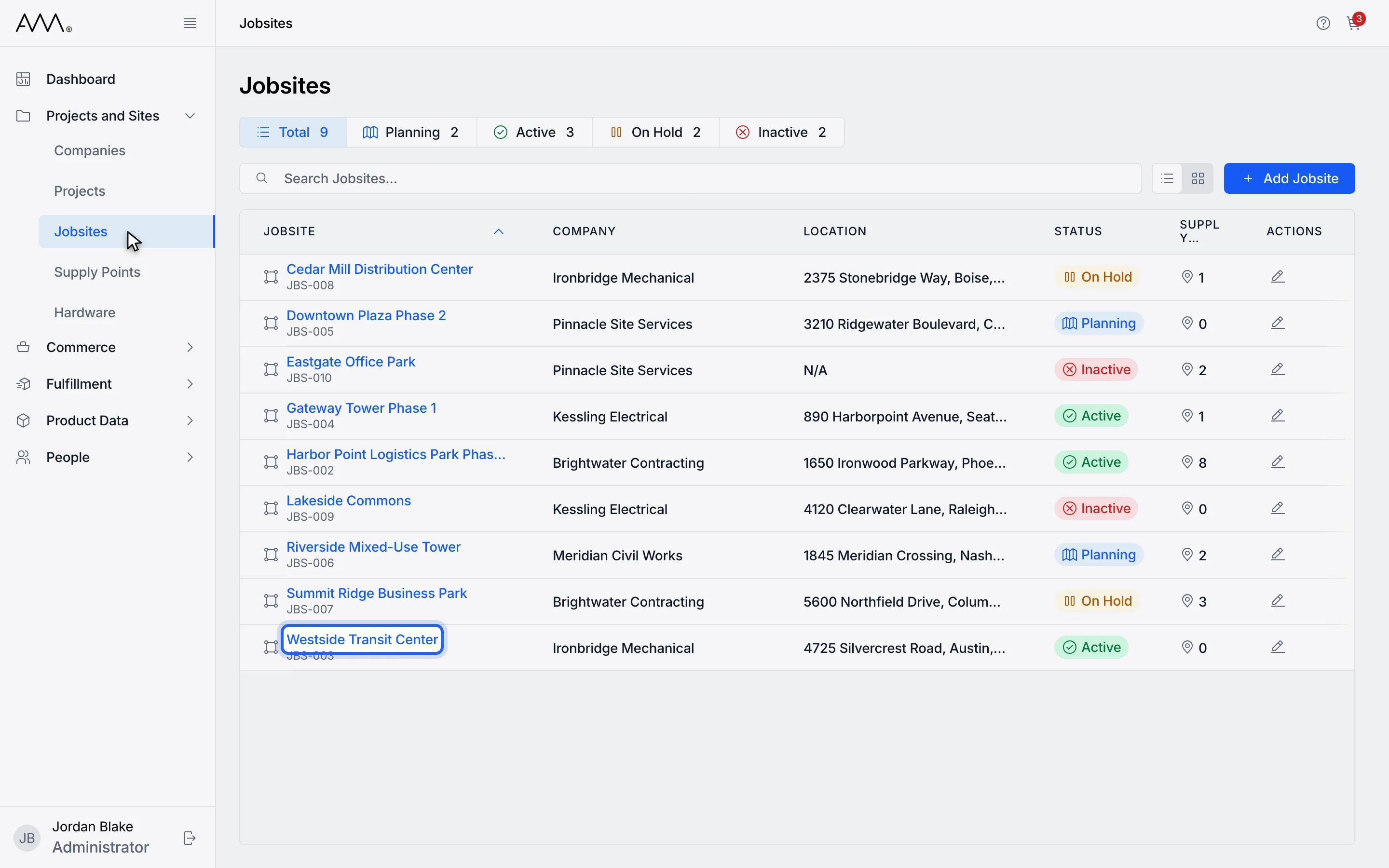
3Open the jobsite.
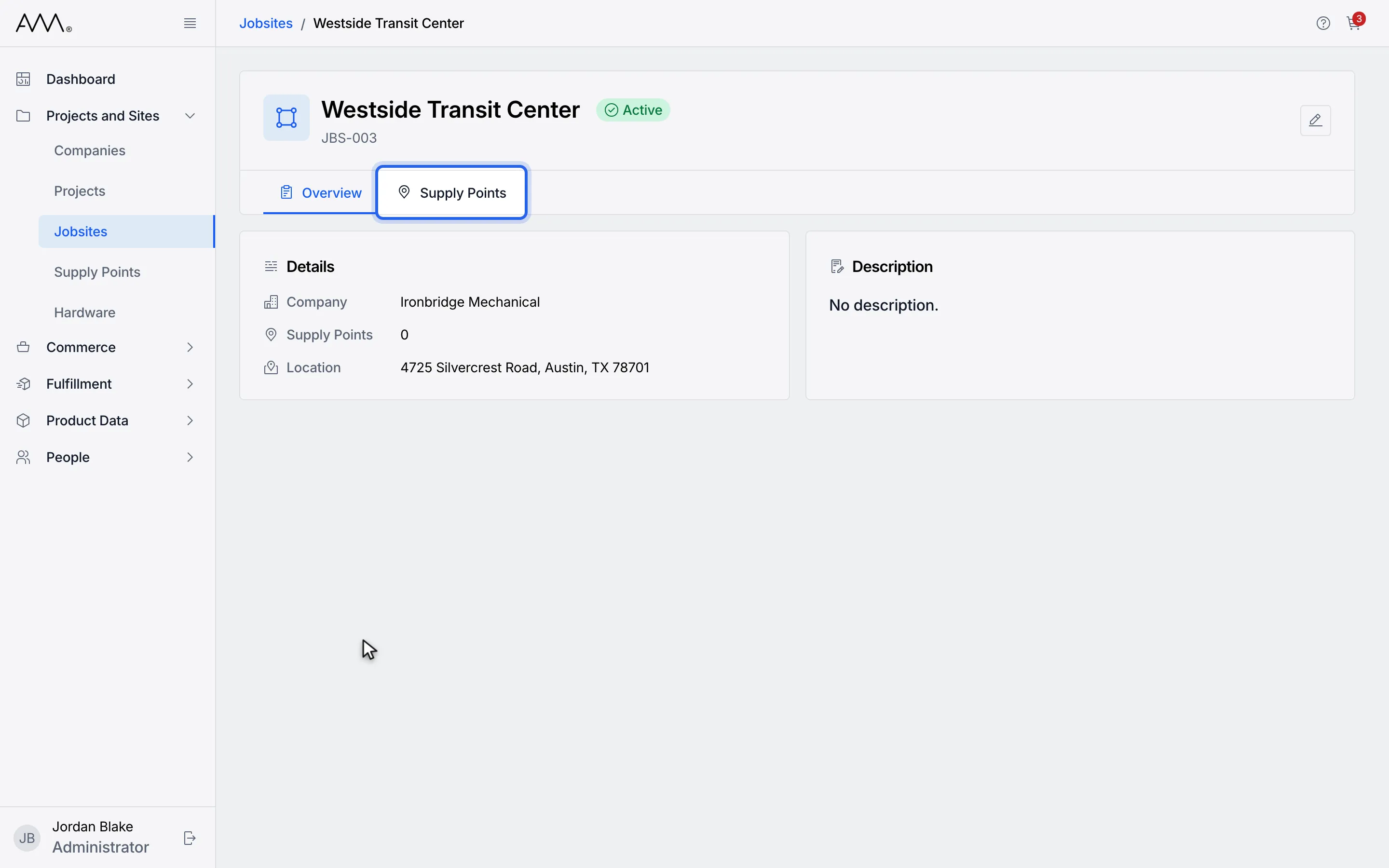
4Click the Supply Points tab.
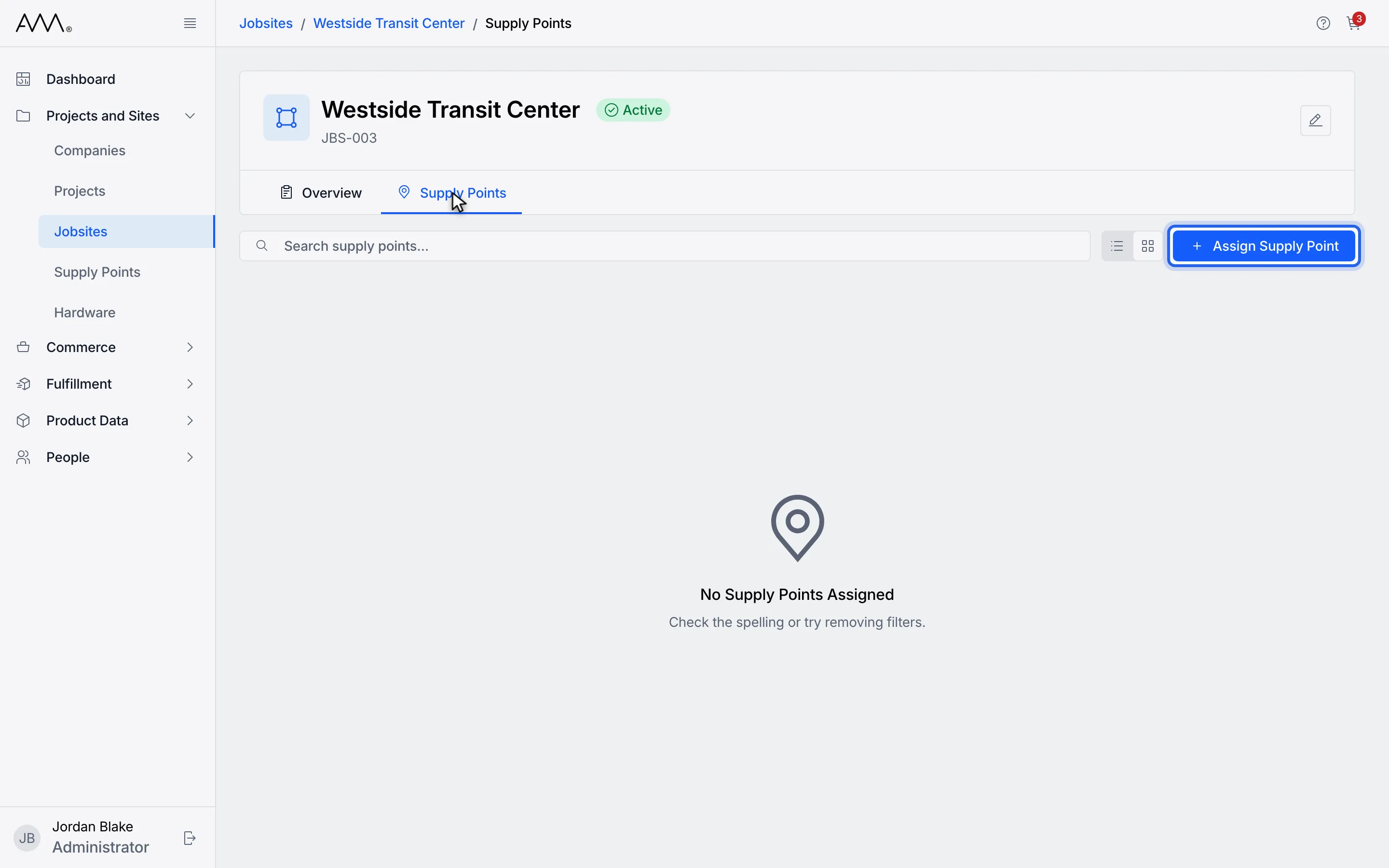
5Click Assign Supply Point.
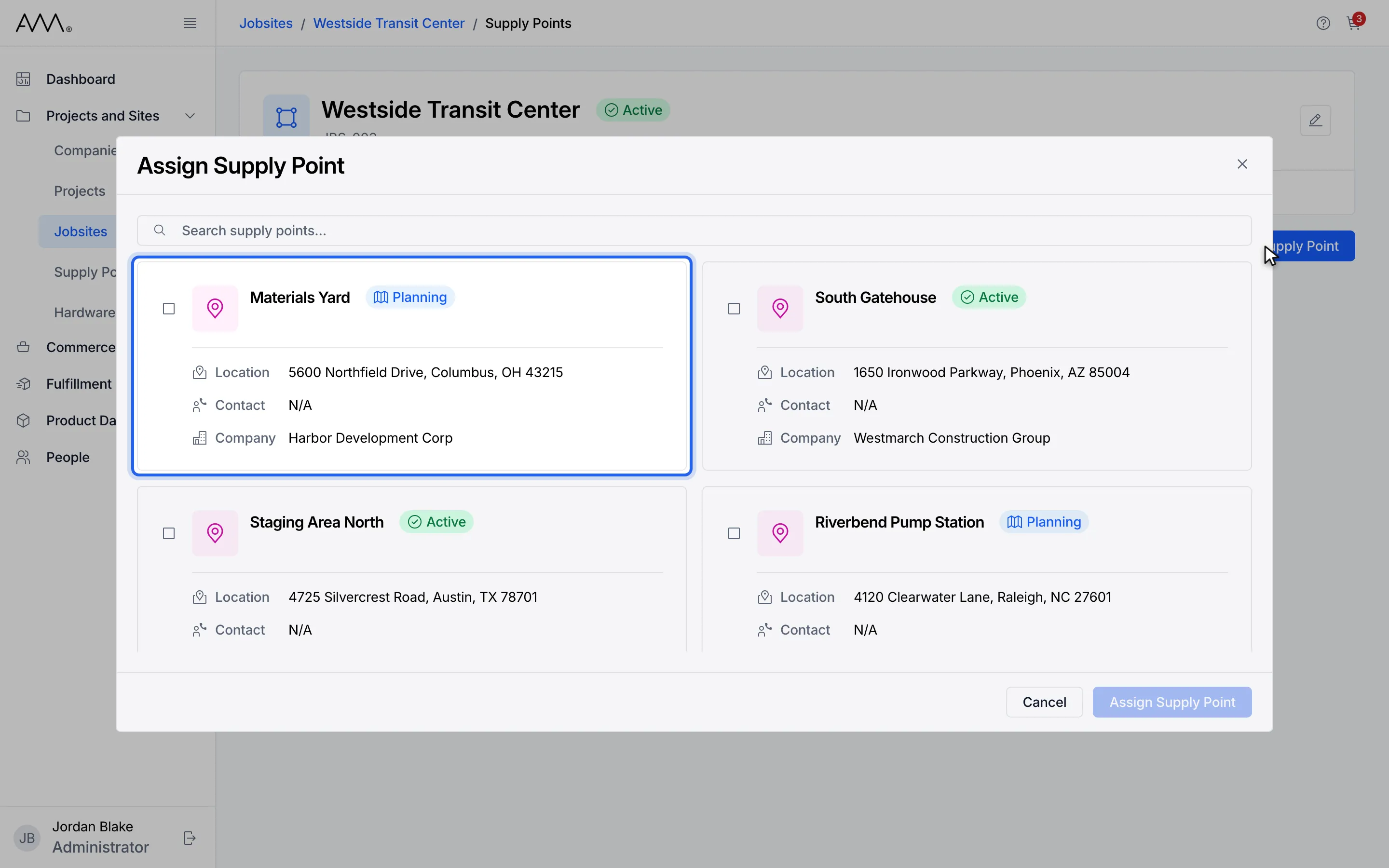
6Click a supply point card to tick it. Only supply points on no jobsite are offered.
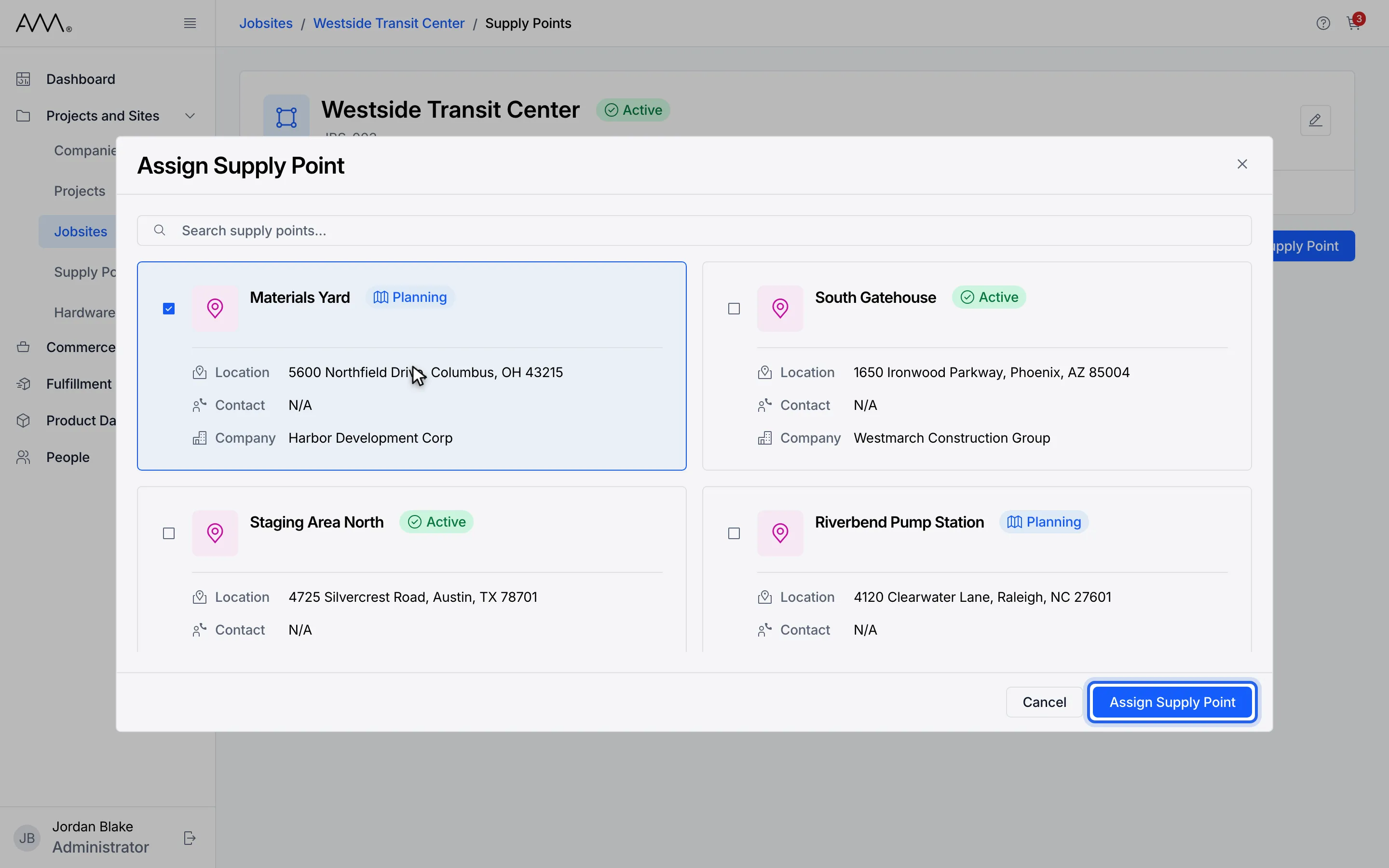
7Click Assign Supply Point.
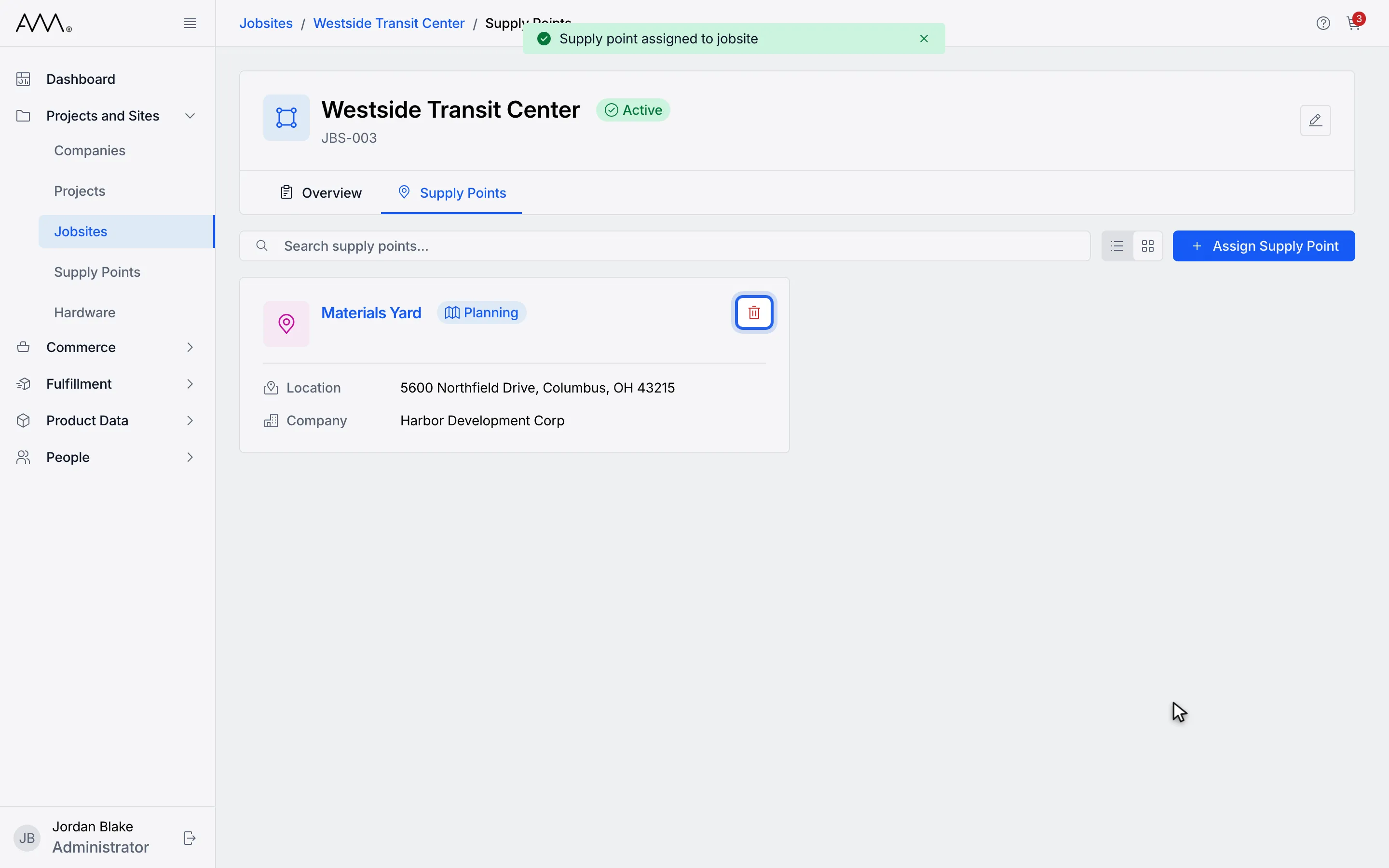
8To remove a supply point, click the unassign icon on its card.
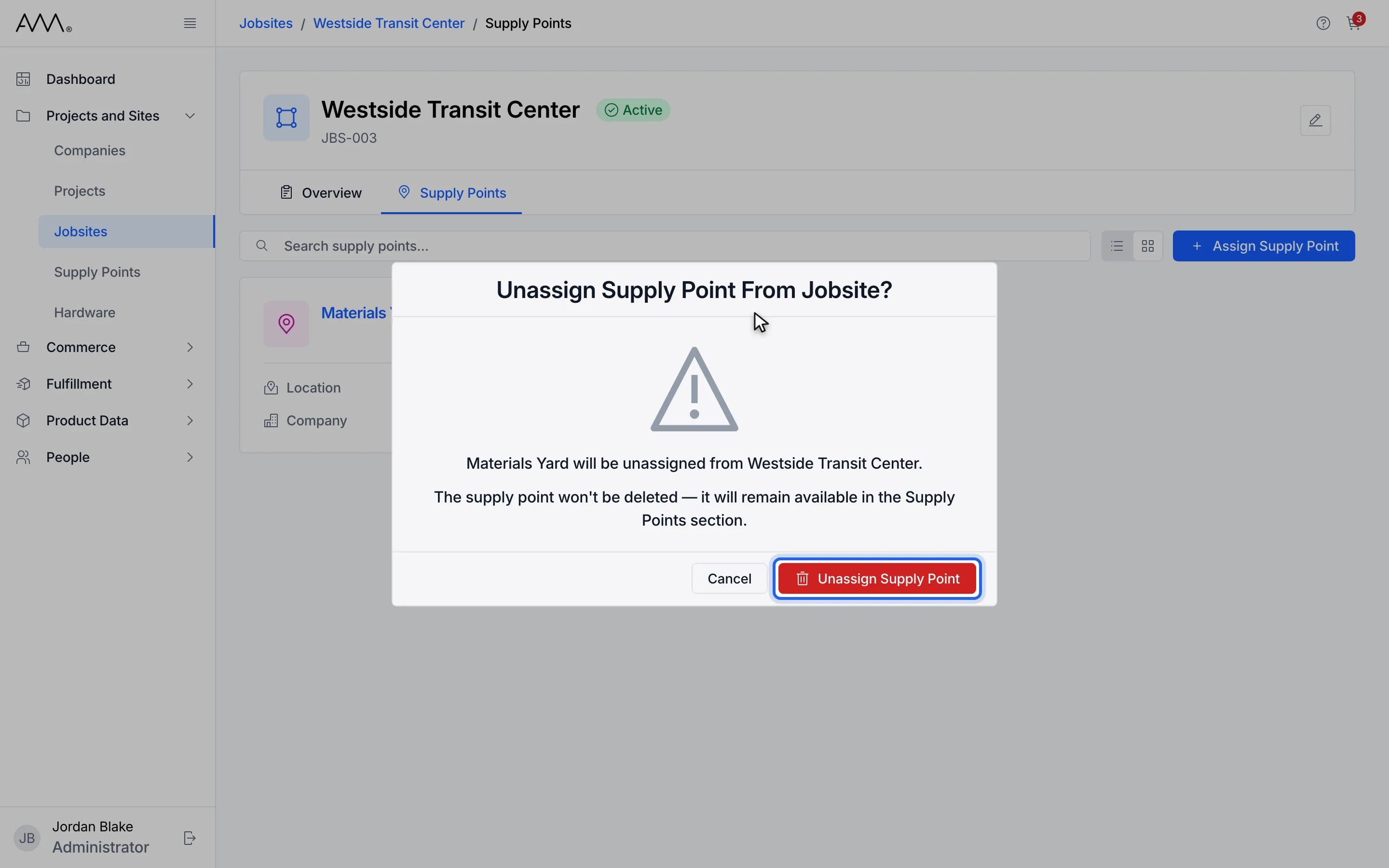
9Read the warning, then click Unassign Supply Point to confirm.
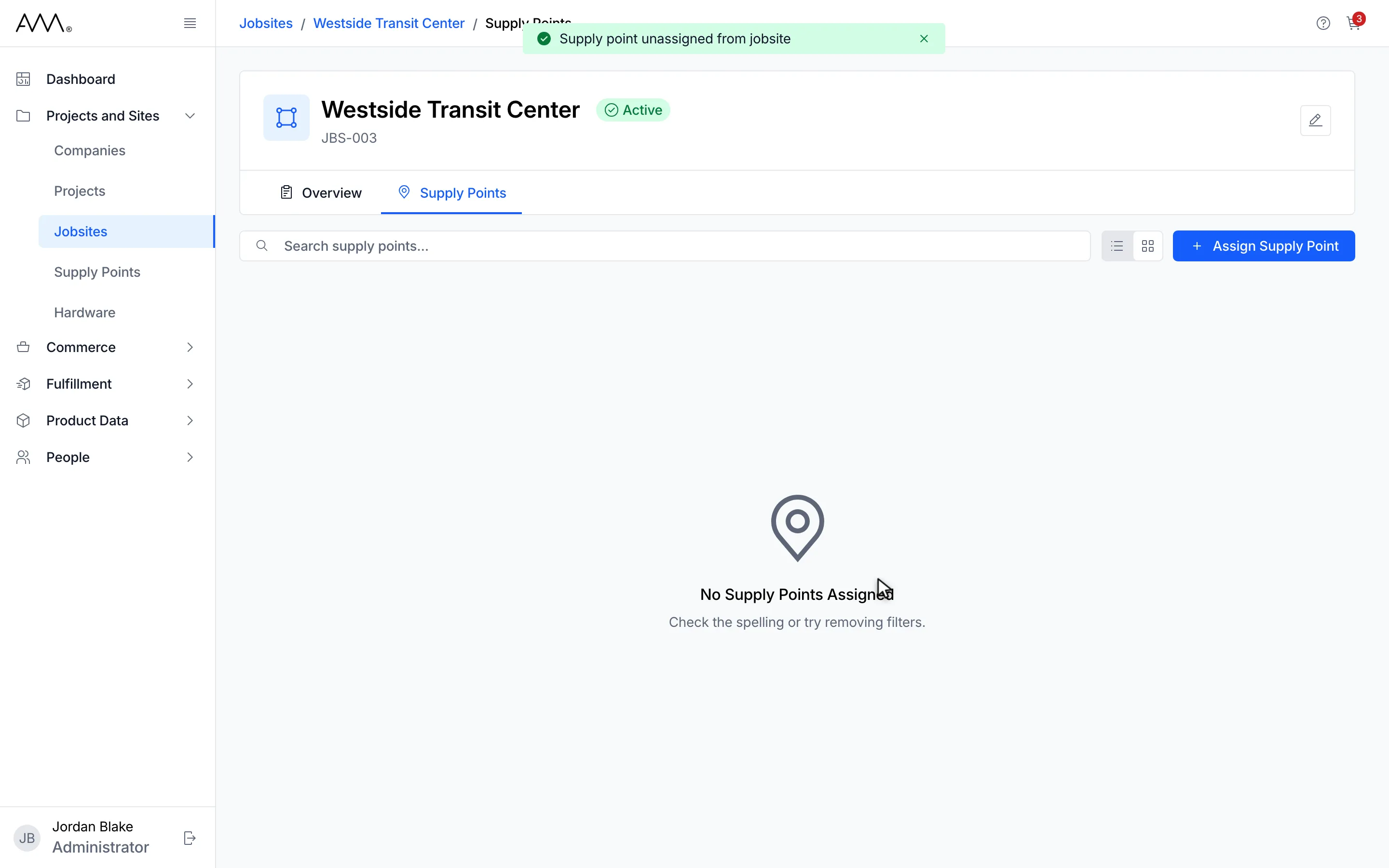
10The supply point leaves the jobsite and stays available in the Supply Points list.
Watch this as a video (assign and unassign supply points on a jobsite)
What happens next
Section titled “What happens next”After assigning, a Supply point assigned to jobsite message appears (Supply points assigned to jobsite for several), the dialog closes and the supply points appear on the tab. The jobsite’s supply point count updates in the list and on the Overview tab. If only some could be assigned, a message tells you how many of your picks succeeded and why the rest failed, and the tab reloads so you can try again.
After unassigning, a Supply point unassigned from jobsite message appears and the card disappears. If it fails, the confirmation shows the reason and stays open.
When every supply point is already on a jobsite, the dialog reads No Supply Points Available with Every supply point is already assigned to a jobsite. A jobsite with no supply points reads No Supply Points Assigned on its Supply Points tab. In list view the tab’s table has the columns Supply Point, Location, Company, Status and Actions; click Supply Point, Company or Status to sort.
Related
Section titled “Related”- Jobsites overview
- Supply Points overview
- Projects overview for assigning supply points to a project