Delete a supply point
Delete a supply point that was created by mistake or is no longer used. Hardware assigned to it is released, not deleted.
- In the sidebar, open Projects and Sites and choose Supply Points.
- Click the supply point name to open it.
- Click the Edit icon in the page header. The Edit Supply Point dialog opens.
- Click Delete Supply Point in the lower left of the dialog.
- Read the warning. Click Delete Supply Point to confirm, or Cancel to keep the supply point.
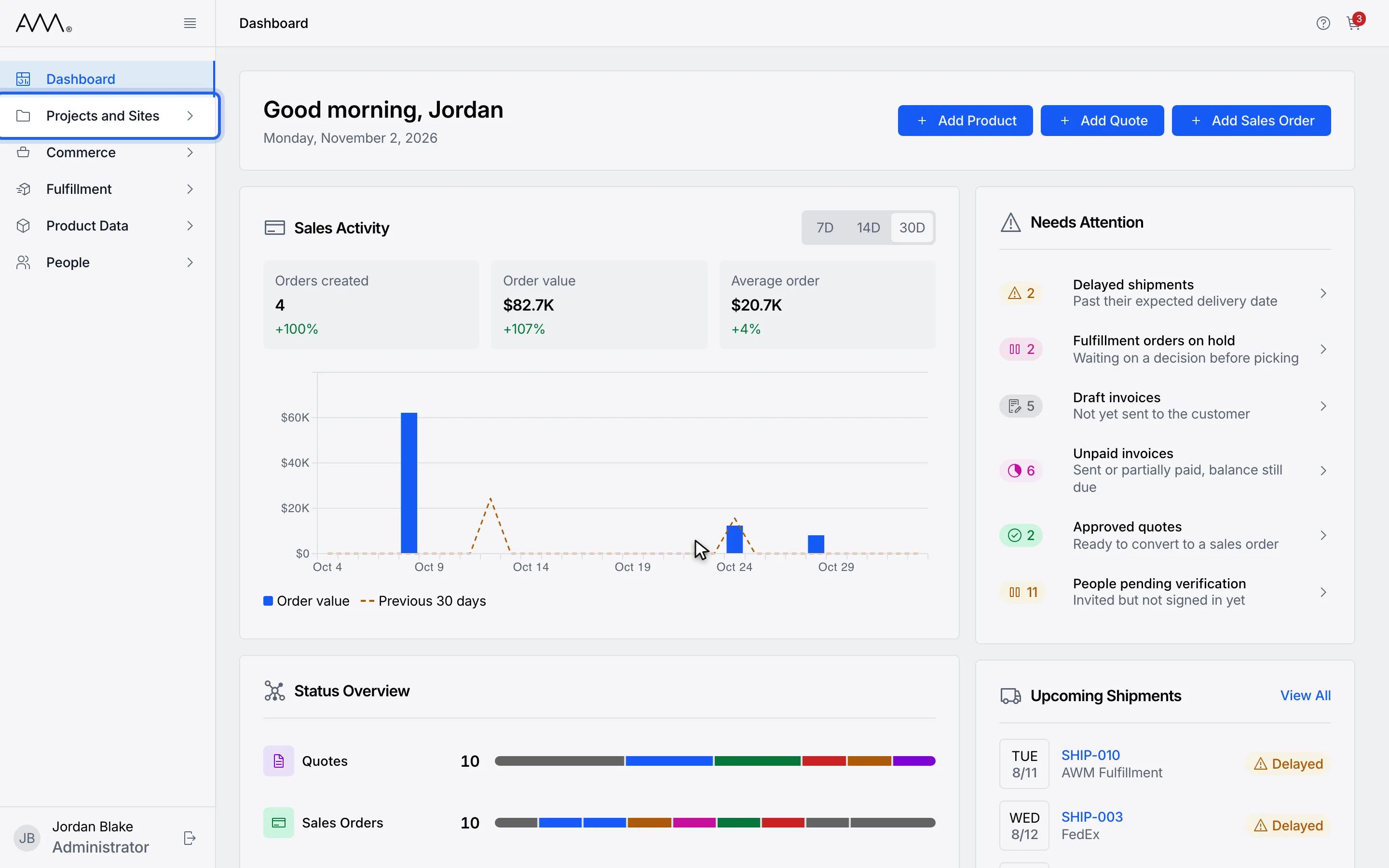
1In the sidebar, open Projects and Sites.
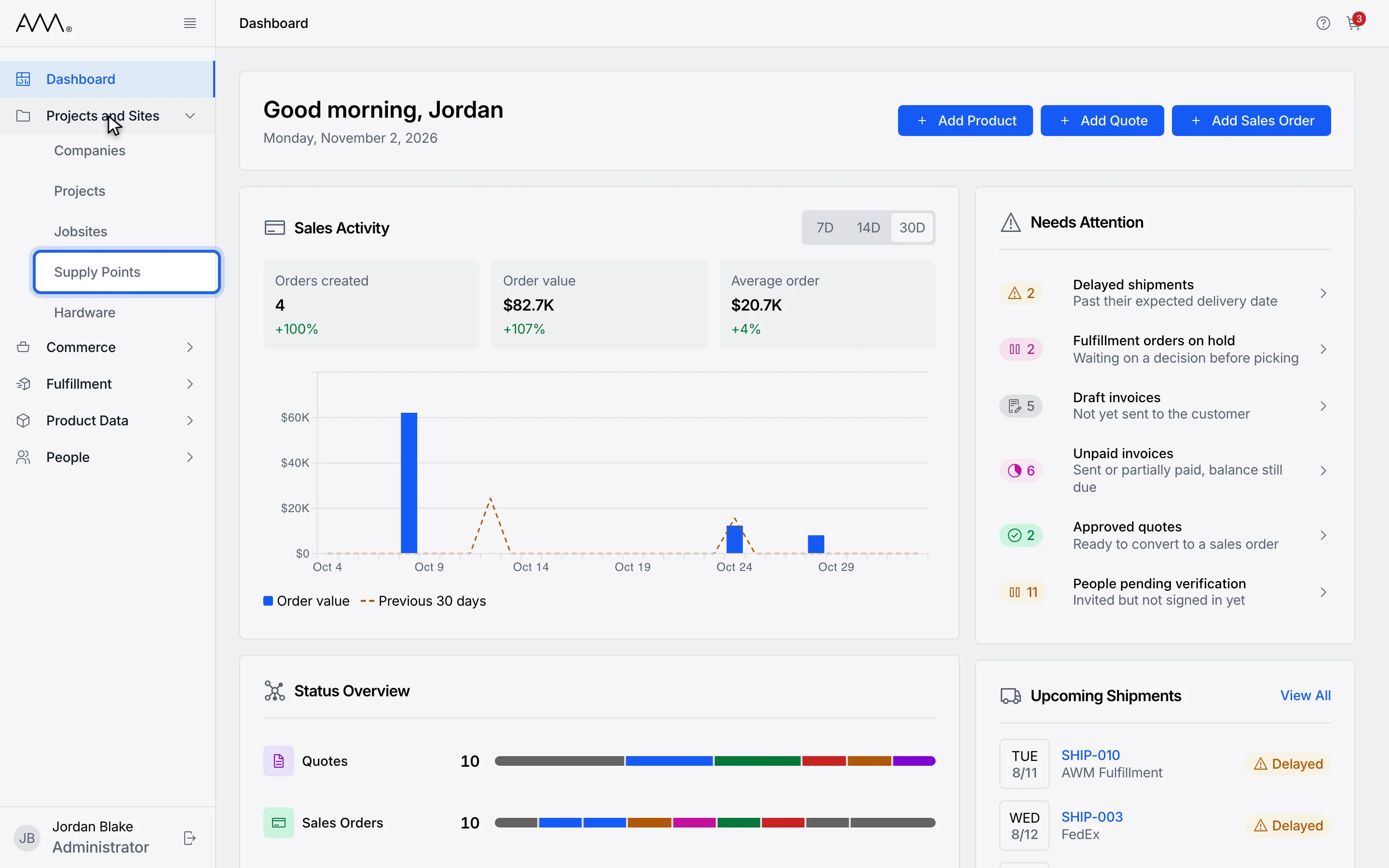
2Choose Supply Points.
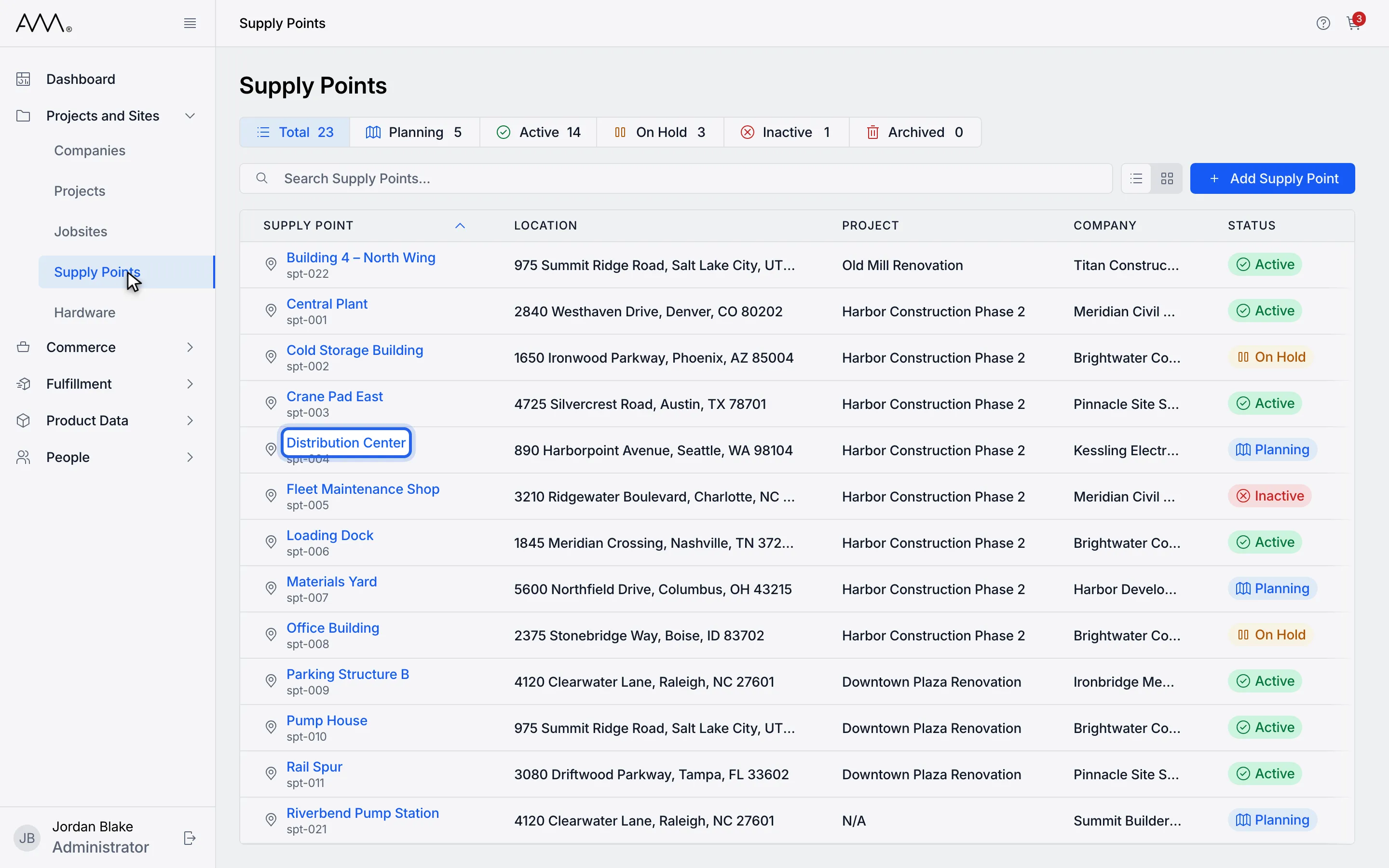
3Open the supply point you want to delete.
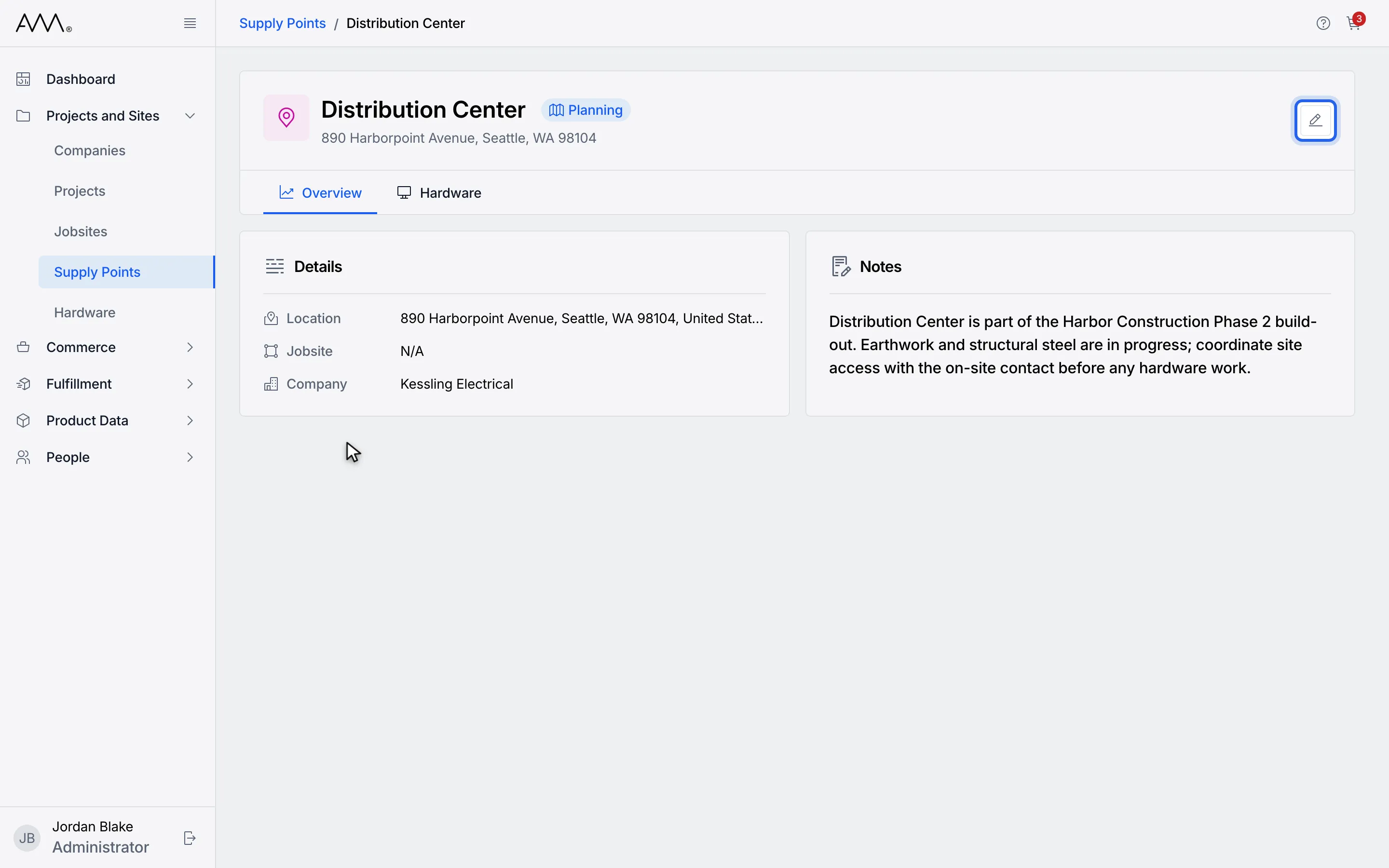
4Click the edit icon in the page header.
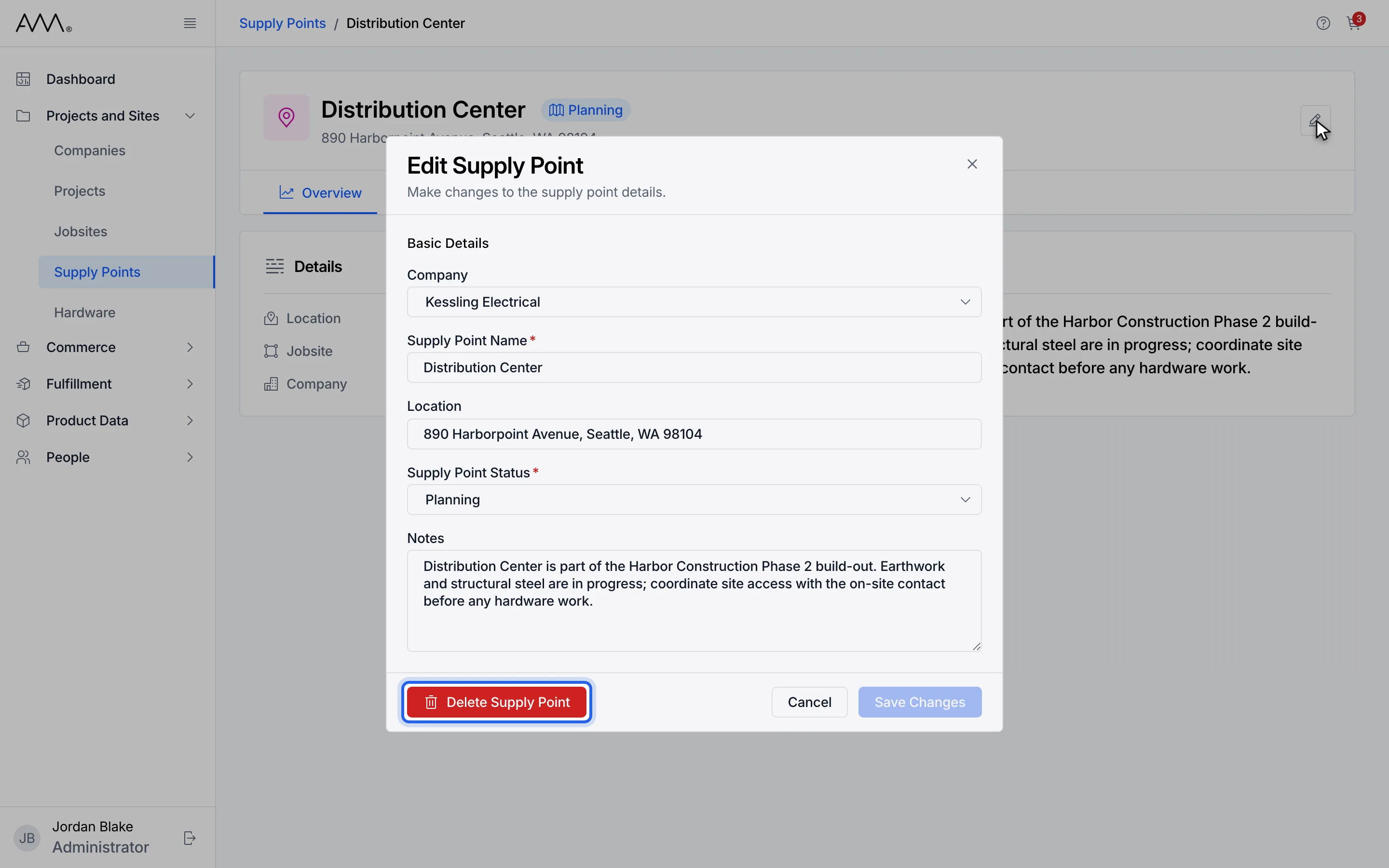
5In the Edit Supply Point dialog, click Delete Supply Point.
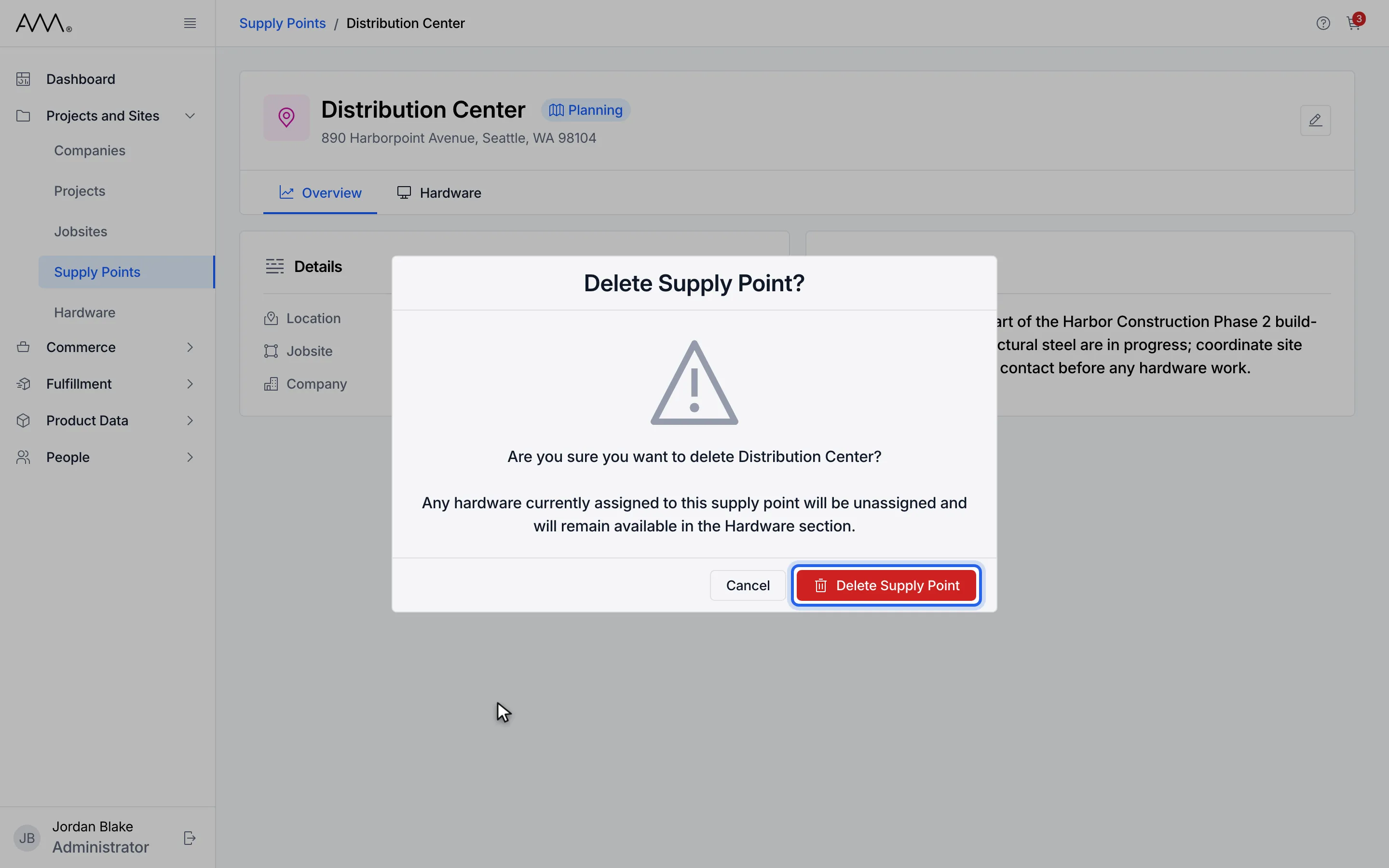
6Read the warning. Click Delete Supply Point to confirm, or Cancel to keep it.
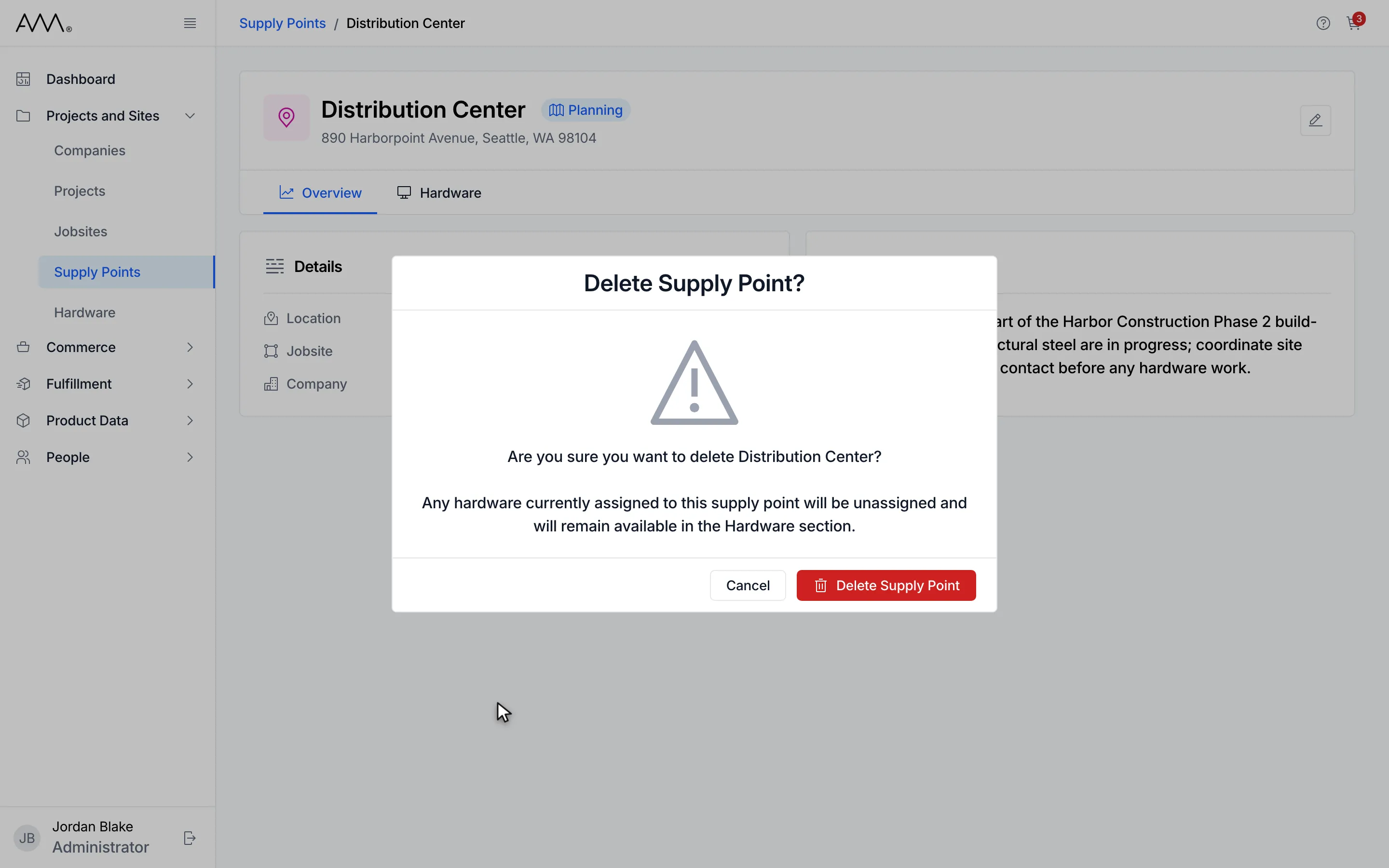
7The confirmation names the supply point and warns that its hardware will be unassigned.
Watch this as a video (delete a supply point)
What happens next
Section titled “What happens next”A Supply point deleted message appears and you return to the Supply Points list, where the supply point no longer appears. Its hardware unit, if any, is unassigned and stays in the Hardware section.
If the deletion fails, the confirmation shows the reason and stays open so you can retry. While Omni is working, the confirm button reads Submitting….