Create a sales order from the cart
A new sales order starts in the Product Catalog: add the products to the cart, then turn the cart into an order. Omni saves the order as a Draft at once and opens it in edit mode so you can fill in the customer, the addresses and the terms. To create an order from a quote instead, see Quotes.
-
In the sidebar, open Commerce and choose Sales Orders.
-
Click Create Sales Order. The Product Catalog opens.
-
Add the products you need to the cart, then click View Cart. See Catalog and Cart.
-
Click Add to Sales Order and choose Add to New Sales Order. Omni saves a Draft with the cart’s lines, empties the cart and opens the order in edit mode.
-
Fill in the order. Nothing is required to save.
Field Required What to enter Company, Jobsite, Supply Point No Start typing to search, then pick from the results. Each list offers only values that fit the other two. A pick fills Shipping Address from the most specific selection; a Company pick also fills Billing Address when the company has one on record. Shipping Address No Address Line 1, Address Line 2, City, State/Province/Region, Country and ZIP/Postal Code. Billing Address No Tick Same as shipping address, or enter it separately. Contact Name, Email, Phone Number, Additional Recipients No The customer contact. Email is needed to send the order. Press Enter, comma or space after each additional recipient. Line items No Adjust Quantity (at least 1) and Unit Price, or remove a line with its Remove button. Tax and Shipping No In Sales Order Summary, click Edit tax rate or Edit shipping amount (the pencil icons). Promise Date, Estimated Delivery Date No Pick the dates. Pricelist No Catalog Pricing, or the company’s active price list once a Company is chosen. Changing it re-prices every line. Payment Terms No Due on receipt, Net 15, Net 30, Net 45 or Net 60. Fulfillment Rule No Ship Partial (what a new order starts with) or Ship Complete. Customer PO, Notes, Terms & Conditions No The customer’s purchase order number, notes and terms. -
Click Save Changes. The order returns to its Details tab in Draft status.
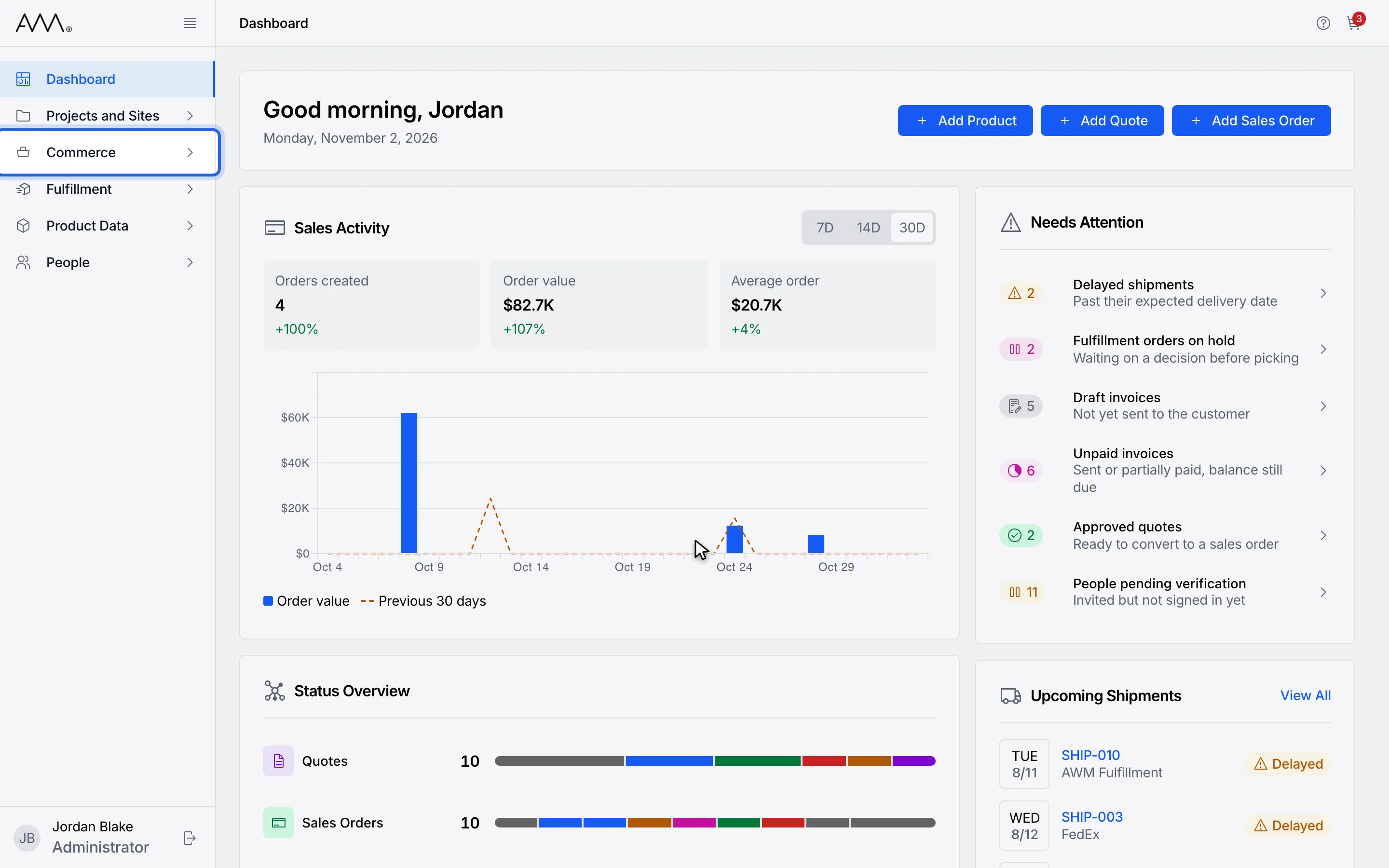
1In the sidebar, open Commerce.
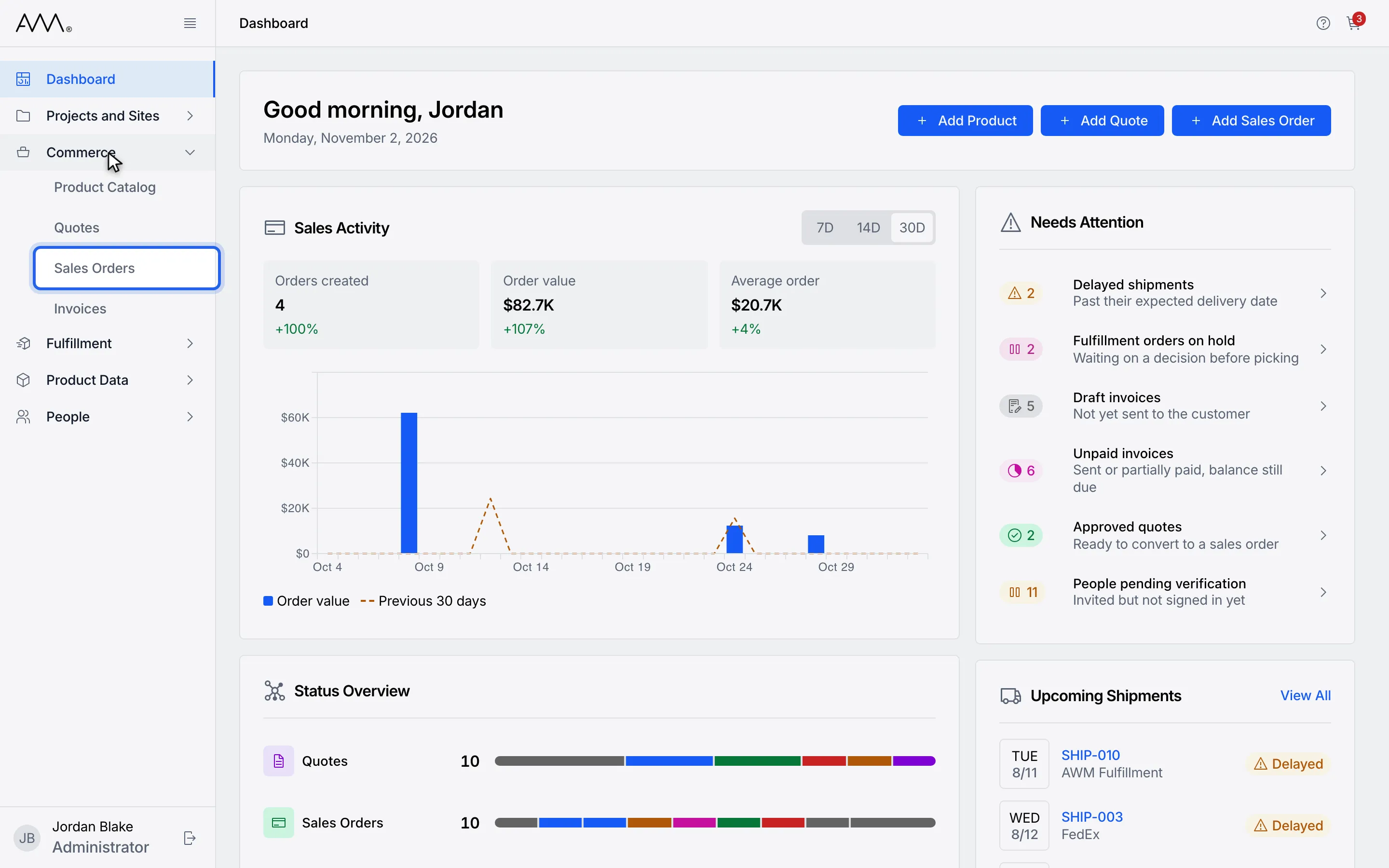
2Choose Sales Orders.
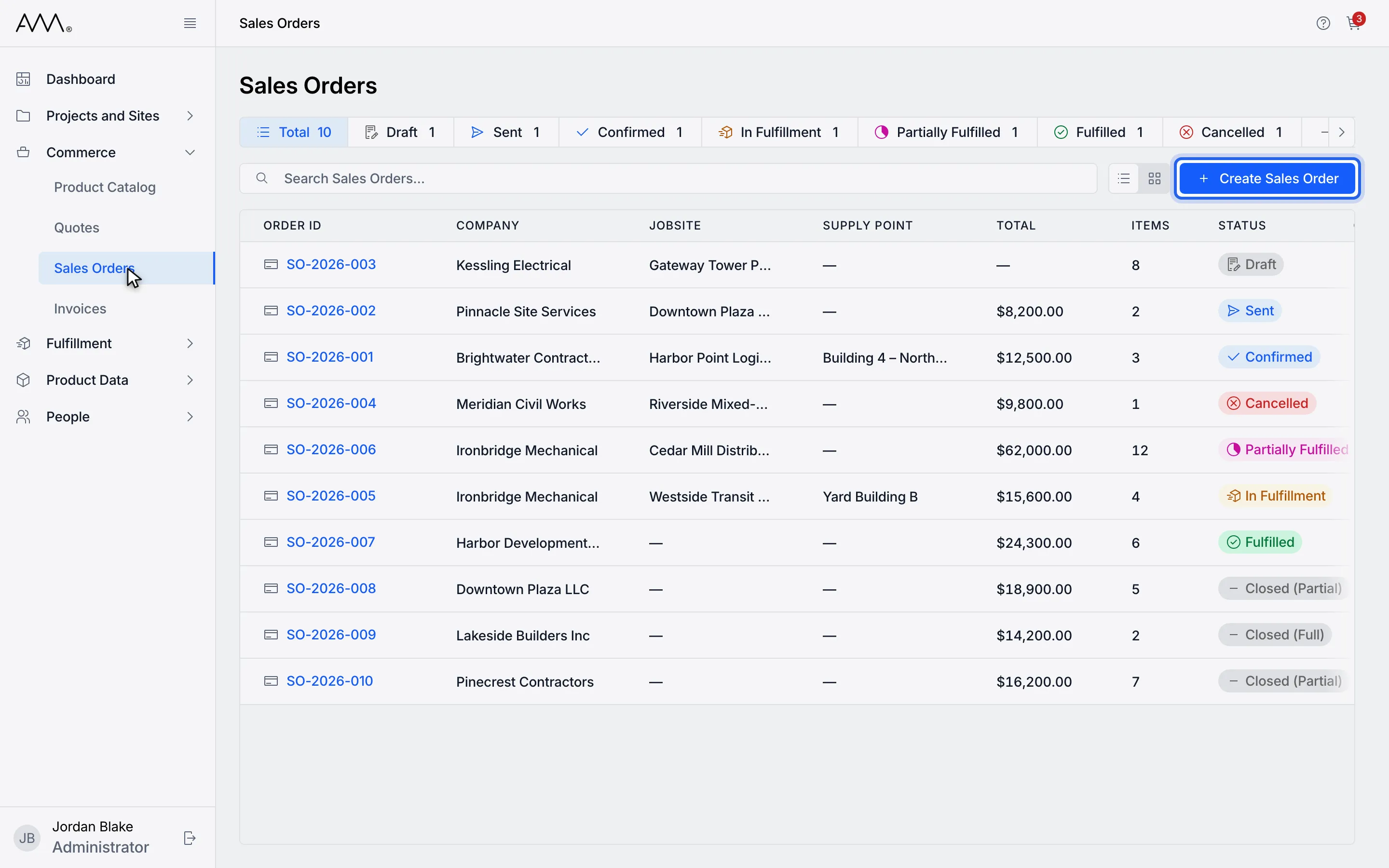
3Click Create Sales Order. The Product Catalog opens.
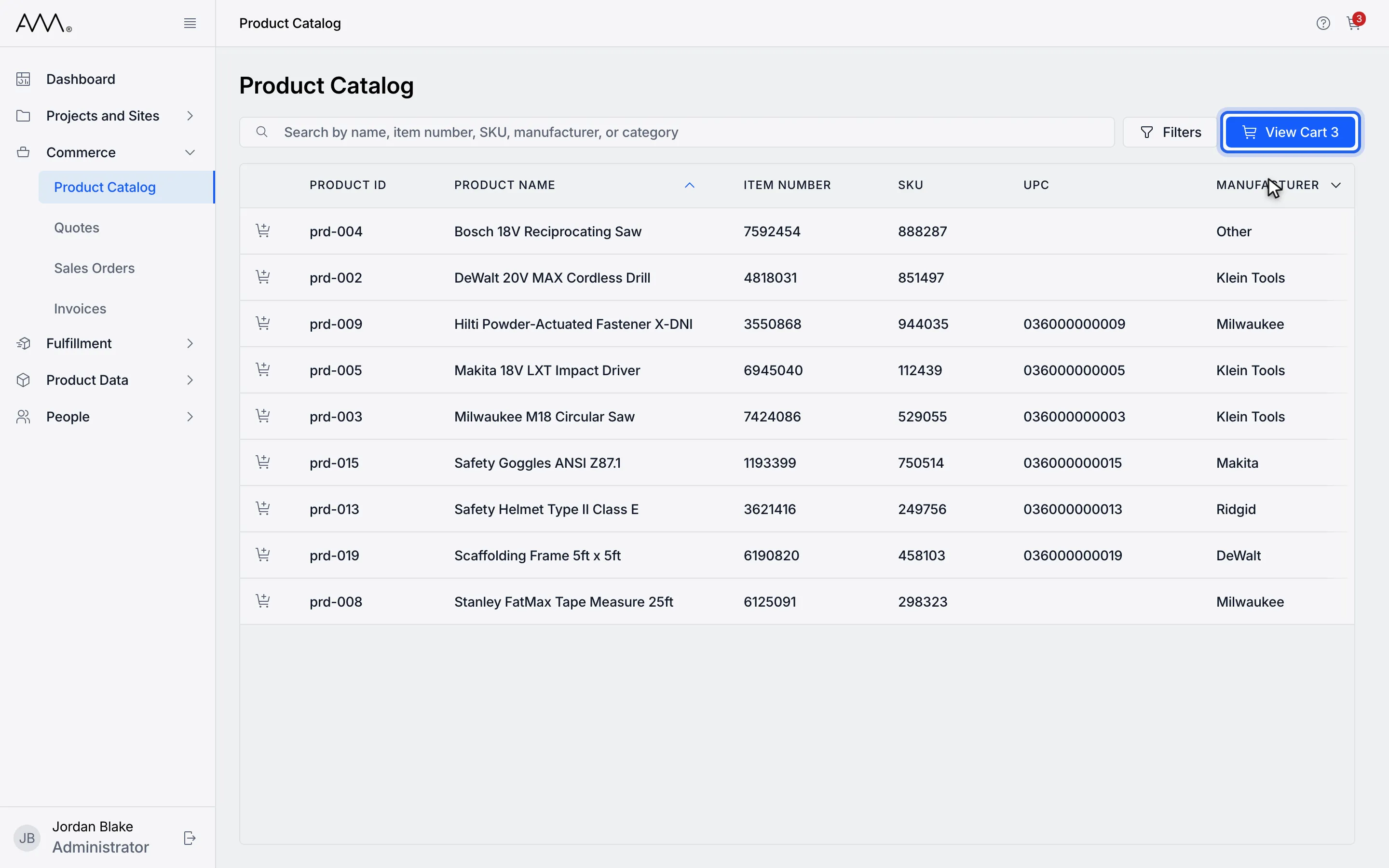
4Add the products you need to the cart, then click View Cart.
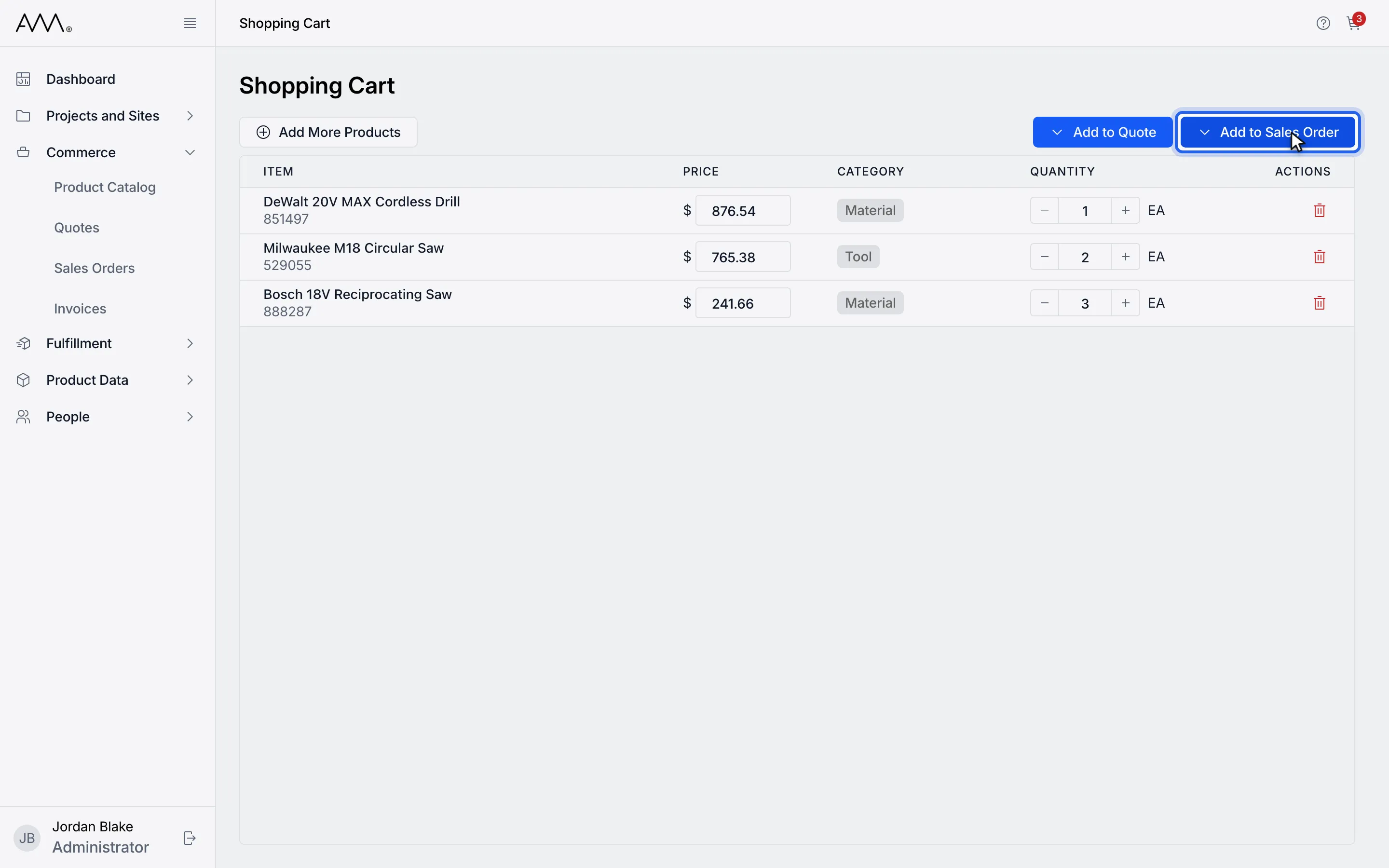
5Click Add to Sales Order.
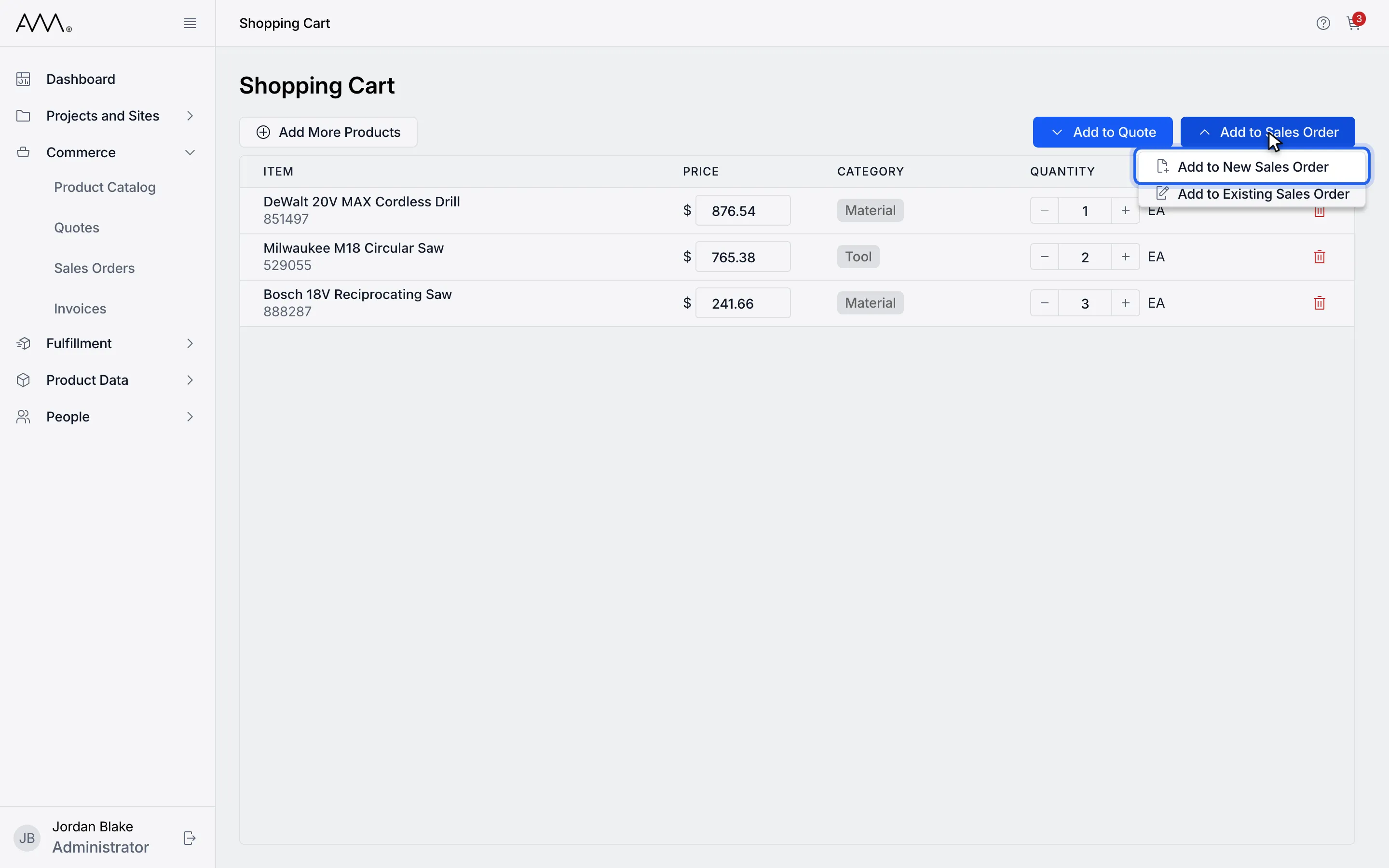
6Choose Add to New Sales Order.
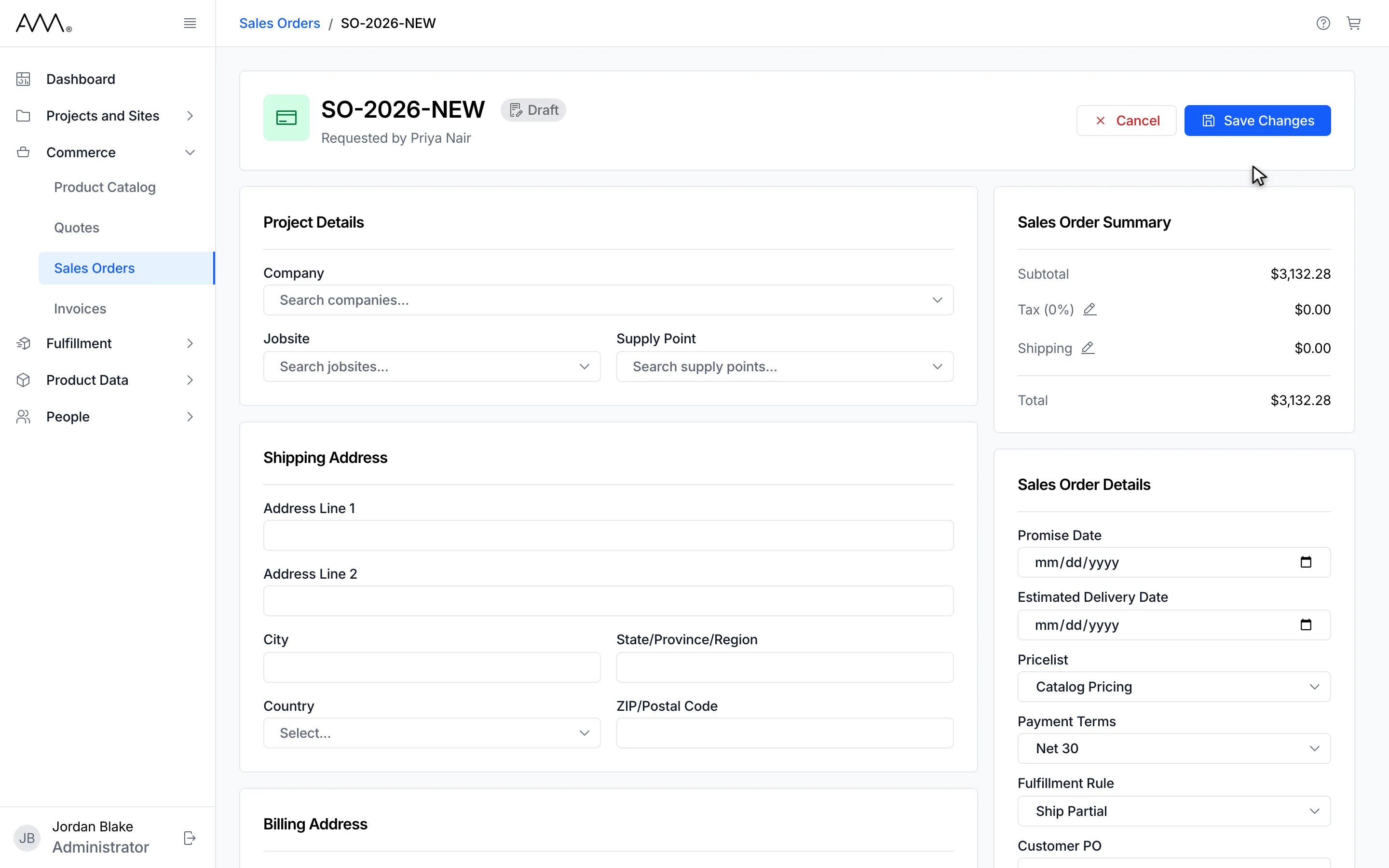
7A Draft is saved and opens in edit mode with the cart items as line items.
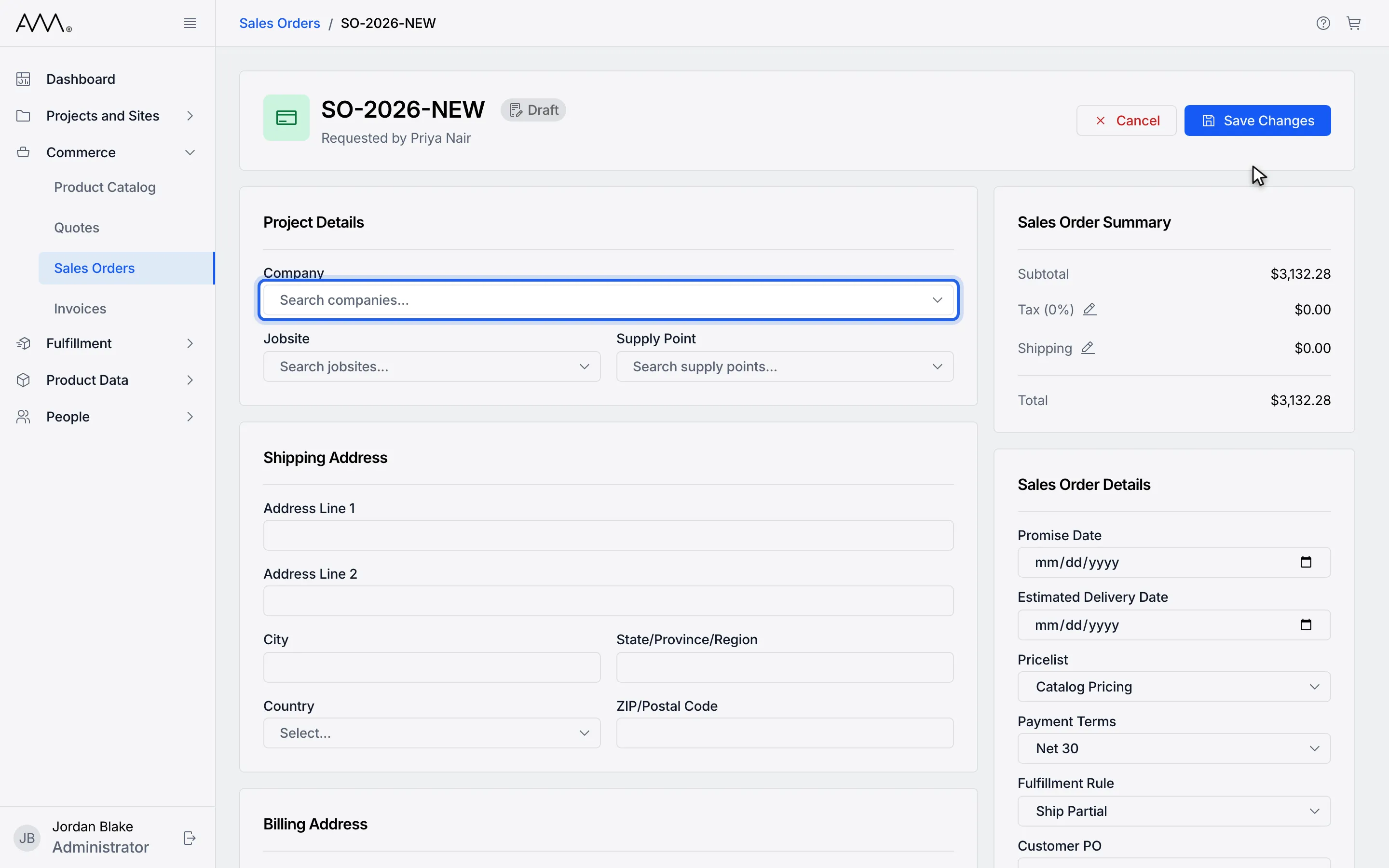
8Start typing in Company to search for the customer.
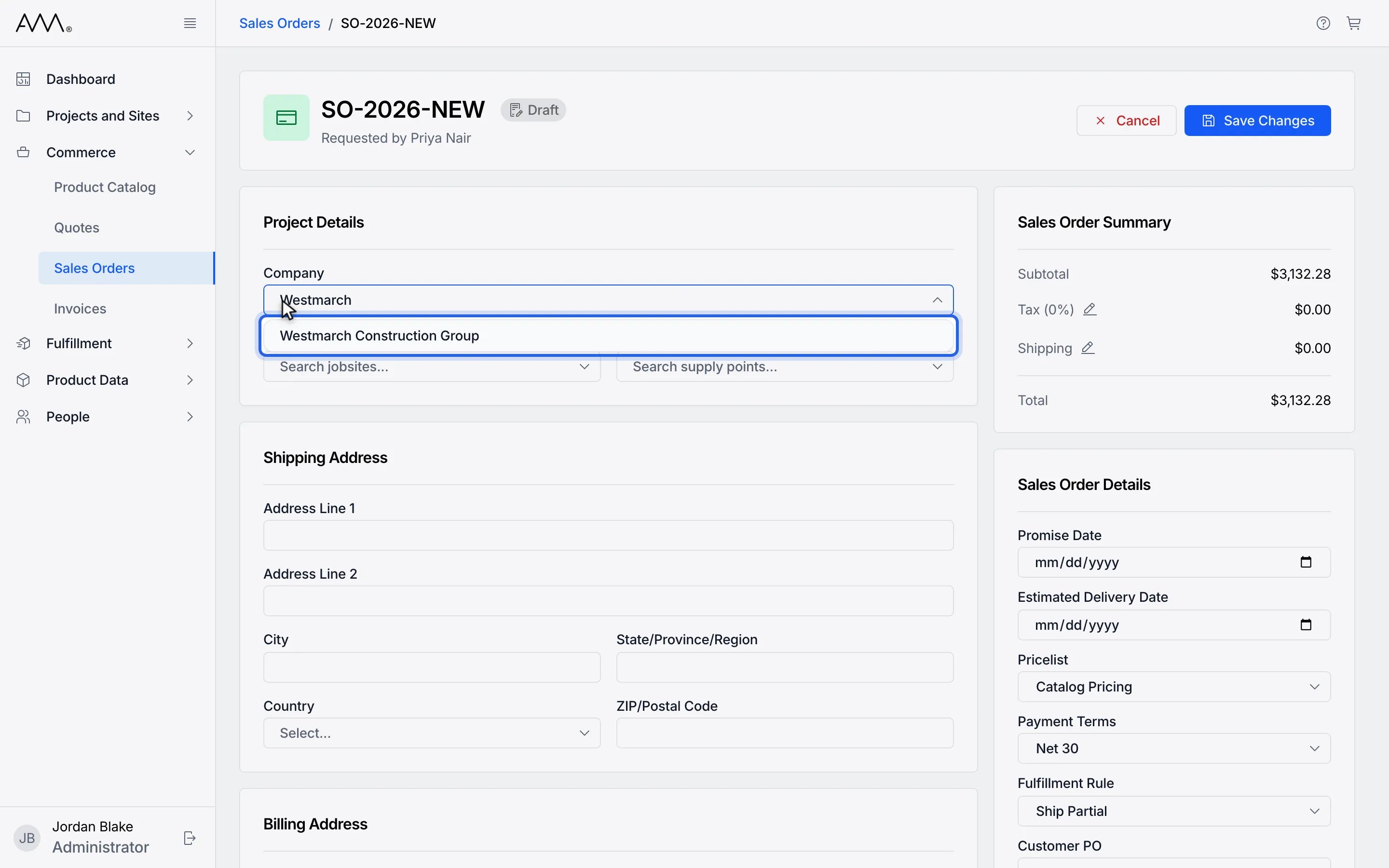
9Pick the company from the results.
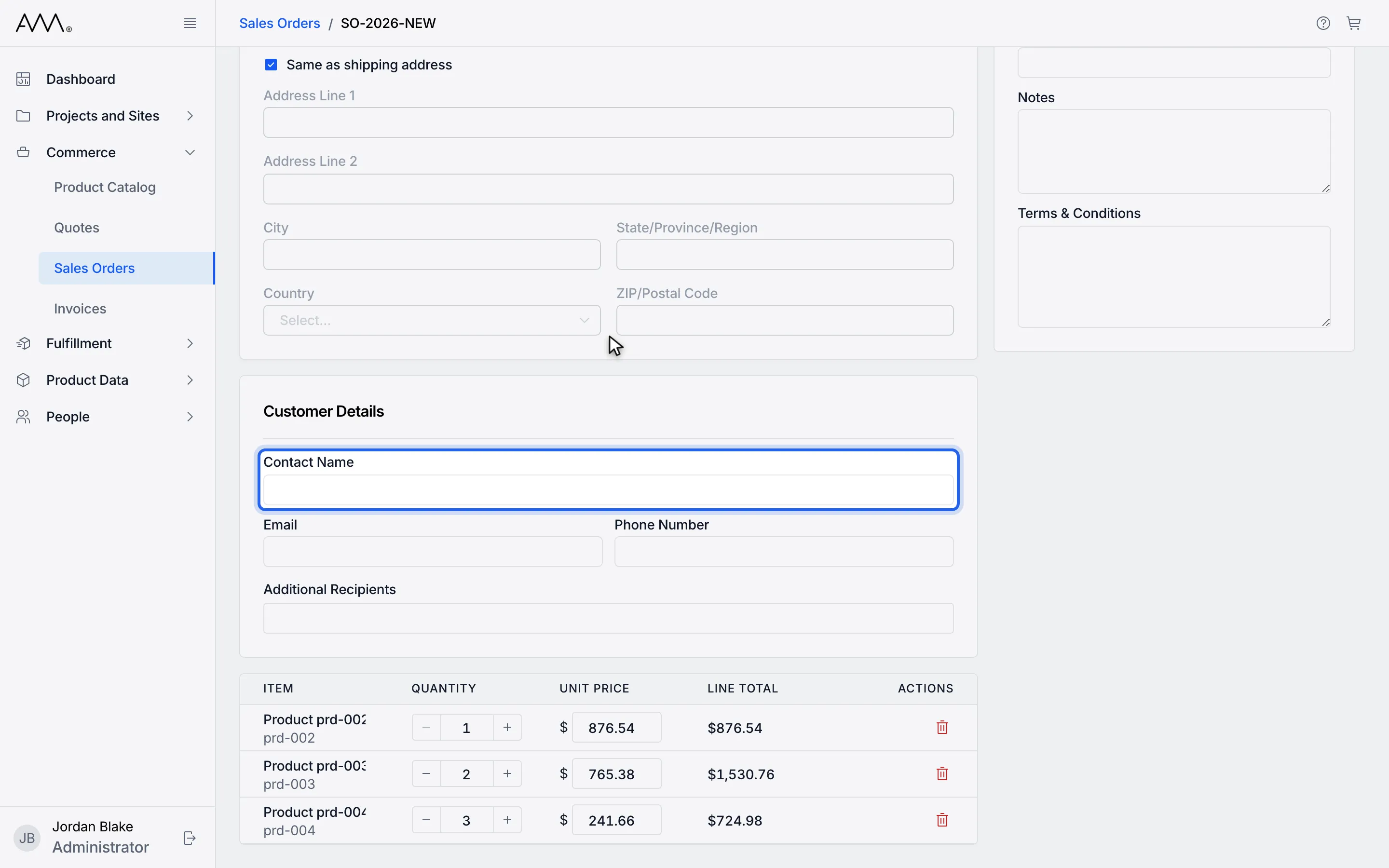
10Enter the customer Contact Name.
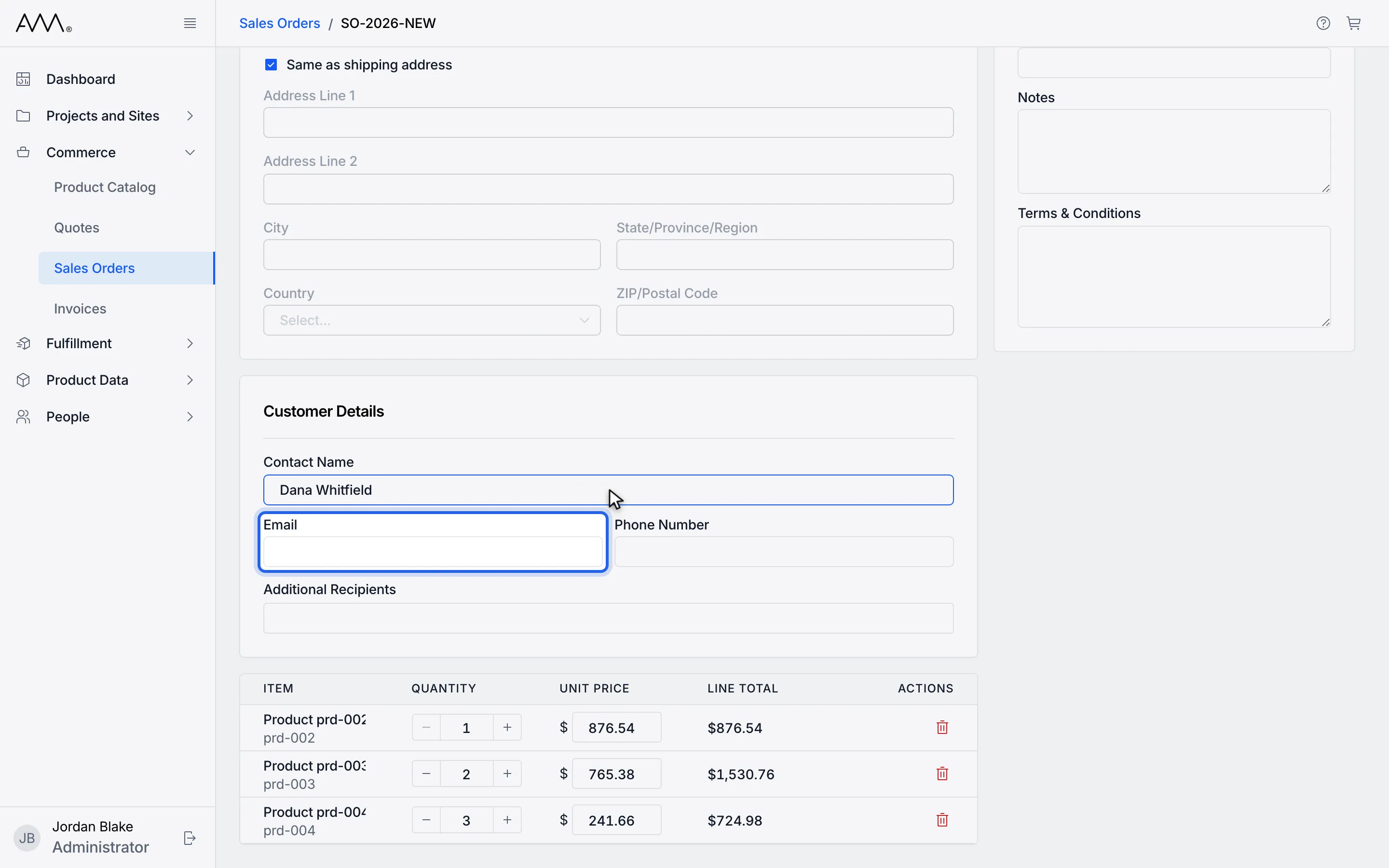
11Enter the customer Email. It is required to send the order.
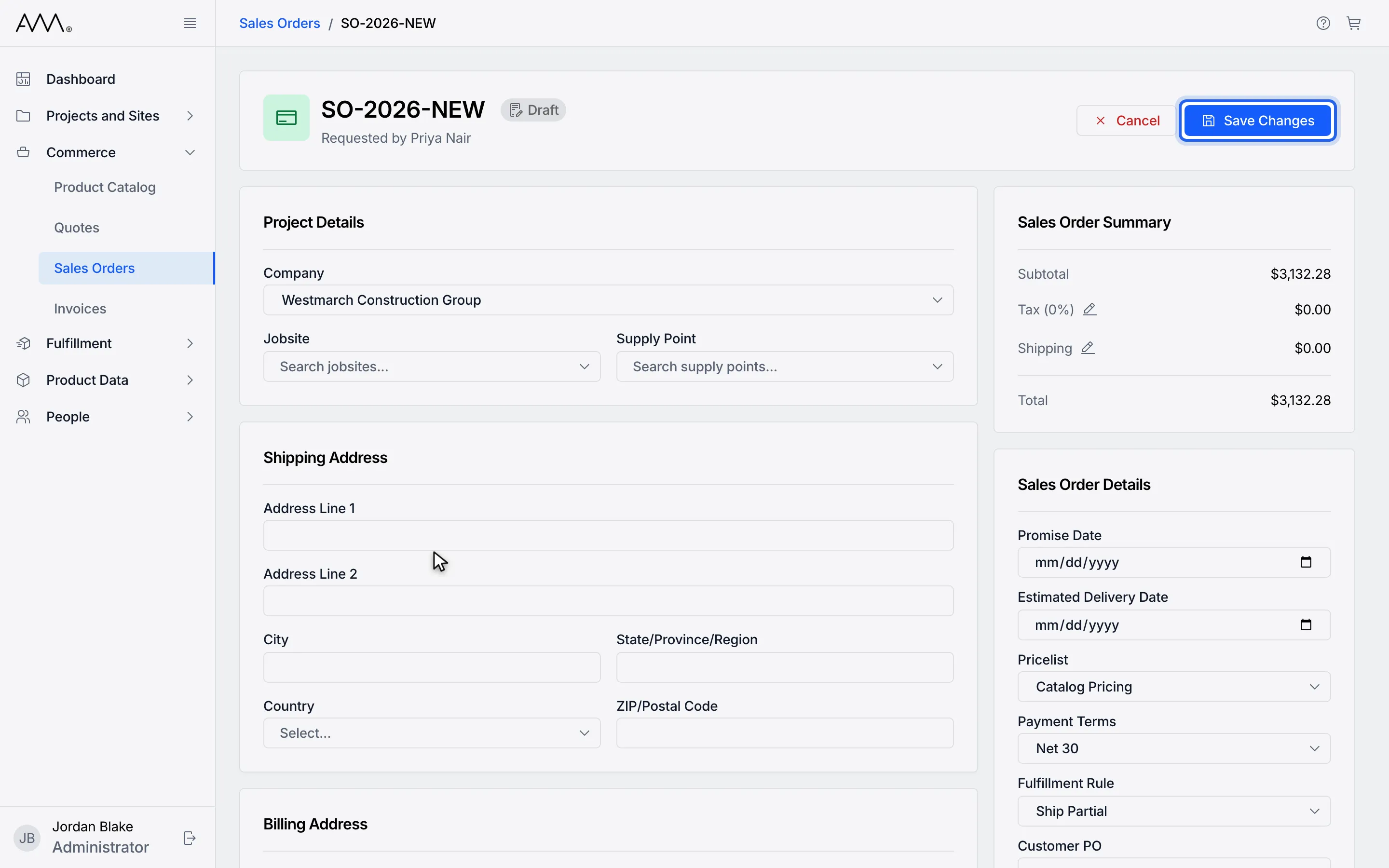
12Click Save Changes.
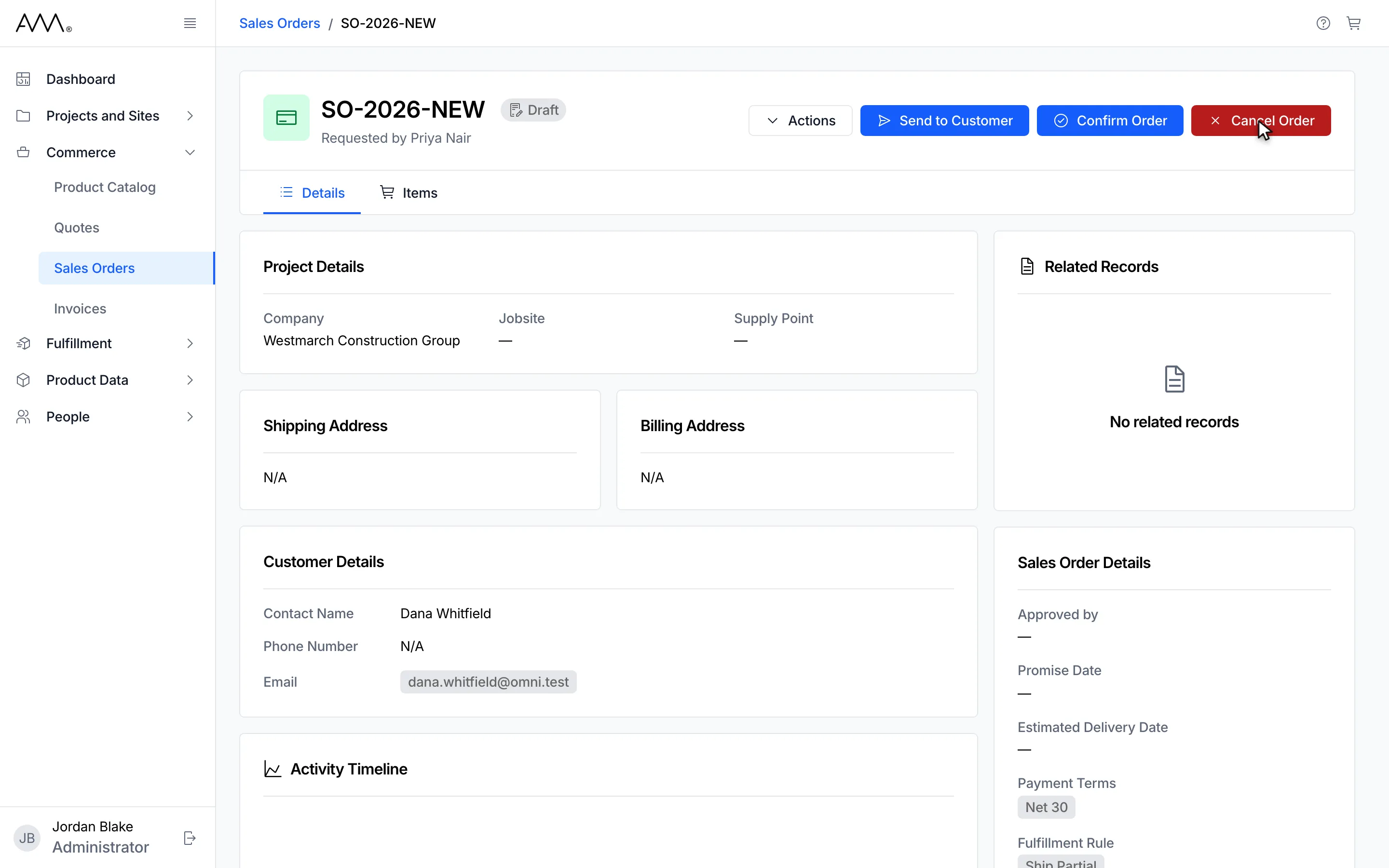
13The order is saved and opens on its Details tab in Draft status.
14The order is saved and opens on its Details tab in Draft status.
Watch this as a video (create a sales order from the cart)
What happens next
Section titled “What happens next”The order is a Draft in the Sales Orders list; there is no confirmation message. From there you can edit it, add more products, or send and confirm it.
If the order cannot be created, a message reads Could not create the sales order. Please try again. If it is created but something else fails, the message reads Sales order created, but the cart could not be cleared. or Sales order created, but it could not be opened.; the order exists and you can open it from the list. Validation messages are in the reference.