Fulfillment Orders
A Fulfillment Order is the pick-and-pack work order for one Sales Order. It lists what to pick, tracks how much has been picked and, once packed, is ready to go on a Shipment. You never create one by hand: one appears when a Sales Order is confirmed, and a backorder is created when an order is packed short.
Fulfillment Orders lives under Fulfillment in the sidebar. You need the Picking Packing: Read permission to see it and the Picking Packing: Update permission to pick, pack, hold or edit notes.
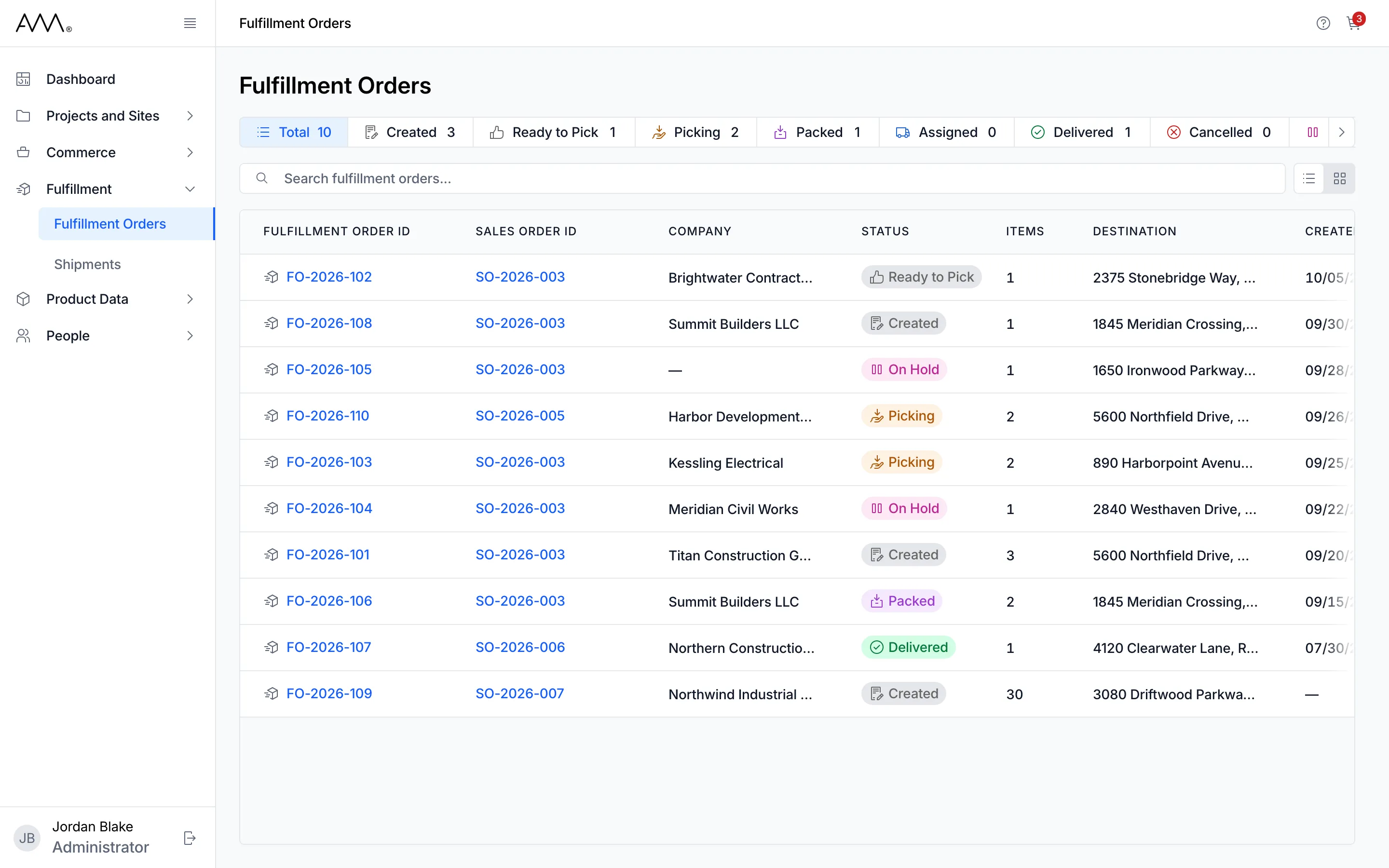
The list
Section titled “The list”The list opens with the most recently created orders first. The status chips across the top (Total, Created, Ready to Pick, Picking, Packed, Assigned, Delivered, Cancelled and On Hold) each show a count. Click one or more chips to filter, and click Total to clear the filter. Search fulfillment orders… matches the fulfillment order number, the sales order number and the company name. Switch between List view and Card view with the toggle on the right.
Each row shows the Fulfillment Order ID, Sales Order ID, Company, Status, Items (the number of lines), Destination (the shipping address on the sales order), Created (the date the order was created) and two actions: an open icon and, for orders in Created, Ready to Pick, Picking or On Hold, a pick icon that jumps straight to the Pick Tasks tab. Click a column heading to sort by it; every column sorts except Items and Actions. The Sales Order ID is a link when you can view sales orders.
The fulfillment order page
Section titled “The fulfillment order page”The header shows the order number, its status badge and Fulfillment Order for followed by the sales order. A backorder also shows Backorder of with a link to the order it came from, and an order that was packed short shows Backorder created with a link to its backorder. On the right, Set Status moves an order that is not yet packed between statuses, and Download Packing Slip takes its place once the order has been packed.
Four tabs sit below the header:
- Details: the Destination, the Created date and the Notes card, which you can edit at any status.
- Items: a read-only table of every line with SKU, Product, Qty, UOM, Picked and Status. Click a heading to sort.
- Pick Tasks: where you record picks and asset numbers, save progress and confirm pick and pack.
- Shipments: one card per shipment carrying this order, with the shipment number, its status, Carrier, Driver or Tracking, Destination, Departed, Est. Delivery and Delivered. An order that is not on a shipment yet shows No Shipments Created. The tab needs the Shipments: Read permission; without it, it says No Access to Shipments.
Line statuses
Section titled “Line statuses”Each line is Not Picked, partly picked (shown as a fraction such as 3/5) or Fully Picked. On the Pick Tasks tab the line status updates as you type, before you save.
Status lifecycle
Section titled “Status lifecycle”| Status | Meaning | What you can do |
|---|---|---|
| Created | A new order, nothing picked yet | Pick, pack, move to Ready to Pick, put on hold |
| Ready to Pick | Queued for picking | Pick, pack, move back to Created, put on hold |
| Picking | At least one unit has been picked and saved | Pick, pack, move to Created or Ready to Pick, put on hold |
| On Hold | Paused, with a note saying why; picks are kept | Edit and save picks to return to Picking, or set Created or Ready to Pick |
| Packed | Pick and pack confirmed | Download the packing slip, edit notes; add it to a shipment from Shipments |
| Assigned, Delivered | On a shipment, or delivered by one | Download the packing slip, edit notes, see the shipment on the Shipments tab |
| Cancelled | The sales order was cancelled | Edit notes, and download the packing slip if the order had been packed |
The sales order’s fulfillment rule decides what happens on a short pack: Ship Partial creates a backorder for the missing quantities, while Ship Complete refuses to pack until every line is full. See the reference for every action, permission and message.