Sign in
You sign in on the Omni sign-in page with your email address and password. Omni sends you there whenever you open it without being signed in, and brings you back to the page you wanted once you are.
- Open Omni. The sign-in page shows Welcome and Sign in to your account.
- In Email Address, enter the email address on your account.
- In Password, enter your password. Click the eye icon (Show password) to check what you typed, and again (Hide password) to mask it.
- Click Sign In. The button reads Signing in… while Omni checks your details.
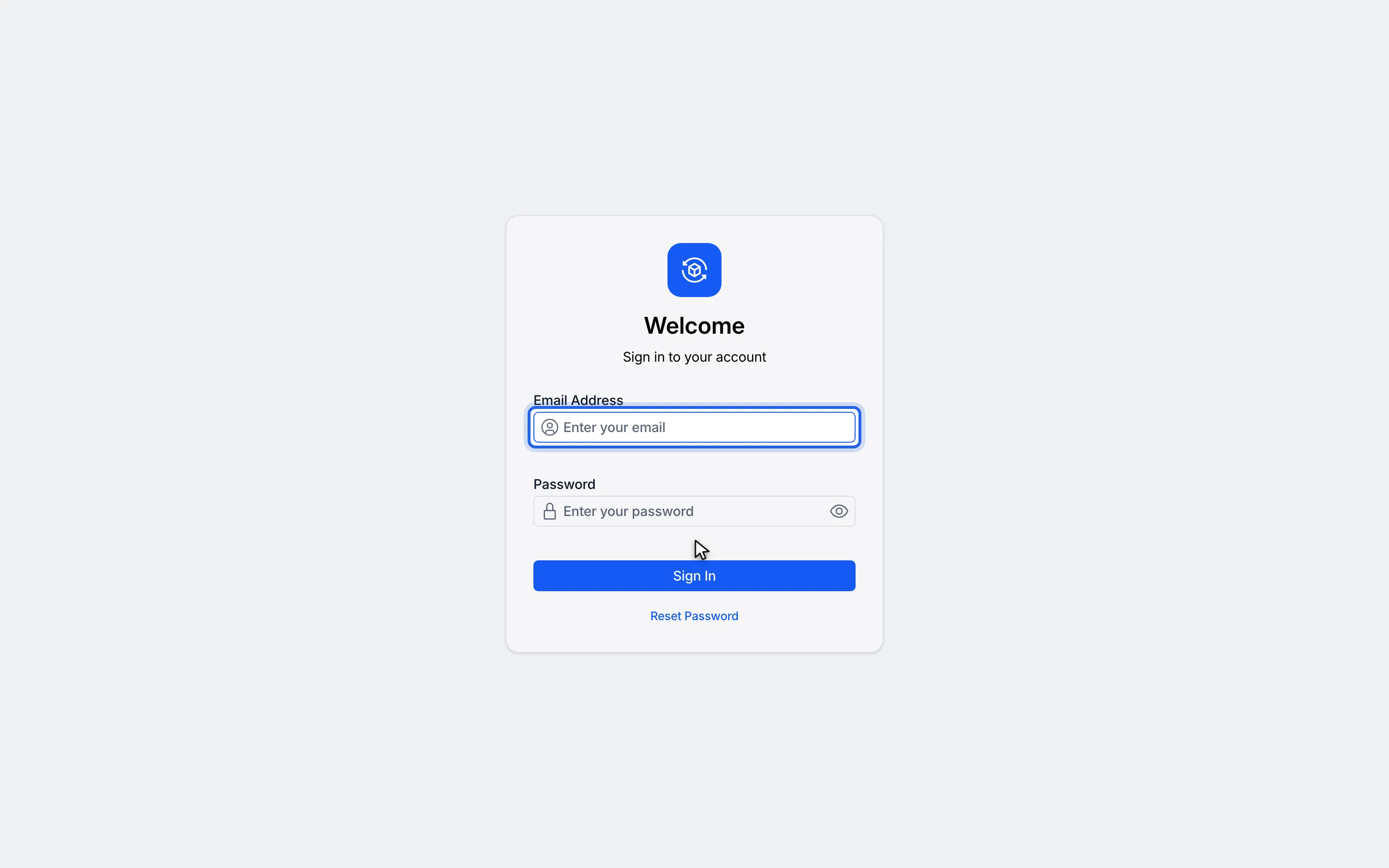
1In Email Address, enter the email address on your account.
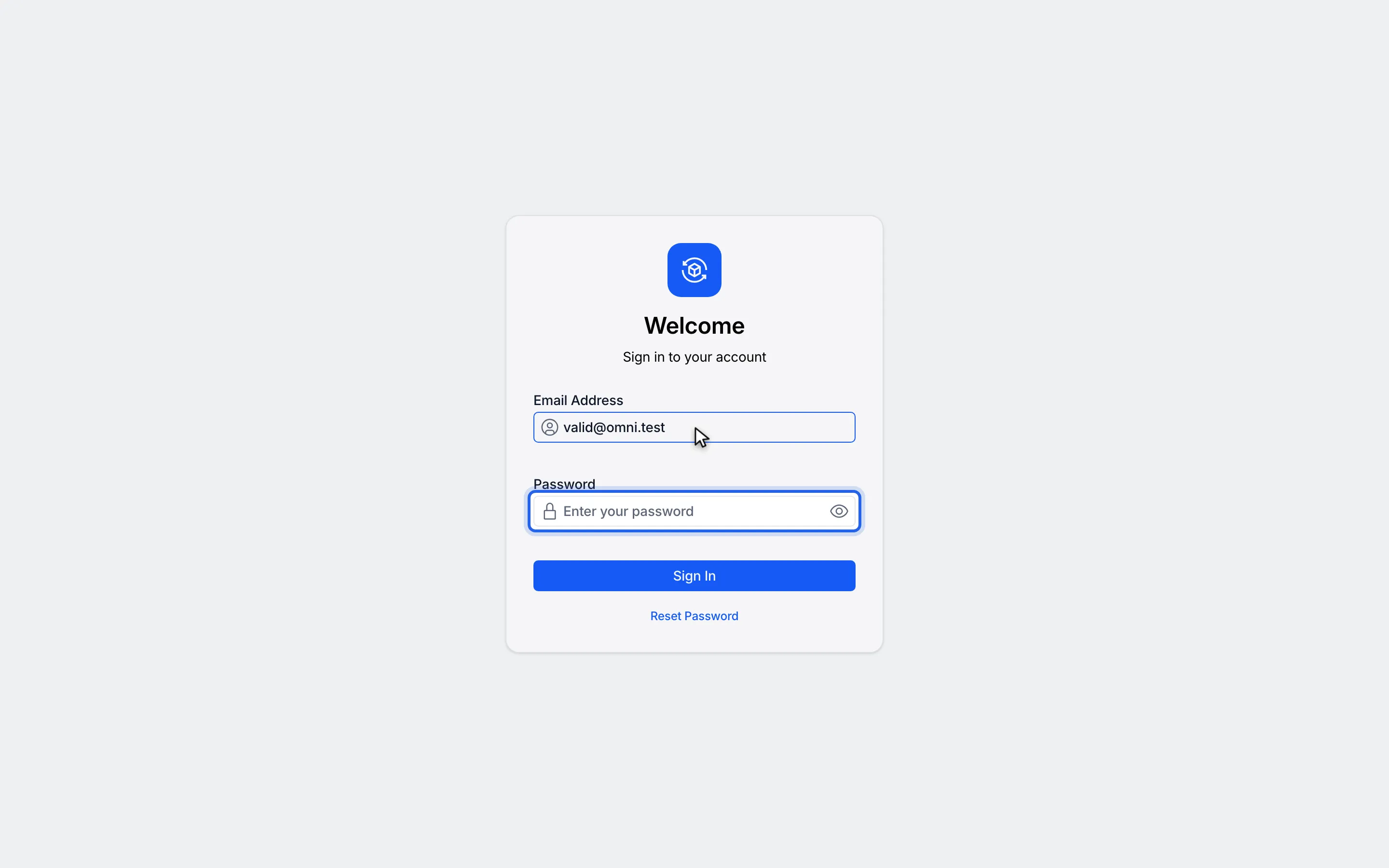
2In Password, enter your password.
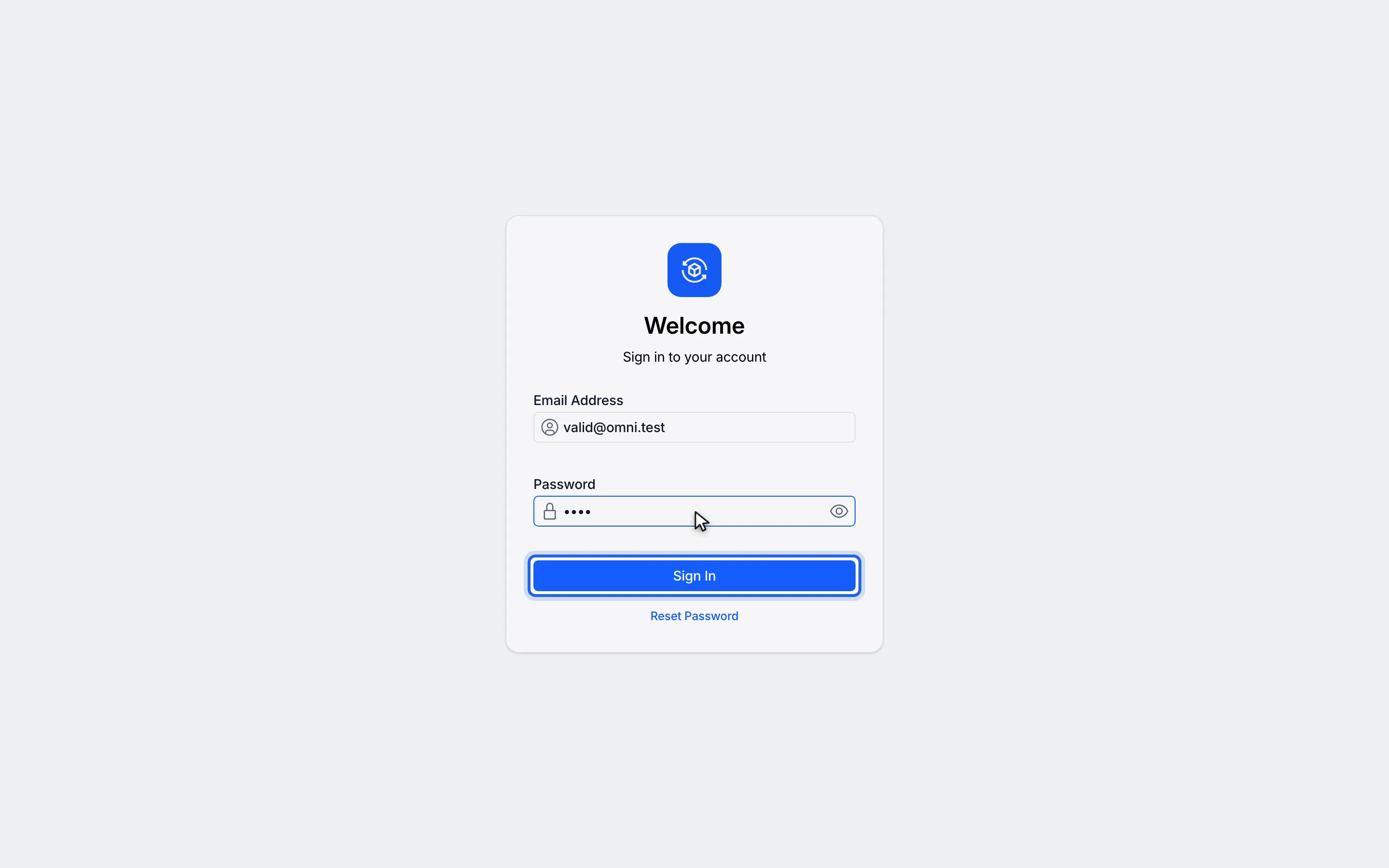
3Click Sign In.
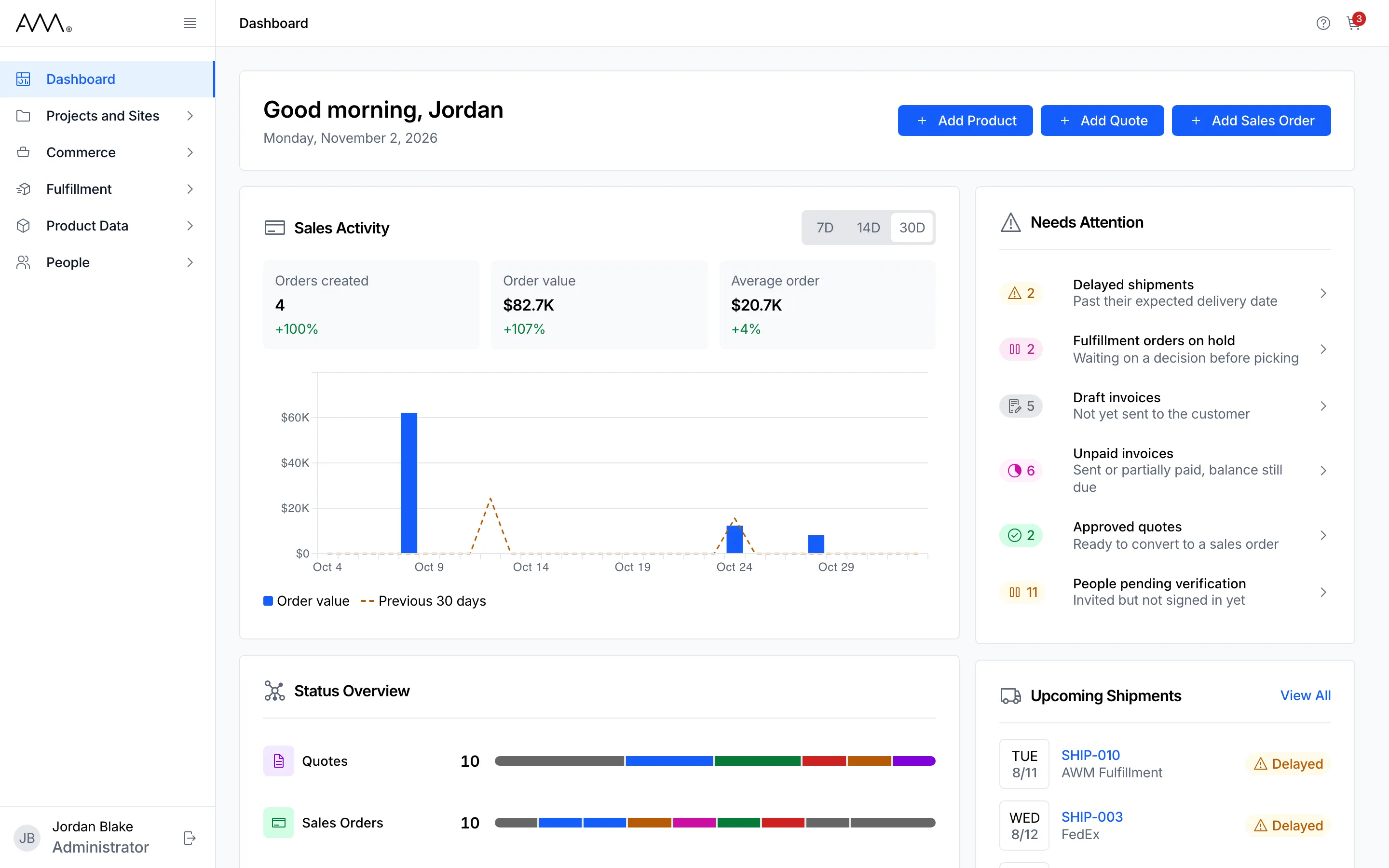
4Omni opens on the Dashboard.
Watch this as a video (sign in)
What happens next
Section titled “What happens next”- Omni opens on the Dashboard. If you were sent to the sign-in page from a link to a particular page, Omni opens that page instead.
- If two-factor authentication is on for your account, the Verify Your Identity page opens first. See Verify your identity with two-factor authentication.
If you see a message
Section titled “If you see a message”Messages appear in a red banner above the form.
| Message | What it means | What to do |
|---|---|---|
| Invalid login credentials. | The email address or password does not match an account. | Check both and click Sign In again. |
| Account locked. Contact your administrator. | Your account has been locked. | You cannot unlock it yourself. Contact your administrator. |
| Your account is inactive. Contact your administrator. | Your account has been deactivated. | Contact your administrator. |
| Your organization account has been suspended. Contact your administrator. | Access for your whole organization is suspended. | Contact your administrator. |
| Login Failed. | Omni could not complete the sign-in for another reason. | Try again. |
| Session expired. Please sign in again. | The sign-in session ended before you finished. | Sign in again. |
| Too many attempts. Please sign in again. | Too many one-time codes were requested during verification. | Sign in again to start over. |
If you leave a field empty or mistype the address, the field itself shows Email address is required, Enter a valid email address or Password is required.
1In Email Address, enter your email address.
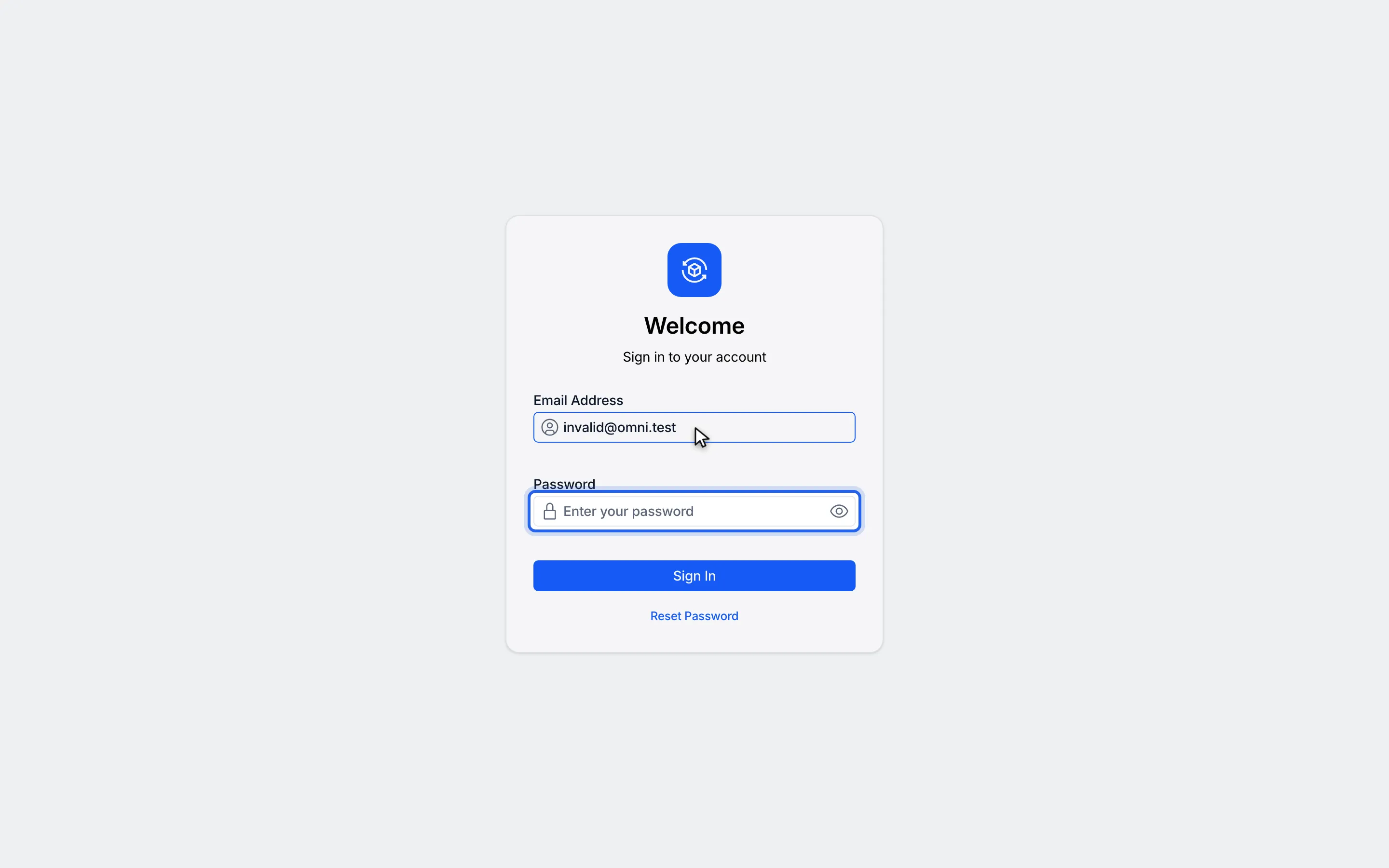
2In Password, enter your password.
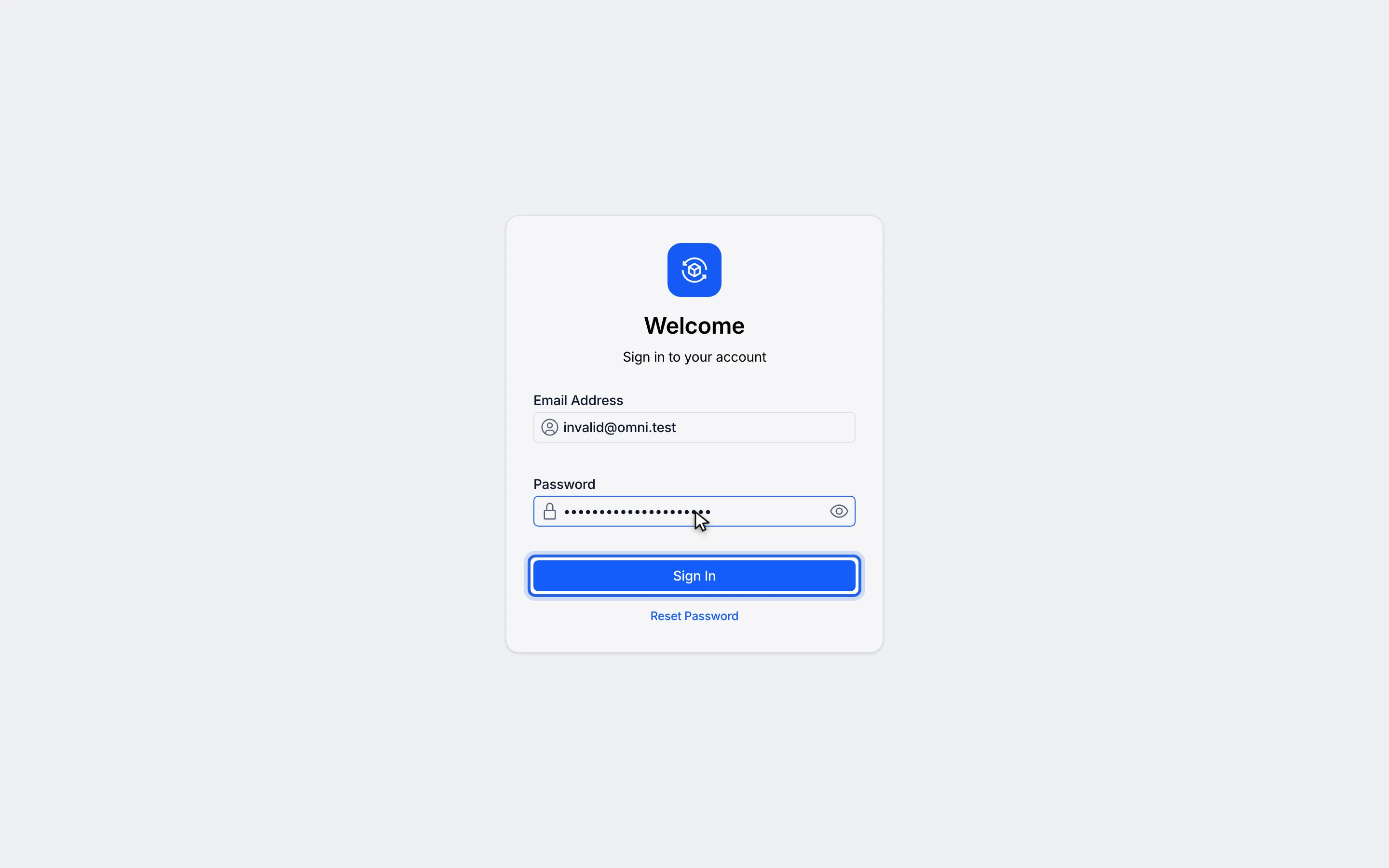
3Click Sign In. Wrong details show "Invalid login credentials."
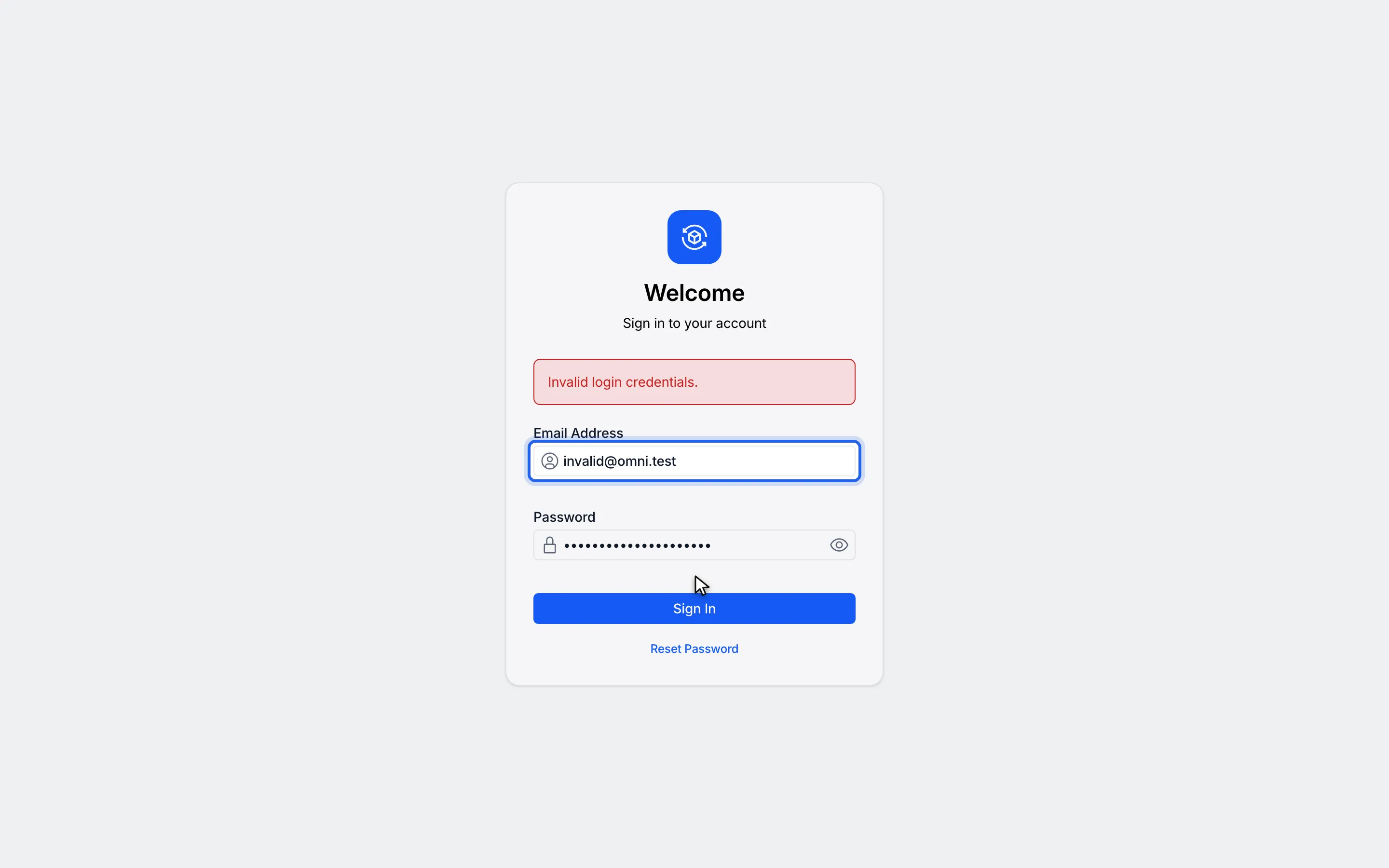
4Check the email address and try again.
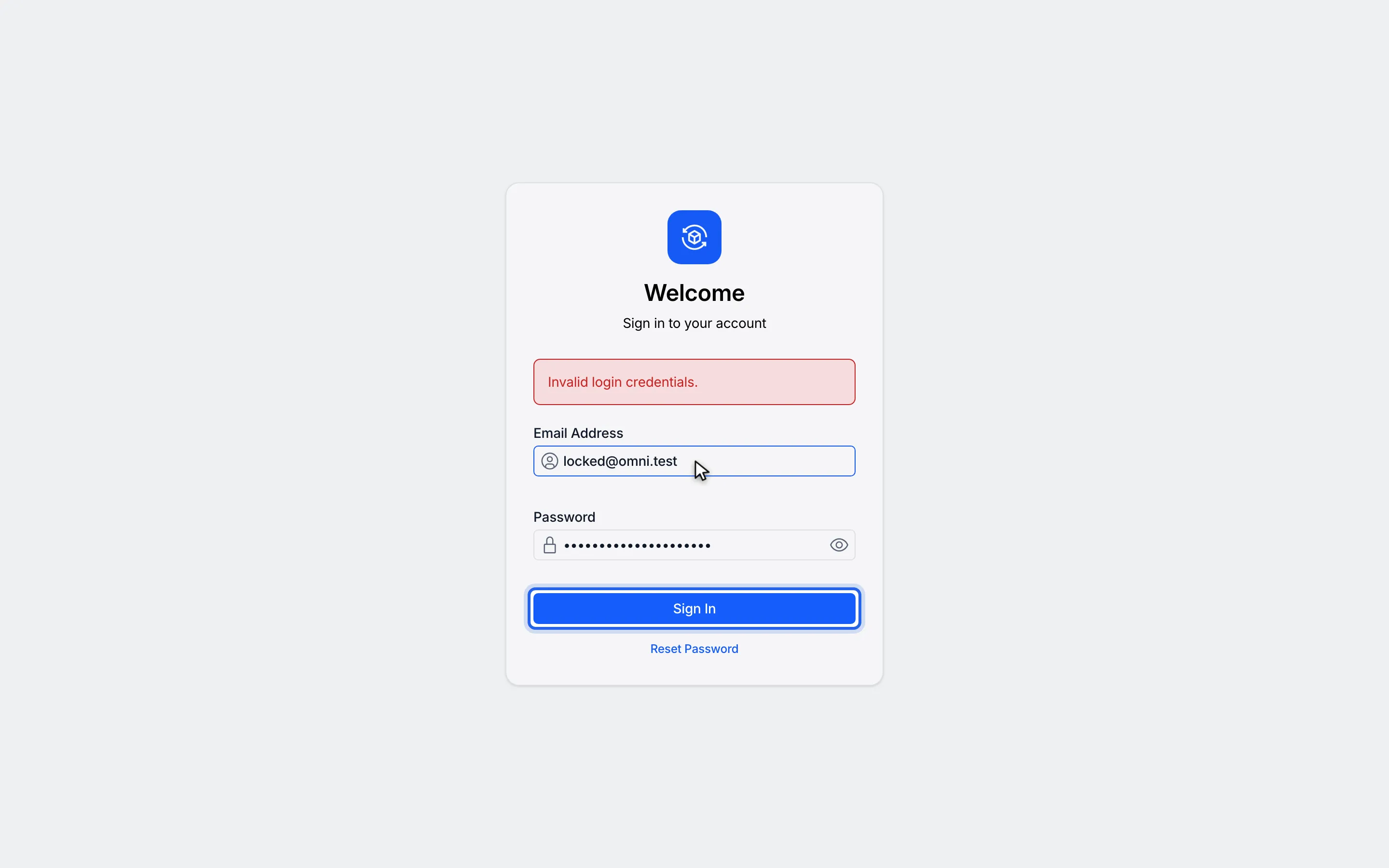
5A locked account shows "Account locked. Contact your administrator."
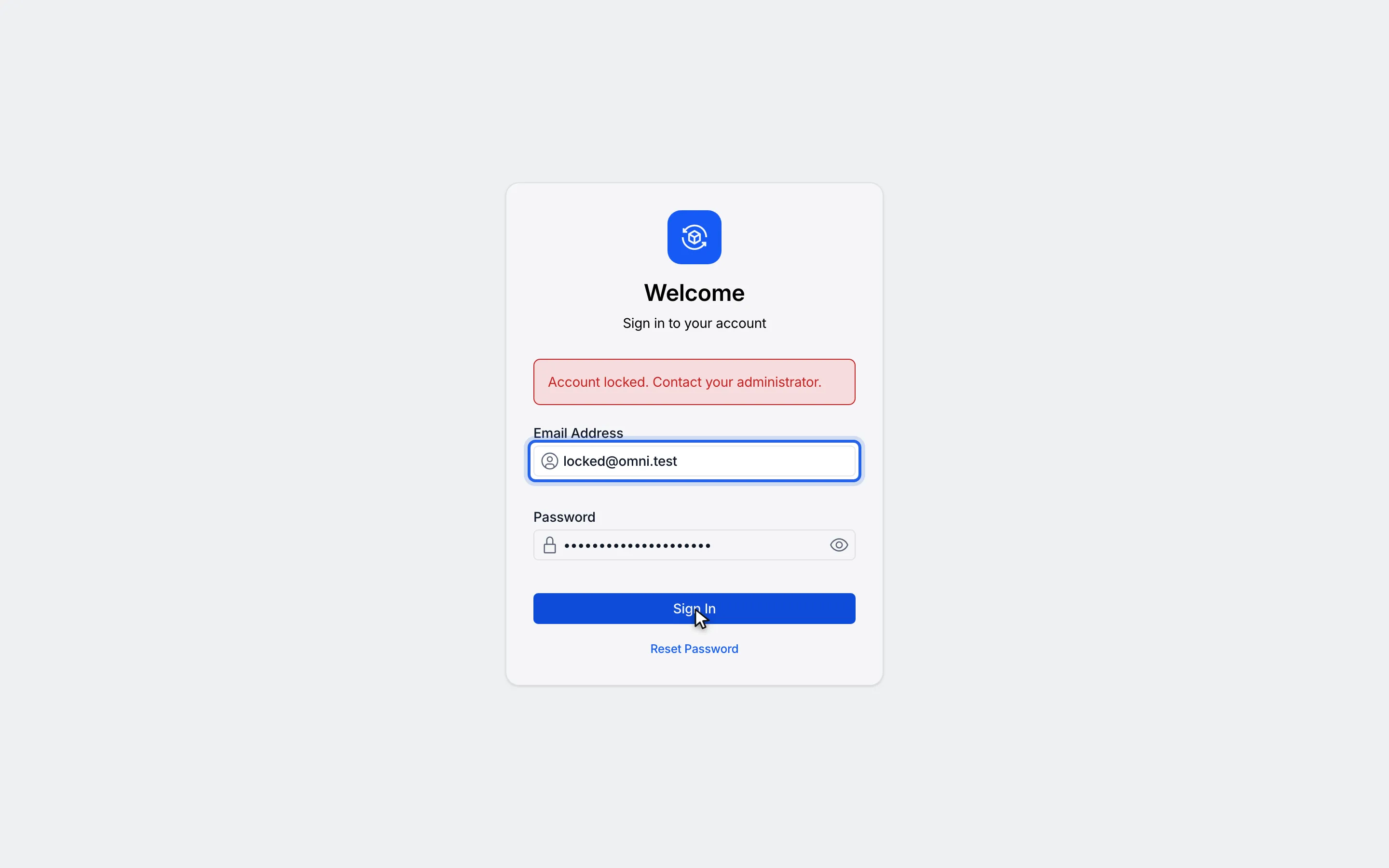
6Check the email address and try again.
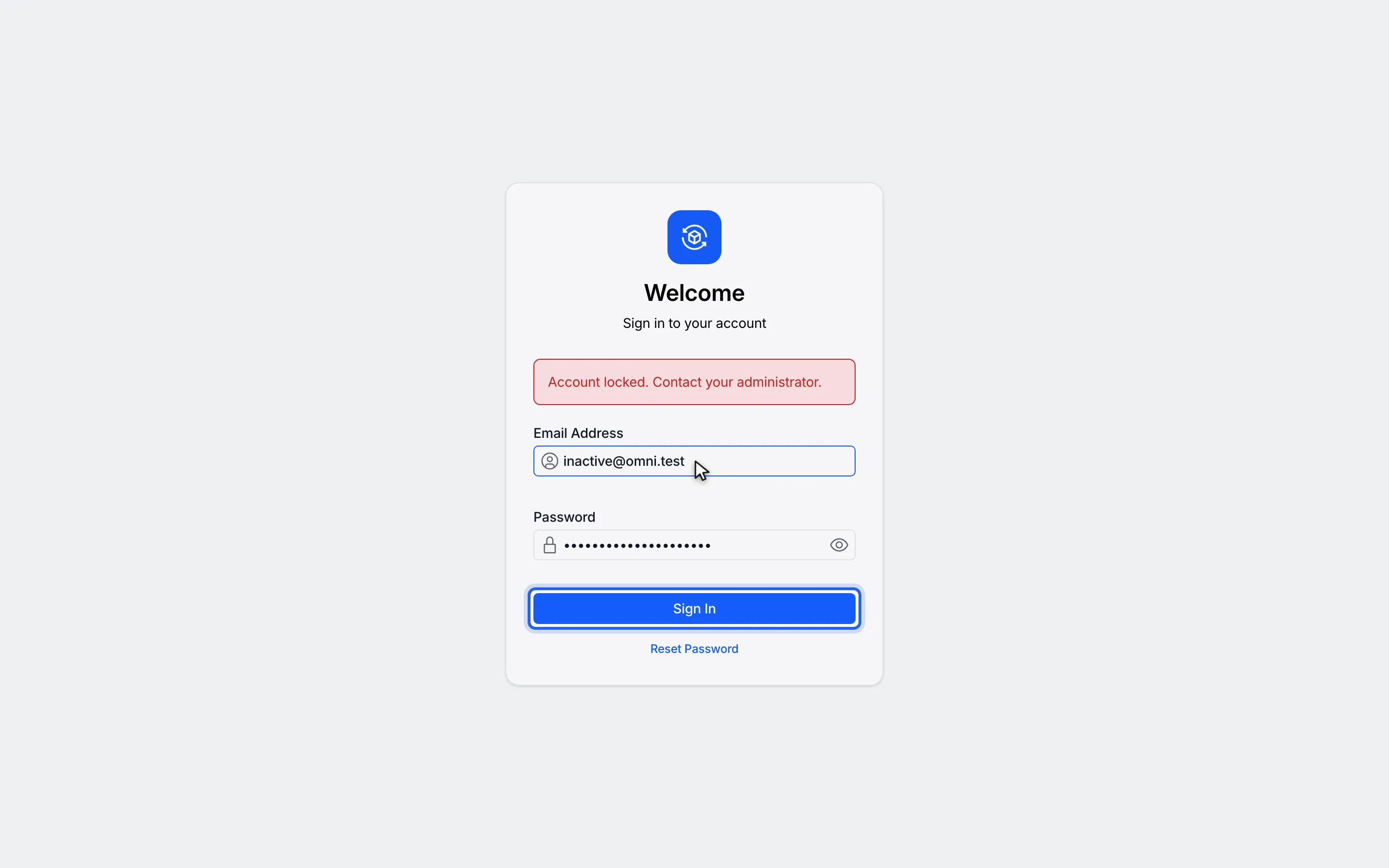
7An inactive account shows "Your account is inactive. Contact your administrator."
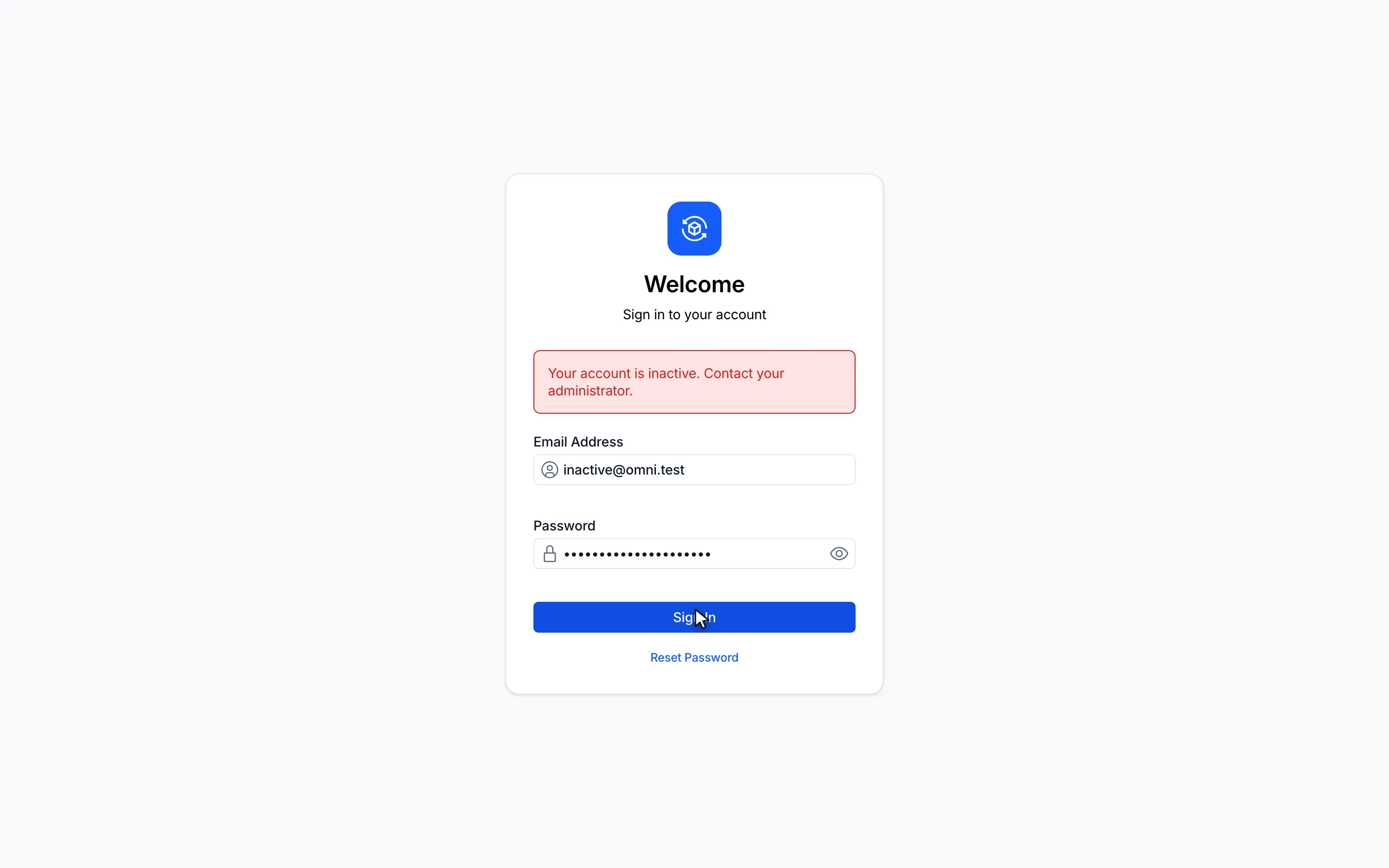
8Each message appears in a banner above the form.