Save or discard unsaved changes
While you edit a Draft or Sent quote, Omni keeps track of changes you have not saved. If you leave the page with changes pending, the Unsaved Changes dialog asks what to do with them. Cancel in the header is different: it throws your changes away without asking.
- Open the quote. See Find a quote.
- Click Actions.
- Choose Edit.
- Change a field, for example the Customer PO.
- Leave the page, for example through the Quotes breadcrumb, a sidebar link or your browser’s back button. The Unsaved Changes dialog opens: You have unsaved changes. If you leave now, you’ll lose everything you’ve entered.
- Choose what to do. Save saves the quote and then continues where you were going. Discard drops the changes, leaves edit mode and continues. The close button (or Escape) keeps you on the form.
- Click Save to keep your changes and continue to the Quotes list.
- Open the quote again. The Details tab shows the saved change.
Save or discard unsaved changes1 / 11
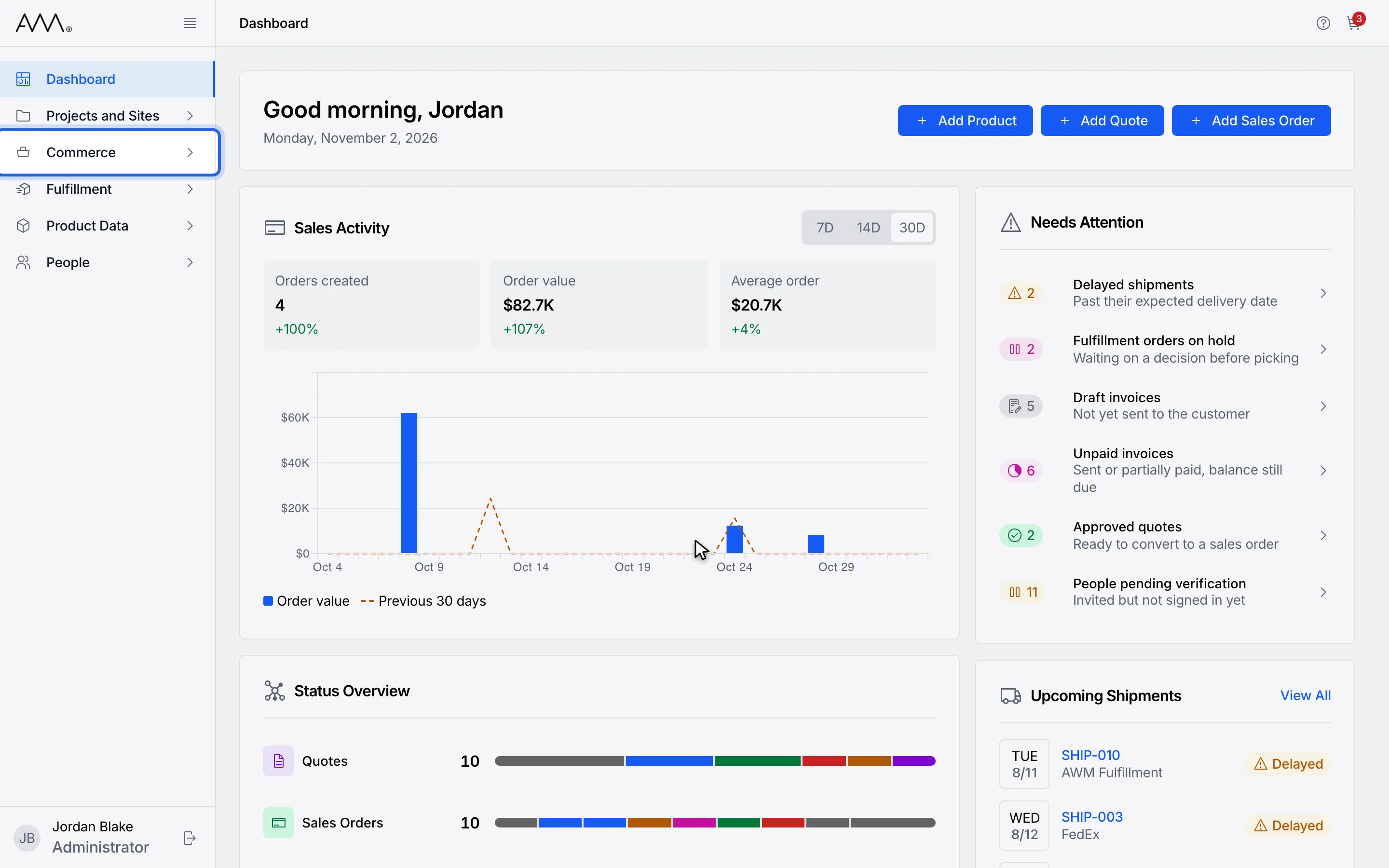
1In the sidebar, open Commerce.
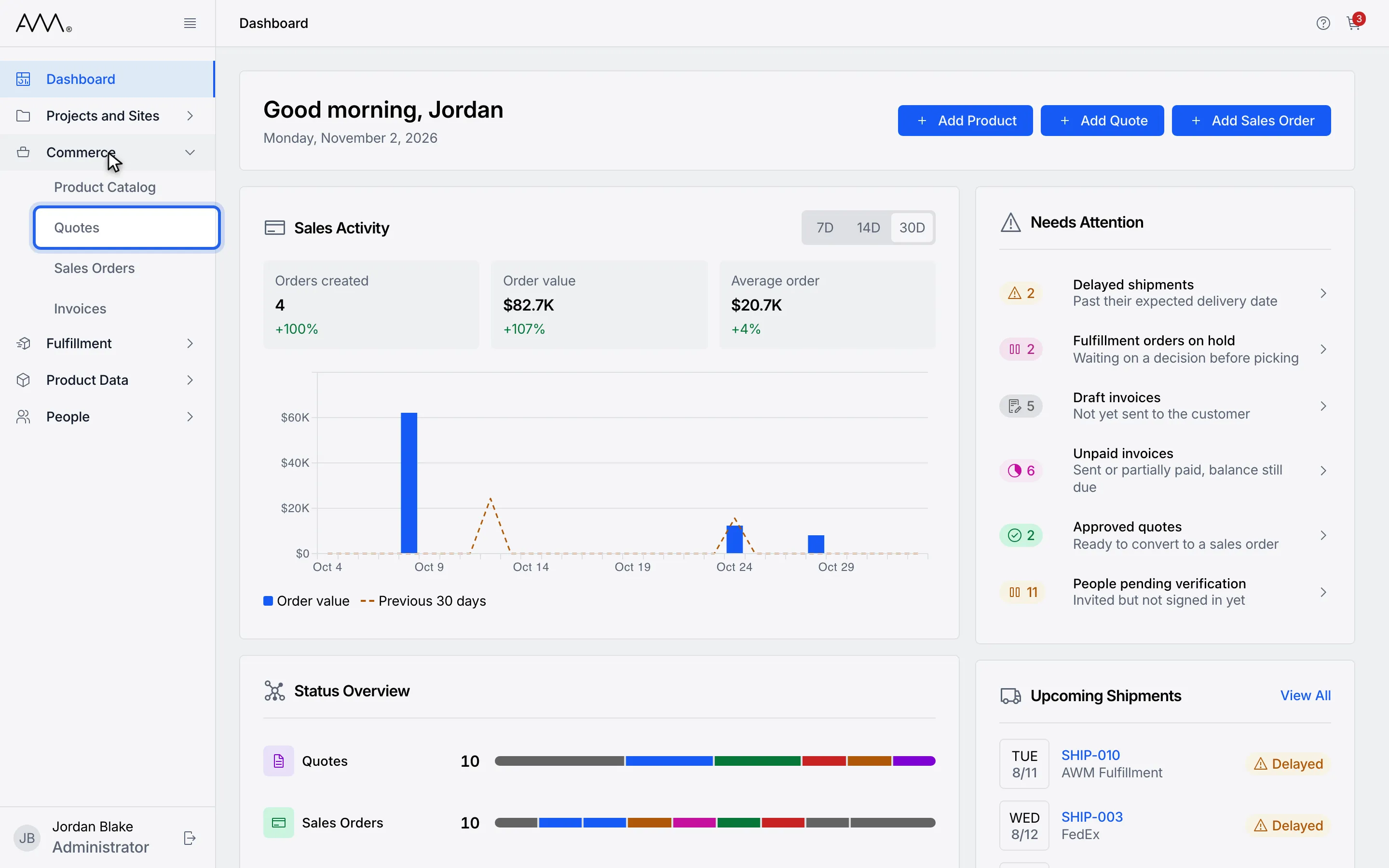
2Choose Quotes.
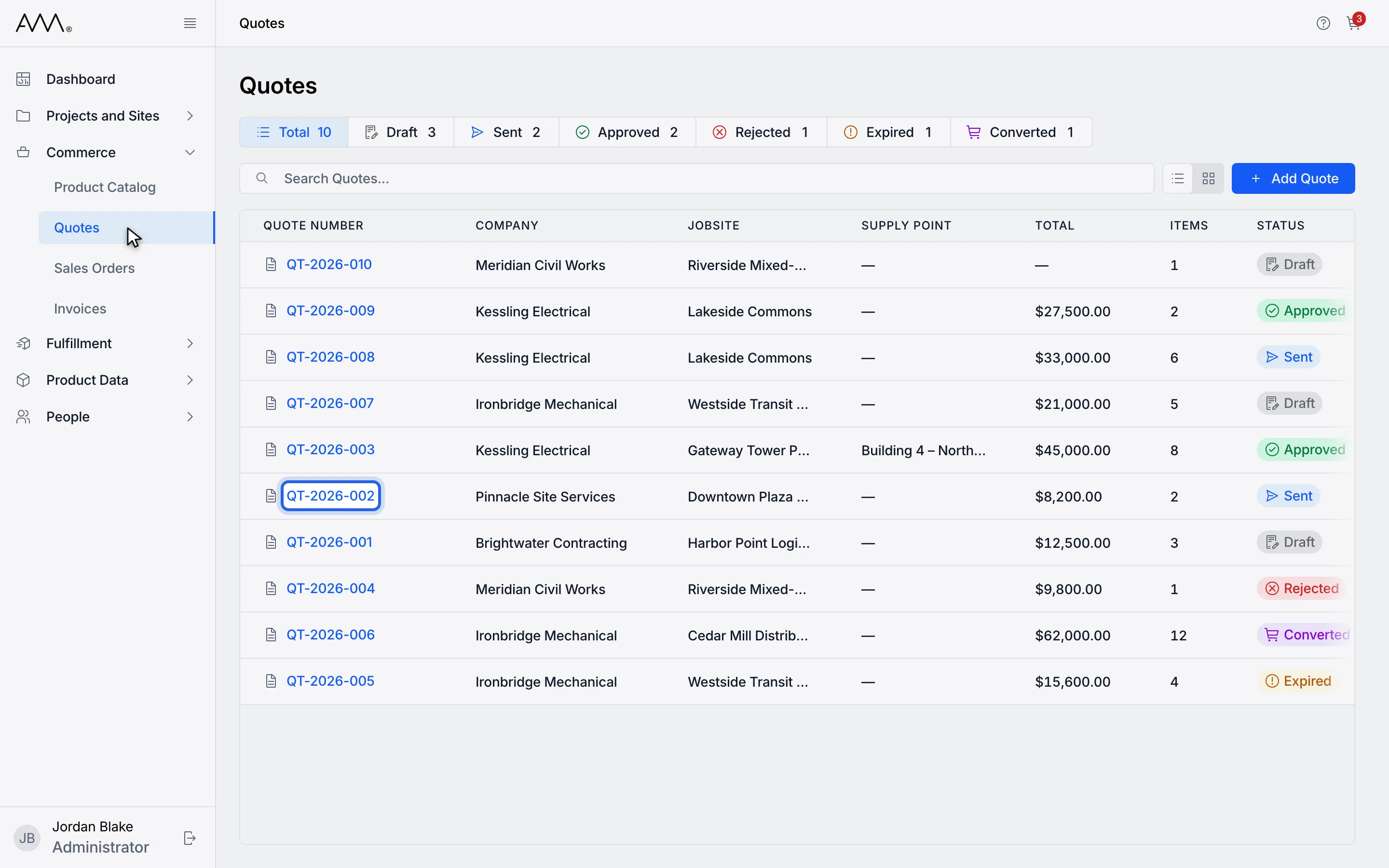
3Open a Draft or Sent quote.
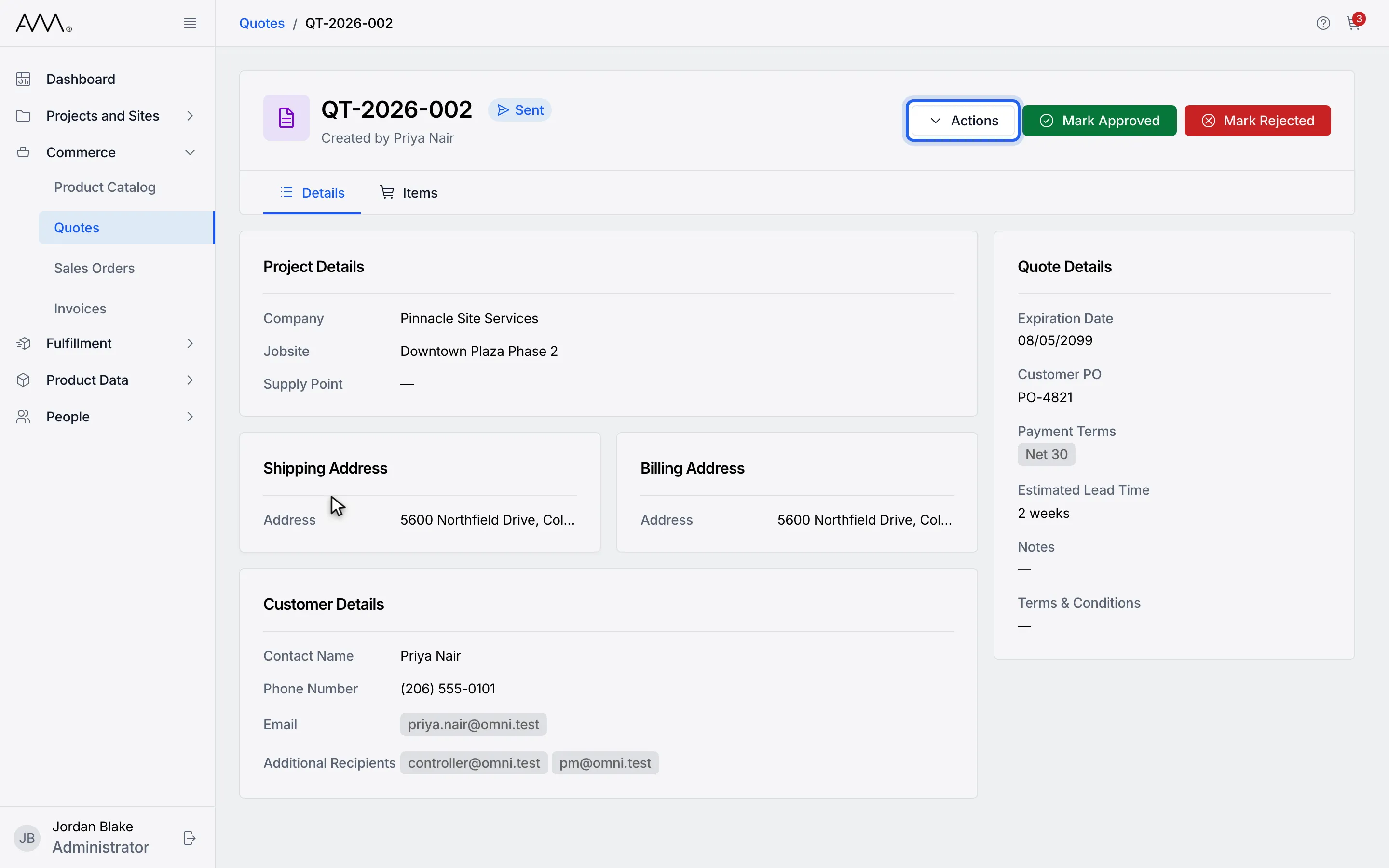
4Click Actions.
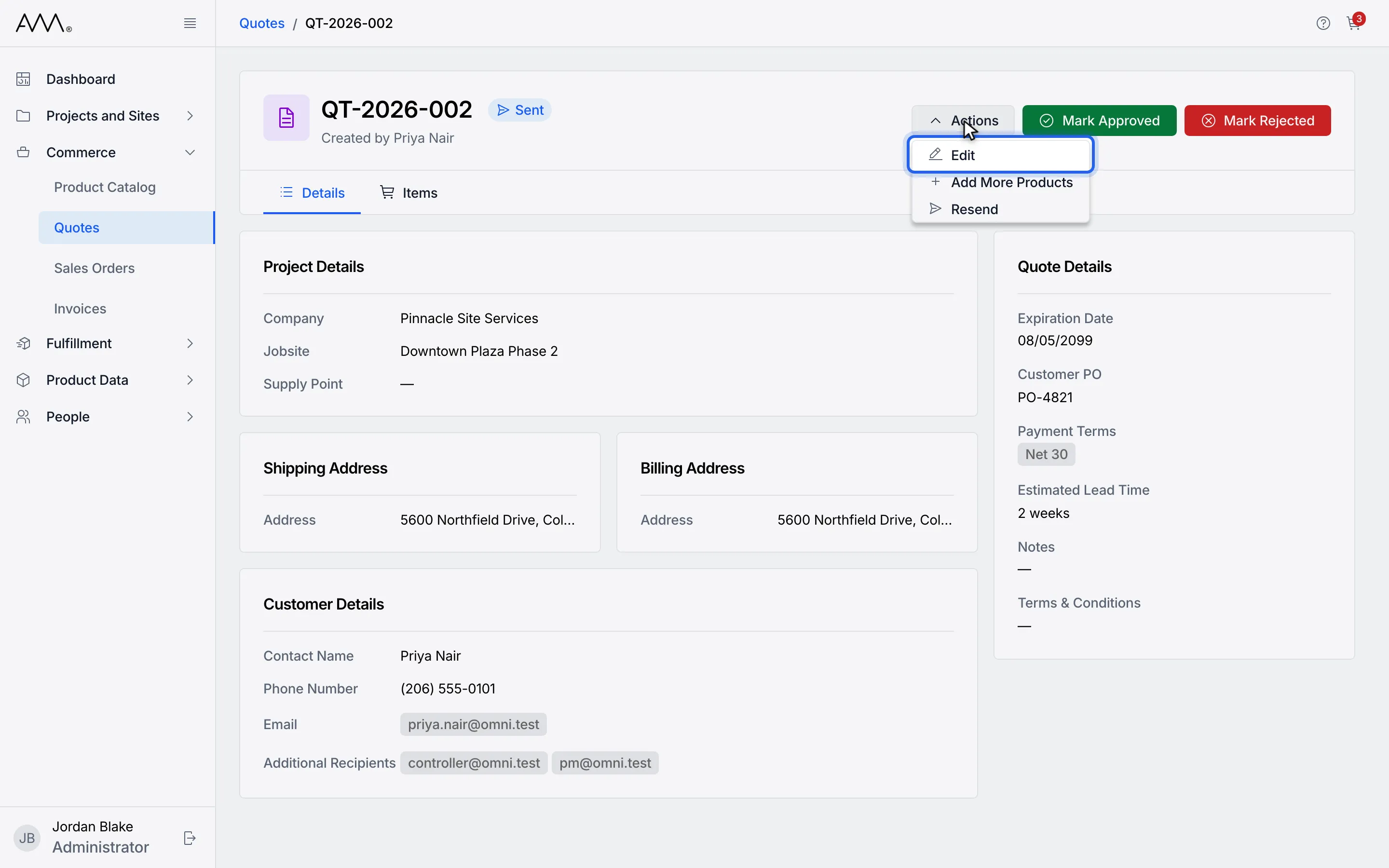
5Choose Edit.
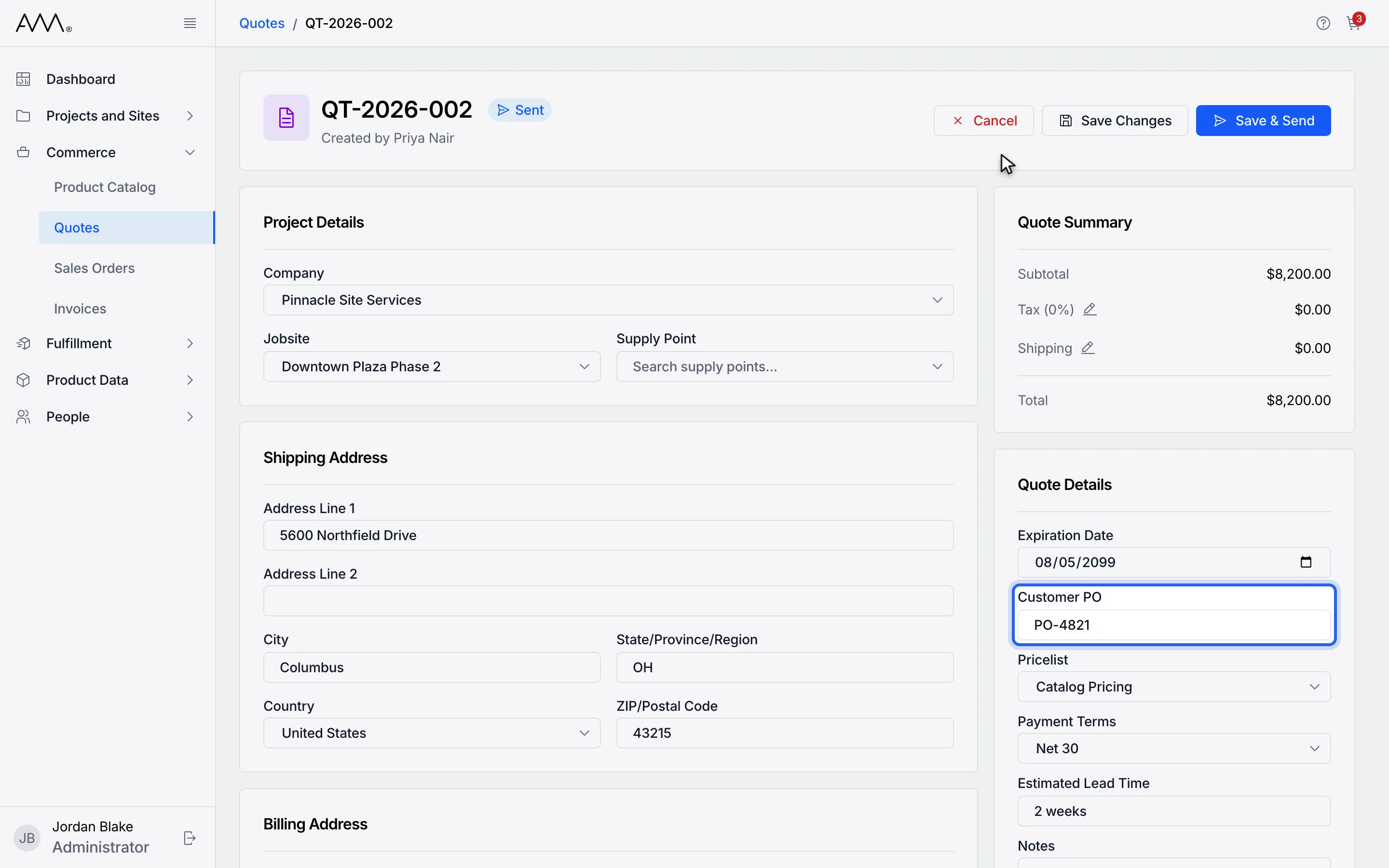
6Change a field, for example the Customer PO.
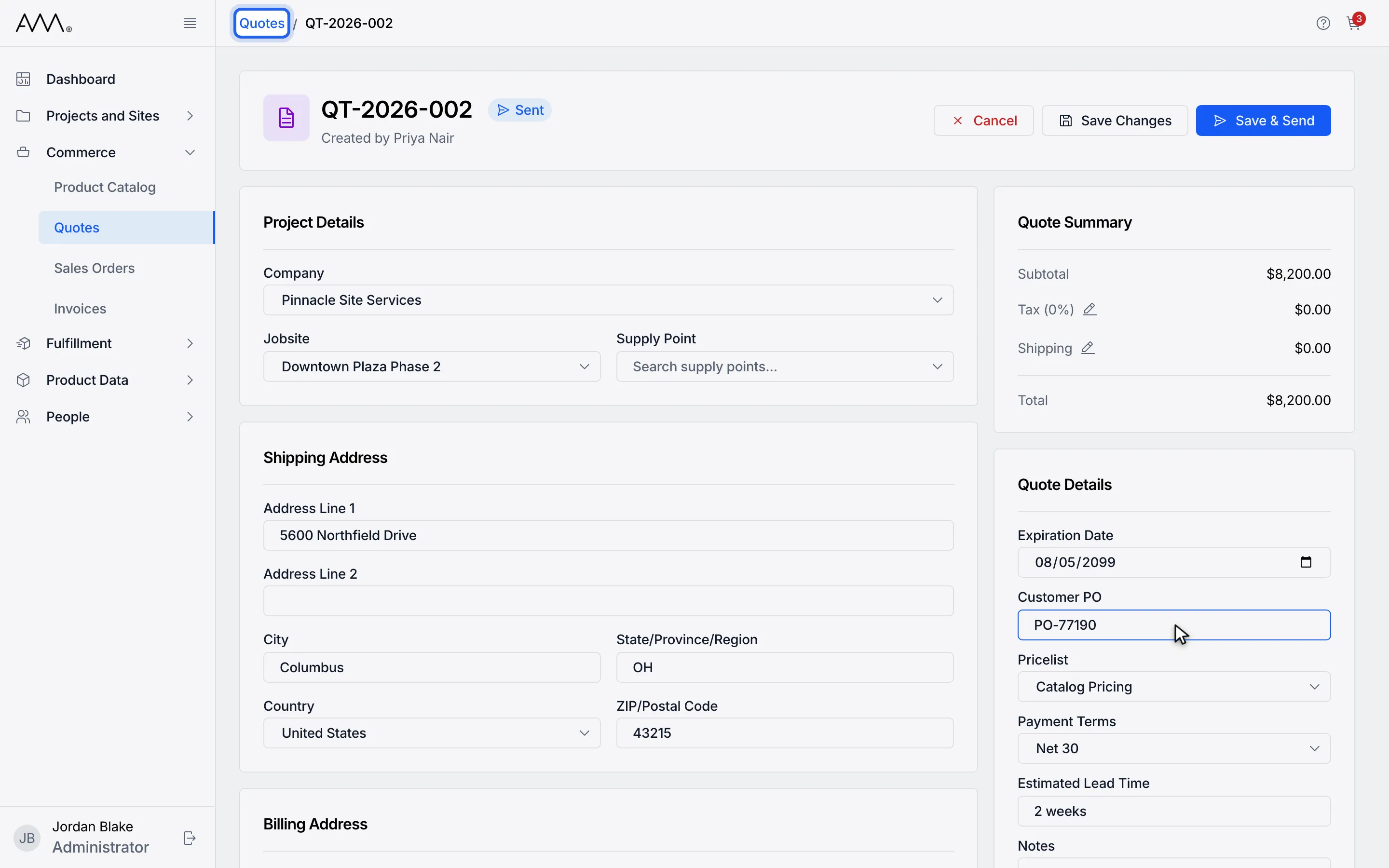
7Leave the page, for example through the Quotes breadcrumb.
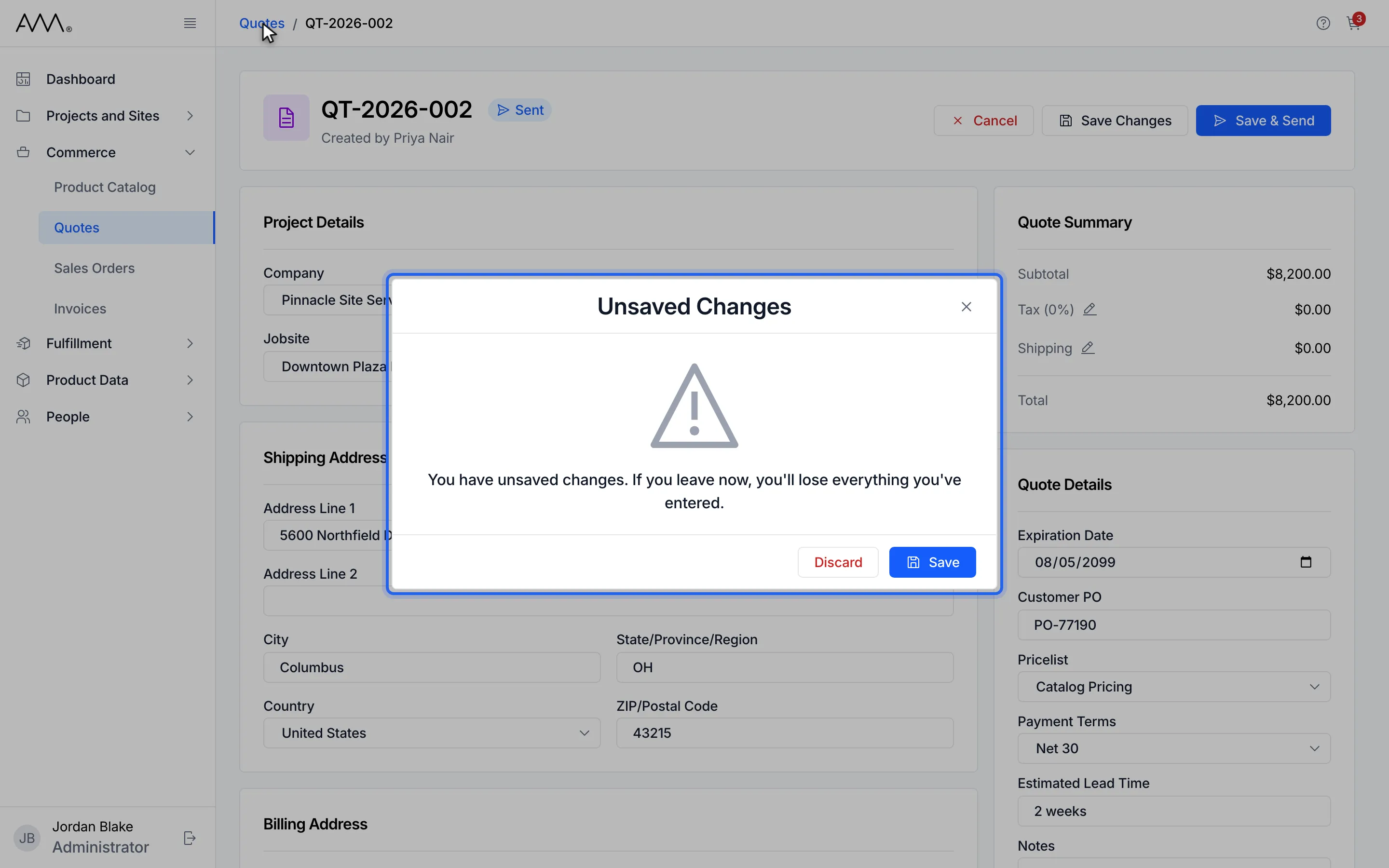
8The Unsaved Changes dialog offers Save, Discard, or the close button to stay.
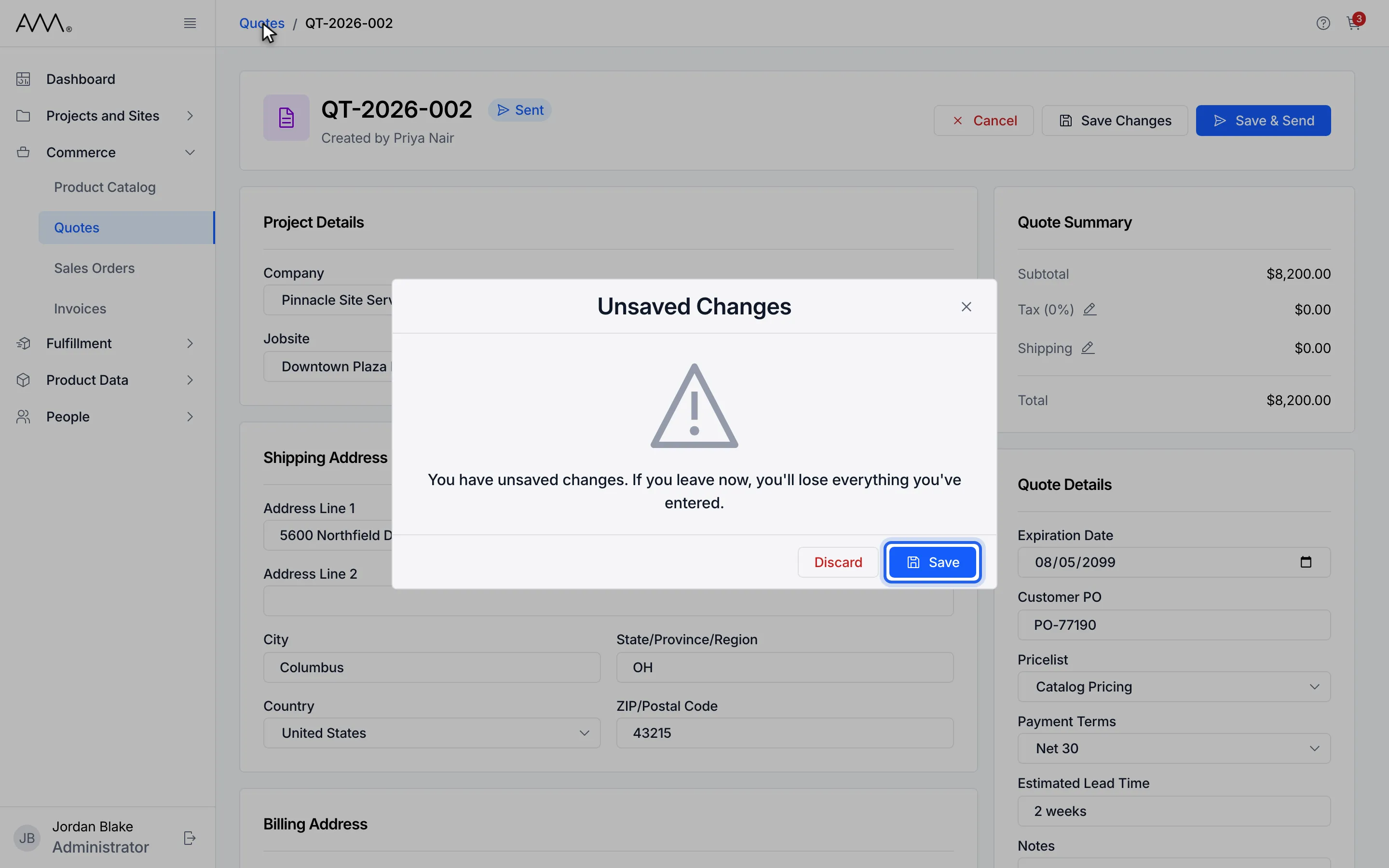
9Click Save to keep your changes and continue to the Quotes list.
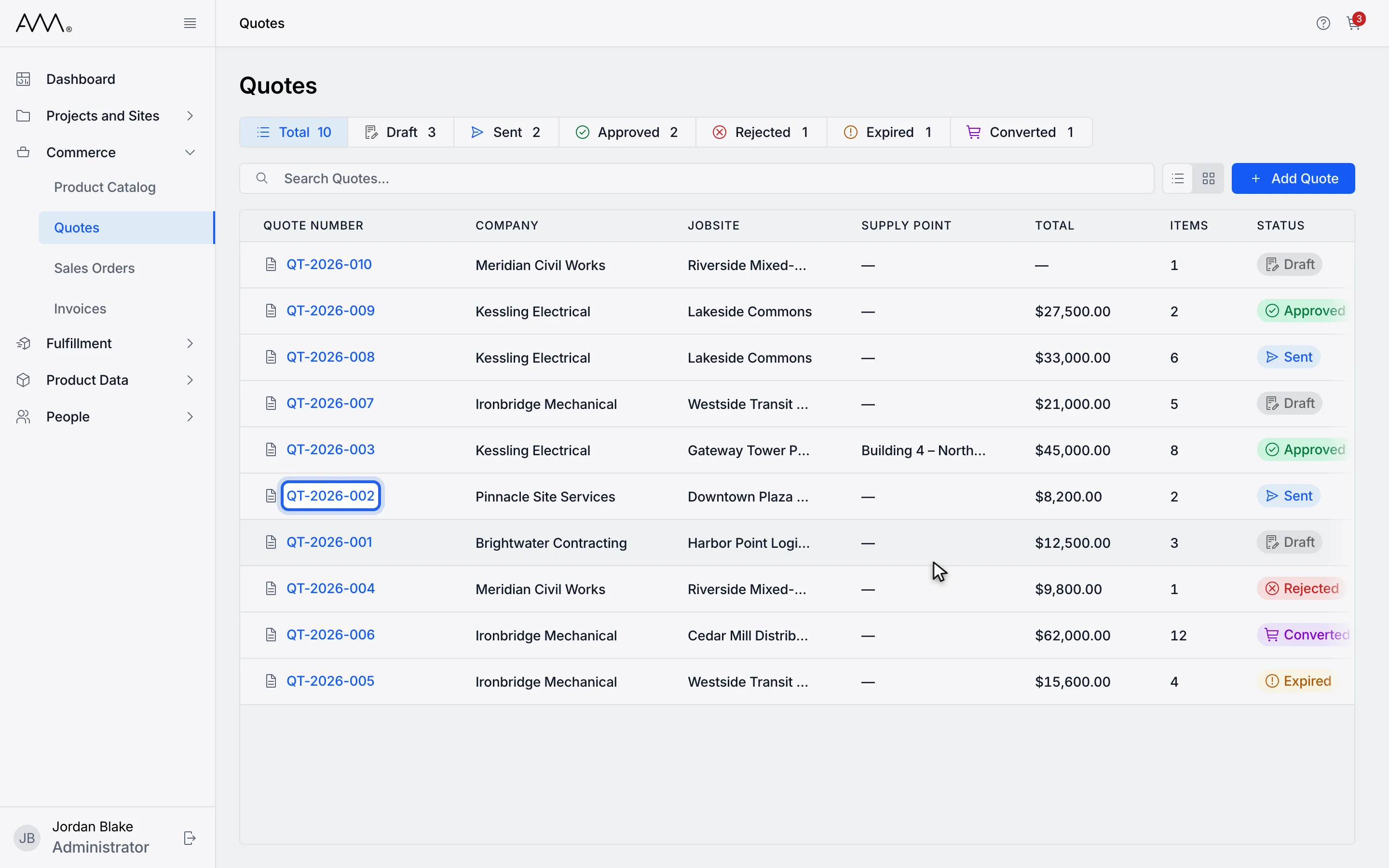
10Open the quote again to see the saved change.
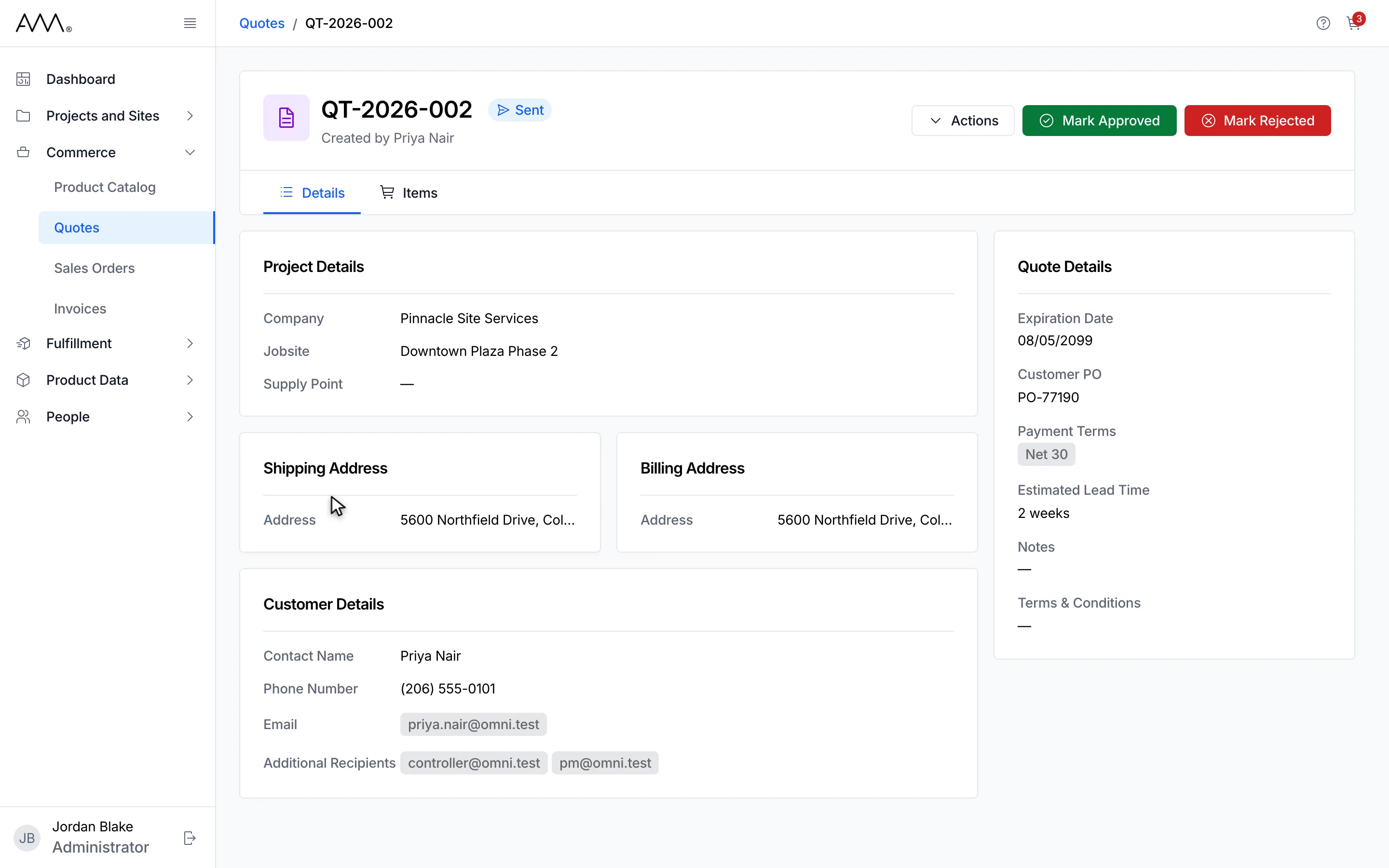
11The Details tab shows the Customer PO you entered before leaving.
Watch this as a video (save or discard unsaved changes)
What happens next
Section titled “What happens next”- If the save fails, you stay on the form and the error appears there, so nothing is lost.
- If a save is already running when you try to leave, the toast reads Your changes are still saving. Try again once the save finishes.
- Closing the browser tab or window shows your browser’s own prompt instead of this dialog.