Mark a fulfillment order delivered
Each fulfillment order on a shipment is delivered on its own, so a shipment with several drops can record each arrival as it happens.
- Open the shipment and click the Fulfillment Orders tab.
- Click Deliver on the order that arrived. Scroll the table sideways if the Actions column is out of view.
- In Confirm Delivery?, check Delivered Date and Delivered Time. They default to now.
- Click Confirm Delivery.
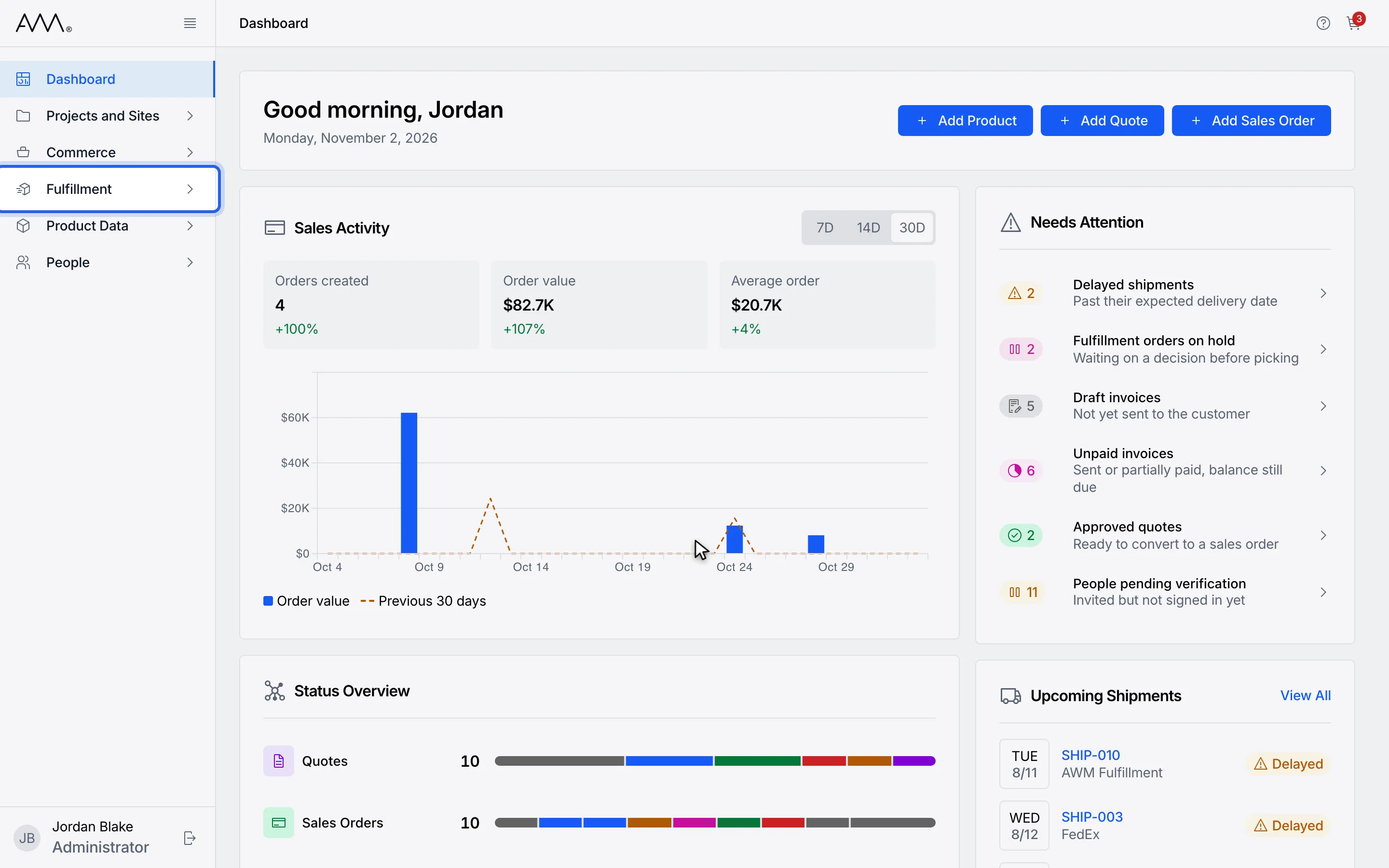
1In the sidebar, open Fulfillment.
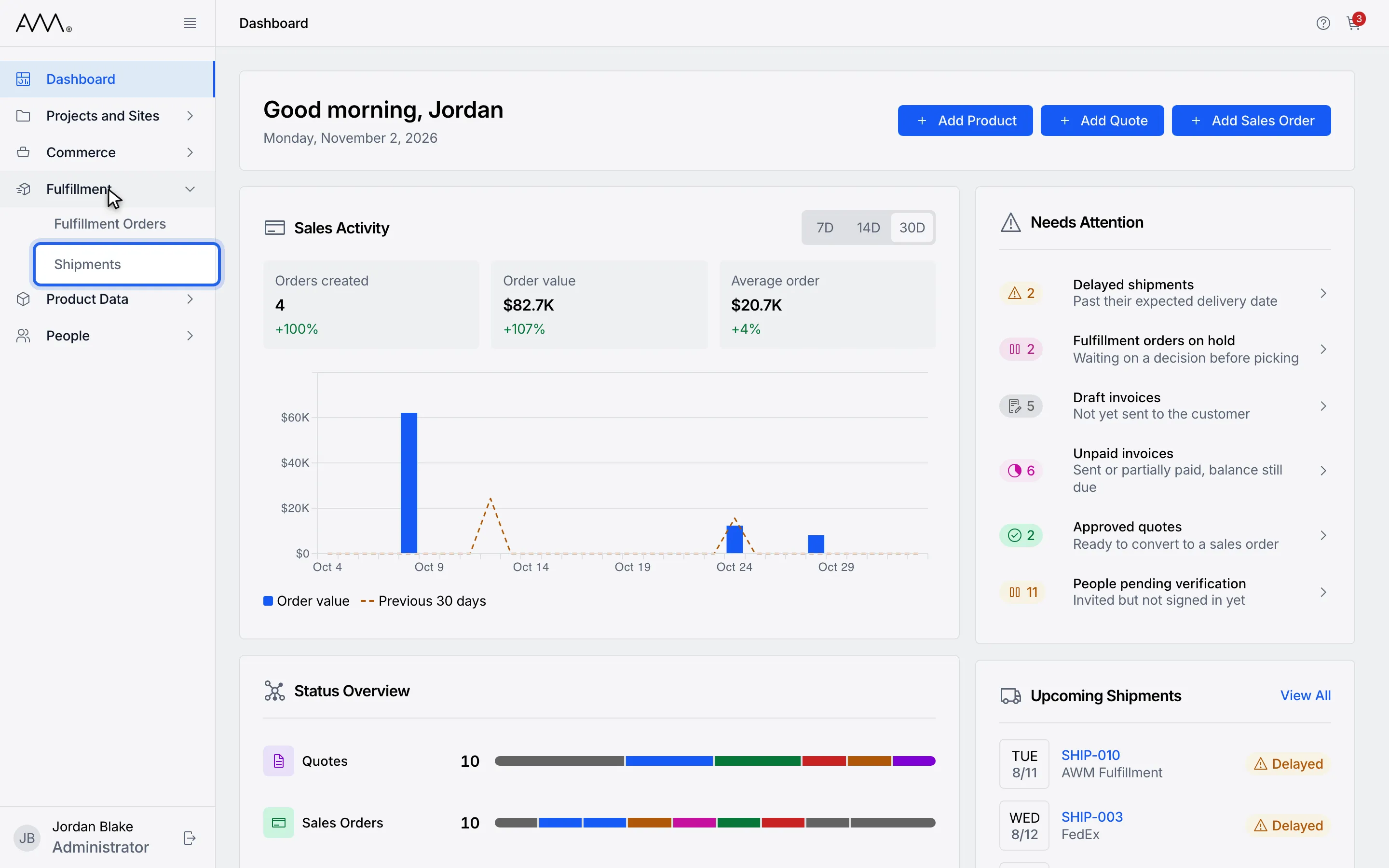
2Choose Shipments.
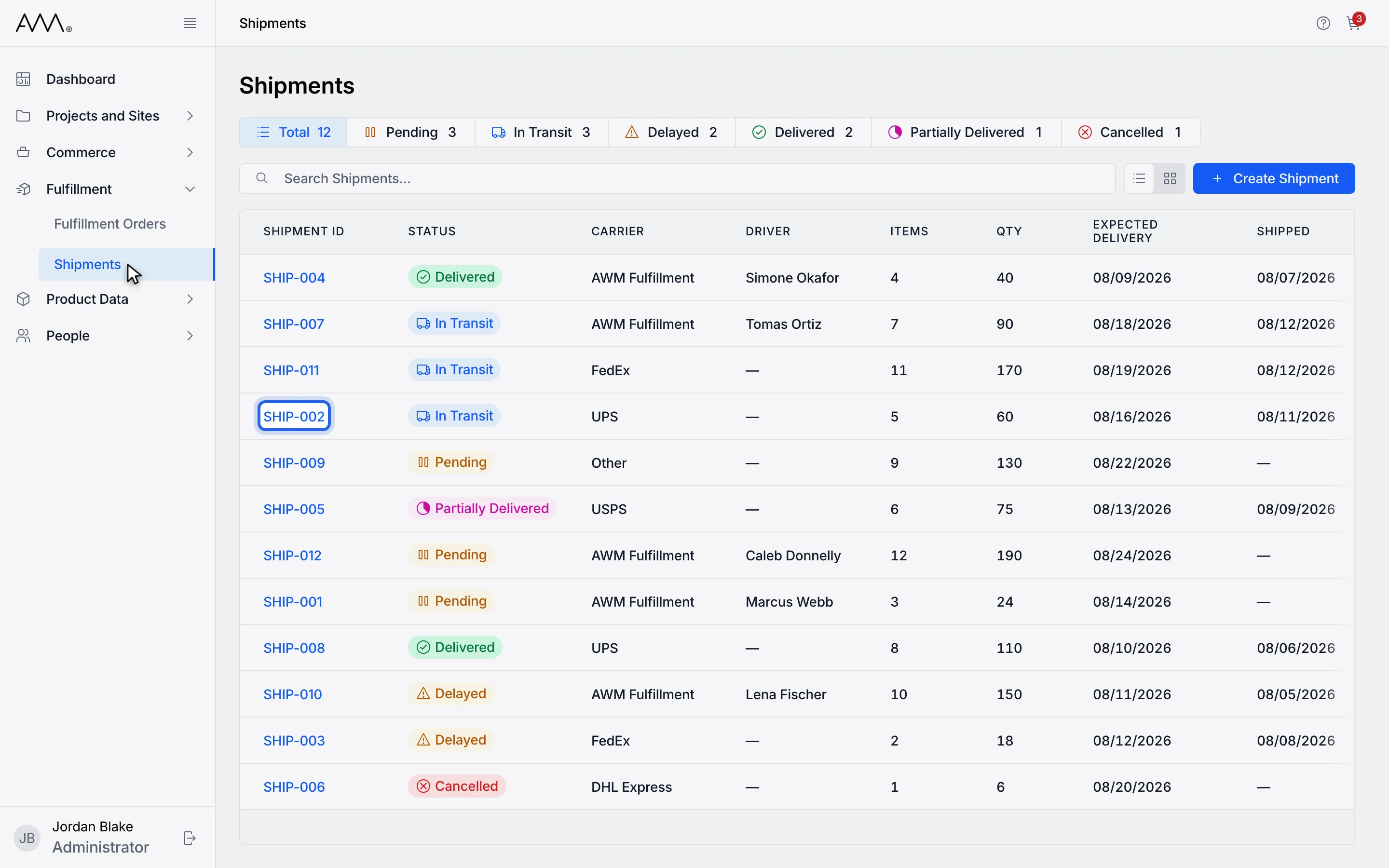
3Open a shipment that is In Transit or Delayed.
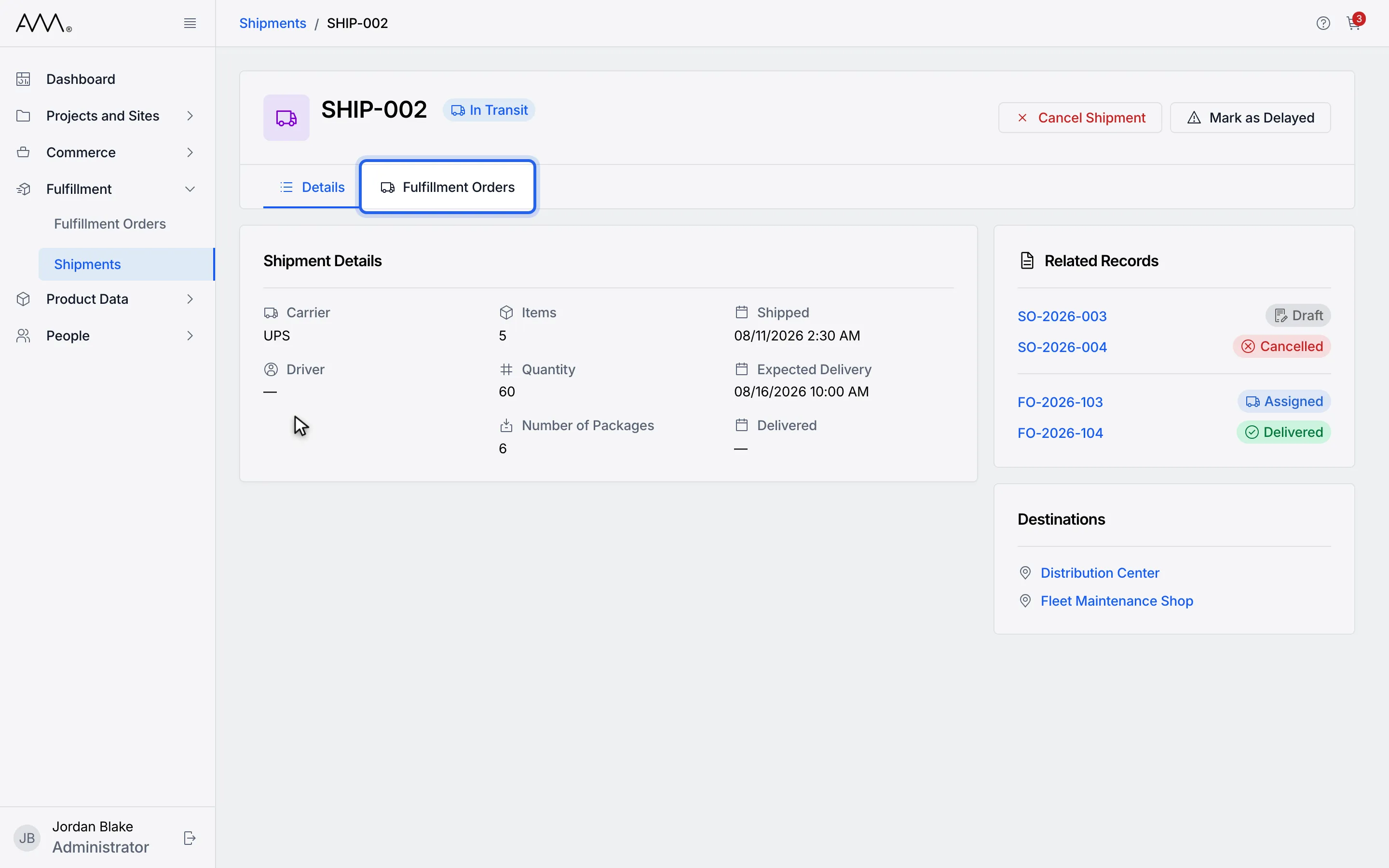
4Open the Fulfillment Orders tab.
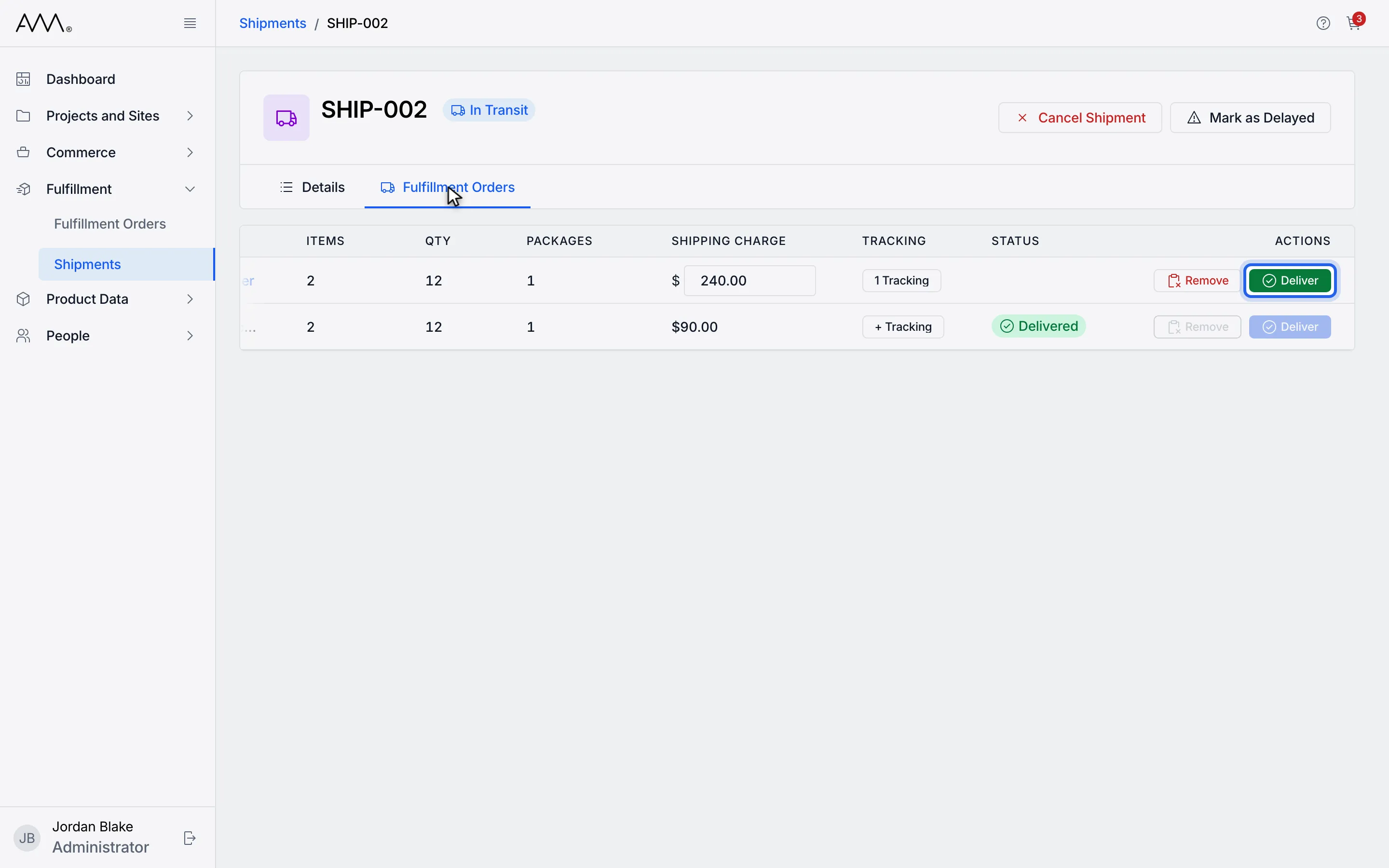
5Click Deliver on the order that arrived.
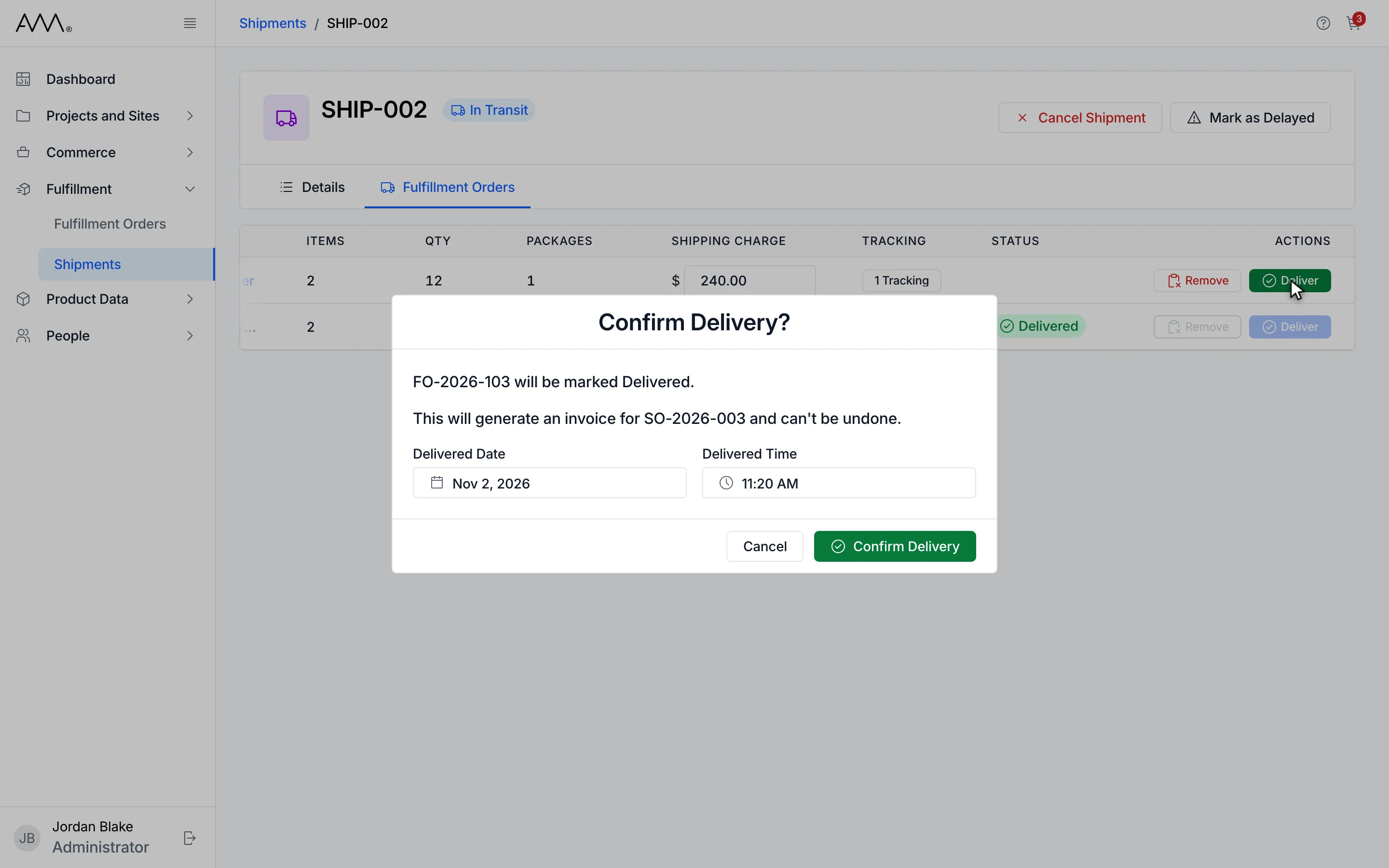
6Delivered Date and Time default to now. Not in the future and not before departure.
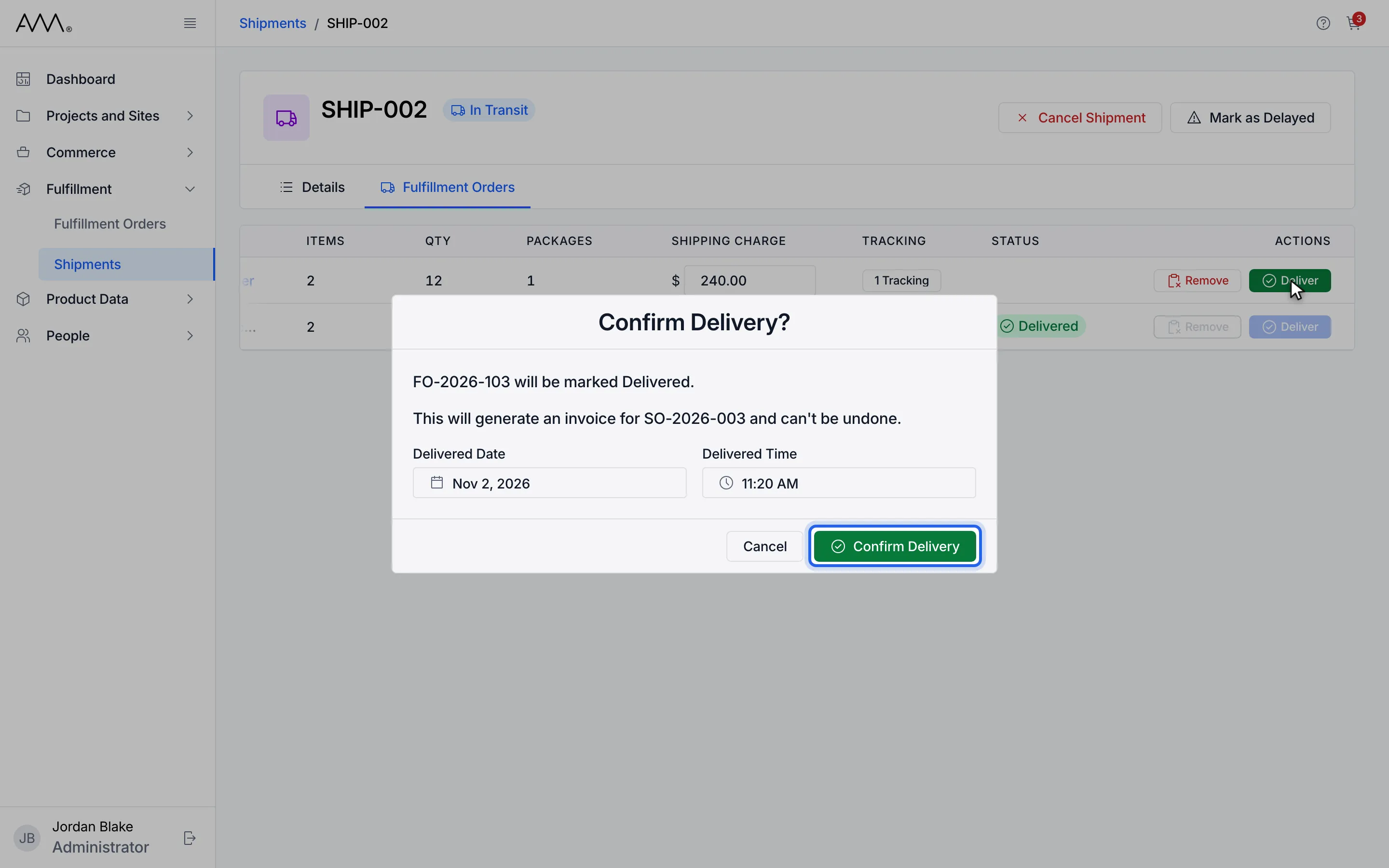
7Click Confirm Delivery.
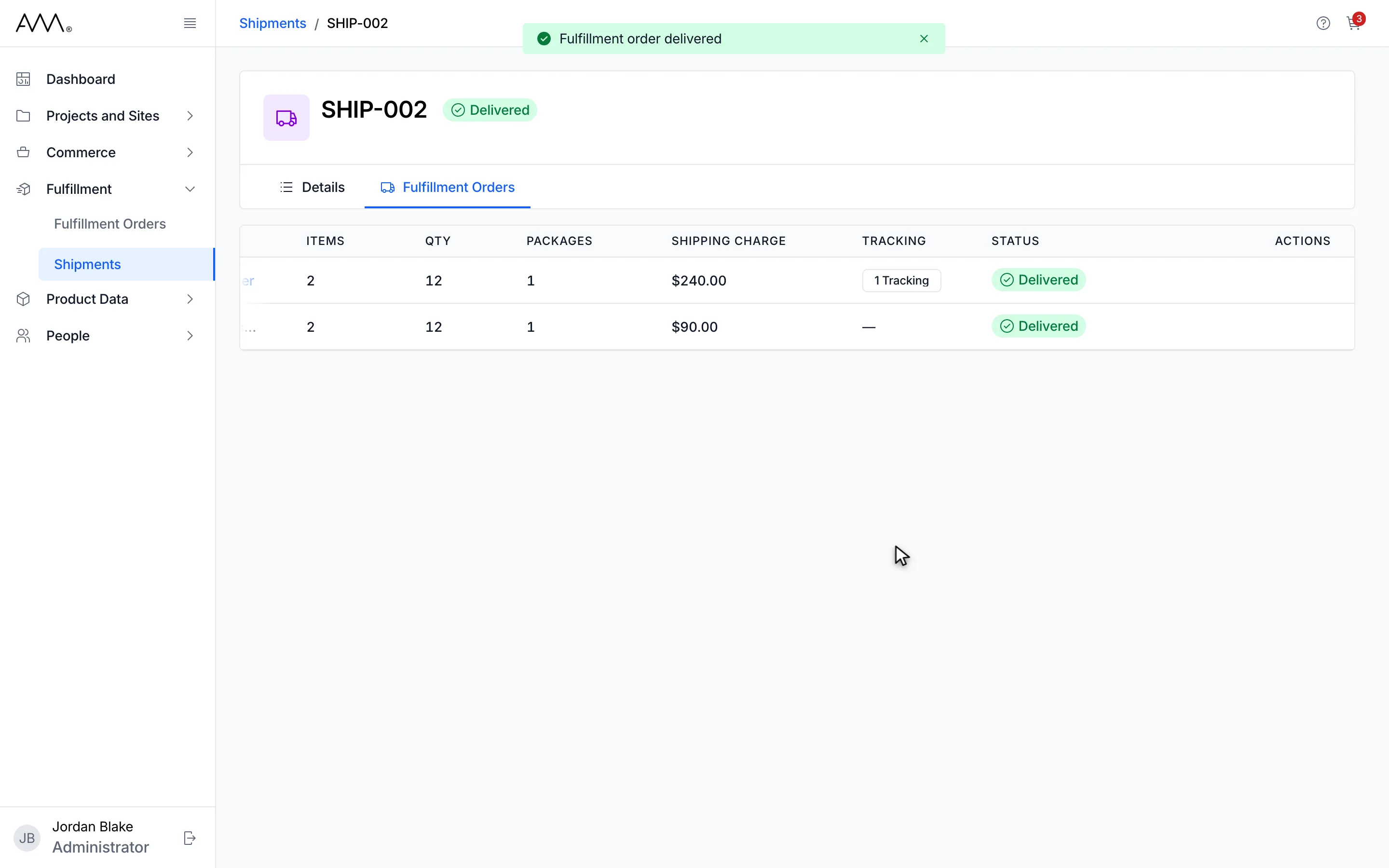
8The line is Delivered. With no order left to deliver, the shipment is Delivered too.
9The line is Delivered and, with nothing left to deliver, so is the shipment.
Watch this as a video (mark a fulfillment order delivered)
Date and time rules
Section titled “Date and time rules”- The delivered date and time are entered in your own time zone.
- They cannot be in the future: Delivered time can’t be in the future.
- They cannot be before the shipment departed: Delivered time can’t be earlier than the departure.
- Both fields are required: Enter the delivered date and time.
- A time that your time zone skips at a daylight-saving change is refused: That delivered date and time doesn’t exist in your time zone.
What happens next
Section titled “What happens next”A toast confirms Fulfillment order delivered. The row shows Delivered, its shipping charge becomes read-only and its Remove and Deliver buttons are disabled.
Once no Assigned order is left, the shipment settles: Delivered when every remaining order was delivered, or Partially Delivered when some orders had been removed. Until then the shipment keeps its status.
If the action is refused, the dialog shows the reason or Could not update the shipment. Please try again.