Edit a sales order
Edit a sales order to correct its details, adjust quantities and prices, or change the price list before fulfillment starts. You edit the order on its own page: the form takes the place of the Details and Items tabs until you save or cancel.
- Open the order.
- Click Actions in the header.
- Choose Edit. The form replaces the tabs, and the header now shows Cancel and Save Changes.
- Change a line’s Quantity or Unit Price. The Line Total and the Sales Order Summary update as you type. Remove a line with its Remove button.
- Change any other field, such as Customer PO. The fields are the same as when creating an order: Company, Jobsite and Supply Point can be changed and refill the addresses, and Pricelist is described below.
- Click Save Changes. The order returns to its Details tab showing the saved values.
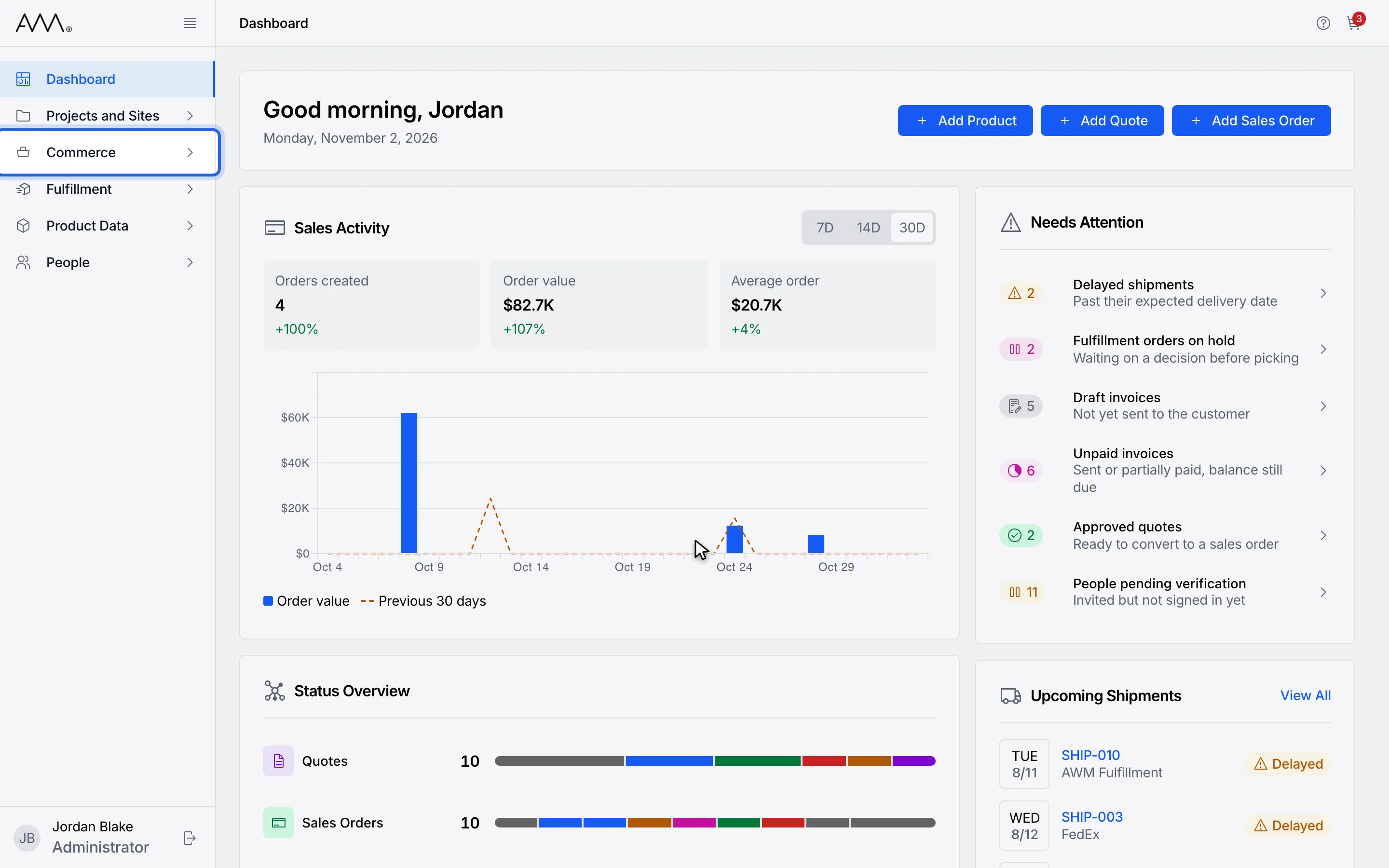
1In the sidebar, open Commerce.
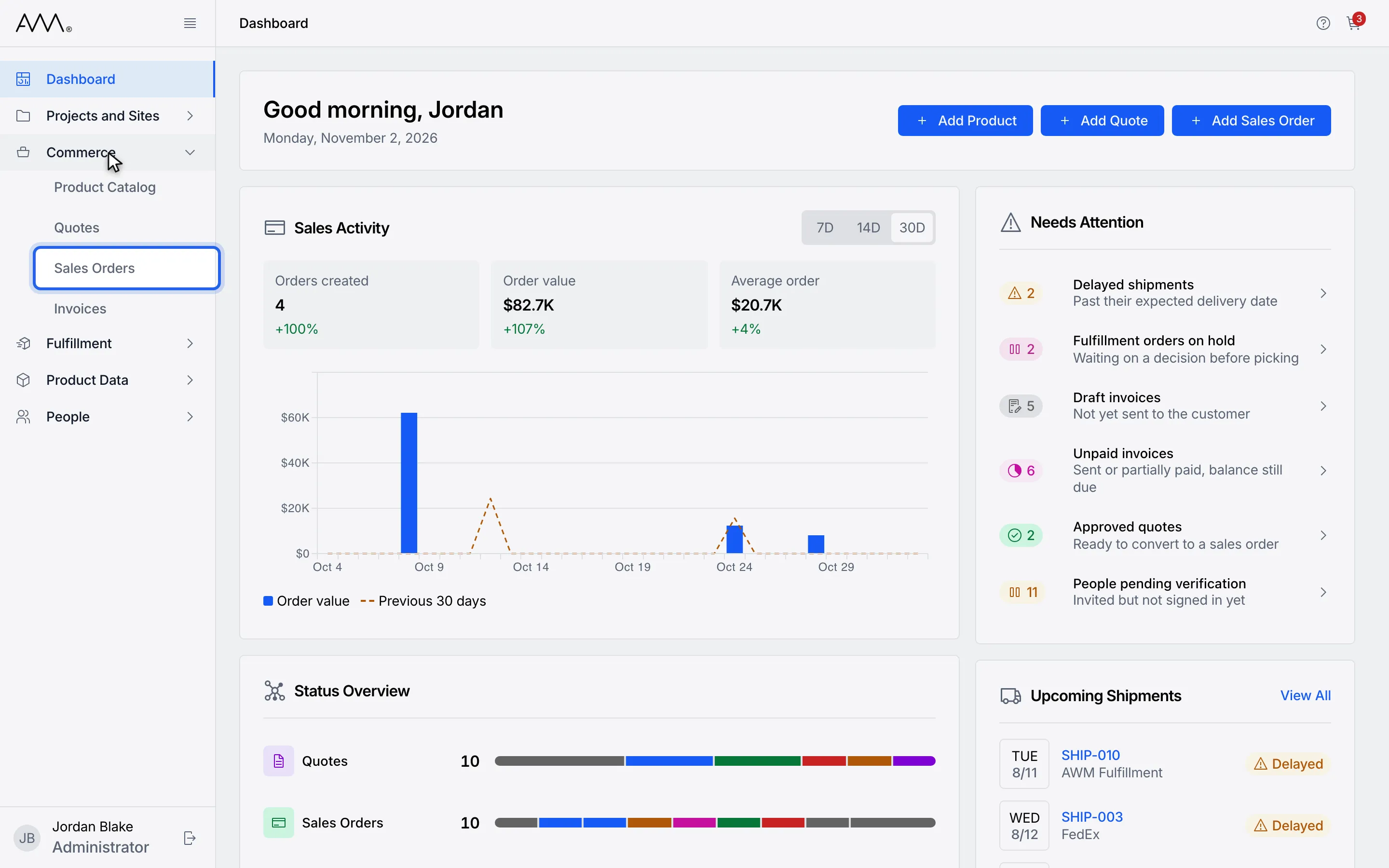
2Choose Sales Orders.
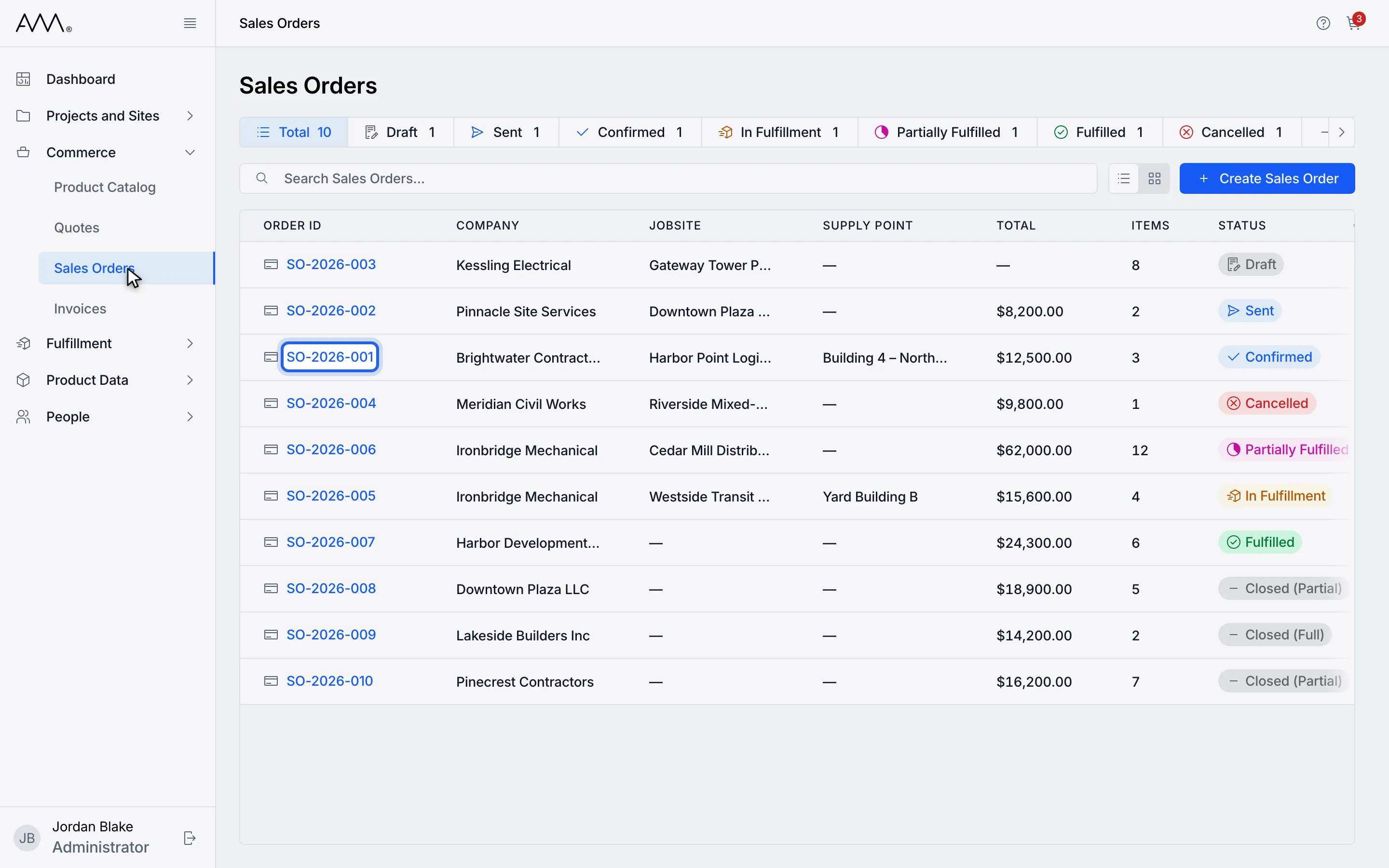
3Open the order you want to change.
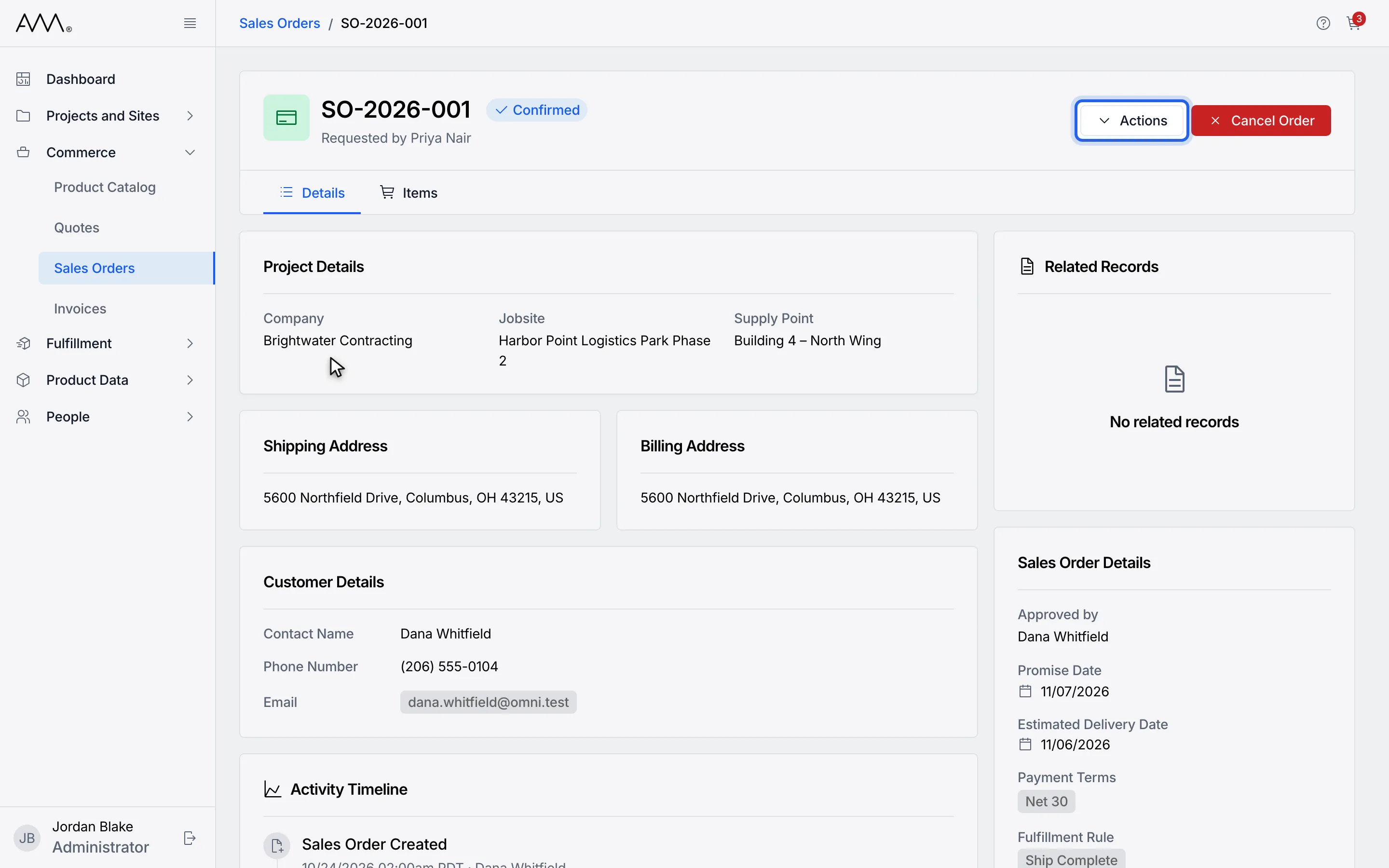
4Click Actions in the header.
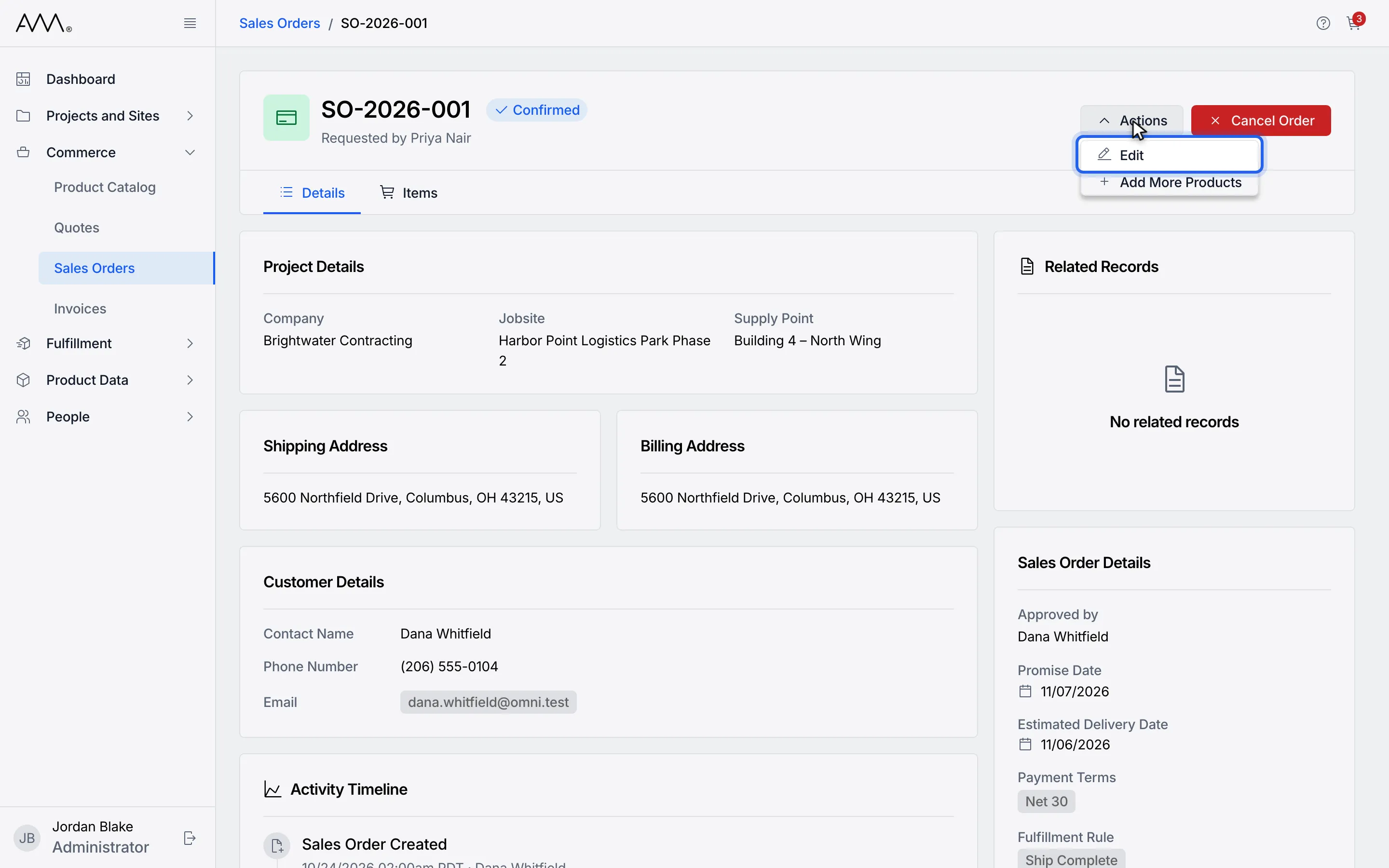
5Choose Edit. The form replaces the tabs.
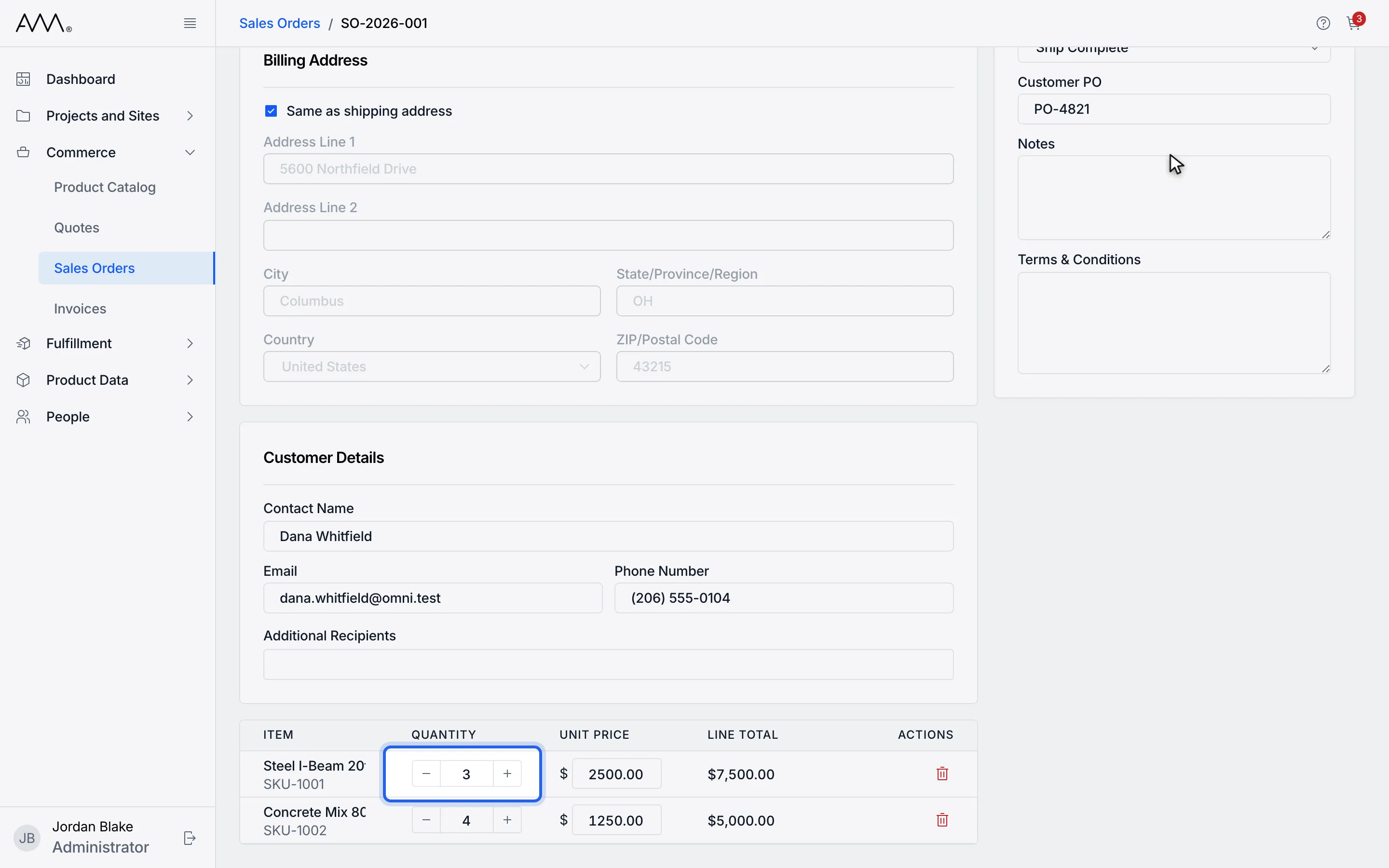
6Change a line quantity or unit price. Line totals update as you type.
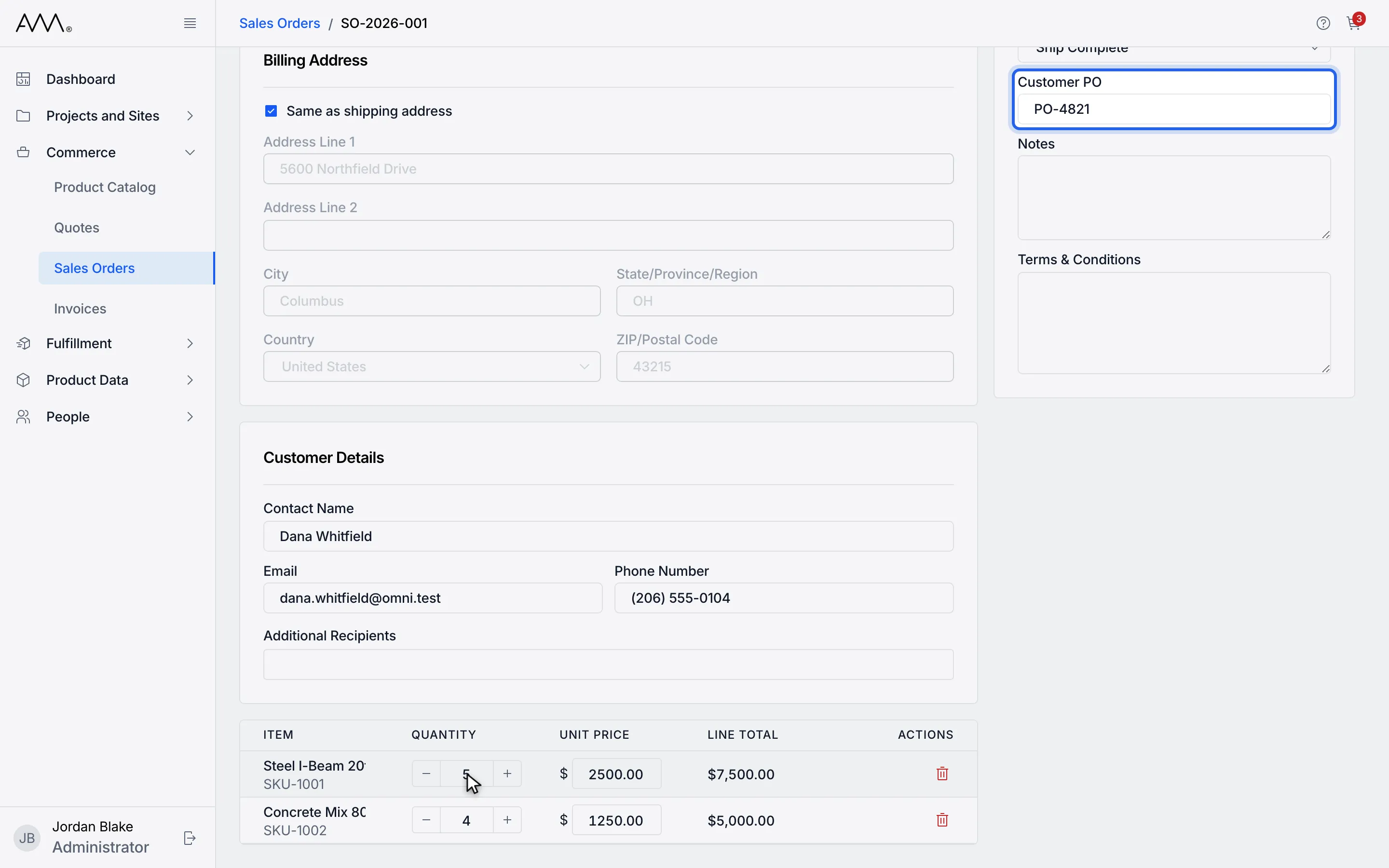
7Change any other field, such as Customer PO.
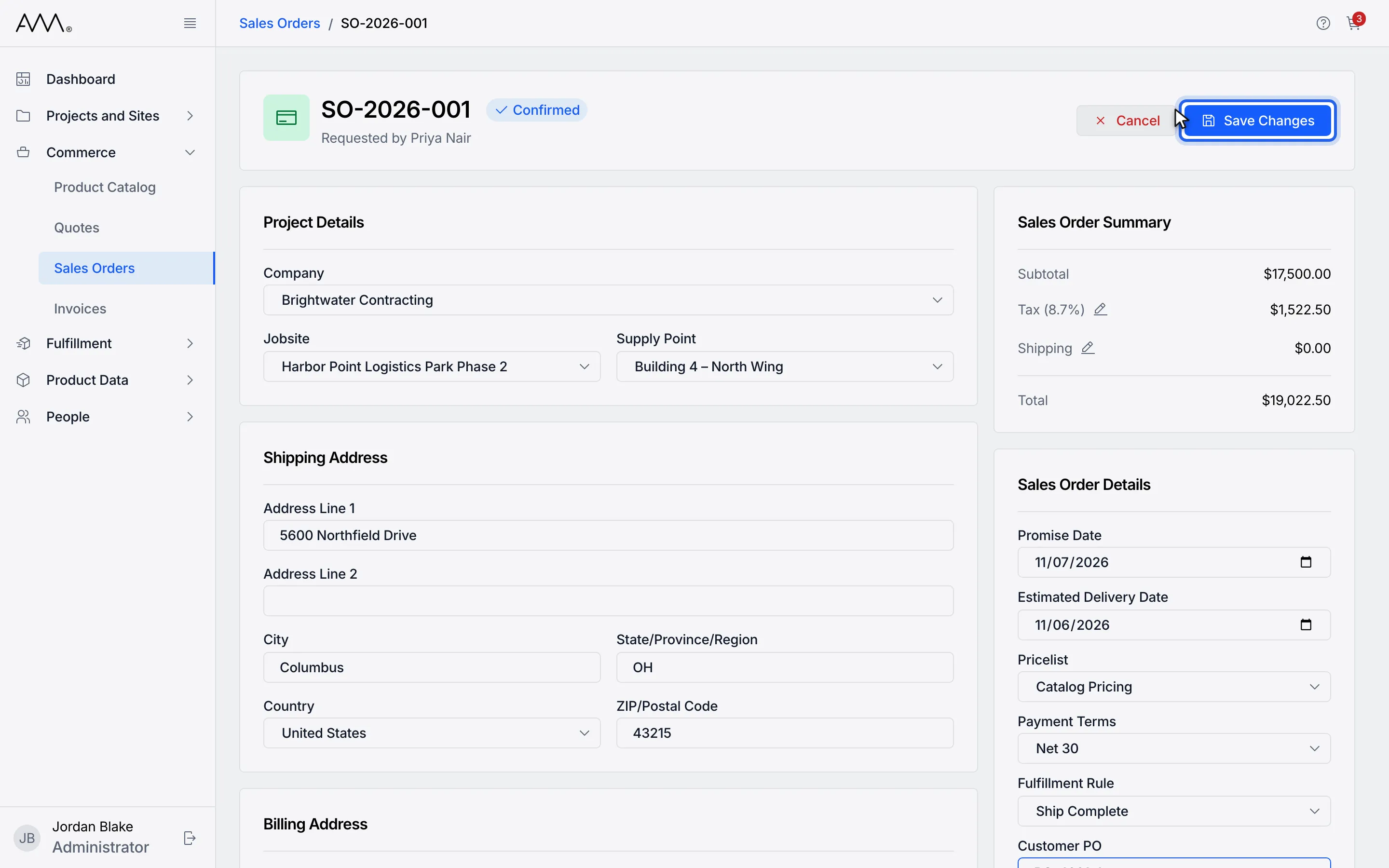
8Click Save Changes.
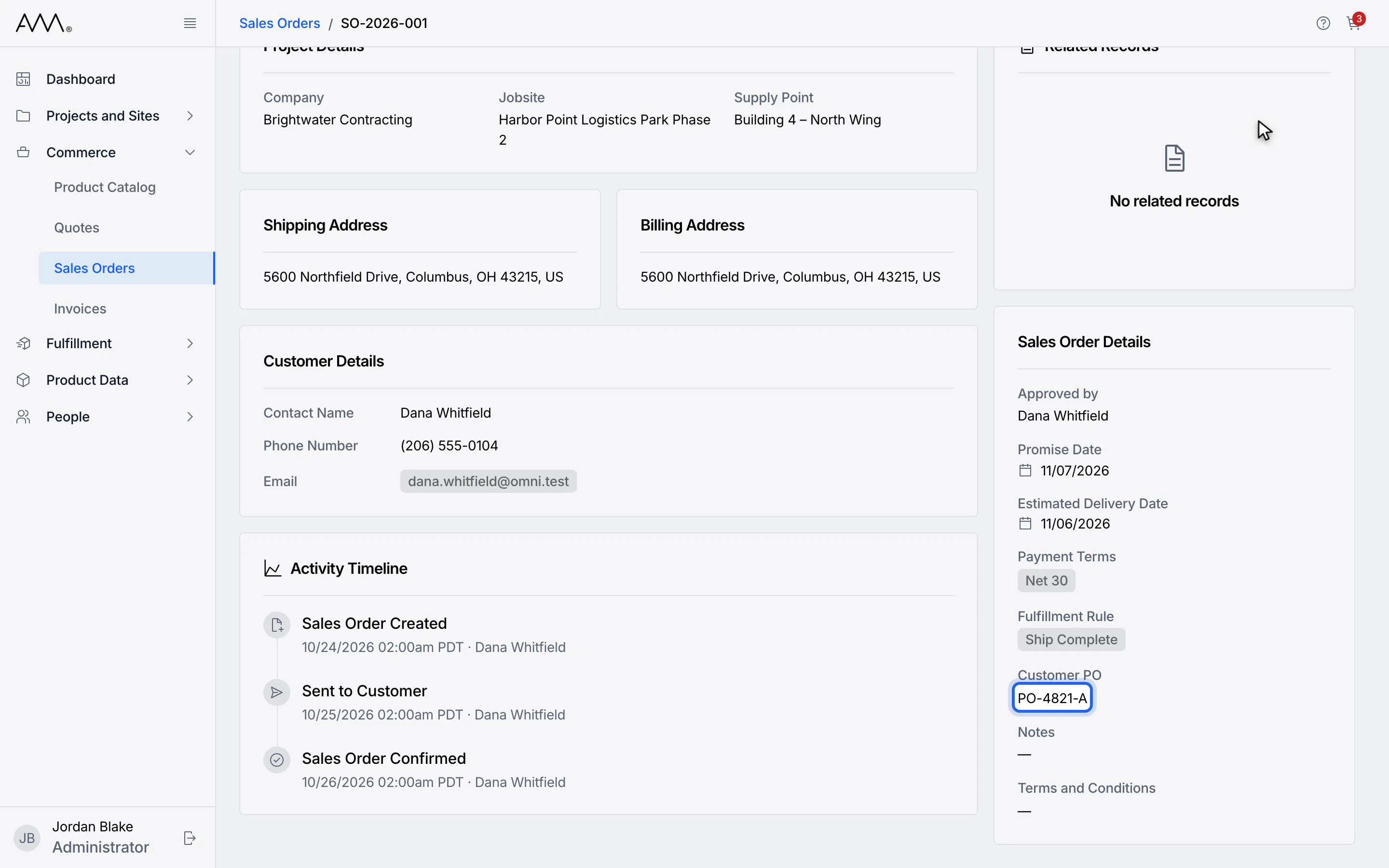
9The order returns to its Details tab showing the saved changes.
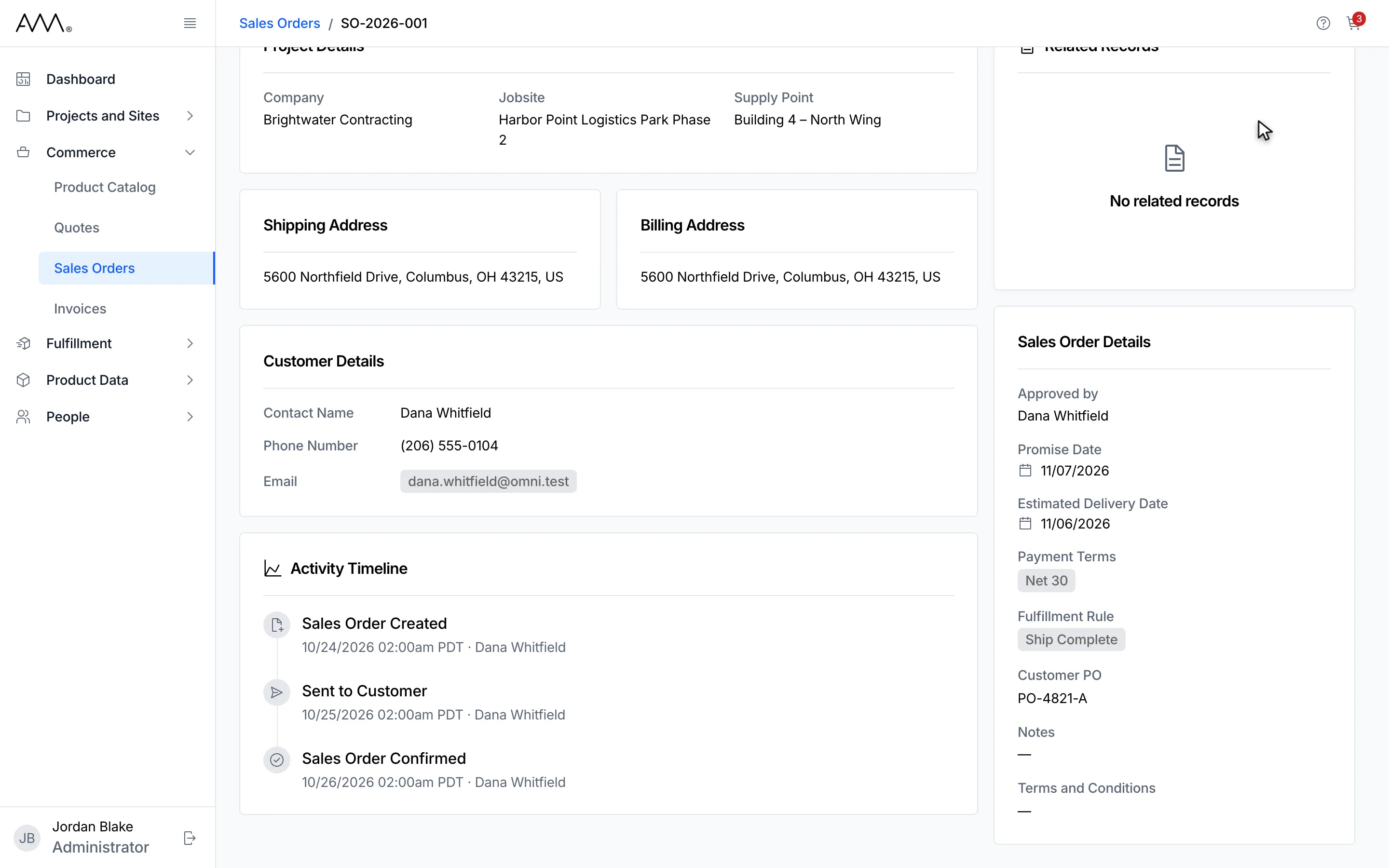
10The order returns to its Details tab showing the saved changes.
Watch this as a video (edit a sales order)
Apply a price list
Section titled “Apply a price list”Pricelist, under Sales Order Details, offers Catalog Pricing and, once a Company is chosen, that company’s active price list. Picking a company with an active price list switches Pricelist to it and re-prices every line; picking Catalog Pricing re-prices the lines from the catalog. Save Changes stores the choice. While prices are being looked up, Company is locked and Save Changes is disabled.
- If the prices cannot be looked up, a message reads Could not look up prices. Please try again. and nothing changes.
- If the price list saved on the order no longer applies to its company, the field drops back to Catalog Pricing with a note ending Future prices will be based on Catalog Pricing.
- A company price list that is not active cannot be applied; the note reads Cannot apply pricelist - Company pricelist followed by its name and is in Draft or is Archived.
Leaving with unsaved changes
Section titled “Leaving with unsaved changes”If you click any link while the form has unsaved changes, the Unsaved Changes dialog opens: You have unsaved changes. If you leave now, you’ll lose everything you’ve entered. Click Discard to leave without saving, Save to save and then leave, or the close button to stay. The dialog does not appear for the form’s own Cancel.
1In the sidebar, open Commerce.
2Choose Sales Orders.
3Open the order and start editing it.
4Click Actions in the header.
5Choose Edit.
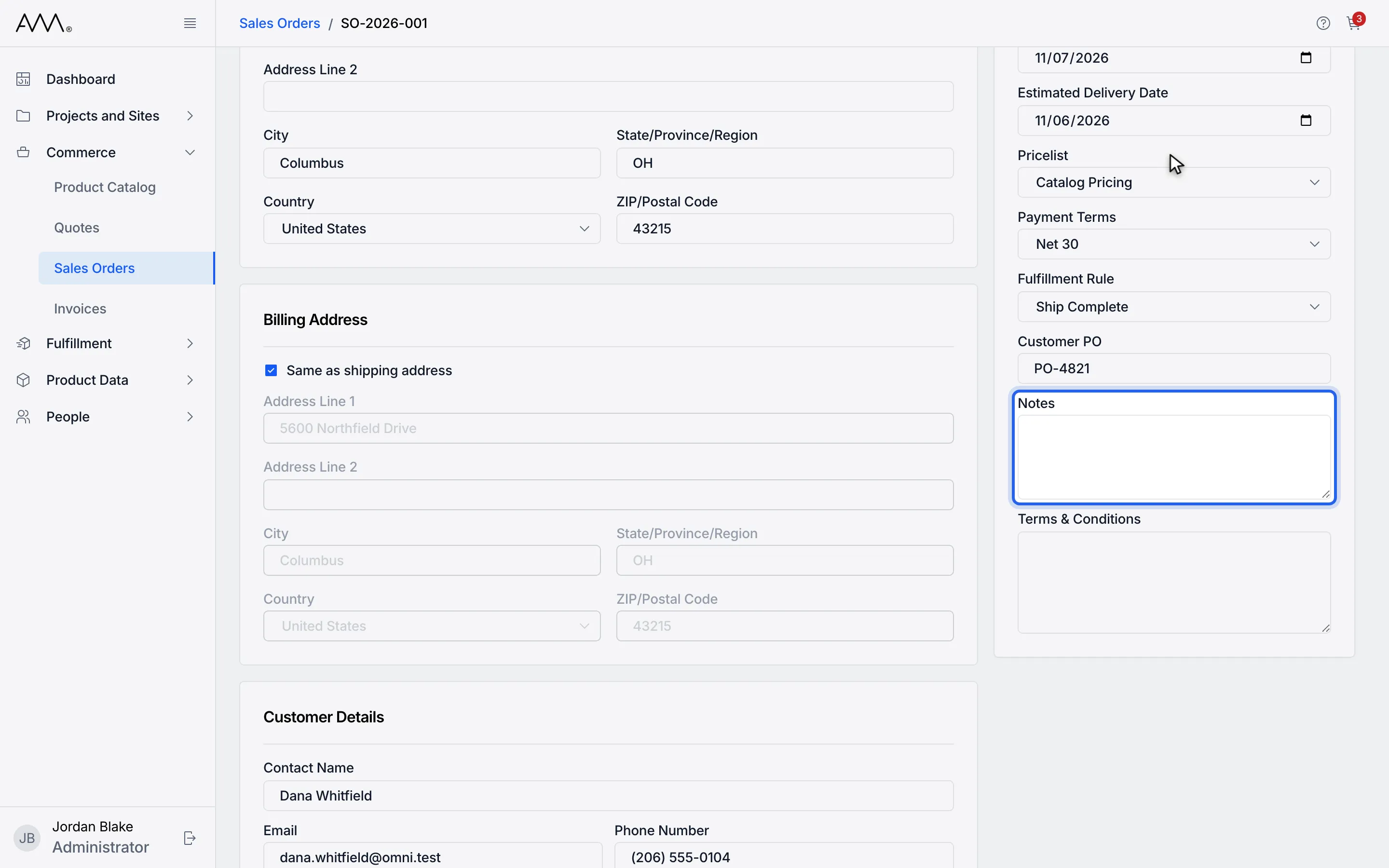
6Change something, such as Notes.
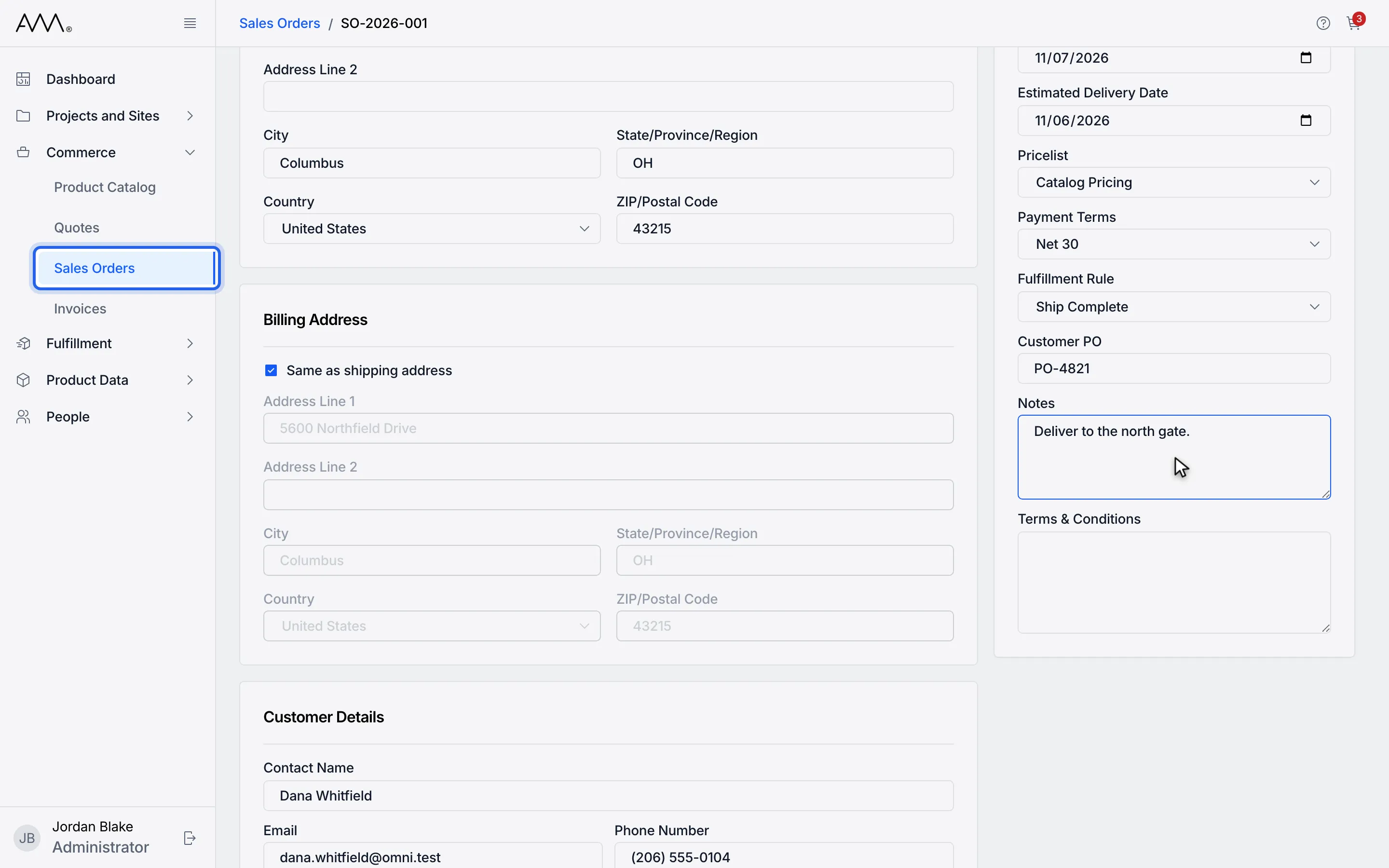
7Click any link to leave, for example Sales Orders in the sidebar.
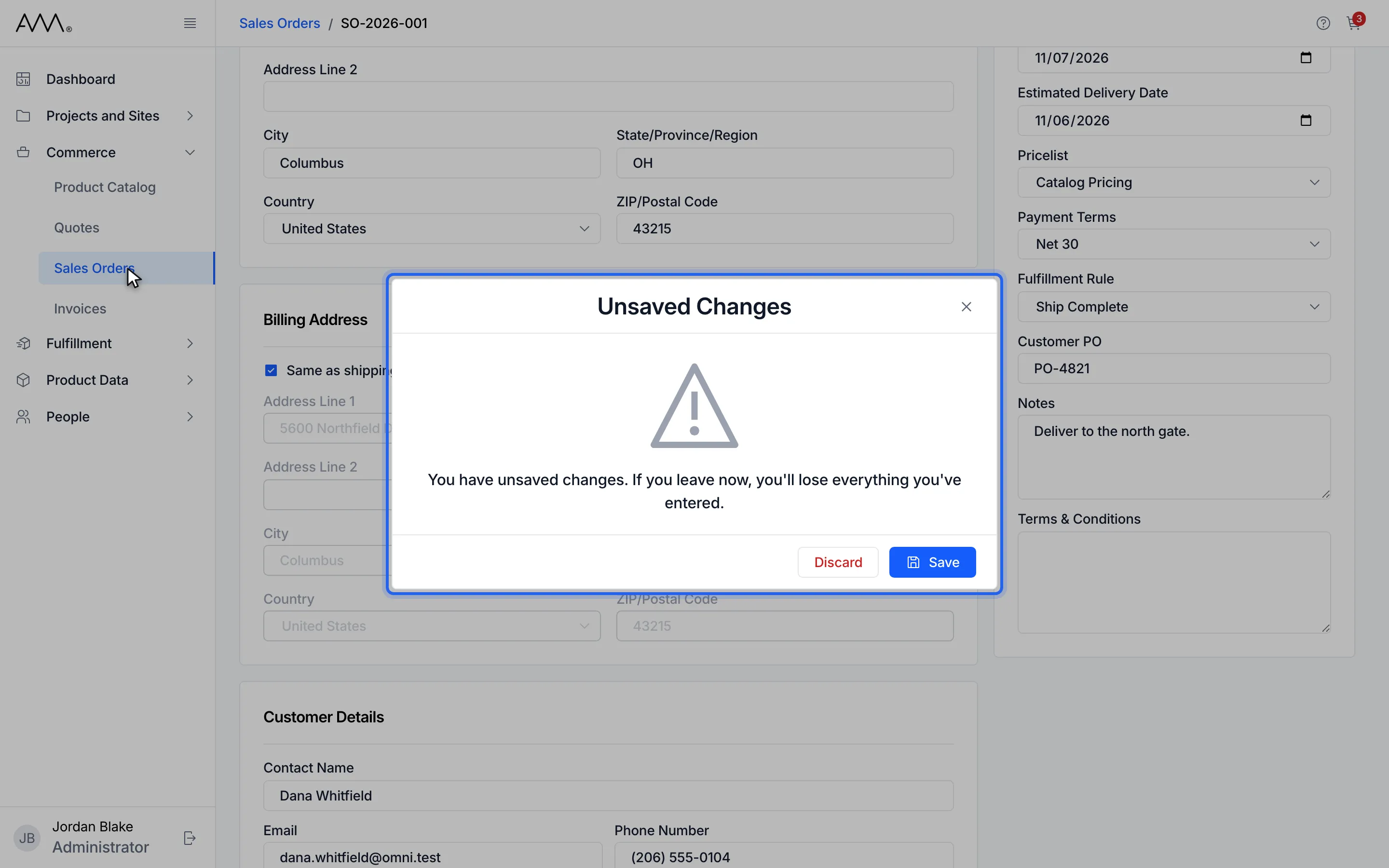
8Unsaved Changes asks what to do with your edits.
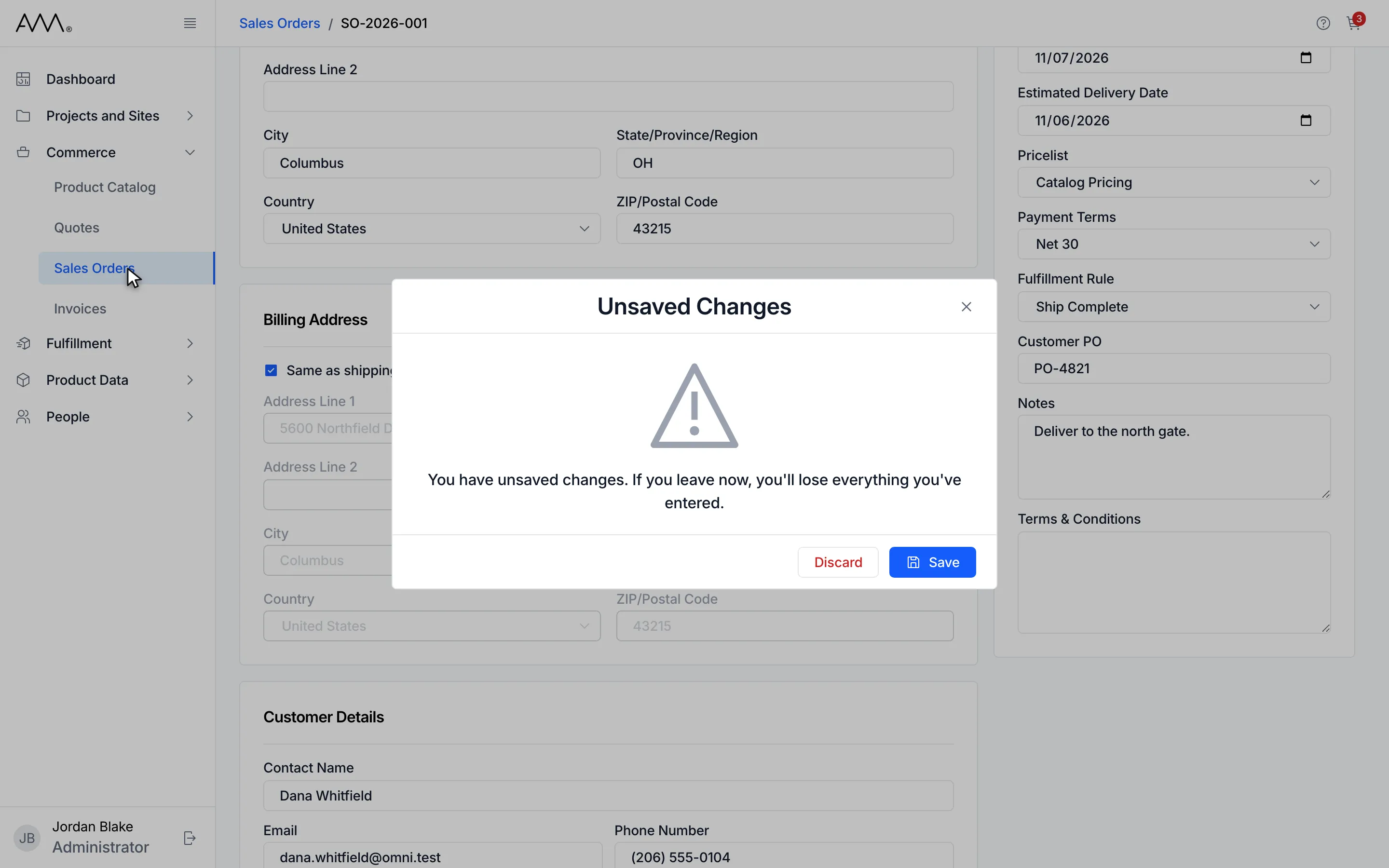
9Discard leaves without saving, Save saves then leaves, and the X keeps you on the form.
Watch this as a video (leave an edit with unsaved changes)
What happens next
Section titled “What happens next”The order keeps its status and shows the updated values; there is no confirmation message. If the changes cannot be saved, the form stays open and shows the reason at the top, for example Could not save the sales order. Please try again. Validation messages are in the reference. To add products, use Actions and Add More Products; see Add more products to a sales order.