Edit a quote
Draft and Sent quotes are edited in place. The form replaces the quote’s tabs and lets you change the project, addresses, customer contact, line items, tax, shipping and quote details, then save. A quote you have created from the cart opens in this form straight away.
-
Open the quote. See Find a quote.
-
Click Actions.
-
Choose Edit. The form replaces the Details and Items tabs, and the header shows Cancel, Save Changes and Send to Customer (or Save & Send on a Sent quote).
-
Change any field, for example the Customer PO. No field is required; the table below lists the main ones and the reference has every limit and validation message.
Field Required What to enter Company, Jobsite, Supply Point No Searchable lists that narrow to fit each other. See Pick the company, jobsite and supply point. Shipping Address No Address Line 1, Address Line 2, City, State/Province/Region, Country and ZIP/Postal Code. Same as shipping address No Leave checked to mirror shipping into billing. Clear it to enter a separate Billing Address. Contact Name, Email, Phone Number No The customer’s contact. An email, or an additional recipient, is needed before you can send. Additional Recipients No More email addresses, added as chips. Each chip has a remove button. Expiration Date No The date the offer lapses. Customer PO No The customer’s purchase order or reference number, up to 100 characters. Pricelist No Catalog Pricing or the company’s price list. See Apply a company’s price list. Payment Terms No Due on receipt, Net 15, Net 30, Net 45 or Net 60. Estimated Lead Time, Notes, Terms & Conditions No Free text shown on the quote. -
Change a line’s Quantity with the stepper or by typing a number. The minimum is 1. Line Total updates as you go.
-
Type a new Unit Price for a line. Prices cannot be negative. A typed value takes effect when you leave the field or press Enter.
-
Click Save Changes. The quote returns to view mode and keeps its status.
-
Open the Items tab to check the updated lines and totals.
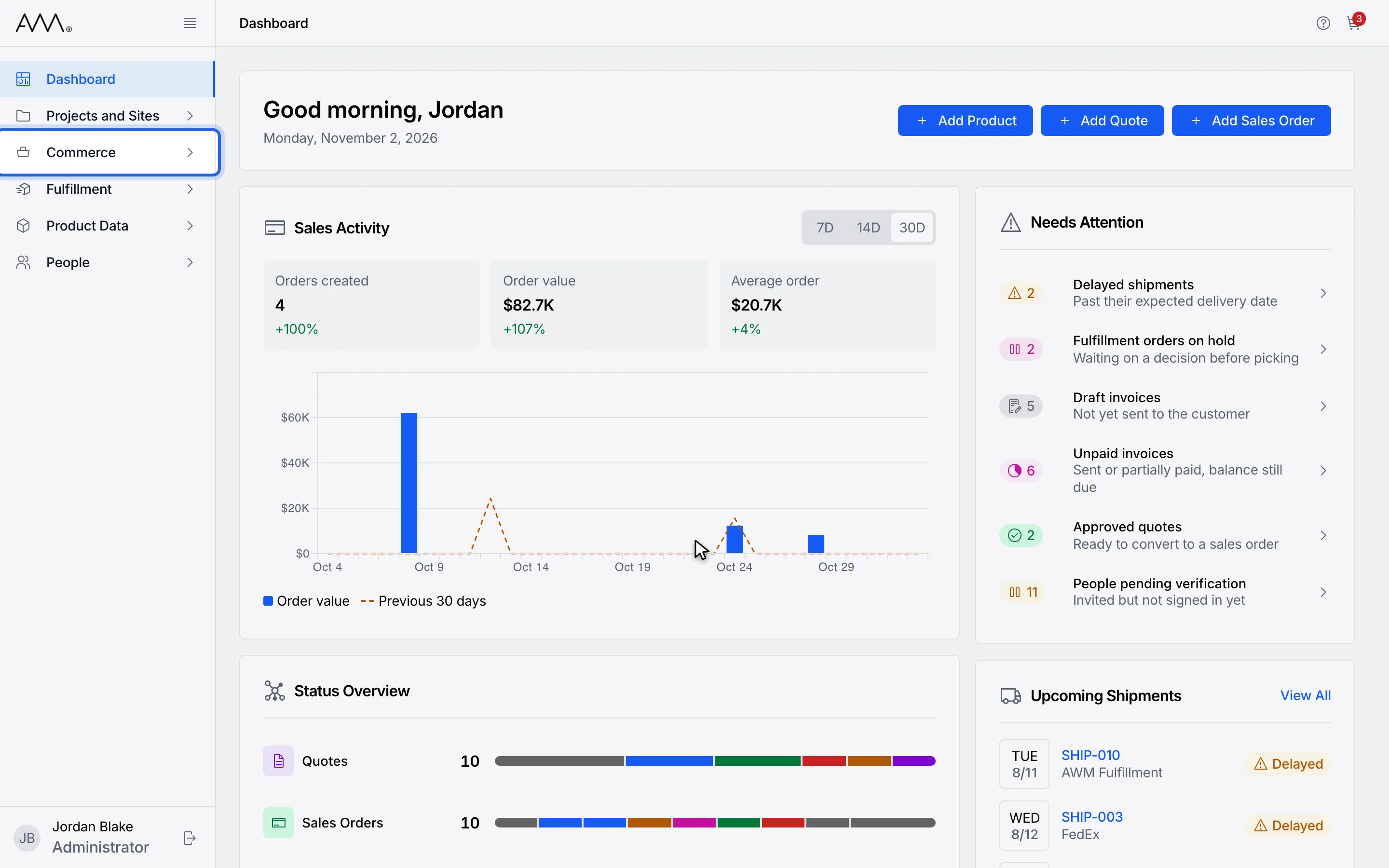
1In the sidebar, open Commerce.
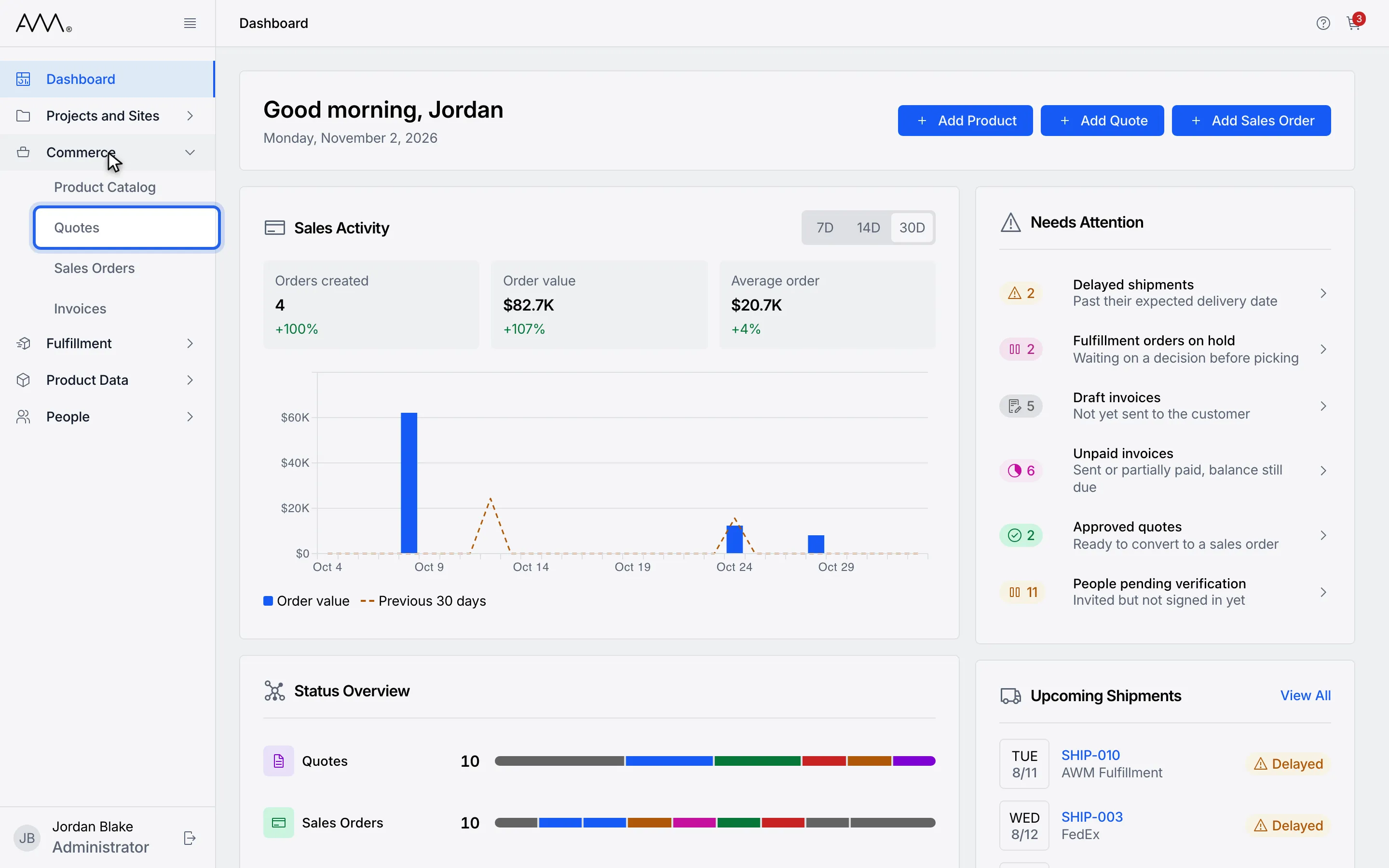
2Choose Quotes.
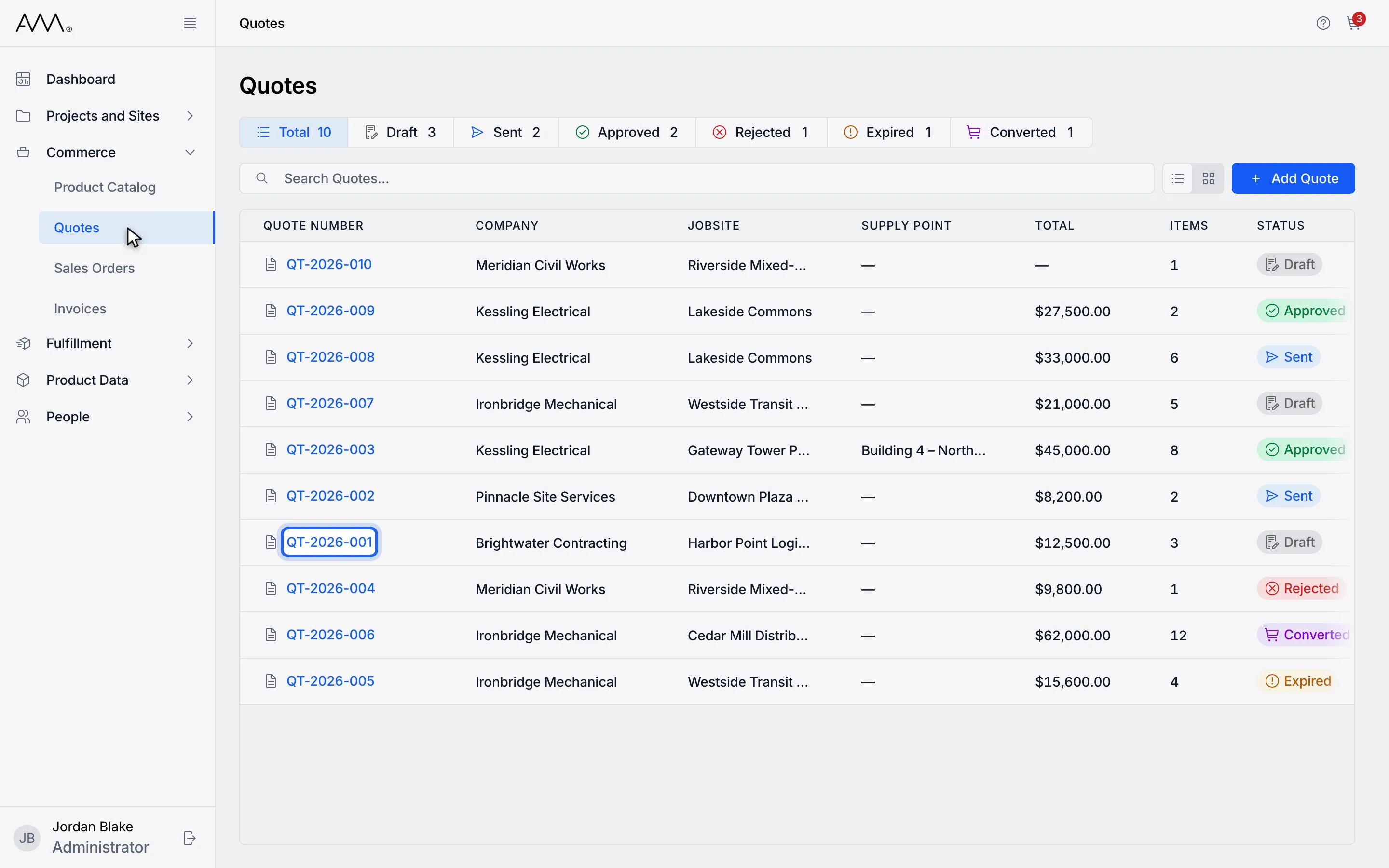
3Open a Draft or Sent quote.
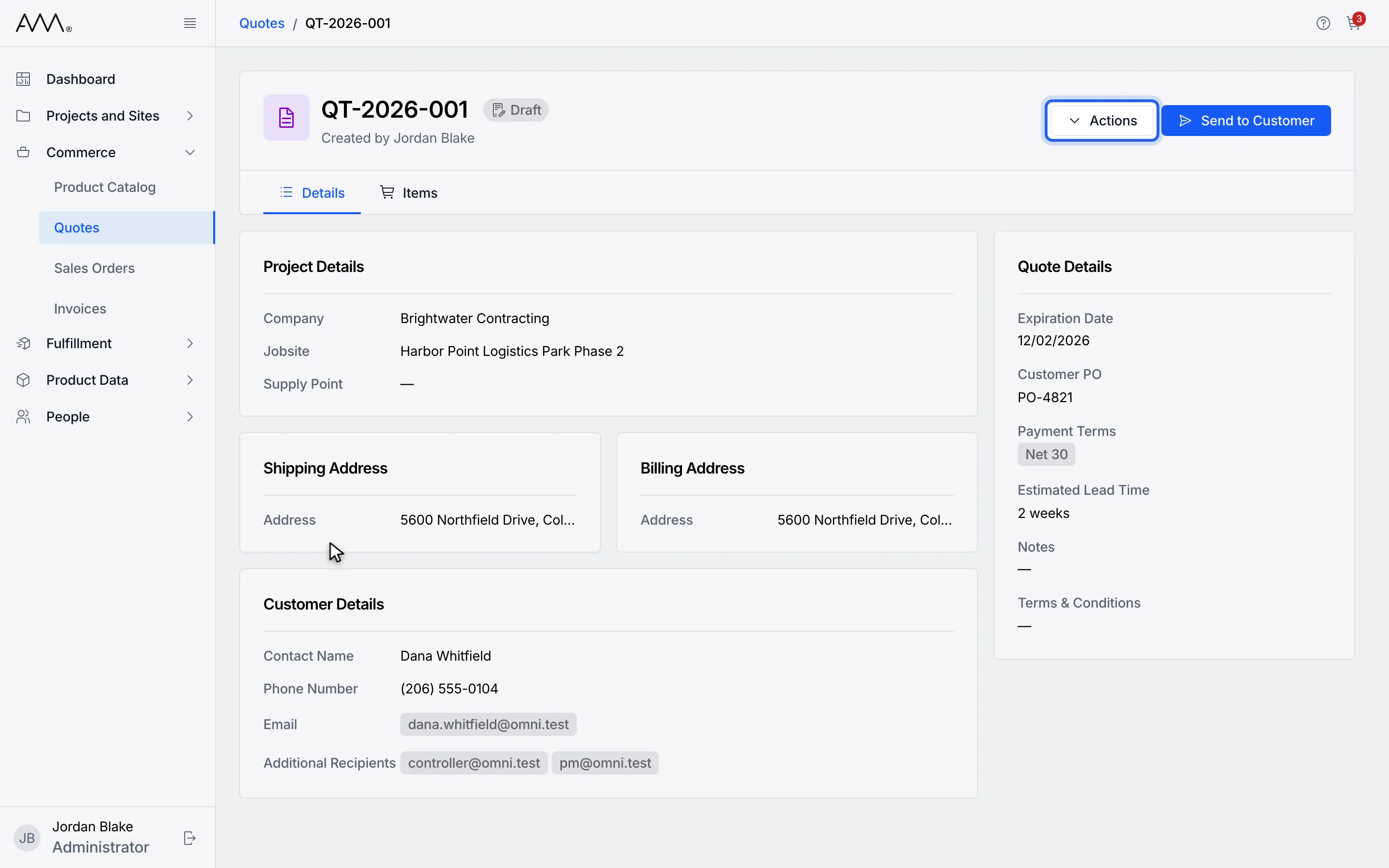
4Click Actions.
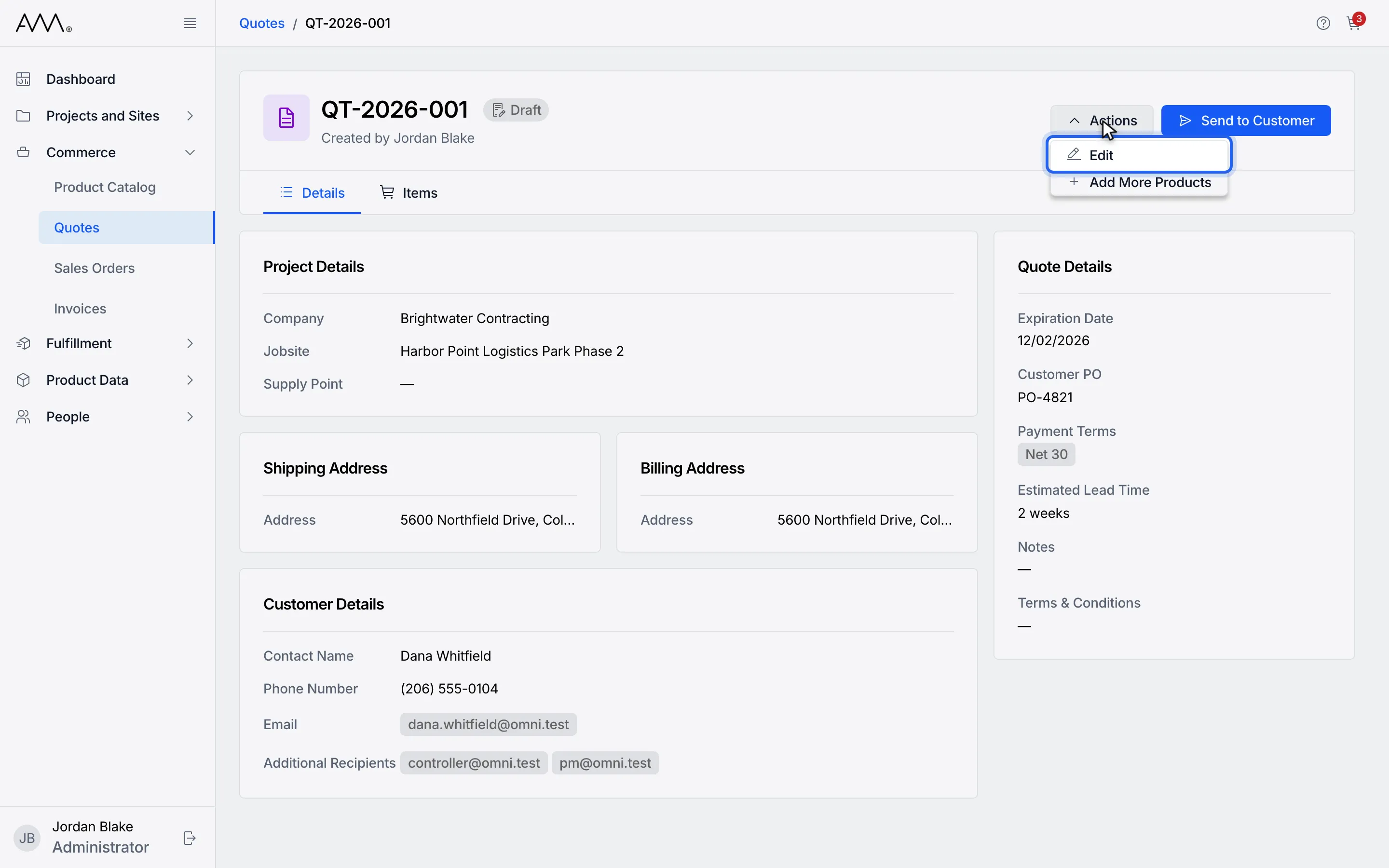
5Choose Edit. The form replaces the Details and Items tabs.
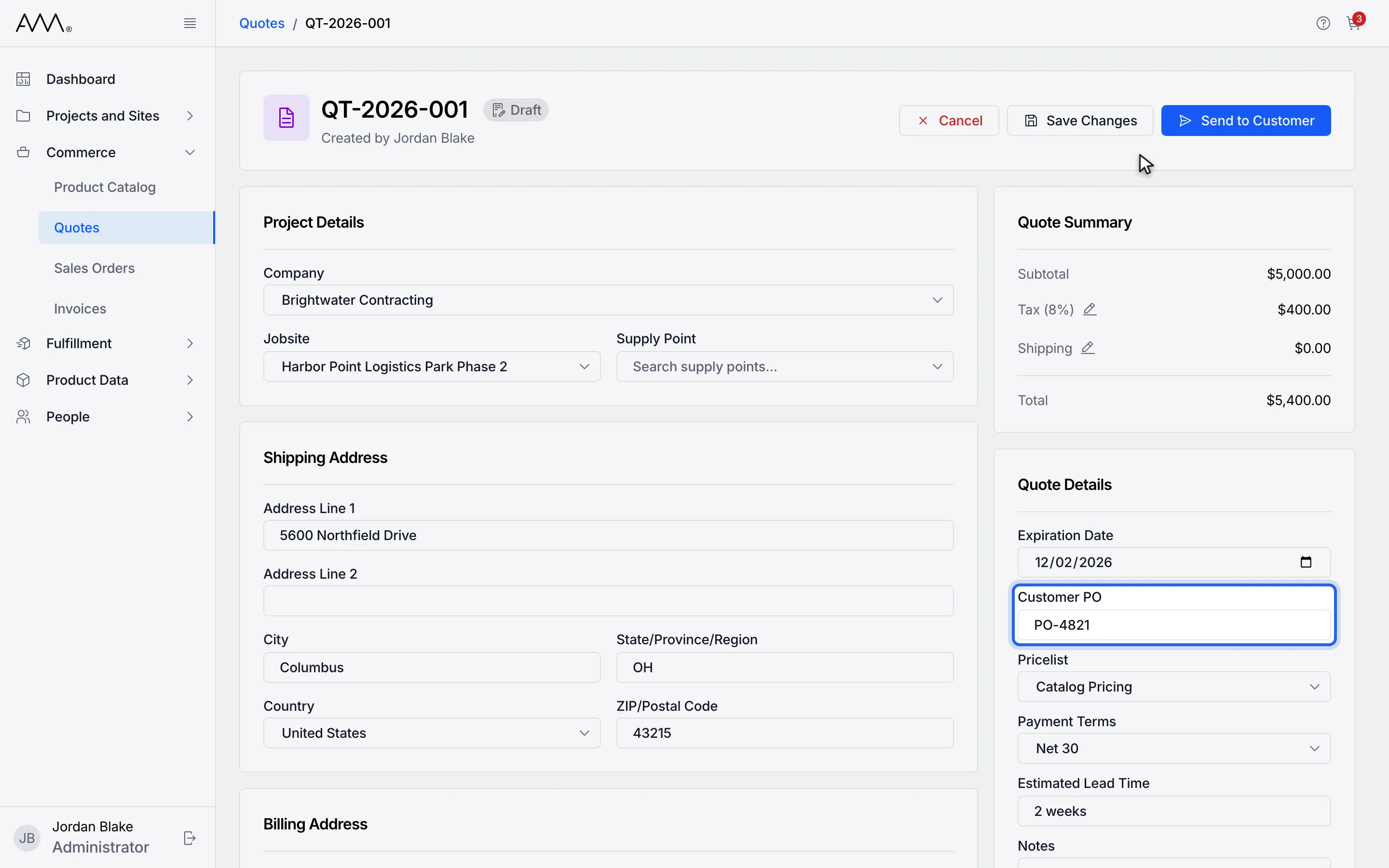
6Change any field, for example the Customer PO.
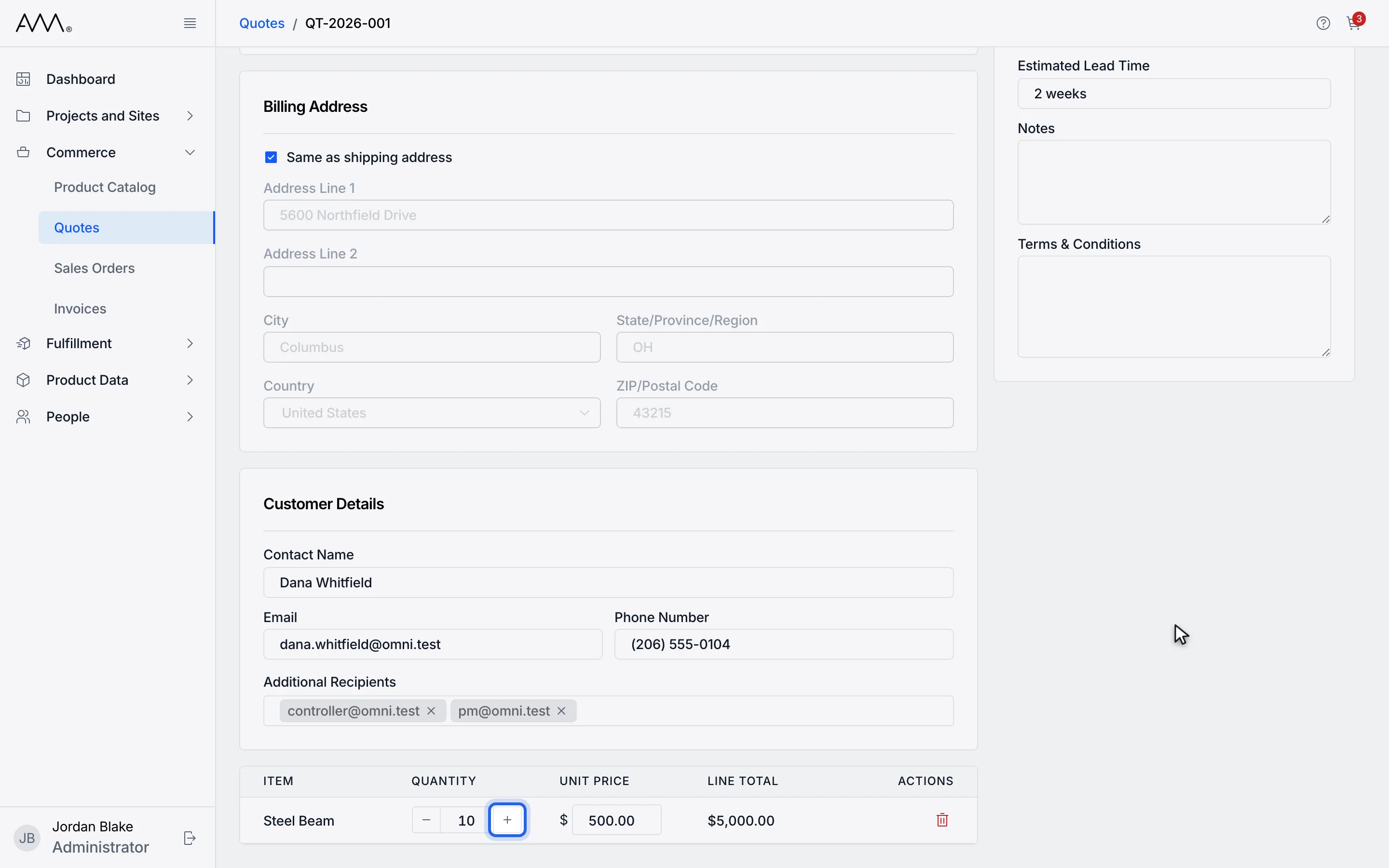
7Use the Quantity stepper or type a quantity. Line Total updates.
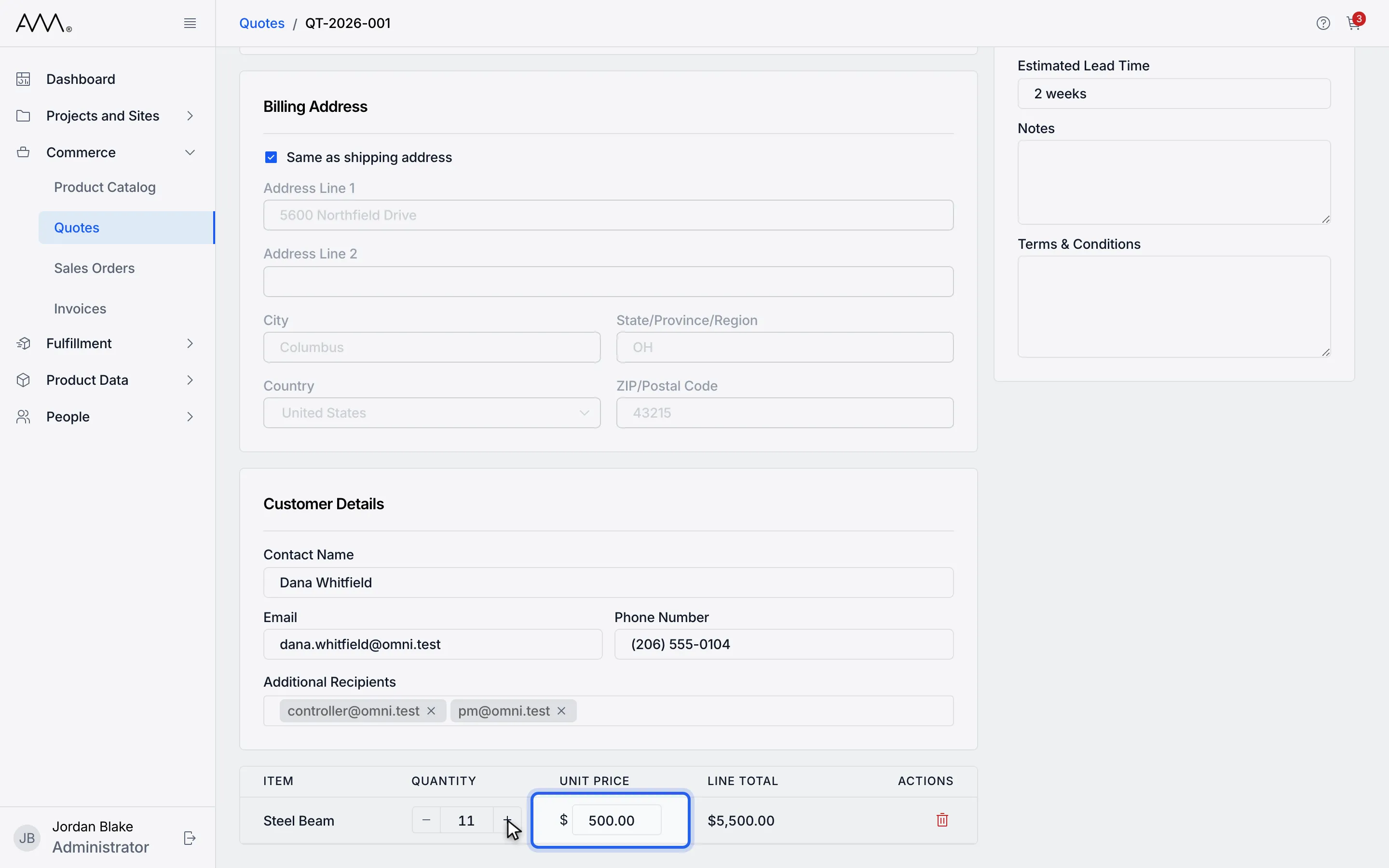
8Type a new Unit Price for a line.
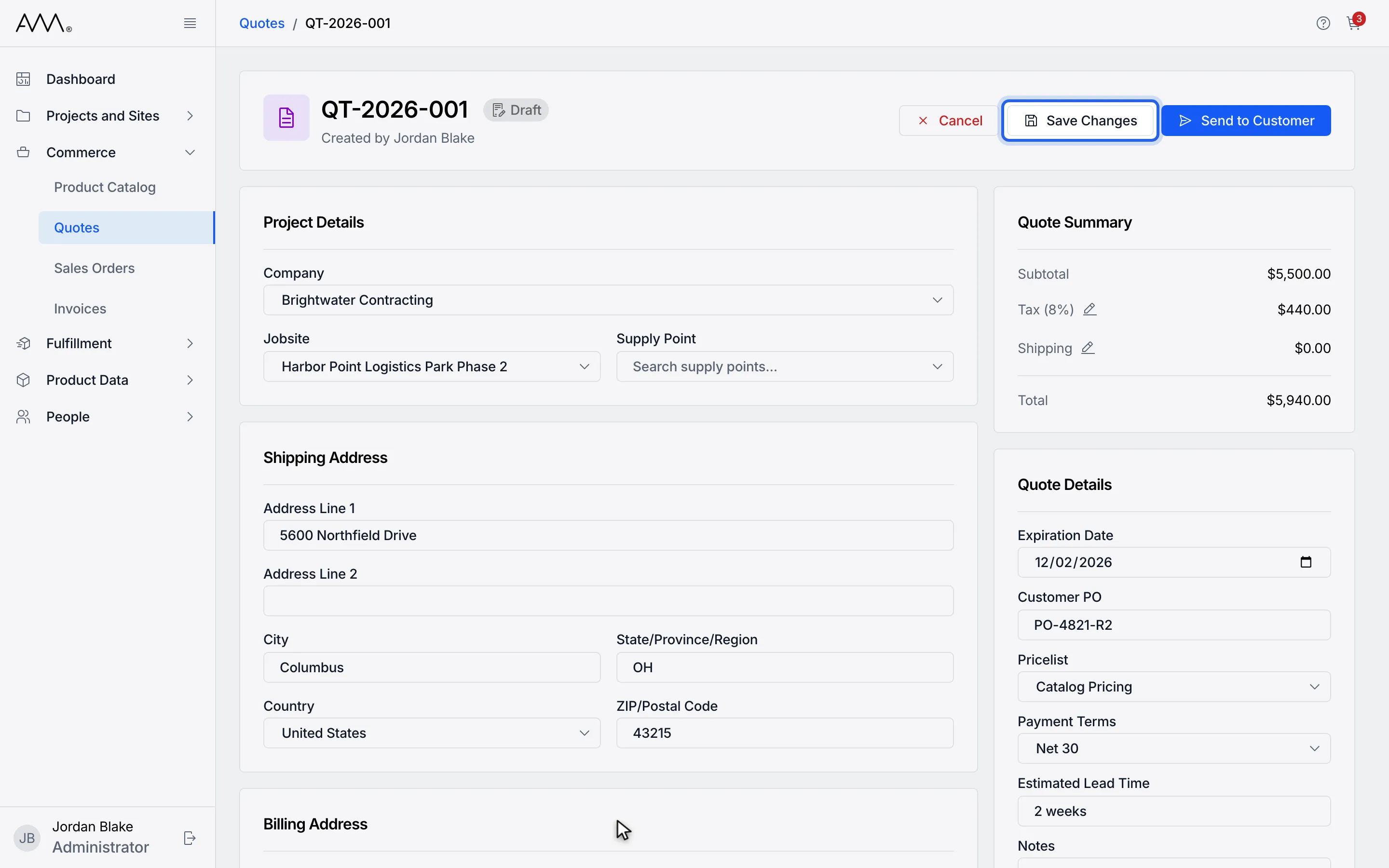
9Click Save Changes. The quote returns to view mode.
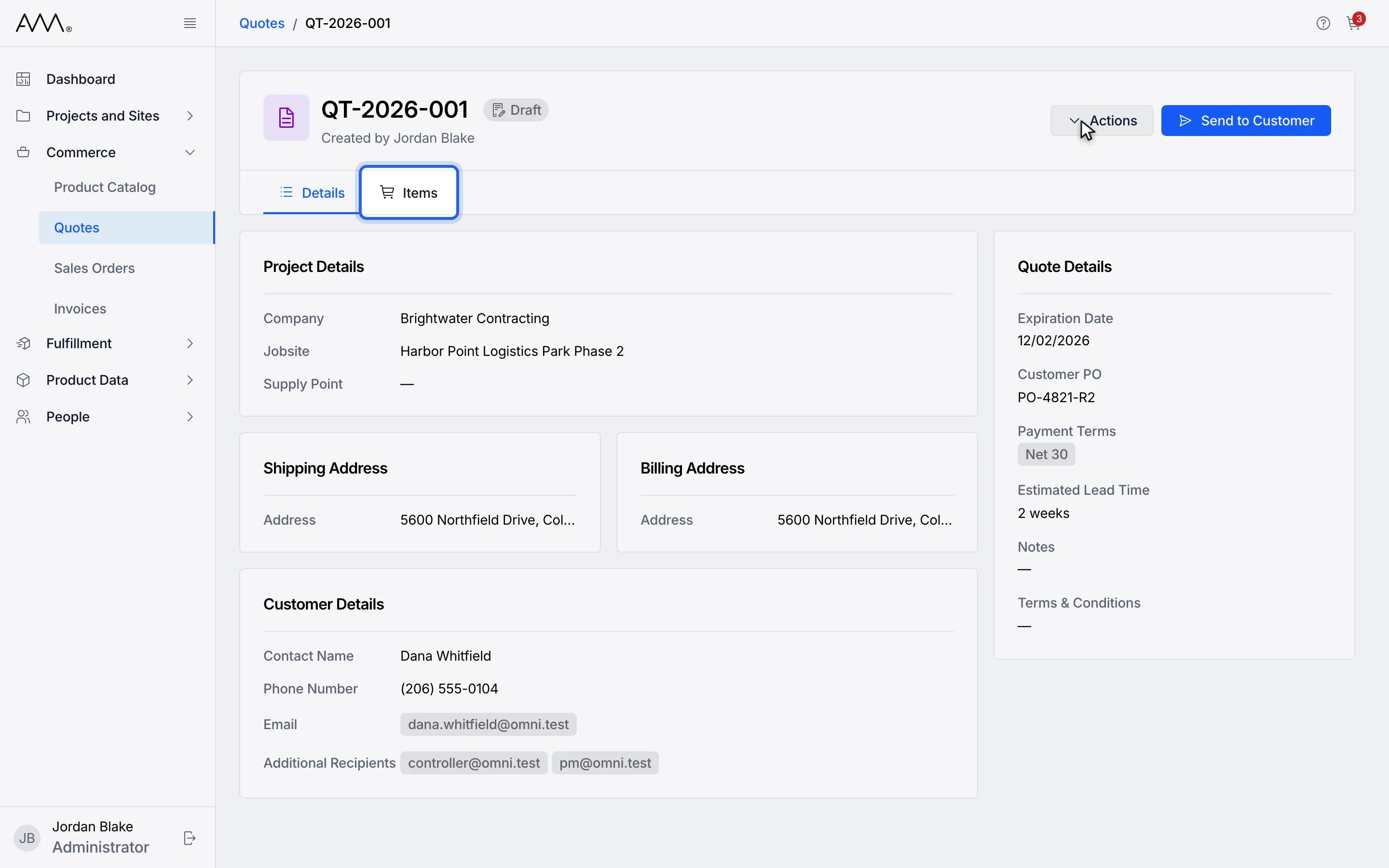
10Open the Items tab to check the updated lines and totals.
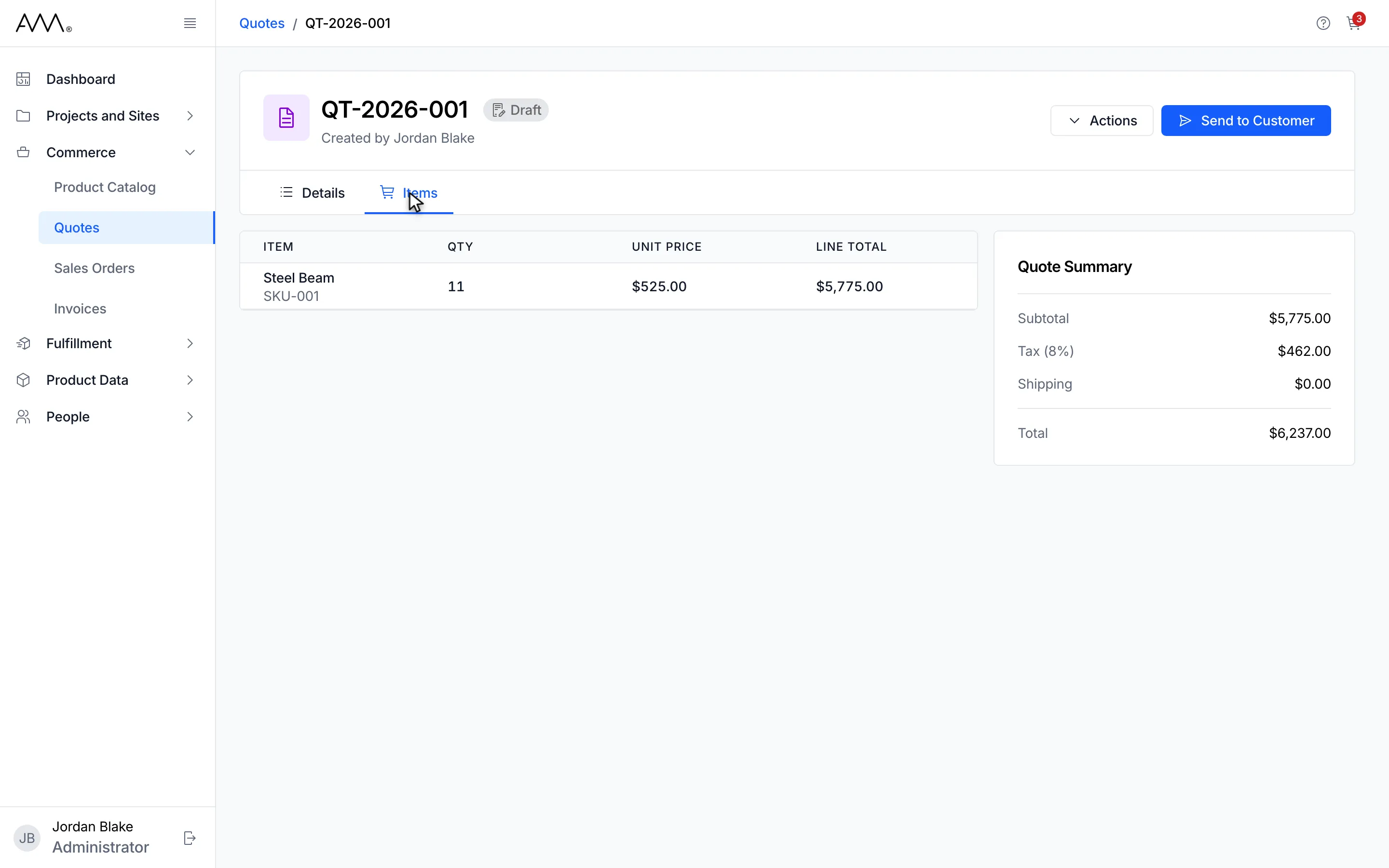
11The Items tab shows the new quantity, unit price, line total and totals.
Watch this as a video (edit a quote)
What happens next
Section titled “What happens next”There is no success toast; the form closing is the confirmation. If a value breaks a rule, the message appears under the field (for example Line items need positive quantities and non-negative unit prices.) and the quote stays in edit mode until you fix it. If the save fails, the form shows Could not save the quote. Please try again. Pressing Enter in a text field does not save; click Save Changes.