Welcome to Omni
Omni is AWM’s operations portal. AWM staff in sales, fulfillment, operations and administration use it to quote and sell products, fulfill and ship orders, maintain product and pricing data, and keep track of the companies, projects, jobsites and supply points that work is delivered to.
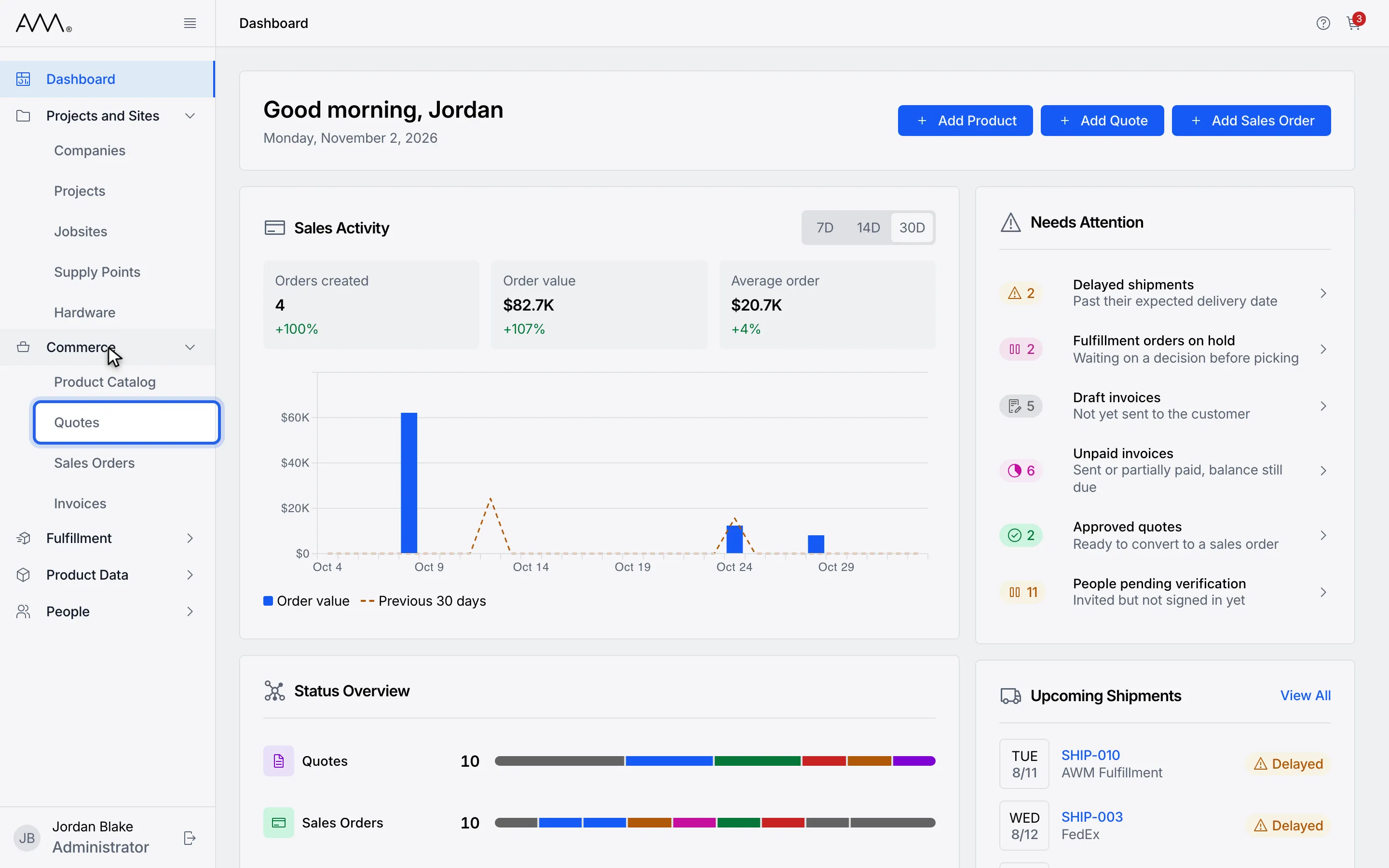
The six areas of Omni
Section titled “The six areas of Omni”The sidebar on the left holds the Dashboard and five groups. Click a group to see the areas inside it.
- Dashboard is the page you land on after signing in. It greets you, offers quick actions, and shows recent sales activity, status counts, what needs attention and upcoming shipments. See The Dashboard.
- Projects and Sites holds the customer side of the business: Companies, Projects, Jobsites, Supply Points and the Hardware installed at them.
- Commerce is where selling happens: browse the Product Catalog and build a cart, then turn the cart into Quotes and Sales Orders, and manage Invoices.
- Fulfillment covers picking and packing Fulfillment Orders and building and tracking Shipments.
- Product Data is where you maintain Products (PIM) and Price Lists.
- People is for administrators: invite People and define the Roles that control what each person can do.
You only see the areas your role allows. A group that has nothing you can open does not appear at all. Ask an administrator if an area you need is missing.
Help from inside Omni
Section titled “Help from inside Omni”Every page has a Help icon in the top bar, to the left of the cart icon. Click it to open the Help Center page for the area you are in. It opens in a new browser tab, so you do not lose your place in Omni.
Getting access
Section titled “Getting access”An administrator invites you to Omni. Once your account is set up, sign in with your email address and password; if two-factor authentication is turned on for your account, you complete a second step before Omni opens. See Sign in and Two-factor authentication.
Where to go next
Section titled “Where to go next”- Finding your way around explains the sidebar, breadcrumbs, the Help and cart icons and the narrow-screen menu.
- The Dashboard explains each card on the landing page.
- Working with lists explains the status bar, search, sort and view controls that every list in Omni shares.
- Troubleshooting explains what to do when you see an error page.