Send a quote to the customer
Sending emails the quote to the customer contact and any additional recipients, with a PDF copy attached, and moves the quote from Draft to Sent. You can resend a Sent quote as often as you need, for example after editing it.
- Open the Draft quote. See Find a quote.
- Click Send to Customer.
- In the Send Quote To Customer? dialog, check the recipient count, then confirm with Send to Customer. The status changes to Sent, the toast reads Quote sent successfully, and Mark Approved and Mark Rejected replace the send button.
- To send the quote again later, open the Sent quote and click Actions.
- Choose Resend.
- In the Resend Quote To Customer? dialog, confirm with Resend to Customer. The toast reads Quote resent successfully and the status stays Sent.
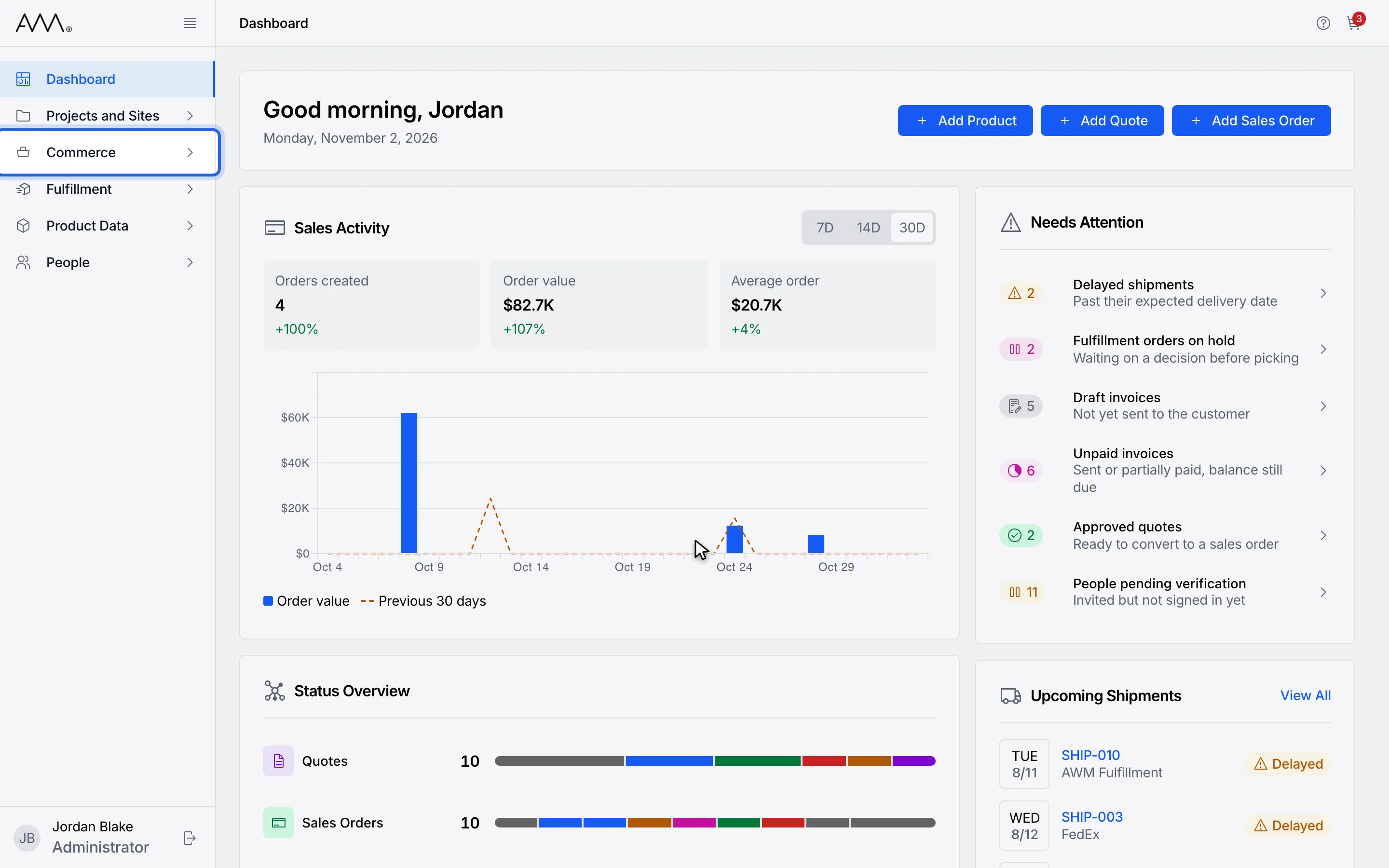
1In the sidebar, open Commerce.
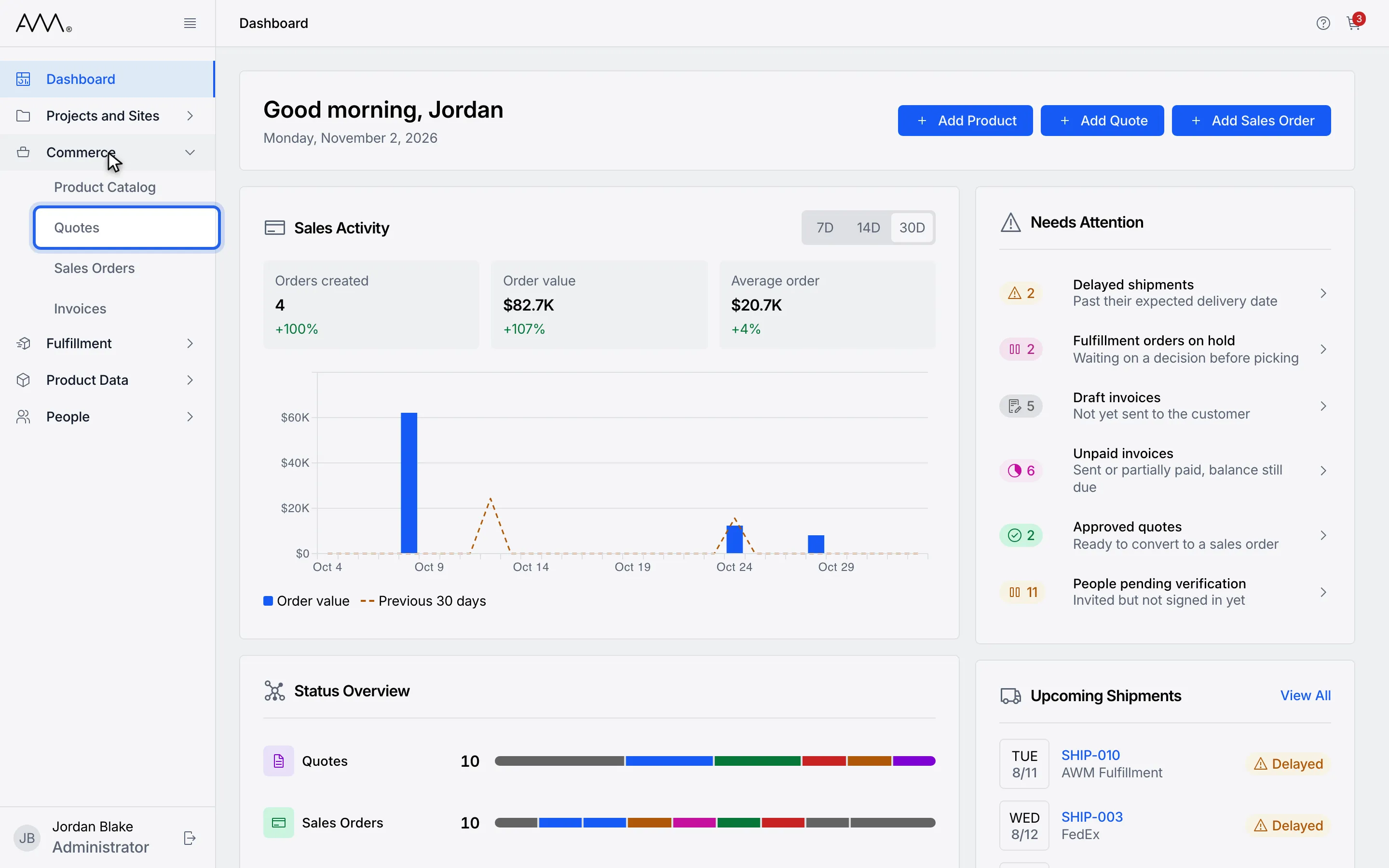
2Choose Quotes.
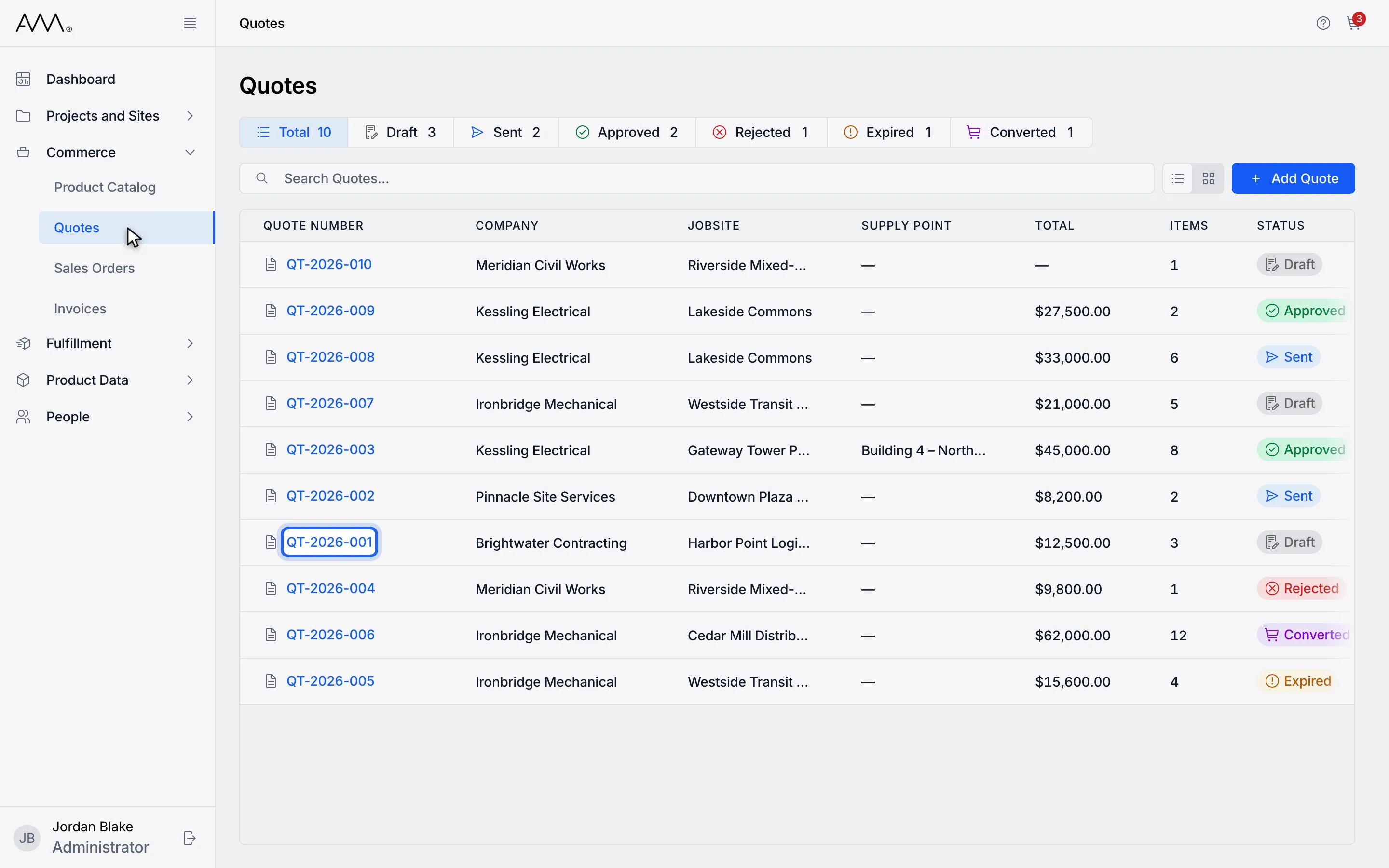
3Open a Draft quote.
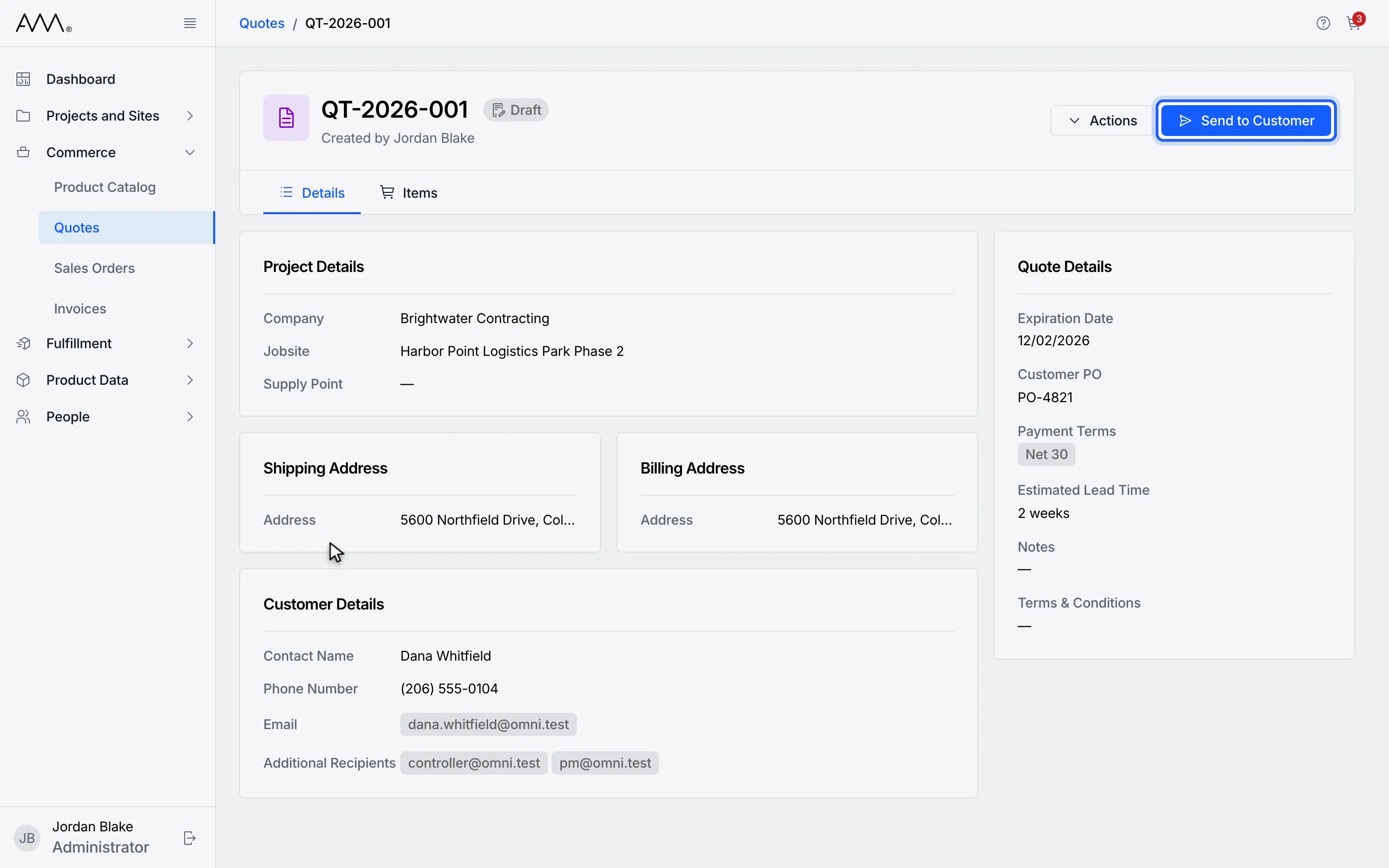
4Click Send to Customer.
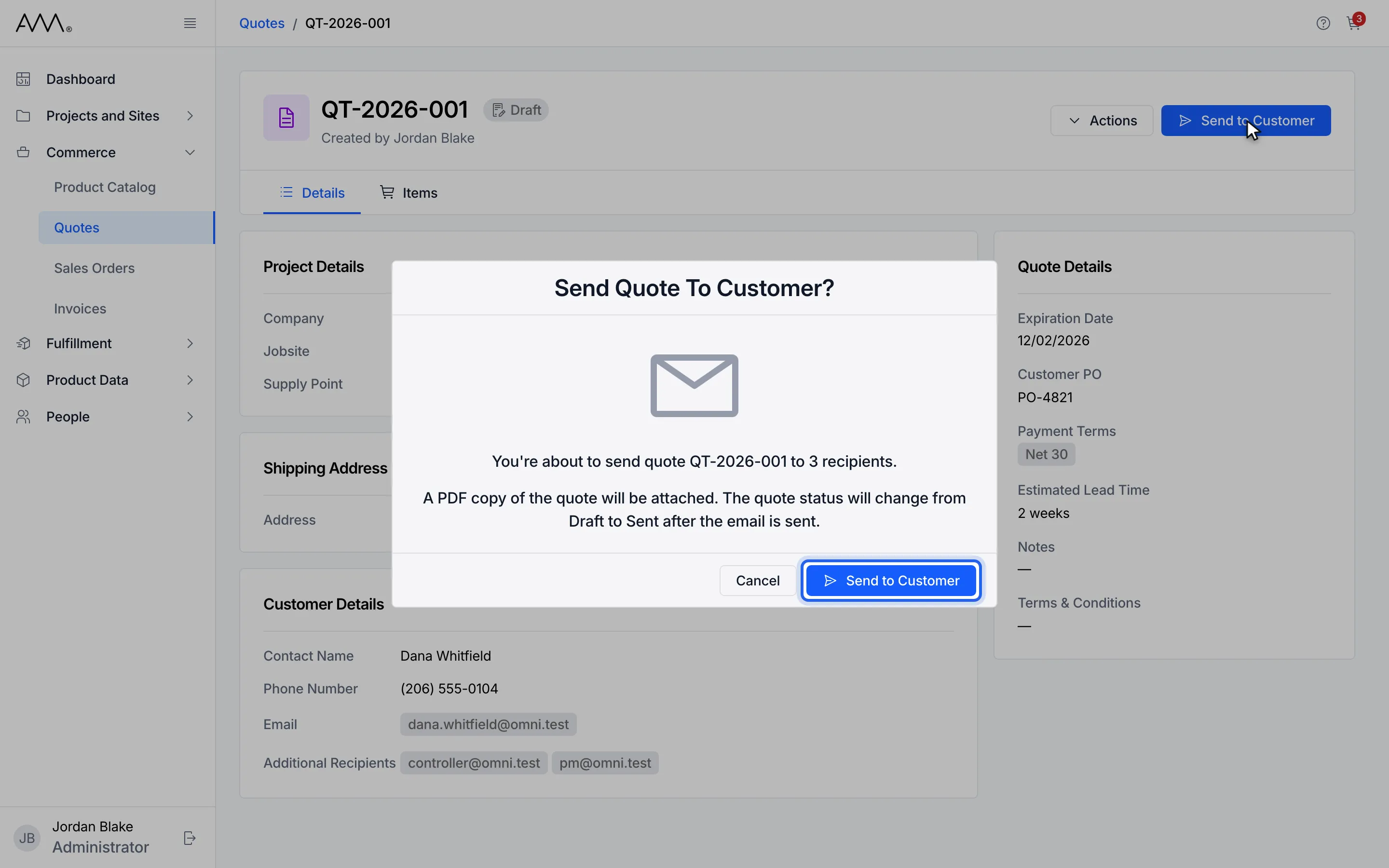
5Check the recipient count, then confirm with Send to Customer.
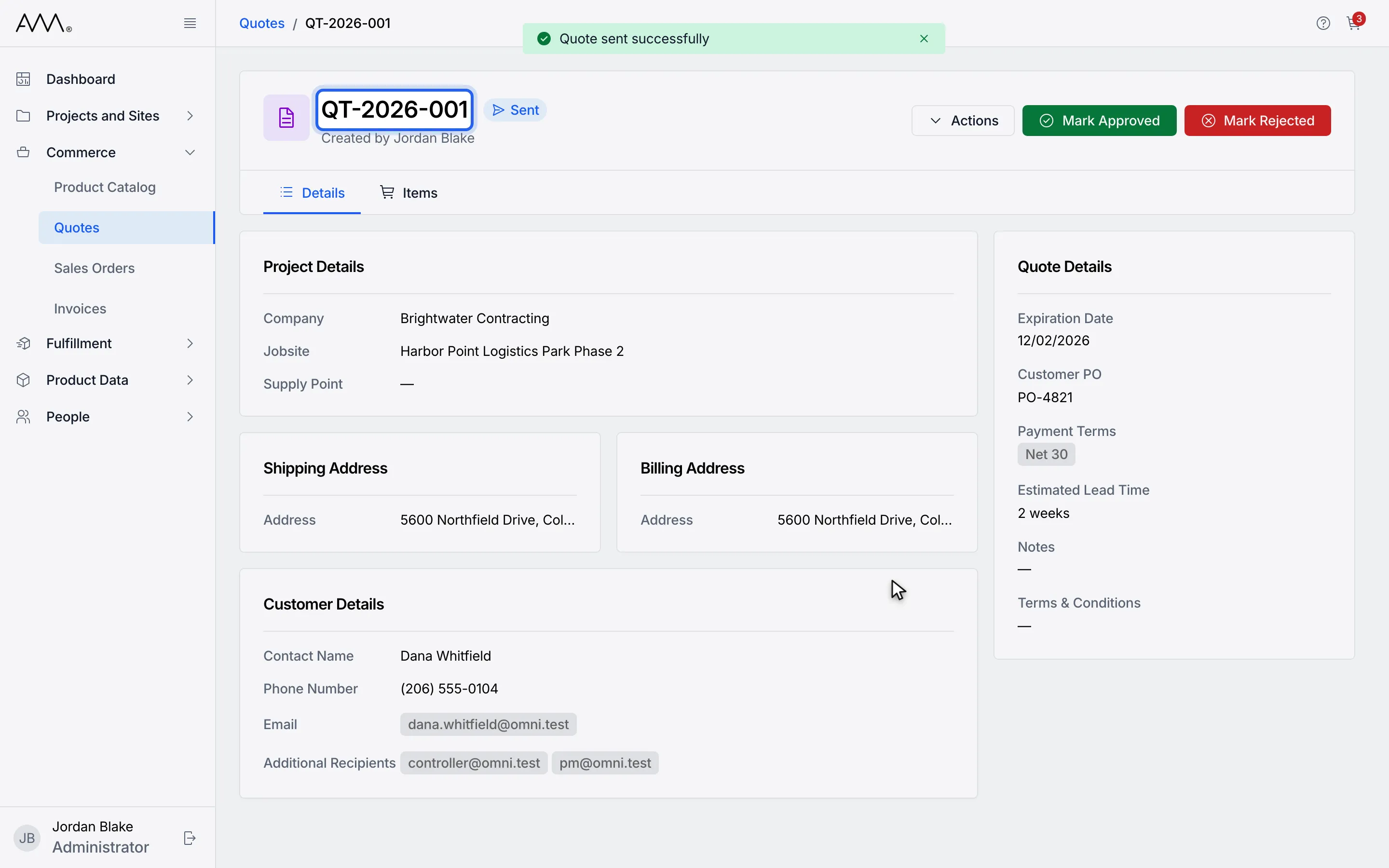
6The quote is now Sent. Mark Approved and Mark Rejected replace the send button.
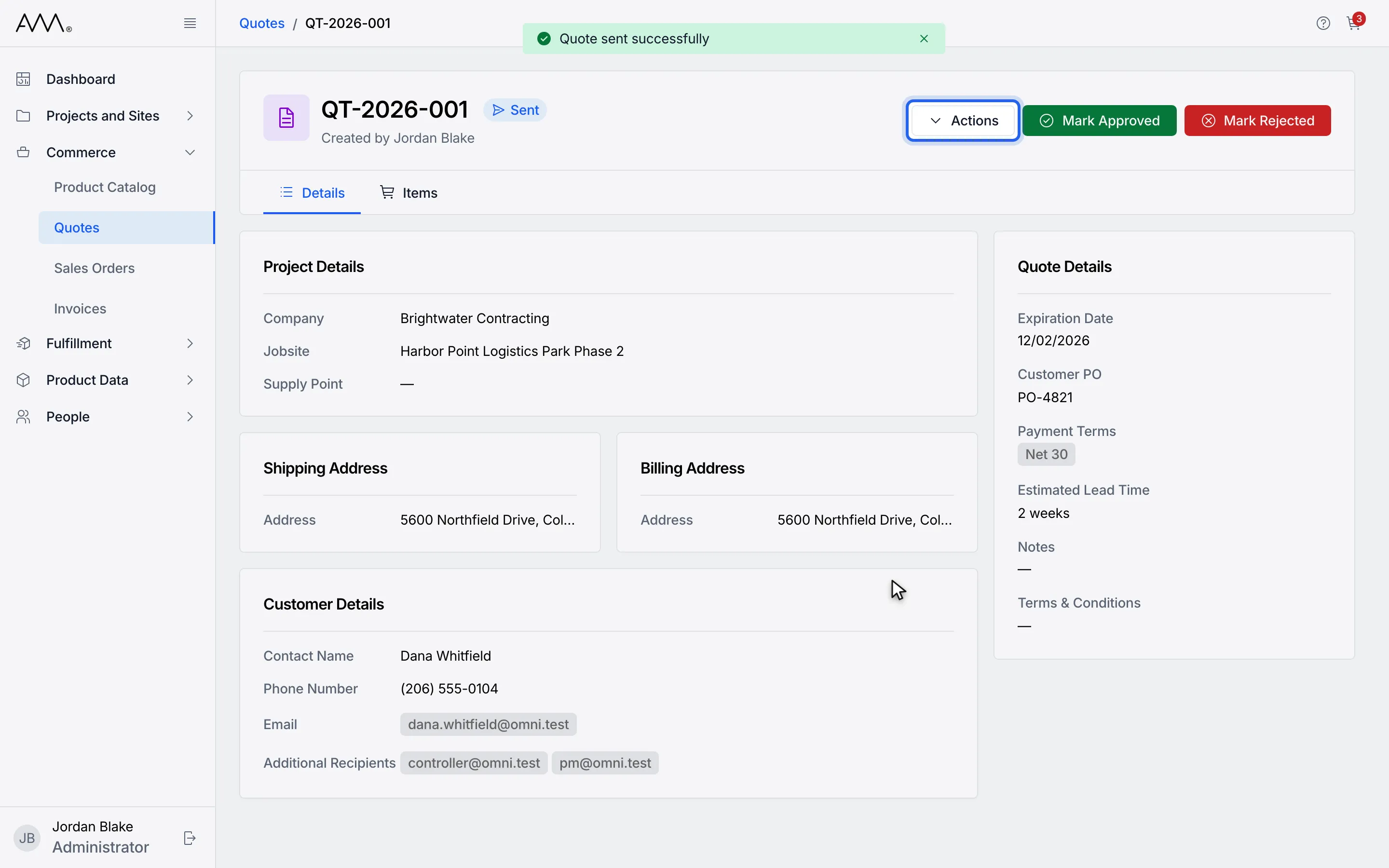
7To send the quote again later, click Actions.
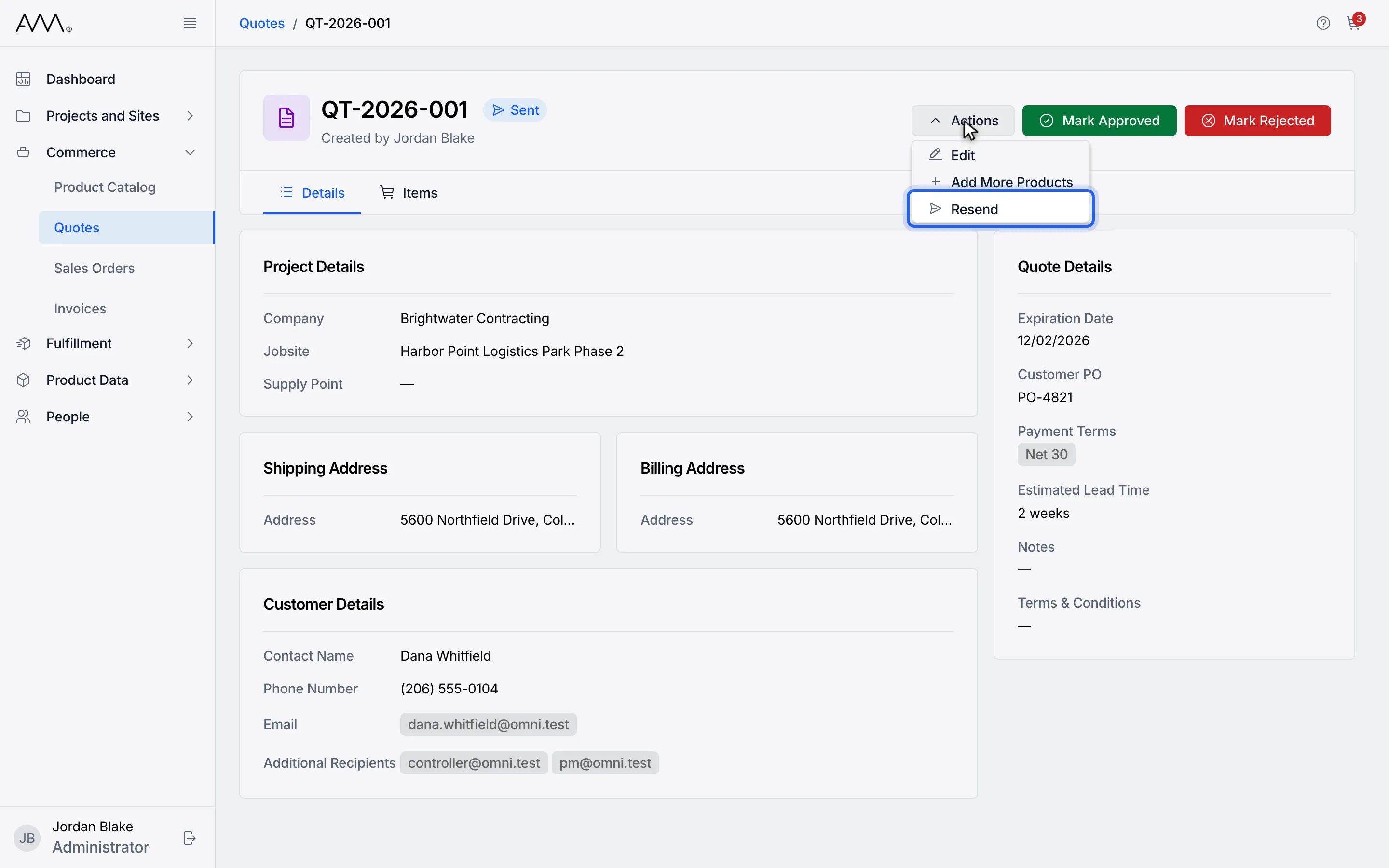
8Choose Resend.
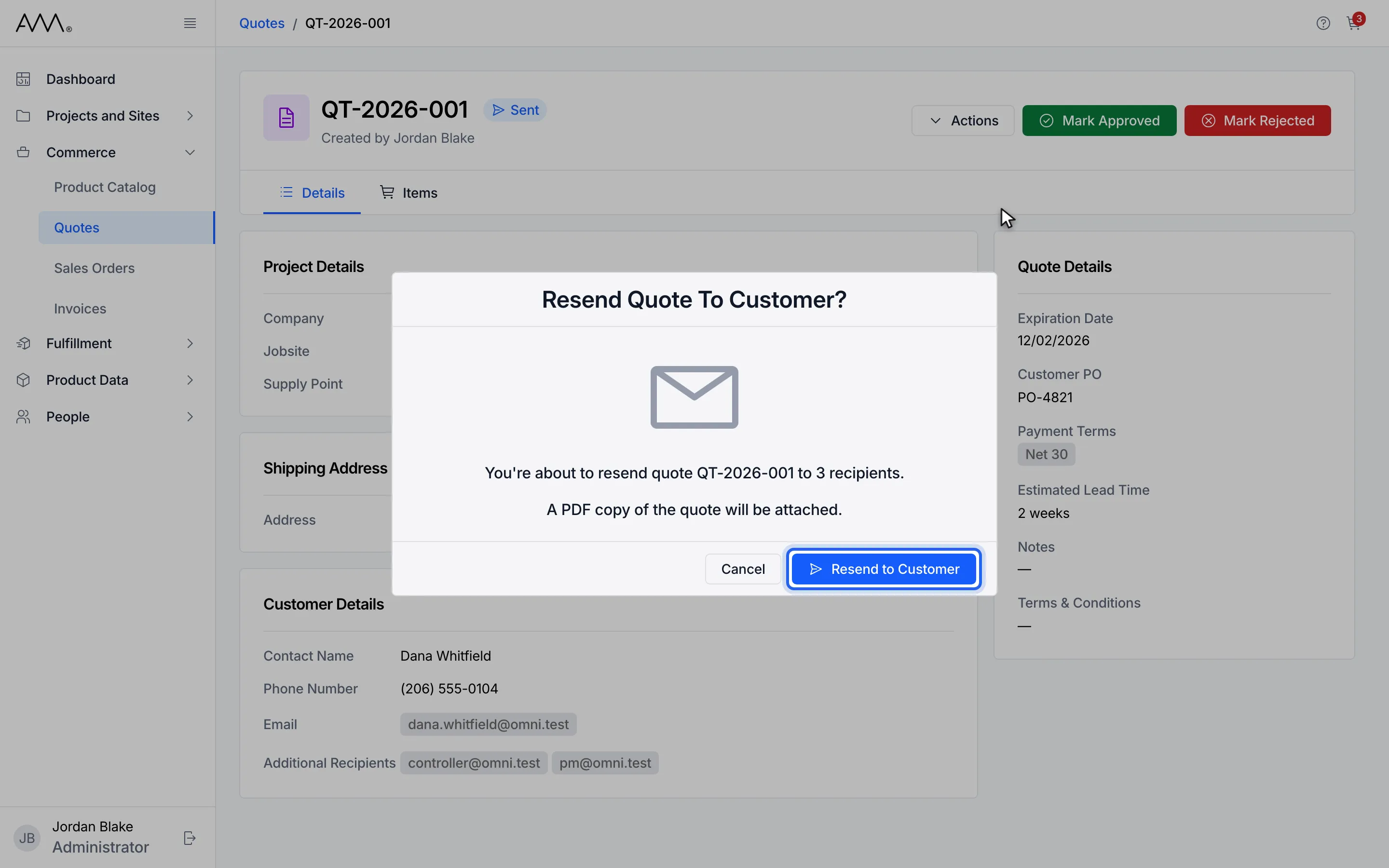
9Confirm with Resend to Customer.
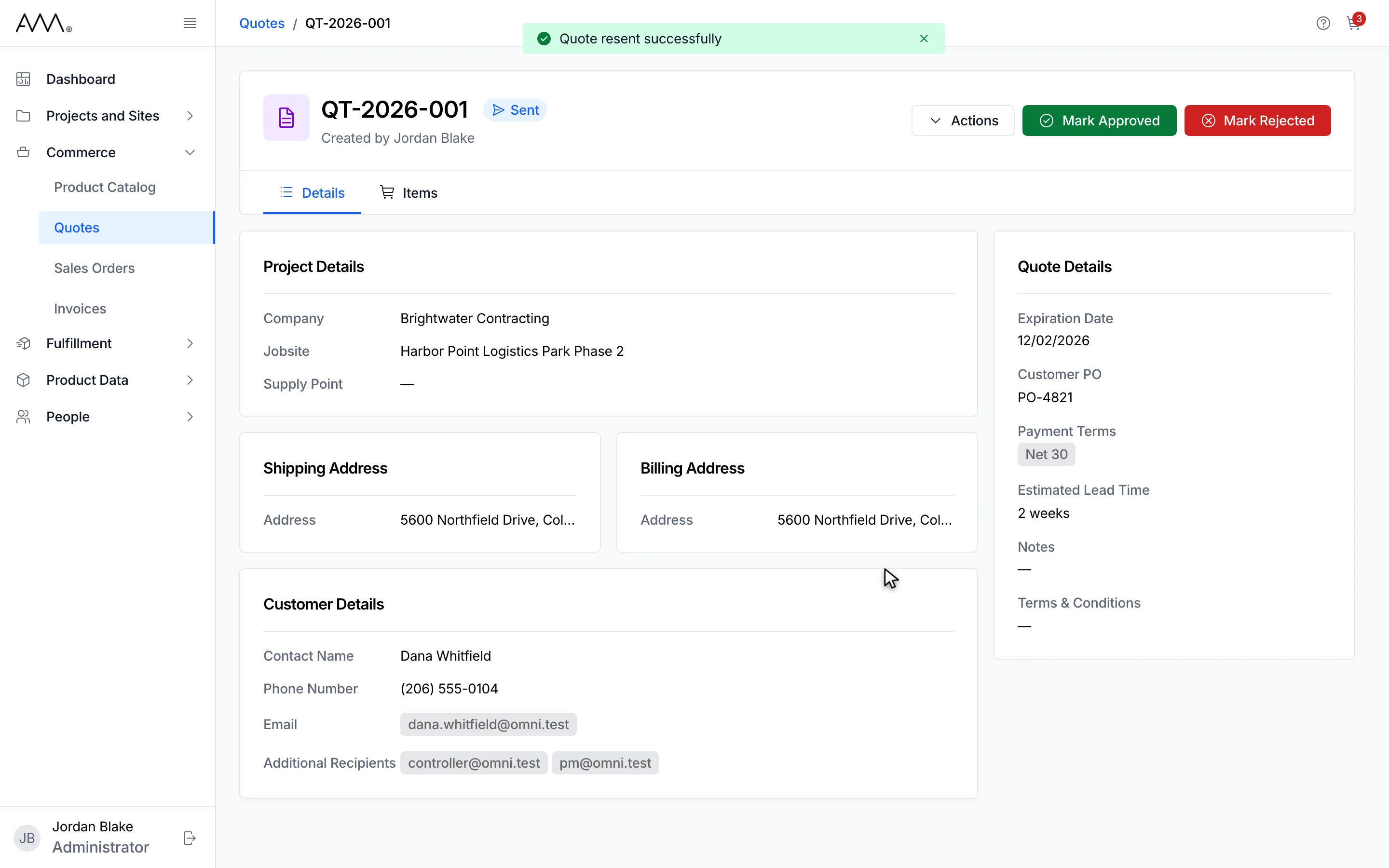
10The status stays Sent and the toast reads Quote resent successfully.
Watch this as a video (send a quote to the customer)
What happens next
Section titled “What happens next”A Sent quote offers Mark Approved and Mark Rejected in the header for recording the customer’s answer. See Approve or reject a quote. You can still edit a Sent quote and resend it.
If the email cannot be sent, the dialog stays open and shows the reason, for example Could not send the quote. Please try again. or Could not resend the quote. Please try again.