Add, verify, change or remove your phone number
The Phone row in the Security card of your Settings page holds a mobile number for your account. Once your administrator enables text-message verification, Omni can text a one-time code to that number at sign-in, but only after you have verified it.
Add a phone number
Section titled “Add a phone number”- Click your name at the bottom of the sidebar to open Settings.
- In the Security card, next to Phone, click Add phone number. The button appears when the row reads No phone number on your profile. The Add phone number dialog explains Add a mobile number you can receive text messages on, then verify it.
- In Phone Number, enter the mobile number you receive text messages on.
- Click Save. The row shows the number with Not verified.
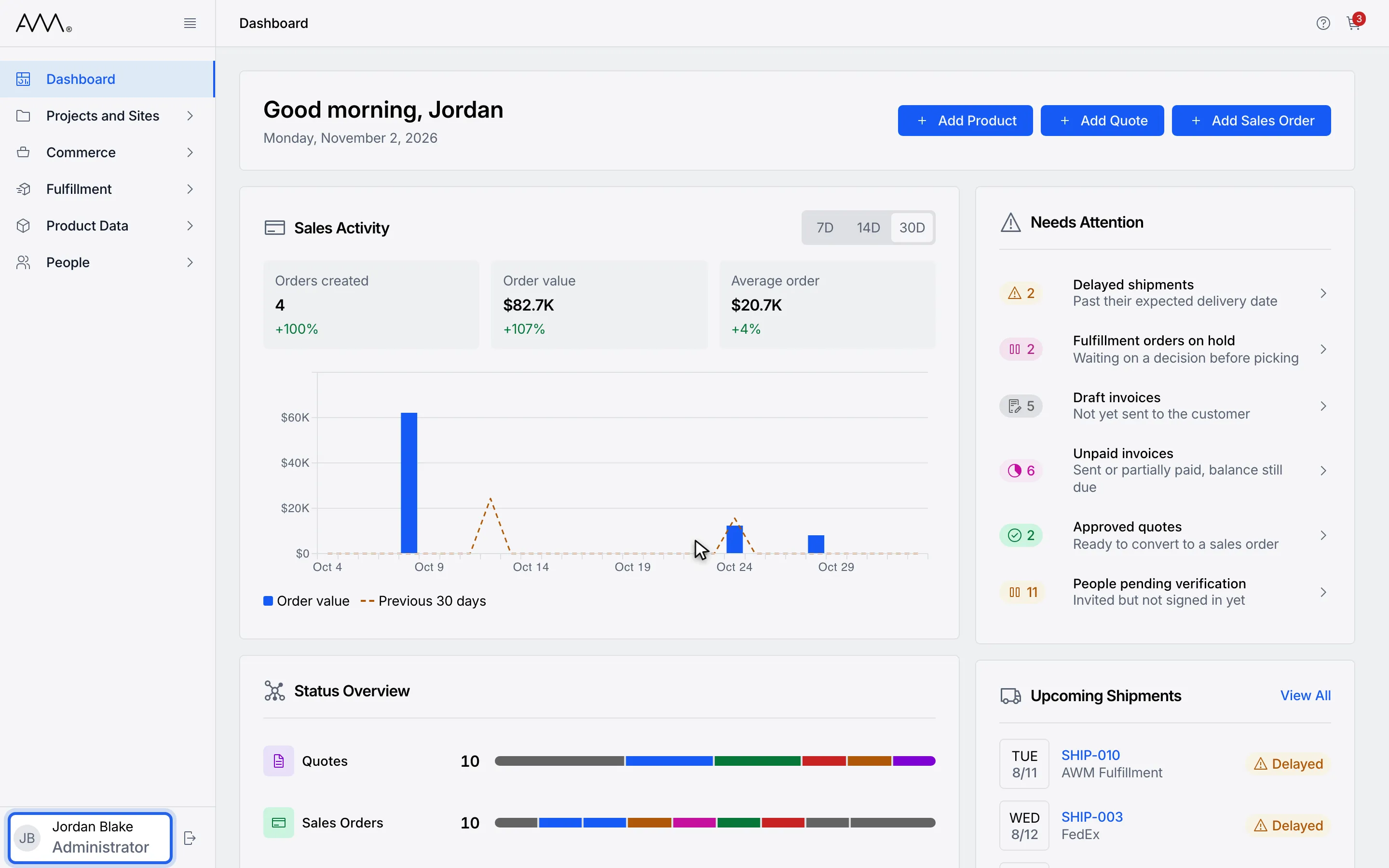
1Click your name at the bottom of the sidebar to open Settings.
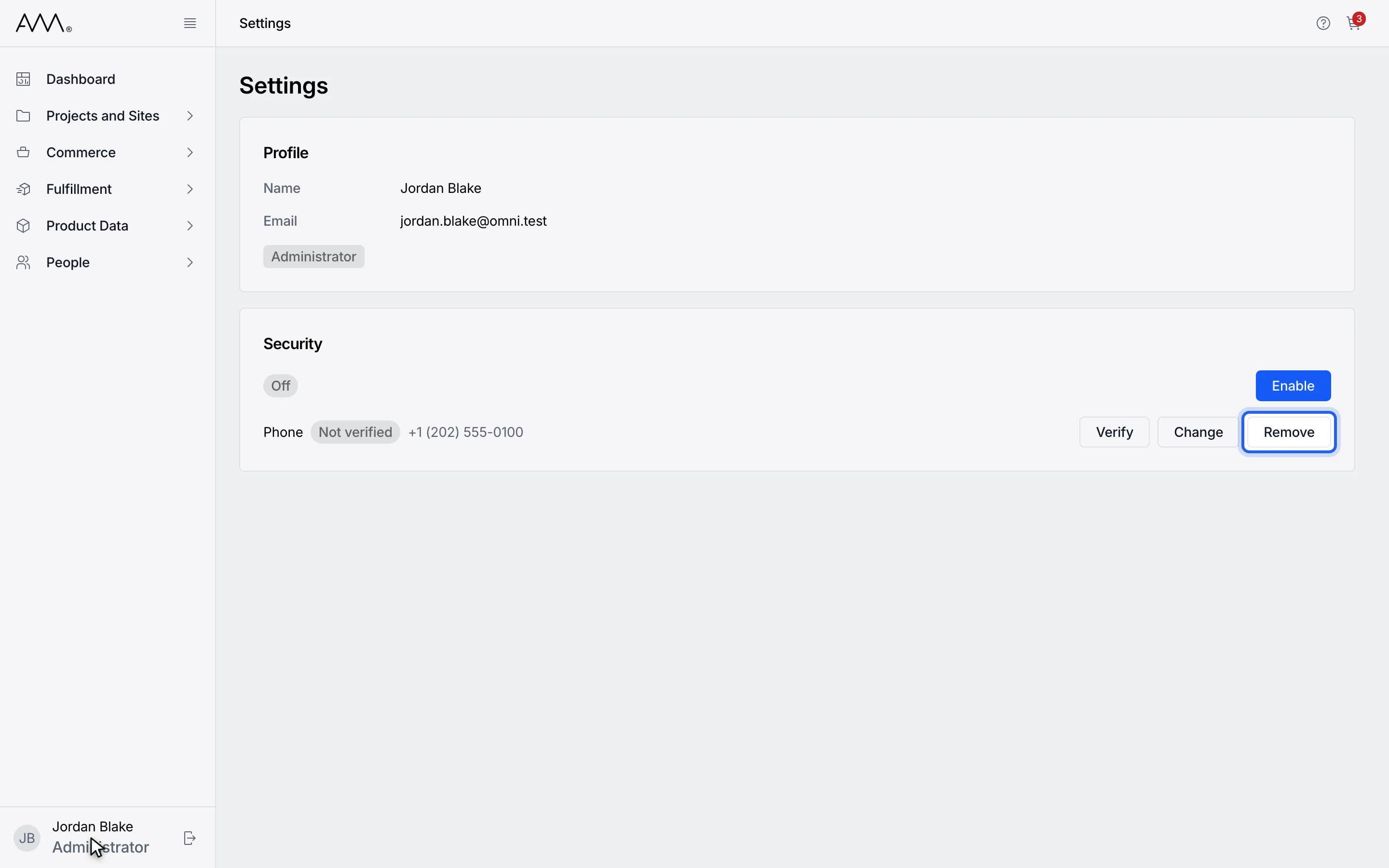
2If a number is already on file, click Remove next to Phone to clear it first.
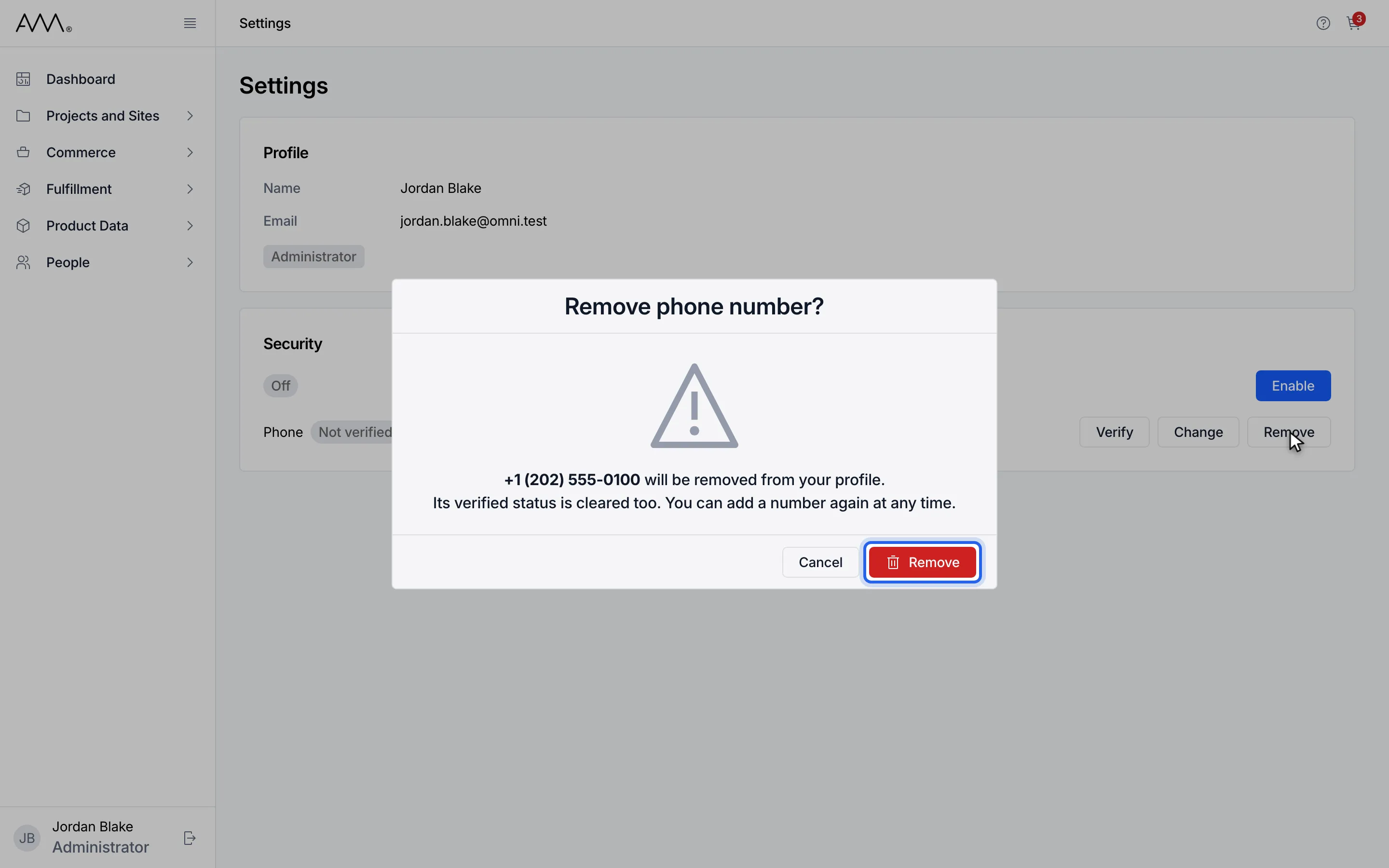
3Click Remove in the dialog. The row reads "No phone number on your profile".
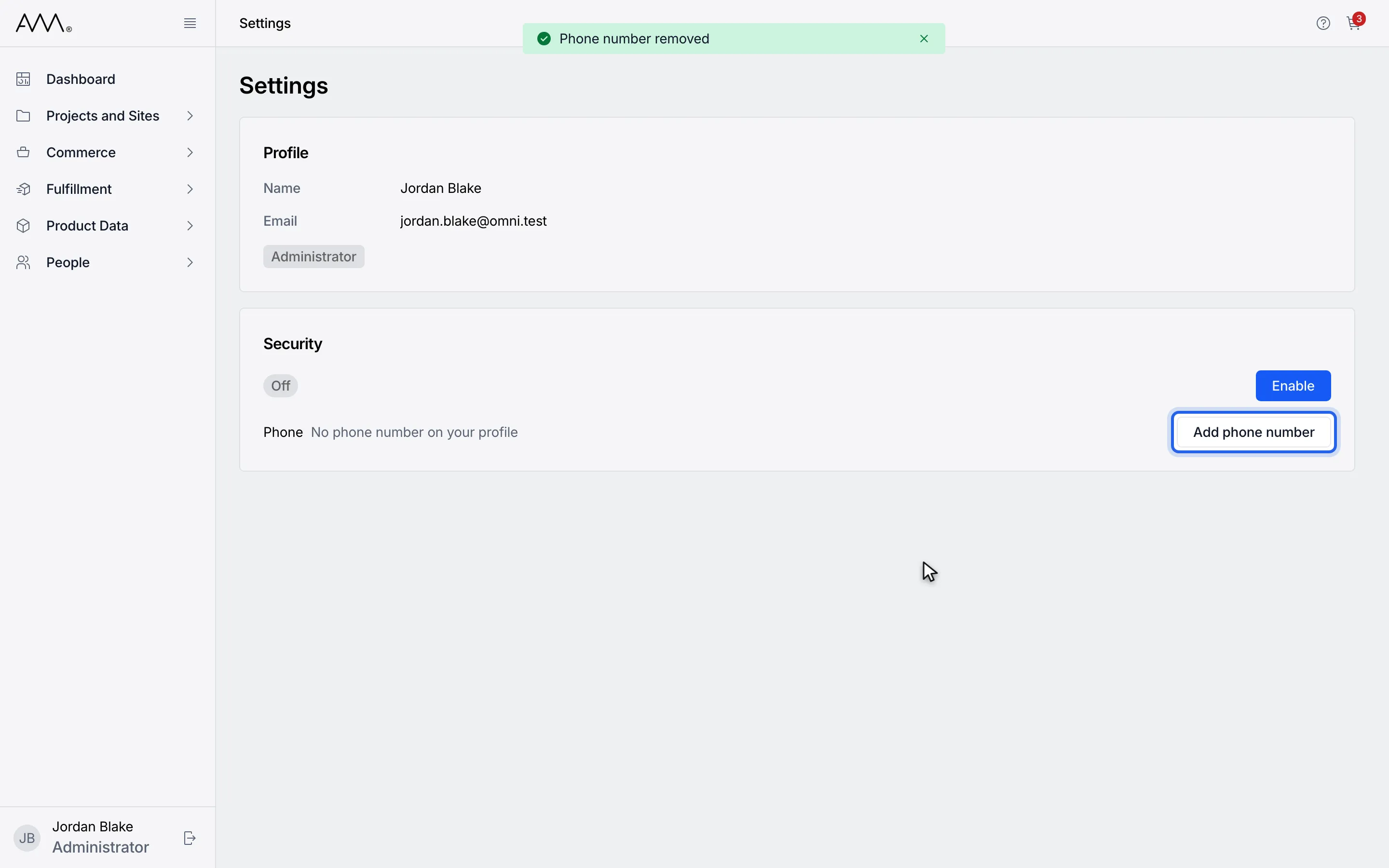
4In the Security card, next to Phone, click Add phone number.
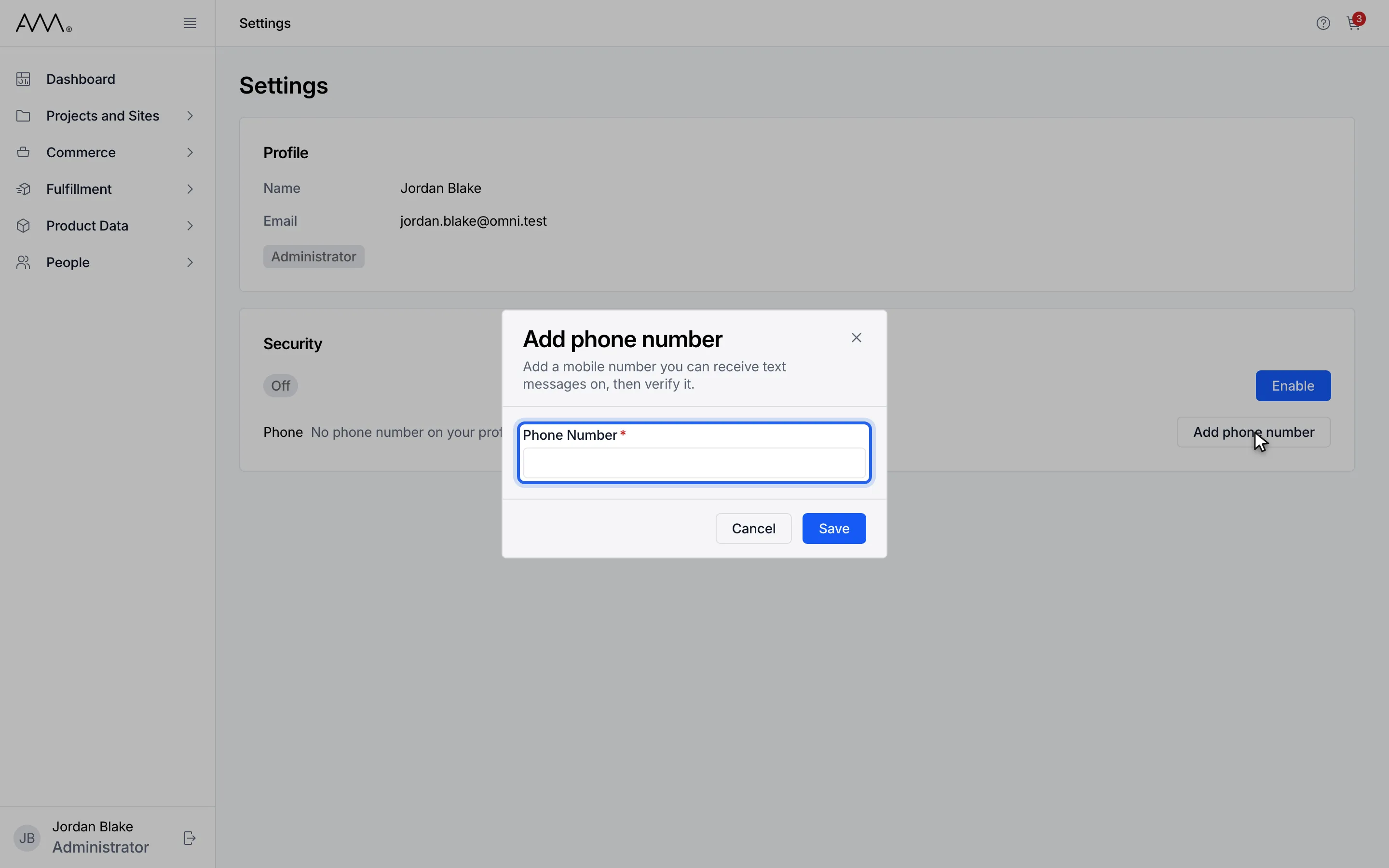
5In Phone Number, enter the mobile number you receive text messages on.
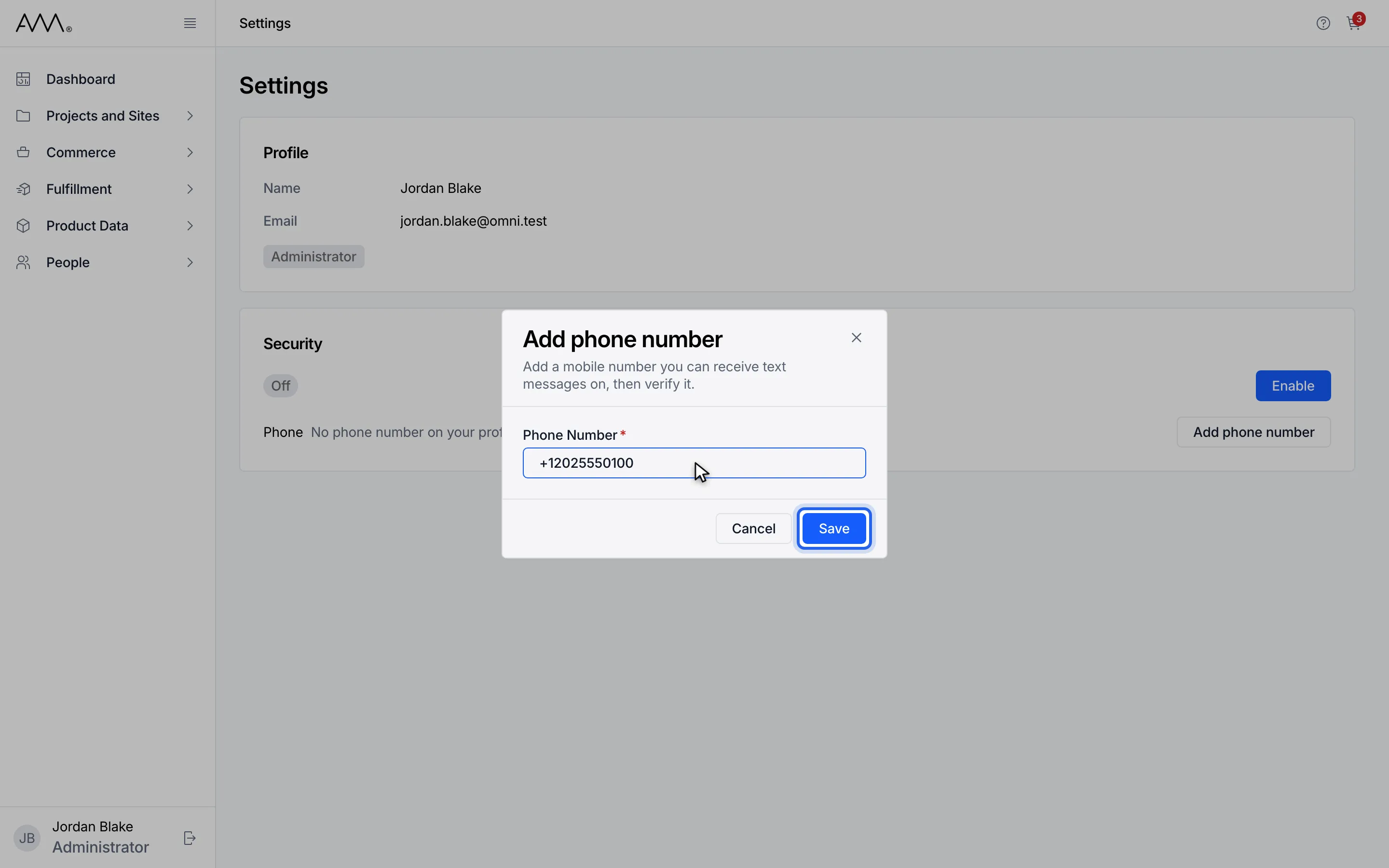
6Click Save. The row shows the number with Not verified.
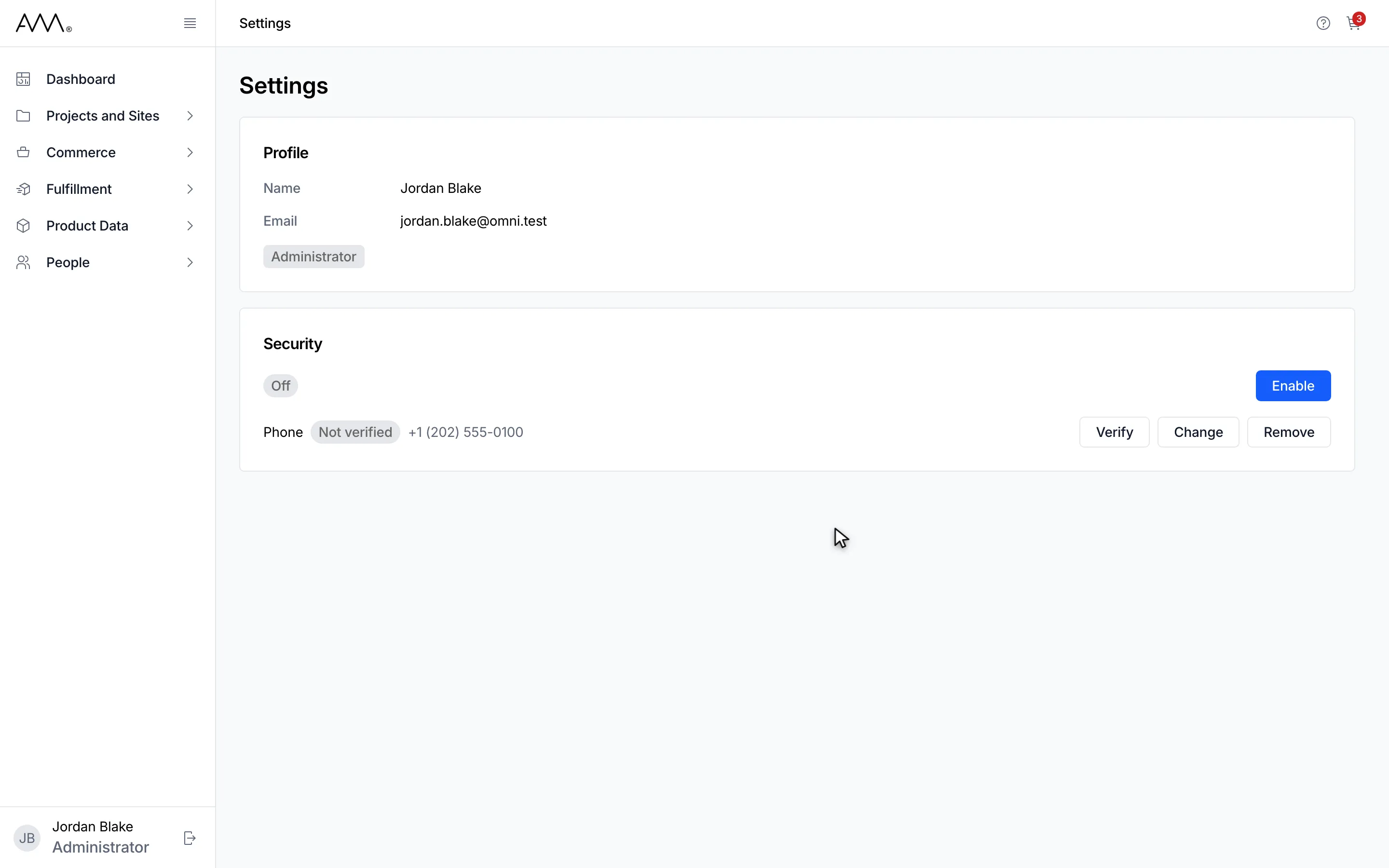
7The Phone row shows your number with Not verified. Click Verify to confirm it.
Watch this as a video (add a phone number)
Verify your phone number
Section titled “Verify your phone number”- Click your name at the bottom of the sidebar to open Settings.
- In the Security card, next to Phone, click Verify. The Verify phone number dialog shows the number and explains We’ll text a 6-digit code to the number on your profile to confirm it’s yours.
- Click Send code. The dialog shows Code expires in followed by the time left.
- Type the code from the text message into Verification Code. Omni checks it as soon as you type the last digit, then shows your number followed by is verified.
- Click Done.
1Click your name at the bottom of the sidebar to open Settings.
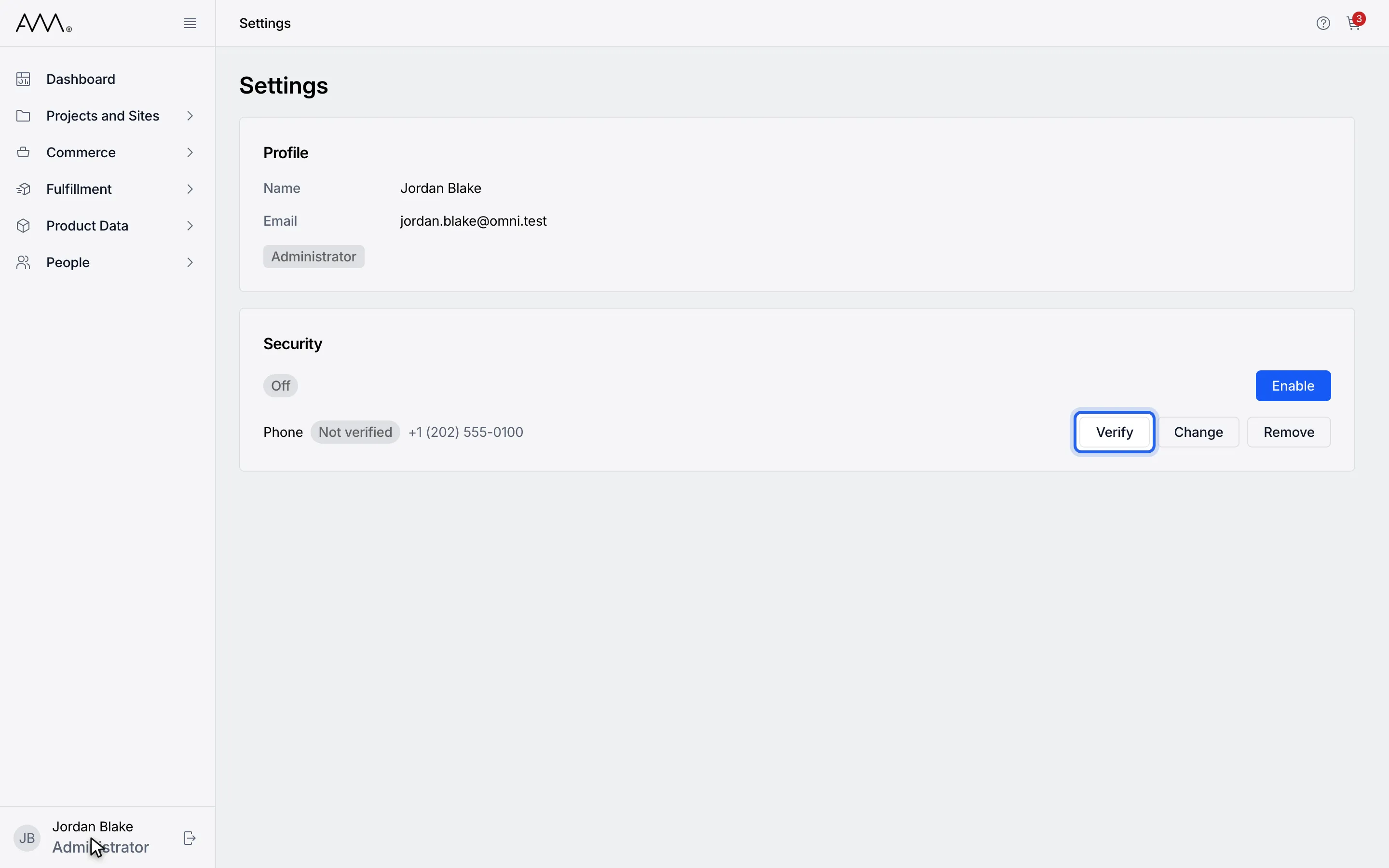
2In the Security card, next to Phone, click Verify.
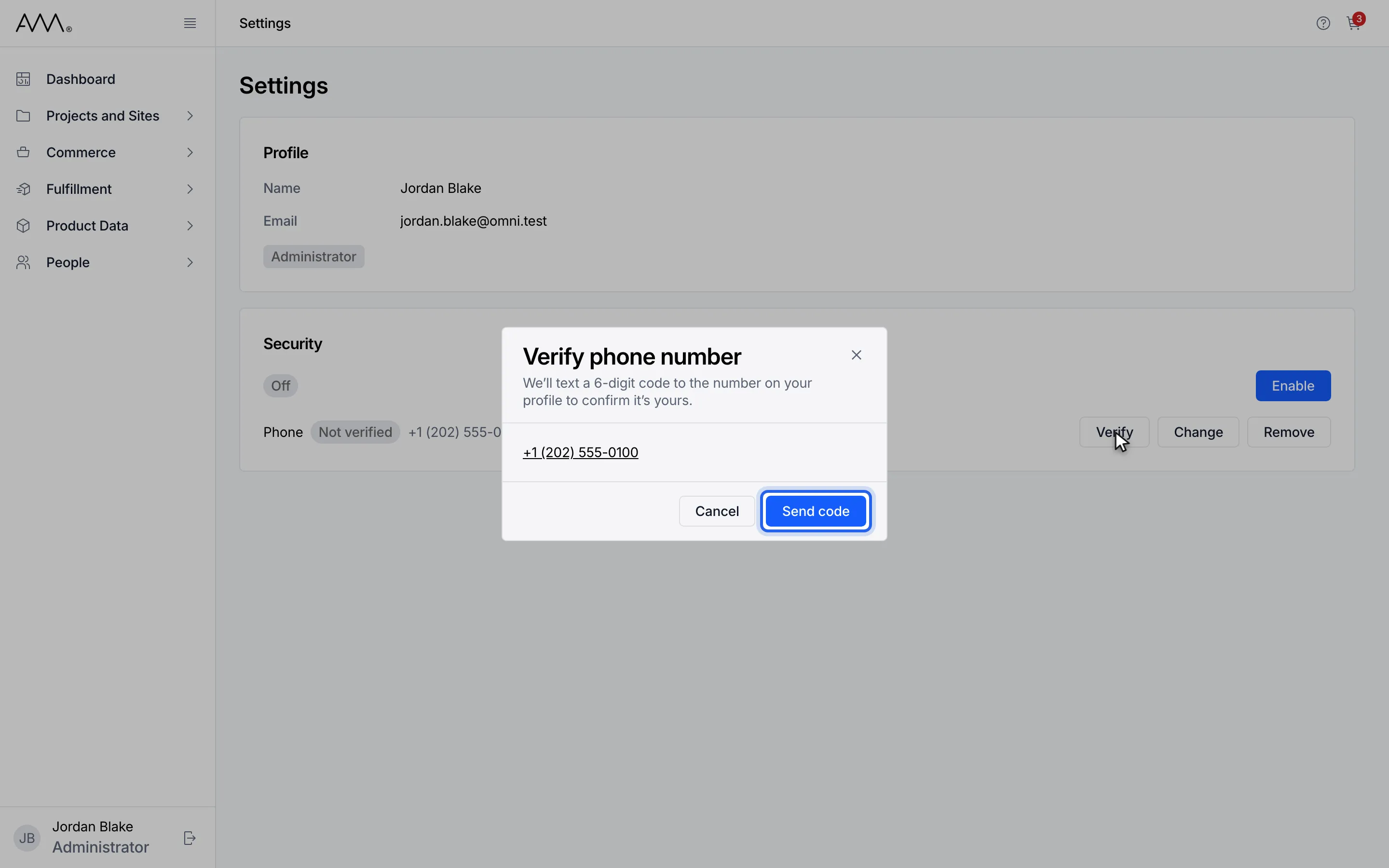
3Click Send code. Omni texts a 6-digit code to the number.
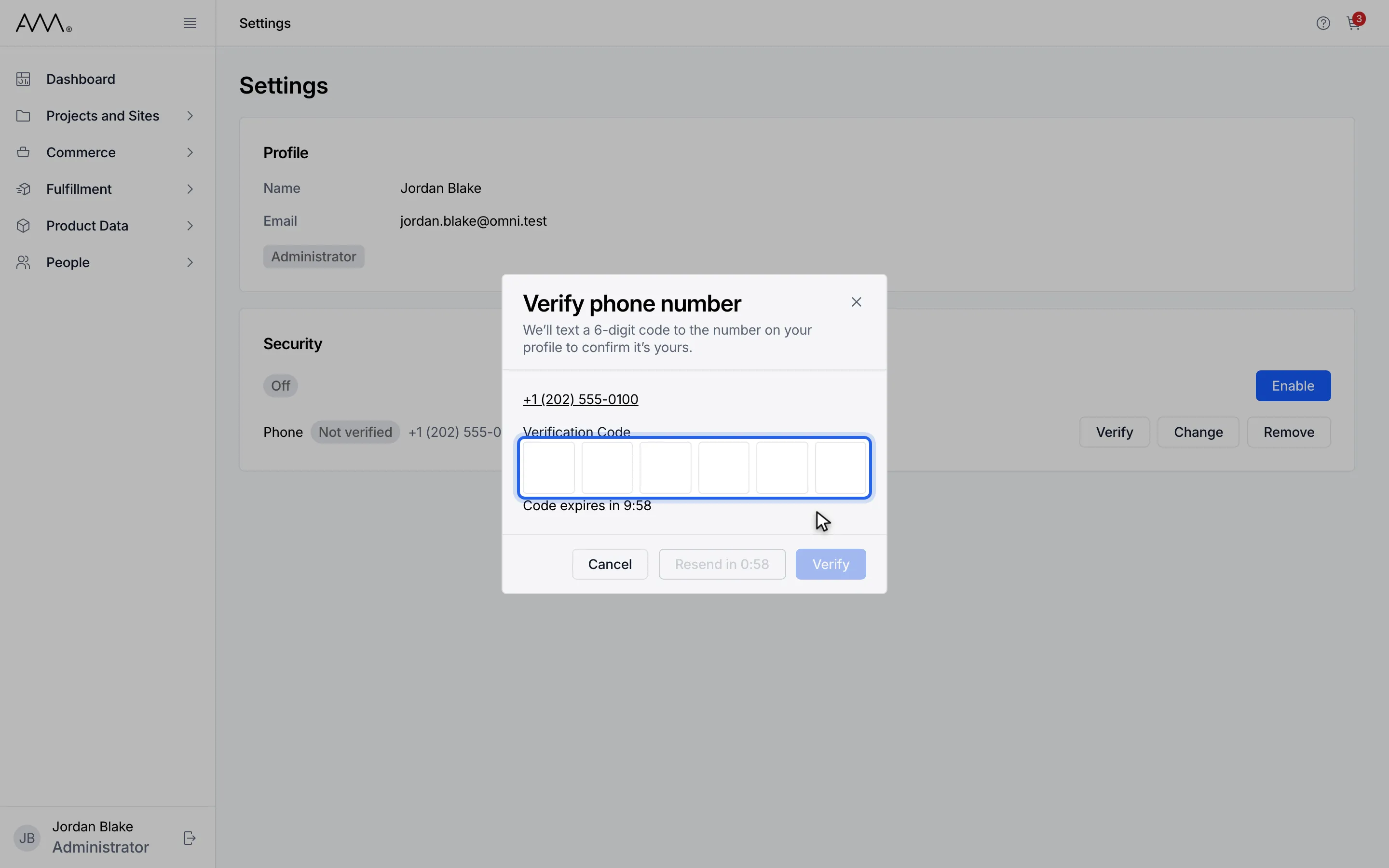
4Type the code from the text message into Verification Code.
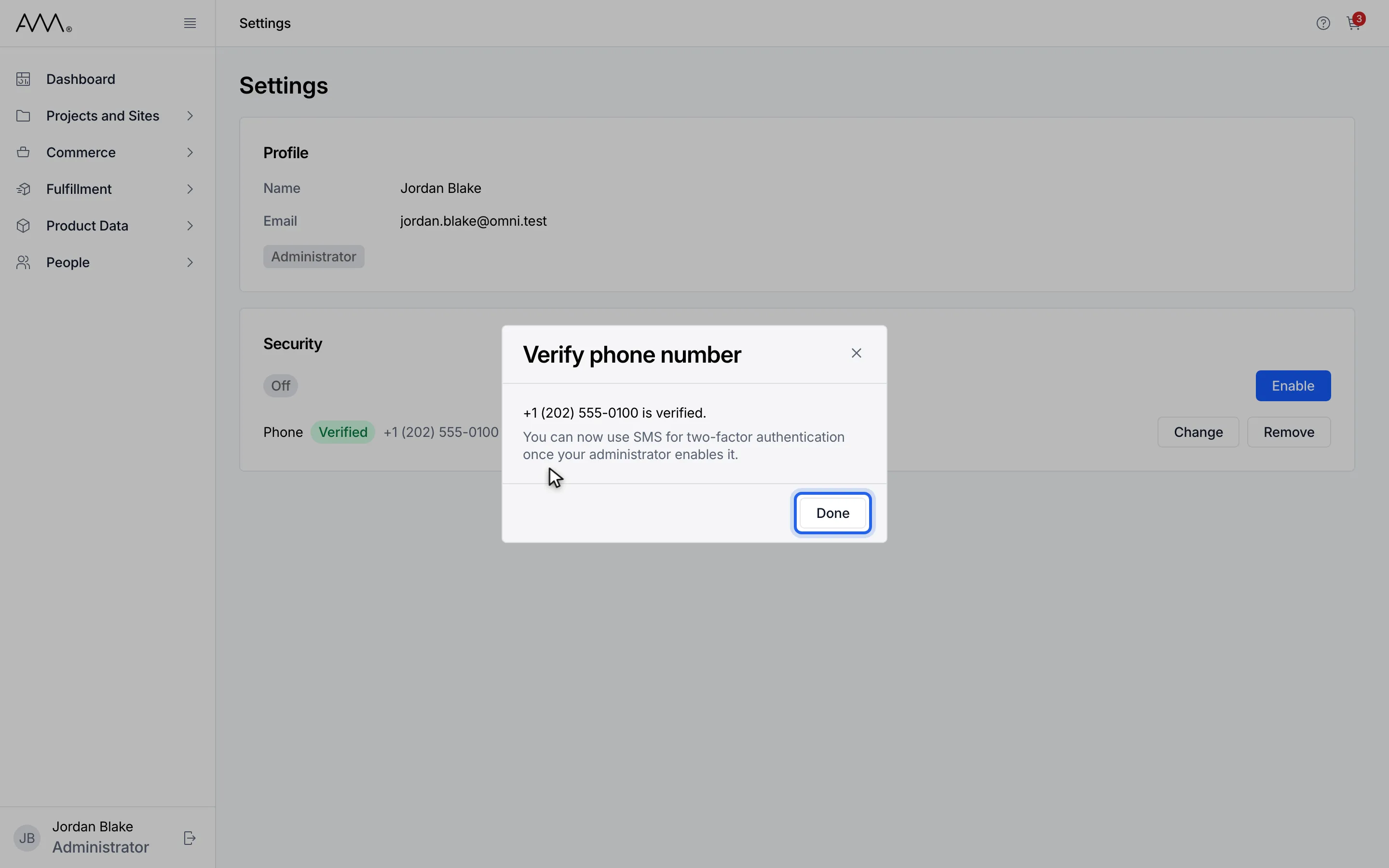
5Click Done.
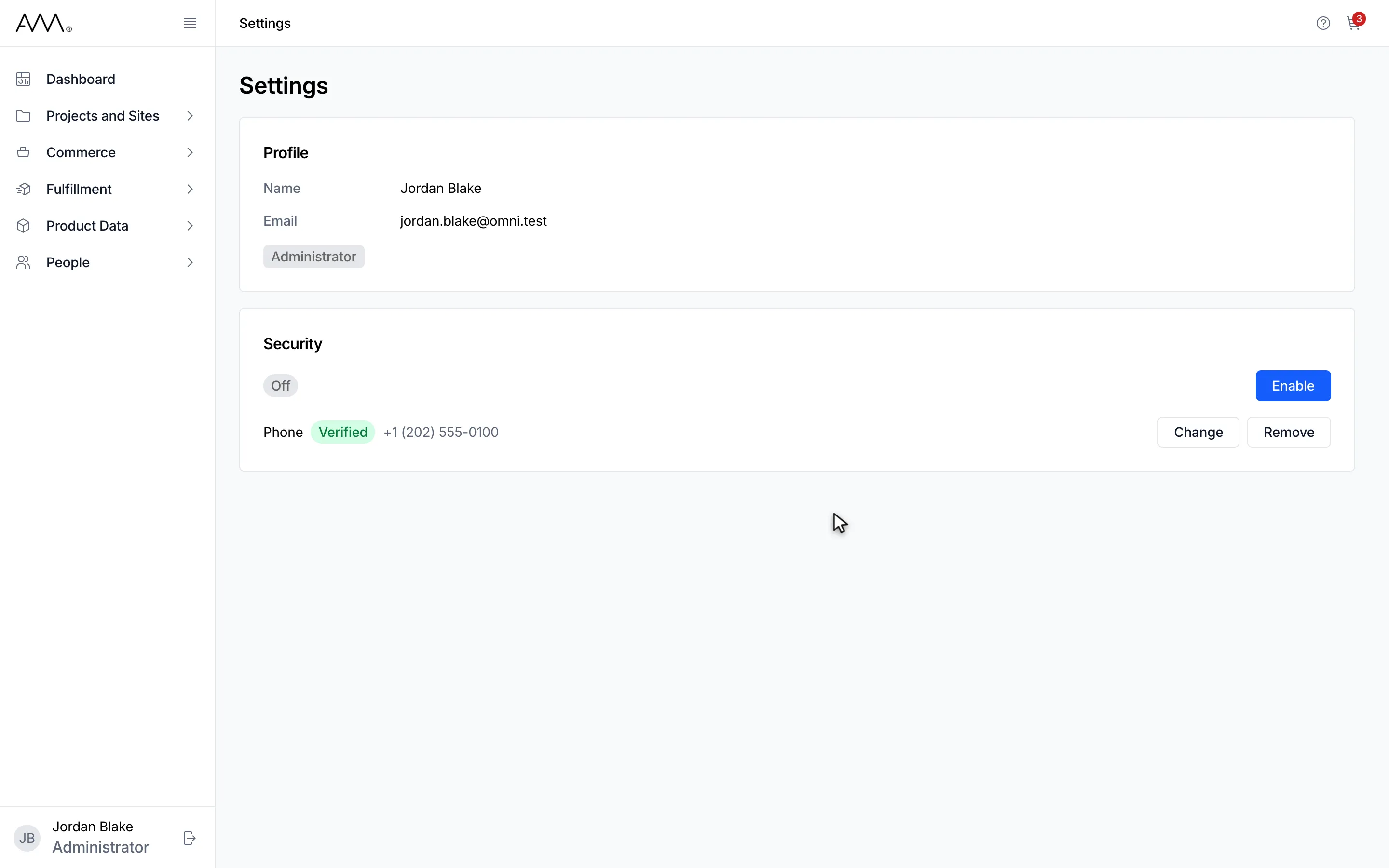
6The Phone row shows Verified.
Watch this as a video (verify your phone number)
The row now shows Verified and the Verify button disappears. The dialog also confirmed You can now use SMS for two-factor authentication once your administrator enables it. A code is valid for ten minutes; Resend code becomes available one minute after the last send, and until then reads Resend in followed by a countdown.
Change your phone number
Section titled “Change your phone number”- Click your name at the bottom of the sidebar to open Settings.
- In the Security card, next to Phone, click Change. The Change phone number dialog warns Changing your number clears its verified status — you’ll need to verify the new one.
- In Phone Number, replace the number with the new one.
- Click Save. The new number shows as Not verified; click Verify to confirm it.
1Click your name at the bottom of the sidebar to open Settings.
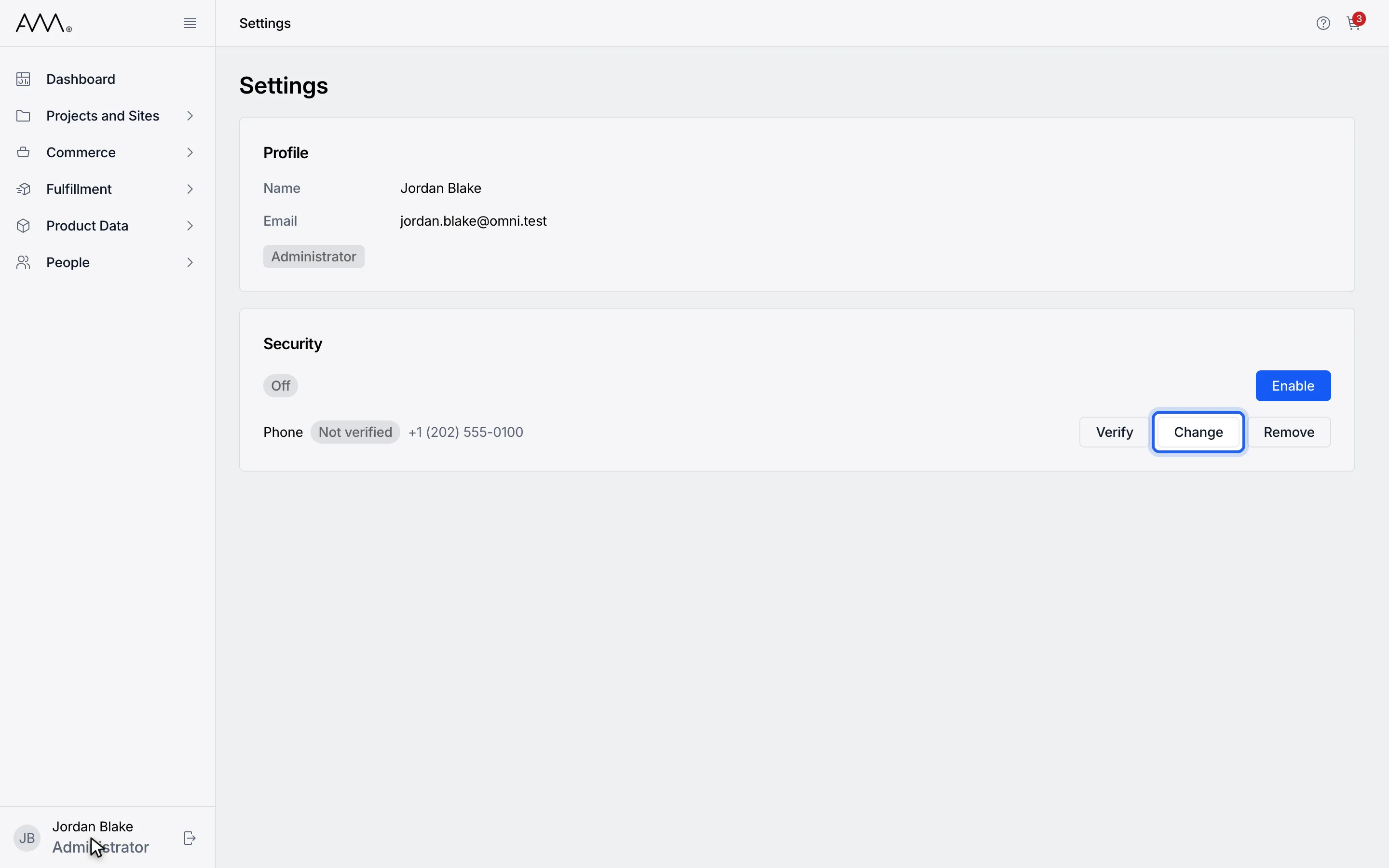
2In the Security card, next to Phone, click Change.
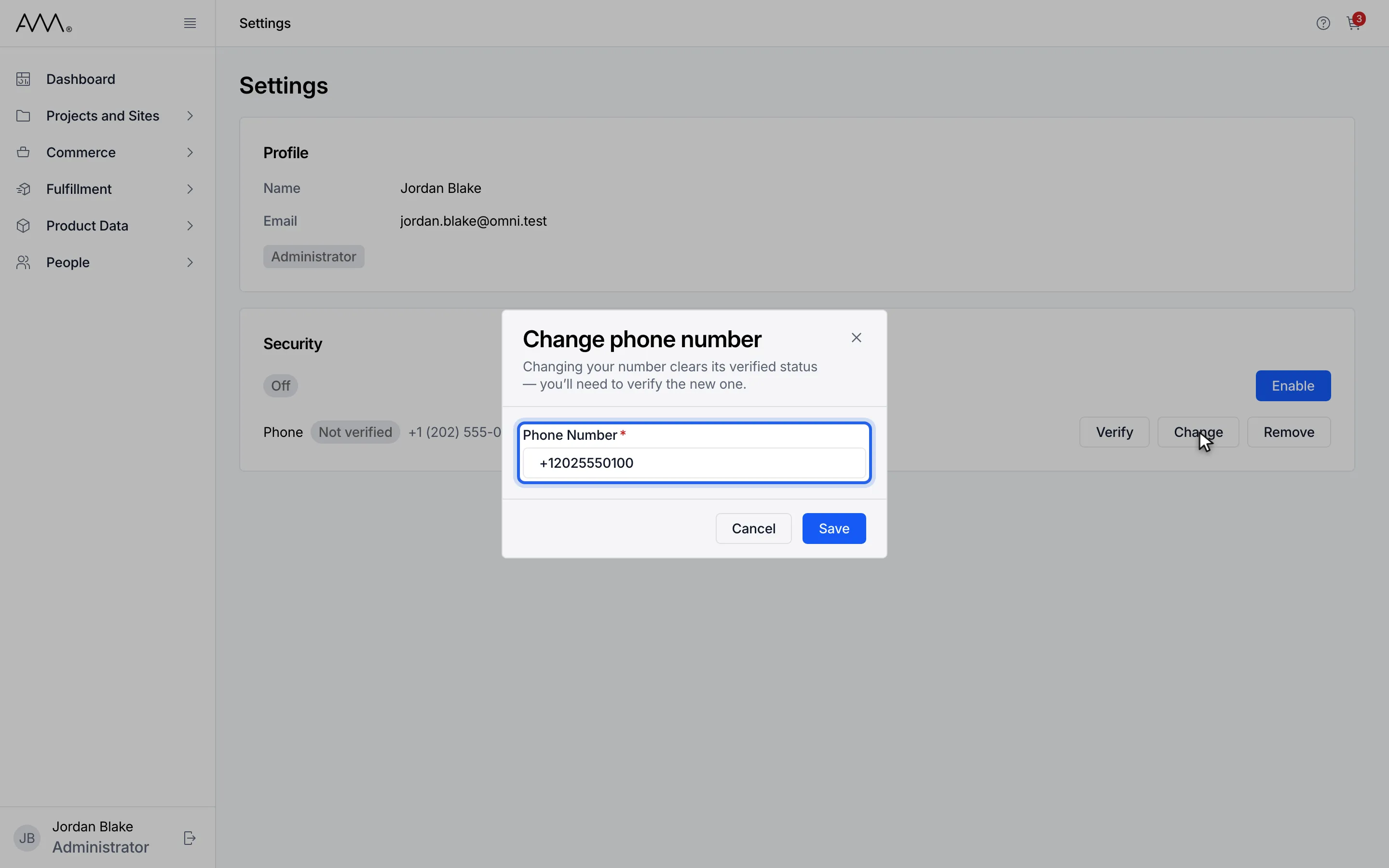
3In Phone Number, replace the number with the new one.
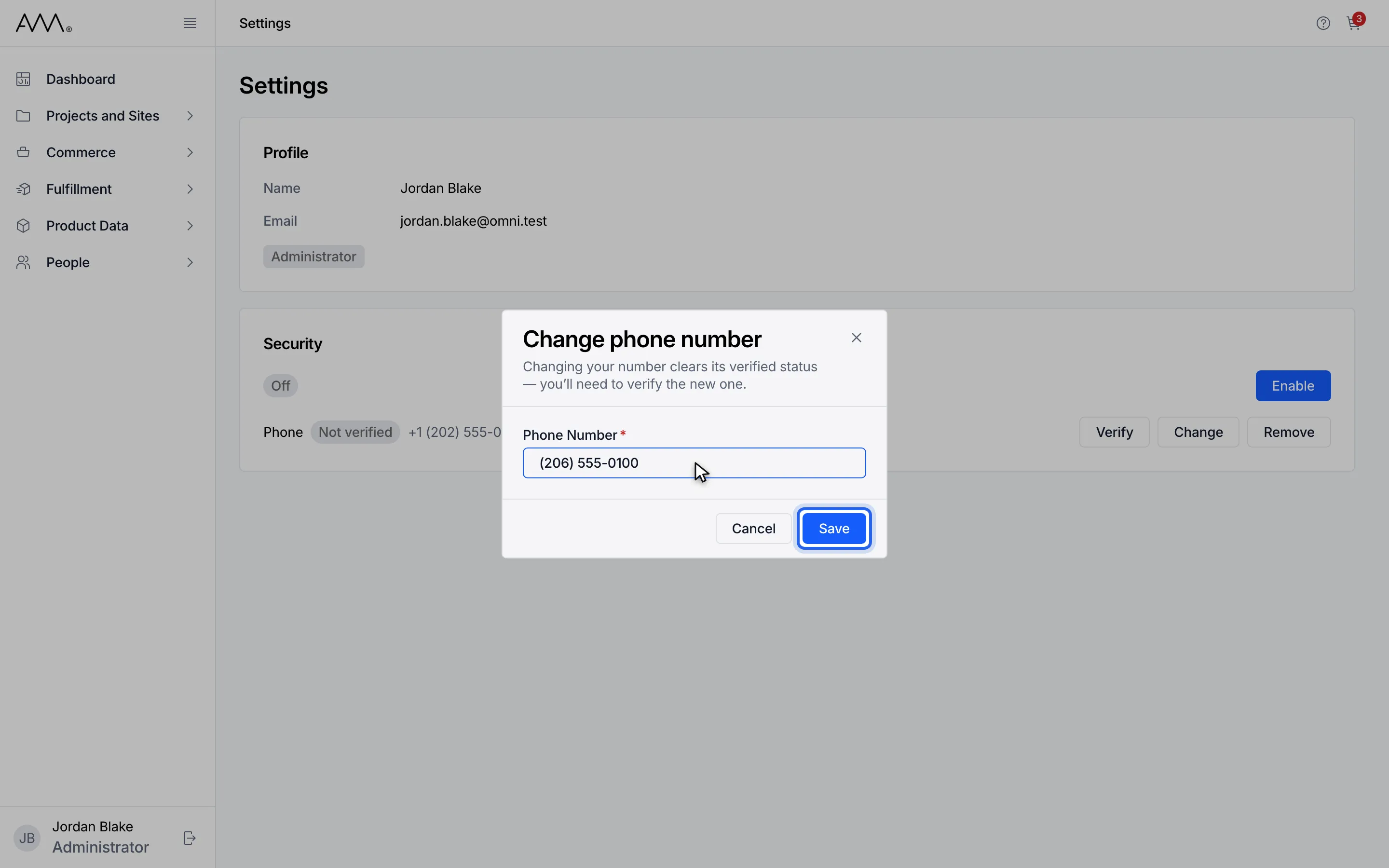
4Click Save. The new number shows as Not verified.
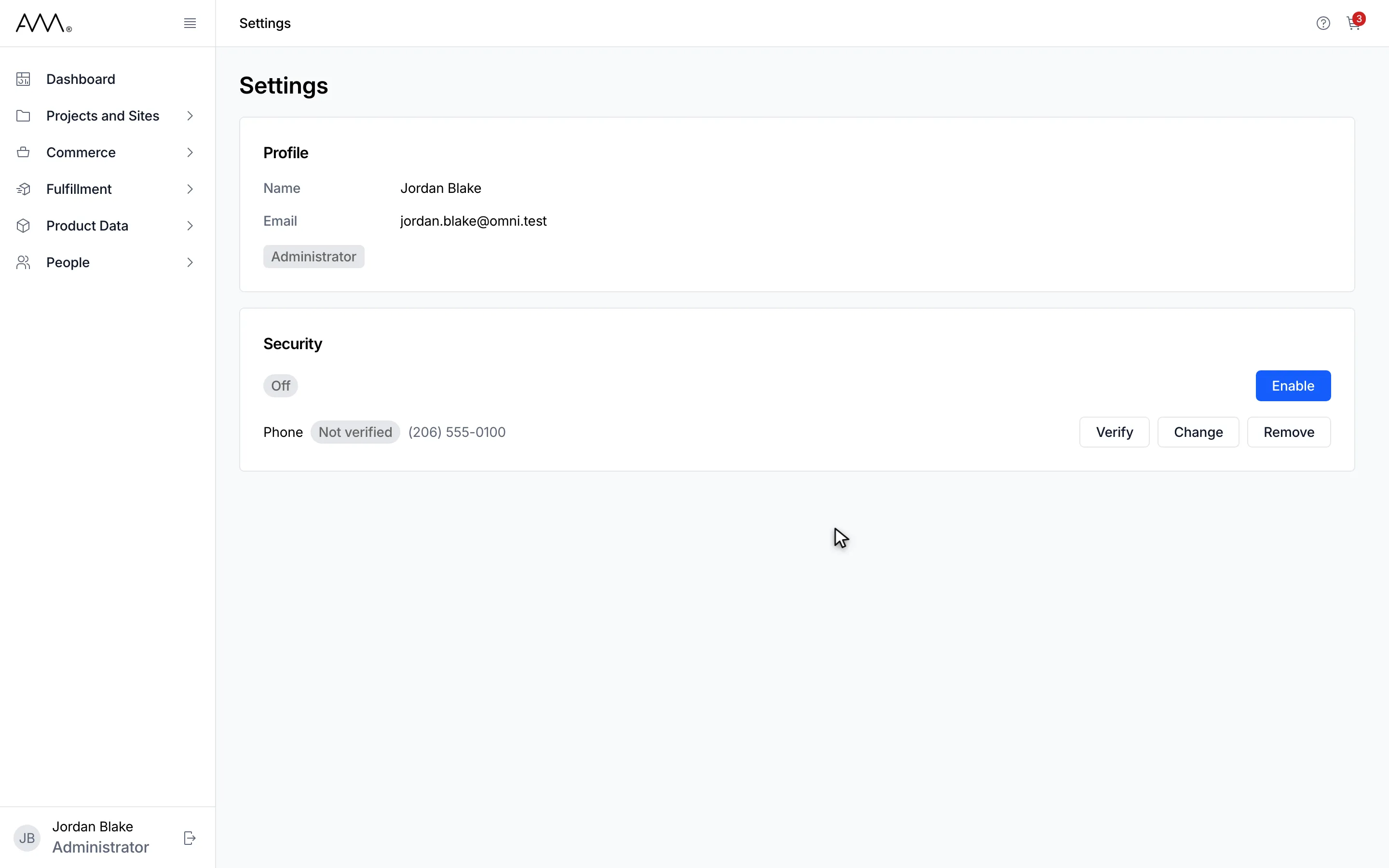
5The new number shows as Not verified. Click Verify to confirm it.
Watch this as a video (change your phone number)
Remove your phone number
Section titled “Remove your phone number”- Click your name at the bottom of the sidebar to open Settings.
- In the Security card, next to Phone, click Remove. The Remove phone number? dialog opens.
- Click Remove to confirm. The button reads Removing… while Omni removes the number.
1Click your name at the bottom of the sidebar to open Settings.
2In the Security card, next to Phone, click Remove.
3Click Remove to confirm. A message says "Phone number removed".
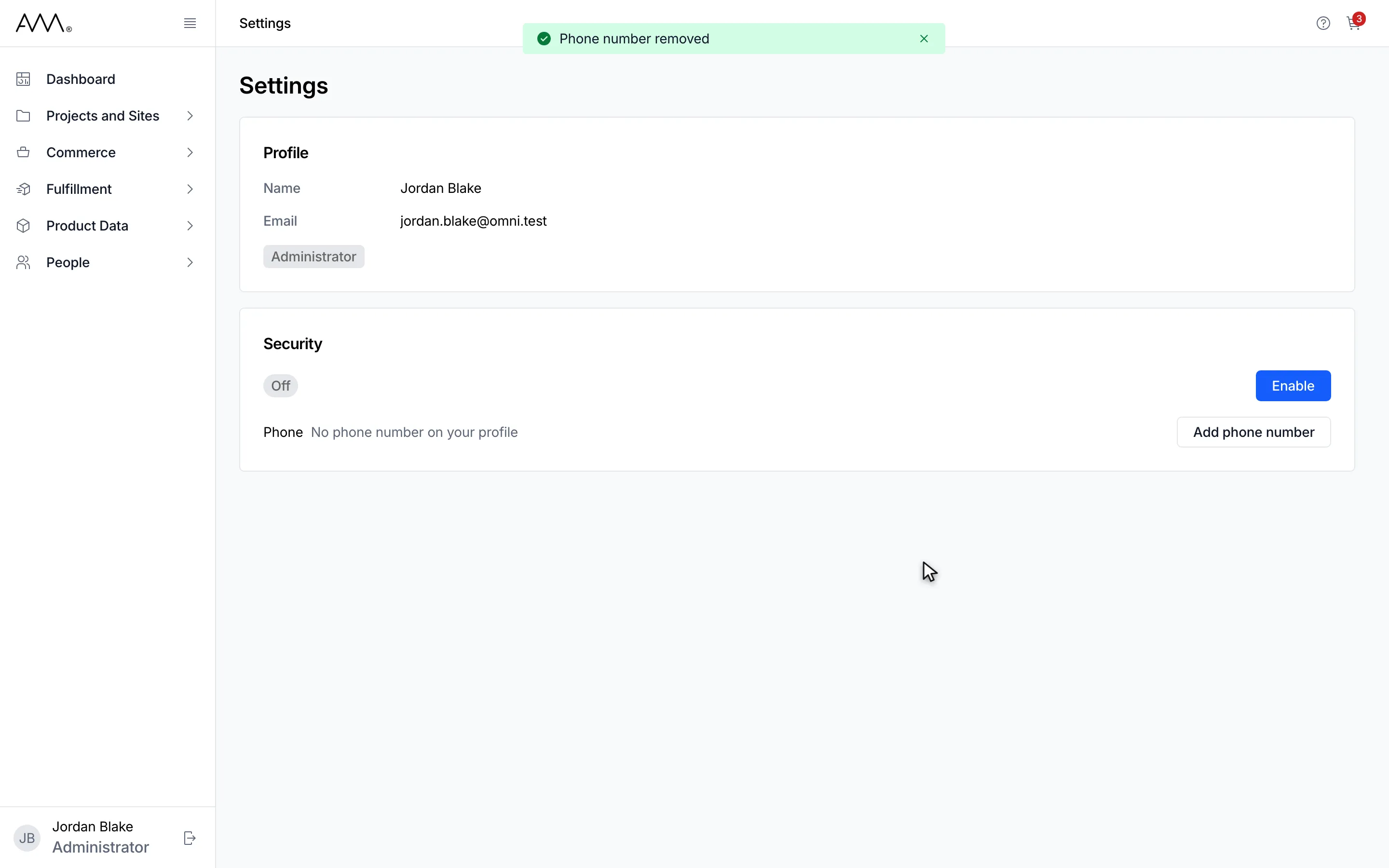
4The Phone row reads "No phone number on your profile".
Watch this as a video (remove your phone number)
What happens next
Section titled “What happens next”A message confirms Phone number removed. The row reads No phone number on your profile and only Add phone number remains. If the number could not be removed, the dialog stays open with Could not remove your phone number. Please try again.
If you see a message
Section titled “If you see a message”| Message | What to do |
|---|---|
| Enter a phone number. or Phone number must be 32 characters or fewer. | Correct the number and click Save again. |
| Could not save your phone number. Please try again. | Click Save again. |
| That code is incorrect or has expired. Request a new one. | Click Resend code when the countdown ends, then enter the new code. |
| A code was just sent. Wait for the countdown to finish before requesting another. | Wait for Resend in to become Resend code. |
| You’ve requested too many codes. Try again in an hour. | Wait an hour before verifying again. |
| Could not verify your phone number. Please try again. | Click Verify in the dialog again. |