Assign companies to a price list
A price list only reaches customers once companies are assigned to it. Each company holds one price list at a time, and you manage the link from the price list’s Company Assignments tab.
- Open the price list from Price Lists.
- Click the Company Assignments tab.
- Click Assign Company.
- In the Assign Companies dialog, click each company you want to assign. Type in Search companies… to narrow the list. Only companies without a price list are listed, Inactive ones included.
- Click Assign 1 Company, or Assign 2 Companies and so on. The button counts your picks and is disabled until you pick at least one.
- To remove a company later, click the Unassign icon in its row.
- In Unassign Company From Price List?, click Unassign Company.
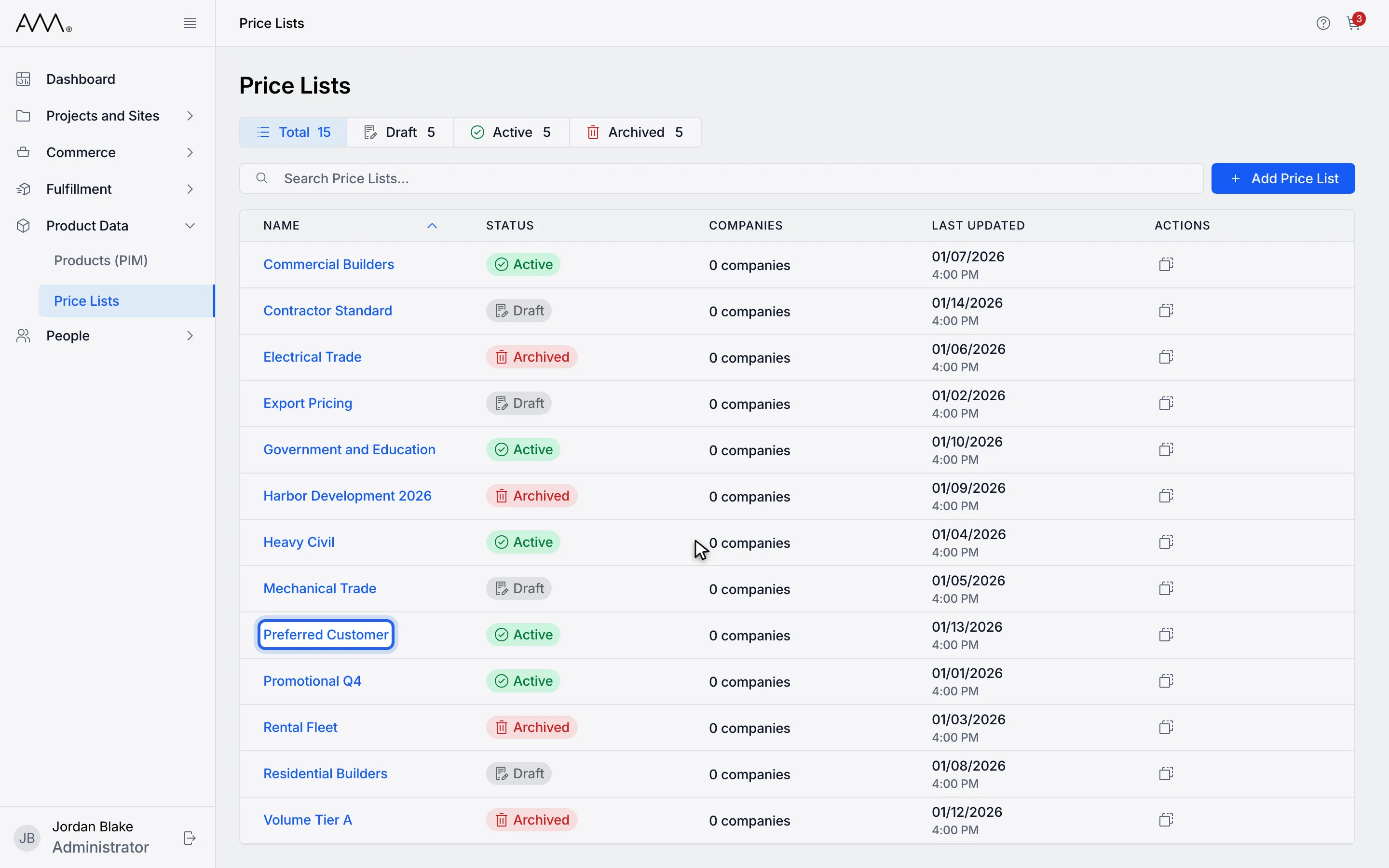
1Open the price list.
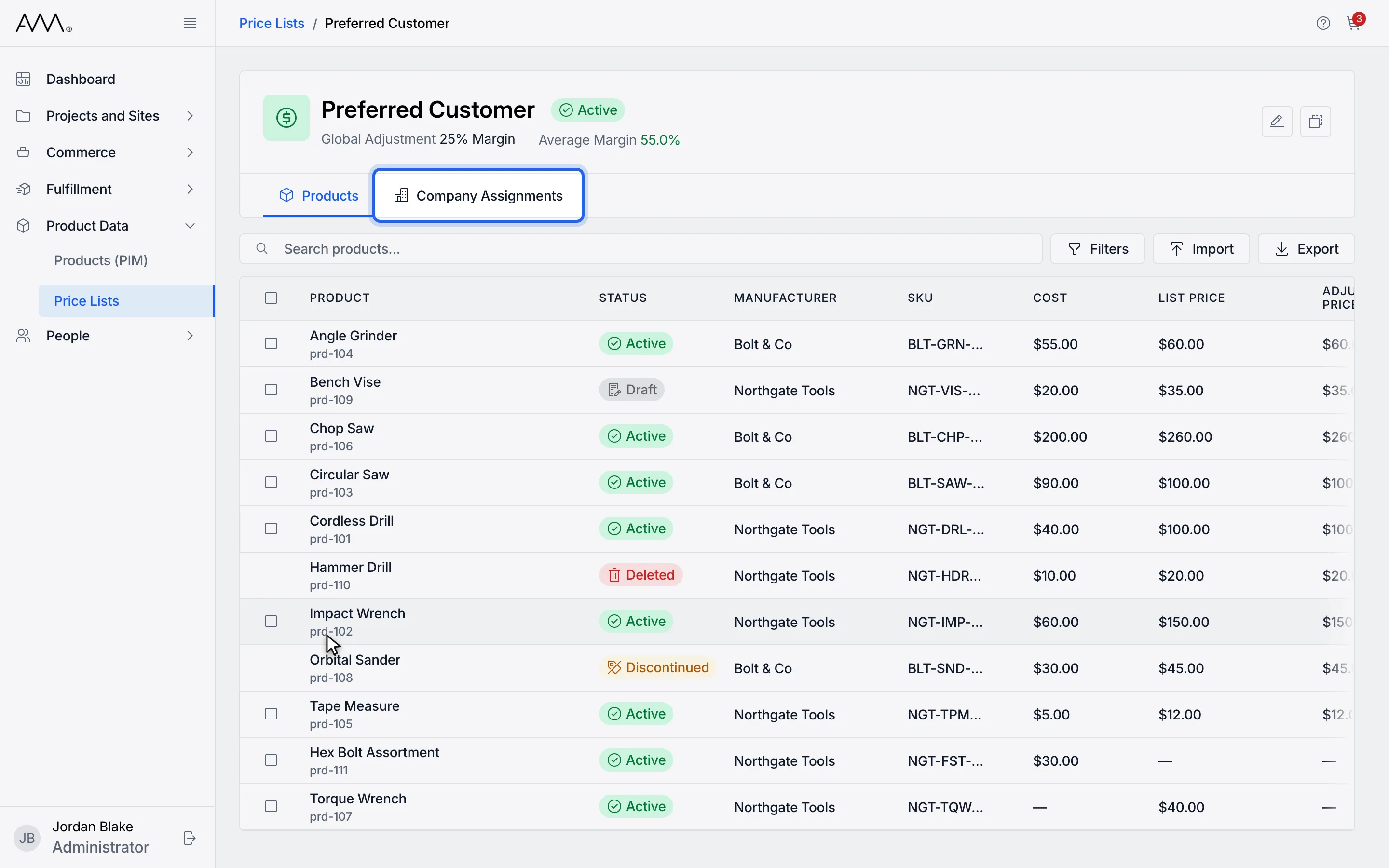
2Open the Company Assignments tab.
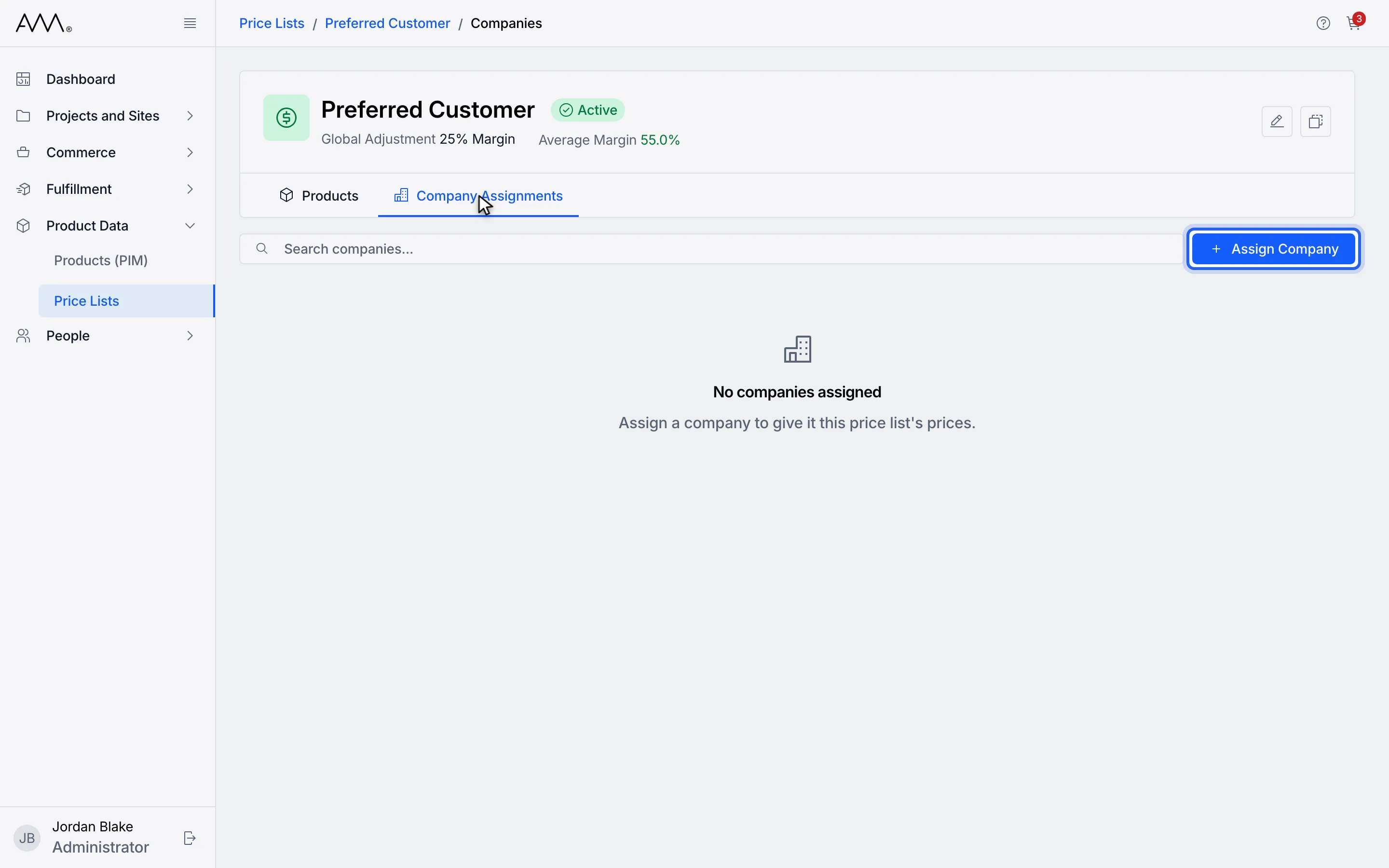
3Click Assign Company.
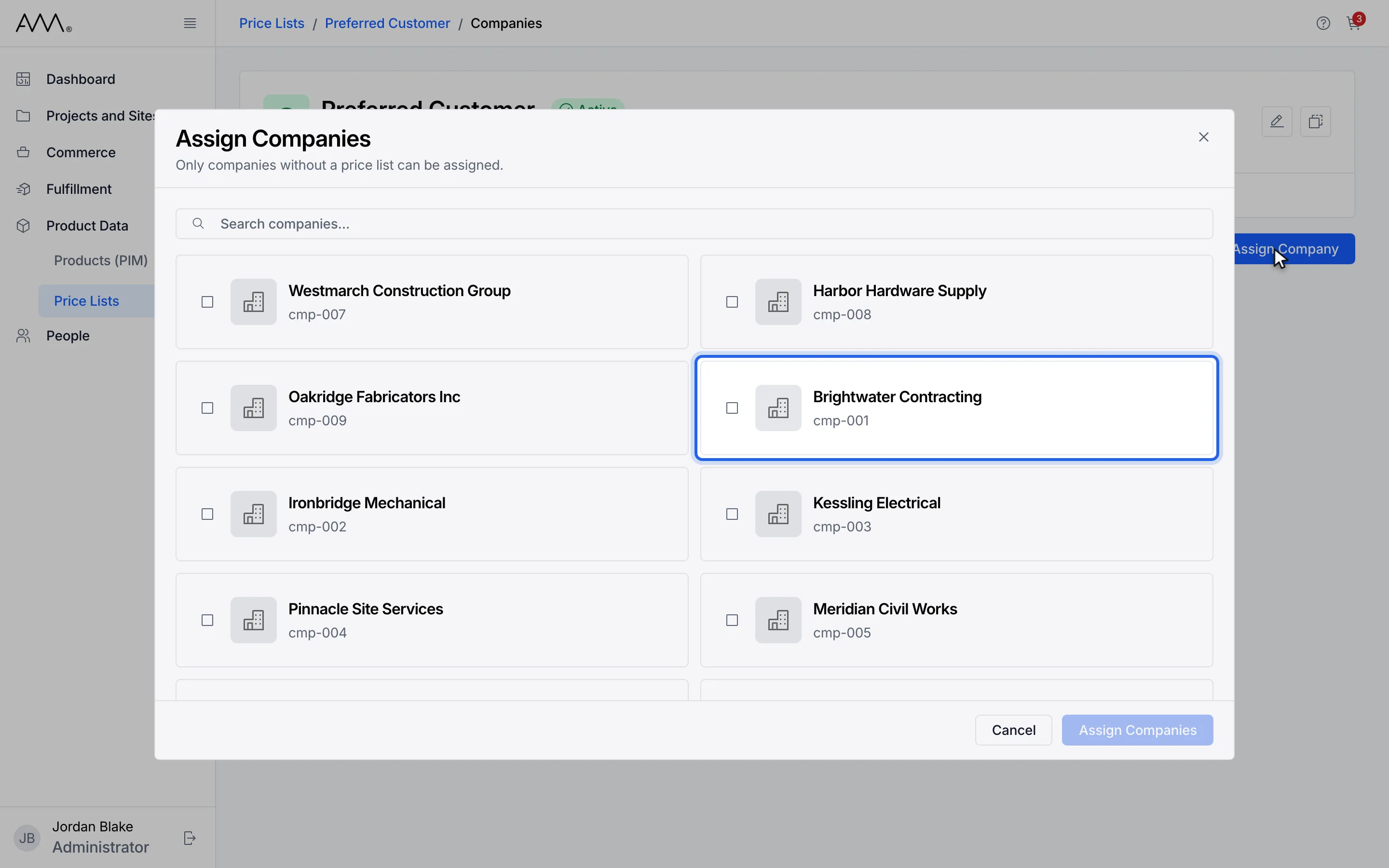
4Click each company to assign. Only companies without a price list are listed.
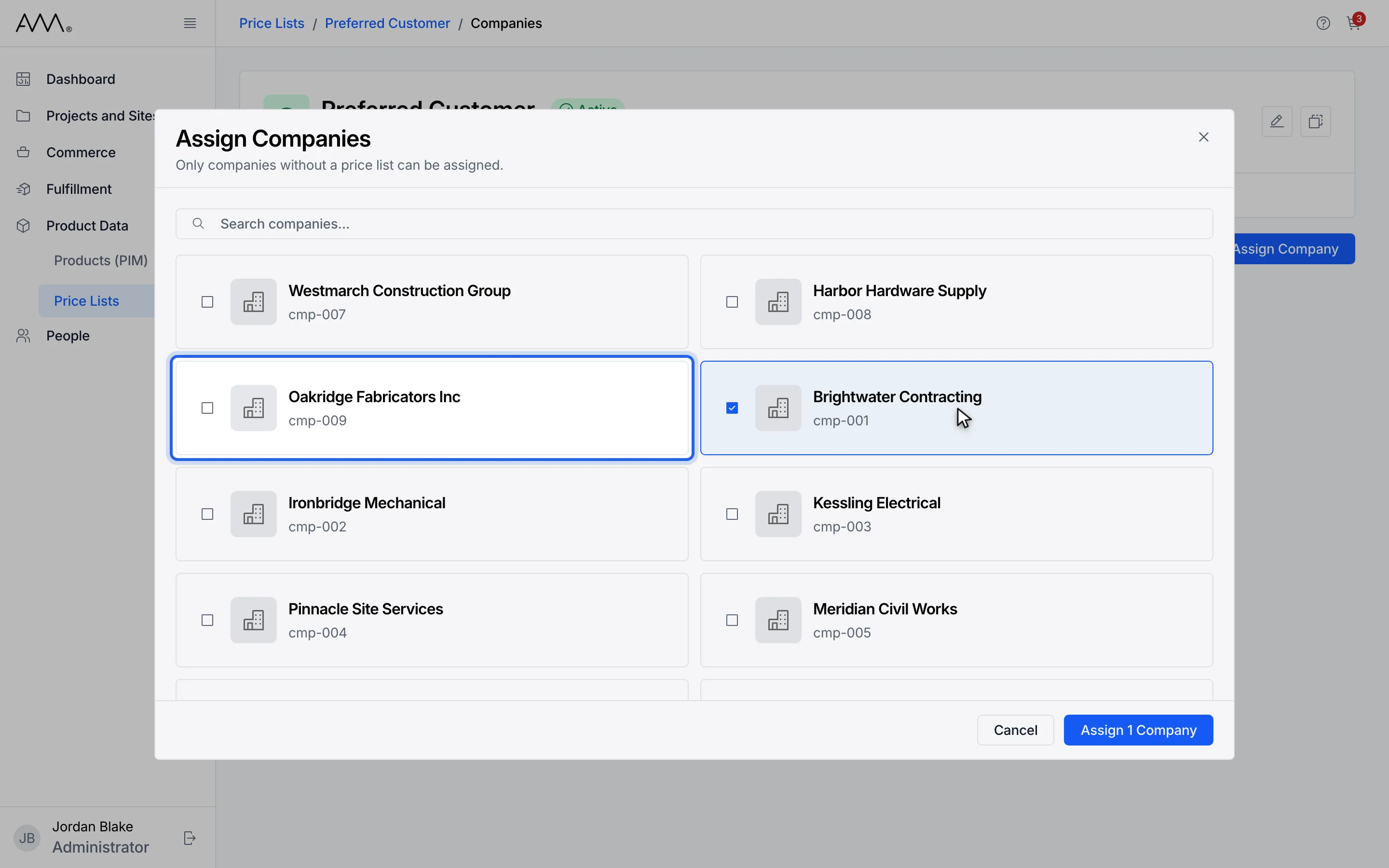
5Inactive companies can be assigned too. The button at the bottom counts your picks.
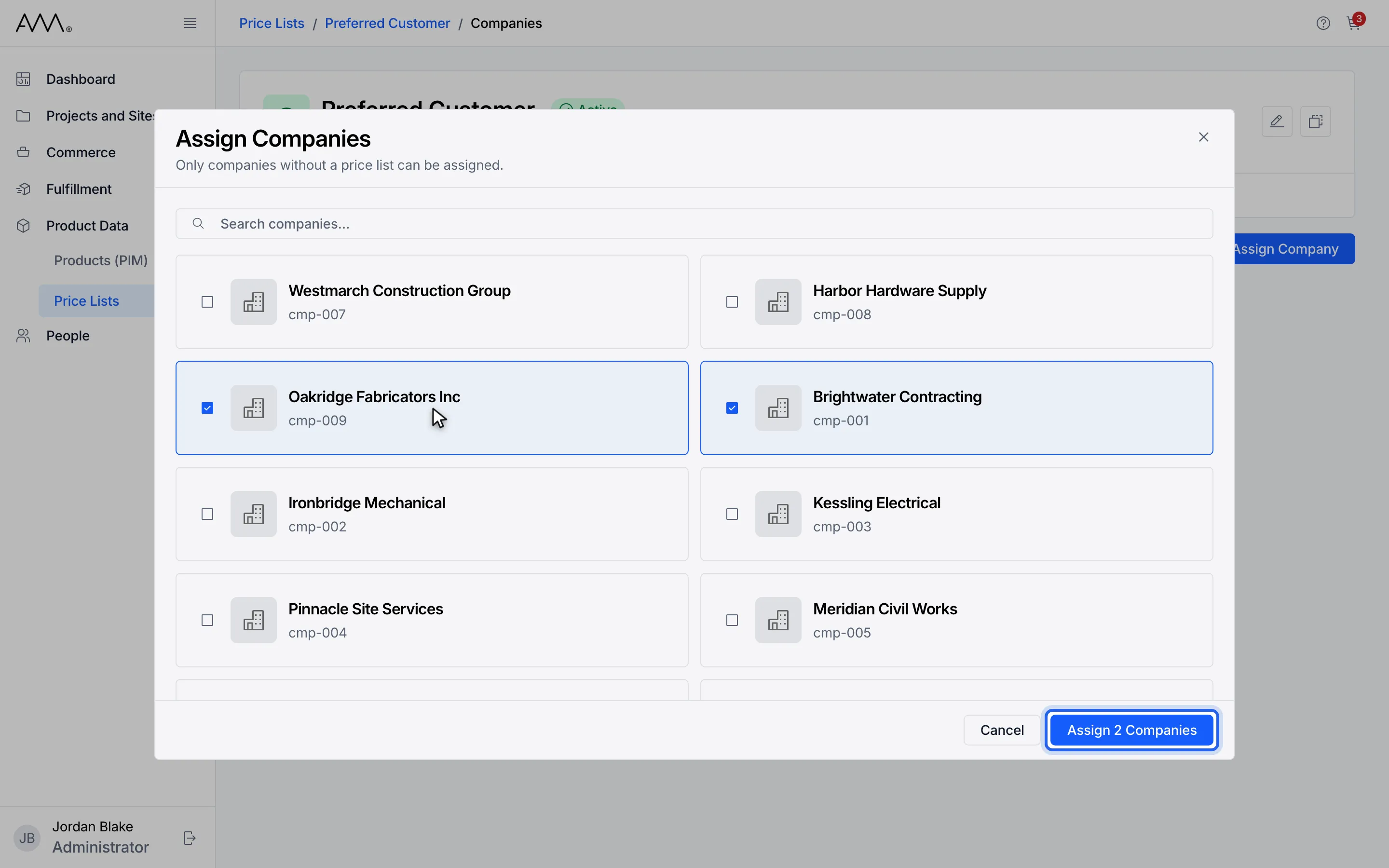
6Click Assign Companies.
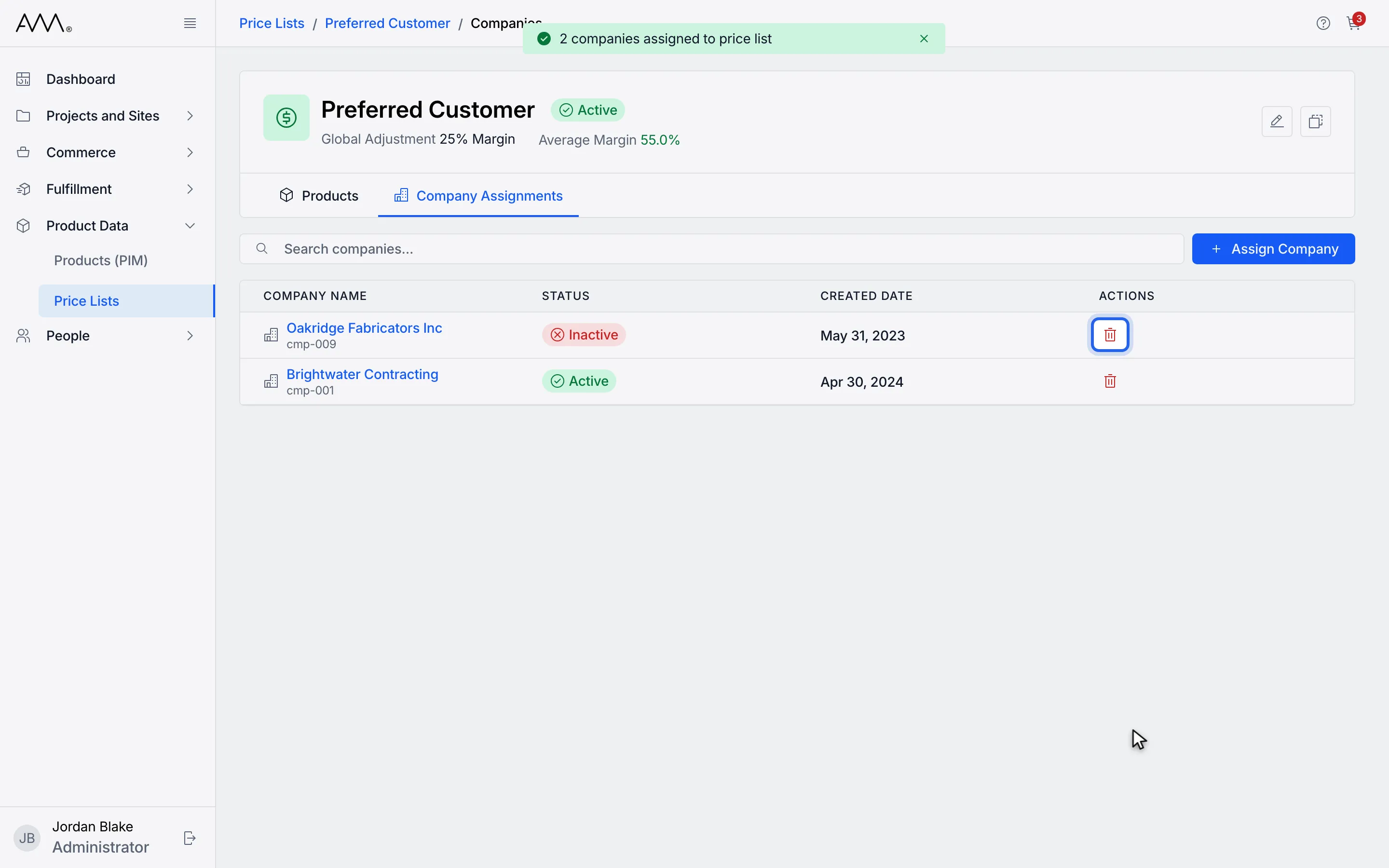
7To remove a company, click Unassign in its row.
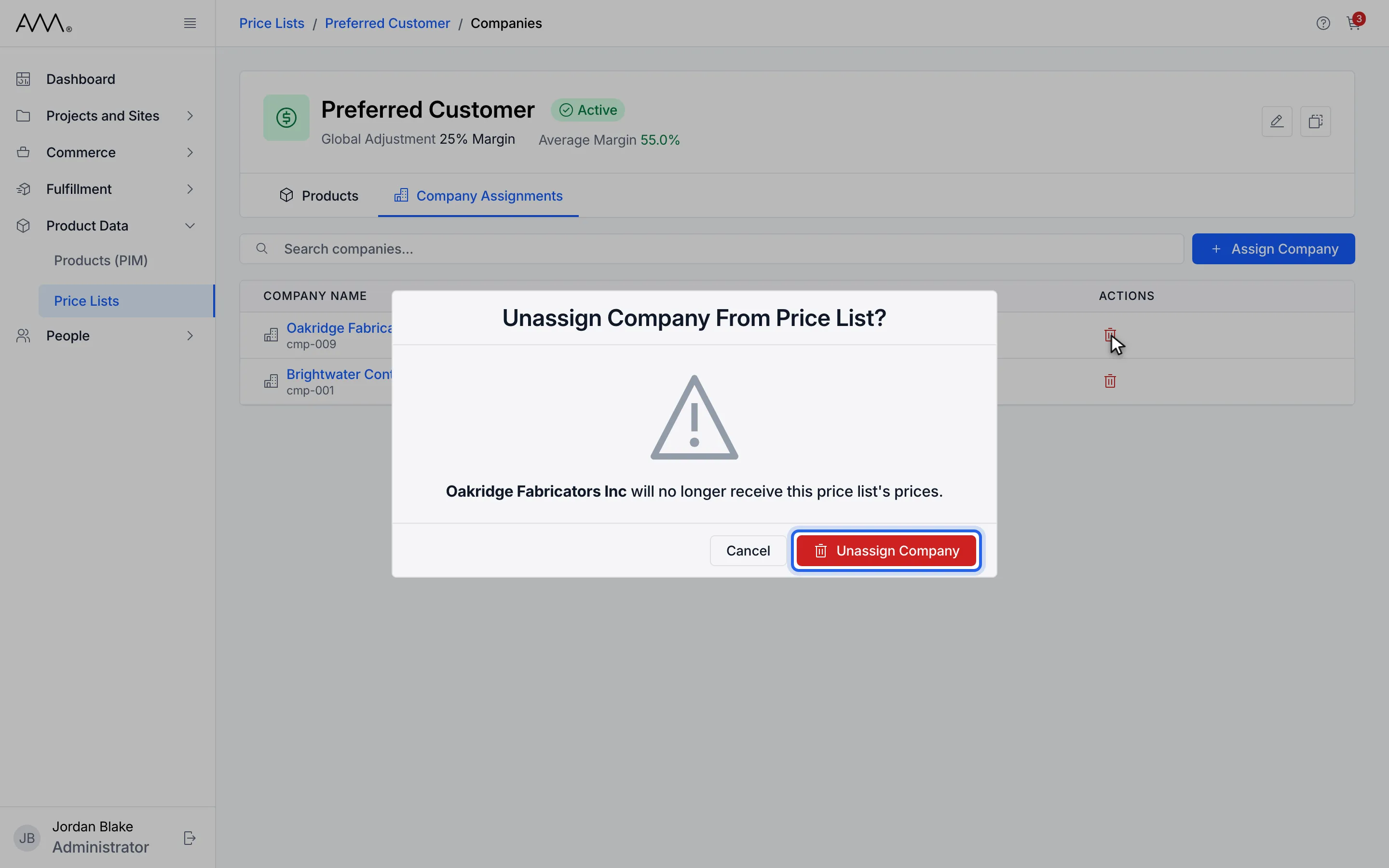
8Click Unassign Company to confirm.
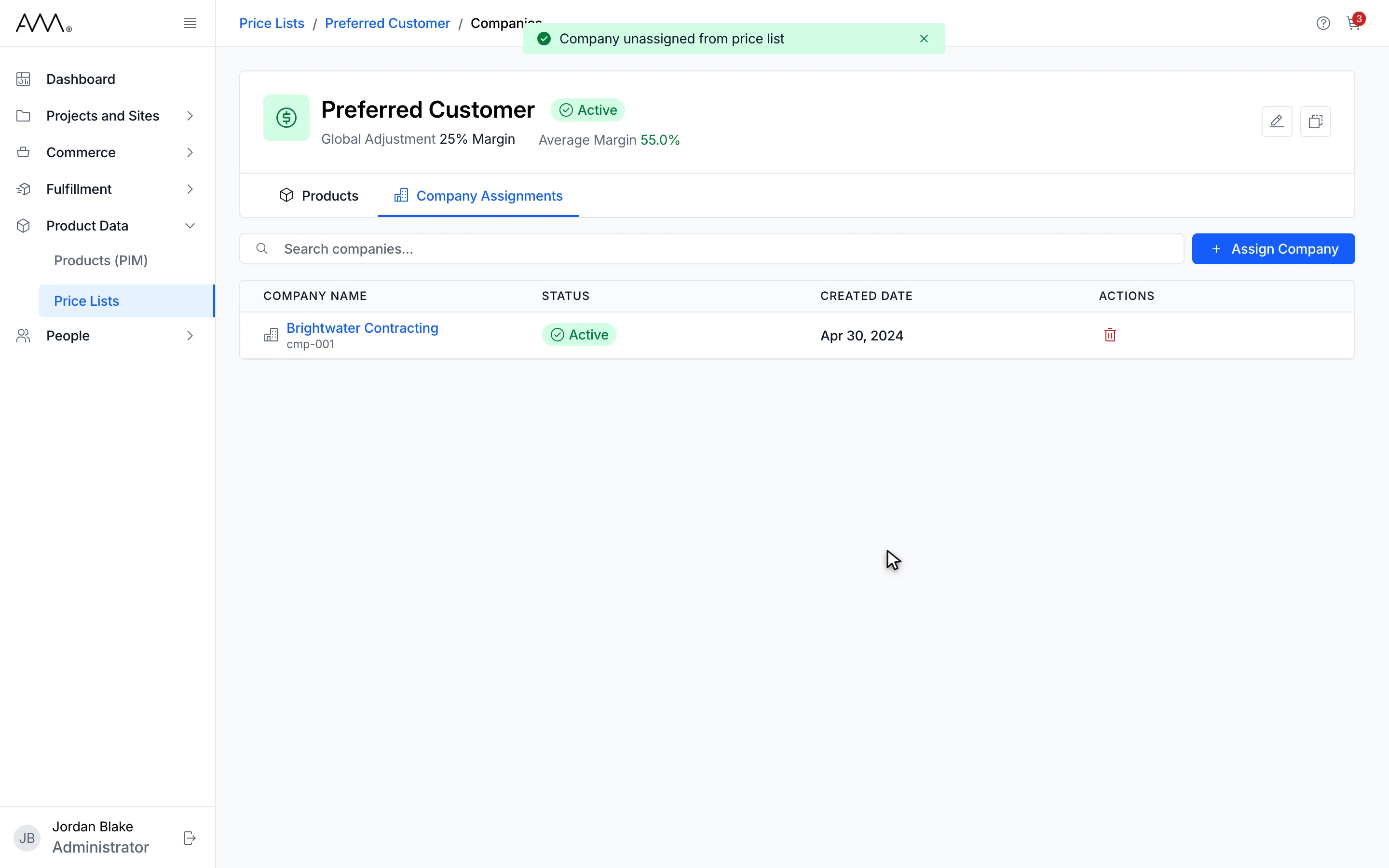
9The Company Assignments tab lists the companies that receive this price list.
Watch this as a video (assign and unassign companies)
What happens next
Section titled “What happens next”After assigning, the toast 1 company assigned to price list (or 2 companies assigned to price list, and so on) appears, and the companies show in the tab with their Status, Active or Inactive, and Created Date. Click a column header to sort, or type in Search companies… to find one. The Companies count on the Price Lists page updates. If some companies could not be assigned, the dialog stays open and lists them with the reason.
Once the price list is Active, quotes and sales orders for these companies offer it in their Pricelist field; see the overview. The Companies pages do not show which price list a company holds, so this tab is where to check.
After unassigning, the toast Company unassigned from price list appears. When no company is assigned, the tab shows No companies assigned and Assign a company to give it this price list’s prices.