Apply pricing to several products
When several products need the same pricing rule, select them and use Apply pricing. Each selected product gets its own override, so later changes to the global adjustment do not touch them.
- Open the price list from Price Lists. The Products tab shows first.
- Tick the checkbox on each product you want to price. Hold Shift and click to select a range, or tick Select all rows in the header.
- A banner replaces the search box and shows how many rows are selected, for example 2 Selected. You can select up to 100 rows; at the limit the banner says You can select up to 100 rows.
- Click Apply pricing.
- In the Apply Pricing dialog, open Method and choose Margin, Percent change or Set a fixed price. The table below explains each.
- Enter the value. For Percent change, also choose Based On: Cost or List Price.
- Click Apply. The button stays disabled until the form is complete.
| Method | Value field | What it does |
|---|---|---|
| Margin | Margin % (Based on Cost) | Prices each product so that its margin on cost is the percentage you enter (0 up to, but not including, 100). |
| Percent change | Percent and Based On | Raises or lowers each product’s Cost or List Price by the percentage you enter (-100 to 1000). |
| Set a fixed price | Final Price | Gives every selected product the same final price. |
Values are kept to two decimal places.
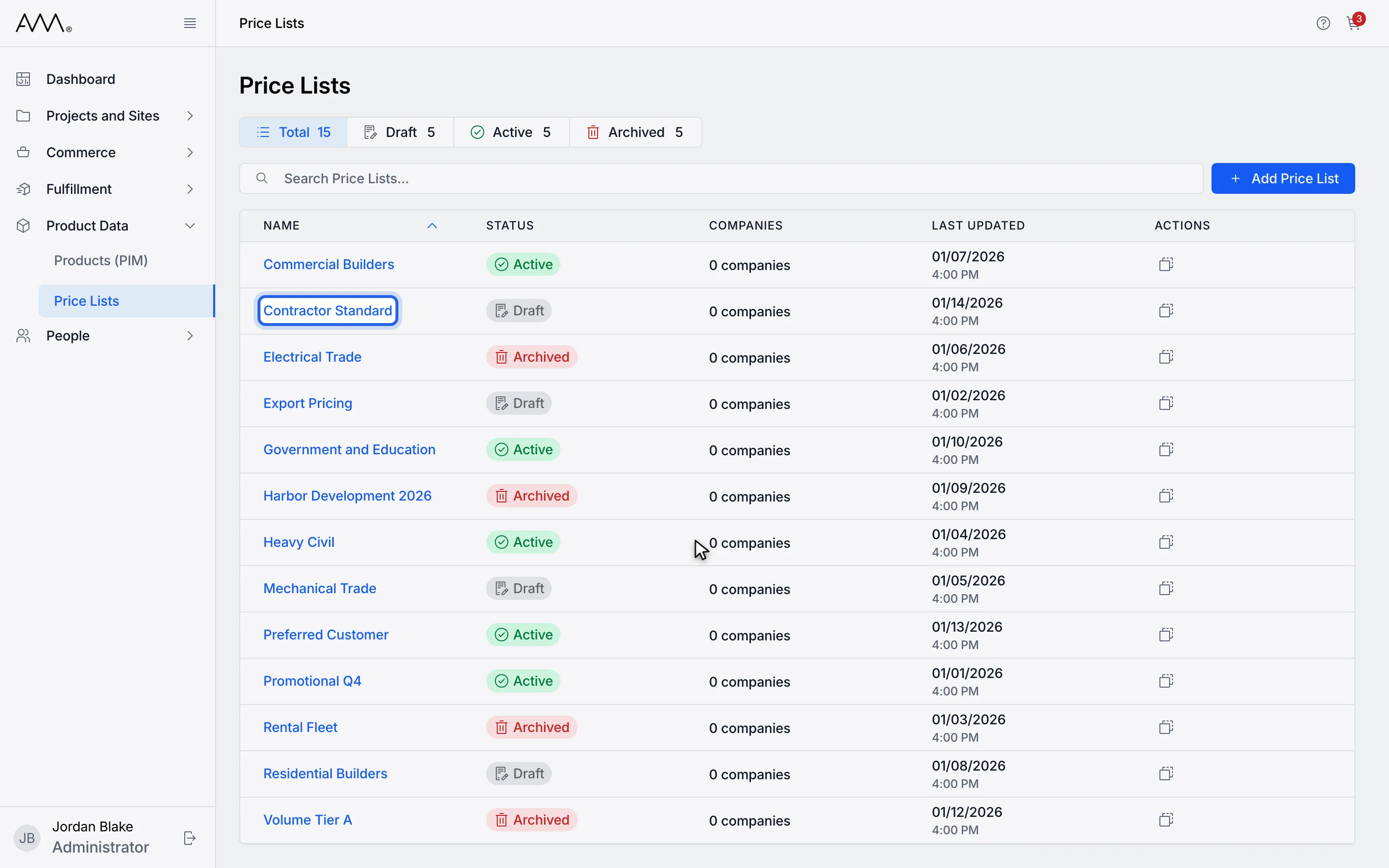
1Open the price list. The Products tab shows first.
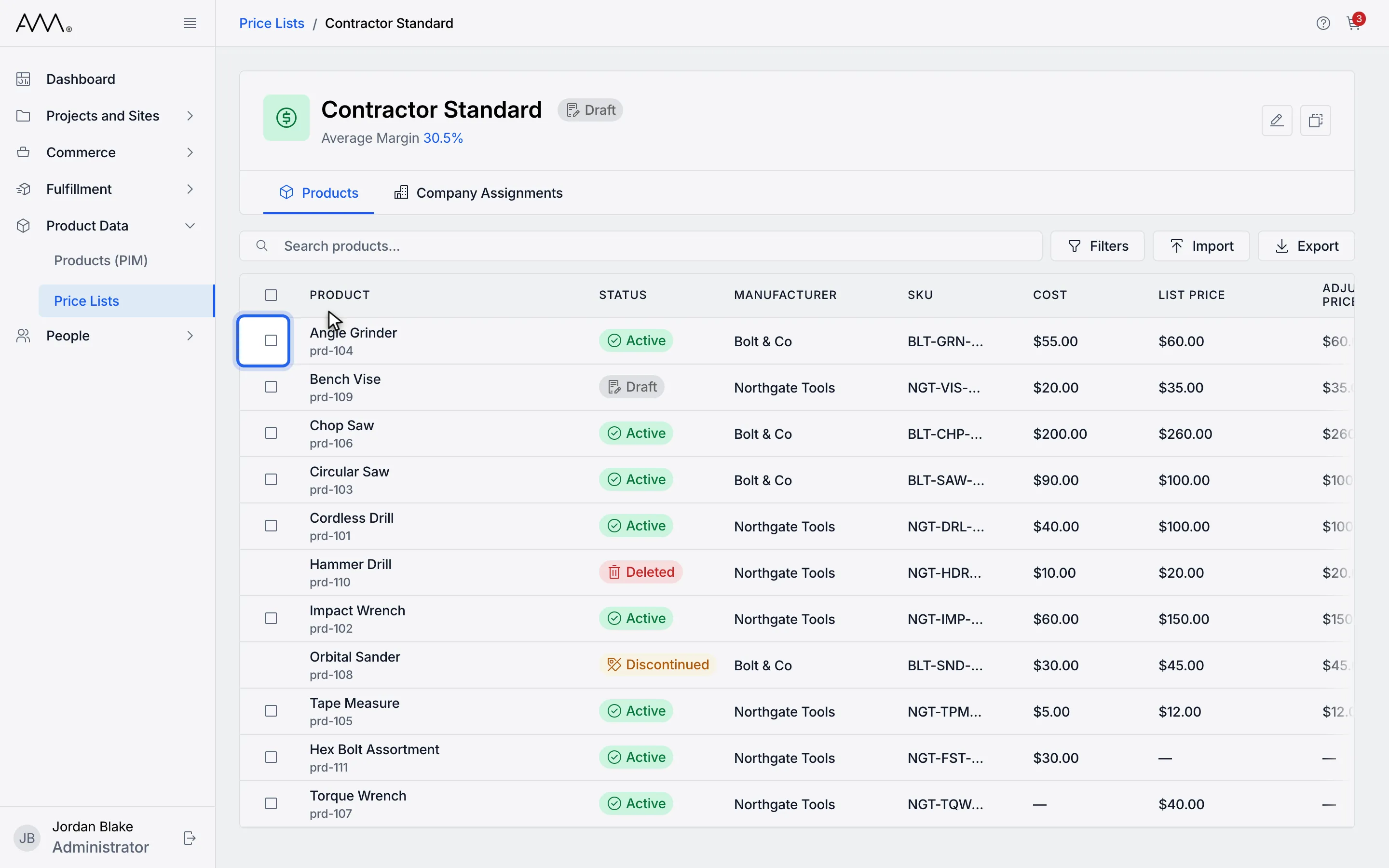
2Tick the checkbox on each product you want to price.
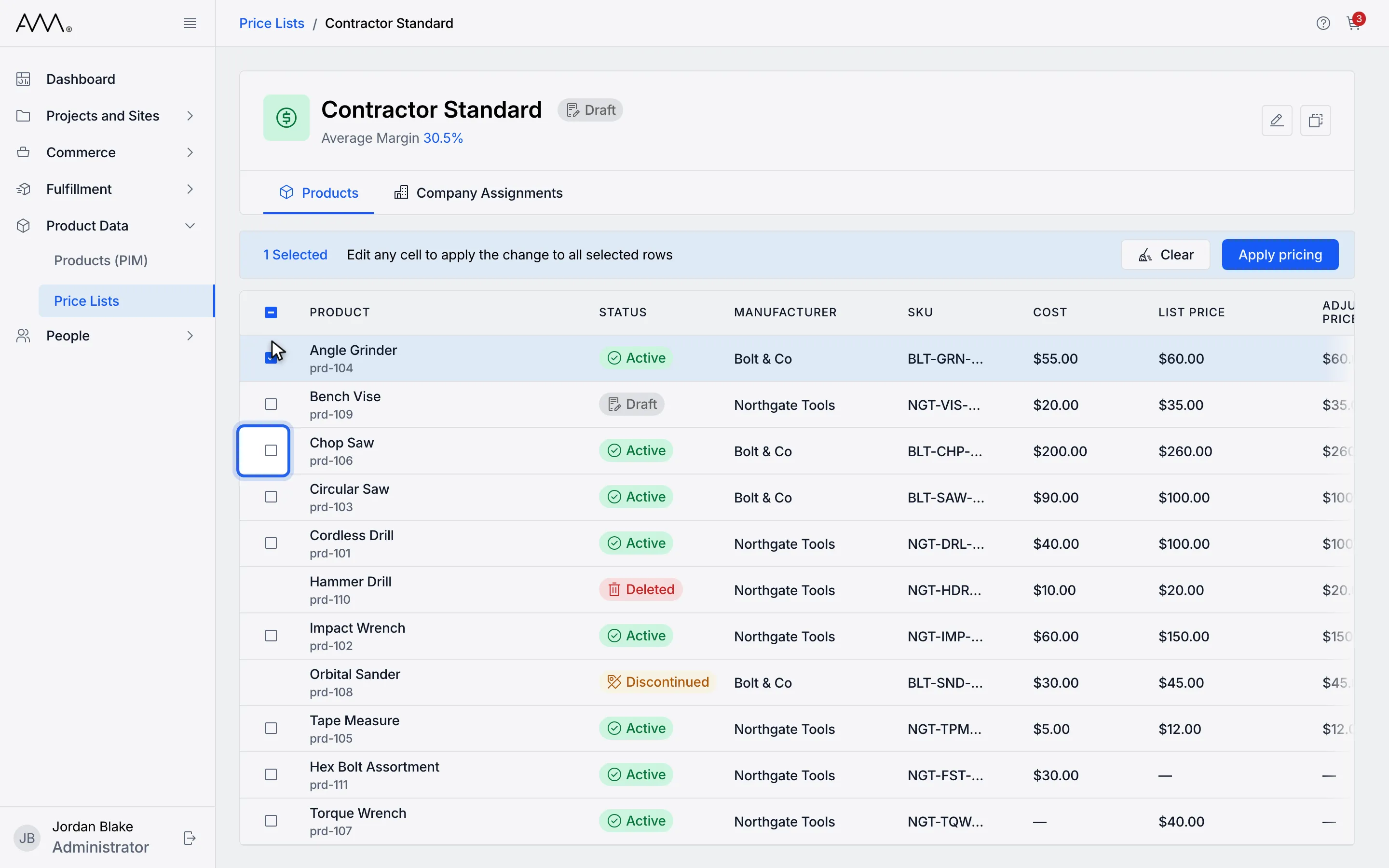
3The banner counts the selected rows. You can select up to 100.
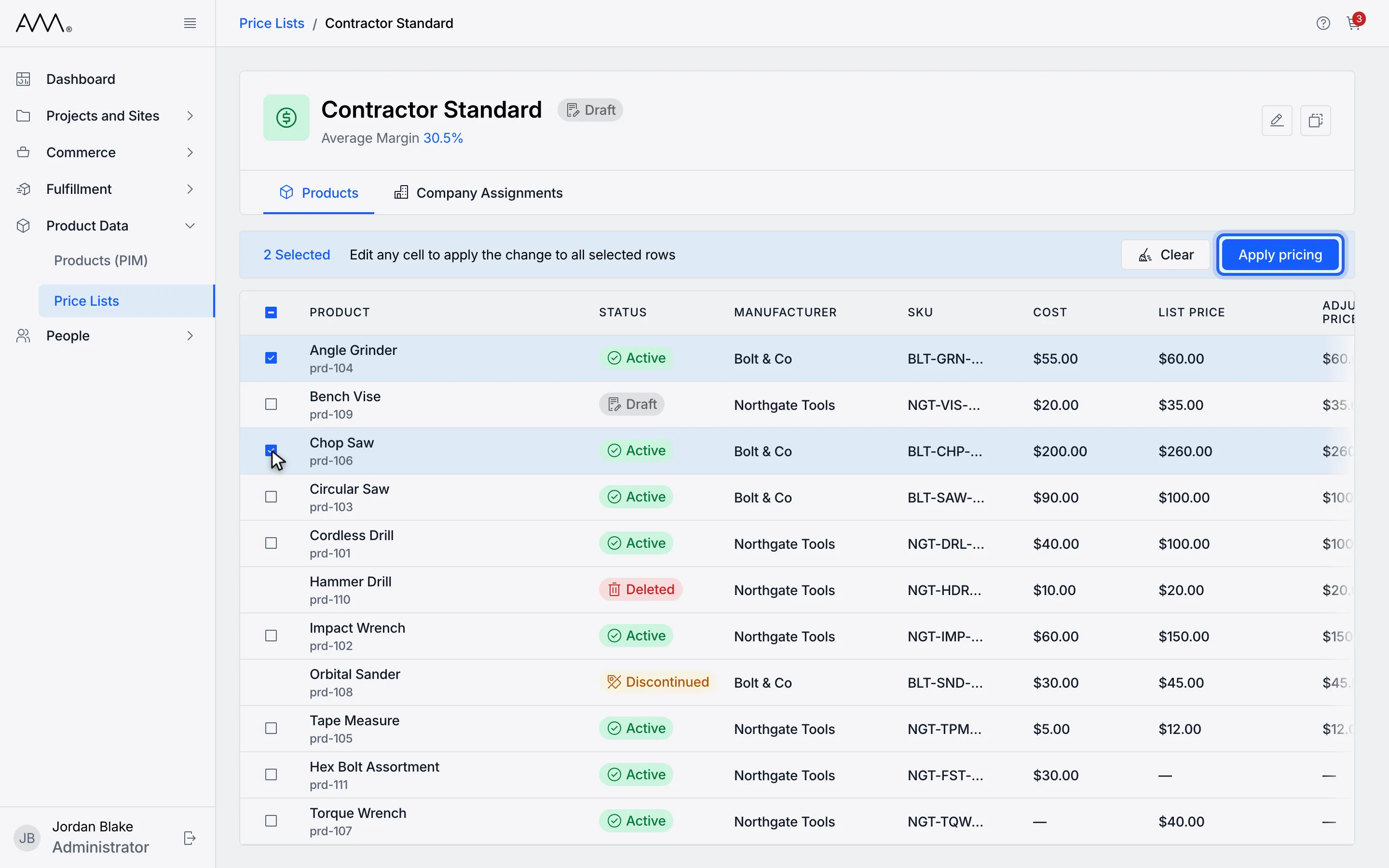
4Click Apply pricing.
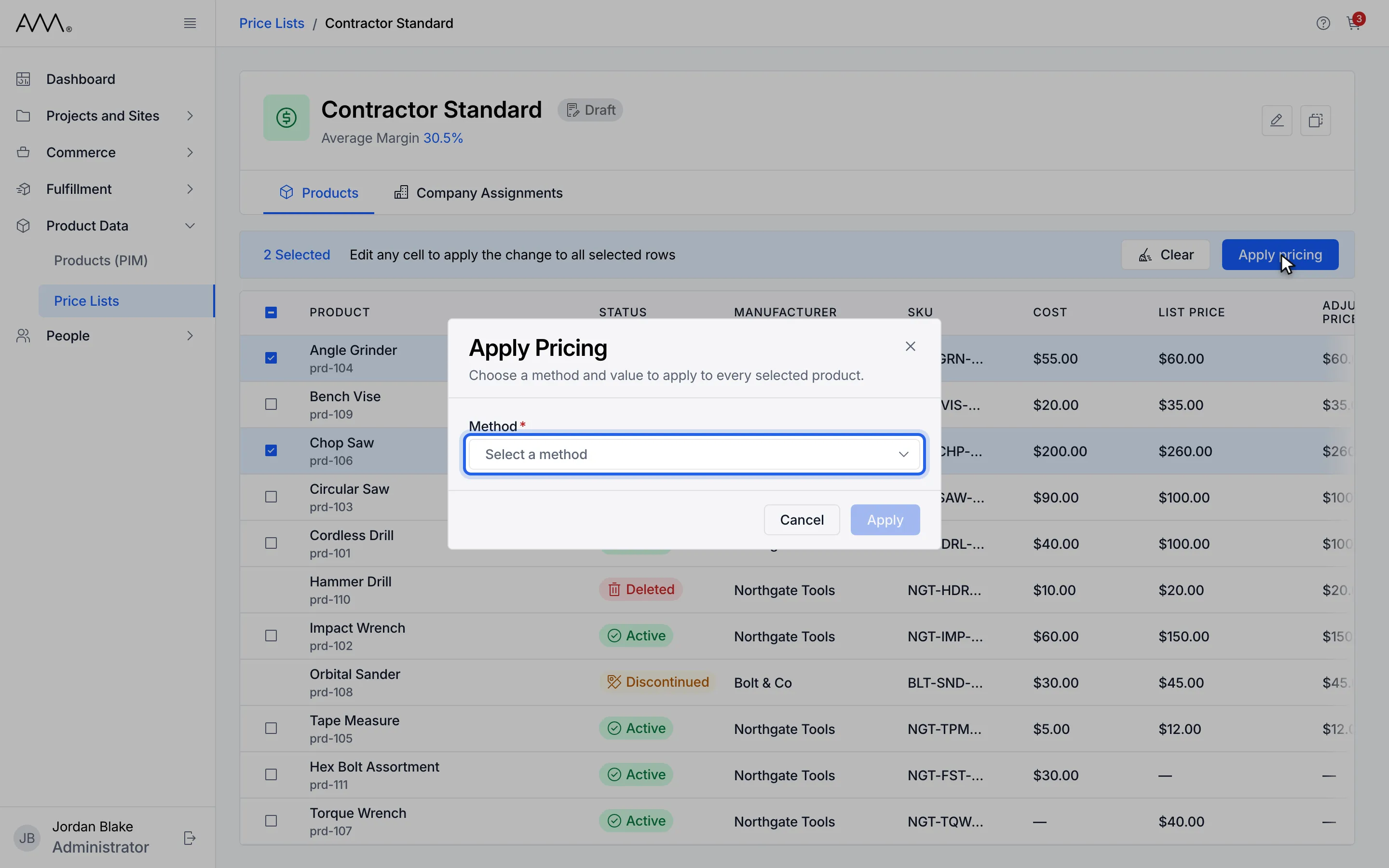
5Open Method.
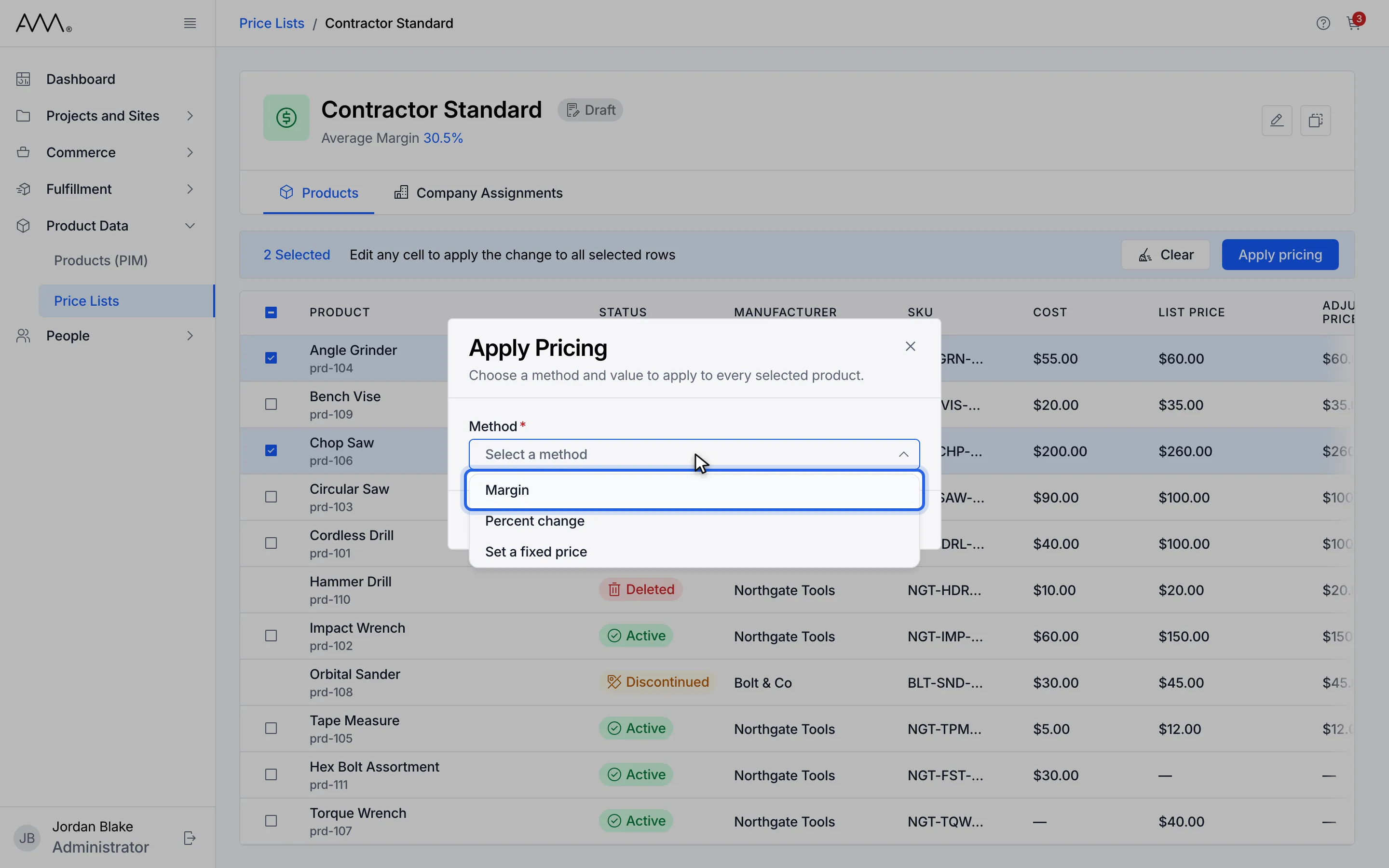
6Choose Margin, Percent change or Set a fixed price.
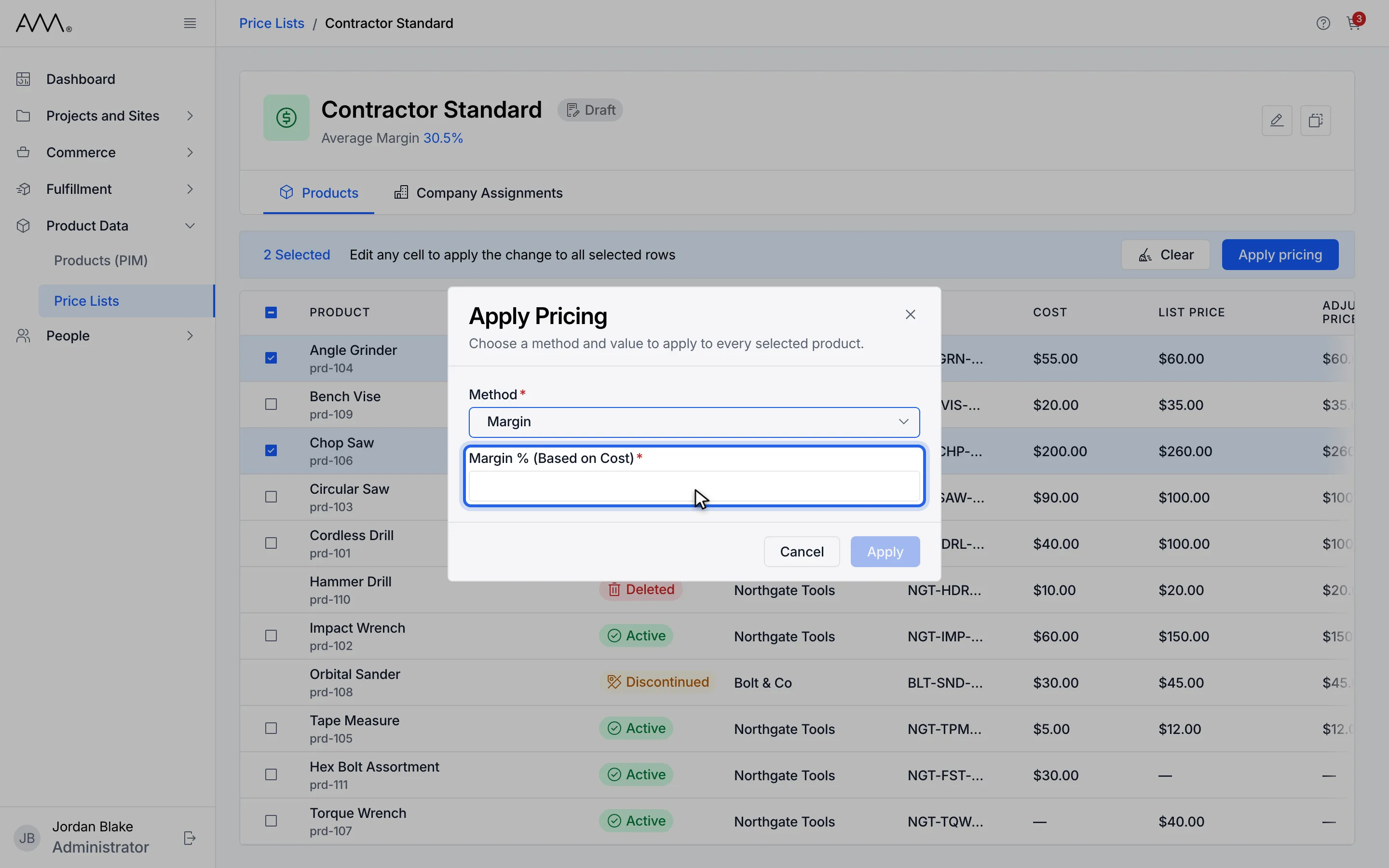
7Enter the value to apply.
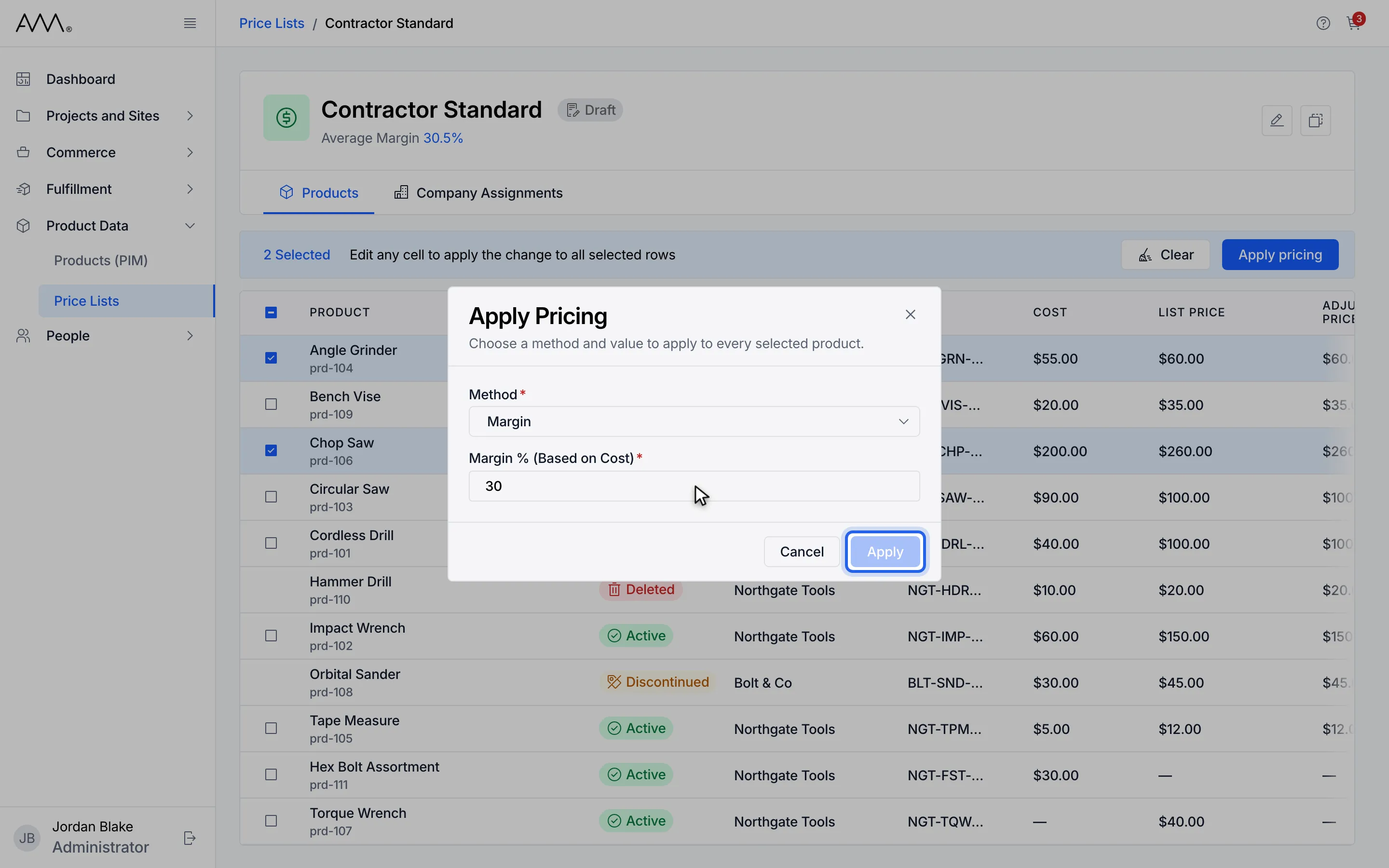
8Click Apply. A message confirms how many products were priced.
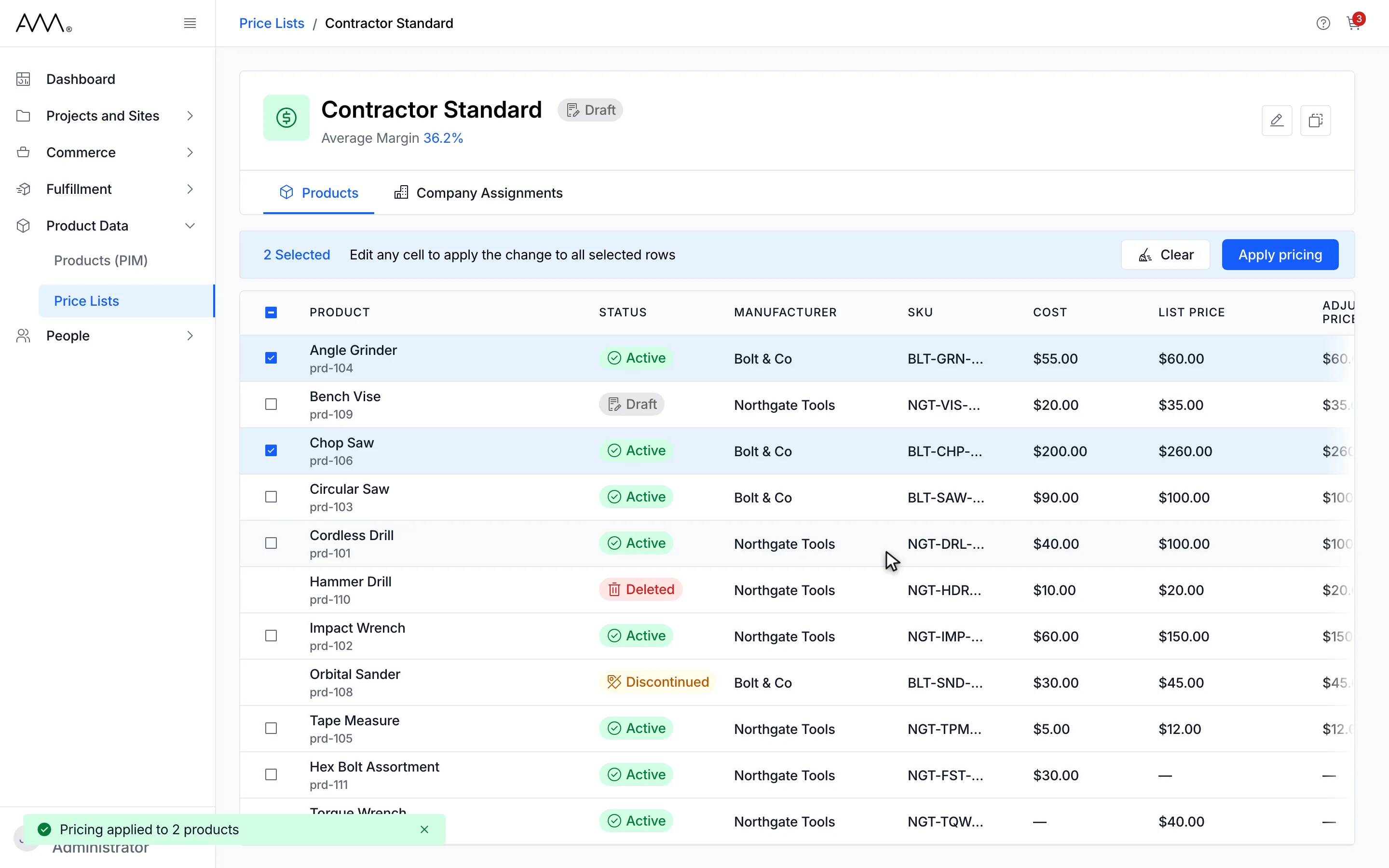
9Every selected product shows the new final price and margin.
Watch this as a video (apply pricing to selected products)
What happens next
Section titled “What happens next”The toast Pricing applied to 2 products (with your count) appears, the dialog closes and the rows refresh. If a product cannot be priced with the chosen method, for example because it has no cost for a margin, it is skipped and the toast adds , 1 skipped (missing cost or list price, or discontinued or deleted). Skipped products keep their current price.
The selection stays active, so you can apply another method or click Clear in the banner. While rows are selected, the filter panel is closed and any active filter chips cannot be removed; clear the selection first.