Delete a role
Delete a custom role you no longer need. Roles are deleted from inside the Edit Role dialog; there is no delete action on the list.
- In the sidebar, open People and choose Roles.
- Click the edit icon on the role’s row or card.
- Click Delete Role at the bottom left of the Edit Role dialog.
- Read the Delete Role? confirmation. Click Delete Role to delete the role, or Cancel to keep it.
Delete a role1 / 4
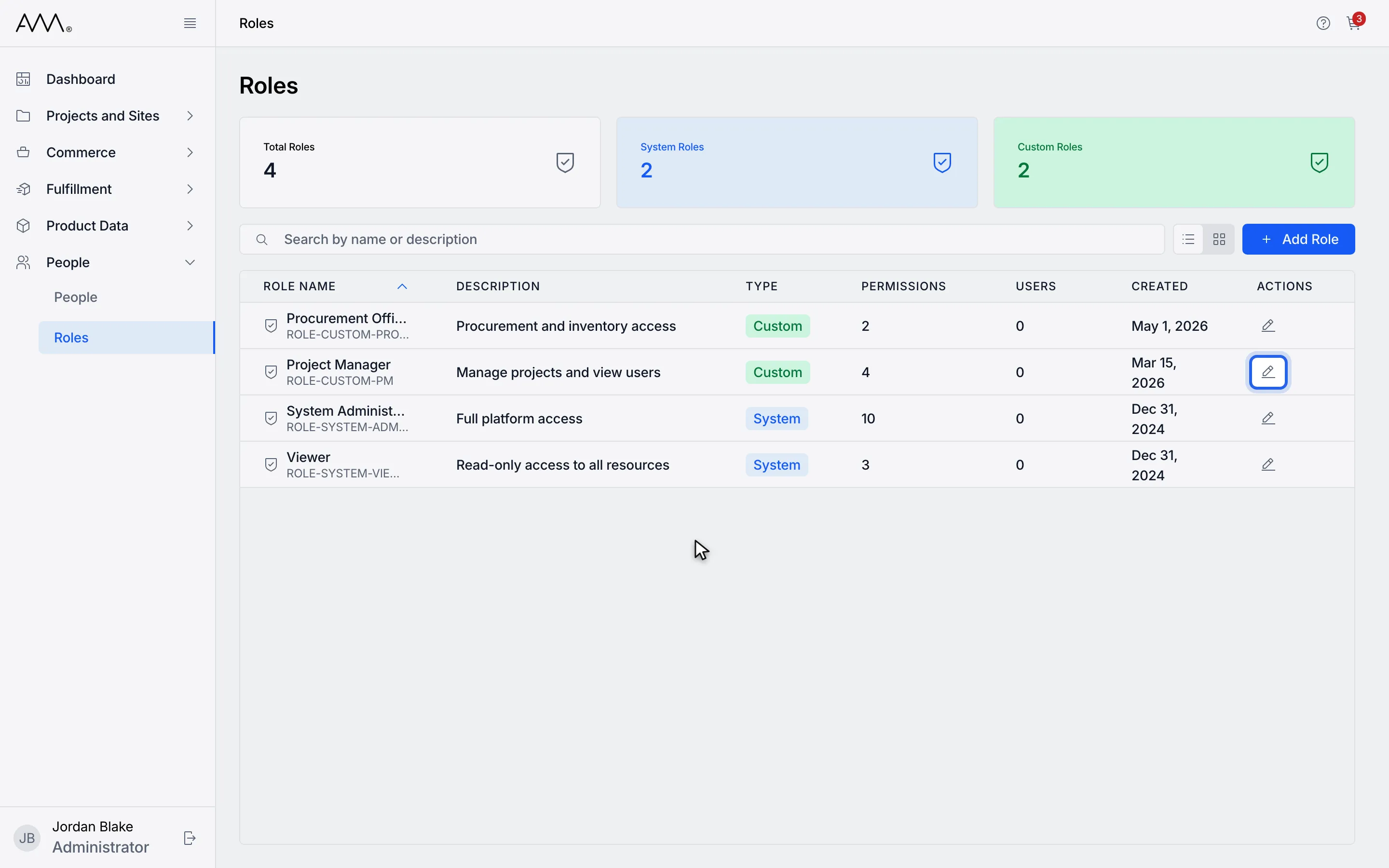
1Click the edit icon on a custom role.
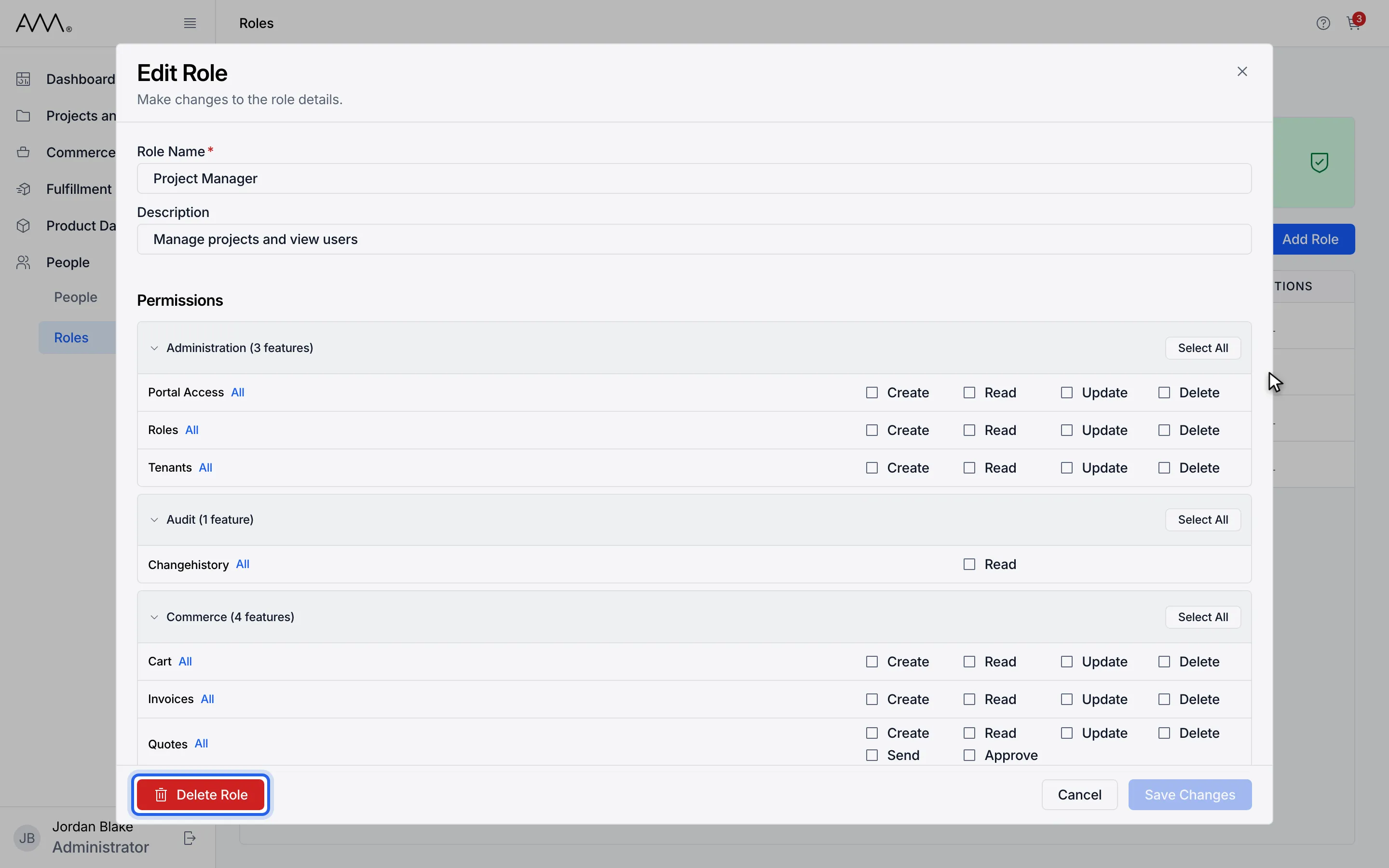
2Click Delete Role at the bottom of the dialog.
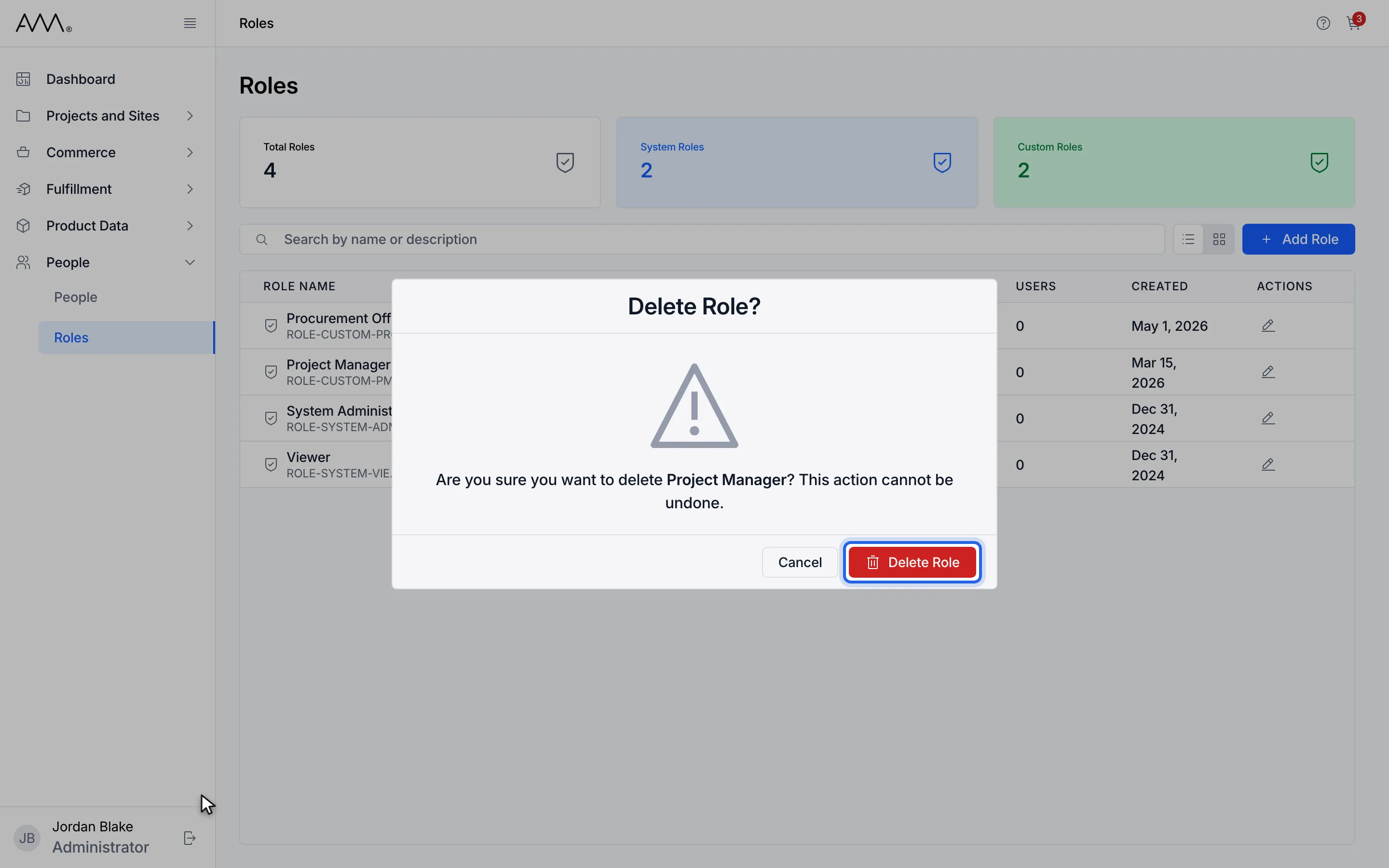
3Read the confirmation. Deleting a role cannot be undone.
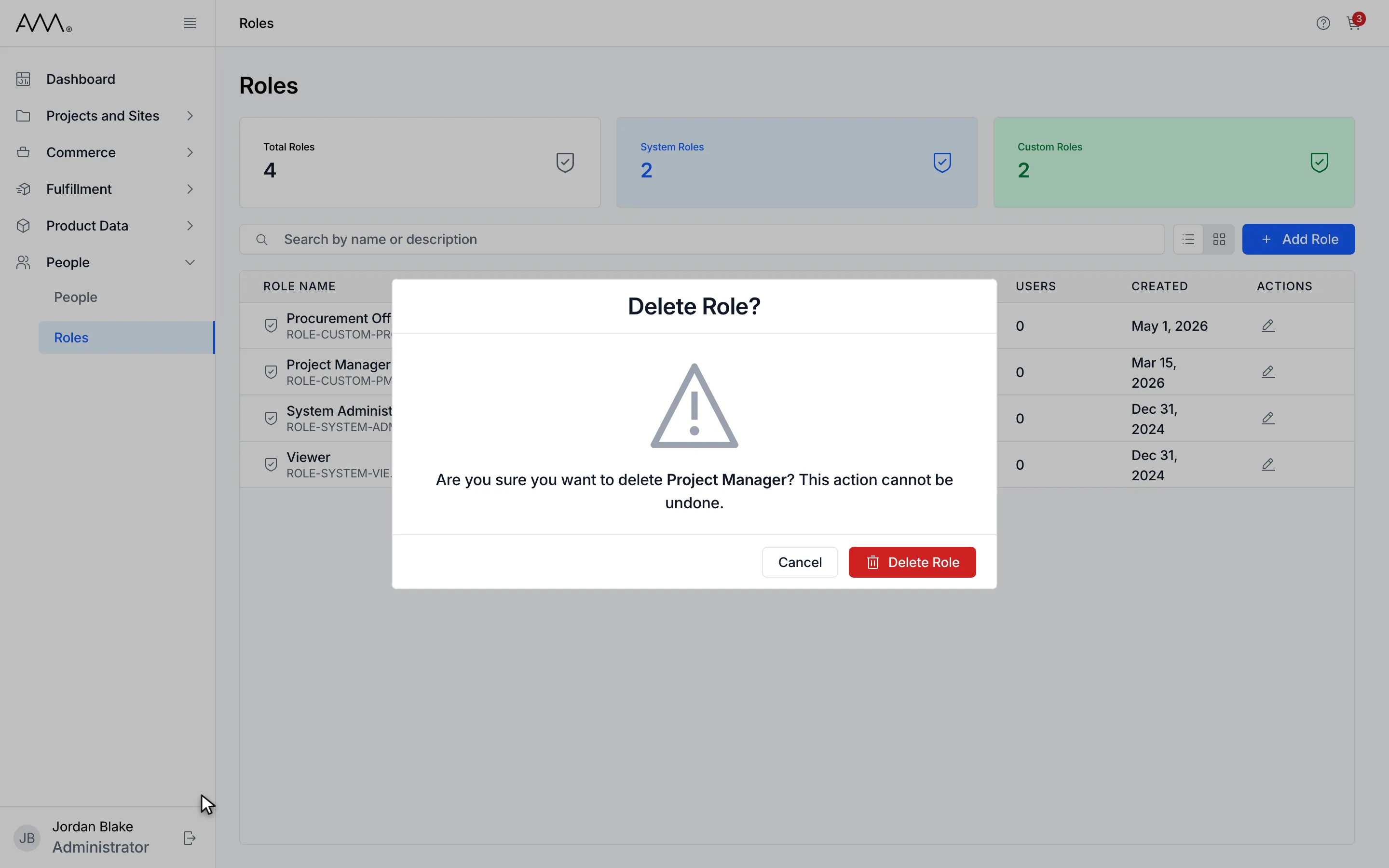
4Click Delete Role to delete the role, or Cancel to keep it.
Watch this as a video (delete a role)
What happens next
Section titled “What happens next”Both dialogs close and the list refreshes without the role. There is no confirmation message.
If people still hold the role, the confirmation stays open and shows This role still has active users — revoke it from all users before deleting. For any other problem it shows Failed to delete role. Please try again.