Find and open a company
Use the status buttons, the column headings and the search box together to get to a company quickly, then use its tabs to see the details and the people linked to it.
- In the sidebar, open Projects and Sites and choose Companies.
- Click a status such as Active to show only those companies. Click another status to add it to the filter. Each button shows a count, and Total clears the selection.
- Click a column heading such as Created Date to sort by it. Click it again to reverse the order. You can sort by Company Name, Status and Created Date.
- Type part of the name in Search by company name. The list narrows as you type.
- Click the company name to open it. The page opens on the Overview tab.
- Click People to see everyone linked to this company. Click Overview to go back.
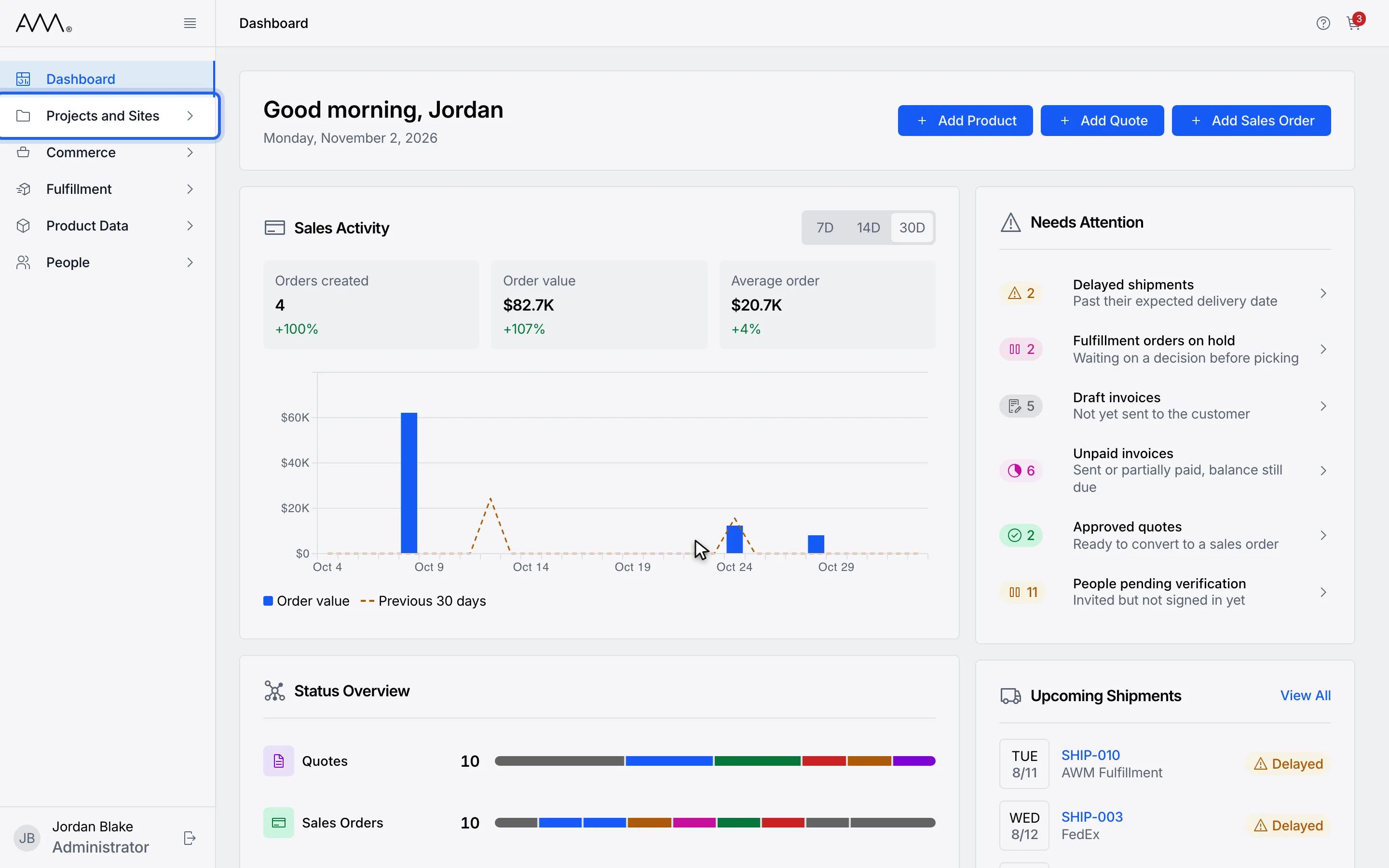
1In the sidebar, open Projects and Sites.
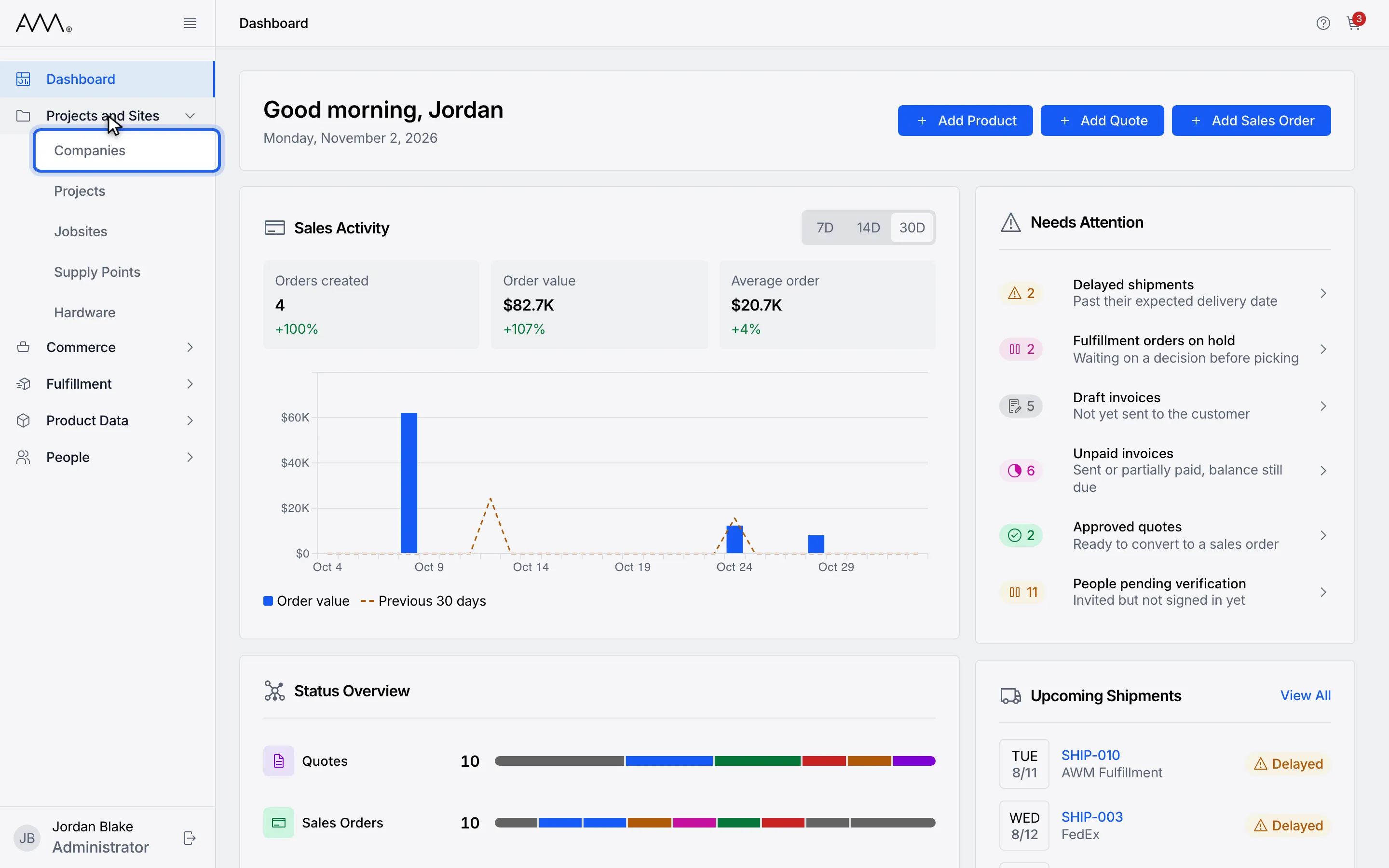
2Choose Companies.
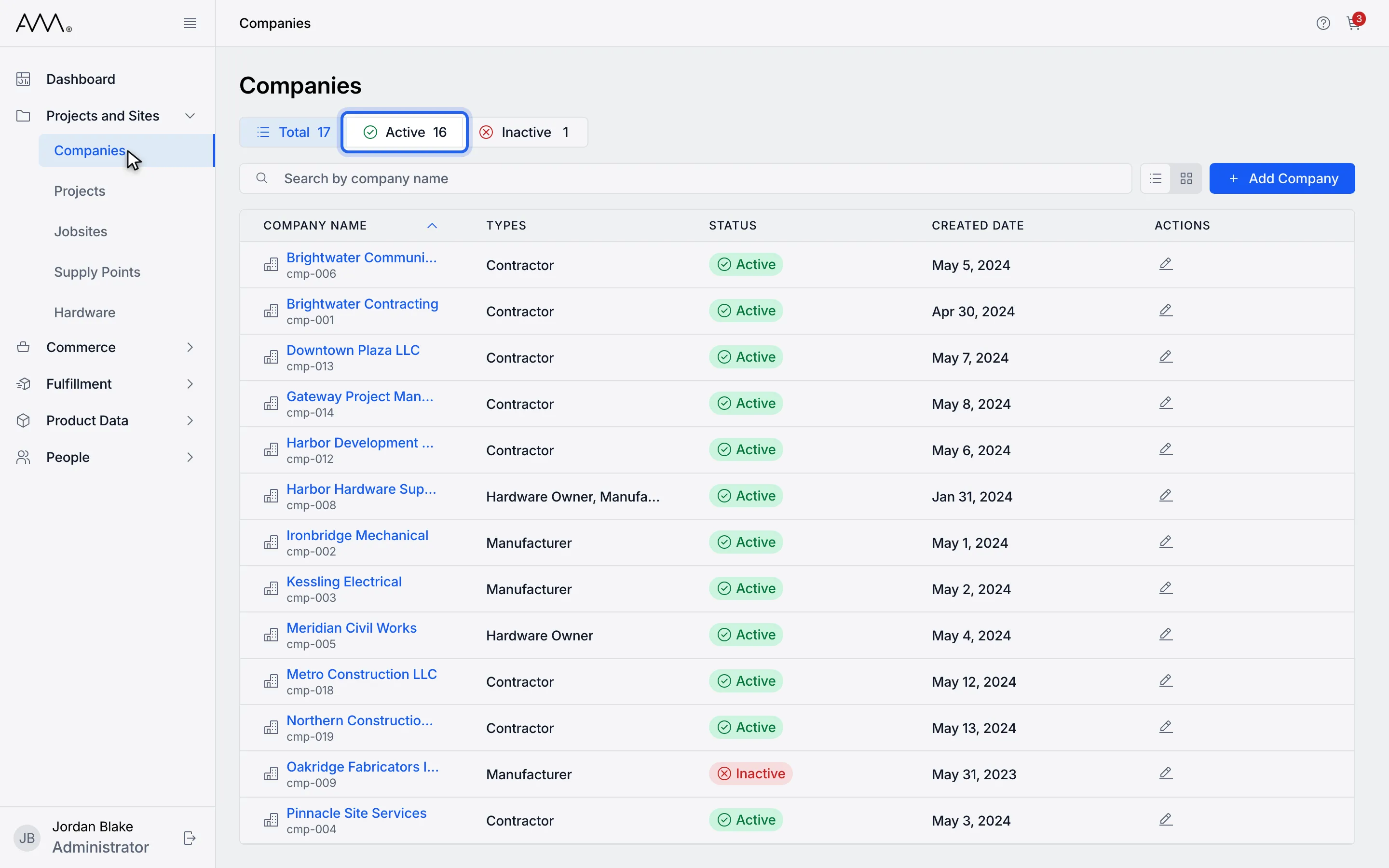
3Click a status such as Active to show only those companies. Click more to combine.
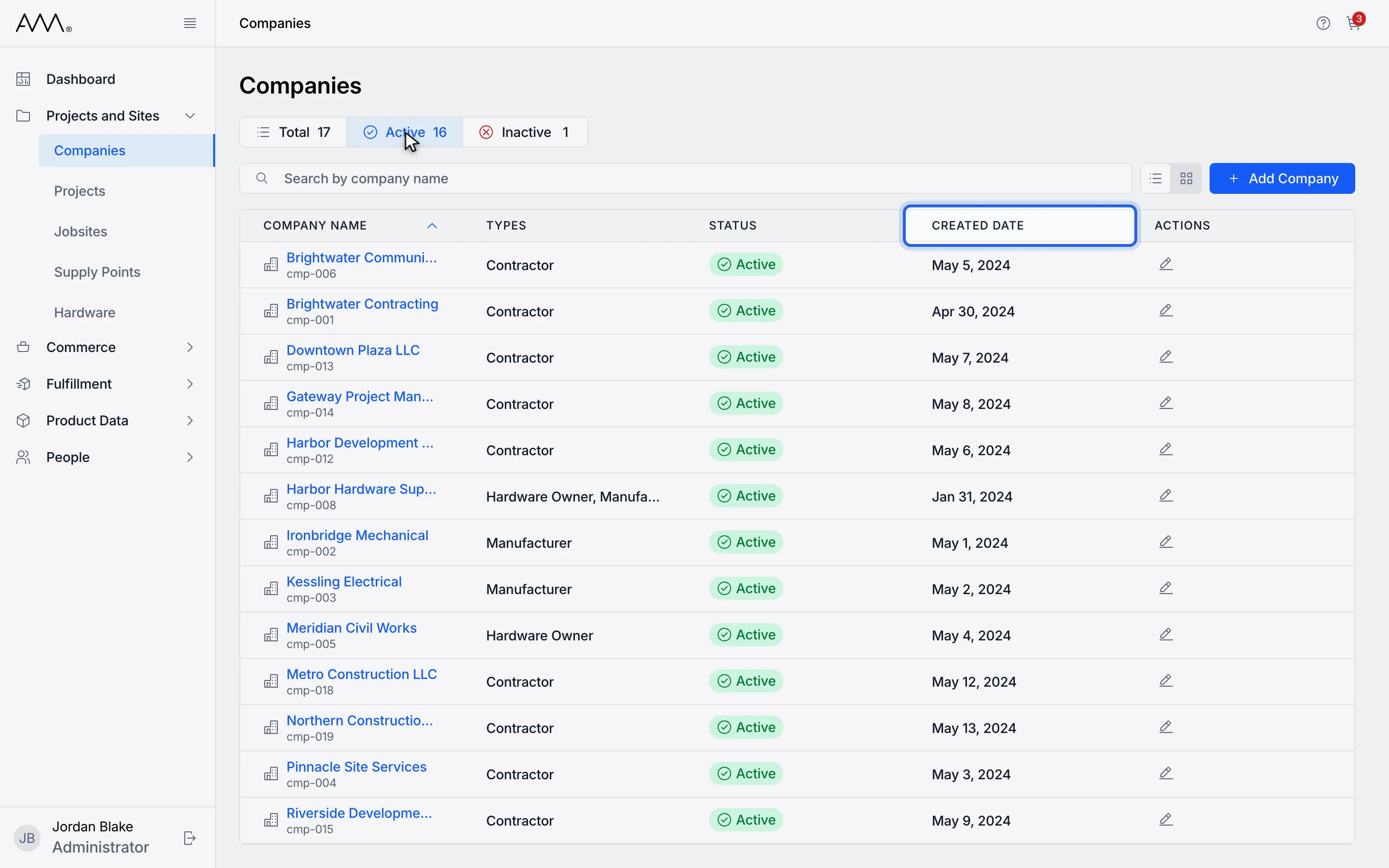
4Click a column heading such as Created Date to sort. Click again to reverse.
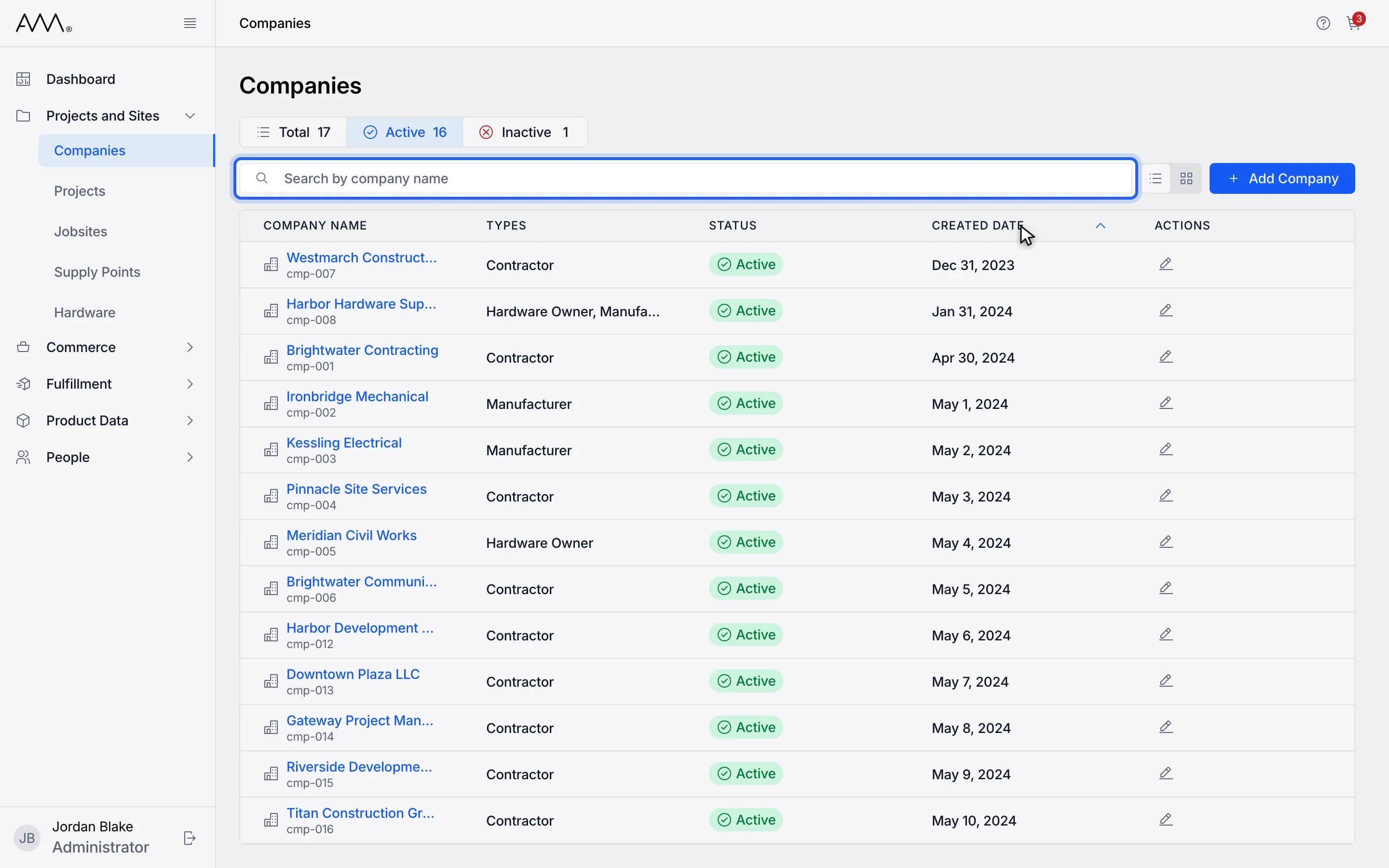
5Type part of the name in Search by company name.
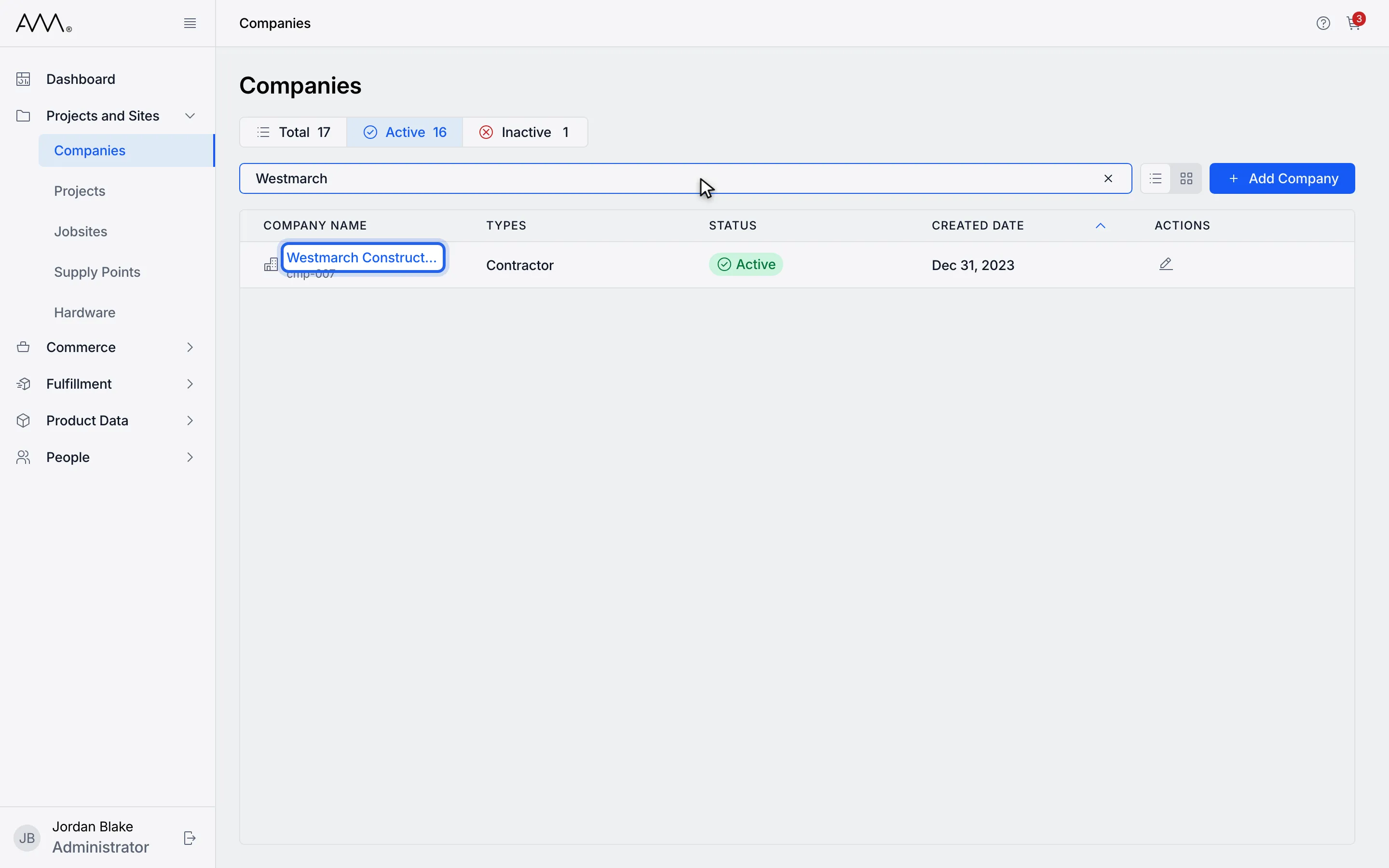
6Click the company name to open it.
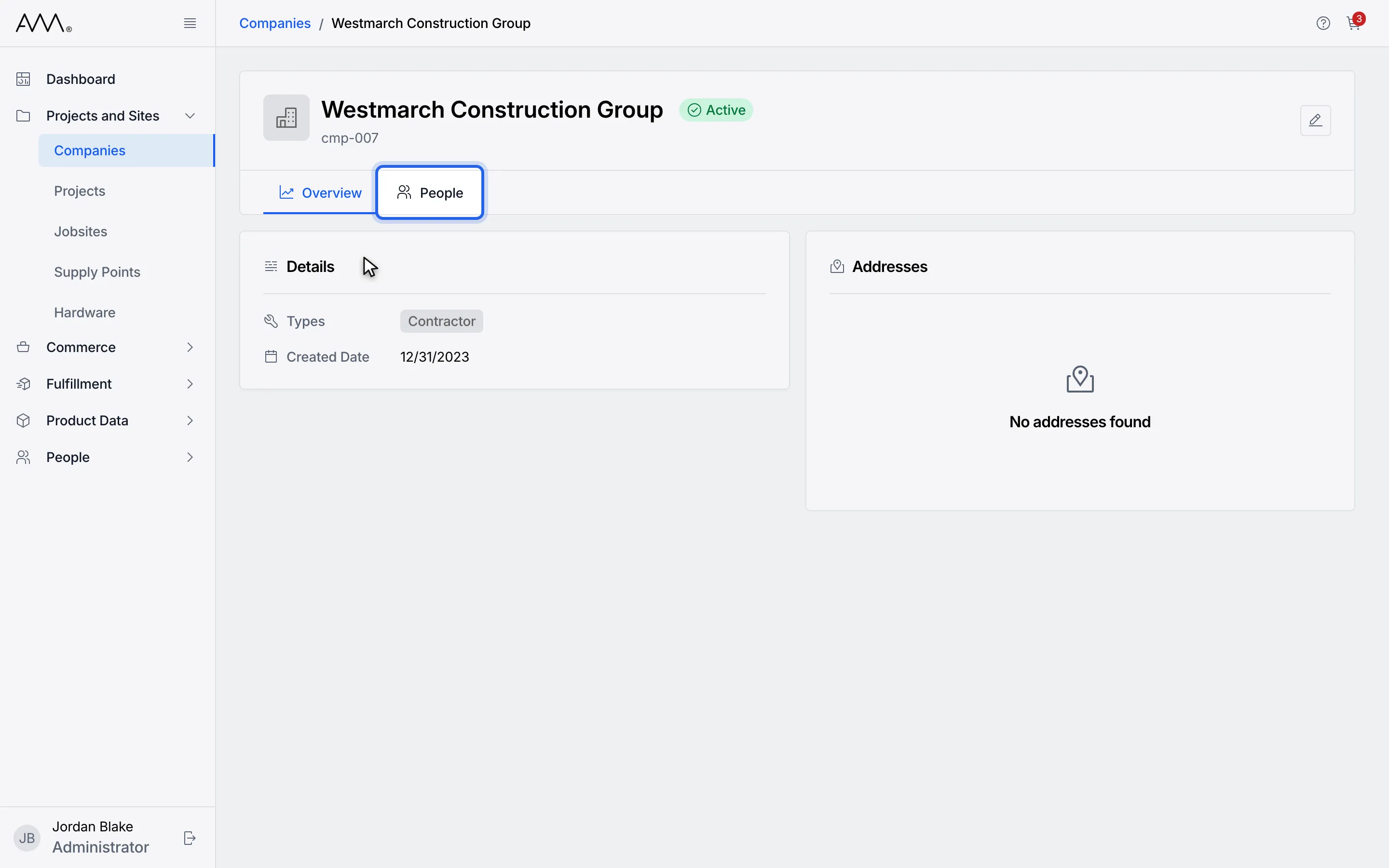
7Click the People tab to see who is linked to this company.
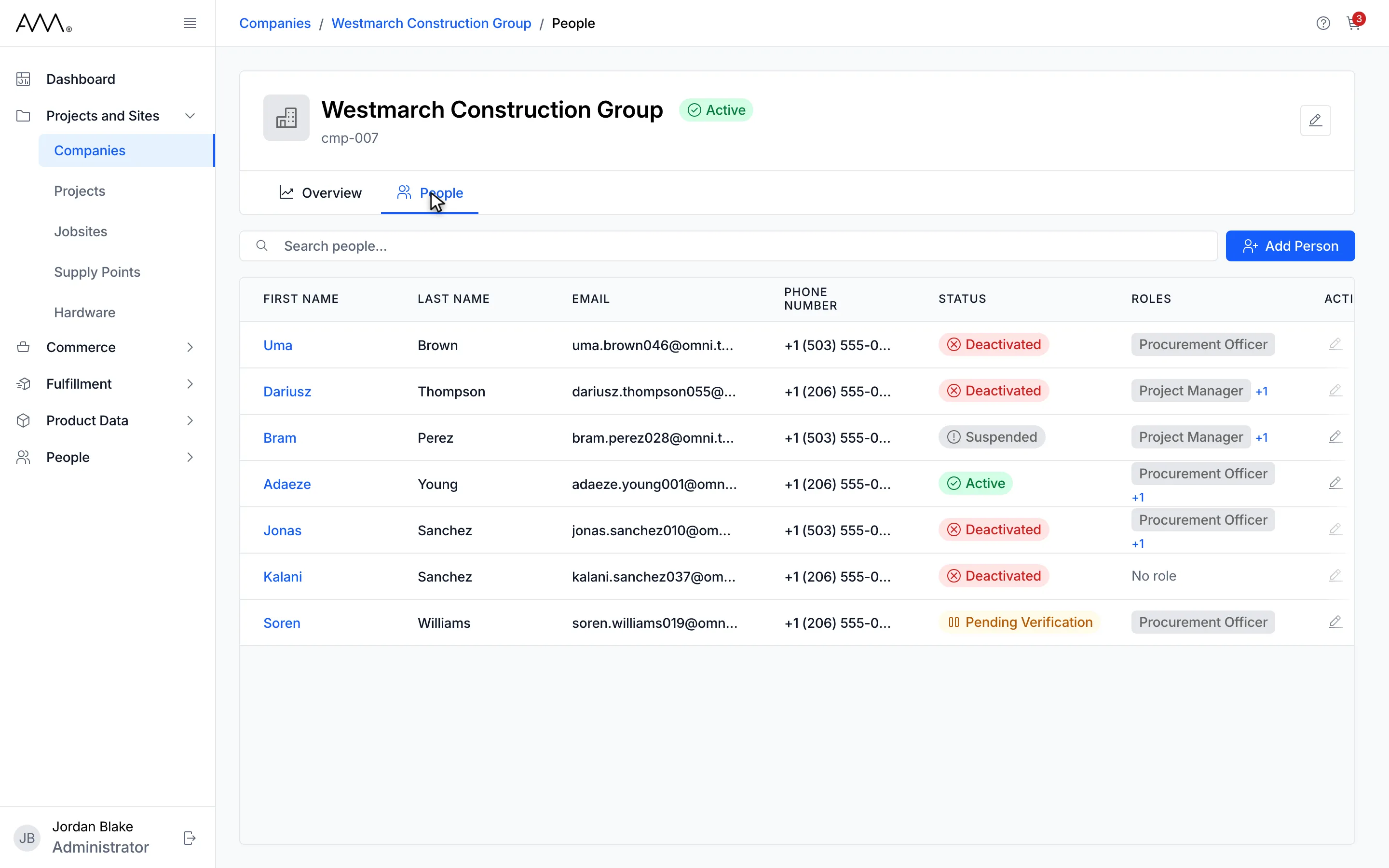
8Use Overview and People to switch between the company details and its people.
9The People tab lists everyone linked to the company.
Watch this as a video (find and open a company)
What happens next
Section titled “What happens next”If nothing matches, the list shows No companies found. Clear the search box or click Total to see everything again.