Delete products
Deleting a product sets its status to Deleted. It disappears from the default view but is not gone: you can still see it under Deleted or Total, edit it, and undo the deletion.
- In the sidebar, open Product Data and choose Products (PIM).
- Tick the checkbox at the start of each product you want to delete.
- Click Delete Products in the banner.
- Check the list of products in the dialog, then click Delete Products.
Delete products1 / 6
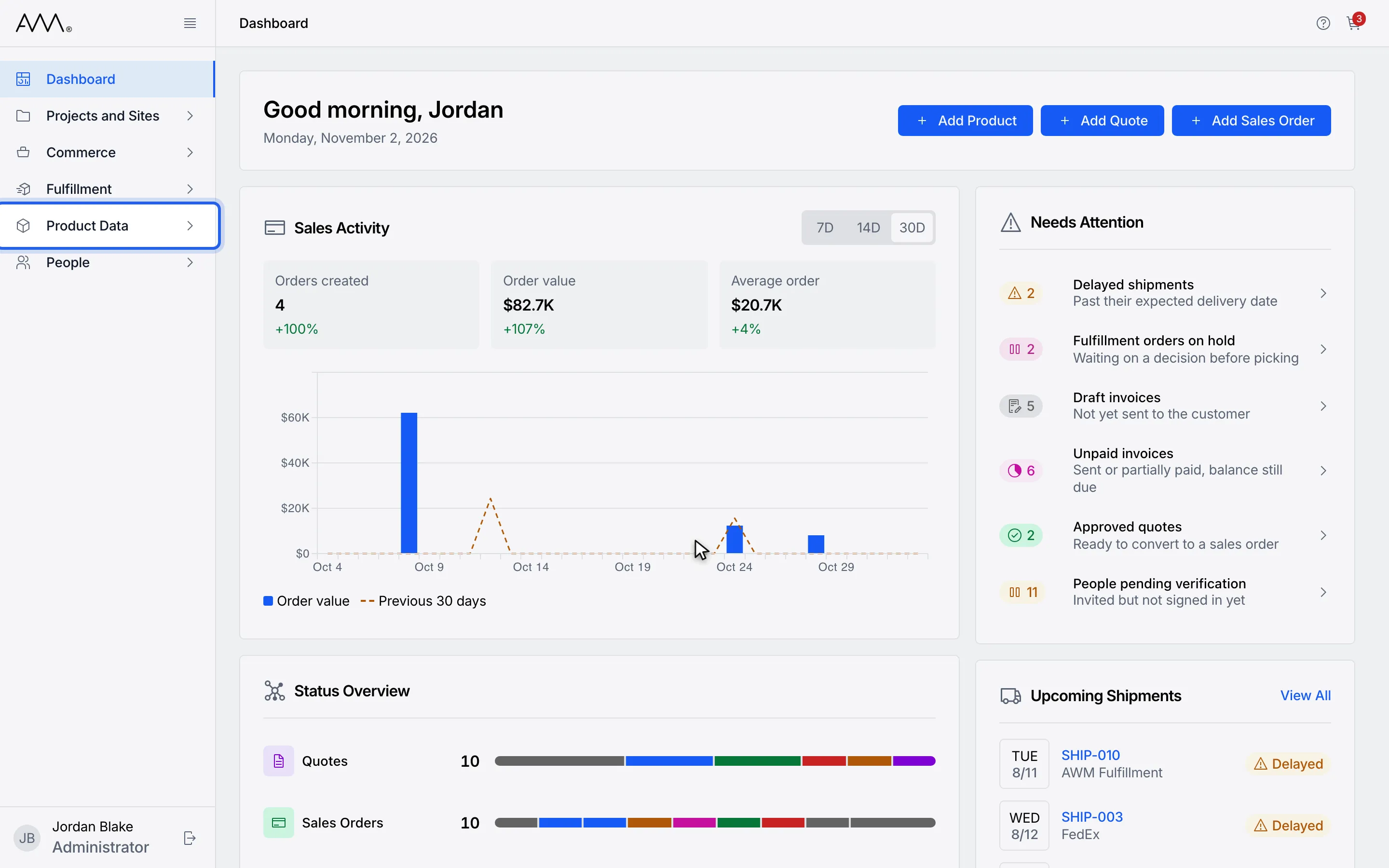
1In the sidebar, open Product Data.
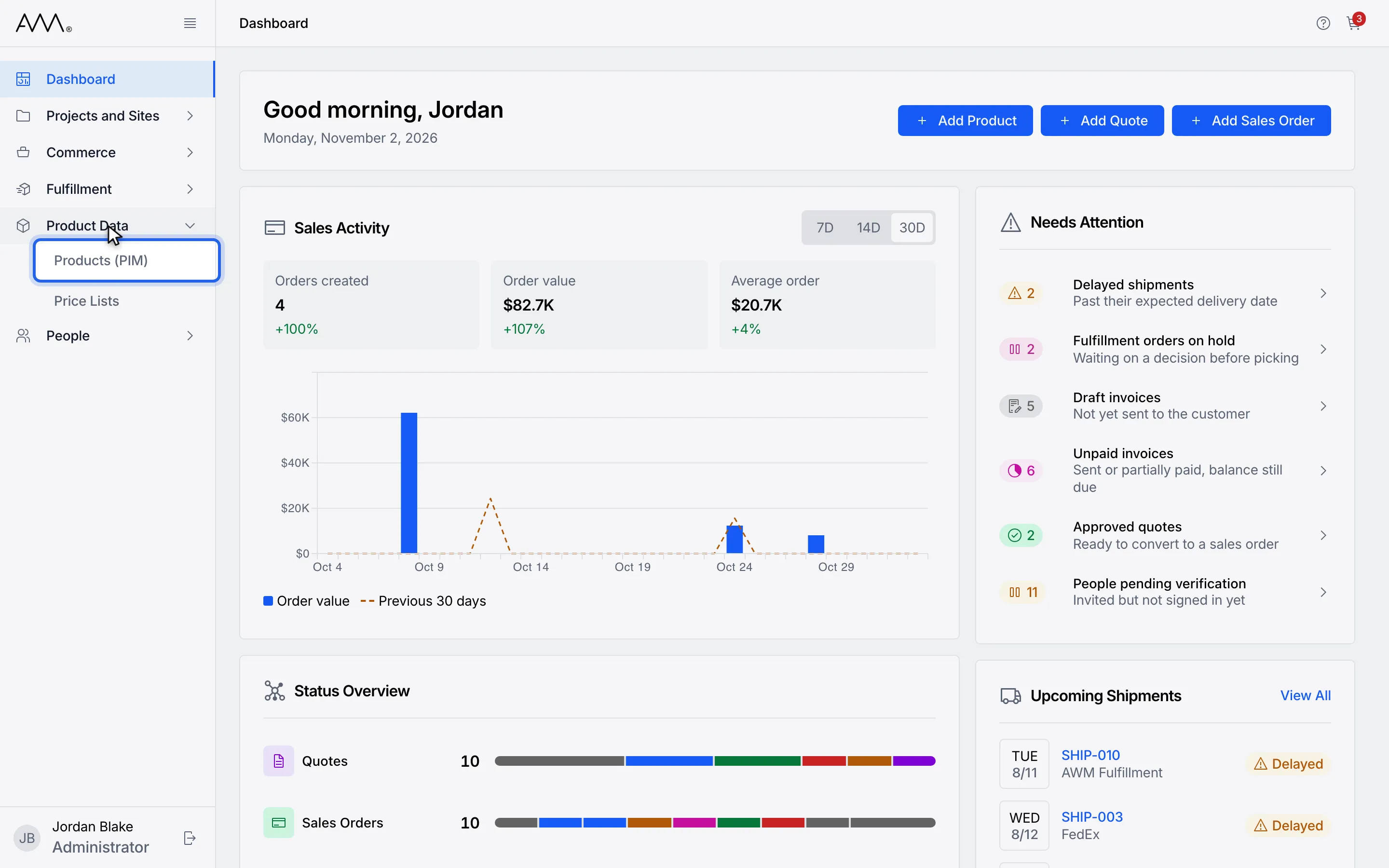
2Choose Products (PIM).
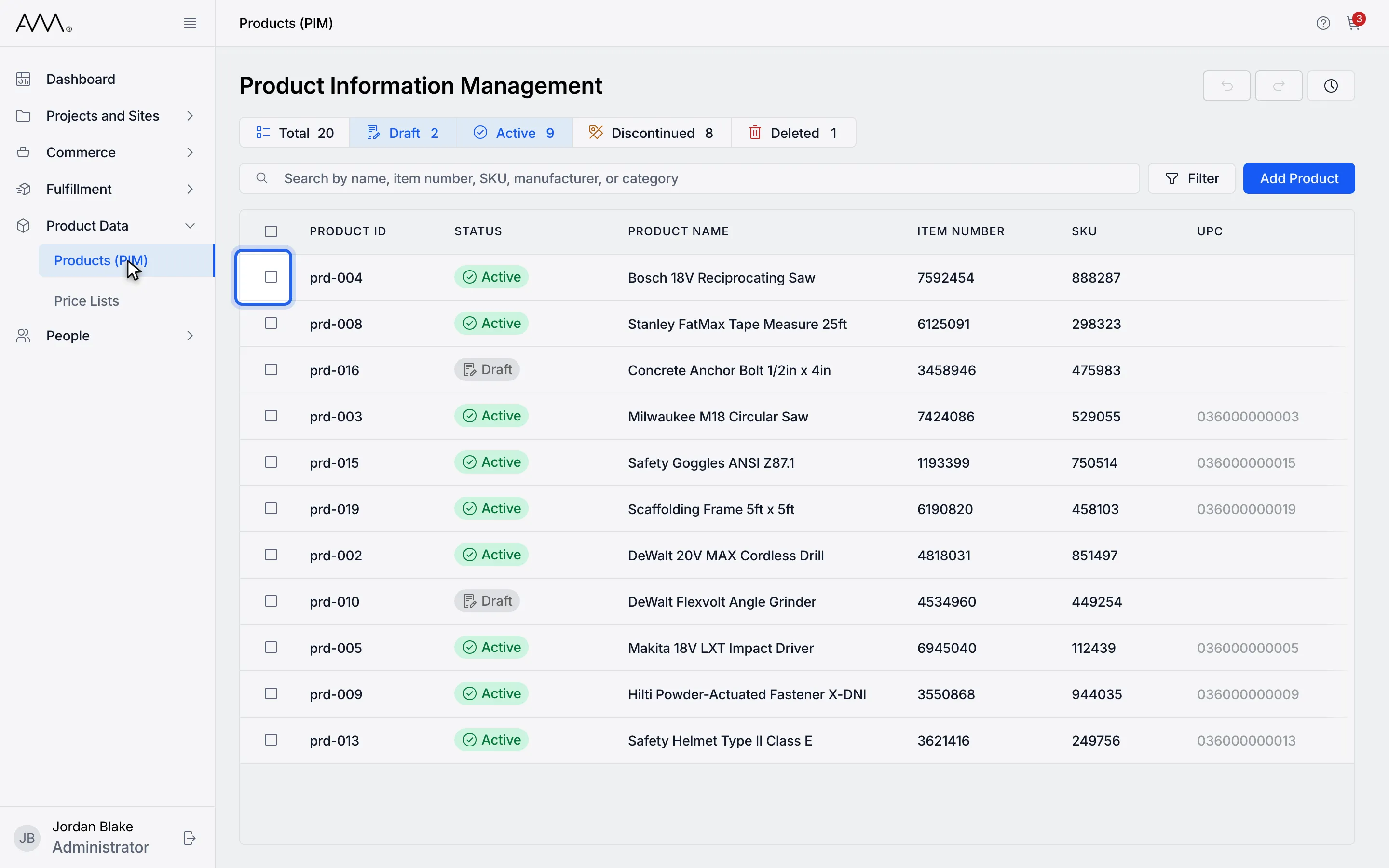
3Tick the checkbox on each product you want to delete.
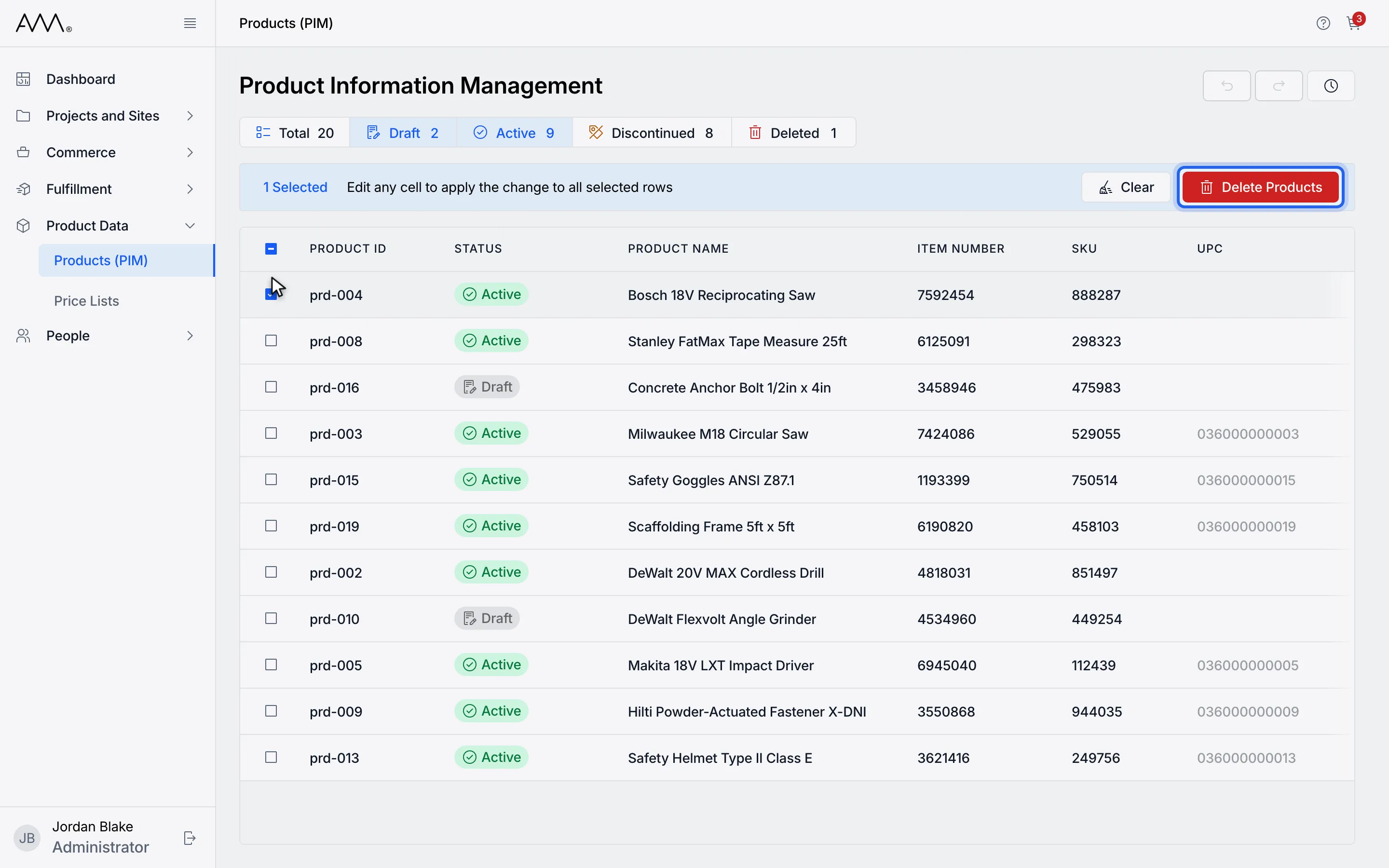
4Click Delete Products in the banner.
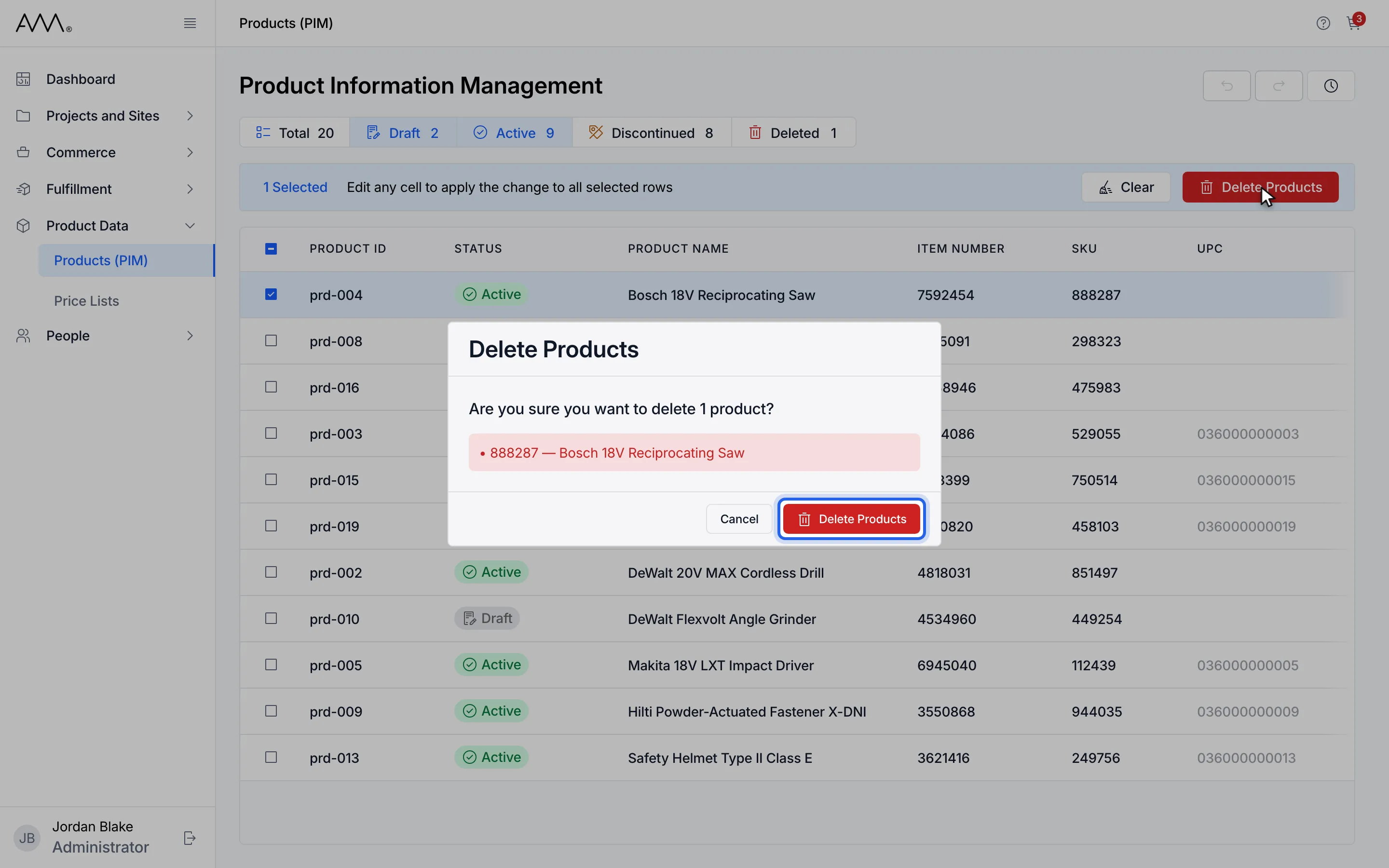
5Check the list of products, then click Delete Products.
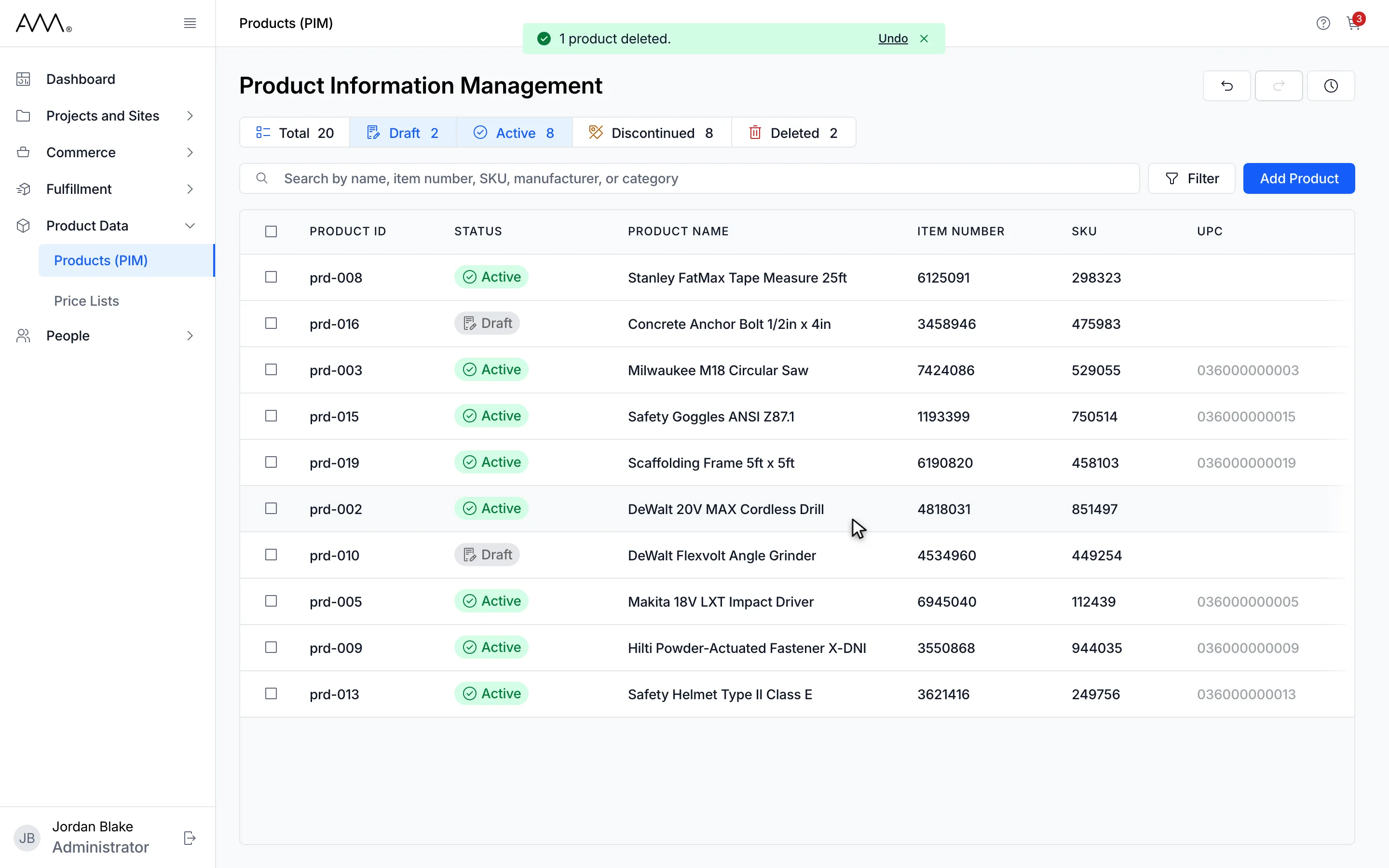
6A 1 product deleted. message with Undo appears and the row leaves the view.
Watch this as a video (delete products)
What happens next
Section titled “What happens next”- A message such as 1 product deleted. or 3 products deleted. appears with an Undo link. Undo returns each product to the status it had before.
- The products leave the default view and count under Deleted in the status chips. Click Deleted or Total to see them.
- A deleted product can still be edited. Changing its STATUS to another value brings it back.
- You can delete up to 100 products at once. With more selected, the banner reads Select up to 100 products to delete. and Delete Products is disabled.