The Dashboard
The Dashboard is the first item in the sidebar and the page you land on after signing in. It is a read-only summary: it shows where things stand and takes you to the lists and records that need you. Nothing is created on the Dashboard itself.
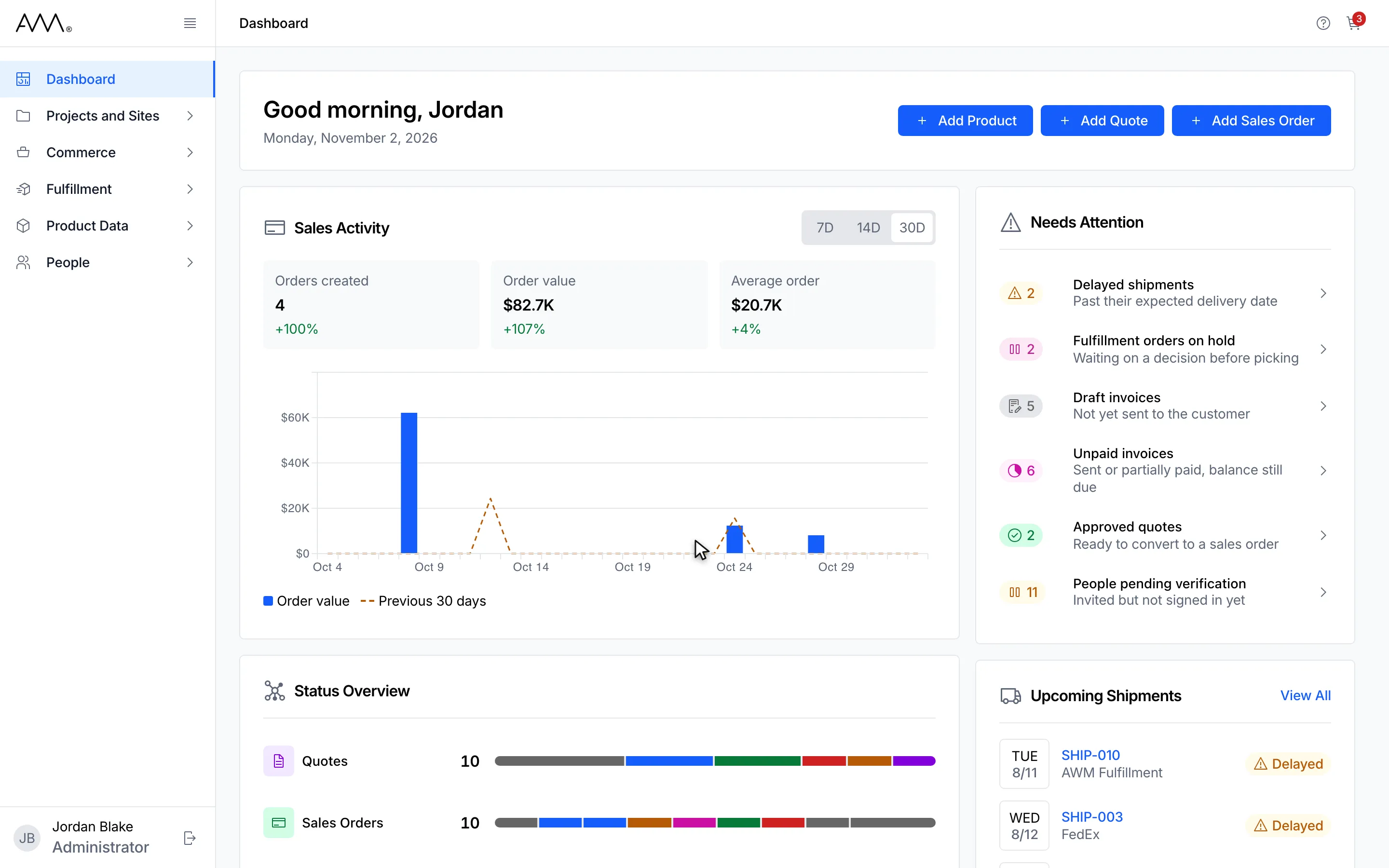
The page has a header card and four cards. Each card appears only if you may read what it shows, so your Dashboard may have fewer cards than the one pictured. On a narrow screen the cards stack in the order below.
Greeting and quick actions
Section titled “Greeting and quick actions”The heading greets you by your first name, and the greeting changes with the time of day. Under it is today’s date. To the right are three buttons with a + icon:
| Button | What it does | You need |
|---|---|---|
| Add Product | Opens Products (PIM) with a new product row ready to fill in. | Products PIM: Create and Products PIM: Read |
| Add Quote | Opens the Product Catalog. Add products to the cart there, then use Add to Quote. | Quotes: Create and Product Catalog: Read |
| Add Sales Order | Opens the Product Catalog. Add products to the cart there, then use Add to Sales Order. | Sales Orders: Create and Product Catalog: Read |
A button you lack a permission for is not shown. See Product Catalog and Cart for what happens after the catalog opens.
Sales Activity
Section titled “Sales Activity”This card needs the Sales Orders: Read permission. It summarises the sales orders created in a recent period, with today as the last day.
- 7D, 14D and 30D set the period to the last 7, 14 or 30 days. 30D is selected when the page opens; the choice is not kept after a reload.
- Three figures show Orders created, Order value and Average order for the period, each with its change against the previous period of the same length, for example +100%. The change is green when the figure is up or unchanged and red when it is down. No comparison means the previous period had no orders; a dash means the current period has none.
- The chart shows one bar per day for order value, and a dashed line for the previous period on the same days. Hover a day to see its Order value, Orders and Previous period. The legend reads Order value and, for example, Previous 30 days.
- Cancelled sales orders are left out.
- When nothing was created in the period the card reads No sales orders in this period.
Status Overview
Section titled “Status Overview”One row per record type you may read, in sidebar order: Quotes, Sales Orders, Invoices, Fulfillment Orders and Shipments. Each row shows the total number of records, a bar split by status in the status colours, and a legend. Hover the bar to see each status with its count; on a narrower screen the legend sits under the bar instead. On a wide screen each row also shows badges for its two largest statuses, for example 3 Draft. Click a row to open that list. The counts cover every record, not only the ones matching a search.
| Row | You need |
|---|---|
| Quotes | Quotes: Read |
| Sales Orders | Sales Orders: Read |
| Invoices | Invoices: Read |
| Fulfillment Orders | Picking Packing: Read |
| Shipments | Shipments: Read |
Needs Attention
Section titled “Needs Attention”Each row is a count of records in a status that usually needs someone to act. Click a row to open that list already filtered to the status. A row disappears while its count is zero, and when no row is left the card reads Nothing needs attention.
| Row | Hint shown under it | Opens | You need |
|---|---|---|---|
| Delayed shipments | Past their expected delivery date | Shipments filtered to Delayed | Shipments: Read |
| Fulfillment orders on hold | Waiting on a decision before picking | Fulfillment Orders filtered to On Hold | Picking Packing: Read |
| Draft invoices | Not yet sent to the customer | Invoices filtered to Draft | Invoices: Read |
| Unpaid invoices | Sent or partially paid, balance still due | Invoices filtered to Sent and Partially Paid | Invoices: Read |
| Approved quotes | Ready to convert to a sales order | Quotes filtered to Approved | Quotes: Read |
| People pending verification | Invited but not signed in yet | People filtered to Pending Verification | Users: Read |
Upcoming Shipments
Section titled “Upcoming Shipments”This card needs the Shipments: Read permission. It lists up to five shipments in Pending, In Transit or Delayed status whose expected delivery date is within the next seven days, earliest first. Shipments already past their expected date are included and come first. Each row shows the date, the shipment number (click it to open the shipment), the carrier and the status badge. View All opens the Shipments list. When nothing is due the card reads No upcoming shipments.
Take the tour
Section titled “Take the tour”1The Dashboard is the page you land on. It greets you by name and shows the date.
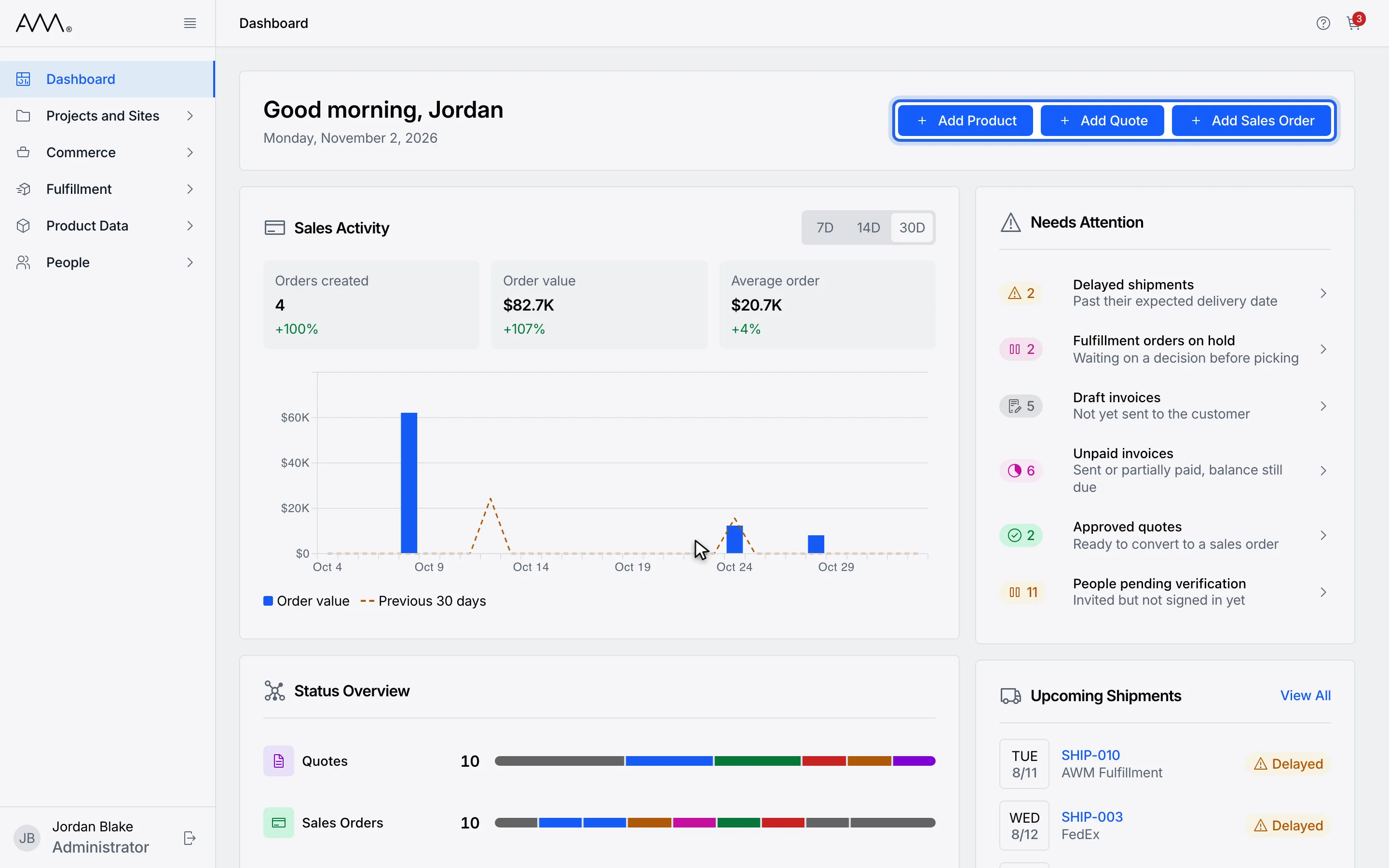
2Add Product, Add Quote and Add Sales Order start the most common tasks.
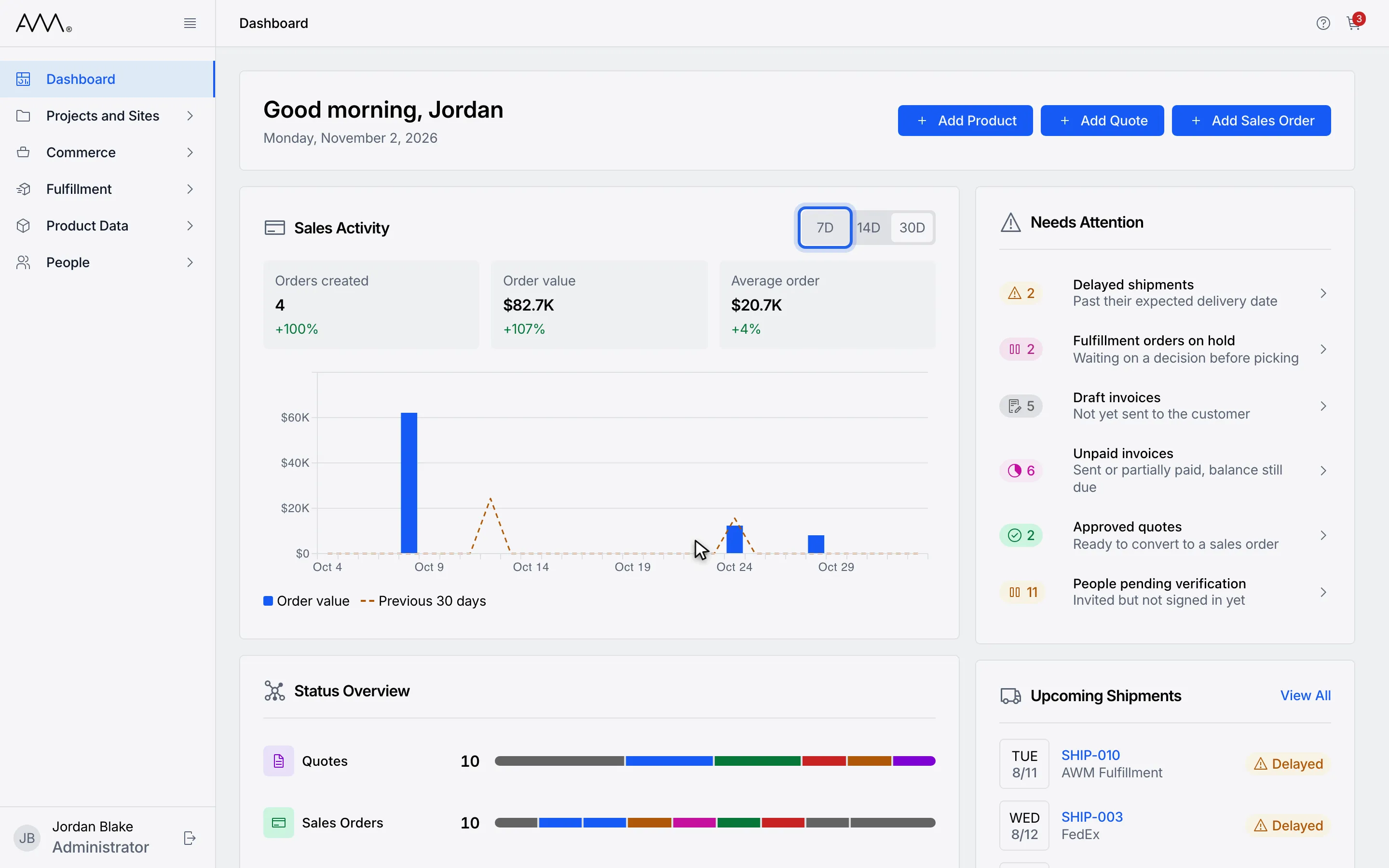
3In Sales Activity, click 7D, 14D or 30D to change the time range.
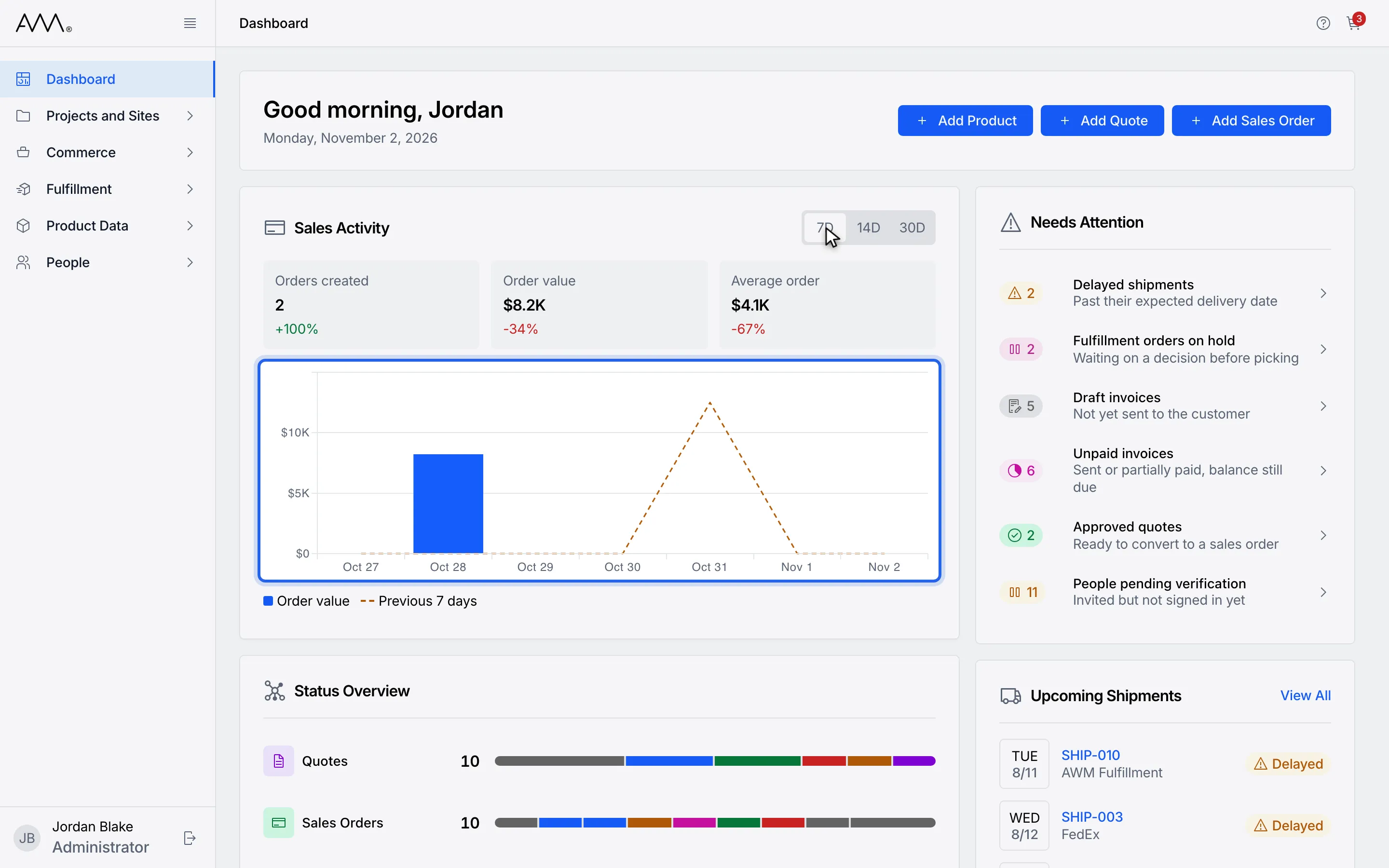
4Bars show order value per day. The dashed line is the previous period.
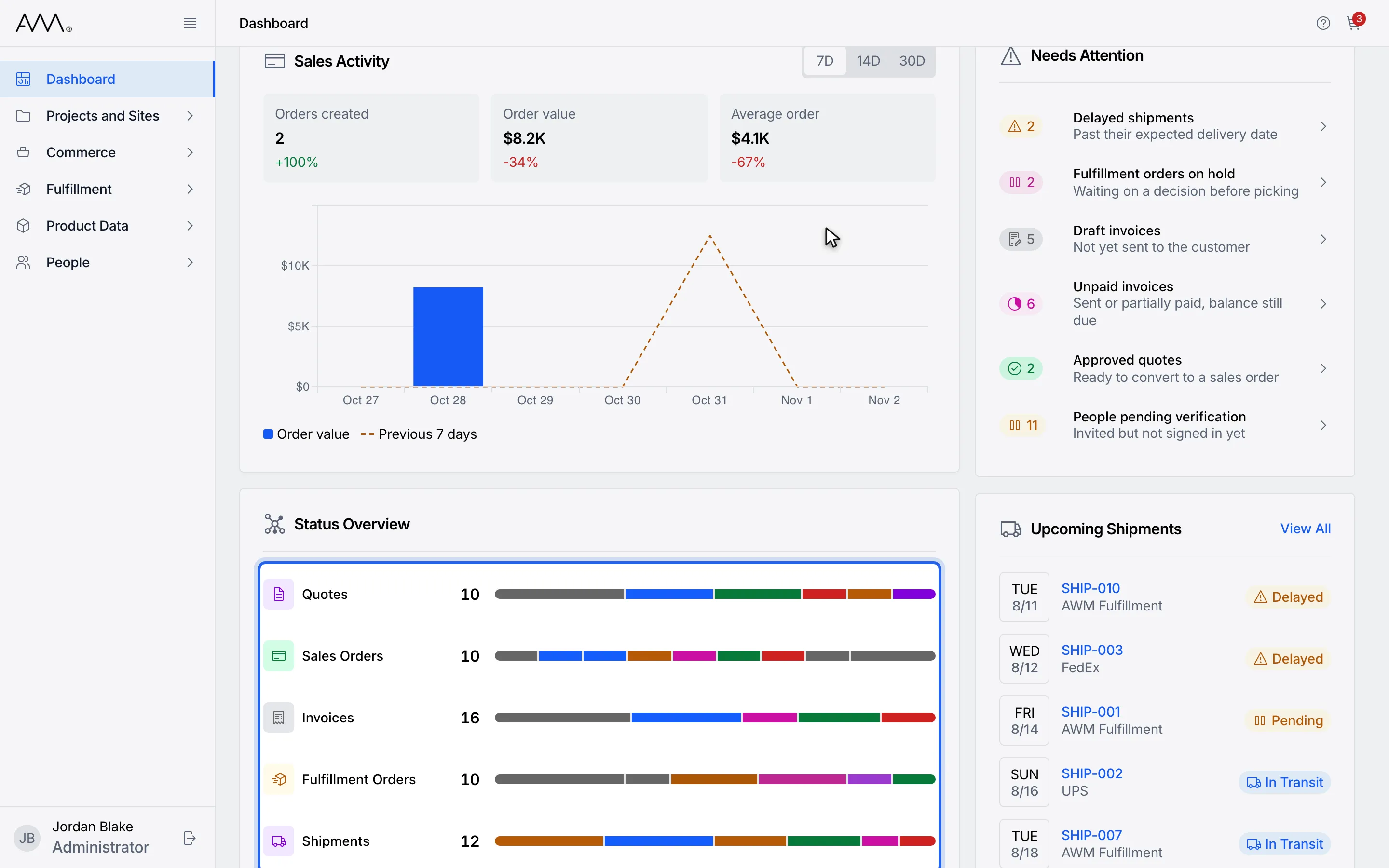
5Status Overview counts each record type by status. Click a row to open its list.
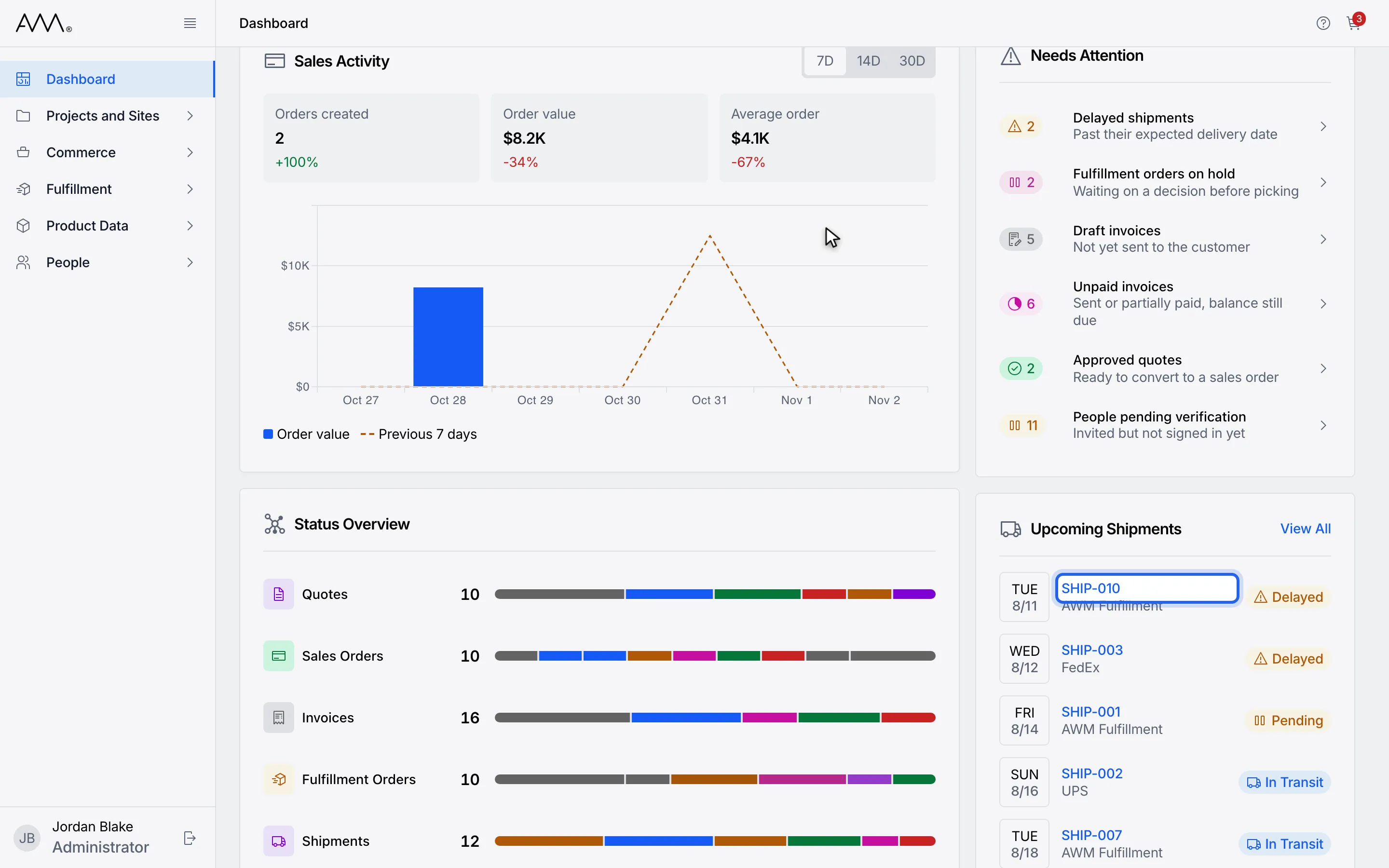
6Upcoming Shipments lists deliveries due soon. Click a number to open that shipment.
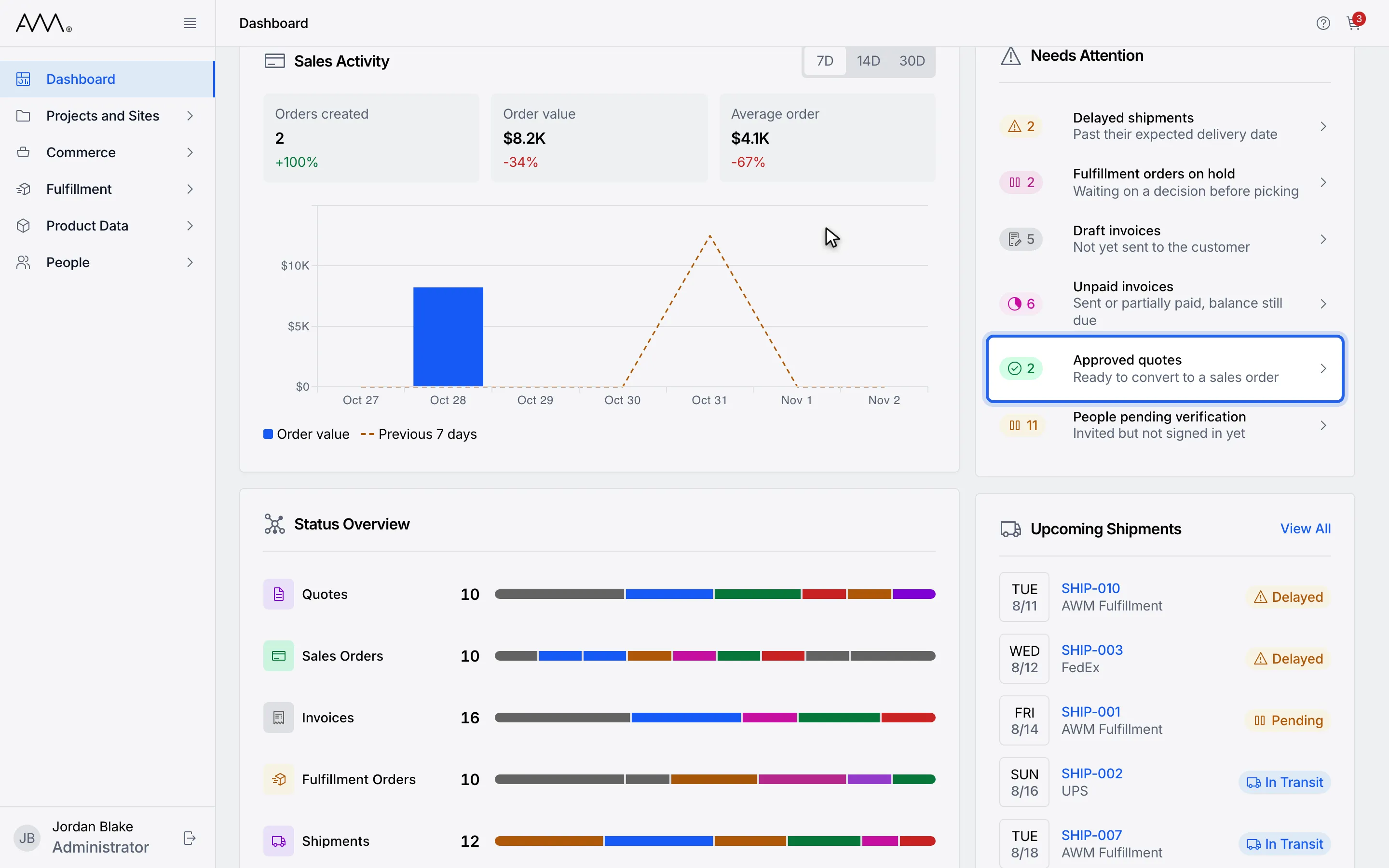
7Needs Attention lists what needs action. Click a row to open that list, filtered.
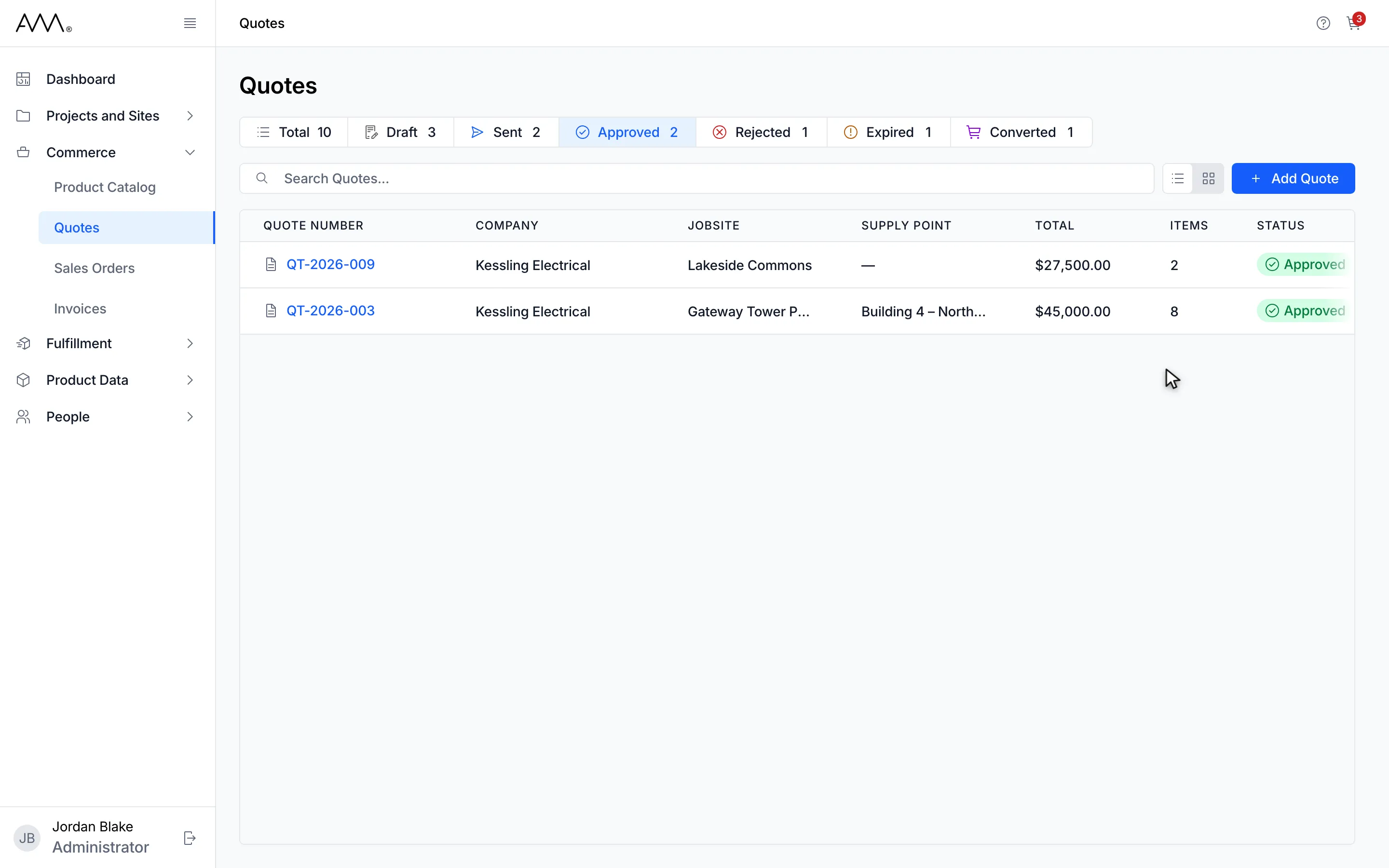
8The Quotes list opens already filtered to Approved.